

VSCodium gives you the full VS Code editing experience on Ubuntu without Microsoft’s telemetry or branding. It works well for local development, terminal scripting, and remote SSH sessions, and you can install VSCodium on Ubuntu three ways depending on how you want updates and sandboxing handled. After setup, VSCodium is ready to use with the Open VSX extension registry, and you can update or remove it through whichever package manager you chose.
Install VSCodium on Ubuntu
APT behaves like a normal .deb app and updates through APT. Snap and Flatpak are self-contained app formats with their own update mechanisms.
| Method | Channel | Version | Updates | Best For |
|---|---|---|---|---|
| APT Repository | Official upstream | Latest stable | Via APT upgrades | Most users, native system integration |
| Snap | Snap Store | Latest stable | Automatic background | Users wanting simple setup and automatic updates |
| Flatpak | Flathub | Latest stable | Via flatpak update | Users preferring Flatpak ecosystem consistency |
Recommended: use the APT repository for the most predictable desktop integration and to update VSCodium alongside your other packages. Use Flatpak if you prefer a sandboxed app with Flathub, or Snap if you want simple installation with automatic background updates.
Ubuntu does not include VSCodium in the default repositories, so the APT method adds the official VSCodium repository first. The package name for both APT and Snap is codium, not vscodium.
VSCodium uses Open VSX for extensions by default, so a small number of Marketplace-only or license-restricted extensions may not appear. If you need Microsoft’s official build and the default Marketplace experience, follow our Visual Studio Code installation guide for Ubuntu.
These instructions cover Ubuntu 26.04 LTS, 24.04 LTS, and 22.04 LTS. VSCodium’s repository uses the same
vscodiumsuite on each supported release, so the commands stay the same across these Ubuntu versions.
Method 1: Install VSCodium via APT Repository on Ubuntu
Update Ubuntu Package Lists Before Installing VSCodium
Refresh the APT package index:
sudo apt updateIf you do not have sudo configured, see our guide on adding a user to sudoers on Ubuntu.
If you also want to apply pending system upgrades, run sudo apt upgrade separately before continuing.
Install VSCodium Repository Dependencies
Install curl and GnuPG so Ubuntu can download and trust the VSCodium repository key. The -y flag auto-confirms the package prompt. If you want more curl examples, see our curl command guide:
sudo apt install curl gnupg -yImport the VSCodium APT Repository GPG Key
Download and store the GPG signing key so APT can verify that VSCodium packages are authentic and untampered:
curl -fsSL https://gitlab.com/paulcarroty/vscodium-deb-rpm-repo/raw/master/pub.gpg | sudo gpg --dearmor --yes -o /usr/share/keyrings/vscodium-archive-keyring.gpgAdd the VSCodium APT Repository
Add the VSCodium repository using the modern DEB822 .sources format. The command writes the file with sudo tee because shell redirection (>) does not inherit sudo privileges.
cat <<EOF | sudo tee /etc/apt/sources.list.d/vscodium.sources
Types: deb
URIs: https://download.vscodium.com/debs
Suites: vscodium
Components: main
Architectures: amd64 arm64
Signed-By: /usr/share/keyrings/vscodium-archive-keyring.gpg
EOF
Refresh APT and Verify the VSCodium Repository
Update your package listings to include the newly added VSCodium repository:
sudo apt updateThe update output should include the VSCodium repository line:
Hit:5 https://download.vscodium.com/debs vscodium InRelease
After the update completes, verify that the repository is active and that VSCodium is available:
apt-cache policy codiumThe expected output shows the package is available from the VSCodium repository:
codium:
  Installed: (none)
  Candidate: 1.109.51242
  Version table:
     1.109.51242 500
        500 https://download.vscodium.com/debs vscodium/main amd64 Packages
Install the VSCodium Package with APT
APT pulls the codium package from the VSCodium repository and registers it for future upgrades:
sudo apt install codium -yConfirm the package installed from the VSCodium repository:
codium --version1.109.51242 2a5b258b5b38d3d4c830bdaaa6e5c610eaacbd15 x64
Method 2: Install VSCodium via Snap on Ubuntu
Snap is pre-installed on standard Ubuntu desktop installs and refreshes packages automatically in the background. On minimal installs, containers, or WSL environments, you may need to install Snap first.
If
snapis unavailable, install it withsudo apt install snapd, then start a new login session before continuing.
Install VSCodium with the Snap Package
Snap handles refreshes automatically after installation, so you only need the install command:
sudo snap install codium --classicThe
--classicflag disables strict confinement and gives the Snap full system access. VSCodium typically needs this for terminal integration and development tooling, but if you prefer a more sandboxed install, use the Flatpak method instead.
Verify the VSCodium Snap Installation
Confirm the Snap installed correctly and is tracking the stable channel:
snap list codiumName Version Rev Tracking Publisher Notes codium 1.105.17075 495 latest/stable vscodium classic
Method 3: Install VSCodium via Flatpak on Ubuntu
Flatpak keeps VSCodium sandboxed and separate from system libraries, which some users prefer for desktop apps. This method requires the Flatpak package manager and Flathub repository setup.
Flatpak is not pre-installed on Ubuntu. If you have not set it up yet, install it with
sudo apt install flatpakand restart your session before continuing. For detailed setup including the Flathub repository, follow our Flatpak installation guide for Ubuntu.
Enable the Flathub Repository for VSCodium
Add the Flathub repository so Flatpak can find the VSCodium package:
sudo flatpak remote-add --if-not-exists flathub https://flathub.org/repo/flathub.flatpakrepoThe --if-not-exists flag skips the add operation if Flathub is already configured on your system.
Check that the Flathub remote is available at system scope before installing the app:
flatpak remotesflathub system
Install VSCodium with the Flatpak App ID
Use the VSCodium Flatpak app ID for a system-wide install so the app scope matches the system Flathub remote:
sudo flatpak install flathub com.vscodium.codium -yVerify the VSCodium Flatpak Installation
Check the Flatpak app ID, version, and installation scope:
flatpak info com.vscodium.codiumVSCodium - Telemetry-less code editing
ID: com.vscodium.codium
Ref: app/com.vscodium.codium/x86_64/stable
Arch: x86_64
Branch: stable
Version: 1.107.18627
Origin: flathub
Installation: system
Launch VSCodium on Ubuntu
Launch VSCodium from the Terminal on Ubuntu
For APT installation:
codiumFor Snap installation:
snap run codiumFor Flatpak installation:
flatpak run com.vscodium.codiumLaunch VSCodium from the Ubuntu Applications Menu
- Click Activities in the top-left corner
- Click Show Applications (grid icon at the bottom of the dock)
- Find and click VSCodium
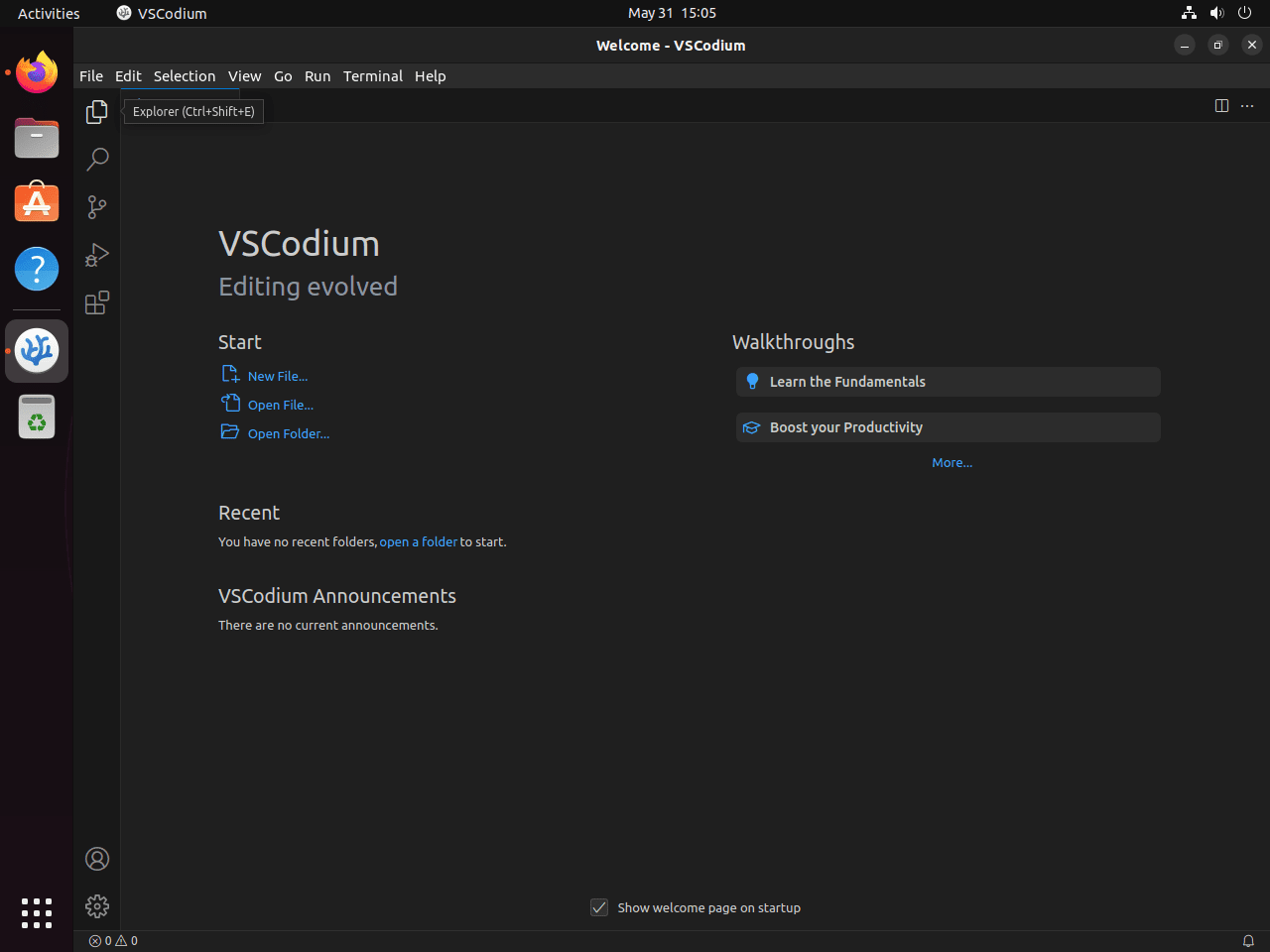
Troubleshoot VSCodium on Ubuntu
Fix VSCodium credentials.cc Sandbox Crash on Ubuntu 24.04 and 26.04
If the VSCodium .deb package crashes at launch with a Chromium/Electron sandbox error mentioning credentials.cc and “Permission denied (13),” Ubuntu 24.04 and newer usually block unprivileged user namespaces until an AppArmor profile explicitly allows userns.
FATAL:sandbox/linux/services/credentials.cc:131] Check failed: . : Permission denied (13)
Trace/breakpoint trap (core dumped)
This happens because Ubuntu 24.04 and 26.04 enable AppArmor’s unprivileged user namespace restriction by default, and the VSCodium .deb package currently does not ship an AppArmor profile for the codium binary. Ubuntu 22.04 typically reports kernel.apparmor_restrict_unprivileged_userns = 0 and is usually not affected. If you want more background on this Ubuntu behavior, see our AppArmor guide for Ubuntu.
Check whether the restriction is enabled on your system:
sysctl kernel.apparmor_restrict_unprivileged_usernskernel.apparmor_restrict_unprivileged_userns = 1
Confirm the VSCodium APT package does not already include an AppArmor profile. The command filters the package file list with grep; for more output-filtering examples, see our grep command guide:
dpkg -L codium | grep -i apparmor || echo "No AppArmor files found in codium package"No AppArmor files found in codium package
Create a minimal AppArmor profile for the VSCodium binary, then reload it:
sudo tee /etc/apparmor.d/codium > /dev/null << 'EOF'
abi <abi/4.0>,
include <tunables/global>

profile codium /usr/share/codium/codium flags=(unconfined) {
  userns,

  include if exists <local/codium>
}
EOF
sudo apparmor_parser -r /etc/apparmor.d/codium
This profile leaves VSCodium otherwise unconfined but adds the required userns, permission so the Chromium sandbox can start. Snap and Flatpak installs already use their own sandboxing and AppArmor integration, so this fix is specific to the APT .deb package path.
Verify the custom AppArmor profile is loaded:
sudo aa-status | grep codiumcodium
Launch VSCodium again with codium. If it now opens normally, the AppArmor namespace restriction was the cause.
Install VSCodium Extensions on Ubuntu
Open the Extensions view in VSCodium with Ctrl+Shift+X, then search and install what you need. VSCodium uses the Open VSX registry by default instead of Microsoft’s Visual Studio Marketplace, so most popular extensions (Python, GitLens, Prettier, Docker, ESLint) are available.
Some Marketplace-only or license-restricted extensions (such as Microsoft’s official C# extension or Remote SSH) may not appear in Open VSX. If you rely on one of these, refer to the VSCodium documentation on extensions and marketplaces for workarounds. Extension updates are handled inside the editor, while application updates come from APT, Snap, or Flatpak depending on how you installed VSCodium.
VSCodium Compatibility with Ubuntu Derivatives
These steps usually work on Ubuntu-based distributions (Linux Mint, Pop!_OS, Zorin OS) because they share the same APT tooling and often the same Snap and Flatpak stacks. If you are not on Ubuntu, use a distribution-specific guide to avoid repository and dependency mismatches. For other distributions, see our guides to install VSCodium on Linux Mint, install VSCodium on Debian, or install VSCodium on Fedora.
Manage VSCodium on Ubuntu
Update VSCodium on Ubuntu
Update VSCodium with the same package manager you used to install it:
For APT installations:
sudo apt update && sudo apt install --only-upgrade codium -yFor Snap installations:
sudo snap refresh codiumFor Flatpak installations:
sudo flatpak updateRemove VSCodium from Ubuntu
Each installation method leaves different packages and data behind, so remove VSCodium with the same package manager you used to install it.
For APT removal:
sudo apt remove codiumClean up orphaned dependencies that were automatically installed with the package:
sudo apt autoremoveRemove the repository configuration and GPG key:
sudo rm -f /etc/apt/sources.list.d/vscodium.sources /etc/apt/sources.list.d/vscodium.list
sudo rm -f /usr/share/keyrings/vscodium-archive-keyring.gpg
Refresh the package cache and verify the repository is removed:
sudo apt update
apt-cache policy codium
The expected output shows the repository entry is gone. Because sudo apt remove codium leaves package config files behind, apt-cache policy still shows a local /var/lib/dpkg/status entry until you purge the package:
codium:
  Installed: (none)
  Candidate: (none)
  Version table:
     1.109.51242 -1
        100 /var/lib/dpkg/status
Snap removal:
sudo snap remove codiumFlatpak removal:
sudo flatpak uninstall com.vscodium.codiumRemove VSCodium User Configuration Files
The following commands permanently delete your VSCodium settings, extensions, and cached data. The
-rfflags remove directories recursively without a confirmation prompt, so export any important configurations or snippets before proceeding.
VSCodium stores user data in your home directory across several locations. To complete the uninstall, remove these directories:
rm -rf ~/.config/VSCodium
rm -rf ~/.cache/VSCodium
rm -rf ~/.vscode-oss
For Flatpak installations, remove the sandboxed data directory:
rm -rf ~/.var/app/com.vscodium.codiumTo confirm the removal, verify that the codium command no longer exists. This checks your PATH using which, see our which command guide if you want more examples:
which codiumIf there is no output, this confirms the application has been completely removed from your system.
Official VSCodium Documentation and Resources
For additional configuration options, troubleshooting, and community resources:
- VSCodium Official Website – Download links, project overview, and keyboard shortcuts
- VSCodium GitHub Repository – Source code, issue tracker, and release notes
- VSCodium GitHub Releases – Release downloads, tags, and upstream changelog comparisons
- VSCodium Extensions and Marketplace Notes – Open VSX defaults, marketplace behavior, and extension source configuration
Frequently Asked Questions about VSCodium on Ubuntu
The package name is codium for both APT and Snap on Ubuntu. VSCodium is the project name, but the install commands use codium (for example, sudo apt install codium or sudo snap install codium --classic). The Flatpak app ID is com.vscodium.codium.
APT is the best default for most Ubuntu users because it integrates cleanly with the desktop and updates through APT. Snap is the simplest option if you want automatic background updates, while Flatpak is a strong choice if you prefer Flathub and a sandboxed app workflow.
Ubuntu 24.04 and 26.04 restrict unprivileged user namespaces through AppArmor by default, and the VSCodium .deb package does not currently include an AppArmor profile for the codium binary. Create /etc/apparmor.d/codium with a profile for /usr/share/codium/codium that includes the userns rule, then reload it with sudo apparmor_parser -r /etc/apparmor.d/codium. Ubuntu 22.04 is usually not affected.
No. VSCodium does not use a Launchpad PPA. The recommended APT method uses the official VSCodium repository at download.vscodium.com/debs, which serves the same vscodium suite across supported Ubuntu LTS releases (26.04, 24.04, and 22.04).
The terminal command depends on your install method. For the APT .deb package, run codium. For Snap, run snap run codium. For Flatpak, run flatpak run com.vscodium.codium. You can also open a specific directory with codium /path/to/project.
The --classic flag disables Snap’s strict sandboxing so VSCodium can access your filesystem, terminal tools, and SSH keys. Without it, the Snap cannot reach project files or development toolchains outside its sandbox. If you prefer a sandboxed install, use the Flatpak method instead.
Yes. The VSCodium GitHub repository includes build scripts and instructions. Building from source requires Node.js, Yarn, and the VS Code build dependencies. For most users, the APT repository or Snap package is simpler and receives the same stable releases.
Conclusion
VSCodium is running on Ubuntu through APT, Snap, or Flatpak, with APT giving most users the cleanest desktop integration and update workflow. The AppArmor profile fix also resolves the common credentials.cc crash on Ubuntu 24.04 and 26.04 for the .deb package. If you need Microsoft’s Marketplace defaults, use our guide to install Visual Studio Code on Ubuntu, and keep the VSCodium extensions and marketplace notes handy for extension source configuration.

Vscodium running on my Ubuntu system says it’s version 1.105.17075. According to vscodium’s github page, the current snap release is 1.106.27818. But when I do ‘sudo snap refresh codium’, it says ‘snap “codium” has no updates available.” Why?
Thanks for reporting this, Mike. The version mismatch happens because VSCodium 1.106.27818 was released just yesterday (November 22) and hasn’t been published to the Snap Store yet. Your current version 1.105.17075 was released October 22, and the Snap Store still shows it as the latest stable release.
Snap releases typically lag behind the upstream GitHub releases by a few days while the VSCodium team builds and publishes the snap packages. Your system is correctly showing the current snap version.
Check back in a few days and run the refresh command again, or monitor the VSCodium GitHub releases page to see when the snap artifacts are published. Once the 1.106.27818 snap appears in the Snap Store, the update will show up automatically.
If you want faster access to new releases, consider switching from Snap to the native APT repository method covered in the article. The APT packages typically appear within hours of upstream releases, while snaps can take several days. You would remove the snap with
sudo snap remove codiumand then follow the repository installation steps in the guide.Thanks!
I first tried to install codium using apt (my preferred method, seems more transparent), but ran into this:
`
No apt package “codium”, but there is a snap with that name.
Try “snap install codium”
`
This was on xubuntu 24.04. But it looks like your website (unlike the one I was using then) explains how to add the repository–I’ll try that now.
Update: I tried the apt method as described on this page, and it worked like…a snap! Thank you for explaining how to do it. (Opinion: I’m not sure why it has to be so hard in Linux–why I have to go through those steps to import the key and add the repository, in order to let Ubuntu know where to find the install package.)
Thanks for the update, Mike. That message appears because VSCodium isn’t in Ubuntu’s default repositories. Once you add the repository and GPG key following the guide’s instructions, you can verify the setup is working correctly.
After adding the repository, confirm it’s recognized with:
This shows available versions and which repository provides them. Then install with
sudo apt install codiumand you should pull version 1.106.27818 immediately, since the .deb packages are already published on the GitHub releases page.