
GIMP (GNU Image Manipulation Program) is an open-source image editor that handles photo restoration, web graphic creation, thumbnail design, and complex multi-layer compositions. Whether you need to remove backgrounds from product photos, design YouTube thumbnails with custom text overlays, or restore old family photographs with spot healing and color correction, GIMP provides the layers, masks, filters, and selection tools to accomplish it. By the end of this guide, you will have a working GIMP installation verified through version checks, understand when to choose the distribution package versus the Flatpak build, and know how to launch the application from both the terminal and the desktop menu.
Fedora offers two installation paths: the official repository provides stable system integration with automatic updates through DNF, while the Flatpak option from Flathub delivers a sandboxed environment that sometimes ships newer releases slightly ahead of the distribution package. This guide covers both approaches with verification steps so you can select the method that matches your update preferences and system architecture.
Choose Your GIMP Installation Method
Both methods install the same application, but they differ in update frequency, system integration, and storage location. The table below summarizes the key differences:
| Method | Channel | Stability | Updates | Best For |
|---|---|---|---|---|
| Fedora Repository | Fedora Repos | Distribution default | Automatic via DNF upgrade | Most users who prefer system-integrated packages |
| Flatpak (Flathub) | Flathub stable | Latest stable | Automatic via flatpak update | Users who want sandboxing or slightly newer versions |
For most users, we recommend the Fedora repository method because it provides seamless integration with system updates and requires no additional setup. Choose Flatpak if you prefer application sandboxing, need to run multiple GIMP versions side-by-side, or want to receive updates independently of the Fedora release cycle.
Install GIMP from Fedora Repository
Update System Packages
First, update your Fedora system’s packages to mitigate compatibility issues during the GIMP installation:
sudo dnf upgrade --refreshThis command refreshes the repository metadata and upgrades any outdated packages. You should see output similar to:
Fedora 43 - x86_64                           100% [=================]
Fedora 43 - x86_64 - Updates                 100% [=================]
Dependencies resolved.
Nothing to do.
Complete!
Install GIMP Package
Fedora’s default repositories offer a stable and secure option for installing GIMP. The version is typically current, though Flathub may receive micro-releases slightly earlier.
Install GIMP by running:
sudo dnf install gimpThe installation completes successfully when you see:
Installed:
  gimp-2:3.0.6-5.fc43.x86_64
Complete!
If you plan to develop GIMP plugins, write Python 3 or Script-Fu extensions, or compile third-party add-ons, install the development headers:
sudo dnf install gimp-develMost users do not need this package for standard photo editing tasks.
Verify GIMP Installation
After installation, verify that GIMP installed correctly by checking the version:
gimp --versionYou should see output showing the installed version:
GNU Image Manipulation Program version 3.0.6
For additional DNF package management examples, see DNF install examples on Fedora. To speed up repository downloads, consider increasing DNF speed on Fedora.
Version numbers change with repository updates. Any current stable release confirms successful installation.
Install GIMP via Flatpak (Flathub)
Flatpak provides a sandboxed installation that isolates GIMP from the rest of your system. This approach may deliver newer versions slightly ahead of the Fedora repositories, and allows you to run multiple GIMP versions simultaneously if needed. Fedora Workstation includes Flatpak by default, so most users can skip directly to adding the Flathub repository.
Confirm Flatpak Installation
Verify that Flatpak is available on your system. Fedora Workstation includes Flatpak by default. On minimal or server installations, install it first:
sudo dnf install flatpakThis command installs Flatpak if missing, or confirms it is already present on your system.
Add Flathub Repository
Add Flathub as a source for Flatpak applications (if not already added):
sudo flatpak remote-add --if-not-exists flathub https://dl.flathub.org/repo/flathub.flatpakrepoThe --if-not-exists flag prevents errors if you already configured Flathub. Next, confirm the remote is enabled:
flatpak remotesName Options flathub system
The system option indicates this is a system-wide remote, meaning GIMP will be available to all users on the machine.
Install GIMP via Flatpak Command
With Flathub configured, install GIMP using the Flatpak command:
sudo flatpak install flathub org.gimp.GIMP -yThe -y flag automatically confirms the installation prompts. Flatpak downloads the application along with any required runtime dependencies, which may take several minutes on the first installation.
Verify GIMP Flatpak Installation
After installation, verify the Flatpak build by checking the version:
flatpak run org.gimp.GIMP --versionGNU Image Manipulation Program version 3.0.6
Version numbers vary with Flathub updates. Any current stable 3.x release confirms a successful installation.
Troubleshooting Flatpak Installation Errors
If the Flatpak installation fails, you may see an error like:
error: Unable to load summary from remote flathub: Can't fetch summary from disabled remote 'flathub'
This indicates the Flathub remote is disabled. Enable it with:
flatpak remote-modify --enable flathubVerify the remote is now enabled:
flatpak remotesName Options flathub system
Once enabled, retry the GIMP installation command.
Launch GIMP User Interface
After installing GIMP, you can launch the application from either the terminal or the desktop application menu. Both the DNF and Flatpak installations create desktop entries, so the application menu method works regardless of which method you chose.
Launch GIMP from Terminal
For the DNF-installed version, open a terminal and run:
gimpThe Flatpak version requires the full application ID because Flatpak sandboxes the binary separately from your system:
flatpak run org.gimp.GIMPLaunching from the terminal is useful when you want to see any startup messages or errors, or when you prefer keyboard-driven workflows.
Launch GIMP from Applications Menu
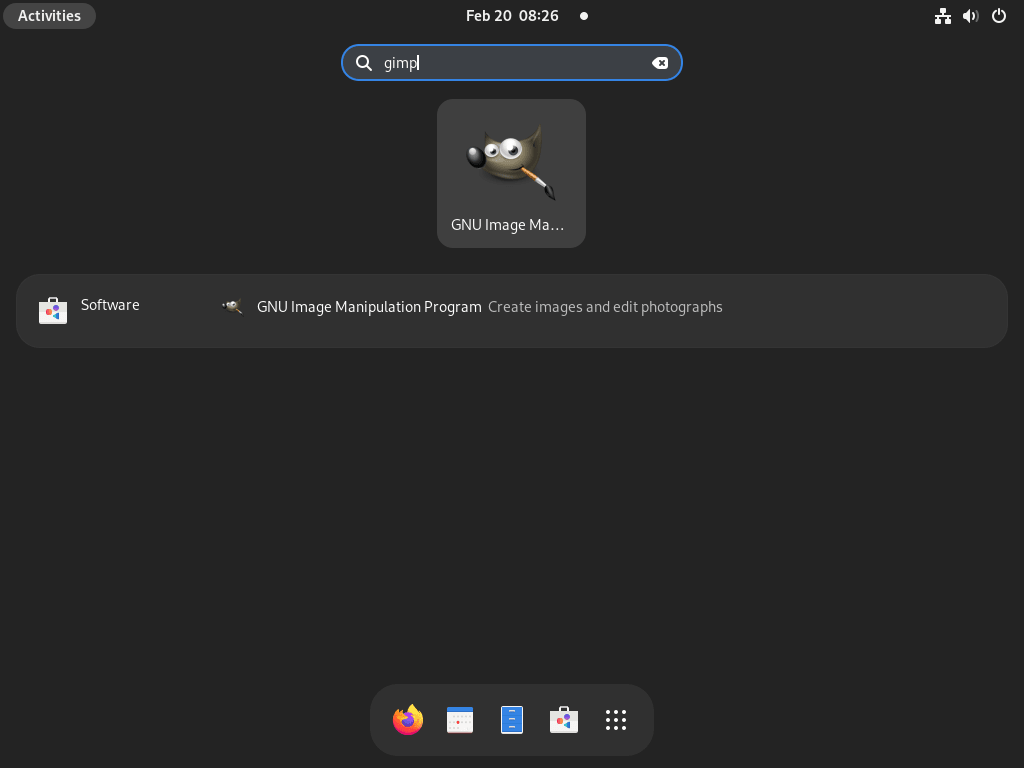
To launch GIMP from the GNOME desktop without opening a terminal, navigate through the application menu:
Activities > Show Applications > GNU Image Manipulation Program
You can also search for “GIMP” directly in Activities to find and launch the application quickly.
Remove GIMP (Optional)
If you no longer require GIMP on your Fedora system, the removal process depends on how you originally installed the application. Choose the appropriate method below.
Remove DNF-Installed GIMP
For GIMP installed via the Fedora repository, remove it with DNF:
sudo dnf remove gimpDNF automatically removes any unused dependencies that the GIMP installation added. To also remove your personal configuration and cache files, delete the local GIMP directories:
These directories contain all your GIMP 3.0 preferences, custom brushes, patterns, tool presets, keyboard shortcuts, and cached thumbnails. Removing them is permanent and cannot be undone. Export any custom assets you want to keep before proceeding.
rm -rf ~/.config/GIMP/3.0 ~/.cache/gimpRemove Flatpak-Installed GIMP
For GIMP installed via Flatpak, remove it with the following command:
The
--delete-dataflag removes the application along with all user data, including custom brushes, saved settings, tool presets, and export history. Back up any important customizations from~/.var/app/org.gimp.GIMP/before proceeding.
sudo flatpak remove --delete-data org.gimp.GIMP -yAfter removal, run flatpak uninstall --unused to remove any runtime dependencies that are no longer needed by other Flatpak applications.
Conclusion
You now have GIMP installed and verified on your Fedora system, ready for photo editing, graphic design, and digital art creation. Whether you chose the DNF package for stable system integration or the Flatpak build for sandboxed isolation, you can launch the editor from the terminal or desktop menu and start working with layers, masks, filters, and color correction tools. To expand GIMP’s format support for HEIF images and RAW camera files, consider enabling RPM Fusion on Fedora for additional codec libraries. For hands-off package maintenance, set up DNF Automatic on Fedora to keep GIMP and your other packages current without manual intervention.

Formatting tips for your comment
You can use basic HTML to format your comment. Useful tags currently allowed:
<code>command</code>command<strong>bold</strong><em>italic</em><blockquote>quote</blockquote>