
Keeping notes in plain Markdown is easier when the app is not tied to one sync service or one device. If you need to install Joplin on Ubuntu 26.04, 24.04, or 22.04, the main choice is whether you want the upstream AppImage script, APT-managed updates, or a store-managed build from Snap or Flatpak.
Ubuntu does not include Joplin in its default repositories, so the practical Linux paths come from upstream or community packaging instead. The official script is the main Linux path, while the community APT repo, Snap, and Flatpak cover readers who want package-managed alternatives.
Install Joplin on Ubuntu
Each method installs the same desktop note-taking app, but updates and system integration differ.
| Method | Source | Channel | Updates | Best Fit |
|---|---|---|---|---|
| Official AppImage script | Joplin install docs | Latest stable | Re-run official script | Readers who want the upstream Linux method |
| Community APT repo | SourceForge DEB repo | packages suite | Automatic via APT | Readers who want APT-managed updates |
| Snap | Snapcraft | latest/stable | Automatic | Readers already using Snap on Ubuntu |
| Flatpak | Flathub | stable | flatpak update | Readers who prefer Flathub packaging |
If you searched for a Joplin Linux download, Joplin’s official Linux desktop path is the AppImage installer script. Current GitHub releases also publish amd64 AppImage and .deb assets, but the script and package-managed methods in this section are easier to maintain than repeatedly downloading one-off files.
For most Ubuntu systems, use the official script. Joplin documents it as the recommended Linux method, and it creates the desktop launcher for you. On Ubuntu 26.04 and 24.04, it also adds the --no-sandbox flag the raw AppImage needs. Choose the community APT repo when APT-managed updates matter more than following Joplin’s default Linux path.
The Ubuntu 26.04, 24.04, and 22.04 flows use the same four install choices. The community APT repo currently provides Joplin 3.5.13 on all three releases. The AppImage method needs
libfuse2t64on Ubuntu 26.04 and 24.04, andlibfuse2on Ubuntu 22.04.
These methods install Joplin Desktop, not the separate terminal client or Joplin Server. If you need the joplin command-line note app, use Joplin’s terminal application instructions instead of expecting the desktop package, Snap, or Flatpak to provide the terminal command set.
Install Joplin on Ubuntu with the official script
The official script downloads the current AppImage into ~/.joplin, installs the icon, and creates a launcher in ~/.local/share/applications. This is the closest match to Joplin’s own Linux guidance.
sudo apt updateThese package commands use
sudo. If your account does not have sudo access yet, follow the guide to add a new user to sudoers on Ubuntu before you continue.
Install the FUSE 2 package that matches your Ubuntu release, and include wget in the same step so the upstream command works on minimal images.
These FUSE packages come from Ubuntu’s Universe component. If APT cannot locate the package on a minimal or customized system, enable the Universe repository on Ubuntu, then retry the install command.
Ubuntu 26.04 and 24.04:
sudo apt install libfuse2t64 wget -yUbuntu 22.04:
sudo apt install libfuse2 wget -yUbuntu renamed the package from
libfuse2tolibfuse2t64starting in 24.04. Joplin’s script still checks for thelibfuse.so.2library, so the newer package name is expected on Ubuntu 24.04 and 26.04.
Run the installer as your regular user, not with sudo. The script refuses root unless you deliberately override it, and a normal desktop install does not need that.
wget -O - https://raw.githubusercontent.com/laurent22/joplin/dev/Joplin_install_and_update.sh | bashConfirm the AppImage is executable and print the installed version:
test -x ~/.joplin/Joplin.AppImage && echo "Joplin AppImage is executable"
cat ~/.joplin/VERSION
Joplin AppImage is executable 3.5.13
A newer version number is normal when Joplin has released a later stable build.
The script also writes ~/.local/share/applications/appimagekit-joplin.desktop. On Ubuntu 26.04 and 24.04, that launcher includes the --no-sandbox flag; on Ubuntu 22.04, the generated launcher normally does not need it.
Install Joplin on Ubuntu from the community APT repo
This path adds the community Joplin DEB repo directly with a DEB822 .sources file, which keeps the key and source path explicit on Ubuntu. Joplin’s GitHub releases also publish a direct .deb file, but that is a one-off local package rather than an APT source, so this repo method is the cleaner option when you want APT-managed updates.
If you added Joplin through Extrepo before, remove
/etc/apt/sources.list.d/extrepo_joplin.sourcesfirst. The old Extrepo file and the manual DEB822 file point to the same repo with differentSigned-Bypaths, which can breakapt update.
sudo apt update
sudo apt install curl gpg -y
Download the repo signing key into Ubuntu’s system keyring directory:
curl -fsSL https://gitlab.com/LFd3v/joplin-desktop-linux-package/-/raw/master/pub.gpg | sudo gpg --dearmor --yes -o /usr/share/keyrings/joplin-desktop-linux-package.gpgThis keeps the Joplin repo key separate from your personal GnuPG keyring and follows Ubuntu’s normal repository pattern.
Create the DEB822 source file for the repo:
sudo tee /etc/apt/sources.list.d/joplin-desktop-linux-package.sources >/dev/null <<'EOF'
Types: deb
URIs: https://sourceforge.net/projects/joplin-desktop-linux-package/files/deb-repo
Suites: packages
Components: main
Architectures: amd64
Signed-By: /usr/share/keyrings/joplin-desktop-linux-package.gpg
EOF
The sudo tee command writes the file as root. A plain > redirection would still run as your normal user and fail on a system-owned path like /etc/apt/sources.list.d/.
Refresh package metadata so Ubuntu reads the new source:
sudo apt updateInstall Joplin from the newly added repo:
sudo apt install joplin -yThe package installs under /opt/Joplin and exposes the launcher as /usr/bin/joplin.
Verify that Ubuntu is pulling Joplin from the community repo and not from the default archives:
apt-cache policy joplinjoplin:
Installed: 3.5.13
Candidate: 3.5.13
Version table:
*** 3.5.13 500
500 https://sourceforge.net/projects/joplin-desktop-linux-package/files/deb-repo packages/main amd64 Packages
100 /var/lib/dpkg/status
Install Joplin on Ubuntu with Snap
The Snap build is maintained on Snapcraft by James Carroll, so treat it as a community package rather than Joplin’s default Linux path. It fits best on Ubuntu desktops where Snap is already part of your workflow.
Ubuntu desktop already includes snapd. On minimal or server images, install it first:
sudo apt install snapd -yInstall the current stable Snap package:
sudo snap install joplin-desktopConfirm that Snap installed the package and channel you expect:
snap list joplin-desktopName Version Rev Tracking Publisher Notes joplin-desktop v3.5.13 136 latest/stable james-carroll* -
Install Joplin on Ubuntu with Flatpak
The Flathub build is another community path for readers who already use Flatpak and want Joplin managed through Flathub. The current Flathub package allows home-directory access, so treat it as a packaging and update choice rather than a strict isolation upgrade over the upstream AppImage.
If Flatpak is new on this system, follow the guide to install Flatpak on Ubuntu for the full setup flow, including desktop integration.
sudo apt install flatpak -y
sudo flatpak remote-add --if-not-exists flathub https://dl.flathub.org/repo/flathub.flatpakrepo
The --if-not-exists flag keeps the remote-add command safe to repeat if Flathub is already configured.
sudo flatpak install flathub net.cozic.joplin_desktop -yCheck the installed Flatpak metadata after the download finishes:
flatpak info net.cozic.joplin_desktop | grep -E '^[[:space:]]*(ID|Ref|Arch|Branch|Version|Origin|Installation):' ID: net.cozic.joplin_desktop
Ref: app/net.cozic.joplin_desktop/x86_64/stable
Arch: x86_64
Branch: stable
Version: 3.5.13
Origin: flathub
Installation: system
Launch Joplin on Ubuntu
Every method creates a desktop launcher, but the terminal command depends on how you installed Joplin.
Launch Joplin from Ubuntu’s app menu
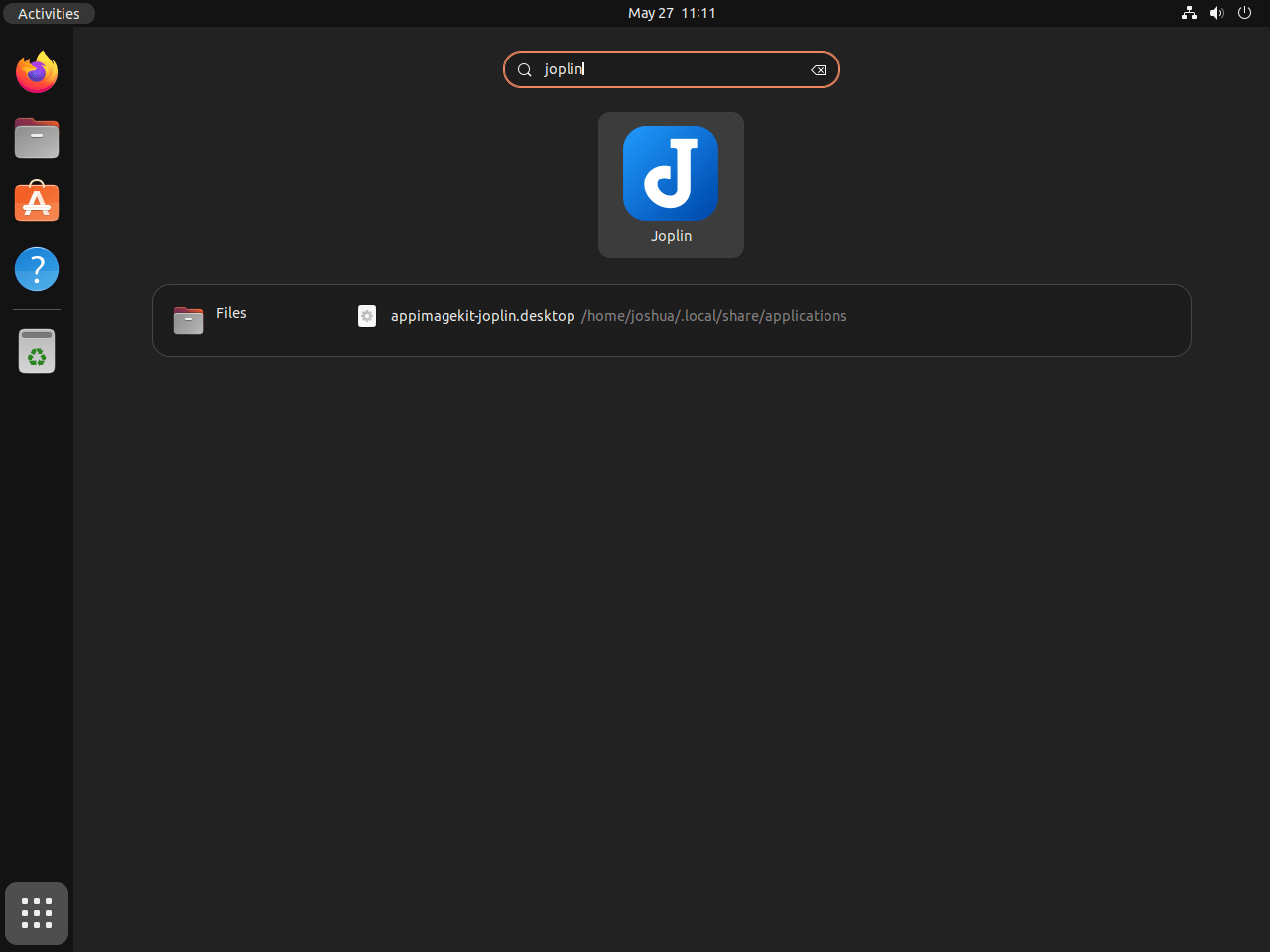
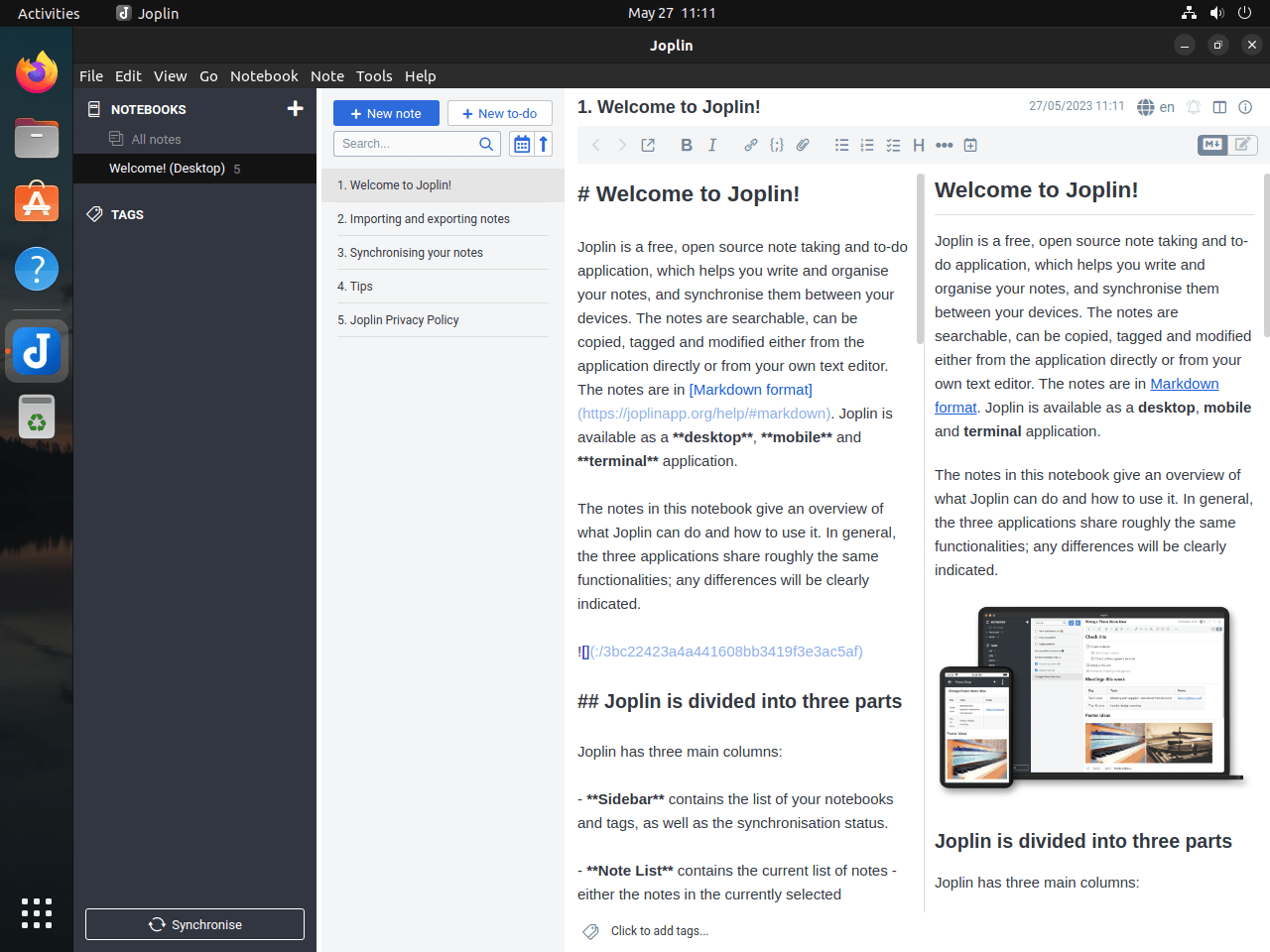
Open Joplin from the app menu the same way you would launch any other desktop application.
- Click Show Applications in the Ubuntu dock.
- Type Joplin into the search box.
- Select the Joplin icon when it appears.
Launch Joplin from the Ubuntu terminal
Use the launcher command that matches your install method.
Official AppImage script:
Ubuntu 26.04 and 24.04:
~/.joplin/Joplin.AppImage --no-sandboxUbuntu 22.04:
~/.joplin/Joplin.AppImageCommunity APT repo:
joplinSnap:
snap run joplin-desktopFlatpak:
flatpak run net.cozic.joplin_desktopIf you installed Joplin with the official script, prefer the app menu launcher for normal desktop use. The manual --no-sandbox flag is only needed on Ubuntu 26.04 and 24.04 when you launch the AppImage directly from a terminal.
Update or Remove Joplin on Ubuntu
Update Joplin on Ubuntu
Use the update command that matches the way you installed Joplin.
Official AppImage script:
Run Joplin’s maintained installer script again for AppImage updates. Using the upstream script as the repeat update path keeps the AppImage, icon, desktop launcher, and sandbox flags aligned with Joplin’s current Linux packaging.
wget -O - https://raw.githubusercontent.com/laurent22/joplin/dev/Joplin_install_and_update.sh | bashCommunity APT repo:
sudo apt update
sudo apt install --only-upgrade joplin -y
Snap:
sudo snap refresh joplin-desktopFlatpak:
sudo flatpak update net.cozic.joplin_desktop -yRemove Joplin from Ubuntu
Export any notes you want to keep before you remove Joplin. The app stores notebooks, attachments, and settings in your home directory, so a full cleanup can remove more than the package itself.
Joplin can export a full backup from File > Export all > JEX. Create that export before you remove any app data directories.
Official AppImage script:
rm -rf ~/.joplin/
rm -f ~/.local/share/applications/appimagekit-joplin.desktop
rm -f ~/.local/share/icons/hicolor/512x512/apps/joplin.png
rm -rf ~/.config/joplin-desktop ~/.config/Joplin
Community APT repo:
sudo apt remove --purge joplin -y
sudo rm -f /etc/apt/sources.list.d/joplin-desktop-linux-package.sources
sudo rm -f /usr/share/keyrings/joplin-desktop-linux-package.gpg
sudo apt update
rm -rf ~/.config/joplin-desktop ~/.config/Joplin
If APT reports Joplin dependencies that are no longer required, preview the cleanup before removing anything:
sudo apt autoremove --dry-runOnly continue when the preview lists packages you are comfortable removing:
sudo apt autoremoveSnap:
sudo snap remove --purge joplin-desktop
rm -rf ~/snap/joplin-desktop/
Flatpak:
sudo flatpak remove net.cozic.joplin_desktop -y
sudo flatpak uninstall --unused -y
rm -rf ~/.var/app/net.cozic.joplin_desktop/
Verify Joplin removal on Ubuntu
Use the matching check after you remove Joplin to confirm the package or runtime is gone.
Official AppImage script:
test ! -e ~/.joplin && test ! -e ~/.local/share/applications/appimagekit-joplin.desktop && test ! -e ~/.config/joplin-desktop && test ! -e ~/.config/Joplin && echo "Joplin AppImage files removed"Joplin AppImage files removed
Community APT repo:
dpkg -l joplin 2>/dev/null | grep '^ii' || echo "joplin not installed"
apt-cache policy joplin | grep sourceforge || echo "Joplin repo removed"
joplin not installed Joplin repo removed
Snap:
snap list joplin-desktop 2>/dev/null || echo "joplin-desktop not installed"joplin-desktop not installed
Flatpak:
sudo flatpak list --app --columns=application | grep -Fx net.cozic.joplin_desktop || echo "NOT_INSTALLED"NOT_INSTALLED
Fix Joplin problems on Ubuntu
Most Joplin install problems on Ubuntu come from the AppImage runtime or an incomplete Flatpak setup.
Fix Joplin AppImage FUSE errors on Ubuntu
If the official script stops before the download starts, it usually means the FUSE 2 runtime is missing.
Error: Can't get libfuse2 on system, please install libfuse2
Install the matching package for your Ubuntu release, then run the script again.
Ubuntu 26.04 and 24.04:
sudo apt install libfuse2t64 -yUbuntu 22.04:
sudo apt install libfuse2 -yFix Joplin AppImage sandbox errors on Ubuntu
A raw AppImage launch can fail on Ubuntu 26.04 and 24.04 if you skip the sandbox flag that Joplin’s installer writes into the desktop file for those releases.
FATAL:sandbox/linux/suid/client/setuid_sandbox_host.cc:166] The SUID sandbox helper binary was found, but is not configured correctly.
On Ubuntu 26.04 and 24.04, launch the AppImage with the same flag the official desktop entry uses:
~/.joplin/Joplin.AppImage --no-sandboxIf you installed Joplin with the official script and you launch it from Ubuntu’s app menu, the generated desktop file already adds --no-sandbox for you on Ubuntu 26.04 and 24.04.
Fix missing Flathub remotes for Joplin on Ubuntu
The No remote refs found for 'flathub' error means Flatpak is installed, but the Flathub remote is missing, disabled, or configured in a different scope than the install command is using.
No remote refs found for 'flathub'
flatpak remotes --columns=name,options | grep -E '^flathub[[:space:]]' || echo "flathub missing"flathub missing
Add the system-scope Flathub remote and retry the Joplin install:
sudo flatpak remote-add --if-not-exists flathub https://dl.flathub.org/repo/flathub.flatpakrepoVerify that Flatpak can now see the remote:
flatpak remotes --columns=name,options | grep -E '^flathub[[:space:]]'flathub system
Conclusion
Joplin is installed on Ubuntu and ready for notebooks, Markdown editing, and sync with the storage provider you prefer. Start by importing existing notes or setting your sync target inside Joplin, then stick with the install method that matches how you want updates handled on Ubuntu.


Formatting tips for your comment
You can use basic HTML to format your comment. Useful tags currently allowed in published comments:
<code>command</code>command<strong>bold</strong><em>italic</em><a href="https://example.com">link</a><blockquote>quote</blockquote>