GitHub Desktop gives Ubuntu users a visual Git version-control workflow for staging commits, switching branches, reviewing pull requests, and handling merges without turning every task into a terminal session. To install GitHub Desktop on Ubuntu, use the community-maintained shiftkey/desktop Linux fork, because GitHub itself still does not publish an official Linux build.
Ubuntu 26.04, 24.04, and 22.04 can use the same main workflow. The APT mirror is easiest for automatic updates on amd64 systems, while the direct .deb download and Flathub paths currently track the newer release. Pick one package source at a time so updates and removal stay predictable.
Install GitHub Desktop on Ubuntu
The current Linux packaging situation is a little uneven, so choose the method by update behavior and architecture rather than by version number alone.
| Method | Source | Current Status | Updates | Best Fit |
|---|---|---|---|---|
| APT Repository | Mwt community mirror | 3.4.12-linux1, amd64 only | Through apt upgrade | Most Ubuntu desktops that value automatic updates |
Direct .deb | shiftkey GitHub Releases | 3.4.13-linux1, amd64/arm64/armhf | update-github-desktop helper | Offline installs, ARM systems, or users who need the newest release asset |
| Flatpak | Flathub | 3.4.13-linux1, Flathub package is not currently verified | Through flatpak update | Users who already manage desktop apps through Flathub |
Use one method only. The APT mirror, direct
.deb, and Flatpak package all install GitHub Desktop in different ways. Mixing them can leave duplicate launchers, confusing update behavior, or an older package masking a newer one.
The Shiftkey APT host at apt.packages.shiftkey.dev is not used below because its TLS certificate still fails hostname validation. The Mwt mirror is the working APT path, but it currently trails the GitHub Releases and Flathub builds by one Linux package release.
Prepare Ubuntu for GitHub Desktop
Refresh package metadata first so Ubuntu resolves dependencies from the current archive state:
sudo apt update
sudo apt upgrade
These commands use
sudofor root-level package changes. If your account cannot run sudo yet, follow the guide on adding a user to sudoers on Ubuntu before continuing.
Install the small tools needed by the APT and direct-download methods. Some desktop installs already include them, but minimal or customized Ubuntu systems may not. The direct-download workflow uses Python to read the GitHub release API:
sudo apt install curl ca-certificates gpg python3 -yCheck your system architecture before choosing a method:
dpkg --print-architectureamd64
The APT mirror currently publishes amd64 packages only. If your system reports arm64 or armhf, use the direct .deb release asset instead.
Option 1: Install GitHub Desktop via APT Repository
The APT repository method is the lowest-maintenance choice for amd64 Ubuntu desktops because GitHub Desktop updates with the rest of your system packages.
Add the Mwt APT Key and Source
Download the mirror signing key with the curl command and store it as a dedicated binary keyring for APT:
curl -fsSL https://mirror.mwt.me/shiftkey-desktop/gpgkey | sudo gpg --dearmor --yes -o /usr/share/keyrings/mwt-desktop.gpgAdd the Mwt mirror with a DEB822 source file. The Architectures: amd64 line matches the architecture currently published by the mirror:
printf '%s\n' \
'Types: deb' \
'URIs: https://mirror.mwt.me/shiftkey-desktop/deb/' \
'Suites: any' \
'Components: main' \
'Architectures: amd64' \
'Signed-By: /usr/share/keyrings/mwt-desktop.gpg' \
| sudo tee /etc/apt/sources.list.d/mwt-desktop.sources > /dev/null
Refresh APT and confirm the mirror is now the candidate source for the github-desktop package:
sudo apt update
apt-cache policy github-desktop
github-desktop:
Installed: (none)
Candidate: 3.4.12-linux1
Version table:
3.4.12-linux1 500
500 https://mirror.mwt.me/shiftkey-desktop/deb any/main amd64 Packages
Install and Verify the APT Package
Install GitHub Desktop from the configured mirror:
sudo apt install github-desktop -yVerify the installed package with Debian package state rather than launching the graphical app from a headless terminal. The grep command filters the package list to installed rows:
dpkg -l github-desktop | grep '^ii'ii github-desktop 3.4.12-linux1 amd64 Simple collaboration from your desktop
Option 2: Install GitHub Desktop via Direct .deb Download
The direct .deb method uses the release files published by the shiftkey fork. It is useful for ARM systems, offline installs, or users who need the latest package before the APT mirror catches up, but updates remain manual.
Resolve the latest release from the GitHub API, match it to your Ubuntu architecture, download the package and checksum, then verify the file before installation:
VERSION=$(curl -fsSL https://api.github.com/repos/shiftkey/desktop/releases/latest | python3 -c 'import json, sys; tag = json.load(sys.stdin)["tag_name"]; print(tag.removeprefix("release-"))')
ARCH=$(dpkg --print-architecture)

case "$ARCH" in
  amd64|arm64|armhf) ;;
  *) echo "No GitHub Desktop .deb asset is published for $ARCH"; exit 1 ;;
esac

DEB="GitHubDesktop-linux-${ARCH}-${VERSION}.deb"
BASE_URL="https://github.com/shiftkey/desktop/releases/download/release-${VERSION}"

curl -fLO "${BASE_URL}/${DEB}"
curl -fLO "${BASE_URL}/${DEB}.sha256"
printf '%s  %s\n' "$(cat "${DEB}.sha256")" "$DEB" | sha256sum -c -
GitHubDesktop-linux-amd64-3.4.13-linux1.deb: OK
Install the verified package with APT so Ubuntu can resolve package dependencies automatically:
sudo apt install "./${DEB}" -yVerify the installed package state:
dpkg -l github-desktop | grep '^ii'ii github-desktop 3.4.13-linux1 amd64 Simple collaboration from your desktop
For future updates, create the reusable update-github-desktop helper in the update section instead of keeping downloaded release files around.
Option 3: Install GitHub Desktop via Flatpak
Flatpak is a useful alternative when you already use Flathub for desktop applications. The Flathub package currently tracks 3.4.13-linux1, but its metadata does not show Flathub verification, so treat it as a community-packaged Flatpak of the shiftkey Linux fork.
Ubuntu does not install Flatpak by default. If
flatpakis missing, set up the runtime and Flathub first with the Flatpak installation guide for Ubuntu.
Add Flathub at system scope if it is not already configured:
sudo flatpak remote-add --if-not-exists flathub https://dl.flathub.org/repo/flathub.flatpakrepoInstall the GitHub Desktop Flatpak by its application ID:
sudo flatpak install flathub io.github.shiftey.Desktop -yCheck the installed Flatpak record:
flatpak info io.github.shiftey.Desktop | grep -E '^( +ID:| +Ref:| +Arch:| +Branch:| +Version:)' ID: io.github.shiftey.Desktop
Ref: app/io.github.shiftey.Desktop/x86_64/stable
Arch: x86_64
Branch: stable
Version: 3.4.13-linux1
Launch GitHub Desktop on Ubuntu
Launch from Terminal
APT and direct .deb installs provide the host-side launcher command:
github-desktopFlatpak installs use the Flatpak application ID instead:
flatpak run io.github.shiftey.DesktopGitHub Desktop is a graphical application, so launch it from a normal desktop session. Server or minimal Ubuntu systems can install the package, but they still need a graphical session to use the client.
Launch from the Application Menu
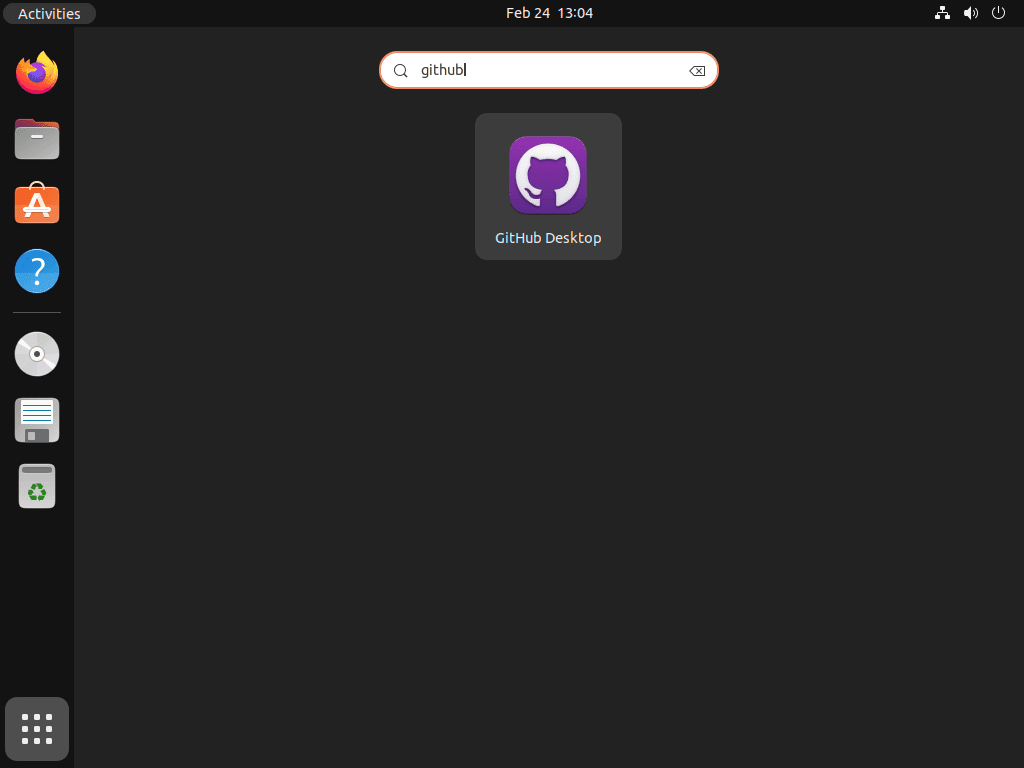
GitHub Desktop also appears in the standard application launcher. Search for “GitHub Desktop” and open the icon that uses the GitHub mark.
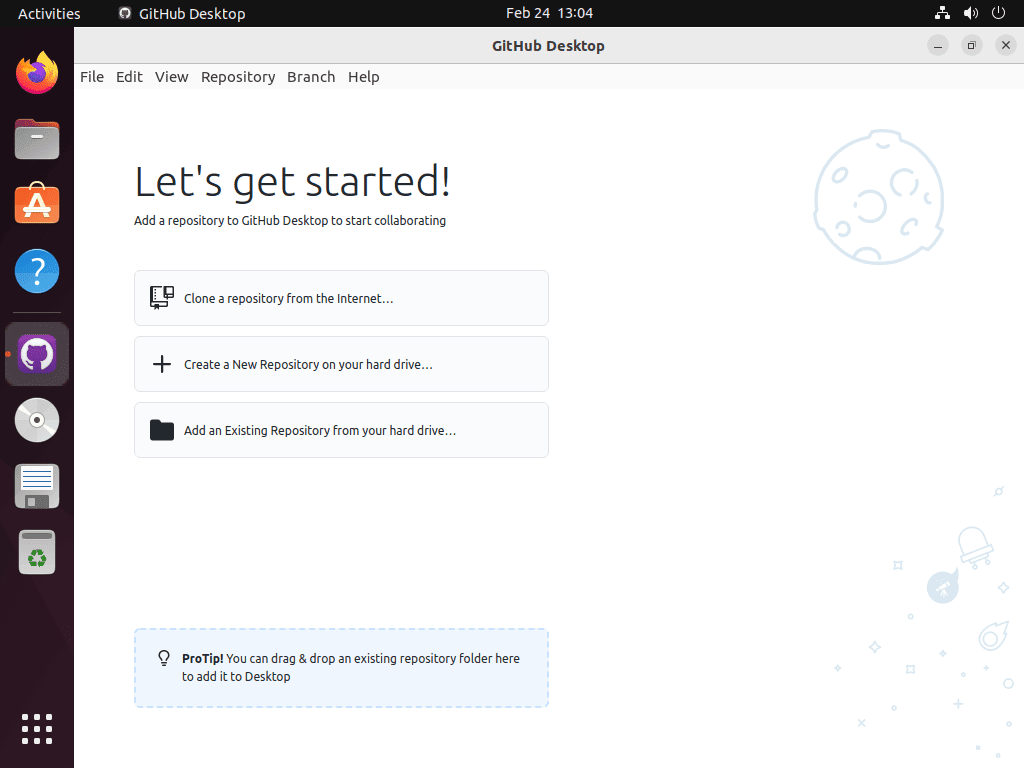
If you use SSH URLs such as git@github.com:user/repo.git, GitHub Desktop can use the SSH keys already configured for your user account. Configure SSH authentication separately before cloning private repositories; the SSH setup guide for Ubuntu covers the underlying client tools.
Update and Remove GitHub Desktop on Ubuntu
Update GitHub Desktop
Use the update command that matches your installation method.
APT repository installs update with normal Ubuntu package upgrades:
sudo apt update
sudo apt upgrade
Flatpak installs update through Flatpak:
sudo flatpak update io.github.shiftey.Desktop -yDirect .deb installs do not receive repository updates. If you keep this method, create a small updater that repeats the verified download flow and installs the current release asset.
mkdir -p "$HOME/.local/bin"

case ":$PATH:" in
  *":$HOME/.local/bin:"*) ;;
  *) export PATH="$HOME/.local/bin:$PATH" ;;
esac
Write the updater script into that local command directory:
cat > "$HOME/.local/bin/update-github-desktop" <<'EOF'
#!/usr/bin/env bash
set -euo pipefail

tmpdir=$(mktemp -d)
cleanup() {
  rm -rf "$tmpdir"
}
trap cleanup EXIT

cd "$tmpdir"

version=$(curl -fsSL https://api.github.com/repos/shiftkey/desktop/releases/latest | python3 -c 'import json, sys; tag = json.load(sys.stdin)["tag_name"]; print(tag.removeprefix("release-"))')
if [ -z "$version" ]; then
  echo "Could not resolve the latest GitHub Desktop release." >&2
  exit 1
fi
arch=$(dpkg --print-architecture)

case "$arch" in
  amd64|arm64|armhf) ;;
  *) echo "No GitHub Desktop .deb asset is published for $arch" >&2; exit 1 ;;
esac

deb="GitHubDesktop-linux-${arch}-${version}.deb"
base_url="https://github.com/shiftkey/desktop/releases/download/release-${version}"

curl -fLO "${base_url}/${deb}"
curl -fLO "${base_url}/${deb}.sha256"
printf '%s  %s\n' "$(cat "${deb}.sha256")" "$deb" | sha256sum -c -
sudo apt install "./${deb}" -y
EOF
Mark the helper executable, then confirm your shell can find it by name:
chmod +x "$HOME/.local/bin/update-github-desktop"
command -v update-github-desktop
Run the helper whenever you want to refresh the direct .deb installation:
update-github-desktopOpen a new terminal before future runs if your shell does not keep ~/.local/bin on PATH after the directory exists.
Remove GitHub Desktop
Remove the package with the same manager you used to install it.
Remove an APT Repository Install
Remove the package first:
sudo apt remove github-desktop -yIf you added the Mwt mirror for GitHub Desktop and no other local workflow depends on it, remove the source and keyring:
sudo rm -f /etc/apt/sources.list.d/mwt-desktop.sources
sudo rm -f /usr/share/keyrings/mwt-desktop.gpg
sudo apt update
Preview unused dependencies before removing them. Continue only when the preview lists packages you are comfortable removing:
sudo apt autoremove --dry-runRun the actual cleanup after reviewing the preview:
sudo apt autoremoveConfirm the package is no longer installed:
dpkg -l github-desktop | grep '^ii' || echo "github-desktop is not installed"github-desktop is not installed
Remove a Direct .deb Install
Direct .deb installs use the same package name but do not add the Mwt source file. Remove the optional updater helper too if you created it:
sudo apt remove github-desktop -y
rm -f "$HOME/.local/bin/update-github-desktop"
Remove a Flatpak Install
Remove the Flatpak app first:
sudo flatpak remove io.github.shiftey.Desktop -yIf you launched the Flatpak build and want to remove its per-user settings, delete its sandbox data directory from your own account:
rm -rf "$HOME/.var/app/io.github.shiftey.Desktop"Clean unused Flatpak runtimes only after reviewing what Flatpak plans to remove:
sudo flatpak remove --unusedVerify that the app ID no longer appears in the system Flatpak app list:
sudo flatpak list --app --columns=application | grep -Fx io.github.shiftey.Desktop || echo "GitHub Desktop Flatpak is not installed"GitHub Desktop Flatpak is not installed
Troubleshoot GitHub Desktop on Ubuntu
Fix “Unable to locate package github-desktop”
This error means APT did not ingest a repository that publishes github-desktop. First confirm the Mwt source file exists:
ls /etc/apt/sources.list.d/mwt-desktop.sourcesIf the file is missing, return to the APT method and add the source again. If it exists, refresh APT and check the package candidate:
sudo apt update
apt-cache policy github-desktop
If apt update reports duplicate source or Signed-By conflicts, remove older Shiftkey or Mwt source files from previous attempts, keep only mwt-desktop.sources, then refresh APT again.
Fix Direct .deb Download or Checksum Errors
If the direct download block exits with an architecture message, the current GitHub release does not publish a .deb asset for your architecture. The verified .deb assets are amd64, arm64, and armhf.
If checksum verification fails, delete the downloaded files and rerun the download commands instead of installing the package:
rm -f GitHubDesktop-linux-*.deb GitHubDesktop-linux-*.deb.sha256Fix Flatpak Remote or App ID Errors
Check whether Flathub is configured at system scope:
flatpak remotes --columns=name,optionsName Options flathub system
If Flathub is missing, add it again with the current Flathub repository descriptor:
sudo flatpak remote-add --if-not-exists flathub https://dl.flathub.org/repo/flathub.flatpakrepoThen retry the install with the exact app ID:
sudo flatpak install flathub io.github.shiftey.Desktop -yConclusion
GitHub Desktop is ready on Ubuntu through the package source that fits your update style: APT for hands-off amd64 updates, direct .deb files for release-asset control, or Flatpak for Flathub-managed desktop apps. For terminal-focused workflows beside the visual client, GitHub CLI on Ubuntu pairs well with guides for configuring Git identity and switching Git branches.


Thanks so much for this article. Very helpful.
I did it. Thanks! 🙂
Awesome to know, thanks for the reply Edson.