

Keeping notes in plain Markdown matters more when the folders stay under your control instead of inside one sync silo. If you want to install Obsidian on Ubuntu, the real choice is whether you want Ubuntu-style automatic updates, a direct upstream download, or a sandboxed package you can manage separately from APT.
Ubuntu’s default repositories do not package Obsidian, and Obsidian’s own Linux help docs still point Linux users to Snap, Flatpak, and AppImage. GitHub releases also publish an official amd64 .deb, so there are four practical install paths on Ubuntu 26.04, 24.04, and 22.04. You can install any of them from a terminal, but Obsidian still needs an active graphical session to open.
Install Obsidian on Ubuntu
Each method installs the same Markdown knowledge base, but the update path and desktop integration differ.
| Method | Channel | Version | Updates | Best For |
|---|---|---|---|---|
| Snap | Snapcraft | Latest stable | Automatic background refreshes | Most Ubuntu desktops, the official publisher, and the least maintenance |
| Flatpak | Flathub | Latest stable | sudo flatpak update md.obsidian.Obsidian | Readers already using Flathub who want visible sandbox permissions |
| Official DEB | GitHub releases | Latest stable amd64 release | User-managed with a local Debian-package update script | Readers who want a system install and app-menu entry without Snap or Flatpak |
| AppImage | GitHub releases | Latest stable upstream release | User-managed with a local AppImage update script | Readers who want the upstream portable build without Snap or Flatpak |
- Use the official Snap when you want the quickest Ubuntu-native install and automatic refreshes.
- Use the Flatpak when you already manage desktop apps through Flathub and want to review the app’s granted permissions.
- Use the official
.debpackage when you want a system-wide install with theobsidiancommand and a normal app-menu entry, but you still prefer direct downloads over Snap or Flatpak. - Use the AppImage when you want the upstream portable build and do not mind a user-managed update script.
These methods work on Ubuntu 26.04, 24.04, and 22.04. Snap, Flatpak, and the official amd64
.debuse the same install flow on all three releases, while the AppImage path needslibfuse2t64on Ubuntu 26.04 and 24.04, andlibfuse2on Ubuntu 22.04.
The official Debian package is only published for amd64. If you run Ubuntu on arm64 hardware, skip that method and use Snap or Flatpak instead. GitHub releases also publish an arm64 AppImage, but the AppImage method here targets the standard x86_64 build.
Update Ubuntu before installing Obsidian
Refresh APT first so any helper packages you install for Flatpak, the official Debian package workflow, or the AppImage path come from current Ubuntu metadata.
sudo apt updateThese commands use
sudofor tasks that need root privileges. If your account does not have sudo access yet, follow the guide to add a new user to sudoers on Ubuntu before you continue.
Install Obsidian on Ubuntu with Snap
Snap is the quickest Ubuntu-native way to install Obsidian. The official obsidianmd package uses classic confinement, so vaults in your normal home directories stay accessible without extra sandbox overrides.
The Snap Store installs the same package Obsidian documents for manual .snap downloads, so you do not need to save a separate file first.
Most Ubuntu desktop installs already include snapd. If the snap command is missing on this system, install it first:
sudo apt install snapd -yThe -y flag auto-confirms the APT prompt. Once snap is available, install Obsidian from the Snap Store:
sudo snap install obsidian --classicVerify that Snap installed the expected channel, revision, and publisher.
snap list obsidianName Version Rev Tracking Publisher Notes obsidian 1.12.4 57 latest/stable obsidianmd classic
Install Obsidian on Ubuntu with Flatpak
Flatpak fits best when you already use Flathub for desktop software and want a visible permission model. Flathub marks the package as verified by the Obsidian team, and the current build already includes home-directory access plus the ssh-auth socket, so it works with normal vault folders and Git-based workflows without an extra override once you install Git on Ubuntu.
If Flatpak is new on this system, follow the guide to install Flatpak on Ubuntu for the broader desktop-integration steps. The same package and remote commands still handle the minimum setup needed for Obsidian itself.
Install the Flatpak package first if this Ubuntu system does not already have it.
sudo apt install flatpak -yAdd Flathub as a system remote after the package is available.
sudo flatpak remote-add --if-not-exists flathub https://dl.flathub.org/repo/flathub.flatpakrepoThe --if-not-exists flag keeps the remote-add step safe to repeat, and the next grep filter narrows the output to the Flathub line you care about. For more pattern-matching examples, see how to use the grep command in Linux.
flatpak remotes | grep "^flathub"flathub system
The system label confirms Flathub was added at system scope, which is why the Flatpak install, update, and removal commands all use sudo.
Install the Obsidian application ID from Flathub after the remote is present.
sudo flatpak install flathub md.obsidian.Obsidian -yCheck the installed Flatpak metadata after the download finishes.
flatpak info md.obsidian.ObsidianObsidian - Markdown-based knowledge base
ID: md.obsidian.Obsidian
Ref: app/md.obsidian.Obsidian/x86_64/stable
Arch: x86_64
Branch: stable
Version: 1.12.4
License: LicenseRef-proprietary=https://obsidian.md/eula
Origin: flathub
Collection: org.flathub.Stable
Installation: system
Check the installed permissions too if you want to confirm the sandbox shape before you start using a vault or the Git plugin.
flatpak info --show-permissions md.obsidian.Obsidian[Context] shared=network;ipc; sockets=x11;pulseaudio;ssh-auth; devices=dri; filesystems=home;/media;xdg-run/gnupg:ro;/mnt;/run/media;~/.local/share/fonts:ro;xdg-run/app/com.discordapp.Discord:create; persistent=~/.ssh;
That confirms the current Flathub build already has home-directory access and the ssh-auth socket, so most Ubuntu users do not need extra overrides. For the public Flatpak build, leave Obsidian’s own automatic updates turned off inside the app because Flatpak already handles the stable-release update path.
Install Obsidian on Ubuntu with the official DEB package
The official GitHub releases also publish an amd64 Debian package. This method fits best when you want a normal system install with a menu entry and the obsidian command, but you do not want Snap or Flatpak.
The package ships its own AppArmor profile, and Ubuntu 24.04 plus 26.04 load it automatically. That is why this method does not need the AppImage --no-sandbox workaround.
This package is only published for amd64. On arm64 Ubuntu systems, use Snap or Flatpak instead. GitHub releases also publish an arm64 AppImage, but the AppImage method here targets the standard x86_64 build.
Install curl first if this Ubuntu system does not already have it, because the next step resolves the latest GitHub release automatically.
sudo apt install curl -yResolve the current release tag and build the exact Debian package URL first. Keep the next few commands in the same terminal session because they reuse the TAG, VERSION, and DEB_URL variables.
TAG=$(curl -fsSI https://github.com/obsidianmd/obsidian-releases/releases/latest | tr -d '\r' | grep -i '^location:' | rev | cut -d/ -f1 | rev)
VERSION=${TAG#v}
DEB_URL="https://github.com/obsidianmd/obsidian-releases/releases/download/$TAG/obsidian_${VERSION}_amd64.deb"
printf 'Tag: %s\nVersion: %s\nURL: %s\n' "$TAG" "$VERSION" "$DEB_URL"
Tag: v1.12.4 Version: 1.12.4 URL: https://github.com/obsidianmd/obsidian-releases/releases/download/v1.12.4/obsidian_1.12.4_amd64.deb
TAG stores GitHub’s latest release tag, VERSION strips the leading v, and DEB_URL becomes the exact download link for the current amd64 package.
Download the package into /tmp, then install it with APT so any package dependencies are handled in the same step.
curl -fL --progress-bar "$DEB_URL" -o "/tmp/obsidian_${VERSION}_amd64.deb"
sudo apt install "/tmp/obsidian_${VERSION}_amd64.deb" -y
Verify the installed package version after APT finishes.
dpkg -s obsidian | grep "^Package\|^Version"Package: obsidian Version: 1.12.4
Check the installed command path too. On Ubuntu 22.04, 24.04, and 26.04, the package also created the application-menu entry automatically.
command -v obsidian/usr/bin/obsidian
Confirm the desktop launcher path as well.
grep '^Exec=' /usr/share/applications/obsidian.desktopExec=/opt/Obsidian/obsidian %U
Confirm the bundled AppArmor profile too.
dpkg -L obsidian | grep 'apparmor-profile'/opt/Obsidian/resources/apparmor-profile
Ubuntu 24.04 and 26.04 load that bundled profile automatically. On Ubuntu 22.04 the file is still present in the package, but Jammy’s older AppArmor feature set skips loading it during installation.
Install Obsidian on Ubuntu with AppImage
The AppImage is the portable upstream build from Obsidian’s release channel. It fits best when you want to stay closest to Obsidian’s Linux docs without depending on Snap or Flatpak.
Install the AppImage prerequisites that match your Ubuntu release first.
Ubuntu 26.04 and 24.04:
sudo apt install curl libfuse2t64 -yUbuntu 22.04:
sudo apt install curl libfuse2 -yUbuntu renamed the compatibility package from
libfuse2tolibfuse2t64starting in 24.04. The Obsidian AppImage still needs the samelibfuse.so.2library, so the package name changes but the requirement does not.
Resolve the current GitHub release tag and build the exact AppImage URL first. Keep the next few commands in the same terminal session because they reuse the TAG, VERSION, and APPIMAGE_URL variables.
TAG=$(curl -fsSI https://github.com/obsidianmd/obsidian-releases/releases/latest | tr -d '\r' | grep -i '^location:' | rev | cut -d/ -f1 | rev)
VERSION=${TAG#v}
APPIMAGE_URL="https://github.com/obsidianmd/obsidian-releases/releases/download/$TAG/Obsidian-$VERSION.AppImage"
printf 'Tag: %s\nVersion: %s\nURL: %s\n' "$TAG" "$VERSION" "$APPIMAGE_URL"
Tag: v1.12.4 Version: 1.12.4 URL: https://github.com/obsidianmd/obsidian-releases/releases/download/v1.12.4/Obsidian-1.12.4.AppImage
TAG stores GitHub’s latest release tag, VERSION strips the leading v, and APPIMAGE_URL becomes the exact AppImage download link for the current release. For more detail on the header and download flags in that lookup, see how to use the curl command in Linux.
Create the local application and state directories, then download the current AppImage into a stable path.
install -d "$HOME/Applications" "$HOME/.local/share/obsidian-appimage"
curl -fL --progress-bar "$APPIMAGE_URL" -o "$HOME/Applications/Obsidian.AppImage"
Make the file executable, store the current version for the updater, and confirm the download finished where you expect.
chmod u+x "$HOME/Applications/Obsidian.AppImage"
printf '%s\n' "$VERSION" > "$HOME/.local/share/obsidian-appimage/version"
ls -lh "$HOME/Applications/Obsidian.AppImage"
-rwxrw-r-- 1 linuxcapable linuxcapable 119M Mar 16 08:20 /home/linuxcapable/Applications/Obsidian.AppImage
The AppImage already ships its own desktop file and icon. Extract them once, copy the icon into your local icon directory, and write a launcher that keeps the same --no-sandbox flag bundled inside the upstream desktop entry.
Extract the upstream icon first and copy it into your local icon directory.
rm -rf "$HOME/.local/share/obsidian-appimage/extract"
install -d "$HOME/.local/share/obsidian-appimage/extract" "$HOME/.local/share/applications" "$HOME/.local/share/icons/hicolor/512x512/apps"
cd "$HOME/.local/share/obsidian-appimage/extract"
"$HOME/Applications/Obsidian.AppImage" --appimage-extract >/dev/null
install -Dm644 squashfs-root/obsidian.png "$HOME/.local/share/icons/hicolor/512x512/apps/obsidian.png"
Write the local launcher after the icon is in place, then remove the temporary extract directory.
printf '%s\n' "[Desktop Entry]" "Name=Obsidian" "Exec=$HOME/Applications/Obsidian.AppImage --no-sandbox %U" "Icon=$HOME/.local/share/icons/hicolor/512x512/apps/obsidian.png" "Type=Application" "Categories=Office;Utility;" "StartupWMClass=obsidian" "MimeType=x-scheme-handler/obsidian;" "Terminal=false" | tee "$HOME/.local/share/applications/obsidian.desktop" >/dev/null
cd "$HOME"
rm -rf "$HOME/.local/share/obsidian-appimage/extract"
grep '^Exec=' "$HOME/.local/share/applications/obsidian.desktop"
Exec=/home/linuxcapable/Applications/Obsidian.AppImage --no-sandbox %U
That Exec= line is the important part. It confirms the local launcher keeps the same --no-sandbox flag when you start Obsidian from Ubuntu’s app menu.
The chmod u+x step adds execute permission to the AppImage, while install -Dm644 copies the icon and creates its parent directories in one step. For more permission-change examples, see how to use the chmod command in Linux.
Start Obsidian on Ubuntu
Obsidian is still a desktop GUI application even when you install it from a terminal. Use the launcher that matches your packaging method, or open the app from Ubuntu’s application menu after installation.
Start Obsidian from the Ubuntu terminal
Use the launcher command that matches your install method.
Snap:
snap run obsidianFlatpak:
flatpak run md.obsidian.ObsidianOfficial DEB:
obsidianAppImage:
$HOME/Applications/Obsidian.AppImage --no-sandboxThe AppImage command keeps the same --no-sandbox flag that Obsidian already bundles in its desktop file. That avoids the raw Electron sandbox failure on Ubuntu 24.04 and 26.04, and it still works on Ubuntu 22.04.
On first launch, all four methods open the same welcome window. Create a new vault there, or point Obsidian at an existing Markdown folder you already keep elsewhere on the system.
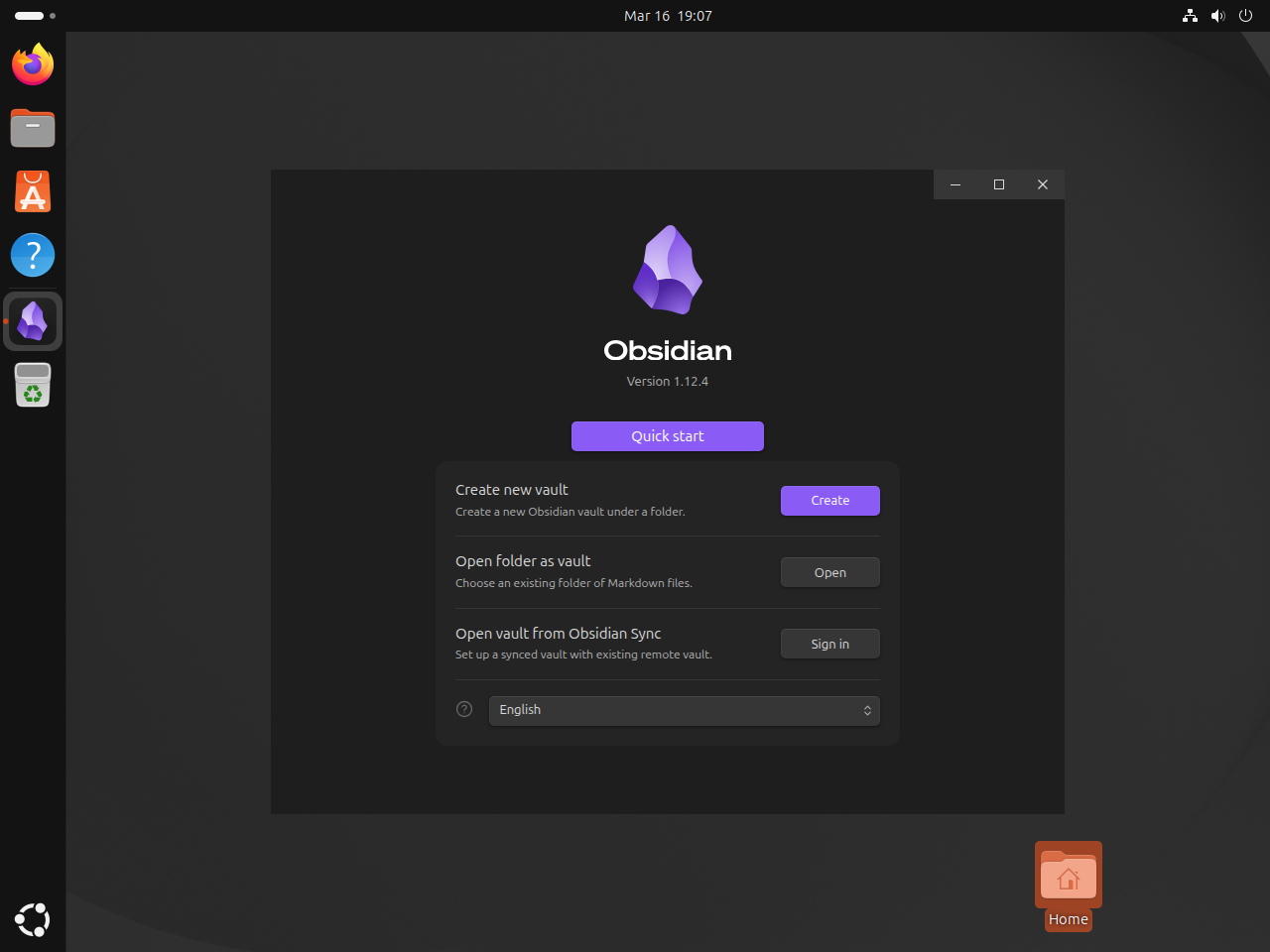
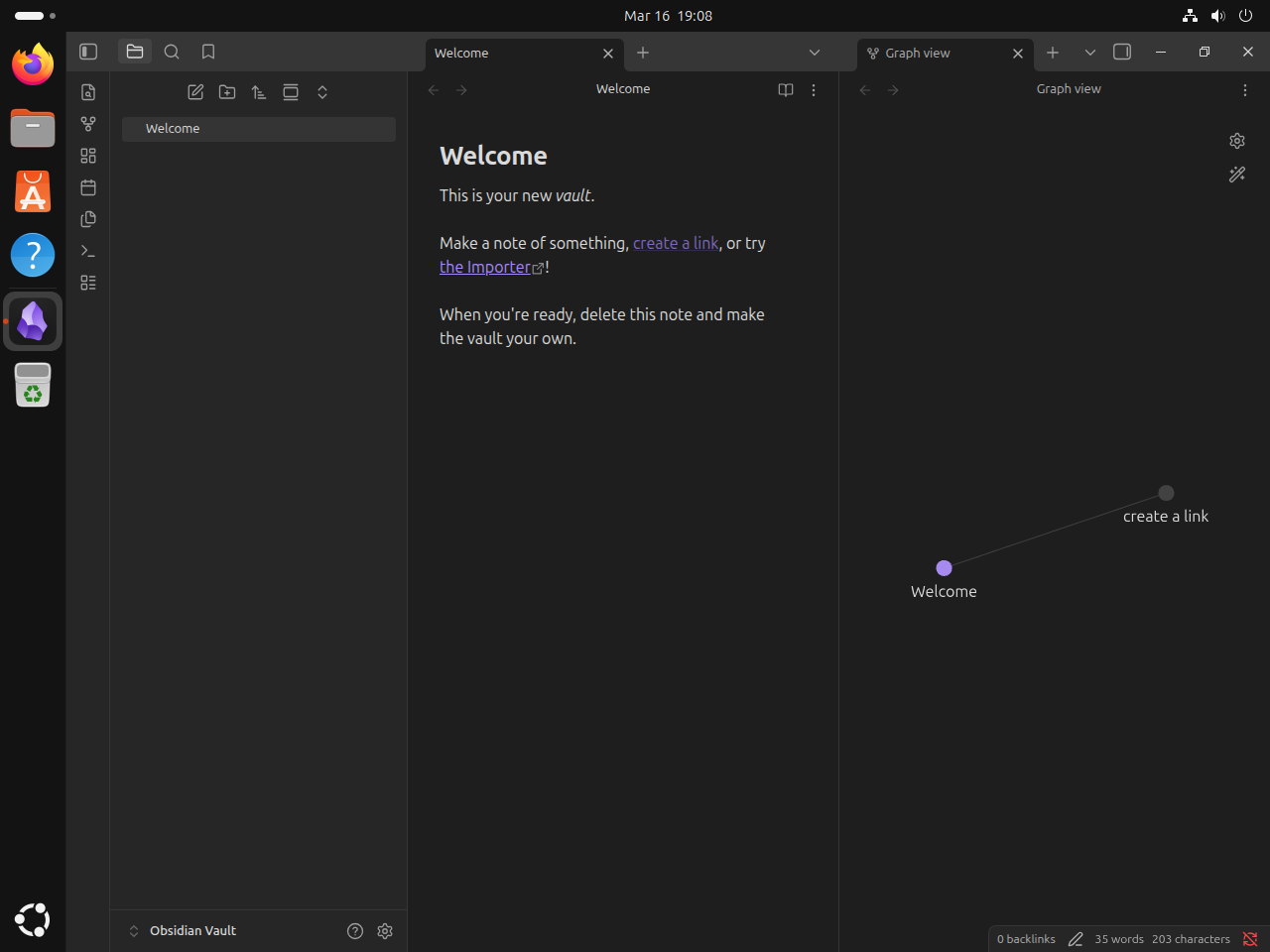
Start Obsidian from the Ubuntu app menu
Snap, Flatpak, and the official .deb create application-menu entries automatically. The AppImage workflow writes ~/.local/share/applications/obsidian.desktop, so after that step you can search for Obsidian in Ubuntu’s app menu just like any other desktop app.
Update or remove Obsidian on Ubuntu
Snap and Flatpak update through their own package tools. The direct GitHub download methods need a reusable local updater or a fresh manual download when a new release lands.
Update Obsidian Snap on Ubuntu
Refresh the Snap build with Snap’s own package manager.
sudo snap refresh obsidianUpdate Obsidian Flatpak on Ubuntu
Refresh the Flathub build with Flatpak’s update command.
sudo flatpak update md.obsidian.Obsidian -yIf you use the Flathub build, leave Obsidian’s own automatic updates disabled inside the app. Public stable releases arrive through Flatpak itself, so running both update paths only creates duplicate prompts.
Create an Obsidian DEB update script on Ubuntu
The official Debian package installs cleanly, but it is still a direct download instead of a repository package. This updater checks GitHub’s latest release tag, compares it with the installed package version, and downloads a newer amd64 package only when one exists.
Avoid automating this with cron. A download can fail, a release can be withdrawn, or the package can change in a way you want to review first. Run the script manually so you can watch the output before it replaces the installed build.
This workflow saves the updater as /usr/local/bin/update-obsidian-deb.sh so you can later run update-obsidian-deb.sh from a normal shell. The sudo tee pattern writes the root-owned file because plain > redirection would not inherit sudo.
cat <<'EOF' | sudo tee /usr/local/bin/update-obsidian-deb.sh > /dev/null
#!/usr/bin/env bash
set -euo pipefail

if [ "$(id -u)" -eq 0 ]; then
  echo "Run this script as your regular user, not as root."
  exit 1
fi

for cmd in apt curl cut date dpkg-query grep mktemp rev rm sudo tr; do
  if ! command -v "$cmd" >/dev/null; then
    echo "Missing required command: $cmd"
    exit 1
  fi
done

if ! dpkg-query -W -f='${Status}\n' obsidian 2>/dev/null | grep -q 'install ok installed'; then
  echo "The obsidian package is not installed."
  echo "Install the official Obsidian deb first, then rerun this script."
  exit 1
fi

LOG_DIR="$HOME/.local/share/obsidian-deb"
LOG_FILE="$LOG_DIR/update.log"
install -d "$LOG_DIR"

CURRENT_VERSION=$(dpkg-query -W -f='${Version}\n' obsidian)
LATEST_TAG=$(curl -fsSI https://github.com/obsidianmd/obsidian-releases/releases/latest | tr -d '\r' | grep -i '^location:' | rev | cut -d/ -f1 | rev)

if [ -z "$LATEST_TAG" ]; then
  echo "Could not determine the latest Obsidian release tag."
  exit 1
fi

LATEST_VERSION=${LATEST_TAG#v}
DEB_URL="https://github.com/obsidianmd/obsidian-releases/releases/download/$LATEST_TAG/obsidian_${LATEST_VERSION}_amd64.deb"
DEB_FILE=$(mktemp /tmp/obsidian-deb-update-XXXXXX.deb)

echo "Checking the latest Obsidian release..."
echo "Current version: $CURRENT_VERSION"
echo "Latest version:  $LATEST_VERSION"

if [ "$CURRENT_VERSION" = "$LATEST_VERSION" ]; then
  rm -f "$DEB_FILE"
  echo "Already up to date."
  exit 0
fi

echo "Downloading $LATEST_VERSION..."
curl -fL --progress-bar "$DEB_URL" -o "$DEB_FILE"

echo "Installing $LATEST_VERSION..."
sudo apt install "$DEB_FILE" -y
rm -f "$DEB_FILE"

printf '%s | Updated to %s\n' "$(date '+%Y-%m-%d %H:%M:%S')" "$LATEST_VERSION" >> "$LOG_FILE"
echo "Updated to $LATEST_VERSION."
EOF
The script only needs the installed package metadata from dpkg, so it does not keep a separate version file. It writes ~/.local/share/obsidian-deb/update.log only after it installs a newer package.
Make the script executable once after you save it.
sudo chmod +x /usr/local/bin/update-obsidian-deb.shAfter that one-time setup, the only Debian-package updater command you need to remember is update-obsidian-deb.sh.
Run the updater by name whenever you want to check for a newer package.
update-obsidian-deb.shChecking the latest Obsidian release... Current version: 1.12.4 Latest version: 1.12.4 Already up to date.
When a newer package is available, the script downloads the replacement .deb, installs it with APT, removes the temporary file, and appends a timestamped line to ~/.local/share/obsidian-deb/update.log.
Create an Obsidian AppImage update script on Ubuntu
The AppImage build also needs a reusable updater because the file lives in your home directory instead of under a package manager.
This script checks GitHub’s latest release tag, compares it with the stored version file, downloads a replacement only when needed, and refreshes the local launcher and icon at the same time.
Avoid automating this with cron. A download can fail, a release can be withdrawn, or a desktop integration step can need your attention. Run the script manually so you can watch the output before it changes your local AppImage.
This workflow saves the updater as /usr/local/bin/update-obsidian-appimage.sh so you can later run update-obsidian-appimage.sh from a normal shell without remembering a longer path. The sudo tee pattern writes the root-owned file because plain > redirection would not inherit sudo.
cat <<'EOF' | sudo tee /usr/local/bin/update-obsidian-appimage.sh > /dev/null
#!/usr/bin/env bash
set -euo pipefail

APPIMAGE_DIR="$HOME/Applications"
APPIMAGE_PATH="$APPIMAGE_DIR/Obsidian.AppImage"
STATE_DIR="$HOME/.local/share/obsidian-appimage"
VERSION_FILE="$STATE_DIR/version"
ICON_DIR="$HOME/.local/share/icons/hicolor/512x512/apps"
DESKTOP_DIR="$HOME/.local/share/applications"
DESKTOP_FILE="$DESKTOP_DIR/obsidian.desktop"
WORK_DIR="$STATE_DIR/extract"
LOG_FILE="$STATE_DIR/update.log"

if [ "$(id -u)" -eq 0 ]; then
  echo "Run this script as your regular user, not as root."
  exit 1
fi

for cmd in cat chmod curl cut date grep install rev rm tee tr; do
  if ! command -v "$cmd" >/dev/null; then
    echo "Missing required command: $cmd"
    exit 1
  fi
done

if [ ! -f "$APPIMAGE_PATH" ]; then
  echo "Obsidian.AppImage was not found at $APPIMAGE_PATH"
  echo "Download the AppImage first, then rerun this script."
  exit 1
fi

install -d "$APPIMAGE_DIR" "$STATE_DIR" "$ICON_DIR" "$DESKTOP_DIR"

CURRENT_VERSION="none"
if [ -f "$VERSION_FILE" ]; then
  CURRENT_VERSION=$(cat "$VERSION_FILE")
fi

echo "Checking the latest Obsidian release..."
LATEST_TAG=$(curl -fsSI https://github.com/obsidianmd/obsidian-releases/releases/latest | tr -d '\r' | grep -i '^location:' | rev | cut -d/ -f1 | rev)

if [ -z "$LATEST_TAG" ]; then
  echo "Could not determine the latest Obsidian release tag."
  exit 1
fi

LATEST_VERSION=${LATEST_TAG#v}
APPIMAGE_URL="https://github.com/obsidianmd/obsidian-releases/releases/download/$LATEST_TAG/Obsidian-$LATEST_VERSION.AppImage"

echo "Current version: $CURRENT_VERSION"
echo "Latest version:  $LATEST_VERSION"

if [ "$CURRENT_VERSION" = "$LATEST_VERSION" ]; then
  echo "Already up to date."
  exit 0
fi

echo "Downloading $LATEST_VERSION..."
curl -fL --progress-bar "$APPIMAGE_URL" -o "$APPIMAGE_PATH"
chmod u+x "$APPIMAGE_PATH"
printf '%s\n' "$LATEST_VERSION" > "$VERSION_FILE"

echo "Refreshing the desktop launcher..."
rm -rf "$WORK_DIR"
install -d "$WORK_DIR"
cd "$WORK_DIR"
"$APPIMAGE_PATH" --appimage-extract >/dev/null
install -Dm644 squashfs-root/obsidian.png "$ICON_DIR/obsidian.png"
printf '%s\n' "[Desktop Entry]" "Name=Obsidian" "Exec=$APPIMAGE_PATH --no-sandbox %U" "Icon=$ICON_DIR/obsidian.png" "Type=Application" "Categories=Office;Utility;" "StartupWMClass=obsidian" "MimeType=x-scheme-handler/obsidian;" "Terminal=false" | tee "$DESKTOP_FILE" >/dev/null
cd "$HOME"
rm -rf "$WORK_DIR"

printf '%s | Updated to %s\n' "$(date '+%Y-%m-%d %H:%M:%S')" "$LATEST_VERSION" >> "$LOG_FILE"
echo "Updated to $LATEST_VERSION."
echo "Launcher refreshed at $DESKTOP_FILE."
EOF
The script keeps its small state files under ~/.local/share/obsidian-appimage, so the update check does not depend on renaming the AppImage itself every time a new release lands.
Make the script executable once after you save it.
sudo chmod +x /usr/local/bin/update-obsidian-appimage.shAfter that one-time setup, the only updater command you need to remember is update-obsidian-appimage.sh.
Run the updater by name whenever you want to check for a new release.
update-obsidian-appimage.shChecking the latest Obsidian release... Current version: 1.12.4 Latest version: 1.12.4 Already up to date.
When a new release is available, the script downloads the replacement AppImage, rewrites the desktop launcher, refreshes the icon, and appends a timestamped line to ~/.local/share/obsidian-appimage/update.log.
Remove Obsidian Snap on Ubuntu
Obsidian stores notes in the vault folders you choose, not in one fixed package-owned project directory. These removal commands delete the application plus the related packaging data, but they do not delete your vault folders unless you remove those note directories yourself.
Delete a vault directory manually only when you are sure you no longer need those Markdown notes. The package-manager, Debian-package, and AppImage cleanup commands intentionally leave your chosen vault location alone.
Purge the Snap if you also want Snap to remove its saved snapshot data for this package.
sudo snap remove --purge obsidianRemove Obsidian Flatpak on Ubuntu
Remove the Flatpak package and its sandbox data first.
sudo flatpak remove --delete-data md.obsidian.Obsidian -yOn a reused system or an interrupted cleanup, the sandbox directory can still remain after the package is gone. Delete it directly only when the verification step still reports it.
rm -rf "$HOME/.var/app/md.obsidian.Obsidian"Remove Obsidian DEB on Ubuntu
Remove the installed Debian package with APT, then let autoremove clean up the package-only dependencies it pulled in.
sudo apt remove obsidian -y
sudo apt autoremove -y
If you created the manual Debian-package updater, remove that command and its small log directory too.
sudo rm -f /usr/local/bin/update-obsidian-deb.sh
rm -rf "$HOME/.local/share/obsidian-deb"
Remove Obsidian AppImage on Ubuntu
Delete the AppImage and the launcher files created in this workflow.
rm -f "$HOME/Applications/Obsidian.AppImage"
rm -f "$HOME/.local/share/applications/obsidian.desktop"
rm -f "$HOME/.local/share/icons/hicolor/512x512/apps/obsidian.png"
rm -rf "$HOME/.local/share/obsidian-appimage"
Remove the updater command too if you no longer want the manual AppImage update path available system-wide.
sudo rm -f /usr/local/bin/update-obsidian-appimage.shIf you are removing every Obsidian install on this machine and also want a clean first-launch state later, delete the shared local profile after the package-specific cleanup.
rm -rf "$HOME/.config/obsidian"Verify Obsidian removal on Ubuntu
Use the matching check after removal so you know the application itself is gone before you decide what to do with any vault folders.
Snap:
snap list obsidianerror: no matching snaps installed
test -d "$HOME/snap/obsidian" && echo "snap data still present" || echo "snap data removed"snap data removed
Flatpak:
flatpak list --app | grep -F md.obsidian.Obsidian || echo "not installed"not installed
Check the sandbox data directory separately if you also removed the Flatpak settings.
test -d "$HOME/.var/app/md.obsidian.Obsidian" && echo "sandbox data still present" || echo "sandbox data removed"sandbox data still present
Official DEB:
apt-cache policy obsidianobsidian:
Installed: (none)
Candidate: (none)
Version table:
1.12.4 -1
100 /var/lib/dpkg/status
For this direct-download package, Installed: (none) is the important line. The remaining 100 /var/lib/dpkg/status entry only shows what APT last recorded about the local package, not an active repository source.
AppImage:
if [ -e "$HOME/Applications/Obsidian.AppImage" ] || [ -e "$HOME/.local/share/applications/obsidian.desktop" ] || [ -e "$HOME/.local/share/icons/hicolor/512x512/apps/obsidian.png" ] || [ -e "$HOME/.local/share/obsidian-appimage" ]; then
  echo "AppImage files still present"
else
  echo "AppImage files removed"
fi
AppImage files removed
Shared profile:
test -d "$HOME/.config/obsidian" && echo "shared profile still present" || echo "shared profile removed"shared profile removed
Troubleshoot Obsidian on Ubuntu
Most Obsidian problems on Ubuntu come from the AppImage runtime, the Electron sandbox, or a missing Flatpak setup. Start with the packaging method you actually installed instead of trying every fix at once.
Fix Obsidian AppImage FUSE errors on Ubuntu
If the AppImage refuses to start and immediately complains about libfuse.so.2, the FUSE compatibility package for your Ubuntu release is missing.
dlopen(): error loading libfuse.so.2

AppImages require FUSE to run.
You might still be able to extract the contents of this AppImage
if you run it with the --appimage-extract option.
Install the matching compatibility package, then test the AppImage runtime again.
Ubuntu 26.04 and 24.04:
sudo apt install libfuse2t64 -yUbuntu 22.04:
sudo apt install libfuse2 -yRun the AppImage runtime check after reinstalling the package to confirm the library is loading again.
"$HOME/Applications/Obsidian.AppImage" --appimage-versionVersion: effcebc
Fix Obsidian AppImage sandbox errors on Ubuntu 24.04 and 26.04
Ubuntu 24.04 and 26.04 both report kernel.apparmor_restrict_unprivileged_userns=1, so a raw AppImage launch can abort before the window opens if you skip the --no-sandbox flag that Obsidian already bundles in its desktop file. Ubuntu 22.04 does not hit that same raw AppImage failure, but the same --no-sandbox launcher still works there too.
[18931:0316/154818.549521:FATAL:sandbox/linux/suid/client/setuid_sandbox_host.cc:166] The SUID sandbox helper binary was found, but is not configured correctly. Rather than run without sandboxing I'm aborting now.
Launch the AppImage with the same flag the upstream desktop file already uses, or open it from the app menu after you create the local launcher.
"$HOME/Applications/Obsidian.AppImage" --no-sandboxFor more background on Ubuntu 24.04 and 26.04 sandbox policy, read how to enable or disable AppArmor on Ubuntu. The launcher check confirms that your local desktop entry still keeps the working flag in place.
grep '^Exec=' "$HOME/.local/share/applications/obsidian.desktop"Exec=/home/linuxcapable/Applications/Obsidian.AppImage --no-sandbox %U
Obsidian on Ubuntu FAQ
For most Ubuntu desktops, use the official Snap because it comes from obsidianmd, installs with one command, and refreshes itself automatically. Use the official amd64 .deb when you want a normal system package and app-menu entry without Snap or Flatpak, choose Flatpak when you already manage GUI apps through Flathub and want visible permissions, or use the AppImage when you want the upstream portable build and a user-managed update script.
Yes. GitHub releases publish an official obsidian_<version>_amd64.deb for amd64 Ubuntu systems. It installs cleanly on Ubuntu 26.04, 24.04, and 22.04, but it behaves like a direct download instead of a repository package, so you update it with a fresh download or the manual Debian-package updater script.
Yes. You can install Obsidian from a remote shell or on a minimal Ubuntu system, but the application still needs an active graphical session to open. Treat Server or SSH access as an installation path, not a headless runtime for the app itself.
No. Obsidian stores notes in the vault folders you chose, so removing the Snap, Flatpak, official .deb, or AppImage integration does not automatically erase those Markdown folders. If you also want to reset Obsidian itself, delete the shared ~/.config/obsidian profile after you finish removing every install method you were using.
Conclusion
Obsidian is ready on Ubuntu with the update path that fits your setup, whether that means the official Snap, Flathub, the official amd64 .deb, or the upstream AppImage. If you want a second Markdown-first note app to compare against it, install Joplin on Ubuntu and see which sync model and plugin set fits your workflow better.

Formatting tips for your comment
You can use basic HTML to format your comment. Useful tags currently allowed:
<code>command</code>command<strong>bold</strong><em>italic</em><blockquote>quote</blockquote>