Proton, which builds on Wine, is the practical reason many Ubuntu users install Steam: it runs large parts of the Windows game library beside native Linux titles. Package source still matters because Ubuntu multiverse, Valve’s APT repository, and Flathub handle launcher updates and runtime libraries differently.
Ubuntu 26.04, 24.04, and 22.04 are in scope. APT installs need i386 library support for Proton; Flatpak carries those runtime pieces inside its sandbox. SteamCMD for dedicated servers and Steam Link or Remote Play streaming are separate tools.
Install Steam on Ubuntu
Choose a Steam Installation Method
| Method | Source | Update Behavior | Best For |
|---|---|---|---|
| Ubuntu multiverse package | Ubuntu archive | Launcher package follows Ubuntu packaging; Steam still self-updates after launch | Readers who want the simplest APT setup |
| Valve Steam repository | Valve repository | Launcher and Steam library packages come directly from Valve’s stable repository | Readers who want Valve’s APT packages and faster launcher-package refreshes |
| Flatpak from Flathub | Community package on Flathub | Updates through Flatpak and uses Flatpak runtimes instead of system APT libraries | Readers who already use Flatpak or prefer a containerized app package |
Steam’s Flathub package is community-maintained and is not officially supported by Valve. Ubuntu also has a Steam Snap package maintained by Canonical, but Valve’s APT repository and Ubuntu’s multiverse package are better fits for APT-based installs. Flatpak remains useful when you specifically want a sandboxed package.
These methods target 64-bit Intel/AMD Ubuntu systems. ARM64 Ubuntu devices are outside scope because Steam’s Linux client packages are published for amd64 with i386 runtime support.
Steam Pre-installation Steps
Update Ubuntu Before Steam Installation
Start with current package metadata and upgrades so Steam can resolve graphics, runtime, and 32-bit dependency packages cleanly.
Open a terminal from the applications menu, then update Ubuntu:
sudo apt update && sudo apt upgradeThese commands use
sudofor administrator privileges. If your account cannot use sudo, configure administrator access first with the Ubuntu sudoers guide.
Install Required Tools for Steam Setup
The Valve repository method needs curl and certificate support to download the repository key. The Ubuntu repository method uses add-apt-repository, which comes from software-properties-common on minimal systems.
sudo apt install ca-certificates curl software-properties-common -yEnable 32-bit Library Support for Proton
Steam’s Proton compatibility layer requires 32-bit libraries to run Windows games, since many Windows game executables compile as 32-bit binaries even on 64-bit systems. Without i386 architecture support, Proton cannot load essential runtime libraries, causing Windows games to fail at launch regardless of your system’s hardware capabilities.
Enable 32-bit support if you plan to use the Ubuntu repository or Valve repository method. If you plan to use only Flatpak, skip this subsection and continue to the Flatpak method.
sudo dpkg --add-architecture i386Enabling the architecture lets APT install both 64-bit (amd64) and 32-bit (i386) packages, essential for Proton’s Windows game translation layer.
After enabling 32-bit architecture support, refresh the package database to recognize newly available i386 packages:
sudo apt updateRelevant output now includes i386 package lists alongside the standard amd64 packages:
Get:1 http://archive.ubuntu.com/ubuntu resolute/main i386 Packages [1,024 kB]
Get:2 http://archive.ubuntu.com/ubuntu resolute/universe i386 Packages [9,912 kB]
Option 1: Install Steam with the Ubuntu Default Repository
The Ubuntu repository method installs steam-installer from the multiverse component and keeps package management inside Ubuntu’s normal APT workflow. The launcher package can lag behind Valve’s repository package, but Steam still downloads current client components during first launch.
Enable Ubuntu’s multiverse component, then refresh package metadata. If you want more background on optional Ubuntu archive components, review the Universe and Multiverse guide for Ubuntu.
sudo add-apt-repository multiverse
sudo apt update
Install the Steam launcher and udev rules for Steam-related hardware:
sudo apt install steam-installer steam-devicesCheck the installed Steam packages:
dpkg -l | grep steamUbuntu 26.04 currently reports these package versions:
ii  steam-devices    1:1.0.0.85~ds-2build1    amd64    Device support for Steam-related hardware
ii  steam-installer  1:1.0.0.85~ds-2build1    amd64    Valve's Steam digital software delivery system
Version numbers vary by Ubuntu release. During validation, Ubuntu 26.04 provided
1:1.0.0.85~ds-2build1, Ubuntu 24.04 provided1:1.0.0.79~ds-2, and Ubuntu 22.04 provided1.0.0.74-1ubuntu2forsteam-installer. These package versions are launcher-package versions, not the final Steam client version after self-update.
Option 2: Install Steam via Official Steam Repository
Valve’s Steam repository provides the steam-launcher, steam-libs-amd64, and steam-libs-i386 packages directly from Valve. Use this method when you want Valve’s APT packages instead of Ubuntu’s repackaged launcher.
If you were looking for a Steam DEB download for Ubuntu, Valve also publishes steam_latest.deb. That package installs steam-launcher and creates Valve-managed APT source files. The manual DEB822 setup keeps the source in one inspectable file. Do not use both the downloaded DEB package and the manual repository setup at the same time.
Import Steam GPG Signing Key
Valve publishes the Steam signing key as a binary OpenPGP keyring, so download it directly to the system keyring path.
sudo curl -fsSLo /usr/share/keyrings/steam.gpg https://repo.steampowered.com/steam/archive/stable/steam.gpg
sudo chmod 0644 /usr/share/keyrings/steam.gpg
The downloaded keyring is already in binary format. Do not pipe this file through gpg --dearmor.
Add Steam Repository
Add the Steam repository using DEB822 format with both amd64 and i386 enabled for Steam’s 64-bit launcher and 32-bit runtime packages.
printf '%s\n' \
'Types: deb' \
'URIs: https://repo.steampowered.com/steam/' \
'Suites: stable' \
'Components: steam' \
'Architectures: amd64 i386' \
'Signed-By: /usr/share/keyrings/steam.gpg' | sudo tee /etc/apt/sources.list.d/steam.sources >/dev/null
The repository metadata currently publishes both amd64 and i386 package indexes for the stable suite.
Ubuntu 26.04, 24.04, and 22.04 LTS all support DEB822
.sourcesfiles. Some tools still generate legacy.listfiles by default, but the modern format works across all current releases.
Refresh Package Index After Repository Import
Refresh APT so Ubuntu can read Valve’s package metadata:
sudo apt updateRelevant output shows APT fetching package information from the new Steam repository:
Get:1 https://repo.steampowered.com/steam stable InRelease [6,840 B]
Get:2 https://repo.steampowered.com/steam stable/steam amd64 Packages [1,648 B]
Get:3 https://repo.steampowered.com/steam stable/steam i386 Packages [1,336 B]
Install Steam from Official Repository
Install Valve’s Steam launcher package:
sudo apt install steam-launcherAPT installs the launcher and recommends Valve’s matching Steam library packages for both amd64 and i386. NVIDIA users should keep the NVIDIA driver stack for Ubuntu current, while AMD and Intel users may benefit from the Mesa upgrade guide for Ubuntu when they need newer graphics features.
Verify the installed packages:
dpkg -l | grep steamThe output shows steam-launcher and its library packages:
ii  steam-launcher     1:1.0.0.85     amd64    Valve's Steam digital software delivery system
ii  steam-libs-amd64   1:1.0.0.85     amd64    Steam libraries metapackage
ii  steam-libs-i386:i386  1:1.0.0.85  i386     Steam libraries metapackage
Fix Steam Repository Duplication (Valve Repository Only)
The steam-launcher package currently contains a legacy steam-stable.list source file. If you installed the package after manually creating steam.sources, APT may warn that the Steam repository is configured multiple times. Keep one source style by preserving the DEB822 file and removing only the duplicate legacy source.
List any Steam source files first:
ls /etc/apt/sources.list.d/steam*A duplicate setup commonly shows both files:
/etc/apt/sources.list.d/steam.sources
/etc/apt/sources.list.d/steam-stable.list
Remove the legacy stable source, then refresh APT:
sudo rm -f /etc/apt/sources.list.d/steam-stable.list
sudo apt update
Do not remove
steam-beta.listautomatically. It is normally commented out, and if you manually enabled the beta repository, removing it would discard that separate choice.
Option 3: Install Steam via Flatpak
Flatpak packages Steam with its own runtime stack. The Flathub package is useful when you already manage desktop apps with Flatpak or want Steam isolated from APT library changes, but it is a community-maintained package rather than Valve’s officially supported Linux package.
Flatpak is not pre-installed on Ubuntu. If you have not set it up yet, install it with
sudo apt install flatpakand restart your session before continuing. For detailed setup including the Flathub repository, follow the Flatpak installation guide for Ubuntu.
Install Flatpak and Add Flathub Repository
Install Flatpak and add Flathub at system scope:
sudo apt install flatpak -y
sudo flatpak remote-add --if-not-exists flathub https://dl.flathub.org/repo/flathub.flatpakrepo
Install Steam from Flathub
Install Steam from the Flathub remote:
sudo flatpak install flathub com.valvesoftware.Steam -yThe first installation can download a large runtime set along with the Steam client. Later updates usually download less data because Flatpak reuses existing runtimes where possible.
Verify the Flatpak installation with flatpak info:
flatpak info com.valvesoftware.SteamSteam - Launcher for the Steam software distribution service
ID: com.valvesoftware.Steam
Ref: app/com.valvesoftware.Steam/x86_64/stable
Origin: flathub
Launch Steam through Flatpak from the terminal when you need a command-line start:
flatpak run com.valvesoftware.SteamAfter the first launch, Steam also appears in your application menu like any other installed program.
If your Steam library is on a secondary drive or another path outside the default Flatpak sandbox, grant Steam access to that location before adding the library inside Steam:
flatpak override --user --filesystem=/path/to/SteamLibrary com.valvesoftware.SteamReplace /path/to/SteamLibrary with the actual directory you want Steam to access. The --user override changes permissions for your account only, which is appropriate for a personal game library.
Launch Steam
After installation, launch Steam using one of these methods depending on your installation type.
Launch from Terminal
For APT installations (Options 1 and 2), launch Steam from the terminal:
steamFor the Flatpak installation (Option 3), use the Flatpak app ID instead:
flatpak run com.valvesoftware.SteamLaunch from Application Menu
Steam appears in your application menu after installation regardless of which method you used:
- Open Activities (GNOME) or the Applications menu (other desktop environments)
- Type “Steam” in the search field
- Click the Steam icon to launch

First-time Setup with Steam
Steam’s First-Launch Package Installation
On first launch, APT installs may open a terminal prompt saying “Steam needs to install these additional packages.” Common names include libc6:amd64, libc6:i386, EGL/GBM/OpenGL libraries such as libegl1:amd64, libgbm1:i386, libgl1-mesa-dri:i386, and Valve runtime packages such as steam-libs-amd64 and steam-libs-i386:i386.
This is normal. Steam is finishing the 64-bit and 32-bit runtime setup that Proton needs, so press Enter when prompted and let the installation finish.

If you enabled 32-bit support earlier, Steam may prompt you twice to install runtime packages, once for 64-bit components and again for 32-bit dependencies.
Steam Self-Update Process
Once launched, Steam automatically downloads and installs its latest components through a series of progress windows. This initial update fetches the current client binaries, runtime libraries, and compatibility tools. For most users, this process completes within a few minutes depending on connection speed.

Log in or Create a New Steam Account
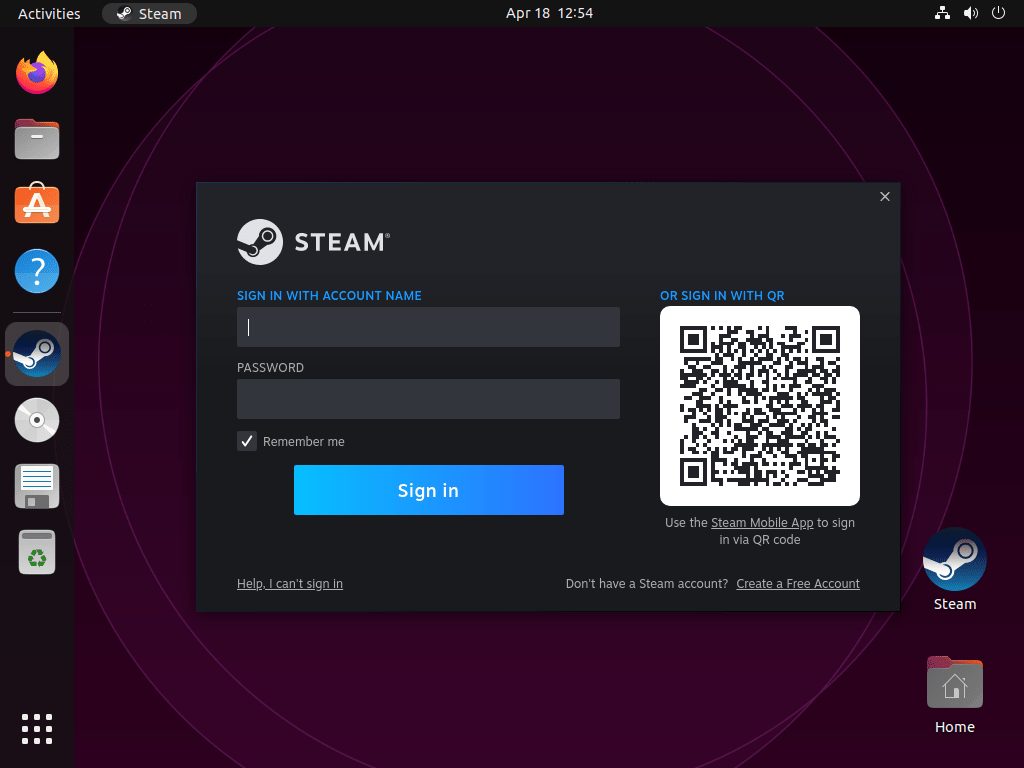
Once the updates finish, the Steam Launcher login window will greet you. You can sign in with your existing Steam account or create a new one if you do not already have one.
To create a new account, click the “Create a new account” button and follow the on-screen instructions, providing the necessary information to set up your account. If you are signing in with an existing account, enter your account credentials and click “Log in.”
Check Proton and Anti-Cheat Compatibility
After logging in, Steam installation is complete. Before purchasing Windows-exclusive games, check ProtonDB, a community-maintained database that tracks how well Windows games run through Steam’s compatibility layer. In Steam, open Settings > Compatibility and enable “Steam Play for all other titles” if you want Windows games to appear as installable in your library.
Some Windows games still fail on Linux because of kernel-level anti-cheat, invasive DRM, or always-online components. Easy Anti-Cheat and BattlEye support depends on whether each game developer enables Linux or Proton support.
Systems such as Vanguard generally remain incompatible with Proton. Native Linux games display a SteamOS/Linux icon in the store and avoid most Proton-specific compatibility layers.

Troubleshooting Common Issues
When diagnosing Steam or game problems, check the Steam logs stored in ~/.local/share/Steam/logs/ for APT installs or ~/.var/app/com.valvesoftware.Steam/.local/share/Steam/logs/ for Flatpak installs. The console-linux.txt file contains runtime messages including container errors and library loading failures.
Steam Won’t Launch or Crashes on Startup
If Steam fails to launch or crashes immediately after starting, launch it from a terminal and leave the window open while Steam exits. For APT installs, use:
steamFor Flatpak installs, use the Flatpak app ID:
flatpak run com.valvesoftware.SteamIf the terminal closes too quickly, inspect the latest Steam log instead. APT installs usually write it here:
tail -n 50 "$HOME/.local/share/Steam/logs/console-linux.txt"Flatpak installs use the sandboxed data path:
tail -n 50 "$HOME/.var/app/com.valvesoftware.Steam/.local/share/Steam/logs/console-linux.txt"Common causes include missing 32-bit libraries or graphics driver issues. Narrow those problems before reinstalling Steam.
If the log mentions namespaces, sandbox setup, or AppArmor, do not disable AppArmor as a first response. Compare the exact error against Steam or Proton issue reports. For background on Ubuntu’s mandatory access control system, see the AppArmor configuration guide.
Graphics Driver Issues
Poor gaming performance or graphical glitches typically indicate driver problems. First, verify your GPU is detected:
lspci | grep -Ei 'vga|3d|display'Example output showing detected GPUs:
00:02.0 VGA compatible controller: Intel Corporation UHD Graphics 630
01:00.0 VGA compatible controller: NVIDIA Corporation GA106 [GeForce RTX 3060]
If lspci is not found, install the PCI utility package with sudo apt install pciutils.
For NVIDIA GPUs, check if the proprietary driver is active:
nvidia-smiA working NVIDIA driver displays driver version and GPU information. If this command fails with “command not found” or shows errors, install the NVIDIA drivers on Ubuntu.
For AMD or Intel GPUs, verify OpenGL rendering is working:
glxinfo | grep "OpenGL renderer"OpenGL renderer string: Mesa Intel(R) UHD Graphics 630 (CFL GT2)
If glxinfo is not found, install Mesa utilities with sudo apt install mesa-utils. AMD and Intel users benefit from keeping Mesa drivers current through the Mesa upgrade process.
Missing 32-bit NVIDIA Libraries
NVIDIA users may encounter errors like “missing libGL.so.1” or “wrong ELF class: ELFCLASS64” even after enabling i386 architecture. This occurs when the NVIDIA driver installation lacks 32-bit OpenGL libraries that Steam and Proton require.
Install the 32-bit NVIDIA libraries (replace 560 with your driver version):
sudo apt install libnvidia-gl-560:i386To find your installed driver version, check with:
dpkg -l | grep nvidia-driverReboot after installing the 32-bit libraries for changes to take effect.
Proton Games Won’t Start
When Windows games fail to launch through Proton, first verify Steam Play is enabled in Settings > Compatibility > “Enable Steam Play for all other titles.” Check the game’s ProtonDB page for known issues and recommended Proton versions.
Some games work better with specific Proton versions. Select one in the game’s Properties > Compatibility tab, then try Proton Experimental or GE-Proton if the default runtime still fails.
Keyboard or Input Issues in Games
If modifier keys such as Ctrl or Alt behave unexpectedly in games launched through Steam, check your desktop keyboard layout, input method settings, and in-game bindings first. International layouts and custom input methods can expose bugs in how some games handle keyboard events.
When problems only appear with one Steam installation method, test an alternative package source such as the Ubuntu default repository build or the official Valve repository. If input returns to normal, the problem is probably tied to that package source rather than your wider system configuration.
Shared Windows and Linux Steam Libraries
Steam can sometimes detect games stored on a shared Windows partition, but sharing one library between Windows and Linux is fragile. Proton creates Linux-specific compatibility prefixes, native Linux builds may differ from Windows builds, and NTFS mount options can interfere with permissions or executable files.
For the least troubleshooting, keep a separate Linux Steam library on an ext4 or another Linux-native filesystem. If you dual-boot, use the shared partition mainly for backups or transfer storage unless you are prepared to troubleshoot per-game compatibility data.
Disk Space Requirements
Modern titles often exceed 50-100 GB each, so a Steam library can swell faster than expected. Monitor available disk space and consider moving large installs to a separate partition or drive.
Steam supports custom library locations through Settings > Storage, letting you distribute games across multiple drives when your primary partition fills up.
Games Fail to Start When Library Is Under /usr/
If you store your Steam library under a path containing /usr (such as /usr/games/steam/), games will fail to launch without clear error messages. Check ~/.local/share/Steam/logs/console-linux.txt for entries like:
pressure-vessel-wrap: W: Not sharing path STEAM_COMPAT_DATA_PATH="/usr/games/steam/steamapps/compatdata/123456" with container because "/usr" is reserved by the container framework
Steam’s pressure-vessel container framework reserves the /usr hierarchy for its own runtime libraries. Any Steam library path containing /usr will silently fail because pressure-vessel cannot share those directories with the container.
To fix this, move your Steam library to a directory outside /usr:
- In Steam, go to Settings > Storage
- Add a new library folder under your home directory (for example,
/home/username/SteamLibrary) - Move your games to the new library by right-clicking them in your library and selecting Properties > Local Files > Move Install Folder
After moving games to a non-reserved path, they should launch normally.
Additional Steam Commands
Update Steam
Steam updates itself automatically when launched. The underlying launcher package requires separate system updates.
For APT installations (Options 1 and 2), update via your package manager:
sudo apt update && sudo apt upgradeFor Flatpak installations (Option 3):
sudo flatpak update com.valvesoftware.SteamRemove Steam
Package removal preserves your downloaded games and Steam configuration by default. APT installs usually store data under ~/.local/share/Steam, while Flatpak stores data under ~/.var/app/com.valvesoftware.Steam. If you switch between APT and Flatpak, back up or move your library first because the two package formats do not use the same data directory.
Remove Ubuntu Repository Installation (Option 1)
Remove the Ubuntu archive packages:
sudo apt remove --purge steam-installer steam-devicesRemove Valve Repository Installation (Option 2)
Remove Valve’s Steam launcher and library packages:
sudo apt remove --purge steam-launcher steam-libs-amd64 steam-libs-i386:i386Remove the manual DEB822 source and the package-created stable source if it remains:
sudo rm -f /etc/apt/sources.list.d/steam.sources /etc/apt/sources.list.d/steam-stable.list /usr/share/keyrings/steam.gpg
sudo apt update
If you manually enabled steam-beta.list, remove that file only if you no longer want Valve’s beta repository configured.
Review APT Autoremove Packages
After removing an APT installation, review autoremovable dependencies separately instead of combining cleanup with the Steam removal command:
sudo apt autoremove --purgeAPT lists the packages it plans to remove before removal starts. Review that list and cancel if it includes unrelated desktop packages, drivers, or software you still need.
Confirm no Steam APT packages remain installed:
dpkg-query -W -f='${binary:Package}\t${Version}\n' 'steam*' 2>/dev/null || echo "No matching Steam APT packages found"Remove Flatpak Installation (Option 3)
Uninstall Steam via Flatpak:
sudo flatpak uninstall com.valvesoftware.SteamConfirm the Flatpak app is gone:
flatpak info com.valvesoftware.Steam 2>/dev/null || echo "Steam Flatpak is not installed"Remove Game Data (Optional)
The data-removal command permanently deletes all downloaded games, save files, and Steam configuration. Only run this if you want a complete removal and have backed up any saves you want to keep.
Remove all APT Steam user data, including downloaded games and Proton prefixes:
rm -rf "$HOME/.steam" "$HOME/.local/share/Steam"For Flatpak installations, game data is stored in a different location:
rm -rf "$HOME/.var/app/com.valvesoftware.Steam"Conclusion
Steam is ready on Ubuntu with either APT-managed launcher packages or the Flathub sandbox. Before buying Windows-only games, check ProtonDB and each game’s anti-cheat status. For smoother performance, keep GPU support current with Install NVIDIA drivers on Ubuntu or Upgrade Mesa drivers on Ubuntu when those guides match your hardware.


Newbie question: why go to all this trouble when Ubuntu 24.04.1 LTS has Steam in its App Center?
Does the App Center’s install of Steam have Proton included?
Thanks for the question, Warren. Ubuntu’s App Center installs Steam via Snap, which works but comes with several limitations compared to the official
.debpackage shown in this guide.The Snap version often runs into issues with game library paths, file access permissions from Snap’s sandboxing, and slower launch times. Proton is included either way because it is part of Steam, but the Snap confinement can interfere with Proton, game mods, and external library locations.
The official Valve repository provides the native
.debpackage that integrates directly with Ubuntu without sandboxing, giving Steam better access to your system for improved game compatibility and fewer permission headaches. For quick installs with only a few native games, the App Center may be fine, but for Proton titles and custom libraries, the official repository is usually the smoother option.Hello, The method didn’t work for me on Ubuntu 24.04. However, using the Debian package provided on the official Steam website for download works. Thank you!
Thanks for the heads-up, Sol, and glad you got Steam running. On Ubuntu 24.04, there are some changes around AppArmor and unprivileged user namespaces that can cause problems for sandboxed apps, including Steam and some Electron-based tools. In a few cases, the traditional APT method and the official Debian package from Valve behave slightly differently under these new security rules.
For most users, using the official Steam
.debfrom Valve is a solid option if the repository-based method here fails, especially on newer Ubuntu releases. There are kernel and sysctl-level tweaks that can relax the new restrictions for affected apps, but they reduce system security and should only be considered as a last resort by experienced users who fully understand the trade-offs.I will update the guide to call this out more clearly for Ubuntu 24.04 users so others can choose between the repository setup and the official
.debdownload with the right expectations.Anecdotal, but I’d *not* use the Steam DEB, it caused weird keyboard behaviour on my (international) keyboard. More in point, the left CTRL died in all the games via Steam – and that’s not a insignificant key in most action games. 🙂
Thanks for sharing this, Espen. Input quirks like that are frustrating, especially when a core key stops working in every game. Issues with international keyboard layouts and modifier keys can sometimes show up in specific combinations of desktop environment, input method settings, and how Steam or individual games handle input, so it’s very helpful to have real-world reports like yours.
In general the official Steam
.debworks reliably for most setups, but your experience is a good reminder that there are edge cases where another install path (such as Flatpak, Snap, or even running games outside Steam where possible) might behave better. I’ll keep an eye out for similar keyboard reports and add a short troubleshooting note to the guide so users with international layouts know there are alternatives if they hit this kind of problem.when calling this:
echo deb [arch=amd64 signed-by=/usr/share/keyrings/steam.gpg] http://repo.steampowered.com/steam/ stable steam | sudo tee /etc/apt/sources.list.d/steam.list
I get: ‘zsh: bad pattern: [arch=amd64’
does anyone know why ?
Thanks for reporting this, E.P. The error comes from running that command in
zsh. Zsh treats the square brackets in[arch=amd64 signed-by=/usr/share/keyrings/steam.gpg]as a glob pattern instead of plain text, so it throwsbad pattern.You can fix it by either wrapping the whole
deb ...line in quotes, or by running the command in bash. For example, this works in both bash and zsh:Quoting the string prevents the shell from trying to interpret the square brackets as a pattern, so the repository line is written correctly to
/etc/apt/sources.list.d/steam.list.