Blender keeps modeling, sculpting, animation, compositing, rendering, and video editing in one workspace, which helps when a project moves from mesh editing to a final render. To install Blender on Ubuntu, choose the package path that matches your update preference, system integration needs, and sandboxing expectations.
Install Blender on Ubuntu
Three installation paths are practical on Ubuntu 26.04 (resolute), 24.04 (noble), and 22.04 (jammy). The best choice depends on whether you prefer Ubuntu repository integration, the Blender Foundation Snap channel, or Flatpak’s sandboxed runtime model.
| Method | Source | Version behavior | Update path | Best fit |
|---|---|---|---|---|
| APT | Ubuntu universe | Ubuntu-managed package; 26.04 uses the 5.0.x series, 24.04 uses 4.0.x, and 22.04 uses 3.0.x | Normal APT system upgrades | Simplest distro-managed package and cleanup |
| Snap | Snapcraft | Blender Foundation latest/stable channel, updated outside Ubuntu release cadence | Automatic Snap refreshes | Blender Foundation stable channel with classic confinement |
| Flatpak | Flathub | Flathub stable channel, updated outside Ubuntu release cadence | Flatpak app and runtime updates | Sandboxed app with Flathub runtime updates |
Ubuntu installs the APT package from the universe component. Standard desktop installs usually have Universe enabled; minimal or customized systems can use the enable Universe and Multiverse on Ubuntu guide if apt cannot find the package.
Choose APT when you want the simplest Ubuntu-managed install, Snap when you want the Blender Foundation stable channel, or Flatpak when you prefer Flathub’s sandboxed runtime and update model.
If you searched for the official Blender download, the Blender download page currently offers a Linux x64 .tar.xz archive and a Snap Store link, not an Ubuntu .deb installer. The managed methods below keep updates and removal inside APT, Snap, or Flatpak instead of a manually extracted archive. A Blender PPA is unnecessary for these supported install paths because the Ubuntu package, Blender Foundation Snap, and Flathub build cover the main package choices.
Install Blender on Ubuntu with APT
The APT method is the cleanest choice when you want Blender installed and removed like any other Ubuntu package. It follows each Ubuntu release’s repository version, so it is not always the newest Blender release.
Update Ubuntu Before Installing Blender
Refresh your package index and apply available updates before installing Blender:
sudo apt update && sudo apt upgradeThese commands use
sudofor tasks that need root privileges. If your account cannot run administrative commands, follow the add a user to sudoers on Ubuntu guide before continuing.
Install the Blender APT Package
Install Blender on Ubuntu with APT by installing the blender package:
sudo apt install blenderConfirm the installed Blender version:
blender --versionBlender 5.0.1
Ubuntu repository versions differ by release. The default APT candidates are 5.0.1+dfsg-1ubuntu1 on Ubuntu 26.04, 4.0.2+dfsg-1ubuntu8 on Ubuntu 24.04, and 3.0.1+dfsg-7 on Ubuntu 22.04. Ubuntu 22.04 may print color-management fallback lines before the version line; the install is successful when the Blender version appears.
Install Blender on Ubuntu with Flatpak
The Flatpak method installs Blender from Flathub and uses Flathub’s runtime stack instead of Ubuntu’s APT package. This is useful when you want a sandboxed app that updates independently of Ubuntu repository cadence.
Install Flatpak Support and Add Flathub
Install Flatpak and the desktop integration package:
sudo apt install flatpak gnome-software-plugin-flatpakAdd the Flathub remote at the system scope:
sudo flatpak remote-add --if-not-exists flathub https://dl.flathub.org/repo/flathub.flatpakrepoVerify that Flathub is configured:
flatpak remotesName Options flathub system
Install the Blender Flatpak
Install Blender from Flathub with the application ID org.blender.Blender. The -y flag accepts Flatpak’s install prompt:
sudo flatpak install flathub org.blender.Blender -yCheck the installed Flatpak details:
flatpak info org.blender.BlenderBlender Foundation - Free and open source 3D creation suite
ID: org.blender.Blender
Ref: app/org.blender.Blender/x86_64/stable
Arch: x86_64
Branch: stable
Version: 5.0
License: GPL-3.0
Origin: flathub
Installation: system
Runtime: org.freedesktop.Platform/x86_64/25.08
The current Flathub manifest grants GPU device access through devices=dri and host filesystem access. Most users do not need a manual Flatpak override to open local project folders.
Install Blender on Ubuntu with Snap
The Snap method follows the Blender Foundation’s Snapcraft channel instead of Ubuntu’s APT package. Standard Ubuntu desktop installations already include Snap support; minimal systems may need the snapd package first.
Install the Blender Snap Package
Snapcraft lists Blender under the verified Blender Foundation publisher, and the stable channel uses classic confinement for direct access to project files and graphics stack behavior:
sudo snap install blender --classicVerify the installed Snap package:
snap list blenderName Version Rev Tracking Publisher Notes blender 5.1.1 7360 latest/stable blenderfoundation** classic
The default command tracks latest/stable. Snapcraft also publishes LTS tracks such as 4.5lts and 4.2lts if your workflow depends on a long-term Blender series.
Launch Blender on Ubuntu
After installing Blender, open the application menu and search for Blender.
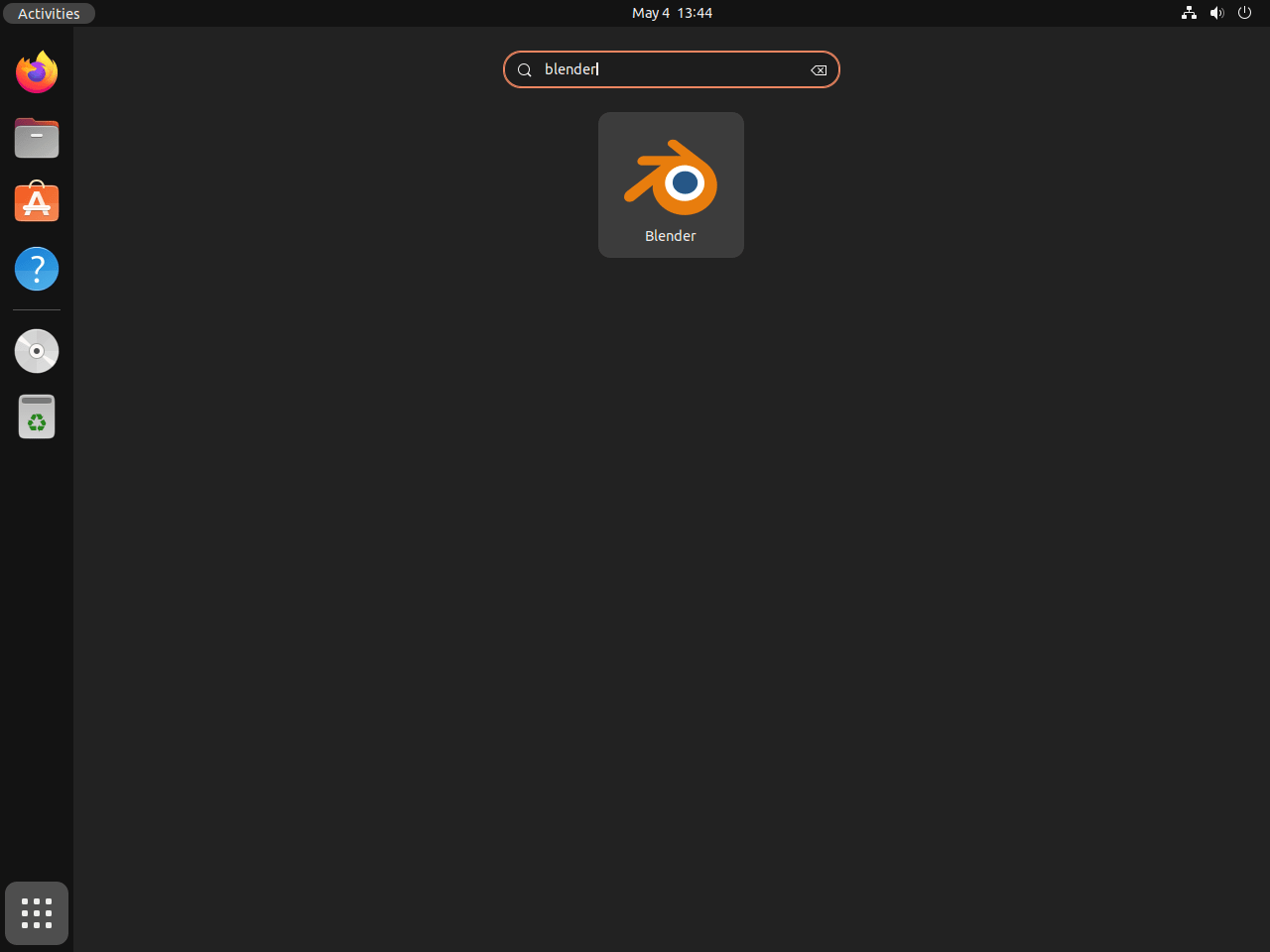
You can also launch Blender from a terminal. Use the command that matches your installation method:
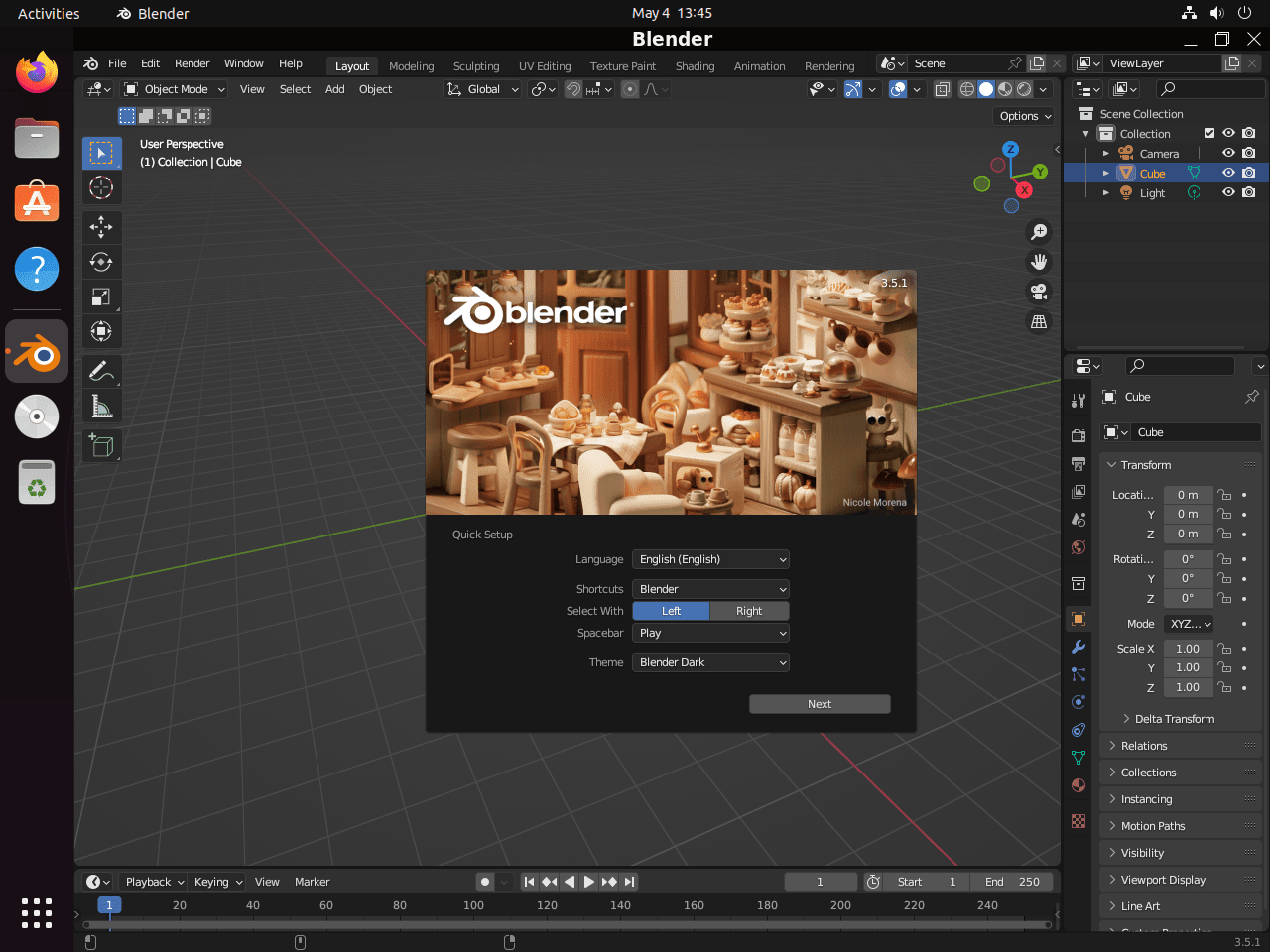
blenderflatpak run org.blender.Blendersnap run blenderThe default Blender interface opens with a 3D viewport, timeline, outliner, and properties panels.
Update Blender on Ubuntu
Update Blender with the package manager used for installation.
Update the APT Version
sudo apt update && sudo apt upgradeUpdate the Flatpak Version
sudo flatpak update org.blender.Blender -yUpdate the Snap Version
sudo snap refresh blenderSnap packages also refresh automatically in the background unless you have changed Snap refresh scheduling.
Remove Blender from Ubuntu
Use the removal command that matches your installation method. Do not mix APT, Flatpak, and Snap removal commands unless you installed Blender through more than one method.
Remove the APT Package
sudo apt remove blenderIf APT reports Blender dependencies as autoremovable, preview the list before deleting anything else:
sudo apt autoremove --dry-runIf the preview only lists packages you no longer need, run the cleanup:
sudo apt autoremoveThe next command deletes Blender configuration files from your home directory. Keep it only if you want a full user-profile cleanup.
rm -rf ~/.config/blenderRemove the Flatpak Package
The
--delete-dataflag removes Blender’s sandboxed Flatpak app data. Omit it if you want to keep Flatpak-specific settings and cached data.
sudo flatpak remove --delete-data org.blender.Blender -yThen remove unused Flatpak runtimes if no installed app still needs them:
sudo flatpak uninstall --unused -yRemove the Snap Package
Remove the Blender Snap and skip Snap’s local recovery snapshot:
sudo snap remove --purge blenderConfirm the Snap package is gone:
snap list blender 2>/dev/null || echo "blender snap not installed"blender snap not installed
Troubleshoot Blender on Ubuntu
Check NVIDIA Driver Detection
If Blender opens but rendering is slow or GPU acceleration is missing, check whether the NVIDIA driver is active:
nvidia-smiA working NVIDIA setup prints a driver and GPU status table. If the command is missing or reports an error, install or repair the NVIDIA drivers on Ubuntu before troubleshooting Blender itself.
Resolve OpenGL or Mesa Errors
For open-source AMD or Intel graphics, update the system packages and reboot so Mesa and related libraries load cleanly:
sudo apt update && sudo apt upgrade
sudo reboot
If you need newer open-source graphics components than your Ubuntu release provides, review the Mesa drivers on Ubuntu guide before changing driver stacks.
Check Flatpak Permissions
If the Flatpak build behaves differently from the APT or Snap build, inspect its permissions first:
flatpak info --show-permissions org.blender.Blender[Context] shared=network;ipc; sockets=x11;wayland;pulseaudio;fallback-x11; devices=dri; filesystems=/run/spnav.sock:ro;host;
The devices=dri entry provides GPU device access, and host filesystem access means the current Flathub build does not normally need a manual folder override. If a file still does not appear inside Blender, check the path and normal Linux file permissions first.
Conclusion
Blender is ready on Ubuntu from the package source you chose, with APT for distro-managed builds, Snap for the current Blender Foundation channel, or Flatpak for the sandboxed Flathub build. For render and media workflows, you may also want to install NVIDIA drivers on Ubuntu, upgrade Mesa drivers on Ubuntu, or install FFmpeg on Ubuntu.


Formatting tips for your comment
You can use basic HTML to format your comment. Useful tags currently allowed in published comments:
<code>command</code>command<strong>bold</strong><em>italic</em><a href="https://example.com">link</a><blockquote>quote</blockquote>