
Cinnamon is a practical Fedora add-on when GNOME feels too workflow-heavy but you do not want to reinstall the system around another Spin. Fedora exposes Cinnamon as the cinnamon-desktop-environment DNF5 environment, which installs the Cinnamon shell, Nemo file manager, session files, LightDM components, and the broader desktop package set while leaving Fedora Workstation’s existing GDM login manager in place unless you switch it deliberately.
For a clean Cinnamon-first system, download the official Fedora Cinnamon Spin instead of converting an existing Workstation install. Use DNF when Fedora is already installed and you want Cinnamon beside GNOME, KDE Plasma, Xfce, or another desktop.
The commands target mutable Fedora Workstation and comparable DNF-managed Fedora desktop installs. Fedora Atomic desktops use rpm-ostree image layering and rebasing workflows, so they are not a good fit for the DNF environment commands used here.
Install Cinnamon on Fedora
Update Fedora Packages First
Refresh package metadata and apply pending updates before adding a second desktop environment. This keeps the Cinnamon transaction aligned with the current Fedora libraries, graphics stack, and DNF group metadata.
sudo dnf upgrade --refreshThese commands use sudo for system package changes. If your account cannot run sudo on Fedora, add the user to the Fedora wheel group for administrator access before continuing.
Check the Cinnamon Environment ID
Fedora lists Cinnamon as a DNF environment named cinnamon-desktop-environment. Check the environment before installing so you can see the package groups Fedora will add.
dnf environment list --available | grep -i cinnamon
dnf environment info cinnamon-desktop-environment
The environment details should identify the Cinnamon Desktop environment and show the core cinnamon-desktop group alongside Fedora’s base X, hardware, multimedia, networking, printing, accessibility, and standard package groups:
Id                   : cinnamon-desktop-environment
Name                 : Cinnamon Desktop
Required groups      : base-x
                     : cinnamon-desktop
                     : core
                     : desktop-accessibility
                     : dial-up
                     : fonts
                     : guest-desktop-agents
                     : hardware-support
                     : multimedia
                     : networkmanager-submodules
                     : printing
                     : standard
The hidden cinnamon-desktop group is the underlying Cinnamon group, but the environment is the fuller existing-system path. DNF5 also uses current subcommands such as dnf environment install and dnf group install, not older one-word aliases such as groupinstall. For syntax background, use the DNF5 group commands on Fedora reference.
Install the Cinnamon Desktop Environment
Install the complete Cinnamon environment with DNF5. Review the transaction before accepting it because the environment installs a full desktop stack, including Cinnamon, Nemo, LightDM packages, Slick Greeter, desktop applications, X11 components, multimedia support, printing support, and supporting libraries.
sudo dnf environment install cinnamon-desktop-environmentOn a Fedora 44 Workstation system, this environment installed 291 packages, downloaded about 427 MiB, and used about 1 GiB of additional disk space. Your transaction can be smaller or larger depending on which desktop groups and applications are already installed.
Verify Cinnamon Packages and Session Files
After DNF finishes, verify the core Cinnamon packages, Nemo file manager, and login-session files:
rpm -q cinnamon cinnamon-session cinnamon-desktop cinnamon-control-center cinnamon-screensaver nemo
ls /usr/share/xsessions/cinnamon.desktop /usr/share/xsessions/cinnamon2d.desktop /usr/share/wayland-sessions/cinnamon-wayland.desktop
cinnamon --version
The package check should print installed package version lines, the file check should print all three session entries, and the version command should print the installed Cinnamon version. Fedora 44 currently ships Cinnamon 6.6 packages through the Fedora and updates repositories.
The session files map to three login choices: the standard Cinnamon session, a software-rendering fallback, and a Cinnamon Wayland session. Use the standard Cinnamon session first unless you are testing Wayland or working around graphics problems.
Log In to Cinnamon on Fedora
Reboot after installing the environment so the display manager reloads the available session list.
sudo rebootSelect the Cinnamon Session
At the Fedora login screen, select your user, open the session selector, and choose Cinnamon before entering your password. Existing Fedora Workstation installs normally keep GDM as the active display manager, and GDM can launch Cinnamon without switching to LightDM.
The display manager remembers the selected session for later logins. To return to GNOME, KDE Plasma, Xfce, or another installed desktop, log out and choose a different session from the same selector.
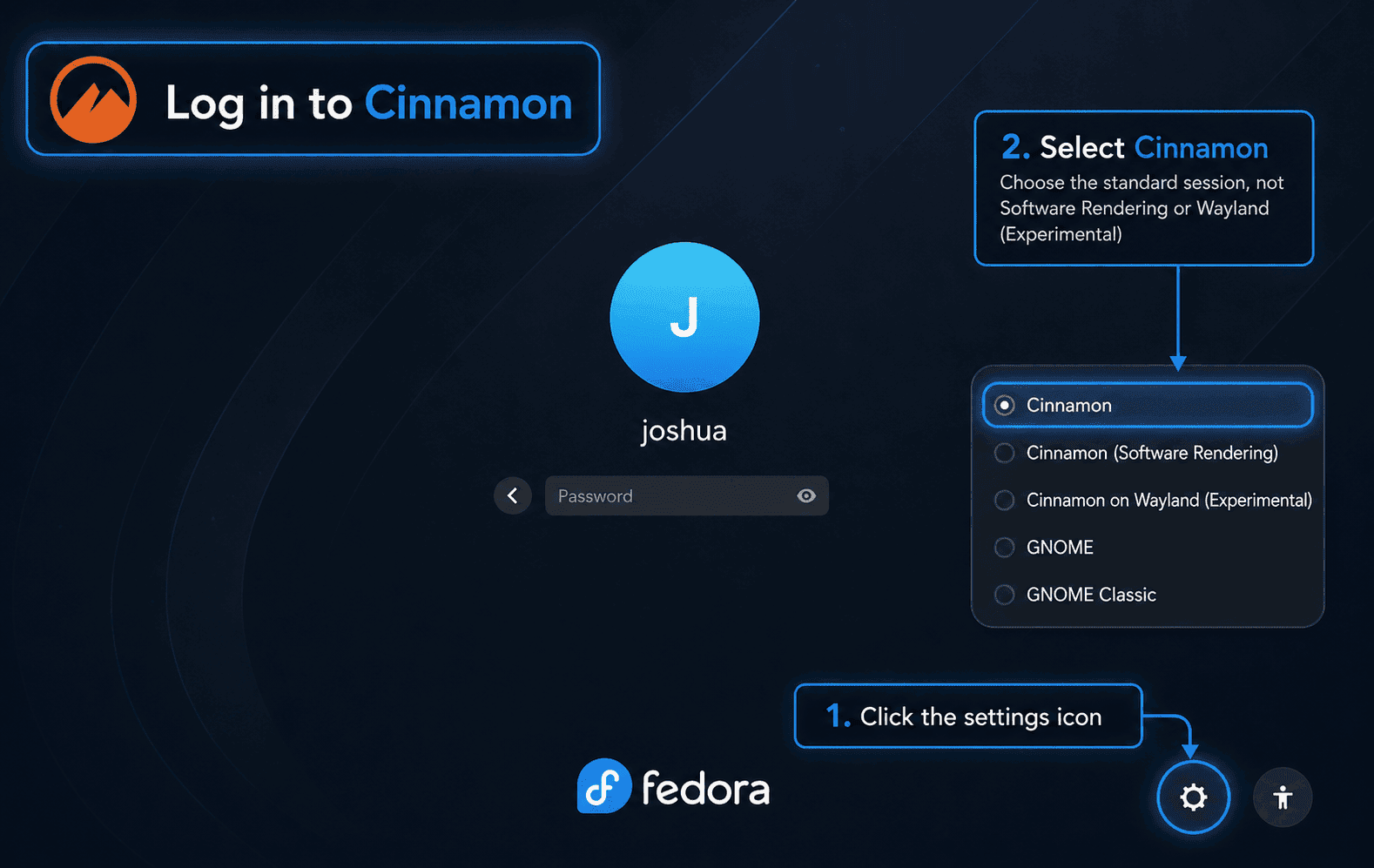
Choose Cinnamon, Software Rendering, or Wayland
Use the normal Cinnamon entry for daily work. The software-rendering entry comes from /usr/share/xsessions/cinnamon2d.desktop and is useful when GPU acceleration causes a black screen, visual artifacts, or a login loop. The Wayland entry comes from /usr/share/wayland-sessions/cinnamon-wayland.desktop; treat it as a testing path if the standard session already works.
Verify the Active Cinnamon Session
After logging in to Cinnamon, open a terminal from the application menu and check the desktop/session variables:
printf '%s\n' "$XDG_CURRENT_DESKTOP"
printf '%s\n' "$XDG_SESSION_DESKTOP"
printf '%s\n' "$XDG_SESSION_TYPE"
cinnamon --version
The desktop values should identify Cinnamon, and $XDG_SESSION_TYPE should show x11 for the standard or software-rendering session, or wayland for the Wayland session.
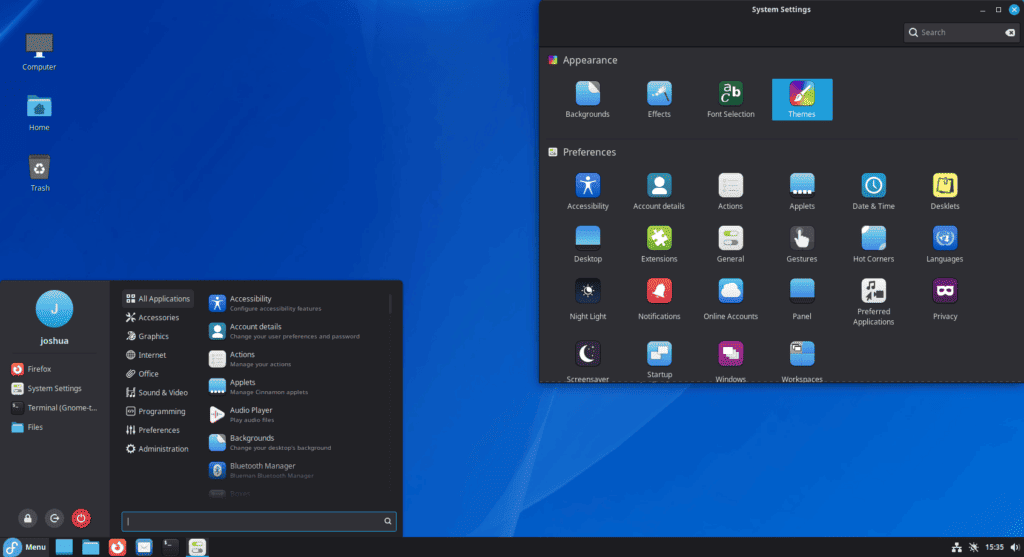
Cinnamon opens with a traditional panel, application menu, system tray, desktop icons, and Nemo as the file manager. It is a practical middle ground when you want a more conventional layout than GNOME without moving to a heavier customization workflow such as KDE Plasma on Fedora.
Optionally Switch to LightDM
Switching display managers is optional. Fedora’s Cinnamon environment installs lightdm, slick-greeter, and slick-greeter-cinnamon, but an existing Workstation system can keep GDM and still run Cinnamon sessions.
Check the current display manager before changing it:
systemctl status display-manager --no-pagerChanging the display manager affects graphical login. Keep another administrator session or a TTY available so you can switch back if the new login screen does not start correctly.
To use LightDM with Slick Greeter after installing Cinnamon, enable the LightDM service with --force because display managers share the display-manager.service alias:
sudo systemctl enable --force lightdm.service
sudo reboot
To return Fedora Workstation to GDM later, enable GDM again and reboot:
sudo systemctl enable --force gdm.service
sudo reboot
Manage Cinnamon on Fedora
Update Cinnamon Packages
Cinnamon packages update through Fedora’s normal DNF workflow. Regular system updates refresh Cinnamon, Nemo, LightDM packages, desktop libraries, and the rest of the system together.
sudo dnf upgrade --refreshFor scheduled update checks or unattended package updates, configure DNF Automatic on Fedora separately and keep reboots aligned with desktop and graphics stack updates.
Remove Cinnamon from Fedora
Do not remove Cinnamon from inside an active Cinnamon session. Log into GNOME, KDE Plasma, Xfce, another installed desktop, or a text console, and make sure a working display manager remains enabled.
If you switched to LightDM and want to return to Fedora Workstation’s default login path, restore GDM before removing Cinnamon packages:
sudo systemctl enable --force gdm.service
sudo reboot
Remove the Cinnamon environment with the same DNF5 environment ID used for installation:
sudo dnf environment remove cinnamon-desktop-environmentThe environment removal step can leave the core Cinnamon, Nemo, LightDM, theme, and library packages installed as unused dependencies. Review the follow-up cleanup instead of accepting it blindly, because the list can also include tools or libraries another desktop or application still uses.
sudo dnf autoremoveAccept the autoremove transaction only when it is limited to packages you no longer need. After cleanup, verify that the main Cinnamon packages and session entries are gone:
rpm -q cinnamon cinnamon-session cinnamon-desktop cinnamon-control-center cinnamon-screensaver nemo lightdm slick-greeter slick-greeter-cinnamon
ls /usr/share/xsessions/cinnamon.desktop /usr/share/xsessions/cinnamon2d.desktop /usr/share/wayland-sessions/cinnamon-wayland.desktop
The package check should report that the Cinnamon and LightDM packages are not installed, and the file check should report that the Cinnamon session files are absent.
Package removal does not delete your personal Cinnamon settings. Back up or review user configuration under
~/.config,~/.local/share, and~/.cachebefore deleting profile data by hand.
Troubleshoot Cinnamon on Fedora
DNF Cannot Find the Cinnamon Environment
Check the available environments and hidden groups before assuming Fedora lacks Cinnamon. The full environment is visible in the environment list, while the underlying cinnamon-desktop group is hidden in normal group output.
dnf environment list --available | grep -i cinnamon
dnf group list --hidden | grep -i cinnamon
If the environment appears, use the Fedora Cinnamon environment install path:
sudo dnf environment install cinnamon-desktop-environmentLegacy DNF Commands Fail
Older Fedora examples may use DNF4-era aliases such as groupinstall or package-group shortcuts copied from older wiki text. Current Fedora uses DNF5; if you see Unknown argument "groupinstall" for command "dnf5"., use the environment subcommand for the full Cinnamon install.
sudo dnf environment install cinnamon-desktop-environmentCinnamon Does Not Appear at Login
If the login screen does not offer Cinnamon, first confirm the Cinnamon package and session files are present:
rpm -q cinnamon cinnamon-session cinnamon-desktop
ls /usr/share/xsessions/cinnamon.desktop /usr/share/xsessions/cinnamon2d.desktop /usr/share/wayland-sessions/cinnamon-wayland.desktop
If the package check fails or the session files are missing, complete the environment install again, then reboot so the display manager reloads its session list.
sudo dnf environment install cinnamon-desktop-environment
sudo reboot
Black Screen or Login Loop After Selecting Cinnamon
A black screen or login loop usually points to a graphics, session, or display-manager problem rather than a missing Cinnamon package. From a TTY or another working desktop, inspect the active display manager and recent boot logs:
systemctl status display-manager --no-pager
sudo journalctl -b -u display-manager -n 100 --no-pager
sudo journalctl -b -p warning..alert -n 100 --no-pager
At the next login, try Cinnamon’s software-rendering session if the standard session fails. If you switched to LightDM and the login screen itself is failing, return to GDM and reboot:
sudo systemctl enable --force gdm.service
sudo reboot
Systems with proprietary NVIDIA drivers can also hit graphics-session issues. Use the Fedora-specific NVIDIA driver installation guide before treating Cinnamon itself as broken.
Cinnamon Wayland Is Missing or Unstable
Fedora’s Cinnamon package provides the Wayland session file, but the standard Cinnamon session remains the safer default for daily use. Check the Wayland entry only when you intentionally want to test it:
rpm -q cinnamon
ls /usr/share/wayland-sessions/cinnamon-wayland.desktop
If Cinnamon Wayland logs in but behaves poorly, log out and choose the standard Cinnamon session from /usr/share/xsessions/cinnamon.desktop. For a lighter desktop with a more established X11-first workflow, compare the Fedora Xfce installation path.
Conclusion
Cinnamon is installed on Fedora through the current DNF5 environment path, with GDM kept as the active login manager unless you deliberately enable LightDM. Use the standard Cinnamon session first, keep software rendering as the graphics fallback, and use the upstream Cinnamon project repository for deeper desktop customization after the Fedora packages are in place.


Formatting tips for your comment
You can use basic HTML to format your comment. Useful tags currently allowed in published comments:
<code>command</code>command<strong>bold</strong><em>italic</em><a href="https://example.com">link</a><blockquote>quote</blockquote>