

A lightweight IDE still makes sense when you want to compile, debug, and test C or C++ projects without moving into a heavier editor stack. The choice to install Code::Blocks on Ubuntu usually comes down to whether you want the native Ubuntu package or the newer Flathub build instead of chasing old standalone downloads.
Code::Blocks on Linux is built for C, C++, and Fortran work, and these steps apply to Ubuntu 26.04 LTS, 24.04 LTS, and 22.04 LTS. The commands also work on server or minimal images, although launching the IDE still requires a graphical session. The Ubuntu package follows each release, while Flathub keeps the same current build across all three supported LTS versions.
Install Code::Blocks on Ubuntu
Two managed installation paths are worth considering for Ubuntu. The native package keeps Code::Blocks tied to Ubuntu’s own toolchain, while Flatpak gives every supported Ubuntu LTS release the same newer IDE build.
| Method | Channel | Version | Updates | Best For |
|---|---|---|---|---|
| Ubuntu repository | Ubuntu Universe | Ubuntu release package | Integrated with regular APT maintenance | Native builds that should use Ubuntu’s own GCC, G++, GDB, and Make packages |
| Flatpak | Flathub | Current Flathub release | Independent via flatpak update | Users who want Code::Blocks 25.03 on every supported Ubuntu LTS release and a sandboxed SDK toolchain |
For most users, start with the Ubuntu package if you want Code::Blocks to use Ubuntu’s native compiler stack. Choose Flatpak when you want Code::Blocks 25.03 on Ubuntu 24.04 or 22.04, or when you prefer the isolated SDK toolchain that ships inside the sandbox.
For Ubuntu, the maintained package paths here are Universe and Flathub rather than a separate Ubuntu-specific installer download.
Ubuntu 26.04 installs Code::Blocks 25.03 from Universe, while Ubuntu 24.04 and 22.04 still install 20.03 from the same repository. Flatpak keeps all three supported Ubuntu LTS releases on Code::Blocks 25.03.
These instructions cover Ubuntu 26.04 LTS, 24.04 LTS, and 22.04 LTS. The commands stay the same across all three releases, but the Ubuntu repository method follows each release’s packaged Code::Blocks version while Flathub stays on the same current build.
Update Ubuntu before installing Code::Blocks
Refresh the package index before installing desktop packages from Ubuntu repositories.
sudo apt updateThese commands use
sudofor operations that need root privileges. If your account does not have sudo access yet, add it first with this guide on how to add a new user to sudoers on Ubuntu.
Install Code::Blocks from Ubuntu repositories
The Ubuntu repository method installs the IDE, contrib plugins, a native C and C++ toolchain, and GDB in one pass. This is the easiest route when you want Code::Blocks to build against the same compiler packages your shell and other Ubuntu tools already use.
sudo apt install -y codeblocks codeblocks-contrib build-essential gdbIn that command, codeblocks installs the IDE, codeblocks-contrib adds extra plugins, build-essential provides GCC, G++, and Make, and gdb supplies debugger integration. The -y flag accepts APT’s confirmation prompt automatically. If a customized image reports Unable to locate package codeblocks, enable Universe with this guide to enable Universe and Multiverse on Ubuntu, then refresh APT and retry.
After installation, confirm that Ubuntu registered the native packages.
dpkg-query -W codeblocks codeblocks-contribcodeblocks 25.03+dfsg-2 codeblocks-contrib 25.03+dfsg-2
That output matches Ubuntu 26.04. On Ubuntu 24.04 and 22.04, the same command reports Code::Blocks 20.03 instead, while the compiler toolchain still comes from your Ubuntu release.
Install Code::Blocks from Flathub
The Flatpak build keeps Code::Blocks on the same 25.03 release across Ubuntu 26.04, 24.04, and 22.04. It also brings its own Freedesktop SDK toolchain inside the sandbox, which is useful when you want a newer IDE on older Ubuntu LTS releases without changing host compiler packages.
Flatpak is not pre-installed on Ubuntu. If you have not set it up yet, install it with
sudo apt install flatpakand restart your session before continuing. For the complete setup, follow this guide to install Flatpak on Ubuntu.
Add Flathub as a system remote first so Ubuntu can pull the Code::Blocks package and runtime.
sudo flatpak remote-add --if-not-exists flathub https://dl.flathub.org/repo/flathub.flatpakrepoWith Flathub enabled, install the application at system scope.
sudo flatpak install flathub org.codeblocks.codeblocks -yVerify the Flatpak metadata so you can confirm the installed version and origin.
flatpak info org.codeblocks.codeblocksCode::Blocks - IDE for C, C++ and Fortran ID: org.codeblocks.codeblocks Branch: stable Version: 25.03 Origin: flathub Installation: system
Launch Code::Blocks on Ubuntu
Both installation methods create a normal desktop launcher, and both can also be started from the terminal. Use the command that matches the way you installed the IDE.
Launch Code::Blocks from the terminal
For the Ubuntu repository package, start the IDE with the native launcher command.
codeblocksFor the Flatpak build, use the application ID with flatpak run.
flatpak run org.codeblocks.codeblocksLaunch Code::Blocks from the applications menu
Ubuntu also adds Code::Blocks to the normal applications view after installation.
Activities > Show Applications > Code::Blocks
On first launch, Code::Blocks usually prompts you to confirm the compiler toolchains it detected. Once the welcome flow is out of the way, the main workspace opens and you can create a console, wxWidgets, or other supported project type.
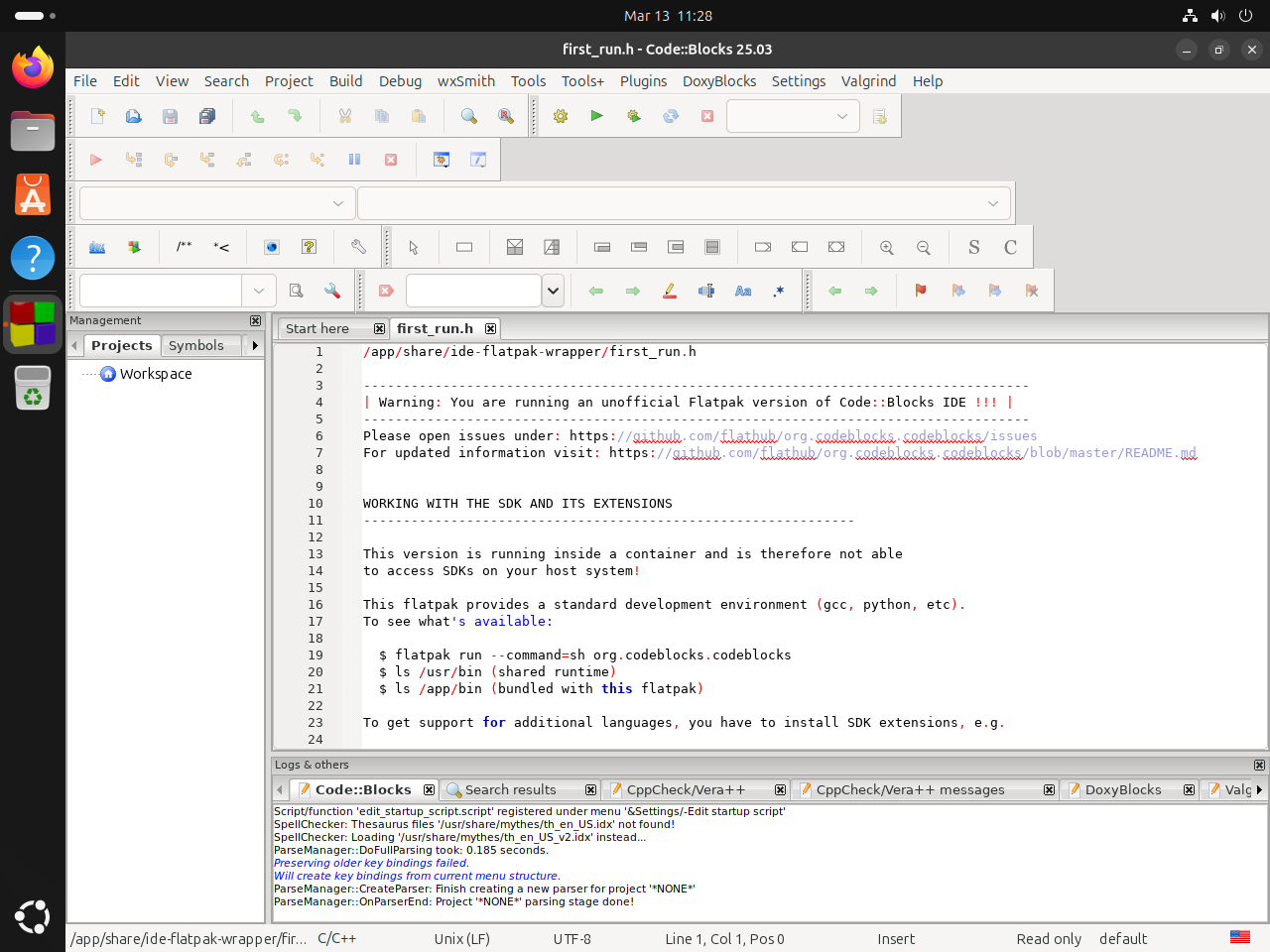
Verify compiler support for Code::Blocks on Ubuntu
Checking compiler access before your first project saves time, especially when you switch between the Ubuntu package and the Flatpak build. The two methods expose compilers differently, so verify the path that matches your install.
Verify the Ubuntu repository toolchain for Code::Blocks
The native package should use the same compiler and debugger binaries that your shell sees.
command -v gcc g++ gdb make/usr/bin/gcc /usr/bin/g++ /usr/bin/gdb /usr/bin/make
That check confirms that Code::Blocks can use Ubuntu’s native development tools. With build-essential installed, Ubuntu 26.04 tracks GCC 15.x, Ubuntu 24.04 tracks GCC 13.x, and Ubuntu 22.04 tracks GCC 11.x. For a deeper look at Ubuntu’s native compiler stack, see this guide to install GCC on Ubuntu.
Add extra compilers only when your projects need them.
sudo apt install -y clang gfortranAfter installing either package, reopen Code::Blocks and switch profiles from Settings > Compiler. Ubuntu’s Code::Blocks package already ships the matching Clang and GFortran profile definitions.
Verify the Flatpak toolchain for Code::Blocks
The Flathub build uses its own SDK runtime, so check the compiler paths from inside the sandbox instead of from the host shell.
flatpak run --command=sh org.codeblocks.codeblocks -c "command -v gcc g++ gdb make"/usr/bin/gcc /usr/bin/g++ /usr/bin/gdb /usr/bin/make
The current Flathub build exposes GCC 15.2.0, G++ 15.2.0, GDB 17.1, and GNU Make 4.4.1 through its Freedesktop SDK runtime on Ubuntu 26.04, 24.04, and 22.04. That makes Flatpak the easiest way to run Code::Blocks 25.03 with a current bundled toolchain on older supported Ubuntu LTS releases.
Manage Code::Blocks on Ubuntu
Update and removal commands depend on the method you chose. Use the APT workflow for the Ubuntu package and the Flatpak workflow for the Flathub build.
Update Code::Blocks on Ubuntu
For the Ubuntu repository build, upgrade only the Code::Blocks packages without touching unrelated packages.
sudo apt install --only-upgrade -y codeblocks codeblocks-contribFor the Flatpak build, update the application directly from Flathub.
sudo flatpak update org.codeblocks.codeblocks -yRemove Code::Blocks on Ubuntu
Remove the Ubuntu repository package
Remove the IDE and contrib plugins first, then let APT clean up any now-unused dependencies.
sudo apt remove -y codeblocks codeblocks-contrib
sudo apt autoremove -y
Check that the Ubuntu packages are gone before you move on. The grep -E portion filters for installed package rows, and our guide to the grep command in Linux explains the pattern syntax if you want to adapt the check.
dpkg -l | grep -E "^ii\s+(codeblocks|codeblocks-contrib)" || echo "packages removed"packages removed
This removal leaves build-essential and gdb in place, which is usually the right choice if you still compile or debug outside Code::Blocks.
Remove the Flatpak package
Remove the application first, then prune unused runtimes.
sudo flatpak remove --delete-data org.codeblocks.codeblocks -y
sudo flatpak uninstall --unused -y
Verify that Flatpak no longer lists the application.
flatpak list --app | grep -F org.codeblocks.codeblocks || echo "not installed"not installed
The Flatpak removal command still left
~/.var/app/org.codeblocks.codeblocks/behind after uninstall. If you want a fully clean reset, remove that sandbox directory manually. This does not touch projects you saved elsewhere on disk.
rm -rf ~/.var/app/org.codeblocks.codeblocks/Confirm that the leftover Flatpak data directory is gone.
test -d ~/.var/app/org.codeblocks.codeblocks && echo "data remains" || echo "removed"removed
Code::Blocks on Ubuntu FAQ
The Ubuntu repository package does not bundle a full compiler toolchain, so most setups need build-essential and gdb alongside codeblocks. The Flathub build is different because it exposes GCC, G++, GDB, and Make from its SDK runtime inside the sandbox.
Use APT when you want Code::Blocks to build against Ubuntu’s native GCC toolchain and update with the rest of your system. Use Flatpak when you want Code::Blocks 25.03 on Ubuntu 24.04 or 22.04, or when you prefer the isolated SDK toolchain.
codeblocks lives in Ubuntu’s Universe repository. Customized minimal images sometimes start without Universe enabled or with a damaged ubuntu.sources file, so enable Universe if needed, run sudo apt update, and retry the install.
Yes. Install clang or gfortran, reopen Code::Blocks, and select the matching profile from Settings > Compiler. Ubuntu’s package already includes Clang and GFortran profile definitions, so you usually only need the compiler packages themselves.
Conclusion
Code::Blocks is ready on Ubuntu with either the native repository build tied to your release or the Flatpak build that ships the same newer IDE across supported LTS versions. For a fuller native C and C++ toolchain, install GCC on Ubuntu next. For larger multi-file projects, install CMake on Ubuntu pairs well with Code::Blocks.

Formatting tips for your comment
You can use basic HTML to format your comment. Useful tags currently allowed:
<code>command</code>command<strong>bold</strong><em>italic</em><blockquote>quote</blockquote>