APT can only install packages from enabled Ubuntu archive components. If a package search returns Candidate: (none) or APT says it cannot locate a package, check whether Universe or Multiverse is active before assuming the package is unavailable.
Standard Ubuntu 26.04, 24.04, and 22.04 installs usually include both components, while minimal images, WSL imports, cloud templates, containers, and hand-edited APT sources can differ. The workflow checks the active state, enables the components with Ubuntu’s repository helper, refreshes APT, and verifies the package source afterward.
Enable Universe and Multiverse Repositories on Ubuntu
Ubuntu stores its default archive configuration in either the newer ubuntu.sources format or the older sources.list format, depending on the release and how the system was installed. The add-apt-repository command handles both layouts for you, the --yes flag accepts any confirmation prompt automatically, and --no-update keeps APT from refreshing twice while you enable both components.
Check Whether Universe and Multiverse Are Already Enabled
Run a quick component check first if you are unsure whether the repositories are already active. The command reads Ubuntu’s default DEB822 source file and older one-line source entries.
for component in universe multiverse; do
  if grep -hE "^(Components:|deb )" /etc/apt/sources.list /etc/apt/sources.list.d/ubuntu.sources 2>/dev/null | grep -Eq "(^|[[:space:]])${component}([[:space:]]|$)"; then
    echo "${component}: enabled"
  else
    echo "${component}: not enabled"
  fi
done
universe: enabled multiverse: enabled
If either line says not enabled, continue with the command for that component. You do not need to enable Multiverse when the package you need comes only from Universe.
Prepare Ubuntu to Enable Universe and Multiverse
Most full Ubuntu installs already include add-apt-repository. Minimal, server, cloud, and container images may need software-properties-common first.
sudo apt updateThese commands use
sudofor root privileges. If your account does not have sudo access yet, add a new user to sudoers on Ubuntu before continuing.
sudo apt install -y software-properties-commonThe software-properties-common package provides /usr/bin/add-apt-repository. The -y flag accepts APT’s confirmation prompt automatically, and if the package is already present, APT leaves the system unchanged.
Enable the Universe Repository on Ubuntu
Add Ubuntu’s community-maintained open-source component with add-apt-repository.
sudo add-apt-repository --yes --no-update universeAdding component(s) 'universe' to all repositories.
Enable the Multiverse Repository on Ubuntu
Then add the component that carries packages with licensing or redistribution restrictions. Skip this command when you only need Universe packages and intentionally want to avoid Multiverse.
sudo add-apt-repository --yes --no-update multiverseAdding component(s) 'multiverse' to all repositories.
Refresh APT After Enabling Universe and Multiverse on Ubuntu
Refresh the package index once after both components are enabled so APT can see the updated archive metadata.
sudo apt updateAPT may print Hit: and Get: lines for release, updates, backports, and security pockets. Mirror URLs, transfer sizes, and upgrade counts vary; the important result is that the update finishes without repository errors and returns you to the prompt.
Verify Universe and Multiverse Repositories on Ubuntu
A package-policy check is the fastest proof that both components are active. In this example, neovim comes from Universe and steam-installer comes from Multiverse. Relevant source lines look like this:
apt-cache policy neovim steam-installerneovim: 500 http://au.archive.ubuntu.com/ubuntu resolute/universe amd64 Packages steam-installer: 500 http://au.archive.ubuntu.com/ubuntu resolute/multiverse amd64 Packages
The exact package versions differ by Ubuntu release and update pocket, but the important part is the source path ending in /universe or /multiverse. You can substitute the package you actually need; for example, podman resolves from Universe, while ubuntu-restricted-extras and steam-installer resolve from Multiverse on current supported Ubuntu LTS releases. Once those lines appear, you can move on to packages such as install Neovim on Ubuntu or install Steam on Ubuntu.
Check Universe and Multiverse in Software & Updates
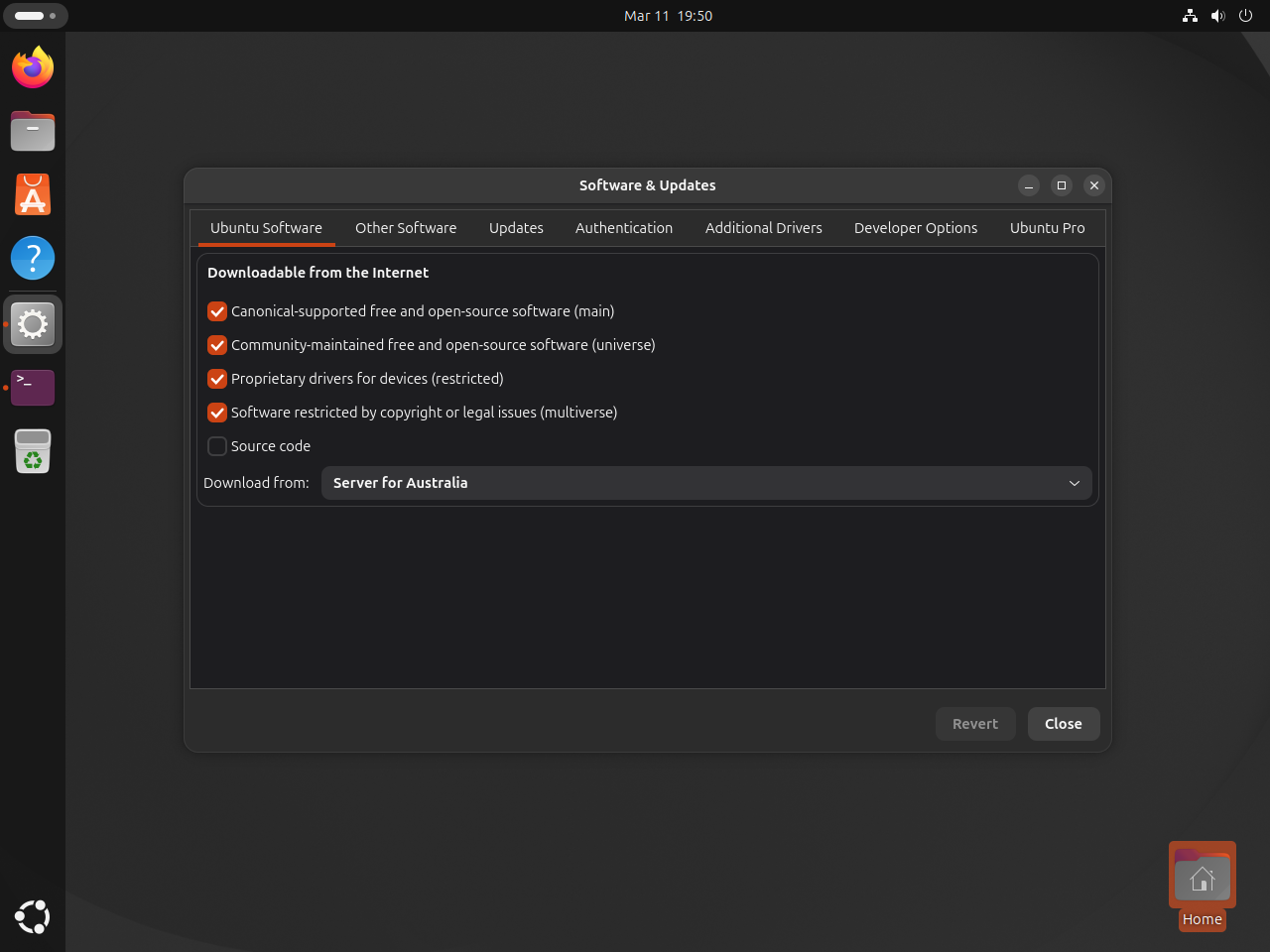
If you prefer a GUI check, open Software & Updates and review the Ubuntu Software tab. Ubuntu 26.04 may need the software-properties-gtk package before the menu entry appears.
sudo apt install -y software-properties-gtkAfter the window opens, confirm that both checkboxes stay selected.
Fix Universe and Multiverse Repository Problems on Ubuntu
Most problems come from missing repository tools, stale package indexes, wrong distro component names, trimmed images, or a desktop install that does not have the GUI helper installed yet.
Fix add-apt-repository Missing on Ubuntu
If Ubuntu returns add-apt-repository: command not found, install the package that provides it and rerun the enable commands.
sudo apt update
sudo apt install -y software-properties-common
The software-properties-common package provides the terminal command used for the rest of the process.
Fix Unable to Handle Repository Shortcut Errors
If add-apt-repository returns unable to handle repository shortcut, confirm that the system is Ubuntu and that the shortcut is exactly universe or multiverse. Debian uses different component names such as contrib and non-free, and Linux Mint should be managed through its own Software Sources workflow when you are working inside Mint rather than Ubuntu.
Check Minimal, Cloud, WSL, and Container Images
Cloud images, WSL imports, Docker containers, and custom templates can expose a smaller source or package set than a full desktop install. Run the component-status check on the actual environment. In a root container shell, omit sudo; on an installed Ubuntu system, keep sudo for the repository and APT commands.
Fix Missing Packages After Enabling Universe and Multiverse on Ubuntu
If a package still shows Candidate: (none), refresh APT again and rerun the same policy check you used for verification.
sudo apt update
apt-cache policy neovim steam-installer
If the source lines still do not end in /universe or /multiverse, inspect your active Ubuntu sources for a custom mirror, an outdated release name, or a hand-edited file that removed the component. For Unable to locate package ubuntu-restricted-extras, Multiverse is the component to check first.
Fix Software & Updates Missing on Ubuntu 26.04
Ubuntu 26.04 desktops can be installed without the GUI repository manager. After Universe is enabled and APT has been refreshed, install software-properties-gtk if you want the graphical checkboxes back in the application menu.
sudo apt install -y software-properties-gtkThe package installs the Software & Updates tool used for the optional GUI verification step.
Understand Universe and Multiverse Repositories on Ubuntu
Ubuntu splits its archive into Main, Restricted, Universe, and Multiverse. Canonical’s Ubuntu package-management documentation describes Universe and Multiverse as extra repositories that are enabled by default on standard systems, but their support and licensing expectations differ from Main.
| Ubuntu Component | Typical Contents | What to Remember |
|---|---|---|
| Main | Core free and open-source packages | Ubuntu’s primary supported package set. |
| Restricted | Proprietary drivers and related packages | Used when hardware support requires non-open-source software. |
| Universe | Community-maintained open-source packages | Useful for many developer, desktop, server, and command-line tools, but not the same support commitment as Main. |
| Multiverse | Packages with licensing or redistribution restrictions | Review the package terms before installing software from this component. |
Enable only the component required by the package you are trying to install. Universe is enough for packages such as neovim or podman; Multiverse is needed for packages such as steam-installer or ubuntu-restricted-extras.
Disable Universe and Multiverse Repositories on Ubuntu
If you want to return the system to Main and Restricted only, remove both components from the active Ubuntu source definitions and refresh APT afterward. This change stops APT from using those archives for future installs and upgrades, but it does not uninstall packages that are already on the system.
Disable the Universe Repository on Ubuntu
Remove the community-maintained component first.
sudo add-apt-repository --yes --no-update --remove universeRemoving component(s) 'universe' from all repositories.
Disable the Multiverse Repository on Ubuntu
Then remove the component that carries license-restricted packages.
sudo add-apt-repository --yes --no-update --remove multiverseRemoving component(s) 'multiverse' from all repositories.
Refresh APT After Disabling the Ubuntu Repositories
Refresh the package index again so APT drops packages from both components.
sudo apt updateVerify Universe and Multiverse Are Disabled on Ubuntu
Run the status check again after the update finishes. If both components are off, each line reports not enabled.
for component in universe multiverse; do
  if grep -hE "^(Components:|deb )" /etc/apt/sources.list /etc/apt/sources.list.d/ubuntu.sources 2>/dev/null | grep -Eq "(^|[[:space:]])${component}([[:space:]]|$)"; then
    echo "${component}: enabled"
  else
    echo "${component}: not enabled"
  fi
done
universe: not enabled multiverse: not enabled
On Ubuntu 26.04 and 24.04, enabled components usually appear as Components: entries from ubuntu.sources. On Ubuntu 22.04, the same check also catches active deb lines from /etc/apt/sources.list.
Conclusion
With Universe and Multiverse active, APT can resolve packages outside Main and Restricted, including many community-maintained tools and packages with licensing restrictions. Keep software-properties-common installed if you manage components from the terminal, and use apt-cache policy whenever you need to confirm which Ubuntu component provides a package.


Formatting tips for your comment
You can use basic HTML to format your comment. Useful tags currently allowed in published comments:
<code>command</code>command<strong>bold</strong><em>italic</em><a href="https://example.com">link</a><blockquote>quote</blockquote>