Ubuntu still works best from the terminal for many package-management jobs, but a graphical queue is faster when you want to inspect dependencies, mark several changes at once, or review package metadata before APT touches the system. That makes it easy to install Synaptic Package Manager on Ubuntu 26.04, 24.04, and 22.04 without hunting for a separate download or third-party source.
Synaptic Package Manager does not replace APT. It gives you a GTK front end for the same package database, repository metadata, and dependency handling Ubuntu already uses. That makes it useful on desktop systems where you want a visual package browser, while still keeping package updates tied to normal Ubuntu repositories.
Install Synaptic Package Manager on Ubuntu
Synaptic installs from Ubuntu’s default APT sources on every supported LTS release. The package version changes by release, but the install command stays the same and the source component remains universe.
| Ubuntu release | Synaptic package | Repository component | Notes |
|---|---|---|---|
| Ubuntu 26.04 LTS | 0.91.7build1 | Universe | Newest supported LTS |
| Ubuntu 24.04 LTS | 0.91.3build4 | Universe | Same install command |
| Ubuntu 22.04 LTS | 0.90.2build1 | Universe | Oldest supported LTS |
Synaptic comes from Ubuntu’s
universecomponent on all supported LTS releases. Onlyuniverseis required for this package. Ifaptcannot find it, follow the guide to enable Universe and Multiverse on Ubuntu, then refresh your package lists before retrying the install.
Update Ubuntu Before Installing Synaptic
Refresh the local package index first. Then review and apply pending upgrades if APT lists updates you are ready to install before adding Synaptic.
sudo apt updatesudo apt upgradeThese commands use
sudofor package-management tasks. If your account does not have sudo access yet, follow the guide to add a new user to sudoers on Ubuntu before continuing.
Install Synaptic from Ubuntu Repositories
Install Synaptic Package Manager on Ubuntu with the standard APT package. This keeps updates tied to Ubuntu’s normal repository workflow and avoids a separate manual download.
sudo apt install synapticThe package name is synaptic, not synaptics. Searches for synaptics usually point to touchpad hardware or driver topics, while sudo apt-get install synaptic resolves the same package if you are adapting an older command or script.
Verify the Synaptic Package on Ubuntu
Check the installed package state with apt-cache policy. This confirms both the installed version and the repository component supplying the package.
apt-cache policy synapticRelevant output on Ubuntu 26.04:
synaptic:
  Installed: 0.91.7build1
  Candidate: 0.91.7build1
The version table should also include a resolute/universe package source. Ubuntu 24.04 reports 0.91.3build4, and Ubuntu 22.04 reports 0.90.2build1. In each case, the package still comes from universe.
Open Synaptic Package Manager on Ubuntu
Synaptic is a GUI program. Installing the package from a terminal does not create a text-mode package manager, so you still need an active graphical session to open and use the application.
Open Synaptic from the Ubuntu Application Menu
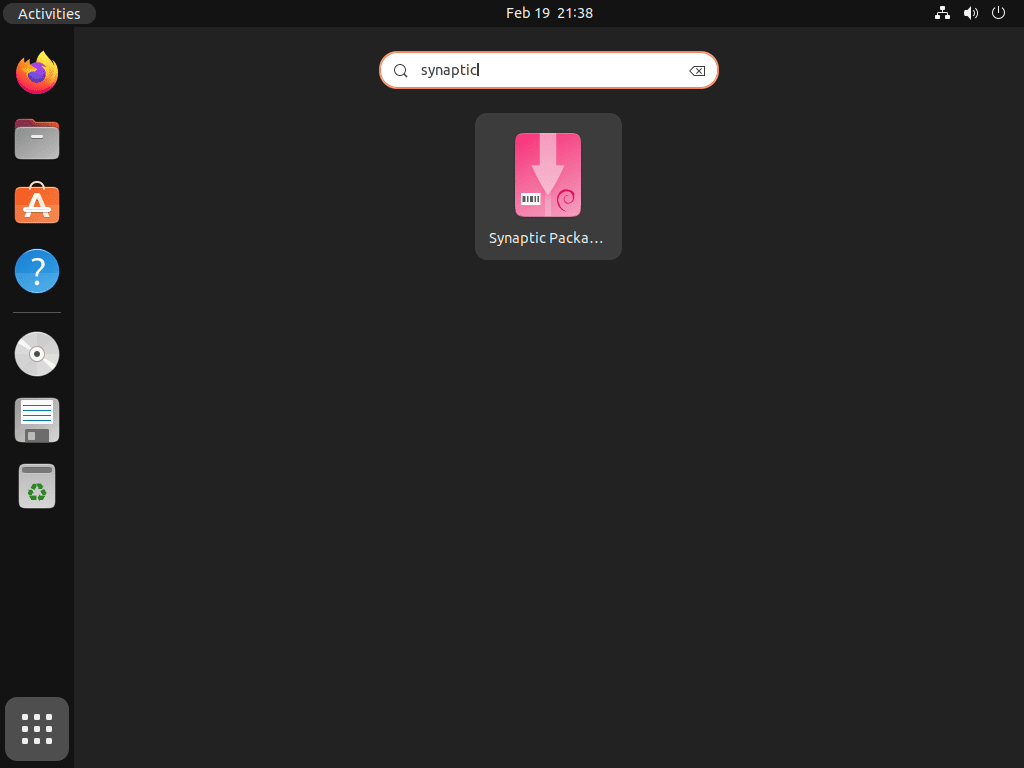
Most desktop users will start Synaptic from the app menu. Search for Synaptic Package Manager, launch it, and approve the authentication prompt when Ubuntu asks for your password.
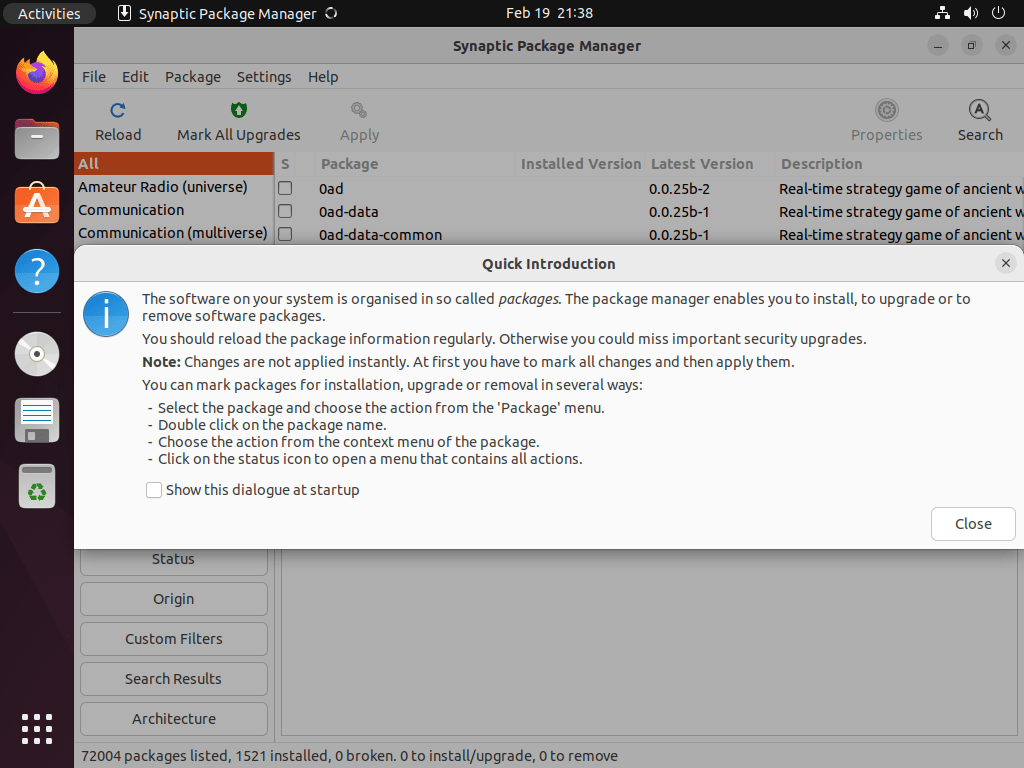
Synaptic may show a short welcome message the first time it opens. Read it once if you want the quick overview, or disable the reminder if you already know the interface.
Start Synaptic from the Terminal on Ubuntu
If you are already in a desktop session and want to start Synaptic from a terminal, use sudo synaptic. This opens the same GUI application and still depends on a working graphical session.
sudo synapticCurrent Ubuntu releases do not need gksudo for Synaptic. Use the menu launcher or sudo synaptic inside a graphical session, and make sure your desktop has a working PolicyKit authentication agent if no password prompt appears.
On a headless SSH session, the package can be installed and removed normally, but the Synaptic window itself cannot open until you log into a desktop environment.
Use Synaptic Package Manager on Ubuntu
Once Synaptic opens, the interface is still working with APT underneath. The main advantage is being able to inspect, queue, and review package actions visually before anything is applied.
Search and Install Packages in Synaptic on Ubuntu
- Click Reload before searching so Synaptic uses the latest APT package metadata.
- Use the Quick Filter box when you already know part of the package name and want faster results.
- Install
apt-xapian-indexonly if you specifically want Synaptic’s optional indexed quick-search support; Ubuntu lists it as a suggested package, not a requirement. - Select a package to review its version, description, dependencies, and source before marking it for installation or removal.
- Review the pending changes dialog before applying anything so you can see which additional packages APT plans to install or remove.
- Avoid running another package manager at the same time. Let Synaptic finish before switching back to
apt, Ubuntu Software, or another front end.
Customize the Synaptic Display on Ubuntu
- Right-click the column headers to show or hide details that matter to you, such as package size, installed version, or repository source.
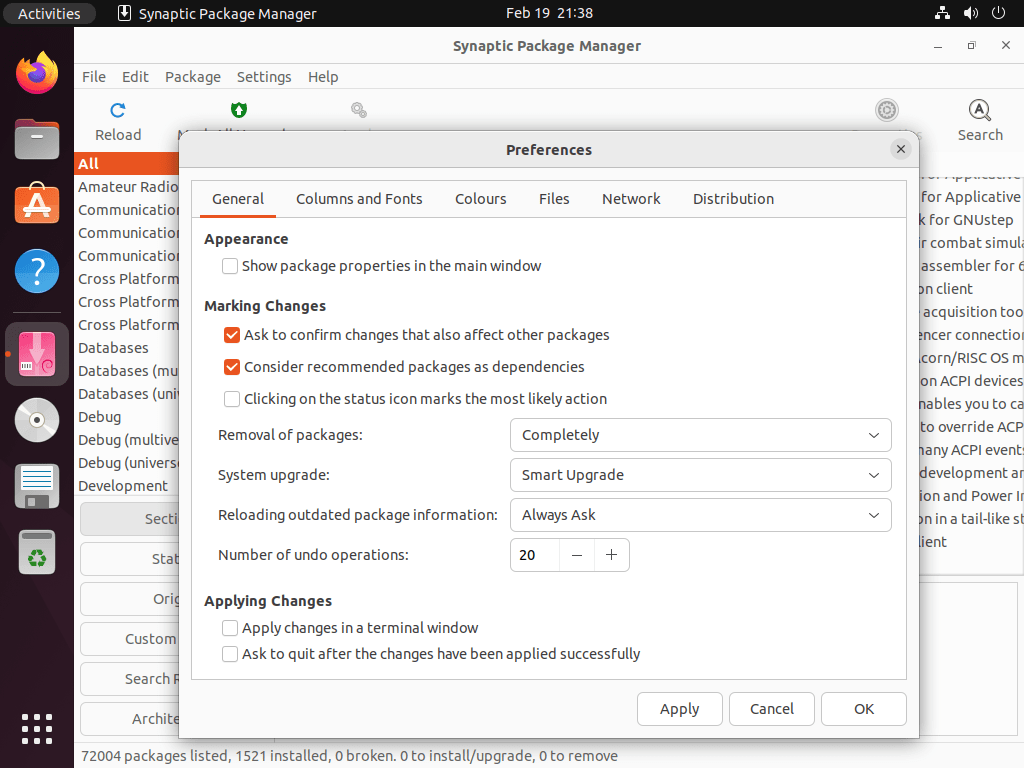
- Open Settings > Preferences when you want to tune package-list behavior, cleanup rules, or interface details.
- Use filters by section, status, or origin when the package list is too broad for a simple name search.
Use Synaptic to Track Changes and Fix Package Issues on Ubuntu
- Use the history view when you need to review earlier package actions or confirm what changed during a troubleshooting session.
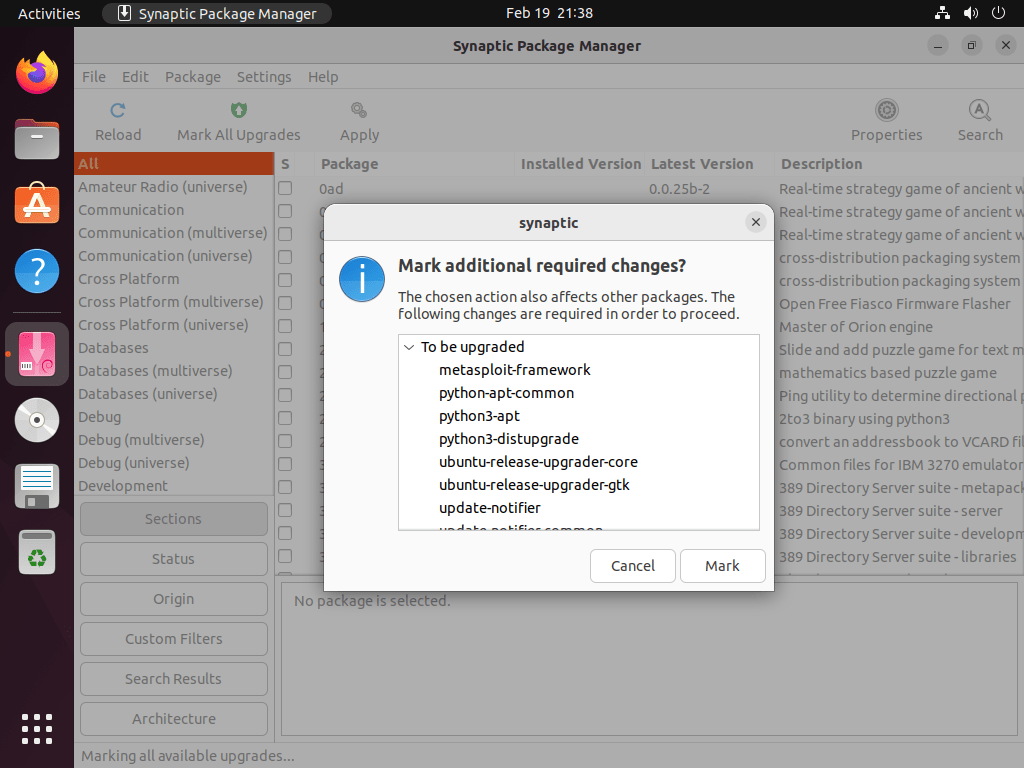
- Click Mark All Upgrades when you want Synaptic to queue every currently available package update in one pass.
- Pay attention to the dependency prompts before you apply changes, especially when a removal would also uninstall related packages.
- Open Edit > Fix Broken Packages if a package operation was interrupted and APT needs help returning to a consistent state.
Troubleshoot Synaptic on Ubuntu
Most Ubuntu desktop installs will open Synaptic immediately after installation. Alternative desktop environments and stripped-down images are more likely to miss the authentication helper that prompts for administrative access.
Fix Synaptic Launch Problems on Ubuntu Desktops
If Synaptic starts from the menu without showing a password prompt, install the PolicyKit authentication agent that matches your desktop environment.
On LXDE, install lxpolkit:
sudo apt install lxpolkitOn MATE, install mate-polkit:
sudo apt install mate-polkitOn Cinnamon, Xfce, and Unity, install policykit-1-gnome:
sudo apt install policykit-1-gnomeOn LXQt, install lxqt-policykit:
sudo apt install lxqt-policykitOn KDE Plasma or Kubuntu, install polkit-kde-agent-1 if the desktop session lacks its authentication agent:
sudo apt install polkit-kde-agent-1After installing the correct agent, sign out of the desktop session, sign back in, and try opening Synaptic again.
Fix Missing Synaptic Package Results on Ubuntu
If sudo apt install synaptic returns Unable to locate package synaptic or apt-cache policy synaptic shows no candidate, the most common cause is a disabled universe component. Re-enable universe with the Ubuntu repository guide linked earlier, then rerun sudo apt update and check the package again.
Remove Synaptic Package Manager on Ubuntu
Remove Synaptic when you no longer want the GUI package manager installed. Keep dependency cleanup separate so APT does not remove unrelated packages that were already marked autoremovable before Synaptic was installed.
sudo apt remove synapticVerify package-manager state first. This check returns a line only when Synaptic is still installed:
dpkg -l synaptic | grep '^ii' || echo "Synaptic is not installed"Expected output:
Synaptic is not installed
If APT reports no-longer-needed dependencies, preview the cleanup before removing them:
sudo apt autoremove --dry-runContinue only if the preview contains packages you intentionally want to remove, then run the cleanup interactively:
sudo apt autoremoveSynaptic keeps package state in APT rather than a large application profile. To audit your own session-specific leftovers after using the application, search your home directory for
synaptic-named files before deleting anything manually.
Conclusion
Synaptic Package Manager is installed on Ubuntu and ready for visual package searches, dependency reviews, and queued APT changes from one window. If you want broader application sources next, install Flatpak on Ubuntu. If you prefer terminal maintenance, update packages via the Ubuntu command line.


Formatting tips for your comment
You can use basic HTML to format your comment. Useful tags currently allowed in published comments:
<code>command</code>command<strong>bold</strong><em>italic</em><a href="https://example.com">link</a><blockquote>quote</blockquote>