
Electrical drawings get messy fast when symbols, title blocks, and export settings live in separate tools. QElectroTech keeps that workflow in one GPL-licensed desktop editor for schematics, control circuits, and technical diagrams, and you can install QElectroTech on Ubuntu through Snap, the upstream stable AppImage release, or the Ubuntu repositories. The current upstream 0.100 series includes more than 8,000 symbols, while Ubuntu’s APT package gives you the distro-maintained build from the Universe repository.
Use Snap when you want the newest stable QElectroTech release with automatic app updates. Use the AppImage helper when you want the latest stable GitHub release with digest verification and a local launcher. Use APT when you prefer Ubuntu-managed packages and do not need the newest upstream feature set.
Install QElectroTech on Ubuntu
Start by refreshing Ubuntu’s package metadata and applying pending updates before adding a desktop application or installing from Universe:
sudo apt update
sudo apt upgrade
These commands use
sudofor system-level package changes. If your account cannot use sudo yet, run the commands from an administrator account or use the Ubuntu sudoers guide to add a user to sudoers on Ubuntu.
| Method | Source | Version or asset | Updates | Best fit |
|---|---|---|---|---|
| Snap | Snapcraft, linked from the upstream Linux download page | 0.100.1-g342ac362 stable | Automatic through snapd, with manual refresh available | Newest stable release; --purge skips Snap’s automatic removal snapshot |
| AppImage | GitHub stable release assets | 0.100 stable release; helper selects x86_64 or AArch64 assets | Rerun the local update helper | Direct upstream stable AppImage with SHA-256 verification and a user launcher |
| APT | Ubuntu Universe repository | 26.04: 1:0.9-3build1; 24.04: 1:0.9-2build2; 22.04: 1:0.8.0-3 | Through normal APT upgrades | Distro-maintained package with standard Ubuntu package management |
The supported Ubuntu scope for this article is Ubuntu 26.04 LTS (resolute), 24.04 LTS (noble), and 22.04 LTS (jammy). The Snap package currently gives each release the same 0.100.x application branch, the AppImage helper uses the same stable release metadata across those releases, and the APT package differs by Ubuntu release.
Install QElectroTech with Snap
Ubuntu desktop installs normally include snapd, and the upstream QElectroTech Linux download page points users to the Snap Store for a current packaged build. Install the stable Snap package with:
sudo snap install qelectrotechVerify the installed Snap package and channel:
snap list qelectrotechA successful install returns output similar to this:
Name          Version            Rev   Tracking       Publisher  Notes
qelectrotech  0.100.1-g342ac362  2154  latest/stable  scorpio    -
Install QElectroTech with the Stable AppImage
The QElectroTech project publishes Linux AppImage builds for its stable releases. This method uses the official GitHub release API, ignores nightly and development builds, verifies the release asset’s SHA-256 digest, and creates a desktop launcher for your user account. If you are new to this package format, the Ubuntu AppImage guide explains how AppImages behave outside APT and Snap.
Install AppImage Prerequisites
Install the helper requirements and the FUSE 2 compatibility package for your Ubuntu release:
sudo apt update
. /etc/os-release
case "$VERSION_ID" in
    26.04|24.04)
        sudo apt install curl ca-certificates python3 desktop-file-utils libfuse2t64
        ;;
    22.04)
        sudo apt install curl ca-certificates python3 desktop-file-utils libfuse2
        ;;
    *)
        printf 'This article covers Ubuntu 26.04, 24.04, and 22.04; stop here before continuing on another release.\n' >&2
        false
        ;;
esac
Create the AppImage Helper
Create the local updater and launcher helper. The setup refuses to replace an existing file unless it already contains the LinuxCapable marker for this QElectroTech helper:
mkdir -p "$HOME/.local/bin"
helper_path="$HOME/.local/bin/update-qelectrotech-appimage"
write_helper=yes
if [ -e "$helper_path" ] || [ -L "$helper_path" ]; then
    if [ -L "$helper_path" ] || [ ! -f "$helper_path" ] || ! grep -q 'linuxcapable-qelectrotech-appimage-helper' "$helper_path"; then
        printf 'Refusing to replace existing helper: %s\n' "$helper_path" >&2
        write_helper=no
    fi
fi

if [ "$write_helper" = yes ]; then
    cat > "$helper_path" <<'EOF'
#!/usr/bin/env bash
# linuxcapable-qelectrotech-appimage-helper
set -euo pipefail

api_url="https://api.github.com/repos/qelectrotech/qelectrotech-source-mirror/releases/latest"
install_dir="${HOME}/Applications/qelectrotech-appimage"
current_link="${install_dir}/QElectroTech.AppImage"
launcher="${HOME}/.local/bin/qelectrotech-appimage"
desktop_file="${HOME}/.local/share/applications/qelectrotech-appimage.desktop"
icon_root="${HOME}/.local/share/icons/hicolor"
check_only=0

case "${1:-}" in
    --check) check_only=1 ;;
    "") ;;
    *) printf 'Usage: update-qelectrotech-appimage [--check]\n' >&2; exit 1 ;;
esac

for cmd in basename cat chmod curl desktop-file-validate dirname find grep install ln mkdir mktemp python3 rm sha256sum sort uname update-desktop-database; do
    if ! command -v "$cmd" >/dev/null 2>&1; then
        printf 'Missing required command: %s\n' "$cmd" >&2
        exit 1
    fi
done

refuse_unmanaged_file() {
    local file_path="$1"
    local marker="$2"
    local label="$3"
    if [ -e "$file_path" ] || [ -L "$file_path" ]; then
        if [ -L "$file_path" ] || [ ! -f "$file_path" ] || ! grep -q "$marker" "$file_path"; then
            printf 'Refusing to replace existing %s: %s\n' "$label" "$file_path" >&2
            exit 1
        fi
    fi
}

case "$(uname -m)" in
    x86_64) asset_regex='^QElectroTech_.*-x86_64[.]AppImage$' ;;
    aarch64|arm64) asset_regex='^QElectroTech-.*-aarch64[.]AppImage$' ;;
    *) printf 'This helper supports x86_64 and aarch64 AppImage assets only.\n' >&2; exit 1 ;;
esac

work_dir="$(mktemp -d)"
cleanup() { rm -rf "$work_dir"; }
trap cleanup EXIT
release_file="${work_dir}/release.json"

curl -fsSL -o "$release_file" "$api_url"

asset_info="$(python3 - "$release_file" "$asset_regex" <<'PY'
import json, re, sys
release_path, pattern = sys.argv[1], sys.argv[2]
with open(release_path, "r", encoding="utf-8") as fh:
    data = json.load(fh)
if data.get("draft") or data.get("prerelease"):
    raise SystemExit("Latest release is not a stable published release.")
assets = [asset for asset in data.get("assets", []) if re.search(pattern, asset.get("name", ""))]
if not assets:
    raise SystemExit("No matching Linux AppImage asset found in the latest stable release.")
asset = assets[0]
values = [data.get("tag_name", ""), asset.get("name", ""), asset.get("browser_download_url", ""), asset.get("digest", "")]
if not all(values[:3]):
    raise SystemExit("Release metadata is missing the tag, asset name, or download URL.")
print("\t".join(values))
PY
)"

IFS="$(printf '\t')" read -r tag asset_name asset_url asset_digest <<EOF_ASSET
$asset_info
EOF_ASSET

case "$asset_digest" in
    sha256:*) expected_sha256="${asset_digest#sha256:}" ;;
    *) printf 'GitHub release asset did not provide a sha256 digest for %s.\n' "$asset_name" >&2; exit 1 ;;
esac

target_file="${install_dir}/${asset_name}"
printf 'Stable release: %s\n' "$tag"
printf 'Selected asset: %s\n' "$asset_name"
printf 'Digest: sha256:%s\n' "$expected_sha256"

if [ "$check_only" -eq 1 ]; then
    printf 'Download URL: %s\n' "$asset_url"
    printf 'Check-only mode; no files changed.\n'
    exit 0
fi

mkdir -p "$install_dir" "${HOME}/.local/bin" "$(dirname "$desktop_file")"
refuse_unmanaged_file "$launcher" 'linuxcapable-qelectrotech-appimage-launcher' 'launcher'
refuse_unmanaged_file "$desktop_file" 'X-LinuxCapable-Managed=qelectrotech-appimage' 'desktop file'

needs_download=yes
if [ -f "$target_file" ]; then
    if printf '%s  %s\n' "$expected_sha256" "$target_file" | sha256sum -c - >/dev/null 2>&1; then
        needs_download=no
    else
        rm -f "$target_file"
    fi
fi

if [ "$needs_download" = yes ]; then
    curl -fL --progress-bar -o "${work_dir}/${asset_name}" "$asset_url"
    (cd "$work_dir" && printf '%s  %s\n' "$expected_sha256" "$asset_name" | sha256sum -c -)
    install -m 0755 "${work_dir}/${asset_name}" "$target_file"
fi

ln -sfn "$target_file" "$current_link"

cat > "$launcher" <<'LAUNCHER'
#!/usr/bin/env bash
# linuxcapable-qelectrotech-appimage-launcher
exec "$HOME/Applications/qelectrotech-appimage/QElectroTech.AppImage" "$@"
LAUNCHER
chmod 0755 "$launcher"

extract_dir="${work_dir}/extract"
mkdir -p "$extract_dir"
icon_count=0
if (cd "$extract_dir" && "$current_link" --appimage-extract usr/share/ico/breeze-icons qelectrotech.png >/dev/null 2>&1); then
    while IFS= read -r icon_file; do
        size_dir="$(basename "$(dirname "$(dirname "$icon_file")")")"
        case "$size_dir" in
            [0-9]*x[0-9]*) ;;
            *) continue ;;
        esac
        install -Dm644 "$icon_file" "$icon_root/$size_dir/apps/qelectrotech-appimage.png"
        icon_count=$((icon_count + 1))
    done < <(find "$extract_dir/squashfs-root/usr/share/ico/breeze-icons" -type f -path '*/apps/qelectrotech.png' | sort -V)
    if [ "$icon_count" -eq 0 ] && [ -f "$extract_dir/squashfs-root/qelectrotech.png" ]; then
        install -Dm644 "$extract_dir/squashfs-root/qelectrotech.png" "$icon_root/256x256/apps/qelectrotech-appimage.png"
        icon_count=1
    fi
fi

if [ "$icon_count" -eq 0 ]; then
    printf 'Could not extract a QElectroTech icon from the AppImage.\n' >&2
    exit 1
fi

cat > "$desktop_file" <<DESKTOP
[Desktop Entry]
Type=Application
Name=QElectroTech AppImage
Comment=Edit electrical diagrams
Exec=$launcher %F
TryExec=$launcher
Icon=qelectrotech-appimage
Terminal=false
Categories=Graphics;2DGraphics;
StartupNotify=true
X-LinuxCapable-Managed=qelectrotech-appimage
DESKTOP

desktop-file-validate "$desktop_file"
update-desktop-database "${HOME}/.local/share/applications" >/dev/null 2>&1 || true
if command -v gtk-update-icon-cache >/dev/null 2>&1; then
    gtk-update-icon-cache -q "$icon_root" >/dev/null 2>&1 || true
fi

if [ "$needs_download" = yes ]; then
    printf 'Installed QElectroTech AppImage release %s.\n' "$tag"
else
    printf 'QElectroTech AppImage release %s is already current.\n' "$tag"
fi
printf 'Launch command: qelectrotech-appimage\n'
EOF
    chmod 0755 "$helper_path"
    export PATH="$HOME/.local/bin:$PATH"
    command -v update-qelectrotech-appimage
else
    false
fi
Check and Install the Stable AppImage
Preview the selected stable release without changing files:
update-qelectrotech-appimage --checkOn x86_64 Ubuntu, the check-only output is similar to this:
Stable release: 0.100
Selected asset: QElectroTech_0.100.0-r8590-x86_64.AppImage
Digest: sha256:ff9ff8a3ae0a9caaec7ae5d139308fc8e11f89b1d3f2518e75aa8bf050a6a8d6
Download URL: https://github.com/qelectrotech/qelectrotech-source-mirror/releases/download/0.100/QElectroTech_0.100.0-r8590-x86_64.AppImage
Check-only mode; no files changed.
Install the AppImage when the helper reports the expected stable release and Linux asset:
update-qelectrotech-appimageA new install verifies the downloaded file and ends with these status lines:
QElectroTech_0.100.0-r8590-x86_64.AppImage: OK
Installed QElectroTech AppImage release 0.100.
Launch command: qelectrotech-appimage
The helper installs the AppImage under ~/Applications/qelectrotech-appimage/, creates qelectrotech-appimage in ~/.local/bin/, extracts QElectroTech icons, and writes a QElectroTech AppImage desktop launcher. If a new terminal has not picked up ~/.local/bin yet, open a new terminal session or sign out and back in before using the helper command.
Install QElectroTech with APT
The APT package comes from Ubuntu’s Universe component. Standard Ubuntu desktop installs usually have Universe enabled already, but minimal or customized systems may need it first; only Universe is required for this package, and the Ubuntu Universe and Multiverse guide explains how to enable the component if APT cannot find the package.
sudo apt install qelectrotechVerify the package status after installation:
dpkg -l qelectrotechUbuntu 26.04 currently reports this installed package revision:
ii qelectrotech 1:0.9-3build1 amd64 Electric schematic editor
Ubuntu 24.04 reports 1:0.9-2build2, while Ubuntu 22.04 reports 1:0.8.0-3. Those older APT builds are normal for the Ubuntu repository method; switch to Snap or the stable AppImage helper if you need the 0.100.x branch.
Launch QElectroTech on Ubuntu
QElectroTech is a graphical editor. The packages install from a terminal, but the application itself needs an active desktop session to design or edit diagrams.
Launch the Snap Package
For the Snap package, use snap run from a terminal because it works even when /snap/bin is not yet in your shell path:
snap run qelectrotechLaunch the AppImage Install
The AppImage helper creates a user launcher named qelectrotech-appimage. Start the AppImage from a terminal with:
qelectrotech-appimageLaunch the APT Package
The APT package installs the standard launcher at /usr/bin/qelectrotech, so this command starts the application from a terminal:
qelectrotechLaunch from the Applications Menu
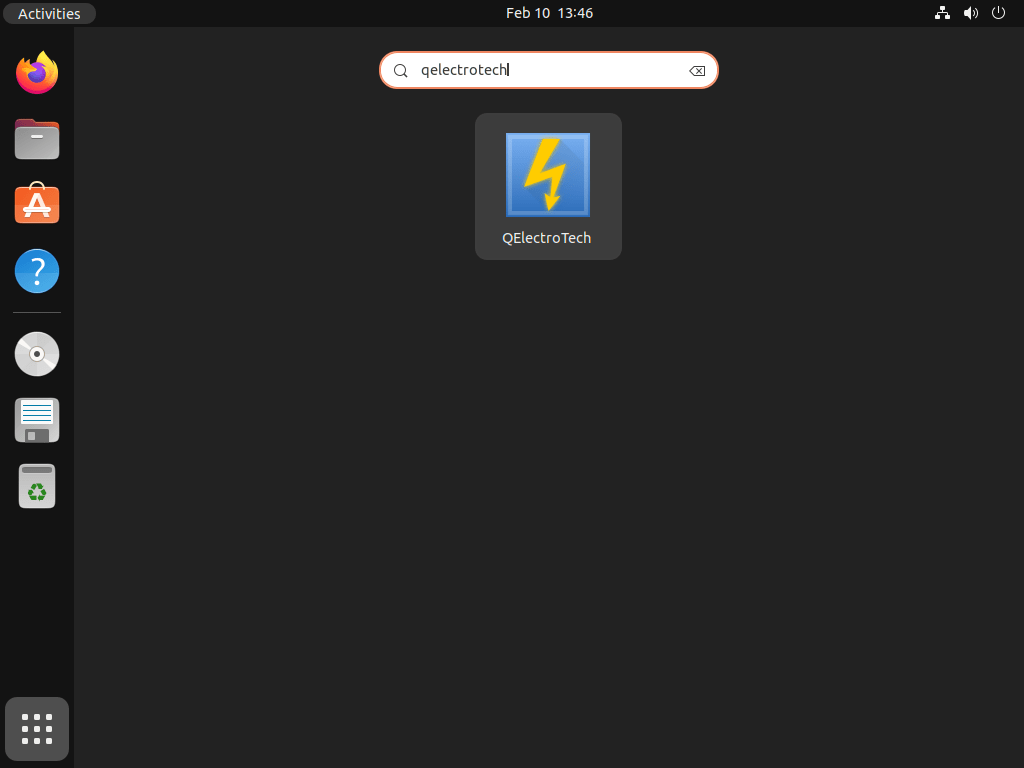
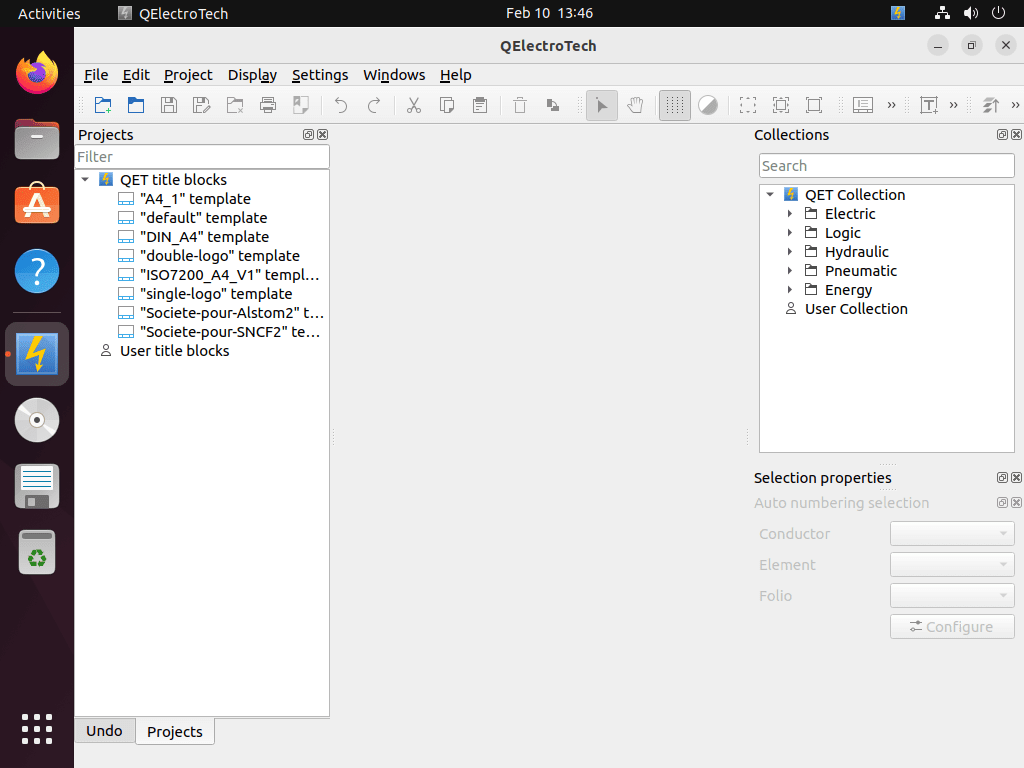
From the Ubuntu desktop, open the applications menu and search for QElectroTech. The Snap and APT packages use the standard QElectroTech launcher name, while the helper method creates QElectroTech AppImage with the same upstream icon.
QElectroTech Downloads and Symbol Libraries
The official QElectroTech Linux download page lists GNU/Linux builds separately from Windows and macOS, including stable AppImages for x86_64 and AArch64. The GitHub release helper above uses the project’s latest stable release metadata instead of nightly or development downloads. The current GitHub nightly entry is a Windows pre-release, so this guide does not use it for Ubuntu.
Symbol and template searches usually point to QElectroTech’s built-in and online collections, not a separate Ubuntu package. The project maintains an official element collection viewer and a contributed element collection viewer for browsing available symbols.
QElectroTech focuses on electrical schematics and 2D technical diagrams. If your project moves into PCB layout, 2D CAD, or mechanical modeling, see how to install KiCad on Ubuntu, install LibreCAD on Ubuntu, or install FreeCAD on Ubuntu.
Update or Remove QElectroTech
Update the Snap Package
Snap packages refresh automatically. To request an immediate refresh for QElectroTech, run:
sudo snap refresh qelectrotechUpdate the AppImage Install
Rerun the helper to check the latest stable GitHub release and replace the local AppImage only when the release asset changes:
update-qelectrotech-appimageWhen the installed AppImage already matches the current stable release, the helper reports that no replacement was needed:
QElectroTech AppImage release 0.100 is already current.
Launch command: qelectrotech-appimage
If your shell does not find the helper in a later session, open a new terminal or sign out and back in so ~/.local/bin is on your PATH.
Update the APT Package
For the Ubuntu repository package, refresh APT metadata and upgrade only QElectroTech if a newer Ubuntu build exists:
sudo apt update
sudo apt install --only-upgrade qelectrotech
The --only-upgrade flag upgrades QElectroTech only when it is already installed; it will not install the package on a system that does not have it yet.
Remove the Snap Package
Remove the Snap package without creating an automatic recovery snapshot:
sudo snap remove --purge qelectrotechConfirm Snap no longer lists the application:
snap list qelectrotech 2>/dev/null || echo "qelectrotech is not installed"qelectrotech is not installed
Remove the AppImage Install
Remove only the AppImage helper, local AppImage, launcher, and extracted icons with:
remove_marked_file() {
    file_path="$1"
    marker="$2"
    if [ -f "$file_path" ] && grep -q "$marker" "$file_path"; then
        rm -f "$file_path"
    elif [ -e "$file_path" ] || [ -L "$file_path" ]; then
        printf 'Skipped unmanaged file: %s\n' "$file_path" >&2
    fi
}

rm -rf "$HOME/Applications/qelectrotech-appimage"
remove_marked_file "$HOME/.local/bin/update-qelectrotech-appimage" 'linuxcapable-qelectrotech-appimage-helper'
remove_marked_file "$HOME/.local/bin/qelectrotech-appimage" 'linuxcapable-qelectrotech-appimage-launcher'
remove_marked_file "$HOME/.local/share/applications/qelectrotech-appimage.desktop" 'X-LinuxCapable-Managed=qelectrotech-appimage'
find "$HOME/.local/share/icons/hicolor" -path '*/apps/qelectrotech-appimage.png' -delete 2>/dev/null || true
if command -v update-desktop-database >/dev/null 2>&1; then
    update-desktop-database "$HOME/.local/share/applications" 2>/dev/null || true
fi
hash -r
command -v qelectrotech-appimage >/dev/null 2>&1 || echo "qelectrotech-appimage removed"
qelectrotech-appimage removed
Remove the APT Package
Remove the Ubuntu repository package first:
sudo apt remove qelectrotechAPT may leave supporting libraries that were installed only for QElectroTech. Preview the optional cleanup before confirming it:
sudo apt autoremove --dry-runIf the preview only lists QElectroTech-related packages you no longer need, run the cleanup:
sudo apt autoremoveConfirm the APT package is no longer installed:
dpkg -l qelectrotech 2>/dev/null | grep '^ii' || echo "qelectrotech is not installed"qelectrotech is not installed
Clean QElectroTech User Data
QElectroTech saves diagram projects wherever you choose, but the app can also create per-user settings under native or Snap-specific paths. Check which paths exist for your account before deleting anything:
find "$HOME" -maxdepth 4 -type d \( -path "$HOME/.config/qelectrotech" -o -path "$HOME/.config/QElectroTech" -o -path "$HOME/snap/qelectrotech" \) -printThe next command permanently deletes QElectroTech settings and Snap user data for the current account. Back up any custom templates, symbols, or preferences first if you keep them inside these folders.
rm -rf "$HOME/.config/qelectrotech" "$HOME/.config/QElectroTech" "$HOME/snap/qelectrotech"Troubleshoot QElectroTech on Ubuntu
Fix AppImage Download or FUSE Errors
Start with a check-only run if the AppImage helper cannot download or select an asset:
update-qelectrotech-appimage --checkIf the helper reports no matching Linux AppImage asset, wait for the next stable release asset instead of switching to a nightly or development build. If the AppImage downloads but does not start, confirm the FUSE 2 compatibility library is available:
ldconfig -p | grep 'libfuse.so.2'Install the release-specific FUSE package again if that command returns no library path, then retest the AppImage launcher:
qelectrotech-appimageConclusion
QElectroTech is ready on Ubuntu with the current Snap build, the stable GitHub AppImage helper, or the distro-maintained APT package, and each method opens the same schematic editor once you are in a graphical session. Keep Snap for automatic refreshes, use the AppImage helper for upstream stable release assets with digest checks, choose APT for Ubuntu-managed packages, and use the official collection links above when you need extra symbols.


Formatting tips for your comment
You can use basic HTML to format your comment. Useful tags currently allowed in published comments:
<code>command</code>command<strong>bold</strong><em>italic</em><a href="https://example.com">link</a><blockquote>quote</blockquote>