
PCB layout gets harder once the schematic editor, footprint libraries, 3D viewer, and manufacturing exports all live in separate tools. KiCad keeps that workflow in one place, and you can install KiCad on Ubuntu with the stock Universe package, the KiCad 10 PPA, Flatpak, or Snap depending on how current you want the toolchain.
Ubuntu 26.04 ships KiCad 9 from Universe, while the KiCad team’s current PPA and the officially supported Flathub build provide KiCad 10 across Ubuntu 26.04, 24.04, and 22.04. The packages install cleanly from a terminal on desktop or minimal systems, but KiCad itself still needs a graphical session to launch.
Install KiCad on Ubuntu
The best KiCad method depends on your Ubuntu release, how current you need the EDA suite to be, and whether you want updates through APT, Flatpak, or Snap.
| Method | Source or channel | Update behavior | Best for | Trade-offs |
|---|---|---|---|---|
| APT from the Ubuntu repository | Ubuntu Universe packages | Distro-managed APT updates | Readers who prefer Ubuntu-managed packages | Older branch on every supported release |
| KiCad 10 PPA | KiCad stable PPA | APT-managed updates from Launchpad | Readers who want KiCad 10 through APT | Adds a third-party APT source |
| Flatpak via Flathub | Officially supported Flathub stable branch | Flatpak app and runtime updates | Readers who want KiCad 10 without an APT PPA | Large runtime and broad home/media access |
| Snap | Snap stable channel | snapd refreshes | Readers already committed to Snap | Currently trails the KiCad 10 sources |
- Use the Ubuntu repository if you want the distro-managed package and can stay on the branch your Ubuntu release ships.
- Use the KiCad 10 PPA when you want the current stable KiCad branch through APT on Ubuntu 26.04, 24.04, or 22.04.
- Use Flatpak when you want the same officially supported Flathub build across Ubuntu 26.04, 24.04, and 22.04.
- Use Snap only if you already rely on snapd, because the current stable channel still trails the KiCad 10 PPA and Flathub build.
KiCad’s official Linux distribution package page points Ubuntu users to the KiCad PPA. It does not publish a separate Ubuntu .deb system installer for this workflow.
At the moment, the KiCad 10 PPA and Flathub stable build provide 10.0.1. Ubuntu’s own repository currently provides KiCad 9.0.8 on Ubuntu 26.04, 7.0.11 on Ubuntu 24.04, and 6.0.2 on Ubuntu 22.04, while the Snap stable channel is still at 9.0.7.
Update Ubuntu Before Installing KiCad
Refresh package metadata and apply any pending upgrades before you start.
sudo apt update && sudo apt upgradeThese commands use
sudofor package-management tasks. If your account does not have sudo access yet, follow the guide to add a new user to sudoers on Ubuntu before continuing.
Install KiCad from the Ubuntu Repository
Use the Ubuntu package if you want the distro-managed build. KiCad lives in the Universe component, so standard desktop installs usually work immediately, while minimal or custom images may need you to enable Universe on Ubuntu first.
sudo apt install kicadConfirm the installed version with APT after the package finishes installing.
apt-cache policy kicadExample output on Ubuntu 26.04:
kicad:
  Installed: 9.0.8+dfsg-1
  Candidate: 9.0.8+dfsg-1
  Version table:
 *** 9.0.8+dfsg-1 500
        500 http://au.archive.ubuntu.com/ubuntu resolute/universe amd64 Packages
        100 /var/lib/dpkg/status
On Ubuntu 24.04, the same command installs KiCad 7.0.x, and on Ubuntu 22.04 it installs KiCad 6.0.x. If you want KiCad 10 without switching to Flatpak, use the PPA method next.
Install KiCad 10 via the KiCad PPA on Ubuntu
The KiCad 10 PPA is the best APT-based choice when you want the current upstream stable branch on Ubuntu 26.04, 24.04, or 22.04. The PPA is maintained by the KiCad team on Launchpad and updates through normal APT commands after setup.
If Ubuntu cannot find add-apt-repository on a minimal install, install the helper package first.
sudo apt install software-properties-commonAfter that, add the KiCad 10 PPA directly:
sudo add-apt-repository ppa:kicad/kicad-10.0-releases -yRefresh APT so Ubuntu reads the new PPA metadata.
sudo apt updateThe update output should include ppa.launchpadcontent.net/kicad/kicad-10.0-releases and your Ubuntu codename, such as resolute, noble, or jammy.
Confirm the PPA candidate before installing KiCad.
apt-cache policy kicadExample candidate output on Ubuntu 26.04:
kicad:
  Installed: (none)
  Candidate: 10.0.1~ubuntu26.04.1
  Version table:
     10.0.1~ubuntu26.04.1 500
        500 https://ppa.launchpadcontent.net/kicad/kicad-10.0-releases/ubuntu resolute/main amd64 Packages
     9.0.8+dfsg-1 500
        500 http://au.archive.ubuntu.com/ubuntu resolute/universe amd64 Packages
Install KiCad after the candidate points to the PPA. On Ubuntu 24.04 and 22.04, the same PPA candidate currently resolves to 10.0.1~ubuntu24.04.1 and 10.0.1~ubuntu22.04.1.
sudo apt install kicadRerun apt-cache policy kicad after installation if you want to confirm the installed package still matches the PPA candidate.
Install KiCad via Flatpak on Ubuntu
Flatpak gives you the same officially supported Flathub build across Ubuntu 26.04, 24.04, and 22.04 without touching APT. The current Flathub build uses the stable KiCad 10 branch, but it still has broad home and media-directory access so project files, libraries, and 3D assets work normally.
Flatpak is not pre-installed on Ubuntu. If you have not set it up yet, install it with
sudo apt install flatpakand restart your session before continuing. For the full setup, follow the guide to install Flatpak on Ubuntu.
Add Flathub if it is not already configured at system scope.
sudo flatpak remote-add --if-not-exists flathub https://dl.flathub.org/repo/flathub.flatpakrepoVerify the remote before you install KiCad from it.
flatpak remotes --columns=name,optionsflathub system
The first Flatpak install is large because Flathub pulls the GNOME SDK runtime plus KiCad’s libraries and 3D packages.
sudo flatpak install flathub org.kicad.KiCad -yCheck the installed version and scope with flatpak info.
flatpak info org.kicad.KiCadKiCad - An EDA suite for schematic and circuit board design
ID: org.kicad.KiCad
Ref: app/org.kicad.KiCad/x86_64/stable
Arch: x86_64
Branch: stable
Version: 10.0.1
Origin: flathub
Installation: system
Install KiCad via Snap on Ubuntu
The Snap package installs on all supported Ubuntu releases with one command, but the stable channel currently trails the KiCad 10 PPA and Flathub. Keep it as an optional path if you already prefer snapd’s update model.
Snap Store metadata currently lists the package publisher as Seth Hillbrand (sethh), so treat this as a Snap packaging choice rather than the KiCad team’s main Ubuntu package source.
sudo snap install kicadVerify the installed channel and revision with Snap itself.
snap list kicadName Version Rev Tracking Publisher Notes kicad 9.0.7 22 latest/stable sethh -
Launch KiCad on Ubuntu
KiCad starts from the application grid or from a terminal, but every package format still opens the same desktop application. If you installed it over SSH or on a minimal system, switch to a graphical session before launching it.
Launch KiCad from the Application Menu
Ubuntu’s application grid is the easiest launch path for most desktop users.
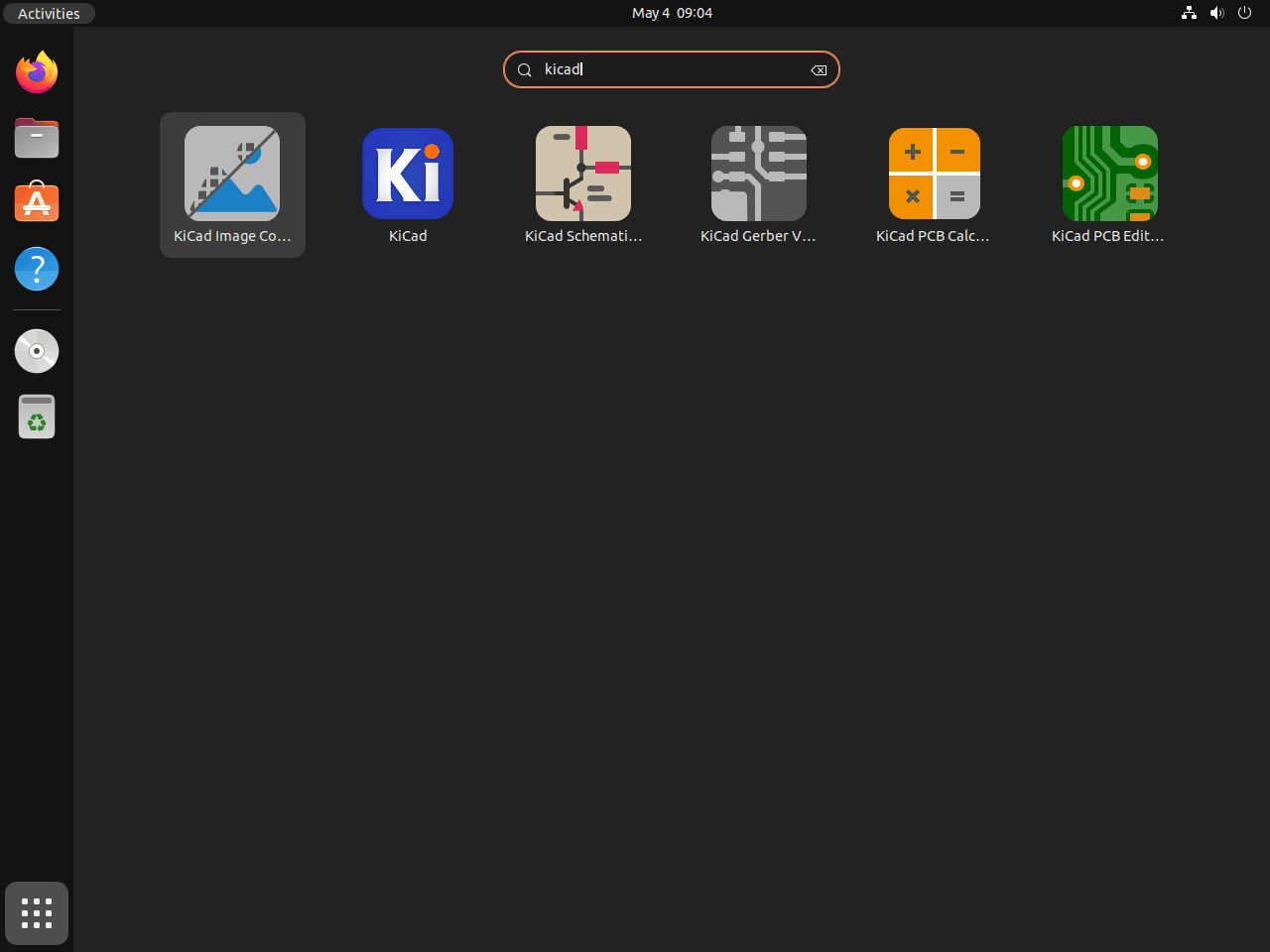
- Open Activities in the top-left corner of the desktop.
- Type KiCad into the search field.
- Open the KiCad project manager from the result list.
Launch KiCad from the Terminal
Use the launcher that matches the package format you installed.
APT or PPA installation:
kicadFlatpak installation:
flatpak run org.kicad.KiCadSnap installation:
snap run kicadIf your board work also needs 2D drafting or enclosure design, see Install LibreCAD on Ubuntu and Install FreeCAD on Ubuntu. For firmware work that follows the schematic and PCB stages, Install Arduino on Ubuntu covers the IDE side.
Manage KiCad on Ubuntu
Update KiCad on Ubuntu
Use the updater that matches the package source you chose.
Ubuntu repository or KiCad 10 PPA:
sudo apt update
sudo apt install --only-upgrade kicad kicad-demos kicad-libraries kicad-footprints kicad-symbols kicad-templates
Flatpak:
sudo flatpak update org.kicad.KiCad -ySnap:
sudo snap refresh kicadRemove or Uninstall KiCad from APT or the KiCad PPA
Start with a normal package removal for the APT or PPA build. User settings and project files live under your home directory and are handled separately later.
sudo apt remove kicadIf APT reports unused KiCad dependencies afterward, preview the cleanup before removing anything else.
sudo apt autoremove --dry-runContinue only if the preview lists packages you no longer need, then run the real cleanup.
sudo apt autoremoveVerify the package is gone before you clean up any extra repository you added.
dpkg-query -W -f='${db:Status-Abbrev} ${Package}\n' kicad 2>/dev/null | grep '^ii' || echo "kicad is not installed"kicad is not installed
If you added the KiCad 10 PPA, remove that source afterward so Ubuntu falls back to the stock repository. The broader Ubuntu PPA removal guide explains the same cleanup pattern for other Launchpad sources.
sudo add-apt-repository --remove ppa:kicad/kicad-10.0-releases -y
sudo apt update
Ubuntu 22.04 can leave the PPA trust file after removing the source. If you added only this KiCad PPA and no other KiCad 10 source remains, remove the leftover trust file too.
sudo rm -f /etc/apt/trusted.gpg.d/kicad-ubuntu-kicad-10_0-releases.gpg /etc/apt/trusted.gpg.d/kicad-ubuntu-kicad-10_0-releases.gpg~
sudo apt update
On Ubuntu 26.04, apt-cache policy should return to the Ubuntu repository candidate after the PPA is removed.
apt-cache policy kicadkicad:
Installed: (none)
Candidate: 9.0.8+dfsg-1
Version table:
9.0.8+dfsg-1 500
500 http://au.archive.ubuntu.com/ubuntu resolute/universe amd64 Packages
The important part is that Candidate points back to Ubuntu’s repository package. Ubuntu 24.04 returns to its 7.0.x package, while Ubuntu 22.04 returns to its 6.0.x package.
Remove the KiCad Flatpak
Remove the Flatpak package first.
sudo flatpak remove org.kicad.KiCad -yAfter the app is gone, review any unused runtime cleanup separately. Continue only if the list contains runtimes and extensions you no longer need.
sudo flatpak uninstall --unusedConfirm the app ID is gone from the installed application list.
flatpak list --app --columns=application | grep -Fx org.kicad.KiCad || echo "org.kicad.KiCad not installed"org.kicad.KiCad not installed
Remove the KiCad Snap
Remove the snap package with snapd’s normal cleanup command.
sudo snap remove kicadSnap saves an automatic snapshot when you remove the package. List saved snapshots if you also want to clear that backup.
sudo snap savedIf the output lists a row for kicad and you do not want to keep that snapshot, forget it by its Set ID.
sudo snap forget <ID>Verify the snap itself is gone.
snap list kicad 2>/dev/null || echo "kicad not installed"kicad not installed
Find KiCad User Data Before Deleting It
The next check is only for readers who want a full reset of local settings, custom libraries, and launcher state. Back up any personal symbols, footprints, templates, or project files before you delete anything from your home directory.
KiCad’s per-user data only appears after the application has been launched, and the exact path depends on the package format. Check what exists on your own system before you remove it.
find "$HOME" -maxdepth 4 \( \
  -path "$HOME/.config/kicad" -o \
  -path "$HOME/.local/share/kicad" -o \
  -path "$HOME/.cache/kicad" -o \
  -path "$HOME/.var/app/org.kicad.KiCad" -o \
  -path "$HOME/snap/kicad" \
\) -print
The command only lists directories that already exist. If it prints nothing, KiCad has not created any of those paths yet and there is nothing to clean up in your home directory.
Only run the example that matches the paths from your own output. The rm -rf command removes directories recursively without prompting, so double-check the path before you press Enter.
If the command prints the native APT or PPA paths, remove those user settings and caches with:
rm -rf "$HOME/.config/kicad" "$HOME/.local/share/kicad" "$HOME/.cache/kicad"This removes KiCad’s native desktop configuration, library metadata, and cache files from your account. It does not remove the system package itself.
If the command prints the Flatpak path, remove that Flatpak data directory with:
rm -rf "$HOME/.var/app/org.kicad.KiCad"This clears the Flatpak-specific KiCad settings and data stored under your home directory.
If the command prints the Snap path, remove the Snap-specific user data with:
rm -rf "$HOME/snap/kicad"This deletes the per-user Snap data directory for KiCad. If you want a complete reset, remove the package first, clear any saved Snap snapshot, and then delete this directory only if it still exists.
Conclusion
KiCad is installed on Ubuntu from the package source that fits your update needs: Ubuntu’s repository for the distro-managed branch, the KiCad 10 PPA for current APT packages, Flathub for the officially supported Flatpak build, or Snap for snapd-based systems. If your workflow extends into enclosure design or firmware work, pair it with Install FreeCAD on Ubuntu and Install Arduino on Ubuntu.


Formatting tips for your comment
You can use basic HTML to format your comment. Useful tags currently allowed in published comments:
<code>command</code>command<strong>bold</strong><em>italic</em><a href="https://example.com">link</a><blockquote>quote</blockquote>