
Low-latency voice chat is easier to control when you can choose your own server, tune microphone behavior, and keep identity tied to certificates instead of another closed platform. That makes it worth it to install Mumble on Ubuntu for gaming groups, classrooms, or small teams that prefer self-hosted voice channels.
Ubuntu’s Universe repository already packages the Mumble client, and Flathub keeps a newer stable build available across Ubuntu 26.04, 24.04, and 22.04. The focus here is the client, not the separate mumble-server or Murmur package. Choose APT for distro-managed packaging or Flatpak for the newest upstream release.
Install Mumble on Ubuntu
Ubuntu has two installation paths worth keeping in regular use. The default repository is the simplest choice, while Flatpak tracks the newest stable client across every supported Ubuntu LTS release.
| Method | Source | Version Behavior | Updates | Best Fit |
|---|---|---|---|---|
| APT from Ubuntu Universe | Ubuntu release package | 26.04: 1.5.735-8; 24.04: 1.5.517-1ubuntu2; 22.04: 1.3.4-1ubuntu1 | APT upgrades | Users who want the simplest distro-managed client install |
| Flatpak from Flathub | Flathub stable channel | Current Flatpak appstream release: 1.5.901 | Flatpak updates | Users who want the newest stable client on every supported Ubuntu LTS release |
These steps cover Ubuntu 26.04 LTS, 24.04 LTS, and 22.04 LTS. APT uses each release’s Universe package, while the Flatpak method uses the same stable Flathub ref on all three releases.
APT is the easiest recommendation when you want Mumble handled like any other Ubuntu desktop package. Flatpak is the better pick when release freshness matters, especially on Ubuntu 24.04 and 22.04 where the repository package is older than the current stable 1.5.x client.
Snap is not a strong primary Ubuntu path right now. Upstream’s downloads page treats Snap as a third-party community package, and the Snapcraft latest/stable channel still sits on v1.5.517 from March 2023 with an outdated-package warning. That leaves it behind Flathub’s 1.5.901 release and even behind Ubuntu 26.04’s repository package.
Choose the Mumble Server Package Only for Murmur
The package named mumble installs the desktop client. If you are trying to host voice channels, the separate mumble-server package provides the server daemon, which upstream also calls Murmur. Ubuntu currently ships mumble-server from Universe on Ubuntu 26.04, 24.04, and 22.04, but server setup needs configuration, firewall, and administration choices beyond a desktop client install.
Use the official Mumble server configuration reference when you are planning a server deployment. Stay with the client steps here when you only need to join an existing server.
Refresh APT Metadata Before Installing Mumble
Refresh package metadata first so the desktop client pulls dependencies from a current package state:
sudo apt updateThese commands use
sudofor tasks that need root privileges. If your user is not in the sudoers file yet, follow how to add a new user to sudoers on Ubuntu before continuing.
Install Mumble from Ubuntu’s Default Repository
The Ubuntu repository method keeps Mumble inside the normal APT workflow and is the quickest way to get the client on the desktop:
sudo apt install mumble -yCheck the installed package version after APT finishes:
dpkg-query -W -f='${Package} ${Version}\n' mumblemumble 1.5.735-8
The example above matches the Ubuntu 26.04 package. Ubuntu 24.04 provides
1.5.517-1ubuntu2, and Ubuntu 22.04 provides1.3.4-1ubuntu1.
Install Mumble with Flatpak on Ubuntu
Flatpak is the better path when you want the same current Mumble release on every supported Ubuntu LTS version instead of the distro-specific package branch:
Flathub lists Mumble as a verified app at the current 1.5.901 release, while upstream’s downloads page still describes Flatpak as a community package. Treat this method as a packaging and update choice, not a strict isolation upgrade. The current Flatpak permissions include network, X11/Wayland, PulseAudio, shared memory, all-device access, and read-only PipeWire access, which is expected for a voice client but still matters if you compare package confinement.
Ubuntu does not preinstall Flatpak. If the
flatpakcommand is missing, follow how to install Flatpak on Ubuntu before you continue so the desktop session, Flathub remote, and command-line tools are set up correctly.
Add the Flathub remote first. The --if-not-exists flag keeps the command safe to rerun:
sudo flatpak remote-add --if-not-exists flathub https://dl.flathub.org/repo/flathub.flatpakrepoConfirm the remote exists before you install Mumble:
flatpak remotes | grep "^flathub"flathub system
Install the Mumble client from Flathub once the remote is ready:
sudo flatpak install flathub info.mumble.Mumble -yVerify the installed Flatpak and confirm the version:
flatpak info info.mumble.MumbleRelevant output includes:
          ID: info.mumble.Mumble
         Ref: app/info.mumble.Mumble/x86_64/stable
      Branch: stable
     Version: 1.5.901
      Origin: flathub
Installation: system
Launch Mumble on Ubuntu
Mumble can be launched from the terminal or from the GNOME Activities overview. The desktop client still needs an active graphical session even if you installed it remotely through SSH.
Launch Mumble from the Terminal
APT installs place the launcher directly on your normal command path:
mumbleFlatpak installs start through the application ID instead:
flatpak run info.mumble.MumbleOpen Mumble from GNOME Activities on Ubuntu
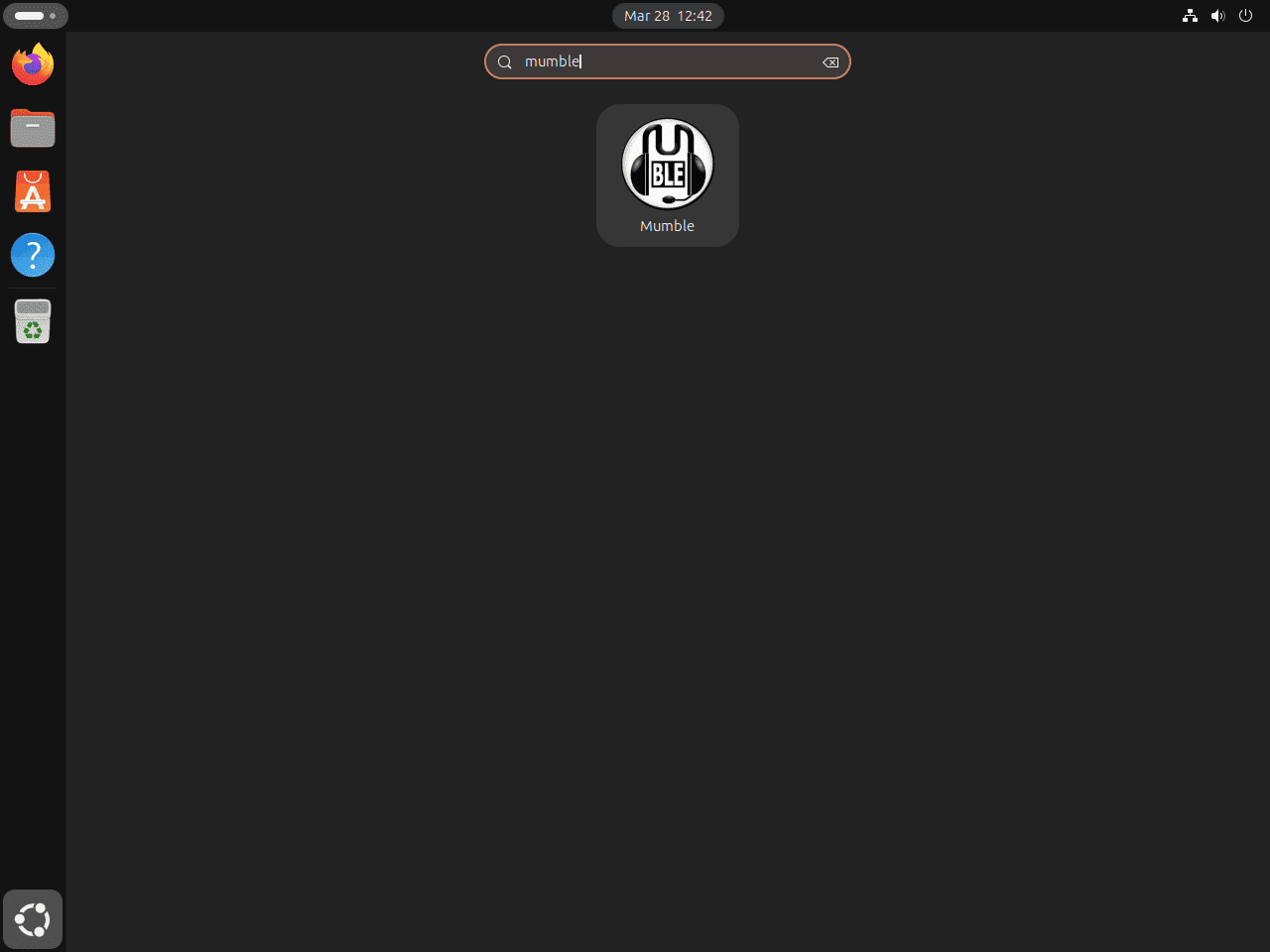
The GNOME desktop path is useful when you want the normal launcher instead of starting Mumble from a terminal window:
- Click Activities in the top-left corner of the desktop.
- Type Mumble into the search box.
- Click the Mumble icon to launch the client.
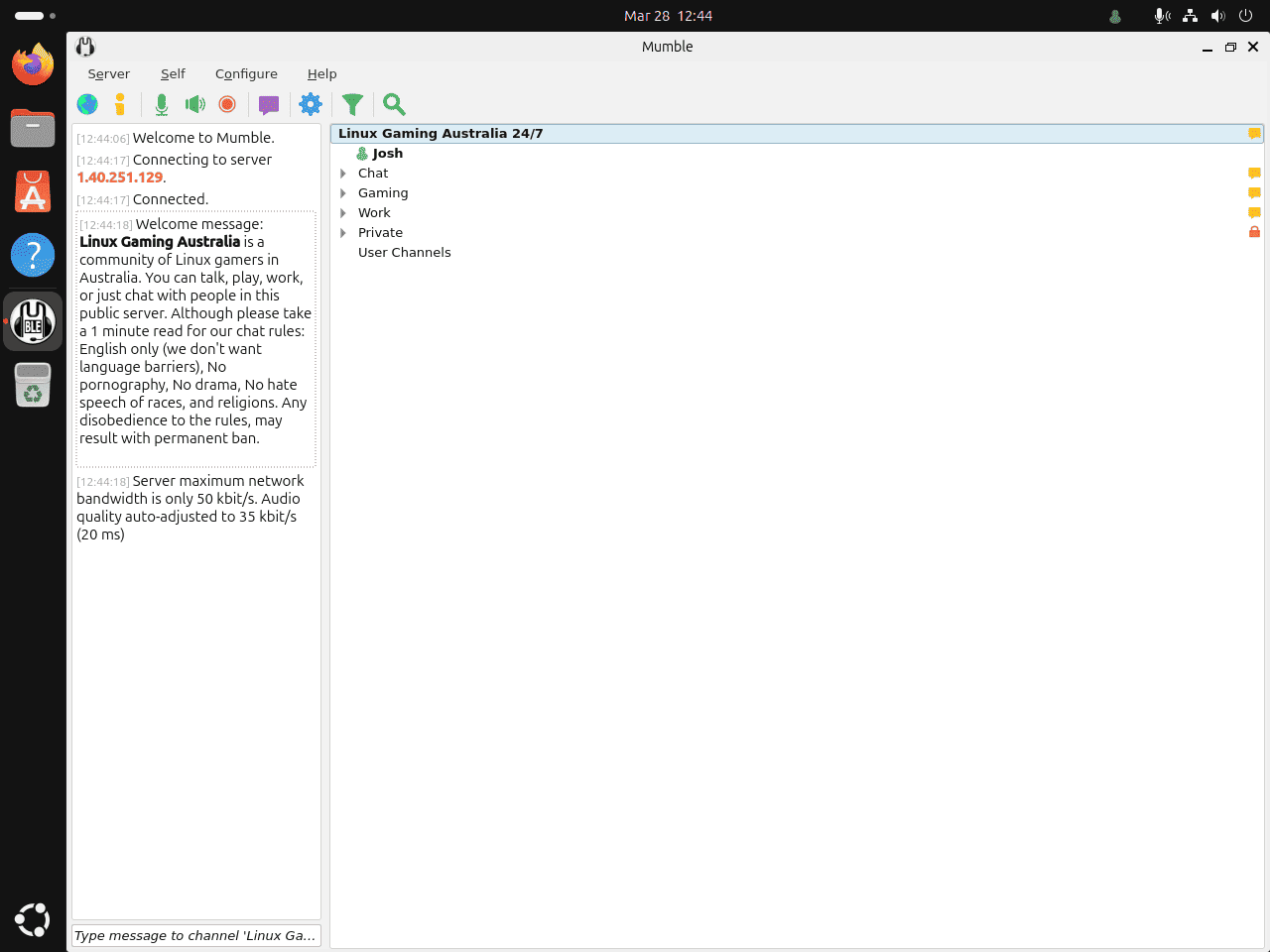
The first launch usually prompts for initial audio and identity setup. Let Mumble generate its default certificate unless your server administrator already gave you a specific certificate workflow to follow.
Get Started with Mumble on Ubuntu
Mumble rewards a few minutes of setup before the first real call. Audio behavior, identity, and server trust matter more here than they do in most consumer chat apps.
Tune Mumble Audio Settings on Ubuntu
Open Configure > Settings and review the audio sections before you join a busy server:
- Leave the input and output device on Default Device unless you need to force a specific microphone or headset.
- Use Voice Activity first on Ubuntu Wayland sessions, including the default Ubuntu 26.04 GNOME session. Mumble may install and open normally there, but global Push To Talk shortcuts are not dependable unless your desktop provides a working global shortcut path.
- Use Local loopback to confirm you can hear your own microphone signal. Use Server loopback when you need to separate a network issue from a microphone problem.
- Avoid Exclusive audio mode unless you intentionally want Mumble to take over the device and block other applications.
The official Mumble audio settings reference explains every input, output, and loopback option in more detail if you want to fine-tune latency, noise suppression, or positional audio.
Create Your Mumble Identity and Add a Server
Mumble identifies users with certificates instead of a simple local profile, so keep the first-run identity steps in mind when you connect for the first time:
- Let Mumble auto-generate the first certificate unless your server administrator provided a different identity policy.
- Use an email address you control if you want the option to upgrade that identity later without losing how servers recognize you.
- Collect the server address, port, username, and optional password before you open the server connection dialog.
- Save frequently used servers in your list so reconnecting does not turn into repeated manual entry.
The official certificate guide explains how Mumble preserves identity across servers, and the broader Mumble documentation portal is the best starting point for server administration, overlay features, or positional audio.
Troubleshoot Mumble on Ubuntu
The most common Ubuntu-side problems show up before the first conversation starts. Package availability and microphone behavior are the two places worth checking first.
Fix “Unable to locate package mumble” on Ubuntu
If APT cannot find Mumble, the usual cause is that the universe component is not enabled on a minimal or customized Ubuntu install:
sudo apt install software-properties-common -y
sudo add-apt-repository universe -y
sudo apt update
Check the package source again after enabling the repository:
apt-cache policy mumbleRelevant output includes a candidate version and a /universe source path:
mumble:
  Installed: (none)
  Candidate: 1.5.735-8
  Version table:
     1.5.735-8 500
        500 http://au.archive.ubuntu.com/ubuntu resolute/universe amd64 Packages
If you need the broader repository background or a GUI path, follow how to enable Universe and Multiverse on Ubuntu. Only Universe is required for Mumble itself.
Fix Push To Talk Shortcuts on Ubuntu Wayland Sessions
Ubuntu 26.04’s default GNOME session uses Wayland. Mumble can still install, launch, and transmit audio, but global shortcuts such as Push To Talk can fail because Wayland does not expose the same global keyboard capture model that Mumble used on X11. Mumble’s official global shortcuts documentation explains that Wayland shortcut support depends on compositor forwarding.
Forcing the APT build through XWayland with QT_QPA_PLATFORM=xcb can initialize Mumble’s XInput2 shortcut engine on GNOME Wayland, but this is only a partial workaround. It does not make native Wayland applications forward all key events to XWayland clients.
Mumble also has an advanced Linux evdev shortcut path that can read /dev/input/event* devices when the user has permission. This can let Mumble see keyboard and mouse input outside the normal compositor path, but adding a user to the input group lets user-level applications read the same input. Treat that as a security tradeoff for a personal desktop, not as a default recommendation.
Use Voice Activity and tune the threshold when you stay on standard GNOME Wayland. If your Ubuntu install offers an X11/Xorg session and you specifically need global Push To Talk, log into that session before configuring the shortcut.
Fix Microphone or Voice Activation Problems in Mumble
If other users cannot hear you, or if Mumble keeps transmitting room noise, work through the audio checks in this order:
- Open Configure > Settings > Audio Input and confirm the correct microphone is selected or leave it on Default Device.
- Use Voice Activity and tune its threshold on Wayland if background noise keeps opening the microphone. Use Push To Talk only when your session supports a reliable global shortcut.
- Run Local loopback first. If Local works but Server loopback does not, the problem is more likely the server or the network path than your microphone.
- Check whether another app took exclusive control of the device and turn off Mumble’s Exclusive option unless you truly need it.
The official audio settings page is the best reference when you need detailed explanations for noise suppression, jitter buffering, or voice-activation tuning.
Update or Remove Mumble on Ubuntu
Mumble updates and removal depend on the method you chose. Keep the commands aligned with the package format you installed.
Update an APT Mumble Install on Ubuntu
APT upgrades the Mumble package like any other Ubuntu desktop package:
sudo apt install --only-upgrade mumble -yUpdate a Flatpak Mumble Install on Ubuntu
Flatpak updates the Mumble client separately from Ubuntu’s normal APT cycle:
sudo flatpak update info.mumble.Mumble -yRemove an APT Mumble Install from Ubuntu
APT users can remove the client package first:
sudo apt remove mumbleCheck that the Ubuntu package is gone:
dpkg-query -W -f='${db:Status-Status}\n' mumble 2>/dev/null | grep -qx installed && echo "installed" || echo "not-installed"not-installed
If APT marks leftover dependencies as autoremovable, preview the cleanup before deleting anything else:
sudo apt autoremove --dry-runContinue only if the preview lists packages you no longer need:
sudo apt autoremoveRemove a Flatpak Mumble Install from Ubuntu
Flatpak users should remove the application through the same package manager that installed it:
sudo flatpak uninstall info.mumble.Mumble -yVerify that the Flatpak app ID is no longer present:
flatpak list --app --columns=application | grep -Fx info.mumble.Mumble || echo "NOT_INSTALLED"NOT_INSTALLED
If you launched Mumble and want to remove personal settings too, check for leftover data first instead of deleting guessed paths. The upstream Linux client stores settings under
$HOME/.config/Mumble/Mumble.confand its database under$HOME/.local/share/Mumble/Mumble/mumble.sqlite. Flatpak installs may also keep per-user data under$HOME/.var/app/info.mumble.Mumble.Use this check before deleting anything, and remove only the paths that actually print on your system. No output means there is nothing else to clean up for that account.
find "$HOME" -maxdepth 4 \( -path "$HOME/.config/Mumble" -o -path "$HOME/.local/share/Mumble" -o -path "$HOME/.var/app/info.mumble.Mumble" \) -printConclusion
Mumble is installed on Ubuntu, and the client is ready for your first server connection through either APT or Flatpak. Keep mumble-server for a separate Murmur deployment, use enable Universe and Multiverse on Ubuntu if APT cannot see the package, or install Flatpak on Ubuntu if you want more Flathub desktop apps later.


Shortcuts will not work on Ubuntu 26.04 because of Wayland so you can not setup Push-To-Talk or any other shortcuts-
You were right, Peter. I tested Ubuntu 26.04 GNOME Wayland again. Native Mumble opens, but global Push To Talk fails because GNOME Wayland does not forward those shortcuts to the app.
I also tested the advanced workaround path: force Mumble through XWayland and enable its evdev shortcut engine with input-device read access. That can make the APT build see
/dev/input/event*, but it requiresinput-group level access, which lets user apps read keyboard and mouse events. I added a guarded note rather than presenting it as the default fix.For most users, Voice Activity is still the safer Wayland choice for now.