Vivaldi is a Chromium-based browser for users who want built-in tab stacking, side panels, notes, mail, calendar, feed reading, sync, and tracker blocking without assembling those features from separate extensions. On Rocky Linux, use Vivaldi’s RPM repository so DNF can verify package signatures, resolve dependencies, and keep updates in the normal package workflow.
Use these steps on Rocky Linux 10, 9, and 8 with Vivaldi Stable as the recommended daily channel. Vivaldi Snapshot is included as an optional preview build for testing upcoming browser changes. If you prefer a browser from Rocky and EPEL repositories instead of a vendor repository, compare the guide to install Chromium Browser on Rocky Linux.
Install Vivaldi Browser on Rocky Linux
Choose the channel before installing packages. Stable and Snapshot can exist side by side, but most users should install Stable only.
| Method | Package | Updates | Best Fit | Notes |
|---|---|---|---|---|
| Vivaldi Stable RPM repository | vivaldi-stable | dnf upgrade | Daily browsing on Rocky desktops | Recommended path for normal use |
| Vivaldi Snapshot RPM repository | vivaldi-snapshot | dnf upgrade | Testing upcoming Vivaldi changes | Preview channel; use a separate profile for risky testing |
| Direct RPM download | Manual .rpm file | Can enable repository support after install | One-off recovery or offline workflows | Fallback only; the repository method below is cleaner for routine installs |
The commands below are written for Rocky Linux 10, 9, and 8 on
x86_64. Vivaldi’s download page also lists RPM assets for ARM64, but verifyaarch64package availability on your own Rocky hardware before using these commands unchanged.
Update Rocky Linux Packages
Refresh repository metadata and apply pending system updates before adding the Vivaldi package source:
sudo dnf upgrade --refreshThe commands that install packages or write files under
/etcusesudo. Use an account with administrator privileges, or switch to the root account before continuing.
Add the Vivaldi RPM Repository
Vivaldi hosts its RPM repository at repo.vivaldi.com and signs packages with the Vivaldi Linux package key. The file below uses Vivaldi’s official RPM repository URL and stores it as /etc/yum.repos.d/vivaldi.repo, which avoids the extra vivaldi-fedora.repo filename that can appear when using dnf config-manager --add-repo.
printf '%s\n' \
'[vivaldi]' \
'name=vivaldi' \
'enabled=1' \
'baseurl=https://repo.vivaldi.com/archive/rpm/$basearch' \
'gpgcheck=1' \
'gpgkey=https://repo.vivaldi.com/archive/linux_signing_key.pub' \
| sudo tee /etc/yum.repos.d/vivaldi.repo > /dev/null
Refresh only the Vivaldi repository first. This catches repository or signing-key errors before any browser package is installed:
sudo dnf makecache --refresh --disablerepo='*' --enablerepo=vivaldiConfirm that DNF sees the repository:
dnf repolist --enabled | grep -E '^vivaldi[[:space:]]'The output should show an enabled vivaldi repository. If the command returns nothing, review the repository file before installing packages.
Review Vivaldi Package Candidates
List the Stable and Snapshot packages from the Vivaldi repository:
dnf list --showduplicates --disablerepo='*' --enablerepo=vivaldi vivaldi-stable vivaldi-snapshotVersion numbers change as Vivaldi publishes updates. The important result is that DNF lists both vivaldi-stable and vivaldi-snapshot packages for x86_64 from the Vivaldi repository on Rocky Linux 10, 9, and 8.
Install Vivaldi Stable
Install the Stable channel for daily browsing:
sudo dnf install vivaldi-stableDNF will show the package transaction and may ask to import Vivaldi’s signing key. The key prompt should identify Vivaldi Package Composer KEY11 <packager@vivaldi.com> with fingerprint 8D1F A52A EF58 A09D 889D D422 1256 C347 16BD 9233.
Verify the installed RPM and browser binary:
rpm -q vivaldi-stable
command -v vivaldi-stable
vivaldi-stable --version
A successful version check prints Vivaldi, a version number, and stable. On some systems, the first version check or first launch may also run Vivaldi’s proprietary media helper. Let it finish, then rerun the version command if you need a clean one-line result.
Install Vivaldi Snapshot
Install Snapshot only when you want Vivaldi’s preview channel. It can be installed beside Stable, but Stable remains the safer choice for work profiles, banking, and everyday browsing.
sudo dnf install vivaldi-snapshotVerify Snapshot separately:
rpm -q vivaldi-snapshot
command -v vivaldi-snapshot
vivaldi-snapshot --version
A successful version check prints Vivaldi, a version number, and snapshot. Installing Snapshot also creates /etc/yum.repos.d/vivaldi-snapshot.repo with a vivaldi-snapshot repository ID, so remove that file later if you remove Snapshot and no longer want the preview source enabled.
Launch Vivaldi Browser on Rocky Linux
Launch the installed channel from a terminal when you need to capture startup messages:
vivaldi-stableIf you installed Snapshot instead, use its separate command:
vivaldi-snapshotMost desktop users should launch Vivaldi from the graphical menu. Open Activities, choose Show Applications, search for Vivaldi, and select either Vivaldi or Vivaldi (snapshot). If the icon does not appear immediately after installation, log out and back in to refresh the desktop menu.
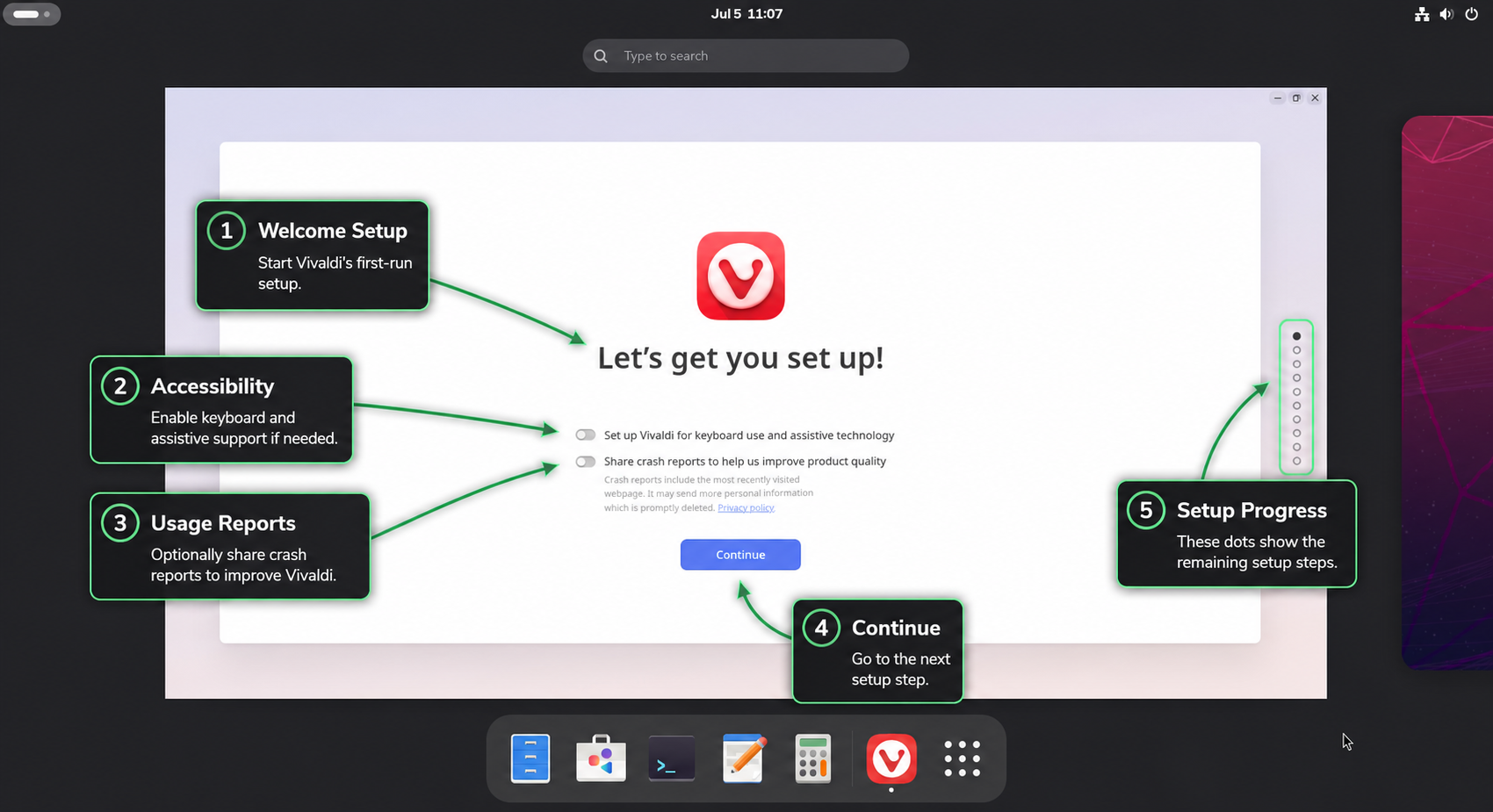
The first launch opens Vivaldi’s setup screen, where you can choose whether to enable accessibility support and crash reports before continuing.
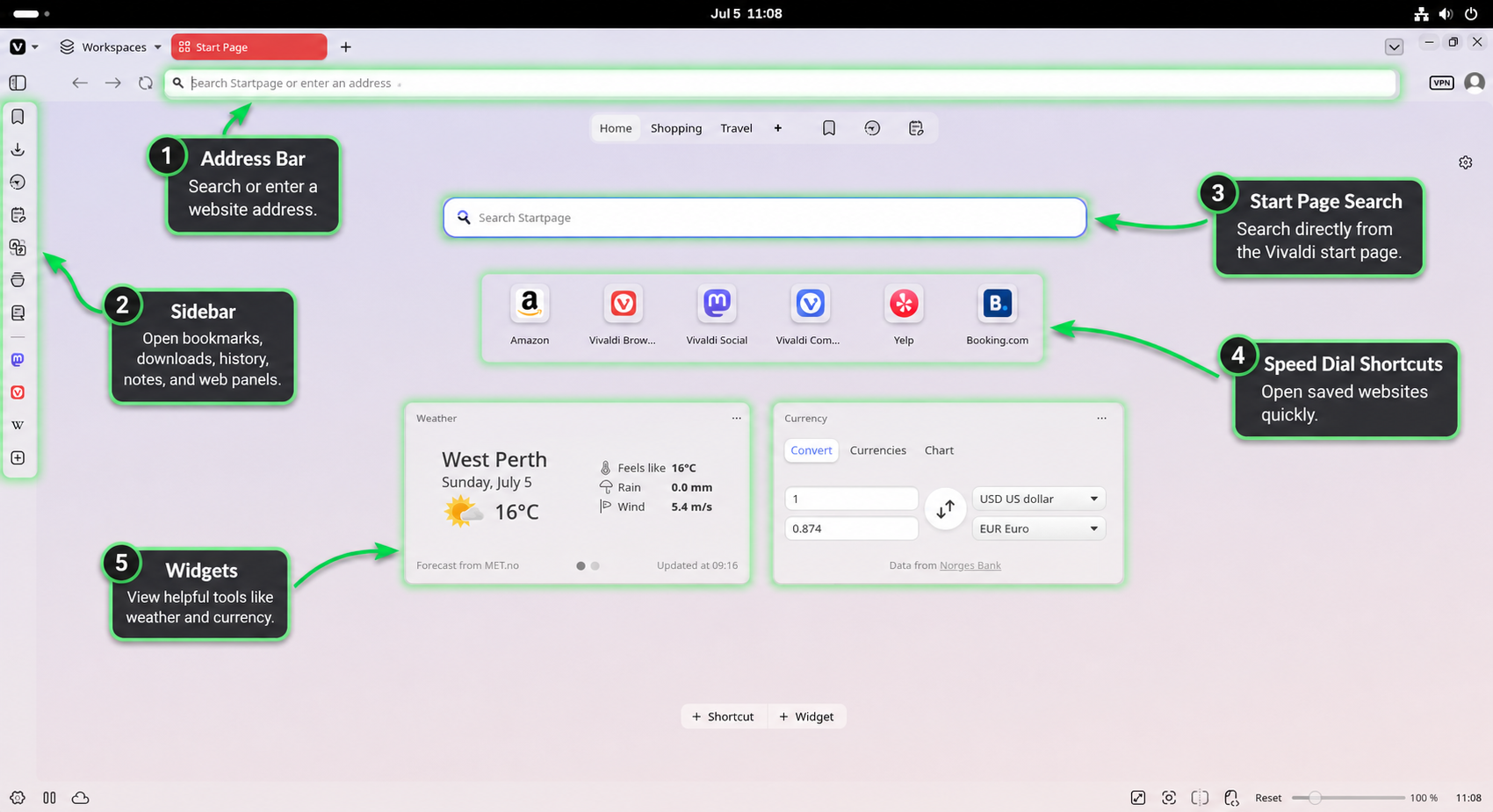
After the setup flow, Vivaldi opens its start page with the address bar, side panel, speed-dial shortcuts, and widgets ready for normal browsing.
Use Vivaldi Browser After Installation
Vivaldi’s first-run flow asks how much of the browser’s built-in feature set you want to enable. The following settings are worth reviewing before you import bookmarks or sign in to sync:
- Tracker and ad blocking: Open
Settings > Privacy and Security > Tracker and Ad Blockingto choose the default blocking level. - Tabs and workspaces: Use
Settings > Tabsto change tab stacking, tab position, and workspace behavior. - Sync: Use
Settings > Syncif you want bookmarks, passwords, tabs, and settings shared with other Vivaldi installations. - Mail, calendar, and feeds: Enable the built-in productivity tools only if you plan to use them; otherwise keep the browser simpler.
If you test Snapshot beside Stable, keep separate profiles and avoid signing the same sync account into experimental builds unless you intentionally want that state shared.
Manage Vivaldi Browser on Rocky Linux
Update Vivaldi Browser
Vivaldi updates through DNF after the repository is enabled. A normal system upgrade includes Vivaldi and other installed packages:
sudo dnf upgrade --refreshTo check only Vivaldi Stable, target the package directly:
sudo dnf upgrade --refresh vivaldi-stableIf Snapshot is installed, update it separately:
sudo dnf upgrade --refresh vivaldi-snapshotRemove Vivaldi Packages
Remove the installed channel. For Stable, use:
sudo dnf remove vivaldi-stableFor Snapshot, use:
sudo dnf remove vivaldi-snapshotDNF may also remove unused helper packages that were installed only for Vivaldi. Review the transaction summary before confirming.
Remove Vivaldi Repository Files
Remove repository files only after every native Vivaldi package is gone, otherwise the remaining channel will stop receiving DNF updates. Check package state first:
rpm -q vivaldi-stable vivaldi-snapshotWhen both packages are removed, delete the repository files and refresh DNF metadata. The command also removes vivaldi-fedora.repo in case an older setup used dnf config-manager --add-repo.
sudo rm -f /etc/yum.repos.d/vivaldi.repo /etc/yum.repos.d/vivaldi-snapshot.repo /etc/yum.repos.d/vivaldi-fedora.repo
sudo dnf clean metadata
Confirm that no Vivaldi repository remains enabled:
dnf repolist --enabled | grep -E '^vivaldi' || echo "Vivaldi repositories are not enabled"Remove Vivaldi User Data
Removing the RPM packages does not delete browser profiles, bookmarks, saved passwords, cache, or local settings. List Vivaldi profile paths before deleting anything:
find "$HOME/.config" "$HOME/.cache" "$HOME/.local/share" -maxdepth 1 -iname '*vivaldi*' -print 2>/dev/nullThe next command deletes local Vivaldi browser data for the current user. Back up bookmarks, passwords, sync keys, and profile data before running it.
rm -rf "$HOME/.config/vivaldi" "$HOME/.cache/vivaldi" "$HOME/.local/share/vivaldi"
rm -rf "$HOME/.config/vivaldi-snapshot" "$HOME/.cache/vivaldi-snapshot" "$HOME/.local/share/vivaldi-snapshot"
Troubleshoot Vivaldi Browser on Rocky Linux
DNF Does Not Show the Vivaldi Repository
If dnf repolist does not show vivaldi, inspect the repository file for missing or wrapped lines:
cat /etc/yum.repos.d/vivaldi.repoThe file should include [vivaldi], enabled=1, gpgcheck=1, and a baseurl under https://repo.vivaldi.com/archive/rpm/. Recreate the file if any line is missing, then refresh the repository again:
sudo dnf makecache --refresh --disablerepo='*' --enablerepo=vivaldiDNF Reports a Vivaldi GPG Key Problem
DNF normally imports Vivaldi’s signing key during the first package install. Check the imported key record if signature validation fails later:
rpm -q gpg-pubkey --qf '%{NAME}-%{VERSION}-%{RELEASE} %{SUMMARY}\n' | grep -i vivaldiIf no Vivaldi key appears, rerun the install command and accept the key only when the prompt identifies Vivaldi’s package key and the expected repository URL.
Vivaldi Prints a Proprietary Media Message
The first version check or launch can print a proprietary media helper message while Vivaldi looks for codec support. On older Rocky releases, the helper may say the system glibc is too old for a replacement media library. That message does not mean the RPM install failed if rpm -q and vivaldi-stable --version succeed.
Vivaldi Does Not Open from the Menu
Run the matching browser command from a terminal inside the graphical session to capture startup errors:
vivaldi-stable 2>&1 | tee "$HOME/vivaldi-startup.log"For Snapshot, change the command:
vivaldi-snapshot 2>&1 | tee "$HOME/vivaldi-snapshot-startup.log"If the desktop icon is missing but the terminal command works, log out and back in. Desktop environments can cache application menus until the next session.
Vivaldi Resources
- Vivaldi Official Website: Browser features, privacy information, and product pages.
- Vivaldi Download Page: Current Linux RPM, DEB, ARM64, and Snap download options.
- Manual setup of Vivaldi Linux repositories: Official repository configuration notes for Linux packages.
Conclusion
Rocky Linux can run Vivaldi cleanly through Vivaldi’s signed RPM repository on supported x86_64 desktops. Install Stable for everyday browsing, keep Snapshot for preview testing, and remove both the RPM packages and repository files when you no longer want Vivaldi updates handled by DNF.


Formatting tips for your comment
You can use basic HTML to format your comment. Useful tags currently allowed in published comments:
<code>command</code>command<strong>bold</strong><em>italic</em><a href="https://example.com">link</a><blockquote>quote</blockquote>