Installing Chromium Browser on Rocky Linux is mostly a package-source decision. EPEL gives Rocky Linux 10, 9, and 8 the cleanest DNF-managed package, so dependency handling, updates, and removal stay inside the normal system workflow.
Flatpak fits users who prefer Flathub packaging or want a newer stable build. Treat the manual snapshot path as temporary x86_64 testing only; it uses upstream Chromium snapshots, a separate profile, and no Rocky package maintenance.
Install Chromium Browser on Rocky Linux
Choose a Chromium Installation Method
Pick the method by update owner first. Daily browsers should stay on a package-managed path unless you specifically need a test snapshot.
| Method | Source or Channel | Updates | Best For | Trade-offs |
|---|---|---|---|---|
| DNF | Rocky Extras enables EPEL, then EPEL provides chromium | Normal dnf upgrade | Most Rocky desktop users | Rocky 8 packages can lag behind Rocky 10 and 9 because EPEL builds per EL major release |
| Flatpak | Flathub app org.chromium.Chromium | flatpak update | Users who want a newer stable build or Flatpak packaging | Uses Flathub runtimes and broader Flatpak permissions than a simple RPM package |
| Manual snapshot | Chromium Linux x64 snapshots | Rerun sudo update-chromium-snapshot | Developers and testers who need current Chromium code | x86_64 only, not package-managed, and not recommended for everyday browsing |
DNF is the recommended method for normal Rocky Linux desktops because DNF owns the package, dependencies, security updates, and removal.
Use Flatpak when you prefer the Flathub build or need the same app packaging across systems. Use the manual snapshot only for testing because it can change quickly and uses a separate browser profile.
The EPEL package is named chromium, but the installed terminal command is chromium-browser. Do not install chromium-headless when you want the graphical browser; that package is for headless automation workflows.
If you need Google’s branded browser instead of Chromium, use the Rocky guide to install Google Chrome on Rocky Linux rather than mixing Chrome package commands into this Chromium workflow.
Install Chromium via DNF and EPEL
Refresh package metadata and apply available Rocky updates before adding EPEL:
sudo dnf upgrade --refreshThese commands use
sudofor administrative tasks. Use an account that already has administrator privileges, or switch to the root account before running package-manager commands.
Install the DNF plugin package only if config-manager is not already available:
dnf config-manager --help >/dev/null 2>&1 || sudo dnf install dnf-plugins-coreCheck whether CRB or PowerTools is already enabled before changing repository state. If this command prints no matching row, continue with the enable command for your Rocky release:
dnf repolist --enabled | grep -E '^(crb|powertools)[[:space:]]'Enable the required Rocky repository for your release. Rocky Linux 10 and 9 use CRB:
sudo dnf config-manager --set-enabled crbRocky Linux 8 uses PowerTools instead:
sudo dnf config-manager --set-enabled powertoolsInstall the EPEL release package from Rocky’s Extras repository:
sudo dnf install epel-releaseConfirm that EPEL and the matching dependency repository are enabled:
dnf repolist --enabled | grep -E '^(epel|crb|powertools)[[:space:]]'Install Chromium from EPEL:
sudo dnf install chromiumVerify the installed RPM and browser command:
rpm -q chromium
chromium-browser --version
The version line should print the Chromium build installed from EPEL. Current EPEL metadata publishes Chromium for Rocky Linux 10, 9, and 8 on both x86_64 and aarch64, but the exact version differs by EL major release.
Install Chromium via Flatpak and Flathub
Flatpak keeps Chromium separate from the DNF package database and updates it through Flathub. Install Flatpak first if your Rocky desktop does not already include it:
sudo dnf install flatpakAdd Flathub at the normal system scope:
sudo flatpak remote-add --if-not-exists flathub https://dl.flathub.org/repo/flathub.flatpakrepoInstall the Chromium Flatpak:
sudo flatpak install flathub org.chromium.ChromiumVerify the Flatpak record:
flatpak info org.chromium.ChromiumThe output should identify org.chromium.Chromium from the flathub origin. Flathub currently publishes this app for x86_64 and aarch64, with runtime details handled by Flatpak.
Install the Latest Chromium Snapshot Manually
Manual Chromium snapshots are continuous upstream builds, not Rocky RPMs. Use this method only on Rocky Linux x86_64 systems when you need current Chromium development code for testing. The wrapper uses ~/.config/chromium-snapshot by default so snapshot profile changes do not touch your normal Chromium profile.
Snapshot builds do not have DNF or Flatpak update ownership. They are downloaded over HTTPS from Chromium’s snapshot storage, but they are not installed from a signed Rocky package repository.
Install the download and runtime packages used by the snapshot build:
sudo dnf install ca-certificates curl unzip nss nspr gtk3 glib2 at-spi2-atk at-spi2-core \
  alsa-lib mesa-libgbm libX11 libxcb libXcomposite libXdamage libXext libXfixes \
  libXrandr libXtst libdrm libxkbcommon cairo pango cups-libs dbus-libs expat \
  systemd-libs fontconfig xdg-utils desktop-file-utils hicolor-icon-theme
The updater uses the curl command to read Chromium’s latest snapshot revision, download the matching archive, install it under /opt/chromium-snapshot, create a friendly chromium-snapshot command, and add an application-menu launcher.
sudo tee /usr/local/bin/update-chromium-snapshot > /dev/null <<'EOF'
#!/usr/bin/env bash
set -euo pipefail

if [ "$(id -u)" -ne 0 ]; then
  echo "Run this updater with sudo: sudo update-chromium-snapshot" >&2
  exit 1
fi

if [ "$(uname -m)" != "x86_64" ]; then
  echo "This Chromium snapshot method supports Rocky Linux x86_64 only." >&2
  exit 1
fi

for cmd in curl unzip install cp chmod chown; do
  if ! command -v "$cmd" >/dev/null 2>&1; then
    echo "Missing required command: $cmd" >&2
    exit 1
  fi
done

BASE_URL="https://storage.googleapis.com/chromium-browser-snapshots/Linux_x64"
INSTALL_DIR="/opt/chromium-snapshot"
TMP_DIR="$(mktemp -d)"

cleanup() {
  rm -rf "$TMP_DIR"
}
trap cleanup EXIT

LATEST="$(curl -fsSL "$BASE_URL/LAST_CHANGE" | tr -d '[:space:]')"
case "$LATEST" in
'' | *[!0-9]*)
  echo "Unexpected Chromium snapshot revision: $LATEST" >&2
  exit 1
  ;;
esac

CURRENT=""
if [ -r "$INSTALL_DIR/.revision" ]; then
  CURRENT="$(tr -d '[:space:]' <"$INSTALL_DIR/.revision")"
fi
case "$CURRENT" in
'' | *[!0-9]*) CURRENT="" ;;
esac

if [ -n "$CURRENT" ] && [ -x "$INSTALL_DIR/chrome-linux/chrome" ]; then
  if [ "$LATEST" = "$CURRENT" ]; then
    echo "Chromium snapshot $LATEST is already installed."
    exit 0
  fi
  if [ "$LATEST" -lt "$CURRENT" ]; then
    echo "Installed Chromium snapshot $CURRENT is newer than resolved snapshot $LATEST; keeping current install."
    exit 0
  fi
fi

ZIP_FILE="$TMP_DIR/chrome-linux.zip"
echo "Downloading Chromium snapshot $LATEST..."
curl -fL --progress-bar -o "$ZIP_FILE" "$BASE_URL/$LATEST/chrome-linux.zip"

unzip -q "$ZIP_FILE" -d "$TMP_DIR"
if [ ! -x "$TMP_DIR/chrome-linux/chrome" ]; then
  echo "Downloaded archive did not contain chrome-linux/chrome." >&2
  exit 1
fi

install -d -m 0755 "$INSTALL_DIR"
NEW_DIR="$INSTALL_DIR/chrome-linux.new"
OLD_DIR="$INSTALL_DIR/chrome-linux.old"
rm -rf "$NEW_DIR" "$OLD_DIR"
cp -a "$TMP_DIR/chrome-linux" "$NEW_DIR"
chown -R root:root "$NEW_DIR"

if [ -f "$NEW_DIR/chrome_sandbox" ]; then
  chown root:root "$NEW_DIR/chrome_sandbox"
  chmod 4755 "$NEW_DIR/chrome_sandbox"
fi

if [ -d "$INSTALL_DIR/chrome-linux" ]; then
  mv "$INSTALL_DIR/chrome-linux" "$OLD_DIR"
fi
mv "$NEW_DIR" "$INSTALL_DIR/chrome-linux"
rm -rf "$OLD_DIR"

printf '%s\n' "$LATEST" >"$INSTALL_DIR/.revision"

cat >/usr/local/bin/chromium-snapshot <<'WRAPPER'
#!/usr/bin/env bash
SANDBOX="/opt/chromium-snapshot/chrome-linux/chrome_sandbox"
if [ -x "$SANDBOX" ]; then
  export CHROME_DEVEL_SANDBOX="$SANDBOX"
fi

has_user_data_dir=0
for arg in "$@"; do
  case "$arg" in
    --user-data-dir|--user-data-dir=*) has_user_data_dir=1 ;;
  esac
done

if [ "$has_user_data_dir" -eq 0 ]; then
  set -- --user-data-dir="${CHROMIUM_SNAPSHOT_USER_DATA_DIR:-$HOME/.config/chromium-snapshot}" "$@"
fi

exec /opt/chromium-snapshot/chrome-linux/chrome "$@"
WRAPPER
chmod 0755 /usr/local/bin/chromium-snapshot

ICON_PATH=""
for size in 256 128 64 48 32 24 16; do
  candidate="/opt/chromium-snapshot/chrome-linux/product_logo_${size}.png"
  if [ -f "$candidate" ]; then
    ICON_PATH="$candidate"
    break
  fi
done
if [ -z "$ICON_PATH" ]; then
  ICON_PATH="chromium-browser"
fi

cat >/usr/share/applications/chromium-snapshot.desktop <<DESKTOP
[Desktop Entry]
Type=Application
Name=Chromium Snapshot
Comment=Bleeding-edge Chromium snapshot
Exec=chromium-snapshot %U
Terminal=false
Icon=$ICON_PATH
Categories=Network;WebBrowser;
MimeType=text/html;text/xml;application/xhtml+xml;x-scheme-handler/http;x-scheme-handler/https;
StartupNotify=true
DESKTOP
chmod 0644 /usr/share/applications/chromium-snapshot.desktop

if command -v update-desktop-database >/dev/null 2>&1; then
  update-desktop-database /usr/share/applications >/dev/null 2>&1 || true
fi

echo "Installed Chromium snapshot $LATEST."
echo "Run it with: chromium-snapshot"
EOF

sudo chmod 0755 /usr/local/bin/update-chromium-snapshot
Run the updater to install the current snapshot:
sudo update-chromium-snapshotThe first run prints a download message and ends with an installed snapshot revision. Later runs exit without reinstalling when the latest upstream revision is already present.
Confirm that the friendly launcher exists and prints a browser version:
command -v chromium-snapshot
chromium-snapshot --version
Launch Chromium Browser on Rocky Linux
Launch Chromium from Terminal
Use the launcher that matches the method you installed.
DNF package:
chromium-browserFlatpak package:
flatpak run org.chromium.ChromiumManual snapshot:
chromium-snapshotLaunch Chromium from the Applications Menu
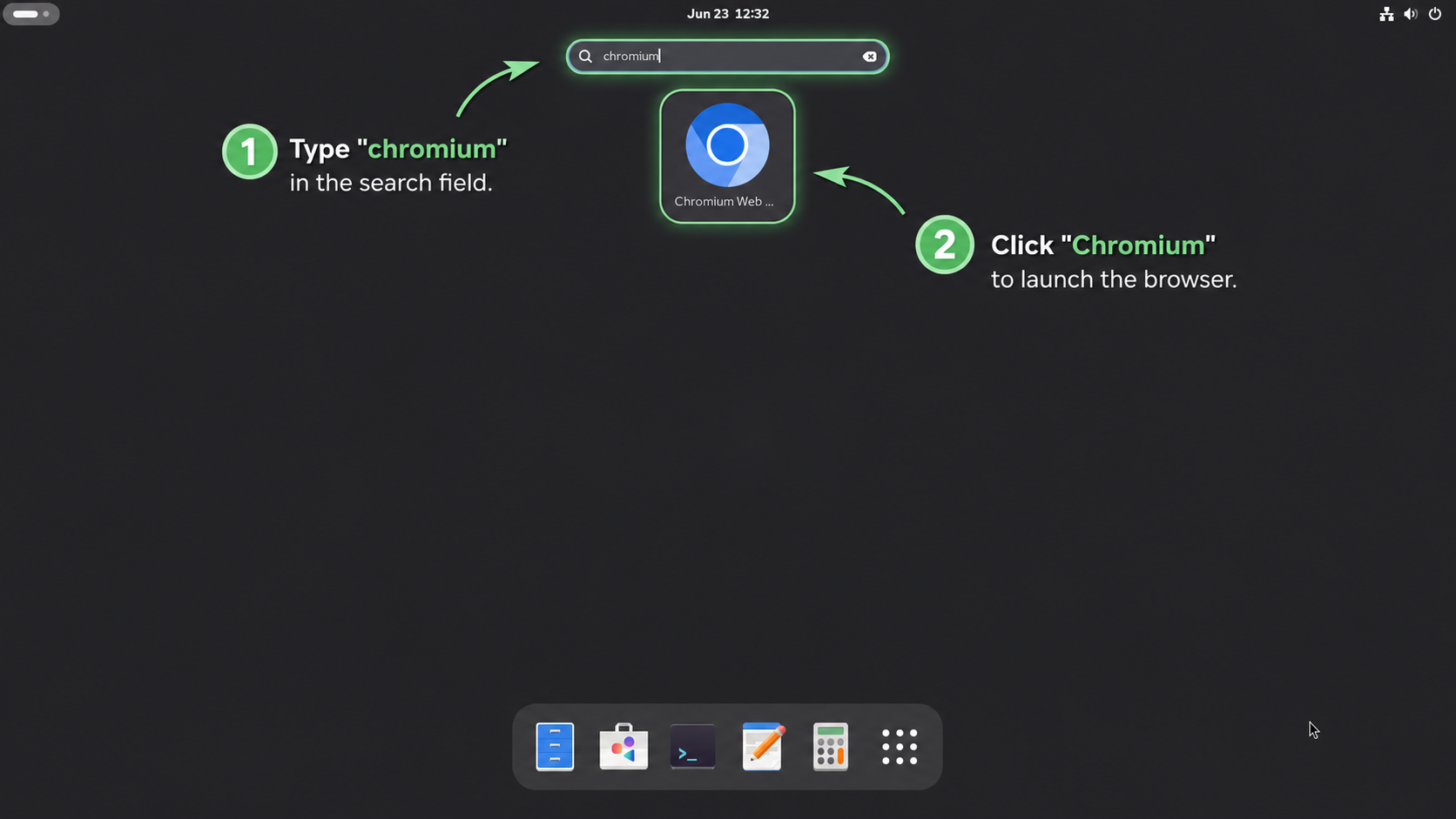
Open the application menu, search for Chromium Web Browser or Chromium Snapshot, and select the launcher that matches your install method. The DNF package installs chromium-browser.desktop, the Flatpak exports org.chromium.Chromium.desktop, and the manual method creates chromium-snapshot.desktop.
First Checks After Launch
- Open
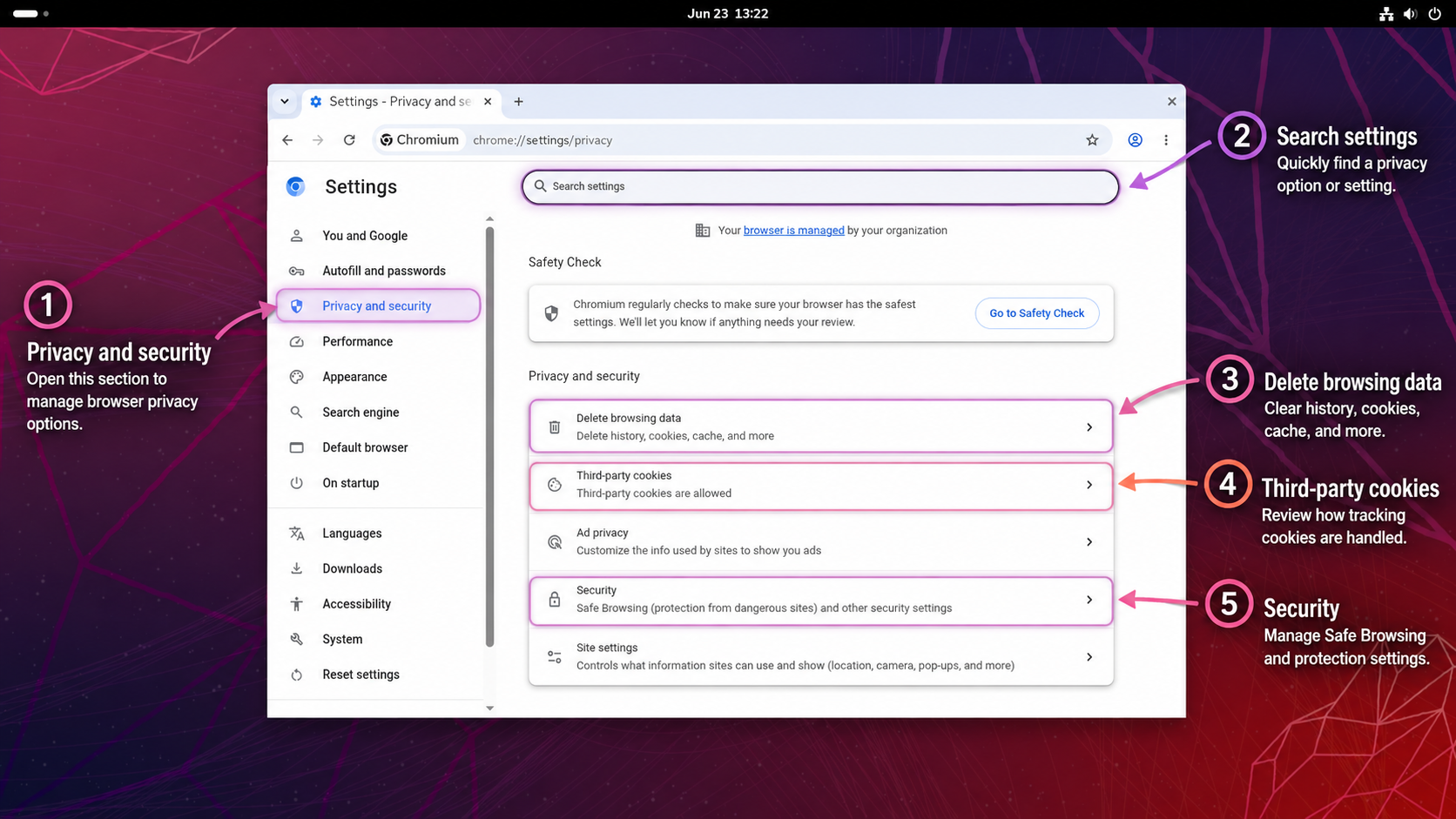
Menu > Settings > Privacy and securityto review Safe Browsing, site permissions, cookies, and default search behavior. - Use
Menu > More tools > Extensionsonly after deciding whether your extension source is trusted. - Use
Menu > Settings > Systemto test hardware acceleration if pages render incorrectly on your graphics stack.
Manage Chromium Browser on Rocky Linux
Update Chromium Browser
Use the update command for the method that installed Chromium.
Update Chromium via DNF
Apply normal Rocky package updates, including EPEL packages:
sudo dnf upgrade --refreshUpdate Chromium via Flatpak
Update the Flathub Chromium package:
sudo flatpak update org.chromium.ChromiumUpdate the Manual Chromium Snapshot
Rerun the helper whenever you want the newest continuous build:
sudo update-chromium-snapshotThe helper exits without reinstalling if the current snapshot is already installed or if the upstream marker temporarily resolves to an older revision.
Remove Chromium Browser
Remove Chromium with the command set that matches the original install method.
Remove Chromium via DNF
sudo dnf remove chromiumIf you enabled EPEL only for Chromium and no longer need any EPEL packages, remove the EPEL release package after Chromium is gone:
sudo dnf remove epel-releaseReview unused dependency cleanup before confirming any additional removals:
sudo dnf autoremoveRemove Chromium via Flatpak
sudo flatpak uninstall org.chromium.ChromiumRemove the Flatpak profile only when you no longer need its bookmarks, extensions, or browser state:
rm -rf ~/.var/app/org.chromium.ChromiumRemove unused Flatpak runtimes after reviewing the list Flatpak prints:
sudo flatpak uninstall --unusedRemove the Manual Chromium Snapshot
Delete the snapshot files, updater, launcher, and desktop entry:
sudo rm -f /usr/local/bin/update-chromium-snapshot
sudo rm -f /usr/local/bin/chromium-snapshot
sudo rm -f /usr/share/applications/chromium-snapshot.desktop
sudo rm -rf /opt/chromium-snapshot
Remove the separate snapshot profile only when you no longer need its local data:
rm -rf ~/.config/chromium-snapshot ~/.cache/chromium-snapshotDNF Chromium stores normal profile data under
~/.config/chromium/and~/.cache/chromium/. Back up bookmarks, passwords, and other browser data before deleting those directories manually.
Troubleshoot Chromium Browser on Rocky Linux
DNF Cannot Find Chromium
Chromium comes from EPEL, so a missing package usually means EPEL, CRB, or PowerTools is not enabled. Check the enabled repository list first:
dnf repolist --enabled | grep -E '^(epel|crb|powertools)[[:space:]]'If the expected repository is missing, repeat the EPEL setup section for your Rocky release. For broader repository setup and cleanup context, use the Rocky guide to install EPEL on Rocky Linux.
If DNF metadata refreshes are slow rather than missing, use the Rocky guide to increase DNF speed on Rocky Linux before retrying the package transaction.
The chromium Command Does Not Start the Browser
The EPEL package installs the browser command as chromium-browser. Use that command for DNF installs:
chromium-browserFlatpak and manual snapshot installs use different launchers:
flatpak run org.chromium.Chromium
chromium-snapshot
Flatpak Chromium Cannot Access Files
The current Flathub build already grants home-directory access, but local overrides can change Flatpak permissions. Check the installed permissions first:
flatpak info --show-permissions org.chromium.ChromiumIf a custom user override removed home access, restore it for your account:
flatpak override --user --filesystem=home org.chromium.ChromiumReset all user overrides only when you want to discard every custom permission change for this app:
flatpak override --user --reset org.chromium.ChromiumManual Snapshot Reports Sandbox or Library Errors
The snapshot updater configures the bundled chrome_sandbox helper with root ownership and the setuid bit. Re-run the updater first because it resets those permissions:
sudo update-chromium-snapshotCheck the sandbox helper if the error continues:
ls -l /opt/chromium-snapshot/chrome-linux/chrome_sandboxThe permissions should start with -rws, and the owner and group should both be root. Do not make a permanent --no-sandbox launcher for normal browsing.
If the helper permissions look correct but Chromium still reports that the sandbox is unusable, check whether the filesystem containing /opt was mounted with nosuid:
findmnt -n -o OPTIONS --target /optA nosuid mount option prevents the SUID sandbox helper from working. Move the snapshot to a suitable local filesystem or use DNF or Flatpak instead.
Raw snapshots are not RPM packages, so they cannot ask DNF to resolve every runtime library automatically. Check for missing libraries with:
ldd /opt/chromium-snapshot/chrome-linux/chrome | grep 'not found'If the command prints missing libraries, install the matching Rocky packages or switch back to DNF or Flatpak until the snapshot build is usable on your system.
Hardware Acceleration Causes Rendering Problems
Test with GPU acceleration disabled before changing persistent browser settings:
chromium-browser --disable-gpuFor Flatpak and snapshot installs, use the matching launcher:
flatpak run org.chromium.Chromium --disable-gpu
chromium-snapshot --disable-gpu
Conclusion
Chromium is ready on Rocky Linux through EPEL’s DNF-managed package, the Flathub build, or an isolated x86_64 snapshot profile for testing. Keep the DNF method for everyday browsing, use Flatpak when its packaging model fits better, and reserve snapshots for temporary development or compatibility checks.


Formatting tips for your comment
You can use basic HTML to format your comment. Useful tags currently allowed in published comments:
<code>command</code>command<strong>bold</strong><em>italic</em><a href="https://example.com">link</a><blockquote>quote</blockquote>