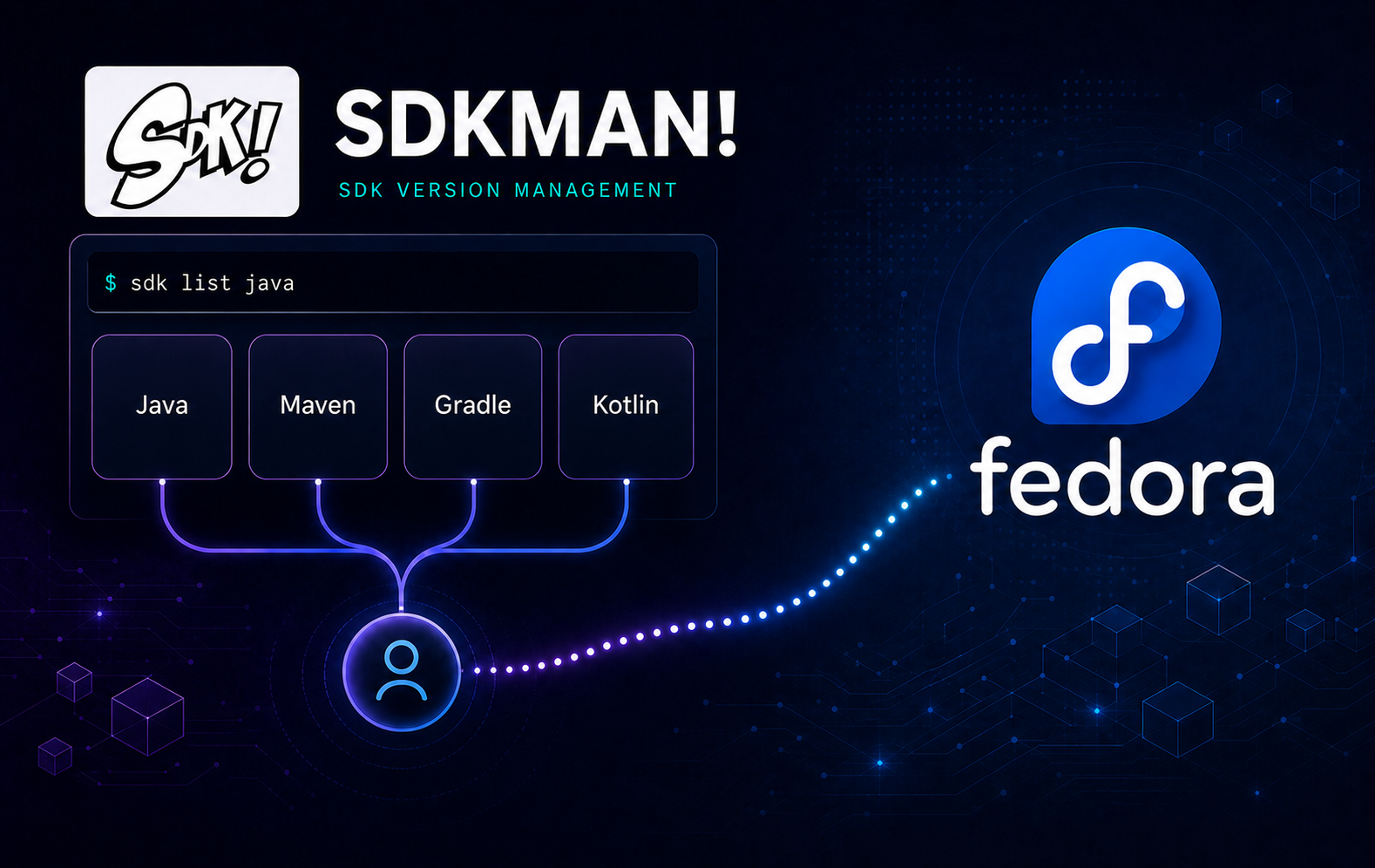
Fedora’s packaged Java tools work well when one system-wide version is enough, but they become awkward when projects require different JDK, Maven, Gradle, or Kotlin releases. Installing SDKMAN on Fedora adds a per-user version manager that can switch those toolchains without replacing Fedora’s RPM-managed Java packages.
SDKMAN’s upstream installer writes to ~/.sdkman and loads the sdk shell function from Bash or Zsh startup files. Use it for interactive development shells and project-specific runtimes; keep Fedora’s OpenJDK packages for system services, other users, or software that must run outside your login environment.
Install SDKMAN on Fedora
SDKMAN publishes one supported Unix installation path through its official installer. Fedora’s DNF package manager supplies the prerequisite commands, while SDKMAN maintains its own files and installed candidates under your home directory.
The DNF commands target mutable Fedora Workstation and Server systems. Fedora Atomic desktops use Flatpak, Toolbx, and package layering instead of ordinary host DNF transactions. If you choose to install SDKMAN inside a Toolbx or another development container, run both the prerequisites and SDKMAN in that same environment. Do not treat this DNF path as an Atomic host installation.
Prepare Fedora for the SDKMAN Installer
Review Fedora’s available system updates separately from the SDKMAN prerequisites. The following transaction can update unrelated system packages, so inspect the proposed changes before approving them and postpone it when the wider update is not appropriate:
sudo dnf upgrade --refreshWhether you apply or postpone the wider update, install SDKMAN’s curl, zip, and unzip requirements plus the commands used later for diagnostics, profile cleanup, and backups:
sudo dnf install bash curl zip unzip tar findutils sed ca-certificates gzip grepThese commands use
sudoonly for Fedora package management. If your account is not an administrator, ask one to install the prerequisites; do not grant yourself access. Administrators can review the separate guide for managing sudo access on Fedora. Do not usesudofor the SDKMAN installer or normalsdkcommands.
Most Fedora Workstation installations already contain several of these utilities, while Server and minimal images may not. DNF resolves the installed packages and adds or updates anything required by the transaction. DNF handles Fedora system updates and SDKMAN’s prerequisites, but it does not install or manage SDKMAN itself. The curl command guide covers download diagnostics used later.
Install SDKMAN with the Upstream Installer
Review What the SDKMAN Installer Changes
The upstream script creates ~/.sdkman, downloads SDKMAN’s script and native components, and adds an initialisation line to the applicable shell startup file. For a Bash login, it adds one guarded source line to ~/.bashrc and tells you how to load it. SDKMAN remains user-scoped and does not create an RPM package or system service.
Run the installer as your normal user. Running it with
sudocan create a separate installation under/root/.sdkmanor leave files in your home directory owned by root.
Download and Run the SDKMAN Installer
SDKMAN’s official install method retrieves a moving script from get.sdkman.io and does not provide a fixed checksum for that response. Saving the response to a temporary file avoids piping network output directly into Bash and allows bash -n to catch syntax errors, but the command still executes the content returned by the official endpoint without an independent integrity or human content review. The guarded subshell stops on failure and removes the temporary copy on exit.
(
  set -e
  sdkman_installer="$(mktemp)"
  trap 'rm -f "$sdkman_installer"' EXIT
  curl -fsSL https://get.sdkman.io -o "$sdkman_installer"
  bash -n "$sdkman_installer"
  bash "$sdkman_installer"
)
The installer should finish by asking you to open a new terminal or source the SDKMAN initialisation file. Stop if the final message differs substantially from the documented upstream flow.
Load SDKMAN in the Current Shell
Load the SDKMAN shell function without closing the terminal:
source "$HOME/.sdkman/bin/sdkman-init.sh"A new Bash terminal reads the persistent line from ~/.bashrc. SDKMAN also supports Zsh, but check the installer output for the startup file it selected instead of assuming that every shell profile was edited. Fedora users changing shells can follow the separate steps to install Zsh on Fedora.
Verify SDKMAN on Fedora
In Bash, confirm that sdk is loaded as a shell function:
type -t sdkfunction
Then ask SDKMAN for its installed script and native component versions. Zsh users can use this version command without the Bash-specific type -t check:
sdk versionThe version numbers change as upstream releases updates. In a fresh Bash terminal, repeat both commands; in Zsh, repeat sdk version. Success there proves the startup-file change is persistent rather than active only in the current session.
Install SDKMAN Without Editing Shell Profiles
CI jobs, disposable build environments, and other non-interactive sessions can use SDKMAN’s CI mode without modifying ~/.bashrc or ~/.zshrc. Use this path instead of the normal interactive installer on a clean account.
(
  set -e
  sdkman_installer="$(mktemp)"
  trap 'rm -f "$sdkman_installer"' EXIT
  curl -fsSL 'https://get.sdkman.io?ci=true&rcupdate=false' -o "$sdkman_installer"
  bash -n "$sdkman_installer"
  bash "$sdkman_installer"
)
CI mode answers installer prompts, disables colour output, and turns off SDKMAN’s self-update feature. Load the manager explicitly in each job step that needs it:
export SDKMAN_DIR="$HOME/.sdkman"
source "$SDKMAN_DIR/bin/sdkman-init.sh"
sdk version
Some CI scripts enable Bash nounset with set -u. SDKMAN’s initialisation and shell functions can reference unset internal variables, causing an unbound variable error. In that case, run the entire SDKMAN-dependent part of the job step in a subshell with nounset disabled:
(
  set +u
  export SDKMAN_DIR="$HOME/.sdkman"
  source "$SDKMAN_DIR/bin/sdkman-init.sh"
  sdk version
)
Place any additional sdk commands and candidate-dependent build commands before the closing parenthesis. When the subshell exits, the caller keeps its original nounset and PATH state. Jobs that do not enable nounset should use the simpler block above.
Use SDKMAN on Fedora
The sdk command is a shell function, so run it as the same unprivileged user who owns ~/.sdkman. Each candidate installed through SDKMAN stays separate from Fedora’s RPM database and follows SDKMAN’s update and removal commands.
List SDKMAN Candidates and Versions
List every supported candidate, then narrow the view to Java versions:
sdk list
sdk list java
SDKMAN may open long lists in a pager. Press q to exit, use / to search, and copy the full version identifier when you need a specific vendor or JDK release. The Java list is generated for the current platform, so copy identifiers from the same Fedora machine instead of assuming that an identifier from another architecture is available.
Install Java with SDKMAN
Install the current stable Java candidate. SDKMAN normally asks whether the new version should become the default for future shells; pressing Enter accepts the default answer.
sdk install javaVerify the SDKMAN selection, runtime, compiler, and active command paths:
sdk current java
java -version
javac -version
command -v java
command -v javac
When the SDKMAN JDK is active, the command paths should resolve beneath ~/.sdkman/candidates/java/current/bin. Use the checks for finding the active Java version in Linux when runtime, compiler, and environment results disagree.
Compile and run a disposable program to prove that both the compiler and runtime work from the selected JDK. The trap removes the temporary directory even if compilation fails:
(
  set -e
  java_test_dir="$(mktemp -d)"
  trap 'rm -rf "$java_test_dir"' EXIT
  cat > "$java_test_dir/Hello.java" <<'EOF'
public class Hello {
    public static void main(String[] args) {
        System.out.println("SDKMAN Java works on Fedora");
    }
}
EOF
  cd "$java_test_dir"
  javac Hello.java
  java Hello
)
SDKMAN Java works on Fedora
SDKMAN’s Java installation belongs to one user and an initialised shell. Use Fedora’s package-managed path to install OpenJDK on Fedora when Java must be available to system services, root, or multiple users.
Install and Switch Specific Java Versions
Copy an exact identifier from sdk list java on this Fedora machine, then edit the first line before running the block. The use command changes only the current shell:
java_version='replace-with-version-identifier'
sdk install java "$java_version"
sdk use java "$java_version"
sdk current java
Set the selected version as the default for new shells when the project requires it beyond the current terminal:
java_version='replace-with-version-identifier'
sdk default java "$java_version"
Opening a new terminal after sdk use returns to the configured default. Opening a new terminal after sdk default keeps the selected version active; confirm it there with sdk current java.
Install Maven, Gradle, or Kotlin with SDKMAN
Install only the build tools required by your projects. Each candidate remains under ~/.sdkman/candidates and can be switched or removed independently.
Each block installs one candidate, confirms SDKMAN selected it, verifies its command path, and runs its native version check.
For Maven, run:
sdk install maven
sdk current maven
command -v mvn
mvn -version
For Gradle, run:
sdk install gradle
sdk current gradle
command -v gradle
gradle -version
For Kotlin, run:
sdk install kotlin
sdk current kotlin
command -v kotlin
kotlin -version
The active path should resolve beneath the matching ~/.sdkman/candidates/<name>/current/bin directory. The mvn -version result also identifies the Java runtime Maven uses, which helps when Fedora’s system Java and an SDKMAN JDK coexist. Teams standardising on Fedora RPMs can instead install Apache Maven on Fedora with DNF.
Pin Project Versions with .sdkmanrc
An .sdkmanrc file keeps a project’s expected Java and build-tool versions beside its source. Set project_dir to an existing checkout. The guard prevents a failed directory change from creating .sdkmanrc in the wrong location:
project_dir="$HOME/path/to/project"
if cd "$project_dir"; then
  sdk env init && cat .sdkmanrc
else
  printf 'Project directory not found: %s\n' "$project_dir" >&2
fi
The file uses one candidate=identifier pair per line. Add only exact identifiers returned by sdk list <candidate> on the same Fedora machine, for example:
java=replace-with-installed-java-identifier
maven=replace-with-installed-maven-identifier
Review a repository’s .sdkmanrc before installing from it. Return to the guarded project directory, then install missing candidates and activate the listed versions in the current shell:
project_dir="$HOME/path/to/project"
if cd "$project_dir"; then
  sdk env install && sdk env
else
  printf 'Project directory not found: %s\n' "$project_dir" >&2
fi
Restore your normal default versions after leaving the project:
sdk env clearAutomatic switching is available through sdk config by setting sdkman_auto_env=true. Manual sdk env activation is easier to audit because entering a directory does not silently change the active toolchain.
Update SDKMAN and Installed SDKs on Fedora
DNF manages Fedora’s RPM packages, including the prerequisites and any system JDK. SDKMAN owns its shell code, candidate catalogue, downloaded SDKs, and version symlinks, so keep these update paths separate.
Update SDKMAN and Candidate Metadata
Update the manager itself, then refresh the catalogue of available candidates and versions:
sdk selfupdate
sdk update
CI mode disables the self-update feature to keep automated runs predictable. Rebuild the CI environment or install SDKMAN deliberately when its managed version needs to change.
Review and Apply Candidate Upgrades
Compare all installed candidates with the current catalogue. When SDKMAN finds newer prescribed defaults, it can prompt to use them; answer n if you want to review the result without changing the current defaults:
sdk upgradeThe command reports when all candidates are current or lists the installed and prescribed defaults when an update is available. To upgrade Java after reviewing that result, run the candidate-specific action:
sdk upgrade javaA candidate-specific upgrade can download a release and make it the new default. Read its output and prompts before approving changes, especially when a project is not pinned with .sdkmanrc. SDKMAN can retain the older installed version after changing the default, so inspect sdk list <candidate> and remove obsolete versions deliberately. If you want to test a new identifier without changing the default, install that exact version first and switch with sdk use. Confirm the active versions after any change:
sdk currentUse sdk flush when SDKMAN instructs you to clear stale local state. Do not manually delete ~/.sdkman/tmp, because SDKMAN manages that directory and its cache layout.
Remove an SDK or SDKMAN from Fedora
Removing one managed Java or build-tool version is different from deleting SDKMAN itself. Keep project configuration, installed candidates, shell startup lines, and the manager directory separate during cleanup.
Remove One Installed SDK Version
List installed versions and copy the exact identifiers marked as installed:
sdk list javaTo remove a Java version that is neither active nor the default, set old_java to its exact installed identifier. The block checks the active JAVA_HOME and SDKMAN’s default current symlink separately before uninstalling:
old_java='replace-with-inactive-installed-version'
old_java_dir="$HOME/.sdkman/candidates/java/$old_java"
old_java_real="$(readlink -f "$old_java_dir" 2>/dev/null || true)"
active_java_dir="$(readlink -f "${JAVA_HOME:-/nonexistent}" 2>/dev/null || true)"
default_java_dir="$(readlink -f "$HOME/.sdkman/candidates/java/current" 2>/dev/null || true)"

if [ ! -d "$old_java_dir" ]; then
  printf 'Not installed: %s\n' "$old_java" >&2
elif [ "$old_java_real" = "$active_java_dir" ]; then
  printf 'Refusing to remove the active version: %s\n' "$old_java" >&2
elif [ "$old_java_real" = "$default_java_dir" ]; then
  printf 'Refusing to remove the default version: %s\n' "$old_java" >&2
else
  sdk uninstall java "$old_java" &&
  test ! -e "$old_java_dir" &&
  printf 'Removed: %s\n' "$old_java"
fi

unset old_java_dir old_java_real active_java_dir default_java_dir
When the version being removed is active, is the default for new shells, or has uncertain state, choose a different installed version first. This branch confirms that both identifiers are different and installed, then chains the switch, default change, and uninstall so a failed replacement cannot continue to removal:
remaining_java='replace-with-installed-version-to-keep'
old_java='replace-with-active-version-to-remove'
remaining_java_dir="$HOME/.sdkman/candidates/java/$remaining_java"
old_java_dir="$HOME/.sdkman/candidates/java/$old_java"

if [ "$remaining_java" = "$old_java" ]; then
  printf '%s\n' 'The replacement and removal identifiers must differ.' >&2
elif [ ! -d "$remaining_java_dir" ] || [ ! -d "$old_java_dir" ]; then
  printf '%s\n' 'Both Java identifiers must already be installed.' >&2
elif sdk use java "$remaining_java" &&
     sdk default java "$remaining_java" &&
     sdk uninstall java "$old_java"; then
  sdk current java
  test ! -e "$old_java_dir" && printf 'Removed: %s\n' "$old_java"
else
  printf '%s\n' 'Replacement failed; the uninstall step did not complete.' >&2
fi

unset remaining_java_dir old_java_dir
Adapt the general replacement branch for candidates such as maven, gradle, or kotlin; the inactive-version branch above is specific to Java because it checks JAVA_HOME. Removing an SDKMAN candidate does not remove a Fedora RPM with the same command name.
Back Up and Remove the Entire SDKMAN Installation
Deleting
~/.sdkmanremoves SDKMAN, every candidate installed through it, downloaded archives, configuration, and version state for the current user. Create a backup first when any installed toolchain or configuration may be needed later.
SDK archives can make ~/.sdkman large. Check its size and the free space on the destination filesystem before creating a second copy:
du -sh "$HOME/.sdkman"
df -h "$HOME"
When the destination has enough space, create a collision-resistant archive and verify that it can be listed. The block refuses to overwrite an existing file:
(
  set -e
  umask 077
  sdkman_backup="$HOME/sdkman-backup-$(date +%F-%H%M%S).tar.gz"
  if [ -e "$sdkman_backup" ]; then
    printf 'Refusing to overwrite: %s\n' "$sdkman_backup" >&2
    exit 1
  fi
  backup_complete=false
  trap '[ "$backup_complete" = true ] || rm -f -- "$sdkman_backup"' EXIT
  tar -czf "$sdkman_backup" -C "$HOME" .sdkman
  tar -tzf "$sdkman_backup" >/dev/null
  backup_complete=true
  trap - EXIT
  ls -lh "$sdkman_backup"
)
Read the displayed filename and size before continuing. The archive stays outside ~/.sdkman, so the removal command does not delete it.
Continue only after confirming the backup is readable or deciding that no backup is needed. The next command permanently removes every SDKMAN-managed candidate and configuration file for the current user.
rm -rf -- "${HOME:?HOME is not set}/.sdkman"Remove SDKMAN Shell Initialisation
Find the exact current and legacy upstream lines that the automated cleanup recognises. The same pattern is reused for deletion, so the loop cannot remove a line that this preview omitted:
zshrc_path="${ZDOTDIR:-$HOME}/.zshrc"
sdkman_profile_pattern='^[[:space:]]*#THIS MUST BE AT THE END OF THE FILE FOR SDKMAN TO WORK!!![[:space:]]*$|^[[:space:]]*export SDKMAN_DIR="\$HOME/\.sdkman"[[:space:]]*$|^[[:space:]]*\[\[ -s "\$HOME/\.sdkman/bin/sdkman-init\.sh" \]\] && source "\$HOME/\.sdkman/bin/sdkman-init\.sh"[[:space:]]*$|^[[:space:]]*\[\[ -s "\$SDKMAN_DIR/bin/sdkman-init\.sh" \]\] && source "\$SDKMAN_DIR/bin/sdkman-init\.sh"[[:space:]]*$'
grep -nE "$sdkman_profile_pattern" "$HOME/.bashrc" "$HOME/.bash_profile" "$HOME/.profile" "$zshrc_path" 2>/dev/null || true
No output means the automated pattern found nothing. If you wrote a custom SDKMAN source line, search the specific profile for sdkman-init.sh, back up that file, and edit the reviewed line manually. After reviewing the exact-match output, back up each regular profile to a unique file and remove only those printed patterns:
(
  set -e
  zshrc_path="${ZDOTDIR:-$HOME}/.zshrc"
  sdkman_profile_pattern='^[[:space:]]*#THIS MUST BE AT THE END OF THE FILE FOR SDKMAN TO WORK!!![[:space:]]*$|^[[:space:]]*export SDKMAN_DIR="\$HOME/\.sdkman"[[:space:]]*$|^[[:space:]]*\[\[ -s "\$HOME/\.sdkman/bin/sdkman-init\.sh" \]\] && source "\$HOME/\.sdkman/bin/sdkman-init\.sh"[[:space:]]*$|^[[:space:]]*\[\[ -s "\$SDKMAN_DIR/bin/sdkman-init\.sh" \]\] && source "\$SDKMAN_DIR/bin/sdkman-init\.sh"[[:space:]]*$'
  for profile in "$HOME/.bashrc" "$HOME/.bash_profile" "$HOME/.profile" "$zshrc_path"; do
    [ -f "$profile" ] || continue
    if [ -L "$profile" ]; then
      printf 'Skipped symlink: %s -> %s\n' "$profile" "$(readlink -f -- "$profile")"
      continue
    fi
    grep -Eq "$sdkman_profile_pattern" "$profile" || continue
    profile_backup="$(mktemp "${profile}.sdkman-backup.XXXXXX")"
    cp -a -- "$profile" "$profile_backup"
    sed -E -i "\%${sdkman_profile_pattern}%d" "$profile"
    printf 'Updated %s; backup: %s\n' "$profile" "$profile_backup"
  done
)
If the loop reports a symlink, inspect the resolved target, create a separate content backup, and remove the reviewed SDKMAN source line from that target manually. Skipping it prevents sed -i from replacing a managed dotfile symlink with a regular file.
Unload the function from the current Bash session and verify that the manager directory is absent. This prevents further sdk calls, but the old shell can still contain stale candidate paths or variables such as JAVA_HOME. Do not reuse it for builds after removal:
unset -f sdk 2>/dev/null || true
unset SDKMAN_DIR
hash -r
command -v sdk 2>/dev/null || echo "SDKMAN is no longer loaded"
test ! -d "$HOME/.sdkman" && echo "SDKMAN directory removed"
Close that terminal and open a fresh one for the authoritative final check:
command -v sdk 2>/dev/null || echo "SDKMAN is absent in the fresh shell"
test ! -d "$HOME/.sdkman" && echo "SDKMAN directory removed"
zshrc_path="${ZDOTDIR:-$HOME}/.zshrc"
grep -nE 'SDKMAN_DIR|sdkman-init\.sh|THIS MUST BE AT THE END OF THE FILE FOR SDKMAN TO WORK' "$HOME/.bashrc" "$HOME/.bash_profile" "$HOME/.profile" "$zshrc_path" 2>/dev/null || echo "No SDKMAN profile entries found"
command -v java 2>/dev/null || echo "No other Java command is installed"
Success means sdk is absent, ~/.sdkman is gone, and no SDKMAN profile entries print. Java may resolve to Fedora’s /usr/bin/java when a package-managed JDK remains. Project-owned .sdkmanrc files stay in their repositories, and the shared Fedora prerequisite packages remain installed. Review the uniquely named *.sdkman-backup.* profile copies before deleting them.
Restore an SDKMAN Backup on Fedora
Restore only an archive you created and trust for the same user and CPU architecture. SDKMAN candidates can contain platform-specific binaries, so do not treat this backup as a portable cross-architecture installation. Close other shells using SDKMAN and edit sdkman_backup to the exact archive path.
The guarded block verifies the archive, refuses an existing ~/.sdkman path, rejects entries outside the expected directory, and removes a newly created partial tree if extraction or verification fails:
(
  set -e
  sdkman_backup="$HOME/sdkman-backup-replace-with-timestamp.tar.gz"
  archive_list="$(mktemp)"
  restore_started=false
  restore_complete=false
  cleanup_restore() {
    rm -f "$archive_list"
    if [ "$restore_started" = true ] && [ "$restore_complete" != true ]; then
      rm -rf -- "${HOME:?HOME is not set}/.sdkman"
    fi
  }
  trap cleanup_restore EXIT

  [ -f "$sdkman_backup" ] || {
    printf 'Backup not found: %s\n' "$sdkman_backup" >&2
    exit 1
  }
  if [ -e "$HOME/.sdkman" ] || [ -L "$HOME/.sdkman" ]; then
    printf '%s\n' 'Refusing to overwrite the existing ~/.sdkman path.' >&2
    exit 1
  fi

  tar -tzf "$sdkman_backup" > "$archive_list"
  if grep -Eq '(^|/)\.\.(/|$)' "$archive_list" ||
     grep -Ev '^\.sdkman(/|$)' "$archive_list" | grep -q .; then
    printf '%s\n' 'Archive contains an unexpected path; nothing was extracted.' >&2
    exit 1
  fi

  restore_started=true
  tar --no-same-owner -xzf "$sdkman_backup" -C "$HOME"
  test -s "$HOME/.sdkman/bin/sdkman-init.sh"
  restore_complete=true
)
Load the restored manager and confirm its candidate state:
export SDKMAN_DIR="$HOME/.sdkman"
source "$SDKMAN_DIR/bin/sdkman-init.sh"
sdk version
sdk current
The SDKMAN archive does not contain your shell profiles. For Bash, restore the guarded startup line once, then open a fresh terminal and repeat sdk version:
sdkman_init='[[ -s "$HOME/.sdkman/bin/sdkman-init.sh" ]] && source "$HOME/.sdkman/bin/sdkman-init.sh"'
touch "$HOME/.bashrc"
grep -qxF "$sdkman_init" "$HOME/.bashrc" || printf '\n%s\n' "$sdkman_init" >> "$HOME/.bashrc"
Zsh users should add the same guarded line to the startup file selected by the installer. If the restored manager or candidates fail on the original architecture, remove the restored tree and perform a clean upstream installation instead of forcing incompatible binaries.
Troubleshoot SDKMAN on Fedora
The Installer Finds an Existing SDKMAN Installation
The installer exits without overwriting an existing ~/.sdkman tree. Load that installation and force a manager refresh instead of running the bootstrap script with sudo:
source "$HOME/.sdkman/bin/sdkman-init.sh"
sdk selfupdate force
sdk version
Use the full backup and removal path before reinstalling only when the existing initialisation file is missing or the SDKMAN tree is damaged.
The SDK Command Is Not Found
A missing sdk command has two different causes. First, report whether the initialisation file exists:
if [ -s "$HOME/.sdkman/bin/sdkman-init.sh" ]; then
  printf '%s\n' 'SDKMAN initialisation file exists.'
else
  printf '%s\n' 'SDKMAN initialisation file is missing.' >&2
fi
If the file is missing, do not append a profile entry that points to it. Back up anything recoverable, remove the damaged SDKMAN tree, and perform a clean installation. When the file exists, inspect the startup files separately:
zshrc_path="${ZDOTDIR:-$HOME}/.zshrc"
grep -n 'sdkman-init\.sh' "$HOME/.bashrc" "$HOME/.bash_profile" "$HOME/.profile" "$zshrc_path" 2>/dev/null || echo "No SDKMAN startup entry found"
CI mode intentionally leaves profile files unchanged, so export SDKMAN_DIR and source the initialisation file in every job step that uses SDKMAN. For an interactive Bash installation with an existing initialisation file but no matching startup line, append the exact guarded source line once:
if [ -s "$HOME/.sdkman/bin/sdkman-init.sh" ]; then
  sdkman_init='[[ -s "$HOME/.sdkman/bin/sdkman-init.sh" ]] && source "$HOME/.sdkman/bin/sdkman-init.sh"'
  touch "$HOME/.bashrc"
  grep -qxF "$sdkman_init" "$HOME/.bashrc" || printf '\n%s\n' "$sdkman_init" >> "$HOME/.bashrc"
  source "$HOME/.sdkman/bin/sdkman-init.sh"
else
  printf '%s\n' 'Initialisation file missing; reinstall SDKMAN first.' >&2
fi
In Bash, confirm that the repair loaded a function and a working manager:
type -t sdk
sdk version
The first command should print function. Zsh users should add the guarded source line to the startup file reported by the installer, then use the cross-shell version check:
sdk versionSDKMAN Reports an Unbound Variable
Bash startup files or scripts that enable nounset with set -u can expose unset variables inside SDKMAN’s initialisation or shell functions. For an interactive shell, disable nounset before sourcing SDKMAN and leave it disabled while running sdk commands:
set +u
source "$HOME/.sdkman/bin/sdkman-init.sh"
sdk version
If ~/.bashrc enables nounset before the SDKMAN source line, move that strict setting out of the interactive profile or scope it only to scripts that need it. In CI, keep the entire SDKMAN-dependent step inside a nounset-disabled subshell so the caller’s original shell options remain unchanged.
The Installer or Shell Reports a Missing Command
The upstream installer checks for curl, zip, and unzip. Identify which one is unavailable:
for command_name in curl zip unzip; do
  command -v "$command_name" >/dev/null || printf 'Missing: %s\n' "$command_name"
done
Any printed command maps directly to the package of the same name. Install the full prerequisite set when backup and troubleshooting commands are also needed:
sudo dnf install bash curl zip unzip tar findutils sed ca-certificates gzip grepRepeat the command check. When it prints nothing, rerun the guarded bootstrap workflow because a missing prerequisite can stop installation before a usable initialisation file exists:
missing_prerequisite=0
for command_name in curl zip unzip; do
  if ! command -v "$command_name" >/dev/null; then
    printf 'Still missing: %s\n' "$command_name" >&2
    missing_prerequisite=1
  fi
done

if [ "$missing_prerequisite" -eq 0 ]; then
  (
    set -e
    sdkman_installer="$(mktemp)"
    trap 'rm -f "$sdkman_installer"' EXIT
    curl -fsSL https://get.sdkman.io -o "$sdkman_installer"
    bash -n "$sdkman_installer"
    bash "$sdkman_installer"
  )
else
  printf '%s\n' 'Install the remaining prerequisites before rerunning SDKMAN.' >&2
fi
unset missing_prerequisite
Source SDKMAN only after confirming that the installer created a non-empty initialisation file:
if [ -s "$HOME/.sdkman/bin/sdkman-init.sh" ]; then
  source "$HOME/.sdkman/bin/sdkman-init.sh"
  sdk version
else
  printf '%s\n' 'SDKMAN initialisation is still missing; do not source it.' >&2
fi
If the rerun reports an existing but damaged SDKMAN tree, use the backup and full-removal workflow before attempting one clean installation.
Fedora Java or Maven Still Wins on PATH
Fedora RPMs and SDKMAN candidates can coexist, but the first matching path in $PATH controls the command that runs. Compare the active command paths, SDKMAN selections, and resolved Java binary:
command -v java
command -v javac
command -v mvn
sdk current
readlink -f "$(command -v java)"
A path under /usr/bin means Fedora’s system package is winning. The repair below uses Bash: source SDKMAN, set and activate the exact required version, clear Bash’s command cache, and test again. Zsh users should source the manager, set the required default and current version, then open a fresh Zsh terminal before repeating the cross-shell path checks.
source "$HOME/.sdkman/bin/sdkman-init.sh"
java_version='replace-with-installed-version-identifier'
sdk default java "$java_version"
sdk use java "$java_version"
hash -r
sdk current java
command -v java
readlink -f "$(command -v java)"
Use the corresponding candidate name and identifier when Maven, Gradle, or Kotlin is affected. The guide to setting the Java environment path on Fedora covers the system-managed alternative and JAVA_HOME behaviour.
An IDE launched from Fedora’s desktop may use a different environment from the terminal. Edit the version identifier, print the exact JDK directory, then select that path in the IDE’s project SDK settings:
java_version='replace-with-version-identifier'
sdk home java "$java_version"
SDKMAN Files Are Owned by Root
Permission errors after an earlier sudo install or command can leave part of the user-scoped tree owned by root. Find the first ownership mismatch before changing it:
find "$HOME/.sdkman" ! -user "$(id -un)" -print -quitNo output means no mismatched owner was found. When the command prints a path and ~/.sdkman belongs only to your account, restore ownership to the current user and primary group:
sudo chown -R "$(id -un)":"$(id -gn)" "$HOME/.sdkman"
source "$HOME/.sdkman/bin/sdkman-init.sh"
sdk version
Candidate Lists Fail or Stay Stale
Test the candidate API before changing local SDKMAN state:
curl -fsS https://api.sdkman.io/2/candidates/all >/dev/nullA failing request can indicate a local DNS, proxy, firewall, or certificate problem, but it can also be an upstream incident. Check the official SDKMAN service status before changing Fedora’s network or trust configuration. Do not enable sdkman_insecure_ssl to bypass certificate verification.
When the API request succeeds but lists remain stale, clear SDKMAN-managed caches and refresh the catalogue:
sdk flush
sdk update
sdk list java
Use sdk flush instead of manually deleting ~/.sdkman/tmp or other internal directories.
Conclusion
SDKMAN now provides per-user Java, Maven, Gradle, and Kotlin versions without replacing Fedora’s system packages. Keep shared runtimes and services on Fedora’s RPM-managed path, verify new toolchains with their native commands, and commit a reviewed .sdkmanrc when a project needs repeatable versions. Use SDKMAN for candidate maintenance and its own removal rather than mixing those tasks with DNF.


Formatting tips for your comment
You can use basic HTML to format your comment. Useful tags currently allowed in published comments:
<code>command</code>command<strong>bold</strong><em>italic</em><a href="https://example.com">link</a><blockquote>quote</blockquote>