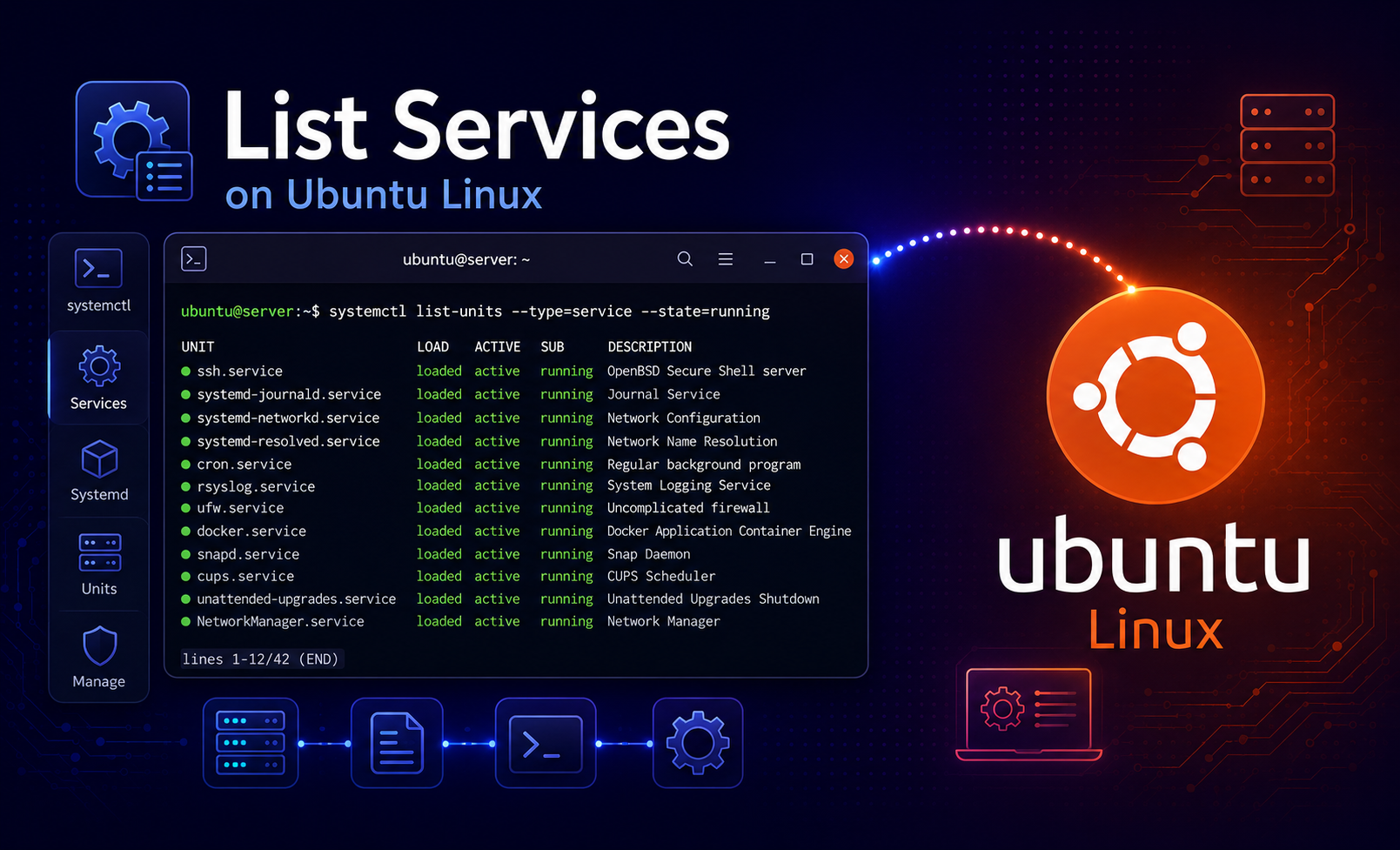
Service checks on Ubuntu get confusing when runtime state, boot enablement, socket activation, and user services are treated as one list. To list services on Ubuntu Linux cleanly, start with systemctl list-units for services loaded right now, then use systemctl list-unit-files when you need to know what can start at boot.
These read-only commands work on Ubuntu 26.04 LTS, 24.04 LTS, and 22.04 LTS. Most service inventory commands do not need sudo; elevated access is useful only when you map listening ports back to process names with ss or when you later decide to start, stop, enable, or disable a unit.
List Running Services on Ubuntu
Use list-units when you want services systemd has loaded into the current manager state. Add --state=running to keep the first pass focused on service processes that are running now.
systemctl list-units --type=service --state=running --no-pagerExample output begins with the unit name and the current service state:
  UNIT                          LOAD   ACTIVE SUB     DESCRIPTION
  accounts-daemon.service       loaded active running Accounts Service
  avahi-daemon.service          loaded active running Avahi mDNS/DNS-SD Stack
  chrony.service                loaded active running chrony, an NTP client/server
  colord.service                loaded active running Manage, Install and Generate Color Profiles
  cron.service                  loaded active running Regular background program processing daemon
  cups-browsed.service          loaded active running Make remote CUPS printers available locally
  cups.service                  loaded active running CUPS Scheduler
Read the columns separately. LOAD says whether systemd loaded the unit file, ACTIVE gives the broad state, and SUB gives the service-specific state such as running or exited.
Ubuntu Service Listing Quick Reference
| Task | Command | Use It When |
|---|---|---|
| List running services | systemctl list-units --type=service --state=running --no-pager | You need the active service processes now. |
| List all loaded services | systemctl list-units --type=service --all --no-pager | You need active, inactive, exited, and failed loaded units. |
| List enabled services | systemctl list-unit-files --type=service --state=enabled --no-pager | You need services configured to start automatically. |
| List disabled services | systemctl list-unit-files --type=service --state=disabled --no-pager | You need installed service files that are not enabled at boot. |
| List failed services | systemctl --failed --type=service --no-pager | You need units systemd has marked as failed. |
| List user services | systemctl --user list-units --type=service --no-pager | You need services from the current user’s systemd manager. |
| List socket listeners | systemctl list-sockets --no-pager | You need socket-activated services or systemd-owned listeners. |
List All Loaded Services on Ubuntu
Remove the running-state filter when you need the full loaded service view. This is the better command when a service exists but is stopped, exited after startup, or failed earlier in the boot.
systemctl list-units --type=service --all --no-pagerFor a compact filtered example, keep only a few familiar service names:
systemctl list-units --type=service --all --no-pager --plain --no-legend | grep -E '^(accounts-daemon|alsa-restore|apparmor|cron|cups|ssh)\.service'accounts-daemon.service loaded active running Accounts Service alsa-restore.service loaded active exited Save/Restore Sound Card State apparmor.service loaded active exited Load AppArmor profiles cron.service loaded active running Regular background program processing daemon cups.service loaded active running CUPS Scheduler ssh.service loaded active running OpenBSD Secure Shell server
An exited service is not automatically a problem. Some units do one startup task and then exit successfully, while long-running daemons such as cron.service or cups.service should normally show running.
List Services Enabled at Boot
Runtime state and boot enablement are different questions. A service can be running now but disabled at boot, or enabled at boot but currently stopped. Use list-unit-files to inspect installed service files and their enablement state.
systemctl list-unit-files --type=service --state=enabled --no-pagerExample output includes the unit file state and the preset policy:
UNIT FILE                       STATE   PRESET
accounts-daemon.service        enabled enabled
anacron.service                enabled enabled
apparmor.service               enabled enabled
apport.service                 enabled enabled
avahi-daemon.service           enabled enabled
bluetooth.service              enabled enabled
chrony.service                 enabled enabled
cloud-config.service           enabled enabled
The STATE column is the current local configuration. The PRESET column is the distribution or package policy that would apply if presets were used; do not treat it as proof that the service is currently enabled.
Change the state filter when you need disabled or static units:
systemctl list-unit-files --type=service --state=disabled --no-pager
systemctl list-unit-files --type=service --state=static --no-pager
A static service is not enabled directly. Another unit, target, socket, or timer can start it through dependencies.
Check One Ubuntu Service State
Use targeted checks when you already know the unit name. Compact state commands are easier to script and safer to read than parsing the full systemctl status screen.
systemctl is-active cron.service
systemctl is-enabled cron.service
systemctl show cron.service -p LoadState -p ActiveState -p SubState -p UnitFileState
active enabled LoadState=loaded ActiveState=active SubState=running UnitFileState=enabled
If you need the human status view, use systemctl status cron.service --no-pager. The status screen includes recent journal lines and process details, so it is useful for manual troubleshooting but less stable for scripts.
List Failed Services on Ubuntu
Failed units deserve a separate check because they can hide inside a long all-service list. Start with the failed-service view before restarting anything.
systemctl --failed --type=service --no-pagerA healthy system with no failed services ends with this status line:
0 loaded units listed.
When a failed unit appears, inspect its status and current-boot logs before applying a fix:
systemctl status service-name.service --no-pager
journalctl -u service-name.service -b -n 50 --no-pager
The status output identifies the unit state and recent failure lines. The journal query gives you the current boot’s detailed entries; use the broader journalctl command examples when you need time ranges, priorities, or live log following.
List User Services on Ubuntu
System services and user services live in different systemd managers. Use --user from the account whose user services you want to inspect.
systemctl --user list-units --type=service --no-pagerDesktop sessions often show services for D-Bus, the keyring, accessibility, and user preferences:
UNIT                                    LOAD   ACTIVE SUB     DESCRIPTION
at-spi-dbus-bus.service                 loaded active running Accessibility services bus
dbus.service                            loaded active running D-Bus User Message Bus
dconf.service                           loaded active running User preferences database
gnome-keyring-daemon.service            loaded active running GNOME Keyring daemon
If this command reports that it cannot connect to the user bus, you are probably in a session without a running user manager. For ordinary system daemons, drop --user and use the system-level commands instead.
List Socket-Activated and Port-Listening Services
A service list is not the same as a port list. Ubuntu can start some services from socket units, and a process can listen on a port even when the service state needs a separate check.
systemctl list-sockets --no-pagerOn Ubuntu 24.04 and newer OpenSSH setups, SSH can appear through ssh.socket as well as ssh.service:
LISTEN      UNIT       ACTIVATES
0.0.0.0:22  ssh.socket ssh.service
[::]:22     ssh.socket ssh.service
Check both the service and socket before changing SSH access. The Ubuntu SSH workflow has a separate guide for enabling SSH on Ubuntu when you need the full listener, firewall, and remote-login sequence.
Use ss when the real question is which process is listening on a TCP port. The -ltnp options list listening TCP sockets, keep ports numeric, and show process names where permissions allow them.
sudo ss -ltnpAfter you know which ports are open locally, compare that against your firewall policy. Use the Ubuntu firewall guide to configure UFW on Ubuntu, and use Nmap on Ubuntu when you need an external host-discovery or service-scan view.
Use the Legacy service Command Carefully
Ubuntu still provides the older service --status-all command for SysV-style compatibility, but it is not the best primary inventory tool on systemd-based systems. Use it only when you need legacy script-style output or when older instructions refer to the bracket markers.
service --status-all[ + ] alsa-utils [ - ] anacron [ + ] apparmor [ + ] apport [ - ] bluetooth [ + ] cron
The [ + ] and [ - ] markers come from init-script status handling, not from the full systemd unit model. Prefer systemctl when you need runtime state, boot enablement, failed units, dependencies, and unit-file details.
Troubleshoot Ubuntu Service Lists
A Service Is Installed but Missing from the Running List
A missing service in the running list usually means the unit is stopped, inactive, static, socket-activated, or named differently from what you typed. Check both loaded units and installed unit files before starting anything.
systemctl list-units --type=service --all 'service-name.service' --no-pager
systemctl list-unit-files 'service-name.service' --no-pager
systemctl status service-name.service --no-pager
If the unit exists and should be running, fix the service-specific cause shown by status or journalctl, then retest with systemctl is-active service-name.service. Use the broader systemctl command examples when you need the full start, restart, reload, enable, or disable workflow.
A Service Shows static Instead of enabled
A static unit is normally started by another unit, socket, timer, or dependency. Inspect the unit before trying to enable it directly.
systemctl status service-name.service --no-pager
systemctl list-dependencies --reverse service-name.service --no-pager
If another unit pulls it in, enable or manage the parent unit instead of forcing the static service into a boot state it was not designed to own.
A Service Is Started by a Socket
Socket activation can make the service process appear inactive until a connection arrives. Inspect matching socket units when a listener exists but the service state looks surprising.
systemctl list-units --type=socket --all 'service-name.socket' --no-pager
systemctl status service-name.socket --no-pager
Manage the socket when the socket owns the listener. Restarting only the service may not change the listening address or port.
The service Command Disagrees with systemctl
When service --status-all and systemctl disagree, trust systemctl for systemd services. The legacy command can hide unit-file state, socket activation, failed units, and user services.
systemctl list-units --type=service --all --no-pager
systemctl list-unit-files --type=service --no-pager
Use the legacy output only as a compatibility clue, then verify the unit with systemctl status, systemctl is-active, or systemctl is-enabled.
Related Ubuntu Inventory Checks
Service inventory often leads to two adjacent audits: package ownership and account ownership. Use the Ubuntu package inventory guide to list installed packages on Ubuntu, and use the account audit guide to list users in Ubuntu Linux when service accounts, human users, and package-created identities need separate review.
Conclusion
Ubuntu service inventory is clearest when each command answers one layer: running units, installed unit files, failed units, user services, sockets, or listening ports. Start with systemctl list-units, switch to list-unit-files for boot state, and inspect logs or sockets before changing a service that affects remote access or production workloads.


Formatting tips for your comment
You can use basic HTML to format your comment. Useful tags currently allowed in published comments:
<code>command</code>command<strong>bold</strong><em>italic</em><a href="https://example.com">link</a><blockquote>quote</blockquote>