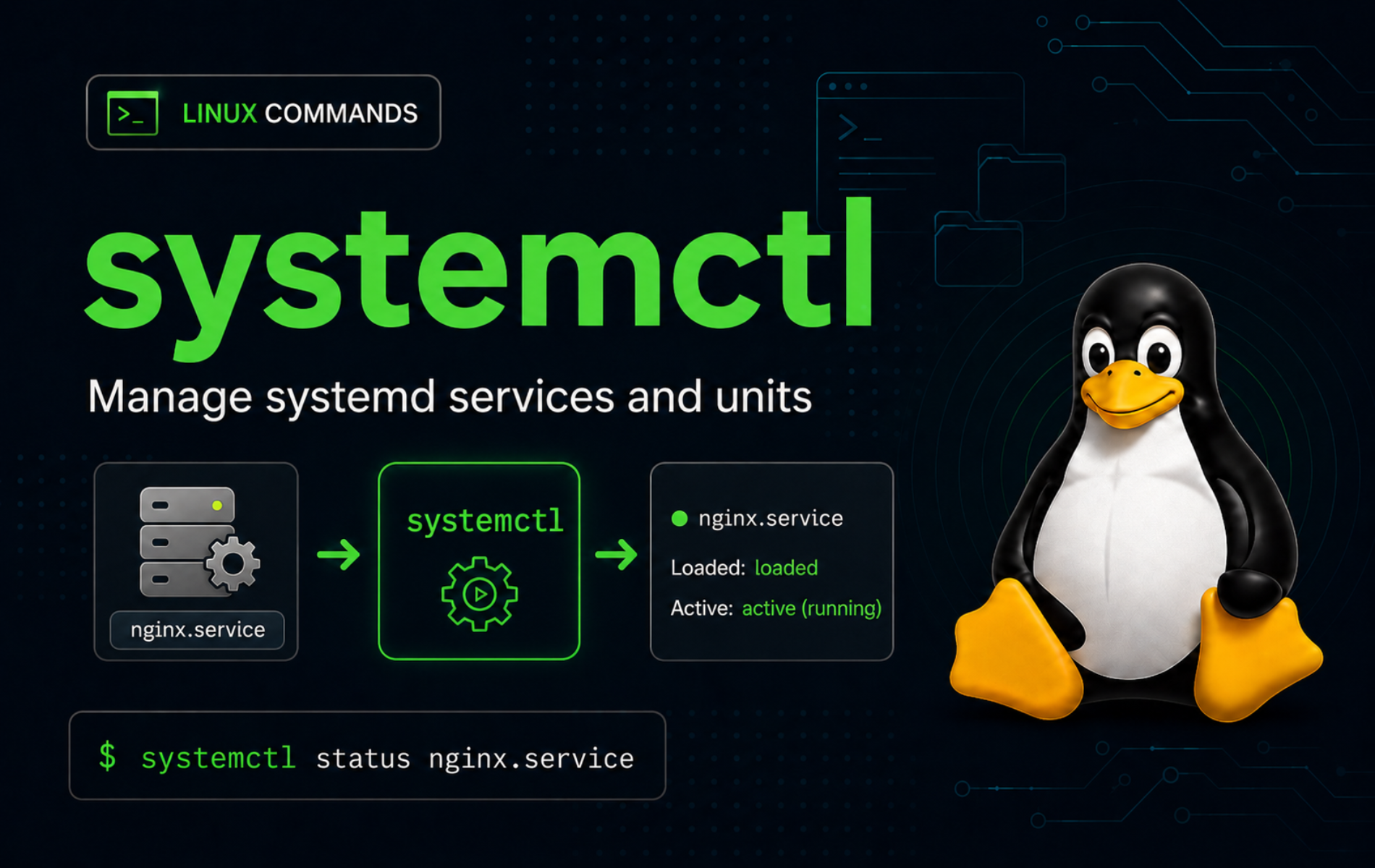
Service management gets risky when runtime state, boot enablement, logs, and unit files are treated as the same thing. The systemctl command in Linux separates those layers, so you can check whether a service is running now, decide whether it starts at boot, inspect the unit file behind it, and recover cleanly when systemd reports a failure.
Examples use normal systemd unit names such as nginx.service and systemd-journald.service. Replace service names with the unit you actually manage, and check the exact name before restarting critical services such as SSH, networking, display managers, databases, or firewalls.
Understand the systemctl Command
systemctl controls and inspects the systemd service manager. On most current Linux distributions, systemd runs as PID 1 and starts services, sockets, timers, mounts, targets, and user sessions. The systemctl command is the main administrative interface for those units.
The basic syntax puts global options first, then the command, then one or more units:
systemctl [options] command [unit...][options]: Global behavior such as--user,--system,--no-pager,--type=, or--state=.command: The action, such asstatus,start,restart,enable,list-units, ordaemon-reload.[unit...]: One or more unit names, usually with a suffix such as.service,.socket,.timer, or.target.
Use your local man systemctl page for the exact build installed on your distribution. The systemctl manual page and the systemd project documentation are useful references when you need the full command and unit model.
Common systemctl Tasks
| Task | Command Pattern | What It Proves or Changes |
|---|---|---|
| Check runtime state | systemctl is-active nginx.service | Reports whether the unit is active now. |
| Check boot enablement | systemctl is-enabled nginx.service | Reports whether the unit starts automatically at boot. |
| Read service status | systemctl status nginx.service --no-pager | Shows load state, active state, PID details, and recent journal lines. |
| Start a service | sudo systemctl start nginx.service | Starts the unit for the current boot only. |
| Restart a service | sudo systemctl restart nginx.service | Stops and starts the service process. |
| Reload a service | sudo systemctl reload nginx.service | Asks the service to reread configuration when the unit supports reloads. |
| Enable at boot | sudo systemctl enable nginx.service | Adds boot-time symlinks but does not start the service now. |
| Enable and start | sudo systemctl enable --now nginx.service | Enables the unit and starts it in one transaction. |
| Reload unit files | sudo systemctl daemon-reload | Tells systemd to reread changed unit files and drop-ins. |
Verify systemctl and the Systemd Manager
Check that systemctl is available before troubleshooting a service. Most full Linux installations include it, but minimal containers, chroots, and non-systemd environments may not have a usable system manager.
command -v systemctl/usr/bin/systemctl
Confirm that PID 1 is systemd before relying on system-level commands:
ps -p 1 -o comm=systemd
Check the manager state when service behavior looks inconsistent. A healthy system usually prints running; a system with failed units can print degraded even while most services still work.
systemctl is-system-runningrunning
Use systemctl --version when you need the packaged systemd release. Distribution builds can carry patches, so read the first line as local evidence rather than a portable requirement.
systemctl --versionInspect Services with systemctl
Inspection commands should come before fixes. They tell you whether systemd can load the unit file, whether the service is active, whether it is enabled at boot, and which file systemd is using for the unit definition.
Check Whether a Service Is Active
is-active prints a compact runtime state and uses its exit status for scripts. It is better than parsing the full status screen when you only need a yes/no running check.
systemctl is-active systemd-journald.serviceactive
inactive, failed, and activating all mean different things. If the state is not active, inspect the full unit status and logs before restarting blindly.
Check Whether a Service Starts at Boot
is-enabled checks boot enablement, not runtime state. A service can be active but disabled, or enabled but currently stopped.
systemctl is-enabled nginx.serviceenabled
Other common values include disabled, static, masked, and not-found. A static unit is not enabled directly; another unit can pull it in through dependencies. In scripts, inactive or non-enabled states often return a nonzero exit status while still printing the state you need.
Use systemctl show for Script-Friendly State
status is written for humans and includes volatile timestamps and recent logs. show prints property names and values, which is easier to filter in scripts and support notes.
systemctl show systemd-journald.service \
  -p LoadState \
  -p ActiveState \
  -p SubState \
  -p UnitFileState
LoadState=loaded ActiveState=active SubState=running UnitFileState=static
Use FragmentPath when you need to confirm which unit file systemd loaded:
systemctl show systemd-journald.service -p FragmentPathFragmentPath=/usr/lib/systemd/system/systemd-journald.service
List Loaded Units and Installed Unit Files
list-units shows units systemd has loaded into memory. list-unit-files shows installed unit files and their enablement state. Use both views when a service exists on disk but is not currently active.
systemctl list-units systemd-journald.service --no-pager --plain --no-legendsystemd-journald.service loaded active running Journal Service
systemctl list-unit-files systemd-journald.service --no-pager --plain --no-legendsystemd-journald.service static -
Add filters for broader views:
systemctl list-units --type=service --state=running --no-pager
systemctl list-unit-files --type=service --state=enabled --no-pager
systemctl list-units --failed --no-pager
Start, Stop, Restart, and Reload Services
State-changing service commands usually need root privileges because they affect system services, sockets, and dependencies. Check the current state first, then make the smallest change that matches the problem.
Start or Stop a Service for the Current Boot
start and stop change runtime state only. They do not decide whether the service starts again after a reboot.
sudo systemctl start nginx.service
systemctl is-active nginx.service
active
sudo systemctl stop nginx.service
systemctl is-active nginx.service
inactive
Restart a Service After Configuration Changes
restart stops and starts the service. Use it when the service cannot reload configuration in place or when a reload did not apply the change you made.
sudo systemctl restart nginx.service
systemctl is-active nginx.service
active
Do not restart SSH, networking, firewalls, VPN tunnels, or display managers from the only session you have. Keep a second console or verified access path before changing services that can disconnect you.
Service names differ across distributions. Debian and Ubuntu commonly use ssh.service, while Fedora, RHEL-family systems, and Arch commonly use sshd.service. If remote access is the service you are fixing, confirm the unit name first and keep the ssh command workflow separate from server-side service repair.
systemctl list-unit-files '*ssh*.service' --no-pagerReload a Service Without Restarting It
reload asks a running service to reread configuration without a full restart. It works only when the unit defines a reload action, usually through ExecReload=.
sudo systemctl reload nginx.serviceUse reload-or-restart when a reload is preferred but a restart is acceptable if the service cannot reload:
sudo systemctl reload-or-restart nginx.servicetry-reload-or-restart is narrower: it acts only when the unit is already active.
sudo systemctl try-reload-or-restart nginx.serviceEnable and Disable Services at Boot
Boot enablement and current runtime state are separate. enable creates the dependency links that start a unit at boot. disable removes those links. Neither command has to start or stop the service unless you add --now.
Enable a Service for Future Boots
sudo systemctl enable nginx.serviceVerify boot enablement separately so any symlink messages from enable do not hide the state you care about:
systemctl is-enabled nginx.serviceenabled
Add --now when the service should start immediately and persist after reboot:
sudo systemctl enable --now nginx.servicesystemctl is-enabled nginx.service
systemctl is-active nginx.serviceenabled active
Disable a Service at Boot
disable prevents automatic startup but leaves a running service alone. Add --now when you also want to stop the current instance.
sudo systemctl disable nginx.servicesystemctl is-enabled nginx.servicedisabled
sudo systemctl disable --now nginx.servicesystemctl is-enabled nginx.service
systemctl is-active nginx.servicedisabled inactive
Mask a Service That Must Not Start
mask is stronger than disable. It prevents manual starts and dependency-triggered starts by linking the unit name to /dev/null. Use it only when a service must stay blocked until you deliberately unmask it.
sudo systemctl disable --now nginx.service
sudo systemctl mask nginx.servicesystemctl is-enabled nginx.servicemasked
Reverse the block with unmask, then enable or start the service if needed:
sudo systemctl unmask nginx.service
sudo systemctl enable --now nginx.serviceInspect and Reload Unit Files
Unit files define how systemd starts and manages a service. Before editing a unit, inspect the file systemd already sees. Package units usually live under /usr/lib/systemd/system or /lib/systemd/system, while local overrides belong under /etc/systemd/system.
View the Effective Unit File
systemctl cat nginx.service --no-pagersystemctl cat prints the main unit file plus drop-in files in the order systemd applies them. That makes it safer than opening a guessed path in an editor.
Create an Override with systemctl edit
systemctl edit opens an editor for a drop-in override, usually under /etc/systemd/system/nginx.service.d/override.conf. Use it for local changes instead of modifying a package-owned unit file directly.
sudo systemctl edit nginx.serviceAfter creating, changing, or removing unit files or drop-ins, reload systemd’s manager configuration before restarting the service:
sudo systemctl daemon-reload
sudo systemctl restart nginx.service
daemon-reloadreloads systemd’s unit metadata. It does not reload the service process itself. Restart or reload the affected unit after systemd has reread the files.
List Timers, Sockets, Targets, and Dependencies
Not every systemd unit is a service. Timers replace many cron-style scheduled tasks, sockets can start services on demand, and targets group units into boot states.
List Systemd Timers
Timers show the next run time, last run time, timer unit, and service unit they activate:
systemctl list-timers --all --no-pagerUse this when scheduled maintenance is not running when expected, such as package metadata refreshes, log rotation, or backup jobs.
List Socket-Activated Units
Socket units can listen before the service process is running. This matters for services such as SSH on some Ubuntu releases, where a socket can own the listener and start the daemon on demand.
systemctl list-sockets --all --no-pagerFind Unit Dependencies
Dependencies explain why a unit starts with another unit or why a stop request affects more than one service. Start with the forward dependency view, then use --reverse to find units that depend on your target.
systemctl list-dependencies nginx.service --no-pager
systemctl list-dependencies nginx.service --reverse --no-pagerCheck Available Unit States
Systemd state names can differ across versions. Print the current set when you need to build a precise --state= filter:
systemctl --state=helpManage User Services with systemctl
System services run under the system manager and usually need sudo for changes. User services run under a per-user systemd manager and use systemctl --user without sudo. Desktop components, PipeWire, user timers, and some application services commonly live there.
systemctl --user is-system-running
systemctl --user list-units --type=service --no-pagerManage user units with the same command shapes, but keep --user on each command. Substitute a unit from your own user-unit list; pipewire.service is a common desktop example, not a universal server unit.
systemctl --user status pipewire.service --no-pager
systemctl --user list-timers --all --no-pagerIf systemctl --user cannot connect, the user manager may not be running in the current session. Log in through a normal graphical or PAM-managed session, then rerun the command.
Troubleshoot Common systemctl Errors
Start troubleshooting with the exact unit name and state. Most service problems fall into one of four layers: the unit is missing, the service process failed, boot enablement does not match runtime state, or the environment is not running systemd as PID 1.
Unit Could Not Be Found
A missing unit usually means the package is not installed, the service name differs on your distribution, or systemd has not reloaded after a unit-file change.
systemctl status example.service --no-pager --lines=0Unit example.service could not be found.
Search installed unit files before installing or restarting anything:
systemctl list-unit-files '*example*.service' --no-pagerIf you just created or edited the unit file, reload systemd and check again:
sudo systemctl daemon-reload
systemctl status example.service --no-pagerService Failed Because the Control Process Exited
This error means systemd ran the unit’s start command and the command returned a failure. The unit name changes, but the pattern is stable:
sudo systemctl start example.serviceJob for example.service failed because the control process exited with error code. See "systemctl status example.service" and "journalctl -xeu example.service" for details.
Read the status and journal for the same unit before retrying the start:
systemctl status example.service --no-pager
journalctl -xeu example.service --no-pagerAfter fixing the configuration, permissions, dependency, or port conflict that caused the failure, clear the failed state and start the unit again:
sudo systemctl reset-failed example.service
sudo systemctl start example.service
systemctl is-active example.serviceService Is Active but Disabled
An active but disabled service is running now but will not start automatically after reboot. This is normal for one-off maintenance services, but it is a problem for daemons that must survive reboots.
systemctl is-active nginx.service
systemctl is-enabled nginx.serviceactive disabled
Enable the service without interrupting the current process:
sudo systemctl enable nginx.serviceService Is Enabled but Inactive
An enabled but inactive service has boot links but is not running now. Start it for the current boot, or use enable --now when both states should be true.
systemctl is-enabled nginx.service
systemctl is-active nginx.service
enabled inactive
sudo systemctl start nginx.serviceSystem Has Not Been Booted with Systemd
This message appears in containers, chroots, rescue shells, or compatibility environments where systemd is not PID 1. Confirm the init process first:
ps -p 1 -o comm=If PID 1 is not systemd, use the environment’s supported service mechanism instead of forcing systemctl. In a full VM or bare-metal install, boot normally into the installed system and retry the service command there.
Conclusion
systemctl gives you a clean path from service inspection to controlled changes: check runtime state, verify boot enablement, inspect the unit file, reload systemd metadata, and use journal-backed troubleshooting when a unit fails. Keep service names exact and treat remote-access, network, and firewall units as high-impact changes.


Formatting tips for your comment
You can use basic HTML to format your comment. Useful tags currently allowed in published comments:
<code>command</code>command<strong>bold</strong><em>italic</em><a href="https://example.com">link</a><blockquote>quote</blockquote>