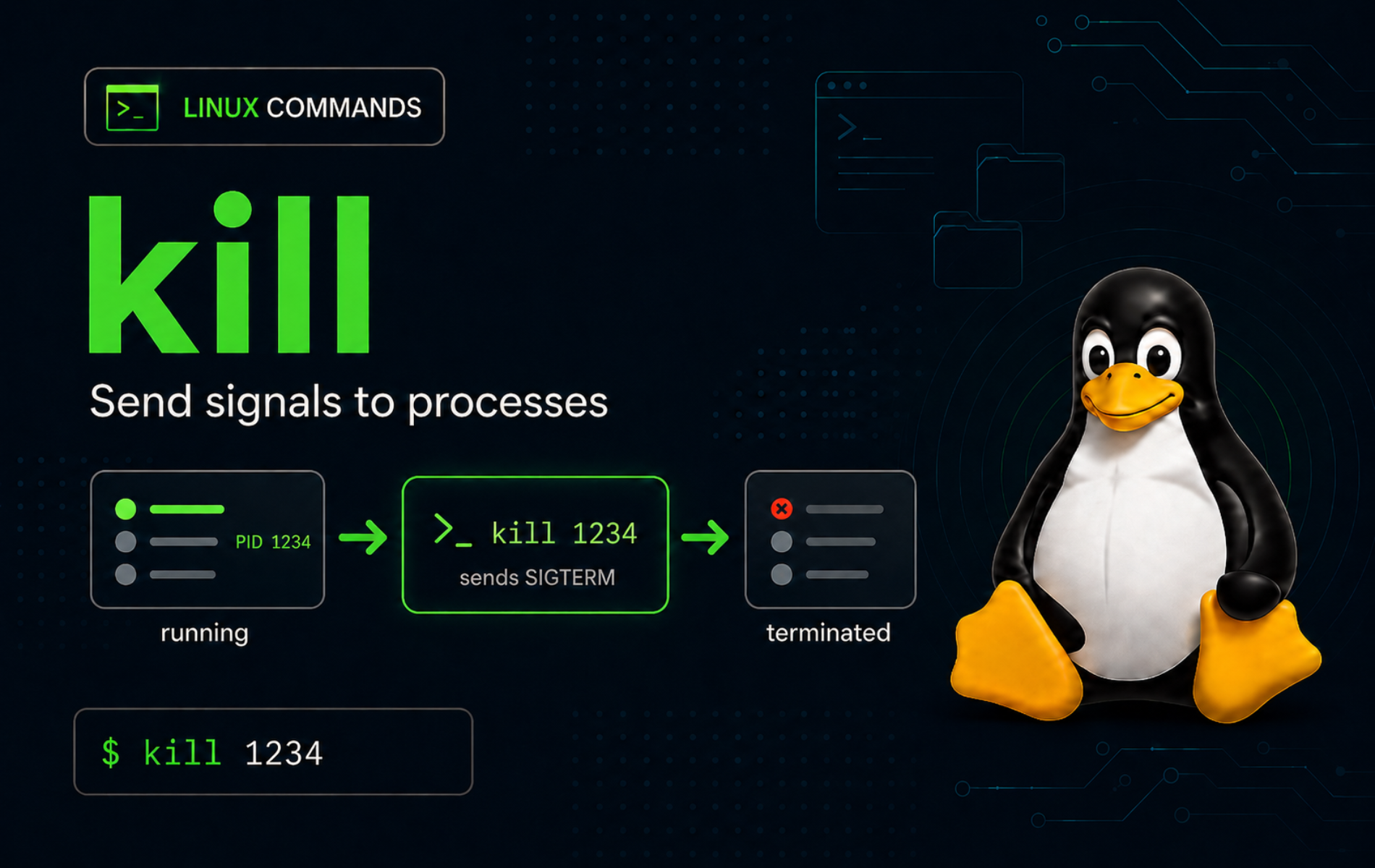
A stuck process is easier to handle when you send the right signal instead of reaching straight for a force kill. The kill command in Linux sends signals to process IDs, process groups, or shell jobs, with SIGTERM as the default so a program gets a chance to close cleanly.
The safe practice target throughout the walkthrough is sleep, so each workflow demonstrates signal behavior without touching files, services, package managers, or system configuration. The same patterns apply when you have already identified the real process ID and understand what owns that process.
Understand the kill Command in Linux
kill as used from a shell normally targets PIDs, process groups, or shell jobs rather than searching by process name. It sends a signal to the target you give it, most often a PID such as 1234. A signal is a small process-control message: terminate, interrupt, stop, continue, reload, or another action the target program may handle.
Most interactive shells provide kill as a builtin, and Linux systems also provide an external command at a path such as /usr/bin/kill. The core syntax is similar, but shell builtins can understand shell job specifications such as %1. The Linux kill manual page documents the external command, while your shell help documents builtin behavior.
kill Command Syntax
kill [-s SIGNAL | -SIGNAL] PID...
kill -l [SIGNAL]
kill -0 PIDPIDis the process ID to signal. Use a positive PID for one process.SIGNALcan be a name such asTERMorKILL, or a number such as15or9.kill -llists or converts signal names and numbers.kill -0performs permission and existence checks without sending a real signal.
kill Command Quick Reference
| Task | Command Pattern | What It Does |
|---|---|---|
| Check the resolved command | type -a kill | Shows whether your shell uses a builtin, an external command, or both. |
| List signal names | kill -l | Prints supported signal names for the current system and shell. |
| Convert a signal name | kill -l TERM | Prints the signal number for TERM. |
| Convert a signal number | kill -l 15 | Prints the signal name for signal 15. |
| Check whether a PID is reachable | kill -0 "$pid" | Tests process existence and permission without signaling it. |
| Ask a process to exit cleanly | kill "$pid" | Sends the default TERM signal. |
| Send a named signal | kill -s HUP "$pid" | Sends a specific signal by name when the target program documents that behavior. |
| Force a process to stop | kill -KILL "$pid" | Sends SIGKILL, which the process cannot catch or clean up. |
| Signal a shell job | kill %1 | Uses the current interactive shell’s job table, not a global PID lookup. |
| Signal a process group | kill -- -"$pgid" | Sends the signal to every process in the named process group. |
Check kill Availability and Signal Names
Standard Linux desktop and server installs normally have both a shell builtin and an external kill command. Check what your current shell resolves first:
type -a killTypical Bash output includes the builtin first, followed by the external command path:
kill is a shell builtin
kill is /usr/bin/kill
Convert common signal names and numbers before using them in scripts or runbooks:
kill -l TERM
kill -l 15
Relevant output on common Linux systems is:
15
TERM
Signal names are usually easier to read than numbers in shared scripts. Prefer short names such as TERM, KILL, and HUP unless a tool specifically documents numeric signal handling.
Stop Processes with kill
Send the Default TERM Signal
Start with the default TERM signal when you want a normal process to exit. TERM gives the program a chance to close files, flush buffers, remove temporary state, or reject the signal if it has a handler.
sleep 300 &
pid=$!
kill "$pid"
wait "$pid" 2>/dev/null || true
if ! kill -0 "$pid" 2>/dev/null; then
  echo "demo process stopped"
fi
Expected output after the verification check:
demo process stopped
The $! variable stores the PID of the background sleep process. The wait command reaps the child process, and || true keeps the example from stopping early because a process killed by a signal returns a nonzero wait status.
Check a PID with kill -0
Use kill -0 when you need to test whether a process exists and whether your user can signal it. This does not send TERM, KILL, or any other real signal.
sleep 300 &
pid=$!
if kill -0 "$pid" 2>/dev/null; then
  echo "demo process is reachable"
fi
kill "$pid"
wait "$pid" 2>/dev/null || true
Expected output:
demo process is reachable
A failed kill -0 check means either the PID does not exist or your user lacks permission to signal it. Check that distinction in the troubleshooting section before adding sudo.
Force a Process with SIGKILL Only When Needed
SIGKILL is the last-resort signal for a process that does not exit after TERM. It cannot be caught or handled by the target process, so the program cannot run cleanup logic.
Use
kill -KILLonly after a normalkill "$pid"has failed or when the process is already unsafe to keep running. For services, stop the service with its service manager first so the supervisor does not immediately restart it.
sleep 300 &
pid=$!
kill -KILL "$pid"
wait "$pid" 2>/dev/null || true
if ! kill -0 "$pid" 2>/dev/null; then
  echo "demo process force-stopped"
fi
Expected output:
demo process force-stopped
The common numeric form is kill -9 "$pid", but the named form kill -KILL "$pid" is clearer in documentation and scripts.
Pause and Resume Processes with kill
kill can control a process without terminating it. STOP suspends execution, while CONT resumes a stopped process. This is useful for testing signal behavior or temporarily pausing a user-owned process while you inspect state.
sleep 300 &
pid=$!
kill -STOP "$pid"
ps -o stat= -p "$pid" | awk '{print $1}'
kill -CONT "$pid"
ps -o stat= -p "$pid" | awk '{print $1}'
kill "$pid"
wait "$pid" 2>/dev/null || true
Expected output from the two ps checks:
T
S
The awk filter prints only the state code from ps. The T state means the process is stopped. After CONT, the demo process returns to a sleeping state because sleep is waiting for its timer rather than actively using CPU.
Use kill with Shell Jobs and Scripts
Interactive Bash can send signals to jobs from the current shell’s job table. Use jobs to find the job number, then pass that job specification to kill:
jobs
kill %1
The percent-prefixed form works only inside the shell that owns the job table. It is useful after pausing or backgrounding a terminal job; for the surrounding workflow, see the bg command in Linux.
Scripts should usually store the PID instead of relying on interactive job control. Start the background command, capture $!, signal that PID, then collect the exit status with wait when the script owns the child process.
sleep 300 &
pid=$!
kill "$pid"
wait "$pid" 2>/dev/null || true
For scripts that start several background commands, use Bash wait command patterns to collect each job’s status instead of leaving children behind.
Signal a Process Group with kill
A negative PID argument signals a process group rather than one process. This is useful when you intentionally started a small process tree and want to stop the whole group, but it is risky if you guess the group ID or omit the option separator.
The setsid command creates a new session and process group for this disposable demo. The tr step removes padding from the ps field, and the -- separator keeps the negative group ID from being parsed as a signal option.
setsid sh -c 'sleep 300 & sleep 300 & wait' &
leader=$!
sleep 1
pgid=$(ps -o pgid= -p "$leader" | tr -d ' ')
kill -- -"$pgid"
wait "$leader" 2>/dev/null || true
if ! kill -0 "$leader" 2>/dev/null; then
  echo "process group stopped"
fi
Expected output:
process group stopped
Do not use kill -- -1 or kill 0 as a casual cleanup shortcut. Those forms can signal many processes in the current session or user scope, depending on context.
Choose Common kill Signals Safely
Use the least disruptive signal that solves the problem. A normal exit request is safer than a forced stop, and a program-specific reload signal is useful only when that program documents it.
| Signal | Common Number | Typical Use | Safety Notes |
|---|---|---|---|
TERM | 15 | Ask a process to terminate cleanly. | Default signal; use this first for ordinary process termination. |
INT | 2 | Similar to pressing Ctrl+C for many terminal programs. | Programs can catch or ignore it. |
HUP | 1 | Often used by daemons to reload configuration. | Not universal; check the target program’s documentation before using it. |
STOP | 19 | Suspend a process. | The process stops until it receives CONT. |
CONT | 18 | Resume a stopped process. | Useful after STOP or shell job suspension. |
KILL | 9 | Force immediate termination. | Cannot be caught; use only when gentler signals fail. |
Signal numbers are conventional on common Linux systems, but signal names make intent clearer and avoid mistakes in mixed documentation. The target process still decides what catchable signals mean, so do not assume HUP reloads every daemon or that INT matches every interactive program’s Ctrl+C behavior exactly.
Troubleshoot kill Command Errors
Fix No Such Process Errors
A No such process error means the PID does not currently exist in the process table. The process may have exited, the PID may be wrong, or a stale PID file may point to an old process.
Check the PID before sending another signal:
ps -p "$pid" -o pid=,stat=,comm=If ps prints no row, the process is gone. Find the current PID from the owning tool, service manager, or process list instead of reusing the stale value.
Fix Operation Not Permitted Errors
An Operation not permitted error means the process exists, but your user cannot signal it. This is common when the process belongs to root or another user.
Inspect ownership before deciding whether elevated privileges are appropriate:
ps -o user=,pid=,comm= -p "$pid"Use sudo kill "$pid" only when you intentionally need to signal that process. For services, prefer the service manager’s stop or restart command because it updates service state and avoids confusing the supervisor.
Fix Invalid Signal Specification Errors
Bash reports invalid signal specification when the signal name is misspelled or not supported by the current shell. External kill implementations may phrase the same problem as an unknown signal.
List supported signal names, then rerun the command with a valid name:
kill -l
kill -s TERM "$pid"
Use names without the SIG prefix in normal shell commands, such as TERM, HUP, STOP, CONT, and KILL.
Fix a Process That Comes Back After kill
If a process exits and quickly returns with a new PID, another supervisor is probably restarting it. Common owners include systemd, a container runtime, a process manager, a terminal multiplexer, or a parent application.
Check the parent process before killing the replacement again:
ps -o pid=,ppid=,stat=,comm= -p "$pid"When the process is a managed service, stop or disable the service through its manager instead of repeatedly killing child PIDs. That keeps the desired state aligned with the process state.
Fix Job Spec Errors in Scripts
Errors such as no such job or no job control usually mean a script tried to use an interactive job specification such as %1. Job specs belong to the current interactive shell, not to every shell process on the system.
Capture the PID when the script starts the background command:
sleep 300 &
pid=$!
kill "$pid"
wait "$pid" 2>/dev/null || true
If the script did not start the process, discover the current PID through the tool that owns it rather than guessing a job number from another shell.
Conclusion
The kill command is ready for controlled process handling when you start with TERM, verify PIDs with kill -0 or ps, reserve KILL for stubborn processes, and use job specs only inside the shell that owns them. For longer background workflows, combine clear PID capture with Bash wait handling.


Formatting tips for your comment
You can use basic HTML to format your comment. Useful tags currently allowed in published comments:
<code>command</code>command<strong>bold</strong><em>italic</em><a href="https://example.com">link</a><blockquote>quote</blockquote>