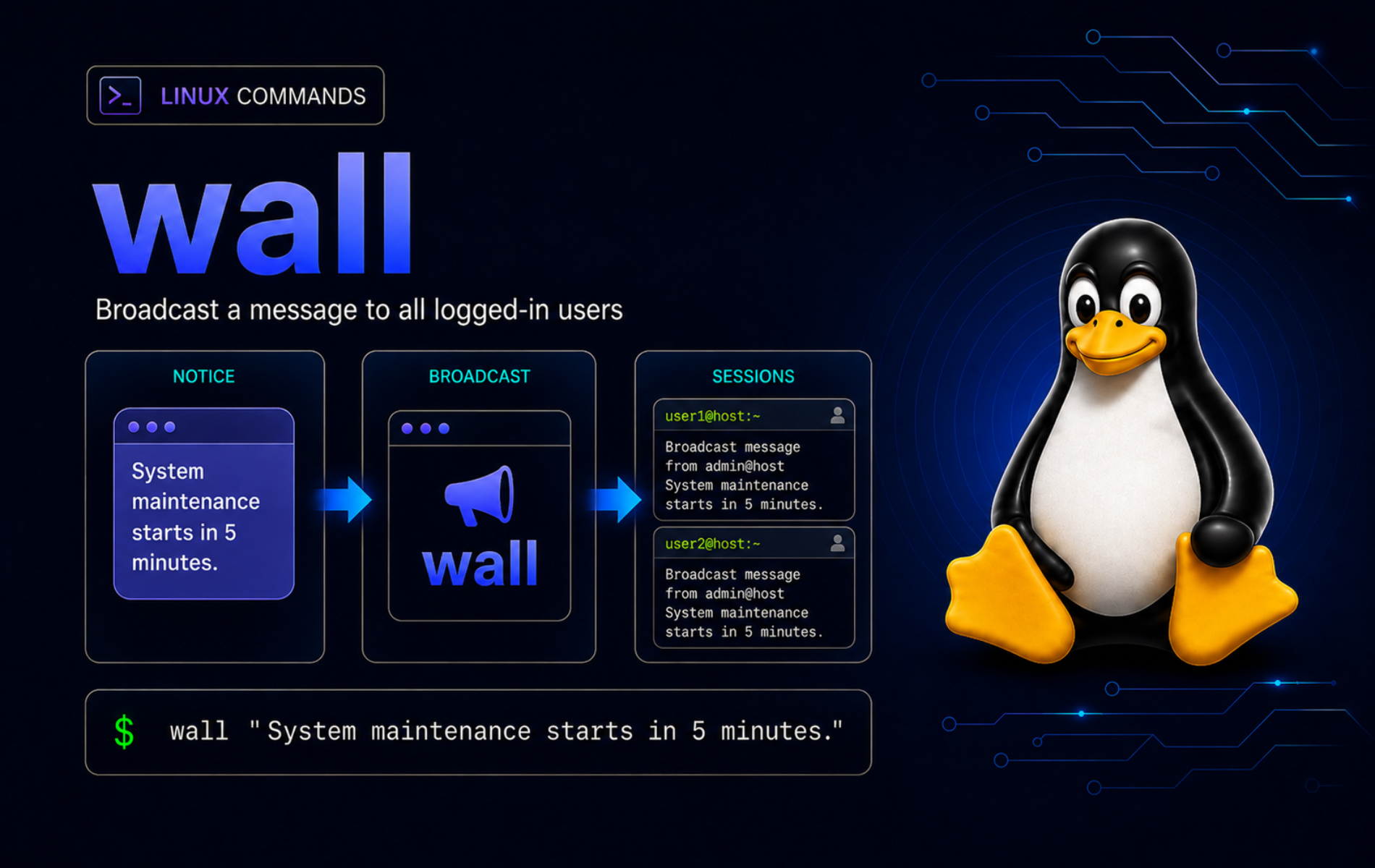
A surprise reboot, service restart, or storage window can interrupt active shell work on a shared Linux server. The wall command in Linux broadcasts a short notice to logged-in terminal sessions so administrators can warn people before maintenance instead of relying on chat, tickets, or guesswork.
wall is best for immediate terminal notices, not desktop pop-ups, private conversations, or messages to users without an open terminal. It writes only to eligible terminal devices, respects message permissions for normal users, and pairs with shutdown when the warning belongs to an actual reboot or poweroff timer.
Use the wall Command in Linux
wall accepts a message argument, a readable file, or standard input, then broadcasts that text to currently logged-in users whose terminal devices accept messages. Check the local build before relying on implementation-specific options such as -g, -n, and -t.
wall [OPTIONS] [message | file]message: Text passed directly on the command line.file: A readable file whose contents should be broadcast.- standard input: Text piped into
wallor typed interactively before pressing Ctrl+D.
For the common case, send a quoted one-line notice:
wall "Maintenance starts in 10 minutes. Save your work and sign out."Choose the command that owns the communication path. A terminal broadcast is useful only when the recipients have terminal sessions that can receive text.
| Need | Use | Why |
|---|---|---|
| Warn all eligible terminal users | wall | Broadcasts one notice to logged-in writable terminals. |
| Message one user or terminal | write | Keeps one-to-one terminal communication out of a system-wide notice. |
| Warn and schedule a reboot or poweroff | shutdown | Owns both the timer and the wall-style warning. |
| Reach graphical desktop users | Desktop notification, chat, or ticketing | wall does not create a desktop pop-up. |
Use write when the message belongs to one user or one specific terminal. Use wall when every eligible logged-in terminal should see the notice.
wall Command Quick Reference
| Task | Command Pattern | What It Does |
|---|---|---|
| Check availability | command -v wall | Prints the path when wall is installed. |
| Show packaged build | wall --version | Prints the packaged wall version. |
| Broadcast one line | wall "Maintenance starts in 10 minutes." | Sends one command-line message to logged-in terminals. |
| Broadcast multiple lines | printf '%s\n' "Line 1" "Line 2" | wall | Reads the message from standard input. |
| Send a saved notice | wall "$HOME/wall-maintenance.txt" | Broadcasts a file’s contents. |
| Target a group | wall -g devops "NFS maintenance starts soon." | Sends only to logged-in members of the named group or GID. |
| Bound slow terminal writes | wall -t 10 "Short maintenance notice." | Stops trying a terminal after 10 seconds. |
| Suppress the banner | sudo wall -n "Maintenance is complete." | Omits the sender banner on util-linux builds where -n is root-only. |
The -t value controls how long wall tries to write to a terminal. It does not make the message disappear after that many seconds.
Verify wall Availability and Package Ownership
Many full Linux installations already include wall, but minimal images can omit it and the package name is not always wall or even util-linux. Check the command path before troubleshooting packages:
command -v wall/usr/bin/wall
Check the packaged build when option behavior matters. Current util-linux help documents -g, -n, and -t, with -n noted as root-only. Example output:
wall --versionwall from util-linux 2.41.3
The version number can differ. Use this check mainly to confirm the local build and option set before relying on flags such as -g, -n, or -t.
Package ownership differs by distribution family. Ubuntu 26.04 owns /usr/bin/wall through bsdutils, Fedora 44 and Rocky Linux 10 own it through util-linux, Manjaro owns it through util-linux, and openSUSE Leap 16 uses util-linux-tty-tools as the provider when /usr/bin/wall is missing.
Do not install a package literally named
wallunless your package manager proves that is the provider. Use the package manager’s file-provider search when the command is missing on a minimal image.
Send Broadcast Messages with wall
Check who has a terminal session before sending a notice. wall targets writable terminal devices, not every graphical desktop user or every login record.
whoLook for terminal columns such as pts/0 or tty2. Rows such as seat0 or sshd can appear in who on some systems, but they are login records rather than useful terminal devices for a broadcast.
A one-line broadcast is the simplest maintenance notice. Quote the message so the shell passes it as one argument:
wall "Database maintenance starts in 10 minutes. Save your work and sign out."Recipient terminals normally show a banner with the sender, host, terminal, and timestamp, followed by the message. The exact host, terminal, and time vary. Example output:
Broadcast message from joshua@server1 (pts/0) (Mon Jun 15 11:43:43 2026):

Database maintenance starts in 10 minutes. Save your work and sign out.
Broadcast messages can remain in terminal scrollback and shell transcripts. Do not include passwords, tokens, private ticket details, or other sensitive data in a
wallnotice.
Send Multiline Messages from Standard Input
Pipe standard input into wall when the notice needs more than one line. This keeps the command reusable in scripts and avoids interactive typing.
printf '%s\n' \
  "Storage maintenance starts at 22:00 UTC." \
  "Save open files on shared mounts before then." |
wall
Use an interactive message only when you are already at a terminal and do not need to save the notice. Start wall, type the message, then press Ctrl+D to send it.
Send a Message from a File
A saved file works well for repeated maintenance windows. Create the notice in a user-writable path, send it, then remove the demo file if you do not need it again.
cat > "$HOME/wall-maintenance.txt" <<'EOF'
Maintenance starts at 22:00 UTC.
Save active shell work and sign out before the reboot.
EOF
wall "$HOME/wall-maintenance.txt"If a hardened or setgid build refuses direct file input for a non-root user, pipe the file through standard input instead:
wall < "$HOME/wall-maintenance.txt"Remove the saved notice when it was only a temporary maintenance message:
rm -f "$HOME/wall-maintenance.txt"Limit a wall Message to One Group
Use -g when only one team should see the notice. Check that the group exists before sending the broadcast, because a typo stops the command before delivery.
getent group devopsA matching group record should appear before you send the message. If there is no output, choose the correct group name or GID before retrying.
wall -g devops "NFS maintenance starts at 22:00 UTC. Save files on shared mounts."The -g option accepts a group name or numeric GID. It still sends only to group members who have logged-in terminal sessions.
Suppress the wall Banner
Use -n only when a bannerless message is important. Current util-linux help says -n works only for root, so use sudo when the local policy allows an administrator to send a bannerless system notice.
sudo wall -n "Maintenance is complete. Normal terminal use can resume."Leave the banner enabled for most operational notices. The banner tells recipients who sent the message and which host produced it, which matters on shared jump hosts and multi-server maintenance sessions.
Control Who Receives wall Messages
wall relies on logged-in terminal records and writable terminal devices. SSH sessions with real pseudo-terminals, local TTY logins, and terminal emulator sessions can receive messages when they appear as usable terminal entries. A graphical desktop login with no open terminal may appear in who, but the desktop itself will not show a wall pop-up.
For remote work, make sure users have a real terminal session. The SSH command guide explains normal interactive SSH usage, while non-interactive SSH commands are not a reliable target for terminal broadcasts.
Check Terminal Message Permissions
mesg controls whether other normal users can write messages to the current terminal. A normal user can block broadcasts from other normal users, while root can write to terminals that have denied messages. Some minimal systems provide wall without a mesg command, so check for mesg before relying on it:
command -v mesgWhen mesg is available, check the current terminal state:
mesgis y
If mesg is missing, inspect the current terminal device instead. The group-write bit in the permissions is what allows normal-user terminal messages:
tty
stat -c '%A %U %G %n' "$(tty)"
/dev/pts/0 crw--w---- joshua tty /dev/pts/0
Choose one of the next two commands for the current terminal. To allow broadcasts from other normal users, run:
mesg yTo block normal-user messages on this terminal, run:
mesg nRun mesg again after either change to confirm the current terminal state before retesting a normal-user broadcast.
mesgUse root broadcasts sparingly. Root can override user message settings, so a
sudo wallnotice should be reserved for operational events that truly affect logged-in users.
Use wall with Maintenance and Shutdown Workflows
Use wall directly for notices that do not schedule a system state change, such as a database restart, shared filesystem maintenance, or a request to leave a build host idle.
wall "Build host maintenance starts in 15 minutes. Finish or stop long jobs now."If the maintenance window changes after a notice goes out, send a correction immediately. wall has no recall function, so the safest repair is a clear follow-up message:
wall "Correction: the 22:00 UTC NFS maintenance is canceled. No action is needed."When the server is actually rebooting or powering off, prefer shutdown because it owns the timer and the warning. Its optional message after the time argument is sent as a wall-style notice.
sudo shutdown -r +10 "Rebooting for kernel updates. Save work now."Cancel a pending timed shutdown if the maintenance window changes:
sudo shutdown -cFor service-only work, warn users with wall, perform the service task, then verify the service state with the systemctl command examples when systemd owns the unit.
Troubleshoot Common wall Errors
wall: command not found
A minimal image may omit the package that provides wall. Confirm the command is absent before changing packages:
command -v wallIf no path appears, search for the package that owns /usr/bin/wall on that distribution. Package names can differ: Ubuntu owns the command through bsdutils, Fedora and Rocky Linux through util-linux, Manjaro through util-linux, and openSUSE Leap through util-linux-tty-tools.
| Distribution or Family | Package to Check First | Reason |
|---|---|---|
| Ubuntu and related Debian-family systems | bsdutils | Ubuntu 26.04 owns /usr/bin/wall from this package. |
| Fedora and Rocky Linux | util-linux | Fedora 44 and Rocky Linux 10 own /usr/bin/wall from this package. |
| Arch-family systems such as Manjaro | util-linux | Manjaro owns /usr/bin/wall from this package. |
| openSUSE Leap | util-linux-tty-tools | openSUSE Leap 16 provider search returns this TTY tools package. |
Users Do Not See the wall Message
Start with the recipient list. If a user does not have a real terminal entry in who, wall has no terminal device to write to.
whoLook for a pts/* or tty* terminal. If who shows only display-manager rows such as seat0 or non-terminal rows such as sshd, ask the user to open a real terminal session and check again.
If the user has a terminal session and mesg exists, ask the user to check the current terminal’s message state:
mesgA result of is n means the terminal blocks messages from normal users. The user can run mesg y for that terminal, or an administrator can use sudo wall for a high-priority system notice.
If mesg is missing, inspect the current terminal permissions instead:
tty
stat -c '%A %U %G %n' "$(tty)"
A writable terminal commonly shows a group-write bit in the permissions, such as crw--w----. If that write bit is absent, normal-user broadcasts can be blocked for that terminal.
wall: invalid group argument
A missing or misspelled group stops a group-limited broadcast before delivery. For example, this test command fails before sending a message:
wall -g __lc_missing_group__ "Test message"Current util-linux builds print an error like this:
wall: invalid group argument: '__lc_missing_group__'
Confirm the group name or GID first:
getent group devopsAfter the group resolves, send the message to that group:
wall -g devops "NFS maintenance starts at 22:00 UTC."wall: invalid timeout argument
The timeout must be a positive integer. A value such as 0 fails before the message is sent:
wall -t 0 "Test message"Common error wording includes:
wall: invalid timeout argument: 0
wall: invalid timeout: 0
Use a positive number of seconds when a slow or stale terminal should not hold the write attempt open too long:
wall -t 10 "Short maintenance notice. Save terminal work now."File Input Fails for a Non-Root Sender
The util-linux manual notes that some setuid or setgid builds refuse direct file input from non-root users. When that happens, keep the file in a safe user-owned path and feed it through standard input.
wall < "$HOME/wall-maintenance.txt"If file input still fails, inspect local policy and package ownership before changing permissions on terminal devices. Broad permission changes under /dev/pts can weaken terminal privacy for every user on the host.
Conclusion
wall gives shared Linux systems a direct terminal broadcast path for maintenance notices, group-specific warnings, and shutdown-adjacent communication. Check for real pts/* or tty* recipients first, use terminal permissions and package ownership to diagnose delivery problems, and hand real reboot timers to shutdown so the warning and system action stay tied together.


Formatting tips for your comment
You can use basic HTML to format your comment. Useful tags currently allowed in published comments:
<code>command</code>command<strong>bold</strong><em>italic</em><a href="https://example.com">link</a><blockquote>quote</blockquote>