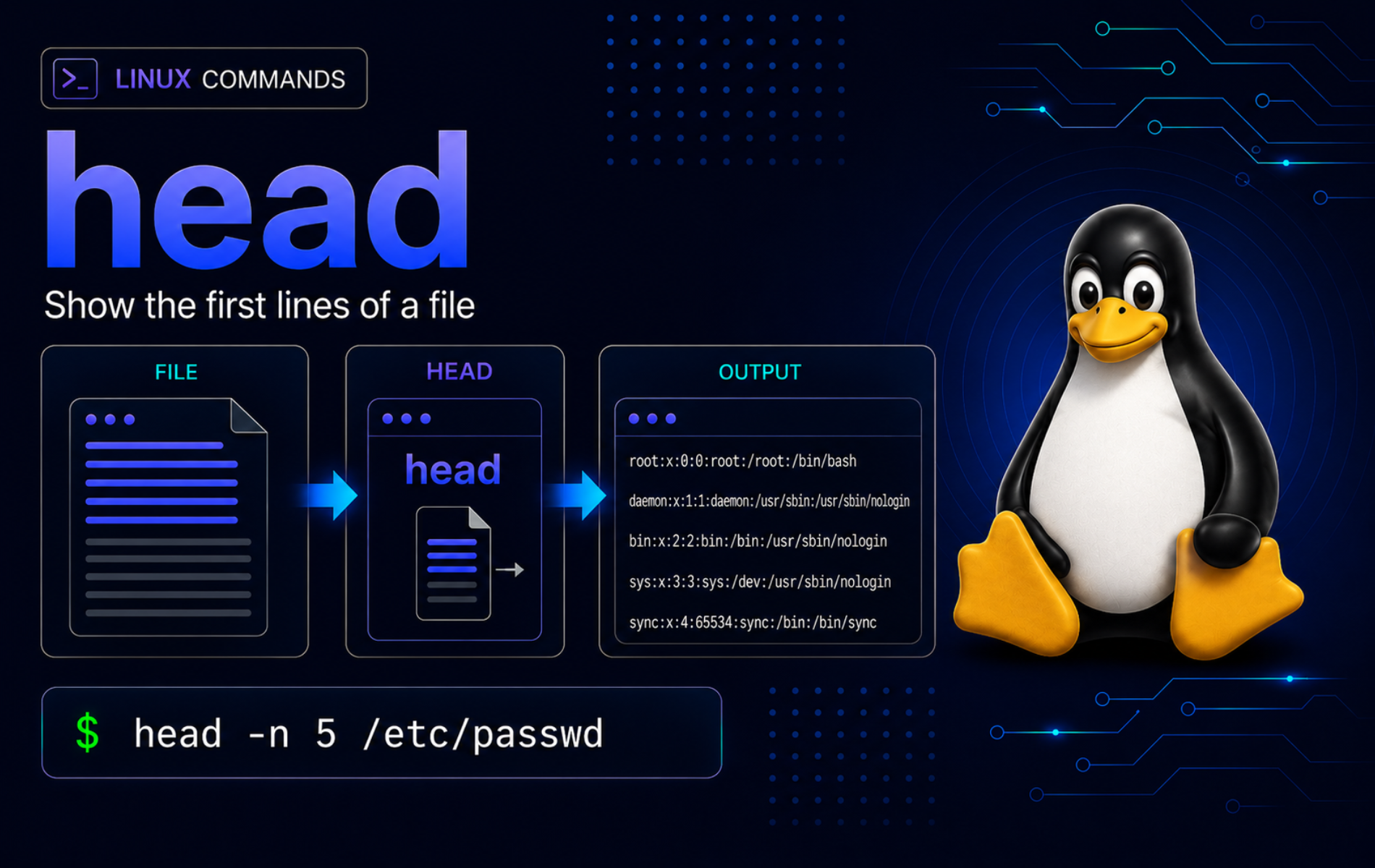
Opening a huge log, CSV export, or generated report just to check the first few records wastes time and can hide the one detail you needed. The head command in Linux prints the beginning of a file or pipeline output, making it a fast way to inspect headers, sample records, file formats, and early errors before choosing a heavier tool.
Most general-purpose Linux systems provide head through a Coreutils package, where the default output is the first 10 lines. GNU Coreutils remains common, while some distributions ship compatible implementations such as uutils. Minimal systems may expose a BusyBox applet with fewer options, so treat negative counts and NUL-delimited input as full Coreutils-style behavior instead of portable basics.
Understand the head Command in Linux
head reads one or more files and writes the first part of each file to standard output. When no file is supplied, or when the file operand is -, head reads from standard input instead. This makes it useful both for direct file previews and for trimming noisy command pipelines.
head Command Syntax
head [OPTION]... [FILE]...OPTIONcontrols the amount of data, header behavior, delimiter style, or help/version output.FILEis one or more pathnames. Without a file operand,headreads the pipeline or terminal input connected to standard input.- With several files,
headprints a filename header before each file unless you suppress headers with-q.
head Command Quick Reference
| Task | Command Pattern | What It Does |
|---|---|---|
| Show the default preview | head file.txt | Prints the first 10 lines. |
| Choose a line count | head -n 5 file.txt | Prints the first 5 lines. |
| Skip a trailing footer on full Coreutils-style systems | head -n -3 file.txt | Prints all but the last 3 lines. |
| Preview bytes instead of lines | head -c 64 file.bin | Prints the first 64 bytes. |
| Drop trailing bytes on full Coreutils-style systems | head -c -16 file.bin | Prints all but the last 16 bytes. |
| Read from a pipeline | command | head -n 20 | Stops after the first 20 input lines. |
| Suppress multi-file headers | head -q file1 file2 | Prints content without ==> file <== labels. |
| Force a header for one file | head -v file.txt | Prints a filename header even with one file. |
| Read NUL-delimited items on full Coreutils-style systems | head -z -n 2 names.bin | Treats NUL bytes as item separators instead of newlines. |
| Stop option parsing | head -- ./-report.txt | Reads a filename that begins with a dash. |
The obsolete shorthand form, such as head -5 file.txt, remains recognized by GNU Coreutils when it appears first. Use head -n 5 file.txt in scripts and documentation because it is clearer and matches the current option form in the GNU Coreutils head manual.
Verify head Availability and Implementation
Check the resolved command path when troubleshooting a minimal image, container, or restricted shell:
command -v headA normal Linux installation usually returns:
/usr/bin/head
Use the version output when option support matters:
head --version | head -n 1The first line names the command family. A GNU build begins with head (GNU coreutils), while a uutils-based system can instead report a line such as head (uutils coreutils) 0.8.0. BusyBox systems use a smaller applet; the BusyBox command reference lists -n, -c, -q, and -v for head, without expanded options such as -z.
Set Up Example Files
A disposable practice directory keeps preview examples away from real logs and project files. Create the directory and sample inputs:
mkdir -p ~/head-demo
cd ~/head-demo
seq -f 'line %02g' 1 12 > lines.txt
printf '%s\n' \
  '2026-06-15T08:00:00Z INFO boot complete' \
  '2026-06-15T08:01:00Z WARN cache warmup slow' \
  '2026-06-15T08:02:00Z ERROR database timeout' \
  '2026-06-15T08:03:00Z INFO retry scheduled' > app.log
printf '%s\n' \
  'id,name,status' \
  '101,alpha,ready' \
  '102,beta,queued' \
  '103,gamma,failed' \
  '104,delta,ready' > data.csv
printf 'alpha\0beta\0gamma\0delta\0' > names.bin
printf '\211PNG\r\n\032\nexample payload' > image-header.bin
printf '%s\n' 'dash file' 'second line' > ./-report.txt
The setup uses the mkdir command in Linux only to create the practice directory. The head examples work on existing files and do not create parent directories.
Preview File Starts with head
Show the Default First 10 Lines
Use head without a count when the first 10 lines are enough to identify a file’s shape:
head lines.txtline 01 line 02 line 03 line 04 line 05 line 06 line 07 line 08 line 09 line 10
This is safer than opening a large file in an editor when you only need the header, first records, or early log messages. Use less command examples when you need interactive scrolling instead of a fixed preview.
Choose a Line Count with head
Add -n when you want a specific number of lines. This prints the first 5 lines from the practice file:
head -n 5 lines.txtline 01 line 02 line 03 line 04 line 05
Keep the option and count separate in scripts, especially when another person may need to read or modify the command later.
Print All But the Last Lines
Full Coreutils-style head implementations accept a negative line count. The command prints everything except the last 3 lines, which is useful when a file has a footer, checksum summary, or trailer records you do not want in the preview:
head -n -3 lines.txtline 01 line 02 line 03 line 04 line 05 line 06 line 07 line 08 line 09
If the file has fewer lines than the negative count removes, full Coreutils-style head returns no lines. Check the size first when an empty result would be ambiguous:
wc -l lines.txtBusyBox documentation does not list negative counts for head. Use a full Coreutils implementation, a different command, or a script that explicitly handles the line count when that behavior matters.
Keep a CSV Header and Sample Rows
Data files often need a quick header check before import, transformation, or sharing. Print the CSV header plus the first two data rows:
head -n 3 data.csvid,name,status 101,alpha,ready 102,beta,queued
This pattern answers basic structure questions without opening the full export: field order, delimiter, header spelling, and whether the first rows look like real records.
Read head Input from a Pipeline
When no file name is present, head reads standard input. This example sorts four words and keeps the first three sorted results:
printf '%s\n' delta alpha charlie bravo | sort | head -n 3alpha bravo charlie
This pipeline shape is common with commands that produce too much output. Put head after the command that creates the ordering you care about, such as sort, find, journalctl, or grep.
Work with Bytes and Non-Line Input
Preview the First Bytes of a File
Use -c when byte count matters more than line count. This prints the first 18 bytes from the CSV file:
head -c 18 data.csv
printf '\n'
id,name,status 101
The extra printf '\n' only restores the terminal prompt to a clean line. Byte output can stop before a newline, so do not assume head -c leaves the terminal formatting tidy.
Inspect a Binary File Signature
Magic bytes identify many binary formats before a parser opens the whole file. Limit the read to the first 8 bytes, then use od to print those bytes in a readable hexadecimal form:
head -c 8 image-header.bin | od -An -tx189 50 4e 47 0d 0a 1a 0a
This pattern is useful before feeding unknown downloads, uploads, or generated files into a stricter tool. The head command limits the read; od only makes the control bytes visible.
Print All But the Last Bytes
Full Coreutils-style head also accepts a negative byte count. This prints all but the final 5 bytes from the file:
head -c -5 data.csv
printf '\n'
id,name,status 101,alpha,ready 102,beta,queued 103,gamma,failed 104,delta,r
Use byte counts carefully with UTF-8 text, compressed files, and binary formats. head -c counts bytes, not characters or records, so it can cut through a multibyte character or a structured record.
Read NUL-Delimited Items with head
Full Coreutils-style head -z treats NUL bytes as delimiters. This matters when another command emits NUL-safe records, such as find -print0 or a script that handles filenames containing newlines:
head -z -n 2 names.bin | tr '\0' '\n'alpha beta
The tr command in this example converts NUL bytes to newlines only so the result is readable on screen. Keep the original NUL delimiters when passing data to another NUL-aware command.
Use head with Multiple Files
Inspect Several Files with Automatic Headers
Pass more than one file when you need a quick side-by-side preview. head prints a header before each file so the output stays attributable:
head -n 2 app.log data.csv==> app.log <== 2026-06-15T08:00:00Z INFO boot complete 2026-06-15T08:01:00Z WARN cache warmup slow ==> data.csv <== id,name,status 101,alpha,ready
Those headers are useful during manual troubleshooting because each preview keeps its source file name. Use the cat command examples only when you really need the full file or a concatenated stream, not just the beginning.
Suppress or Force File Headers
Use -q when a script needs only content and can already track the file source another way:
head -q -n 1 app.log data.csv2026-06-15T08:00:00Z INFO boot complete id,name,status
Use -v when you want the same header format even for one file:
head -v -n 1 app.log==> app.log <== 2026-06-15T08:00:00Z INFO boot complete
Choose header behavior before piping into another parser. A header line can break a CSV parser, while suppressing headers can make manual output harder to audit.
Read a Filename That Starts with a Dash
A file named -report.txt looks like an option to many commands. Use -- to mark the end of options before the pathname:
head -n 1 -- ./-report.txtdash file
This pattern is not specific to head. It is a safe habit for file commands when generated or user-provided names can begin with a dash.
Combine head with Other Commands
Preview Batch Targets Before Processing
Put head after a sorted file search when you want to inspect a few targets before sending the full list into another command:
find . -maxdepth 1 -type f | LC_ALL=C sort | head -n 5./-report.txt ./app.log ./data.csv ./image-header.bin ./lines.txt
This check catches broad matches before a later command reads, moves, deletes, or uploads the complete list. When path selection becomes the main task, use find command examples for name, type, time, size, and permission filters.
Extract a Line Window with tail
Combine head and tail when you need a small range from the top part of a file. This prints lines 6 through 8 by keeping the first 8 lines, then taking the last 3 from that smaller stream:
head -n 8 lines.txt | tail -n 3line 06 line 07 line 08
For ongoing log monitoring, switch to tail command examples instead. head is best for starts, samples, and bounded previews, while tail owns the newest lines and live-follow workflow.
Stop After the First Matching Lines
Place head after a filter when the filter should decide relevance and head should limit the amount you inspect. This finds the first error line in the sample log:
grep -n 'ERROR' app.log | head -n 13:2026-06-15T08:02:00Z ERROR database timeout
The grep command guide is the better handoff when matching patterns, case sensitivity, recursive searches, or regular expressions become the main task.
Use sed When Exact Line Selection Is the Main Task
The head | tail pattern is readable for short line windows near the top of a file. When exact line printing, line ranges, or in-place text processing becomes the main workflow, use sed command examples instead:
sed -n '6,8p' lines.txtline 06 line 07 line 08
That command asks directly for lines 6 through 8. It avoids building a range indirectly when the range itself is the important part of the task.
Troubleshoot Common head Errors
Fix No Such File or Directory
This error means head could not open the pathname you gave it:
head missing.loghead: cannot open 'missing.log' for reading: No such file or directory
Confirm your current directory and inspect the nearby files before changing the command:
pwd
ls -l
When you do not know the exact location, search the current tree before guessing a path:
find . -maxdepth 3 -name 'app.log' -print./app.log
Retest head with the path the search returned:
head -n 1 ./app.log2026-06-15T08:00:00Z INFO boot complete
Fix Invalid Number of Lines
-n needs a number, not a word or an empty variable. A locale-stable reproduction looks like this:
LC_ALL=C head -n five lines.txthead: invalid number of lines: 'five'
Use a numeric count and retest the same file:
head -n 5 lines.txtline 01 line 02 line 03 line 04 line 05
In scripts, print the variable before using it when the count comes from an argument or configuration file:
printf 'line_count=%s\n' "$line_count"
head -n "$line_count" lines.txt
Fix Unexpected File Headers in Output
Headers appear automatically when head reads multiple files. If another command expects raw lines only, reproduce the issue with a small count:
head -n 1 app.log data.csv==> app.log <== 2026-06-15T08:00:00Z INFO boot complete ==> data.csv <== id,name,status
Suppress headers when the downstream parser already knows which file produced each line:
head -q -n 1 app.log data.csv2026-06-15T08:00:00Z INFO boot complete id,name,status
Keep or force headers for human review, especially when several files have similar first lines.
Fix Empty Output from a Negative Count
A negative count on a full Coreutils-style implementation removes that many trailing lines or bytes. If the file is shorter than the removed amount, the result can be empty. Confirm the file length first:
wc -l lines.txt12 lines.txt
This example asks full Coreutils-style head to remove more trailing lines than the file contains, so the resulting stream has zero lines:
head -n -20 lines.txt | wc -l0
Lower the removed count, use a positive preview count, or branch in your script when the file may be shorter than the footer you planned to strip.
Fix Unsupported Options on BusyBox or Minimal Systems
If head --version, head -z, or negative counts fail on a minimal system, check the implementation before rewriting the whole pipeline:
head --help
if command -v busybox >/dev/null 2>&1; then
    busybox head --help
fi
If the help output lists only positive -n and -c counts, keep the command to those forms or rewrite the workflow. Install or use a full Coreutils implementation only when the task truly depends on behavior that the smaller applet does not provide, such as NUL-delimited records or negative counts.
Clean Up the head Practice Files
Remove the disposable directory when you are done practicing:
cd ~
rm -rf -- ~/head-demo
The cleanup targets only the practice directory created earlier. Do not adapt the recursive removal command to real logs, exports, or project directories unless you have checked the exact path first.
Conclusion
The head command is ready for quick file previews, CSV checks, bounded pipeline output, multi-file inspection, and full Coreutils-style byte or delimiter workflows. Keep using head for the beginning of a stream, switch to tail for recent or live output, and use less when the file needs interactive review.


Formatting tips for your comment
You can use basic HTML to format your comment. Useful tags currently allowed in published comments:
<code>command</code>command<strong>bold</strong><em>italic</em><a href="https://example.com">link</a><blockquote>quote</blockquote>