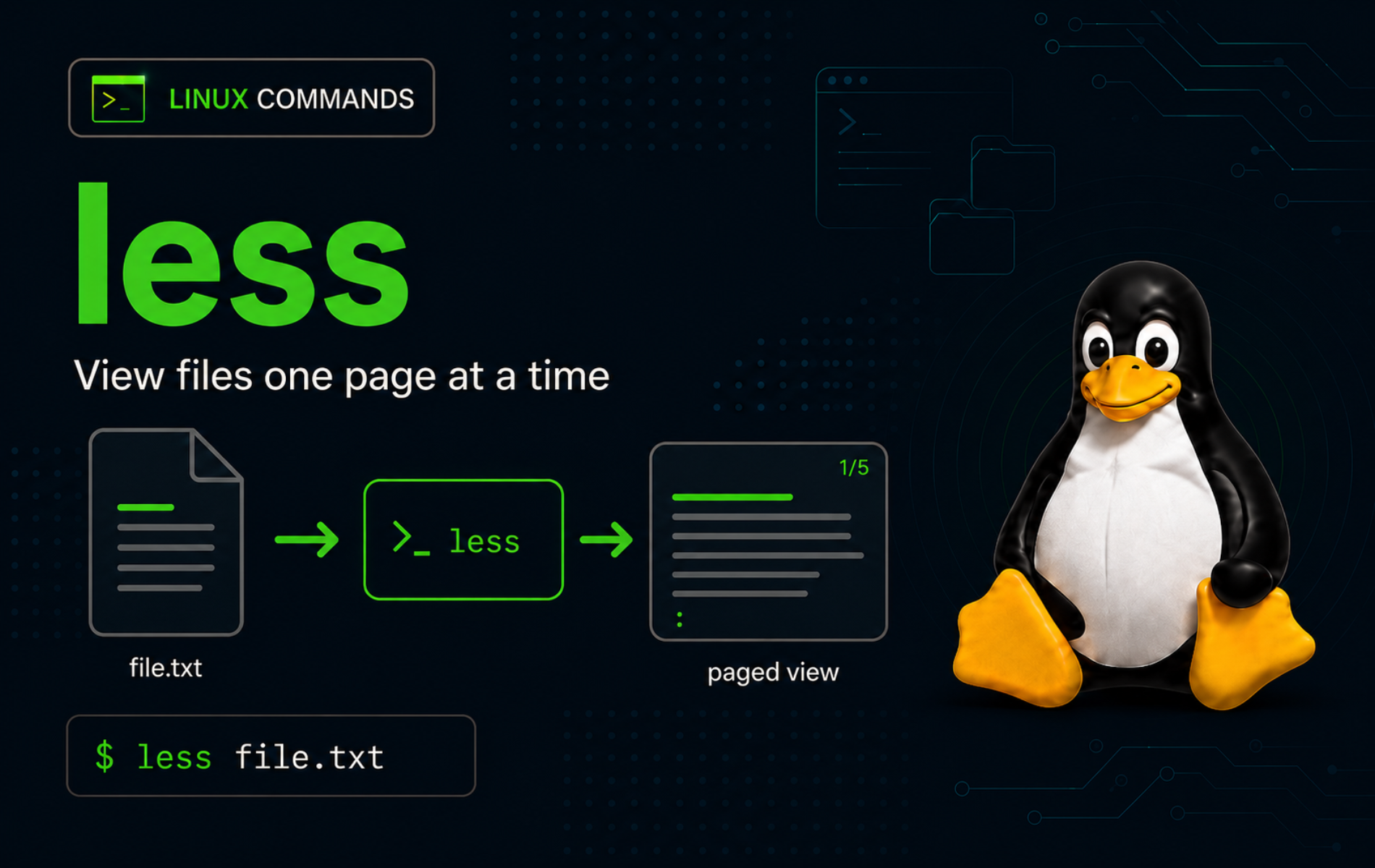
Large log files and noisy command output are easier to inspect when the terminal becomes a pager instead of a flood. The less command in Linux opens files, streams, and command output in a read-only view where you can search, jump, follow new lines, and quit without modifying the source file.
less sits between quick output commands and full editors. Use cat when a short file should print immediately, use the tail command examples when you only need the newest lines, and use less when you need interactive movement through a larger file or pipeline. The upstream less project maintains the pager, while the Linux less manual page documents the full command and option set.
Understand the less Command
less displays text one screen at a time and waits for keyboard commands. It does not edit the file. Press q to leave the pager, press h to open the built-in help screen, and use search or movement keys while the file remains open.
The basic syntax is:
less [OPTIONS] [FILE...]OPTIONS: Startup settings such as-N,-S,-R,-F,-X, or+/pattern.FILE: One or more files to view. If no file is given,lessreads standard input from a pipeline.
Interactive keys usually work after the file is open. Startup options change the first view before you begin moving around.
less Quick Reference
| Task | Command or Key | What It Does |
|---|---|---|
| Open a file | less app.log | Views the file in the pager. |
| Quit the pager | q | Returns to the shell prompt. |
| Show help | h | Displays the built-in less command summary. |
| Move one screen forward | Space or f | Scrolls forward by one window. |
| Move one screen backward | b | Scrolls backward by one window. |
| Move one line | j or k | Moves down or up by one line. |
| Search forward | /ERROR | Finds the next line that matches ERROR. |
| Repeat search | n or N | Repeats the search forward or backward. |
| Jump to start or end | g or G | Moves to the first or last line. |
| Show line numbers | less -N app.log | Starts with line numbers visible. |
| Keep long lines on one row | less -S app.log | Chops long lines so horizontal scrolling can inspect them. |
| Preserve ANSI colors | less -R output.log | Displays common color escape sequences instead of raw codes. |
| Start at a match | less +/ERROR app.log | Opens at the first matching line. |
| Follow a growing file | less +F app.log | Starts in follow mode, similar to tail -f. |
Verify or Install less on Linux
Most full Linux installations already include less, especially systems with manual pages or standard administration tools installed. Confirm the shell can find it before troubleshooting options or terminal behavior:
command -v less/usr/bin/less
Check the packaged version when an option behaves differently than expected:
less --version | head -n 1less 692 (POSIX regular expressions)
The version and regular expression library vary by distribution. If a minimal image does not include the pager, install the distro package named less where that package is published:
sudo apt install less        # Debian, Ubuntu, Linux Mint
sudo dnf install less        # Fedora and DNF-based systems
sudo zypper install less     # openSUSE
sudo pacman -S less          # Arch Linux and Manjaro
apk add less                 # Alpine when running as root
Use the which command guide or command -v when the problem is command lookup rather than the less package itself.
Create Practice Files for less Examples
A small practice directory keeps search, color, long-line, and follow-mode examples away from real logs. Keep the same terminal session open because the $demo variable stores the cleanup path.
demo=$(mktemp -d "$HOME/less-demo.XXXXXX")

cat <<'EOF' > "$demo/app.log"
2026-05-27T10:00:00Z INFO service started
2026-05-27T10:00:03Z WARN cache warmup slow
2026-05-27T10:00:07Z ERROR database timeout
2026-05-27T10:00:11Z INFO retry succeeded
EOF

cat <<'EOF' > "$demo/config.ini"
[service]
listen=127.0.0.1:8080
mode=production
EOF

printf 'Quarterly results\n' > "$demo/Quarterly Report.txt"
printf 'status=\033[32mOK\033[0m\nstatus=\033[31mERROR\033[0m\n' > "$demo/color.log"
printf 'column-1,column-2,column-3,column-4,column-5,column-6,column-7,column-8\n' > "$demo/long-line.txt"
seq 1 80 | sed 's/^/line /' > "$demo/long.log"

cd "$demo"
Commands that use app.log, config.ini, color.log, long-line.txt, or long.log assume the shell is inside that practice directory.
Open Files and Output with less
Open a Text File
Open the sample log in a read-only pager:
less app.logMove with Space, b, j, and k. Press q when you are finished.
Show Line Numbers with less -N
Line numbers help when an error references a specific line or when you need to discuss a config file with another administrator:
less -N config.iniYou can also toggle line numbers inside less by typing -N while the file is open.
Keep Long Lines from Wrapping with less -S
Long CSV rows, JSON lines, and log records are often easier to inspect when they stay on one terminal row:
less -S long-line.txtUse the right and left arrow keys to move horizontally. Press -S inside the pager to toggle wrapping back on.
Preserve Colored Output with less -R
Some commands write ANSI color escape sequences. Use -R for ordinary colorized output because it allows recognized color sequences while avoiding the broader raw-control behavior of -r:
less -R color.logIf a command only emits colors when stdout is a terminal, use that command’s own color option before piping. For example, many tools use an --color=always style option, then less -R displays the resulting escape sequences safely.
Page Command Output from a Pipeline
When no file is supplied, less reads standard input. This is useful after commands that can print more than one screen:
printf 'alpha\nbeta\ngamma\n' | lessFilter first when the full output is not useful. The grep command in Linux is the normal companion for narrowing log lines before paging:
grep 'ERROR' app.log | lessSearch and Jump Inside less
Search Forward and Backward
Type a slash followed by a pattern to search forward from the current position:
/ERRORAfter the first match, press n for the next match or N to move in the opposite direction. Use a question mark for backward searches:
?INFOSearches use regular expressions by default. Escape characters that are special in regular expressions when you want a literal match.
Open less at a Search Match
Start at the first matching line when you already know the term you need:
less +/ERROR app.logThe -p option provides a similar startup search and is useful in scripts or aliases where an option form reads more clearly:
less -p ERROR app.logJump to the Start, End, Line, or Percent
Use g for the first line and G for the last line while a file is open. Prefix g with a number to jump to that line:
50gOpen a file at the end when recent lines matter most:
less +G app.logUse a percentage to move through a large file by position rather than line number:
50%Press = inside less when you need the current filename, line range, byte position, or percentage prompt information.
Mark a Position and Return to It
Marks help when you need to compare two areas in the same large file. Type m plus a letter to mark the current position, then return with a single quote plus the same letter:
ma
G
'a
That sequence marks the current position as a, jumps to the end, then returns to mark a.
Follow Logs and Use Multiple Files
Follow a Growing File with less +F
Start in follow mode when the file is still changing:
less +F app.log+F runs the interactive F command after startup. The pager waits at the end for new data, similar to tail -f. Press Ctrl+C to stop waiting and return to normal navigation, then press q to quit.
Use less +F when you want to pause, search backward, or inspect earlier lines during a live session. Use tail -f or tail -F when you only need a straightforward live stream.
Open Several Files in One less Session
Pass several files when related logs or configs need to stay in one pager session:
less app.log config.ini long.log| Inside less | Action |
|---|---|
:n | Move to the next file in the list. |
:p | Move to the previous file in the list. |
:e filename | Open another file in the current session. |
:d | Remove the current file from the list. |
:x | Jump to the first file in the list. |
Search commands normally work inside the current file. Use ESC-n or a search modifier from the built-in help when you deliberately want a search to cross file boundaries.
Customize less for Practical Sessions
Use LESS for One Command or a Shell Session
The LESS environment variable supplies default options. Use a temporary assignment when you want one command to ignore case, preserve colors, and keep long lines on one row:
LESS='-R -S -i' less app.logUse export only when you want the setting to affect later pager sessions from the same shell:
export LESS='-R -S -i'The -i option ignores case only when the search pattern contains no uppercase letters. Use -I when searches should ignore case even if the pattern contains uppercase letters.
Set less as the Default Pager
Many command-line tools read $PAGER to choose an interactive pager. Set it for the current shell when tools are opening a different pager:
export PAGER=lessAdd the export to the correct shell startup file only after confirming it behaves well with the tools you use daily.
Keep Output on Screen with less -X
Some terminals clear the pager view when less exits. Use -X when you want the final screenful to stay visible after quitting:
less -X app.log-X disables terminal initialization and deinitialization. It is useful for quick reference, but it can change alternate-screen behavior in terminal emulators, so avoid making it a global default until you have tested your normal terminal.
Open Filenames That Start with a Dash
Use -- to stop option parsing when a filename begins with a dash:
printf 'dash-prefixed file\n' > ./-leading-dash.log
less -- -leading-dash.log
Using an explicit relative path such as ./-leading-dash.log also avoids option confusion, but -- is the standard end-of-options marker.
Troubleshoot Common less Problems
less command not found
A minimal container, rescue image, or stripped-down server can omit less. Check command lookup first:
command -v lessNo output means the command is not in your current $PATH. Install the distro package named less, then repeat the lookup and version check.
less says No such file or directory
A missing file, wrong current directory, typo, or unquoted path with spaces can produce this error:
less missing.logmissing.log: No such file or directory
Check the current directory and the exact filename before retrying:
pwd
ls -l
less "./Quarterly Report.txt"
Quote paths that contain spaces, brackets, glob characters, or shell metacharacters.
unknown terminal type or terminal warnings
less needs terminal capability information for interactive control. A broken remote session, stripped environment, or invalid $TERM value can leave the pager in a reduced terminal mode or stop it before the file opens. Common messages include:
WARNING: terminal is not fully functional
'unknown': unknown terminal type.
Inspect the current terminal type:
printf '%s\n' "$TERM"In a normal xterm-compatible terminal, set a valid value for the current shell before reopening the pager:
export TERM=xterm-256color
less app.log
When paging over SSH from a local terminal, allocate a terminal for the remote command:
ssh -t user@example.com 'less /var/log/syslog'Colors show as escape codes
Raw escape sequences such as ^[31m usually mean the pager is not interpreting ANSI colors. Use -R for normal colored output:
less -R color.logAvoid less -r unless you understand the control sequences in the input. -R is the safer default for colorized command output.
Search misses uppercase or lowercase matches
Searches are case-sensitive by default. Start less with -i for smart case-insensitive searches:
less -i app.logWith -i, lowercase search patterns ignore case, while patterns containing uppercase letters remain case-sensitive. Use -I when every search should ignore case.
less +F appears stuck at the end
Follow mode waits for more data after reaching the end of the file. That waiting state is expected for less +F.
Press Ctrl+C to stop waiting and return to normal navigation. Search backward, move with b or g, then press F again if you want to resume following new lines.
Clean Up the Practice Files
Remove the temporary practice directory after you finish. Print the variable first so the target is visible before deletion:
The cleanup command permanently deletes the temporary
less-demo.directory and every file created for the examples. Confirm that$demopoints to that practice directory before runningrm -rf.
printf '%s\n' "$demo"
cd
rm -rf -- "$demo"
Conclusion
less is ready for large files, command pipelines, colorized output, line-numbered reviews, search-heavy log checks, and follow-mode sessions. Keep q, /pattern, n, G, -N, -S, -R, and +F close by, then switch to tail when the task is only a live stream.


Formatting tips for your comment
You can use basic HTML to format your comment. Useful tags currently allowed in published comments:
<code>command</code>command<strong>bold</strong><em>italic</em><a href="https://example.com">link</a><blockquote>quote</blockquote>