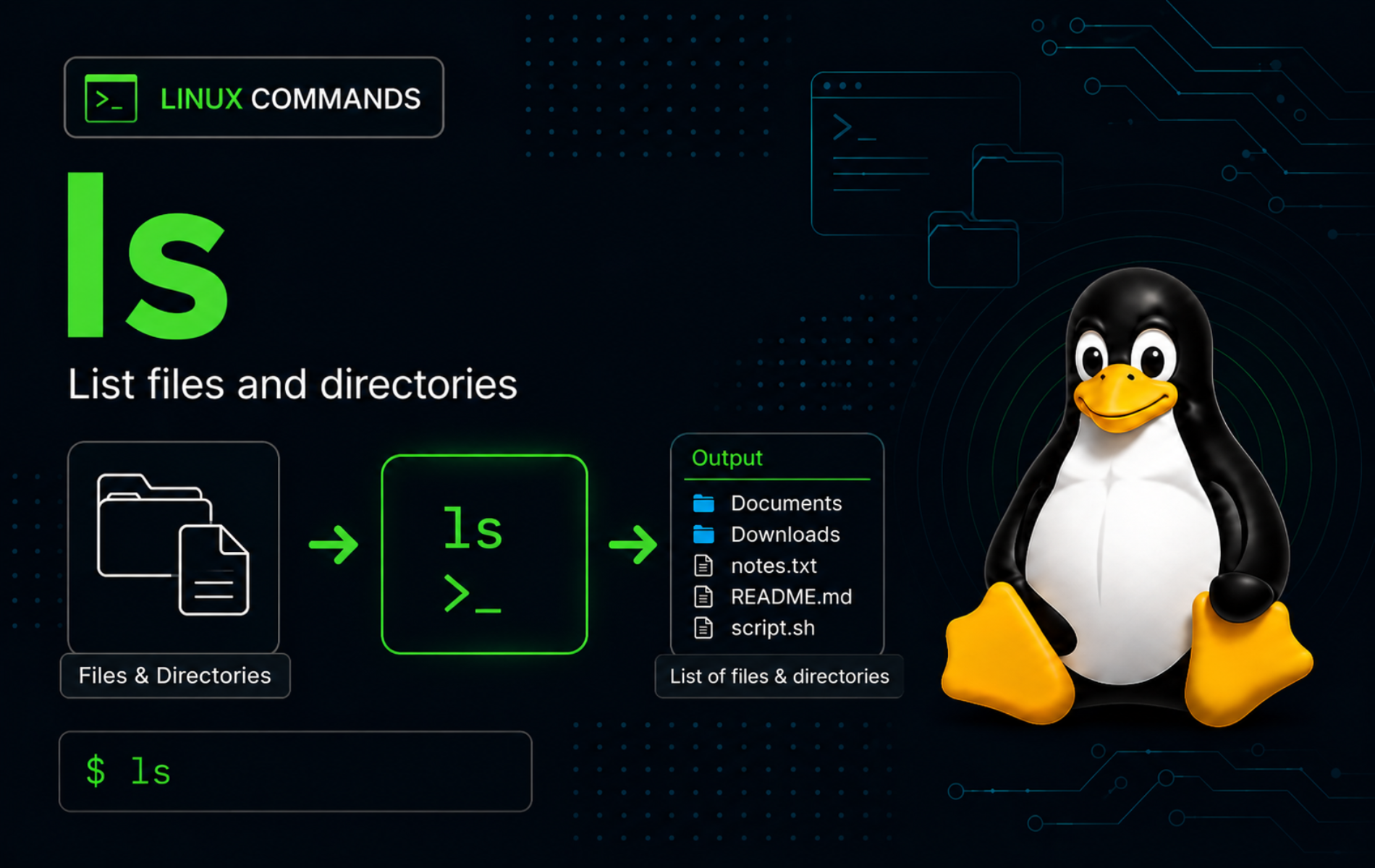
Directory listings become more useful once you know which question ls is answering: names, hidden entries, long-format metadata, sort order, or the contents of a directory path. The ls command in Linux lists file and directory information without changing the filesystem, which makes it a safe first check before permission changes, cleanup, or troubleshooting.
Most Linux desktop and server installs provide ls through their core utilities. Common distributions support the everyday options in this article, but less common flags can vary between GNU Coreutils, uutils, BusyBox, and BSD variants, so check ls --help or man ls before relying on implementation-specific behavior.
Understand the ls Command in Linux
ls lists information about pathnames. With no path, it lists the current directory. With a directory path, it lists that directory’s contents. With a regular file path, it lists that file itself. By default, dotfiles are hidden, directory entries are sorted by your locale, and terminal output may use columns instead of one name per line.
ls Command Syntax
The basic syntax accepts options first, paths last:
ls [OPTION]... [FILE]...OPTIONchanges the listing style, fields, sort order, colors, recursion, or quoting behavior.FILEcan be a file, directory, symlink, or shell-expanded pattern such as*.log.- When no
FILEargument is supplied,lslists the current directory.
ls Command Quick Reference
| Task | Command Pattern | What It Does |
|---|---|---|
| List the current directory | ls | Shows visible entries in the current working directory. |
| Use one name per line | ls -1 | Makes output easier to read in articles, logs, and simple checks. |
| Show long-format fields | ls -l | Displays permissions, link count, owner, group, size, timestamp, and name. |
| Show human-readable sizes | ls -lh | Formats the size field as K, M, or G instead of raw bytes. |
| Show hidden entries | ls -A | Lists dotfiles without including . and ... |
| Inspect a directory itself | ls -ld path | Shows metadata for the directory instead of listing its contents. |
| Sort by newest first | ls -lt | Sorts long-format output by modification time. |
| Add file-type markers | ls -F | Adds markers such as / for directories, @ for symlinks, and * for executables. |
Verify ls Availability and Implementation
Check the resolved command path when you need to confirm ls is available:
command -v lsA normal full Linux install returns a path such as:
/usr/bin/ls
Check the implementation before using uncommon long options:
ls --version | head -n 1GNU systems print a first line beginning with ls (GNU coreutils). Some newer or minimal systems may use another implementation, and BusyBox-style builds may reject --version. The timestamp examples use the GNU-compatible --time-style=long-iso; if your implementation does not support it, use ls -l and read your system’s default timestamp field. The GNU Coreutils ls manual is the upstream reference for GNU-specific behavior.
Set Up an Example Directory
A small disposable directory keeps the output predictable while you compare options. Create it in your home directory and move into it:
mkdir -p ~/ls-demo/docs ~/ls-demo/logs
cd ~/ls-demo
printf 'alpha\n' > notes.txt
printf 'draft\n' > "report draft.txt"
printf 'final\n' > report-final.txt
printf '#!/bin/sh\necho deploy\n' > deploy.sh
printf 'secret\n' > .env
printf 'archive\n' > docs/archive.md
truncate -s 2048 logs/app.log
ln -sfn notes.txt current-note
chmod 755 . docs logs deploy.sh
chmod 644 notes.txt "report draft.txt" report-final.txt .env docs/archive.md logs/app.log
touch -t 202605270800 "report draft.txt"
touch -t 202605270900 notes.txt
touch -t 202605270930 logs/app.log docs logs
touch -t 202605271000 report-final.txt
touch -t 202605271100 deploy.sh
The commands create normal files, a dotfile, two subdirectories, a symlink, and one executable script. The fixed timestamps make sort examples easier to verify.
Use Basic ls Command Examples
List the Current Directory
Use -1 when you want one entry per line. The LC_ALL=C prefix makes the sort order predictable for the example directory; omit it when you prefer your normal locale sorting.
LC_ALL=C ls -1Expected output from the example directory:
current-note
deploy.sh
docs
logs
notes.txt
report draft.txt
report-final.txt
Plain ls may display the same entries in columns when output goes to a terminal. Scripts and documentation are clearer with ls -1 when each name needs its own line.
List a Specific Directory
Pass a directory path when you want to inspect that location instead of the current directory:
ls docsarchive.md
With multiple directory operands, ls groups the output by path:
ls docs logsdocs: archive.md logs: app.log
List One File by Name
When the path is a regular file, ls lists that file rather than treating it as a directory:
ls report-final.txtreport-final.txt
Quote filenames that contain spaces so the shell passes the name as one argument:
ls "report draft.txt"report draft.txt
Read Long ls Listings
Long format is where ls becomes a diagnostic tool. It shows permission bits, ownership, size, timestamp, and the final displayed name in one row.
Show Permissions, Owner, Size, and Time
LC_ALL=C ls -l --time-style=long-iso notes.txtExample output:
-rw-r--r-- 1 joshua joshua 6 2026-05-27 09:00 notes.txt
-rw-r--r--is the file type and permission string.1is the link count.- The next two fields are the owner and group.
6is the apparent file size in bytes.2026-05-27 09:00is the file’s modification time in long ISO style.notes.txtis the displayed filename.
SELinux and ACL-aware systems may add a marker such as . or + after the permission string. If permission bits are the next problem to solve, the chmod command in Linux explains how to read and change those modes safely.
Show Human-Readable Sizes
Add -h to long format when byte counts make the size field hard to scan:
LC_ALL=C ls -lh --time-style=long-iso logs/app.log-rw-r--r-- 1 joshua joshua 2.0K 2026-05-27 09:30 logs/app.log
The -h option changes only how the size field is displayed. It does not measure disk blocks, compression, sparse files, or directory totals. Use du disk usage analysis when the question is actual storage consumption.
Show Numeric User and Group IDs
Use -n when names are slow to resolve or when UID and GID values matter more than account names:
LC_ALL=C ls -n --time-style=long-iso notes.txt-rw-r--r-- 1 1000 1000 6 2026-05-27 09:00 notes.txt
The numeric form is useful on NFS mounts, containers, backups, and recovery environments where user names may not match the original system.
Show Hidden Files and Directory Details
Show Dotfiles with ls -A
Linux treats names beginning with a dot as hidden in normal listings. Use -A to show dotfiles without the current and parent directory entries:
LC_ALL=C ls -A1.env current-note deploy.sh docs logs notes.txt report draft.txt report-final.txt
Use -a when you deliberately want . and .. in the output. For normal troubleshooting, -A is usually less noisy.
Inspect a Directory Instead of Its Contents
A directory argument normally lists the entries inside that directory. Add -d when you need the directory’s own metadata:
LC_ALL=C ls -ld --time-style=long-iso docsThe row begins with d when the target is a directory. Directory size and link-count fields can vary by filesystem, so focus on the owner, group, mode, timestamp, and path when troubleshooting access.
List Subdirectories Recursively
Use -R only when a recursive listing is small enough to inspect. It can produce a huge amount of output on home directories, source trees, or system paths.
LC_ALL=C ls -R docs logsdocs: archive.md logs: app.log
For filtered recursive searches, use a search tool such as find instead of asking ls -R to print every entry and then manually scanning the result.
Sort and Format ls Output
Sort by Modification Time
Add -t to sort by modification time, newest first:
LC_ALL=C ls -lt --time-style=long-iso *.txt-rw-r--r-- 1 joshua joshua 6 2026-05-27 10:00 report-final.txt -rw-r--r-- 1 joshua joshua 6 2026-05-27 09:00 notes.txt -rw-r--r-- 1 joshua joshua 6 2026-05-27 08:00 report draft.txt
Add -r to reverse that order and show the oldest matching files first:
LC_ALL=C ls -ltr --time-style=long-iso *.txt-rw-r--r-- 1 joshua joshua 6 2026-05-27 08:00 report draft.txt -rw-r--r-- 1 joshua joshua 6 2026-05-27 09:00 notes.txt -rw-r--r-- 1 joshua joshua 6 2026-05-27 10:00 report-final.txt
Time sorting is useful for recent downloads, logs, backups, and build artifacts. Pair it with a narrow pattern such as *.txt or a directory path so unrelated files do not crowd the listing.
Sort Directories Before Files
Many common Linux implementations support --group-directories-first, which keeps directories at the top while preserving the selected sort order inside each group:
LC_ALL=C ls --group-directories-first -1docs logs current-note deploy.sh notes.txt report draft.txt report-final.txt
If your ls implementation rejects that option, use a graphical file manager, shell glob patterns, or a dedicated search command for more complex grouping.
Quote Names with Spaces
Use -Q when spaces or punctuation make names hard to distinguish in plain output:
LC_ALL=C ls -1Q"current-note" "deploy.sh" "docs" "logs" "notes.txt" "report draft.txt" "report-final.txt"
Quoting output is for display. It does not change how you pass filenames to commands. Continue quoting filenames at the shell prompt, such as "report draft.txt", when a name contains spaces.
Identify File Types, Symlinks, and Metadata
Add File-Type Markers with ls -F
The -F option appends markers that make directories, symlinks, and executable files easier to spot:
LC_ALL=C ls -1Fcurrent-note@ deploy.sh* docs/ logs/ notes.txt report draft.txt report-final.txt
/marks a directory.@marks a symbolic link.*marks an executable file.
Use ls -l current-note when you need to see where a symlink points. Long format displays the link target after an arrow.
Show Inode Numbers
Use -i when hard links, backup restores, or filesystem checks require inode numbers:
ls -i notes.txtThe first field is the inode number, followed by the filename. Inode values are filesystem-specific, so treat the number as local evidence rather than reusable output.
Use Color Carefully
Many distributions configure an alias such as ls --color=auto for interactive shells. The auto mode uses colors when output goes to a terminal and disables color escapes when output is redirected or piped.
ls --color=autoUse --color=always only when the receiving program understands ANSI color escapes. Otherwise, log files and parsers can receive hidden control characters.
Use ls Safely in Scripts and Large Directories
ls is built for human-readable listings. Avoid parsing ls output in scripts when filenames can contain spaces, tabs, newlines, or unusual bytes. Use shell globs, find, or language-native directory APIs when a script must process names reliably.
Preview Shell Globs Before Acting
A glob expands before ls runs. Preview the exact matches before using the same pattern with a mutating command:
printf '%s\n' *.txtnotes.txt report draft.txt report-final.txt
In Bash, an unmatched glob normally stays literal. If *.txt prints as *.txt, the current shell did not find matching names.
Keep Recursive Listings Narrow
Recursive ls -R output can become too large to read and too noisy for troubleshooting. Start with a narrow directory, then switch to targeted tools when the question changes from “what is here” to “which files match this condition.”
ls -R docs logsFor storage cleanup, ls -lh shows apparent file sizes only. Use du when directories, sparse files, mounted filesystems, or real block usage matter.
Find the ls Binary and Documentation Paths
command -v ls answers which executable path your shell resolves. If you need the binary plus possible manual-page locations, use whereis command in Linux for the broader installed-file lookup.
Troubleshoot Common ls Errors
Fix “No such file or directory”
This error means the path does not exist from the current working directory, the name was misspelled, or a shell pattern did not match what you expected:
ls: cannot access 'missing.txt': No such file or directory
Check the current location and list nearby names, including dotfiles:
pwd
ls -A1
Use quotes around names with spaces, and use an absolute path when the file lives outside the current directory.
Fix “Permission denied”
A directory can exist but still block listing if you lack search or read permission on that path:
ls: cannot open directory 'private-dir': Permission denied
Inspect the directory itself before changing anything:
ls -ld private-dirIf you own the directory and should be able to inspect it, restore owner read and execute permission:
chmod u+rx private-dir
ls private-dir
If the directory is system-owned, do not widen permissions just to make the error disappear. Confirm the path, ownership, and intended access model first.
Hidden Files Are Missing from the Listing
Dotfiles do not appear in a plain ls listing. Use -A for the practical hidden-file view:
ls -AUse -a only when the special . and .. entries are useful for the task.
Sort Order Changes Between Systems
Default alphabetical order follows the active locale. If two systems list names in a different order, compare with the C locale:
LC_ALL=C ls -1Use that prefix for reproducible checks, build scripts, or documentation examples. Leave it out for normal interactive use when your local language and collation settings are preferred.
Clean Up the ls Example Directory
Remove only the disposable directory created earlier:
cd ~
rm -rf -- ~/ls-demo
The -- marker stops option parsing before the path operand, and the target stays limited to ~/ls-demo.
Conclusion
The ls command is a reliable first inspection step when you choose the option that matches the question: -l for metadata, -A for dotfiles, -d for directory properties, -t for recent changes, and -F for quick file-type markers. Keep it for readable listings, and switch to purpose-built tools when scripts or disk-usage decisions need stronger guarantees.


Formatting tips for your comment
You can use basic HTML to format your comment. Useful tags currently allowed in published comments:
<code>command</code>command<strong>bold</strong><em>italic</em><a href="https://example.com">link</a><blockquote>quote</blockquote>