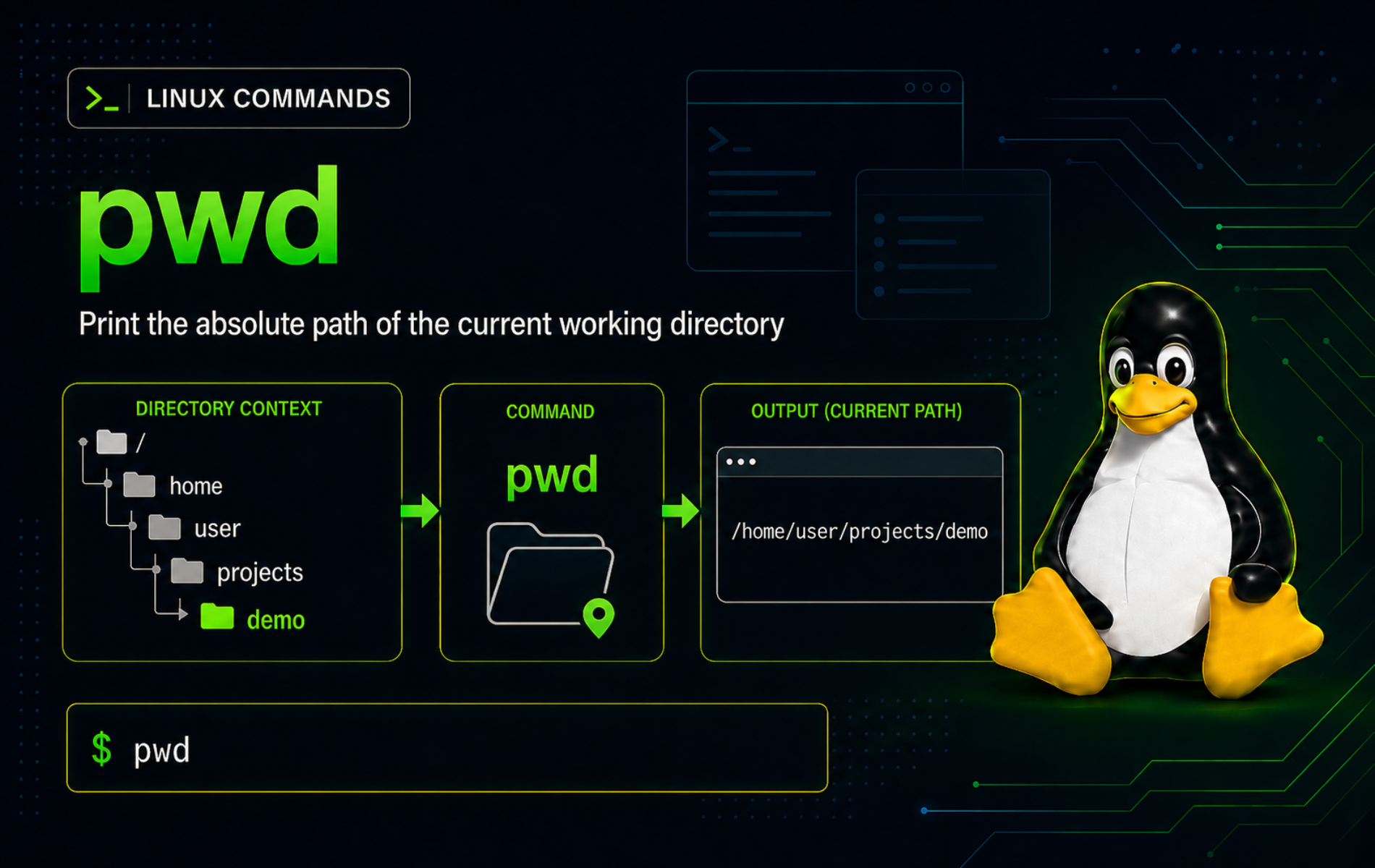
Directory-sensitive commands become risky when you assume the shell is somewhere it is not. The pwd command in Linux prints the current working directory, making it a useful checkpoint before editing files, running cleanup commands, building relative paths, or comparing symlinked directories.
Most interactive shells provide pwd as a built-in before the external /usr/bin/pwd binary. The examples use Bash-style behavior common on Linux systems and call out the important difference: Bash’s built-in pwd normally shows the logical path you used to get there, while the external binary can default to the physical filesystem path unless you choose -L explicitly.
Understand the pwd Command in Linux
The current working directory is the directory a shell or process uses as the starting point for relative paths. If you type ls config, the shell looks for config relative to the current directory unless you provide an absolute path such as /etc/config.
pwd means print working directory. It does not change location, create files, or search the filesystem. It prints the path associated with the current shell session so you can decide whether a relative command will target the directory you expect.
pwd Command Syntax
The common syntax accepts an optional path mode:
pwd [option]-Lprints the logical path stored by the shell, preserving symlink names when they are part of the current path.-Pprints the physical path after resolving symbolic links.- Long options such as
--logical,--physical,--help, and--versionbelong to external Coreutils-style implementations, not to every shell built-in.
Use short -L and -P options in interactive shell examples because they work with Bash’s built-in pwd. Use the external binary path only when you need implementation details from the standalone command.
pwd Quick Reference
| Task | Command | What It Does |
|---|---|---|
| Print the current directory | pwd | Shows the current working directory for the shell session. |
| Keep symlink names | pwd -L | Prints the logical path as the shell tracks it. |
| Resolve symlinks | pwd -P | Prints the physical filesystem path. |
| Inspect shell priority | type -a pwd | Shows whether the shell built-in or external binary is found first. |
| Check the external version | /usr/bin/pwd --version | Prints the standalone implementation version when supported. |
| Read the shell variable | printf '%s\n' "$PWD" | Prints the current path stored by the shell. |
Verify pwd Availability and Implementation
pwd is available in normal interactive shells and also exists as an external utility on standard Linux installs. Use type -a to see the order your shell will use:
type -a pwdTypical Bash output includes the built-in first, followed by the external command path:
pwd is a shell builtin
pwd is /usr/bin/pwd
That priority matters because typing pwd normally calls the shell built-in. To check the standalone implementation, call the external binary directly:
/usr/bin/pwd --version | head -n 1Example output on a GNU Coreutils system:
pwd (GNU coreutils) 9.10
The first line varies by distribution and implementation. For shell behavior, prefer help pwd. For the standalone GNU option set, use the GNU Coreutils pwd manual.
If the goal is command lookup rather than directory printing, use the which command in Linux or whereis command in Linux for executable and documentation paths.
Print the Current Directory with pwd Examples
Show the Current Working Directory
Use plain pwd when you need to confirm where relative paths will start:
pwdExample output from a home directory:
/home/user
The output is an absolute path. If your shell prompt already shows a shortened path such as ~, pwd expands that location into the full directory path.
Create a Practice Directory for pwd Examples
The remaining examples use a disposable ~/pwd-demo directory. Choose another path if that directory already contains files you want to keep:
mkdir -p ~/pwd-demo/config ~/pwd-demo/output
cd ~/pwd-demo
pwd
Example output:
/home/user/pwd-demo
The mkdir command in Linux creates the example directories before cd moves into the demo path.
Compare pwd with the PWD Variable
Bash stores the logical current directory in $PWD. In an ordinary directory without symlinks, $PWD and pwd usually match:
printf '%s\n' "$PWD"
pwd
Example output:
/home/user/pwd-demo
/home/user/pwd-demo
Do not edit PWD manually in normal shell use. Let the shell update it when you move with cd, and use pwd -P when a script needs the real path on disk instead of the logical path.
Capture the Current Directory in a Script Variable
Store the current directory when a script or shell function needs to build paths from the place where the command started. Use pwd -P when symlink resolution matters:
project_root=$(pwd -P)
printf 'Project root: %s\n' "$project_root"
Example output:
Project root: /home/user/pwd-demo
Quote the variable when using it later, especially if the path might contain spaces.
Compare Logical and Physical Paths with pwd
The most important pwd option choice appears when symbolic links are involved. A logical path preserves the route you used. A physical path resolves links to the real directory on disk.
Create a Symlinked Directory Example
Create a real directory and a symlink that points to it. The example removes only the demo symlink name before recreating it:
mkdir -p ~/pwd-demo/real-project/config
rm -f ~/pwd-demo/project-link
ln -s ~/pwd-demo/real-project ~/pwd-demo/project-link
cd ~/pwd-demo/project-link/config
The shell entered the directory through project-link, even though the real directory is real-project/config.
Use pwd -L to Keep the Logical Path
pwd -L prints the shell’s logical path. This is also Bash’s default built-in behavior in a symlinked directory:
pwd
pwd -L
Example output:
/home/user/pwd-demo/project-link/config
/home/user/pwd-demo/project-link/config
Logical paths are easier to read when the symlink name is the project, mount point, or shortcut the user intentionally chose.
Use pwd -P to Resolve the Real Path
pwd -P resolves symbolic links and prints the physical location:
pwd -PExample output:
/home/user/pwd-demo/real-project/config
Physical paths are clearer for backup scripts, bind mounts, build directories, and cleanup checks where the real filesystem target matters more than the shortcut name.
Compare the Built-in and External pwd Command
In Bash, plain pwd uses the built-in and keeps the logical path. The standalone /usr/bin/pwd can default to the physical path, so use explicit options when comparing both forms:
pwd
/usr/bin/pwd
/usr/bin/pwd -L
/usr/bin/pwd -P
Example output from the symlinked demo directory:
/home/user/pwd-demo/project-link/config
/home/user/pwd-demo/real-project/config
/home/user/pwd-demo/project-link/config
/home/user/pwd-demo/real-project/config
When a script needs predictable output, choose pwd -L or pwd -P instead of relying on whichever implementation the shell selects.
Use pwd in Everyday Shell Workflows
Check Location Before Writing a File
Confirm the directory before creating or overwriting a file with a relative path:
cd ~/pwd-demo
pwd
printf 'demo setting\n' > config/app.conf
ls config
Example output:
/home/user/pwd-demo
app.conf
The file lands under ~/pwd-demo/config because that was the current working directory when the redirect ran.
Build an Absolute Output Path
Combine pwd -P with quoted variables when a script needs an absolute directory for generated files:
cd ~/pwd-demo
root_dir=$(pwd -P)
mkdir -p "$root_dir/output"
printf '%s\n' "$root_dir/output"
Example output:
/home/user/pwd-demo/output
This pattern is safer than concatenating unquoted paths, because it keeps spaces and other shell-sensitive characters inside one argument.
Return to a Saved Directory
Capture a starting directory before a temporary move, then return to it with cd:
start_dir=$(pwd)
cd /tmp
cd "$start_dir"
pwd
Example output when the workflow started in the demo directory:
/home/user/pwd-demo
For interactive navigation patterns such as cd -, parent paths, and quoted directory names, use the cd command in Linux.
Troubleshoot Common pwd Problems
pwd and /usr/bin/pwd Show Different Paths
Different output usually means the current path contains a symbolic link. Compare both path modes explicitly:
pwd -L
pwd -P
If -L contains the symlink name and -P resolves to a different directory, choose the form that matches the job. Use -L for the navigated project path and -P for the real filesystem target.
pwd --version Reports an Invalid Option
In Bash, pwd --version calls the shell built-in, and the built-in accepts -L and -P instead of GNU-style long options. Check built-in help with:
help pwdCall the external binary when you need a version banner:
/usr/bin/pwd --version | head -n 1pwd -P Cannot Access Parent Directories
This error can appear when the current directory was deleted, moved, or became inaccessible after the shell entered it:
pwd: error retrieving current directory: getcwd: cannot access parent directories: No such file or directory
Move to a directory that still exists, then retry:
cd "$HOME"
pwd -P
If a script removed its own working directory, fix the script so cleanup happens after it moves elsewhere, or so it removes a named child directory instead of the directory it is currently using.
Relative Commands Target the Wrong Directory
A command such as rm output.log, printf ... > config/app.conf, or ls output uses the current directory unless you provide an absolute path. Check location first:
pwd
ls -la
If the directory is wrong, change to the intended path or rewrite the command with an absolute path. For directory size checks before cleanup, use the du command in Linux after confirming the target path.
Clean Up the pwd Demo Directory
Remove the practice directory when you no longer need the examples:
The cleanup command permanently removes
~/pwd-demo. Use it only if that directory contains the disposable files created for these examples.
rm -rf ~/pwd-demo
test ! -e ~/pwd-demo && echo "pwd demo removed"
Expected output after cleanup:
pwd demo removed
Conclusion
pwd is a reliable checkpoint for relative-path work once you choose the right path mode. Use pwd -L when the symlinked route matters, pwd -P when scripts need the real filesystem target, and pair it with cd command examples when directory navigation is the next problem to solve.


Formatting tips for your comment
You can use basic HTML to format your comment. Useful tags currently allowed in published comments:
<code>command</code>command<strong>bold</strong><em>italic</em><a href="https://example.com">link</a><blockquote>quote</blockquote>