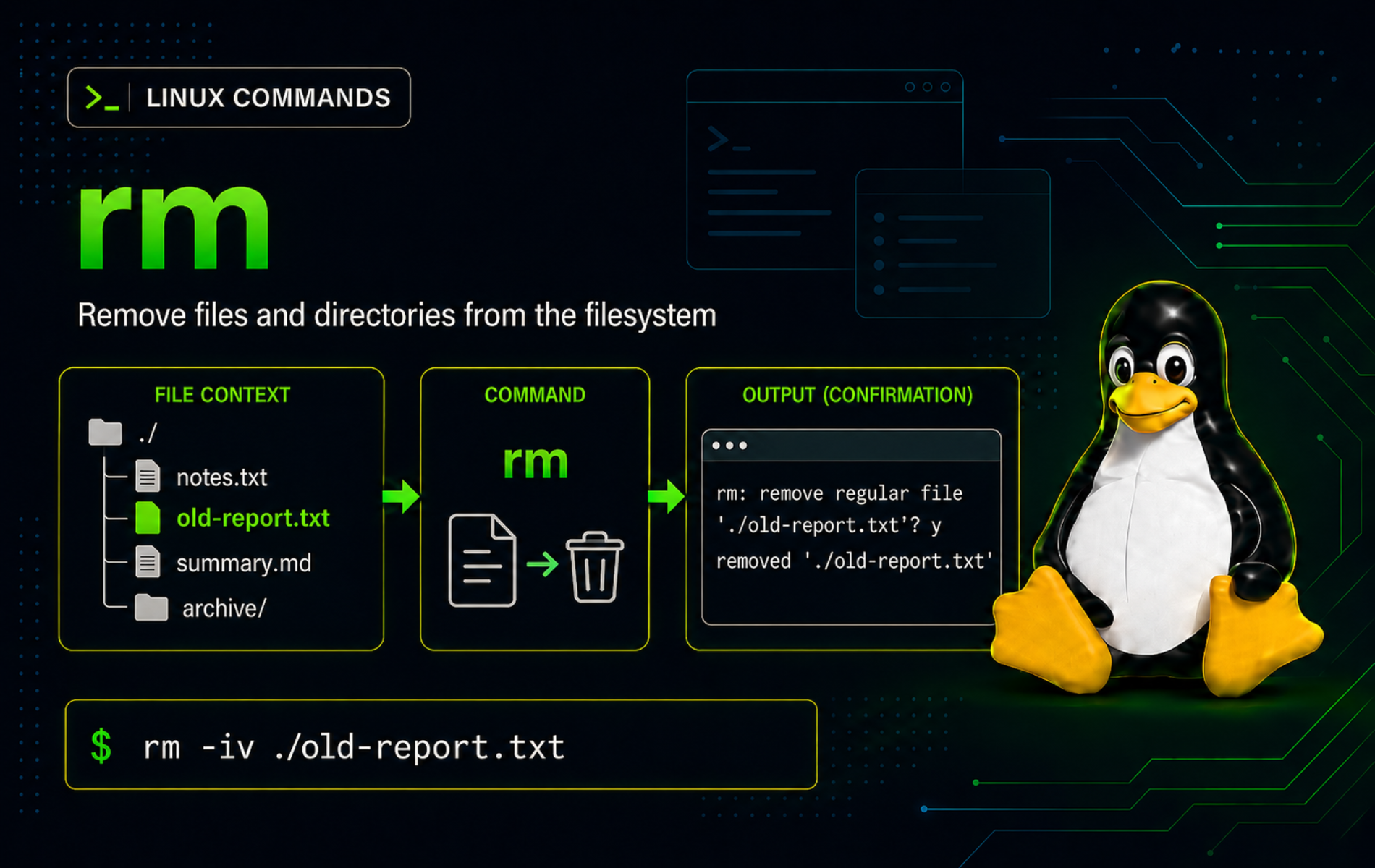
Deleting from a terminal is fast, but it also bypasses the desktop trash workflow that protects many graphical file managers. The rm command in Linux removes directory entries directly, so the safest habit is to preview targets, understand which options change prompting, and reserve recursive deletion for paths you have already inspected.
The examples here use disposable paths and GNU Coreutils behavior found on common Linux distributions such as Ubuntu and Fedora. Use them to remove single files, clean empty directories, delete controlled directory trees, handle awkward filenames, and troubleshoot the errors that usually appear before a risky cleanup goes wrong.
Understand the rm Command in Linux
rm removes one or more filesystem entries. For regular files, that usually means the filename disappears immediately. For directories, plain rm refuses to continue unless you choose an option such as -d for empty directories or -r for recursive removal.
The important distinction is that rm does not move files to a recoverable trash folder. Recovery may be possible only in special cases and should not be treated as part of the workflow. Back up important data before removing it, especially when the target is recursive, scripted, or owned by another user.
rm Command Syntax
The basic syntax is:
rm [OPTION]... FILE...OPTIONchanges prompting, recursion, output, or safety checks.FILEcan be a file, symlink, empty directory with-d, or directory tree with-r.- A successful plain
rmcommand is usually silent. Add-vwhen you need a visible removal record.
rm Quick Reference
| Task | Command Pattern | What It Does |
|---|---|---|
| Check availability | command -v rm | Prints the resolved command path. |
| Remove one file | rm old-report.txt | Deletes one regular file without printing output on success. |
| Remove several files | rm draft-one.txt draft-two.txt | Processes each named file in the same command. |
| Show removals | rm -v debug.log | Prints each removed path. |
| Ignore missing files | rm -f missing.txt | Suppresses missing-file errors and never prompts. |
| Prompt before every removal | rm -i file.txt | Asks before each deletion. |
| Prompt once for bulk or recursive removal | rm -I -- *.log | Asks once when more than three files match or recursion is used. |
| Remove an empty directory | rm -d empty-cache | Deletes only an empty directory. |
| Remove a directory tree | rm -r demo | Deletes a directory and everything below it. |
| Stop option parsing | rm -- -old-report.txt | Removes a filename that starts with a hyphen. |
Verify rm Availability and Documentation
Standard Linux desktop and server installs normally provide rm through GNU Coreutils. Confirm the command path first:
command -v rmTypical output is:
/usr/bin/rm
Check the installed implementation when option behavior matters:
rm --versionGNU systems print a first line that begins with rm (GNU coreutils). Minimal container images may provide BusyBox instead, so check rm --help on those systems before relying on extended GNU options such as --one-file-system. The GNU Coreutils rm manual is the upstream reference for the GNU option set.
Remove Files with rm Command Examples
Remove One File
Use a plain rm command when the target is one known file in the current directory:
rm old-report.txt
test ! -e old-report.txt && echo "old-report.txt removed"
Expected output after the verification check:
old-report.txt removed
The test line verifies that the path no longer exists. For important data, make a backup before removing the file instead of relying on recovery afterward.
Remove Several Named Files
List several exact filenames when you know each one should be deleted:
rm draft-one.txt draft-two.txt draft-three.txtrm handles each argument separately. If one file is missing and -f is not used, the command reports that file and returns a nonzero status, even if other files were removed.
Show Each Removal with rm -v
Verbose mode is useful for cleanup logs and manual checks because it prints each removed path:
rm -v debug.logExpected output:
removed 'debug.log'
Add -v when you need a readable audit trail, then remove it from high-volume scripts where thousands of lines would hide more useful errors.
Ignore Missing Files with rm -f
The -f or --force option suppresses missing-file errors and disables prompts. This is useful for idempotent cleanup, where the file may or may not exist:
rm -f temporary-output.txtUse -f narrowly. It does not make a path safer; it only removes prompts and missing-file diagnostics. Avoid combining it with broad globs or unchecked variables.
Remove a File Whose Name Starts with a Hyphen
A filename such as -old-report.txt looks like an option to many commands. Use -- to mark the end of options before the filename:
rm -- -old-report.txtYou can also prefix the current-directory path with ./:
rm ./-old-report.txtBoth forms make rm treat the argument as a pathname instead of an option flag.
Remove a Symlink Without Deleting the Target
When the path is a symbolic link, rm removes the link itself. It does not remove the target directory or file the link points to:
rm current-link
test -d target-dir && test ! -L current-link && echo "link removed, target kept"
Expected output when current-link pointed to target-dir:
link removed, target kept
Check uncertain links with ls -l current-link before removal. The output shows the link arrow and target path.
Remove Directories with rm
Remove an Empty Directory with rm -d
The -d or --dir option removes a directory only when it is empty:
rm -d empty-cache
test ! -d empty-cache && echo "empty-cache removed"
Expected output after the verification check:
empty-cache removed
If you want the strict empty-directory behavior as the default, the rmdir command in Linux is safer because it never removes non-empty directories.
Remove a Directory Tree with rm -r
Recursive deletion should start with a preview. Inspect the tree first so you know exactly what rm -r will delete:
find demo -maxdepth 2 -print | sortExample output from a small disposable tree:
demo
demo/cache
demo/cache/tmp.bin
demo/logs
demo/logs/app.log
After checking the list, remove the tree and verify that it is gone:
rm -r demo
test ! -e demo && echo "demo tree removed"
Expected output:
demo tree removed
Use -r or -R only when the directory and everything below it should disappear. If you only need to reorganize files before deletion, the mv command in Linux can move data to a review location first.
Use rm -rf Only on a Guarded Path
rm -rf combines recursive removal with force mode. That means it descends into directories, suppresses missing-file errors, and never asks for confirmation. Keep it for known disposable paths such as build output, package caches you created, or temporary directories.
rm -rfpermanently removes the target tree without prompting. Check the path withpwd,ls -ld, orfindbefore running it, and never use it with an empty or untrusted variable.
A guarded local cleanup checks that the directory exists before removing it:
test -d ./build-output && rm -rf -- ./build-output
test ! -e ./build-output && echo "build-output removed"
Expected output:
build-output removed
The leading ./ keeps the path visibly relative to the current directory, while -- protects against names that begin with hyphens. For large cleanup decisions, check size first with du disk usage analysis before deleting the wrong tree.
Limit Recursive Deletes to One Filesystem
GNU rm supports --one-file-system for recursive deletion. This option skips directories that are mounted from a different filesystem than the command-line argument, which helps when cleaning chroot, container-root, or build trees that may contain bind mounts.
rm -rf --one-file-system -- ./build-rootThis option is not a substitute for checking the path. It protects only filesystem boundaries, not unrelated files that live on the same filesystem.
Preview Bulk Deletes Before Using rm
Preview Shell Globs Before Removing Files
Shell globs expand before rm starts. Preview the exact matches before using a wildcard:
printf '%s\n' *.logIf the list is correct, remove the same pattern:
rm -- *.logIn Bash, an unmatched glob normally remains literal, so *.log may be passed to rm as a filename when no log files exist. Use rm -f -- *.log only when a missing match should be silent and the pattern is scoped to the current directory.
Prompt Once for Bulk Removal with rm -I
The -I option prompts once when more than three files are named or when recursive removal is requested. It is less tedious than -i for batches, but it still gives you a last stop after previewing the target list:
printf '%s\n' logs/*.log | sort
rm -I -- logs/*.log
For four matching files, GNU rm prompts once:
rm: remove 4 arguments?
Answer y only after the preview list matches the files you intend to delete.
Remove Matched Files with find and rm
Use find when a cleanup needs filters that globs cannot express well, such as file age, depth, or type. Preview first:
find old-logs -type f -name '*.log' -mtime +7 -print | sortExample output:
old-logs/old.log
After checking the list, pass only those matched files to rm:
find old-logs -type f -name '*.log' -mtime +7 -exec rm -- {} +The -type f test keeps the command focused on regular files, while -exec rm -- {} + batches matched paths into fewer rm calls. The find -exec command guide covers the batching syntax in more detail.
Use rm Safely in Shell Scripts
Scripts should remove only paths they created or caller-supplied paths that pass explicit safety checks. Quote variables, use -- before variable path operands, and reject empty or high-level paths before recursive deletion.
A small cleanup function can reject dangerous paths, preview the target, and require an explicit confirmation variable before the final removal:
cleanup_tree() {
  target=${1:?Usage: cleanup_tree PATH}

  case "$target" in
    /|/home|/etc|/var|"")
      printf 'Refusing to remove high-risk path: %s\n' "$target" >&2
      return 1
      ;;
  esac

  if [ -d "$target" ]; then
    find "$target" -maxdepth 1 -mindepth 1 -print
    if [ "${CONFIRM_REMOVE:-no}" = "yes" ]; then
      rm -rf -- "$target"
    else
      printf 'Set CONFIRM_REMOVE=yes to remove: %s\n' "$target" >&2
      return 1
    fi
  fi
}
The ${1:?...} expansion fails when no argument is supplied, the case block rejects broad system paths, and rm -rf -- "$target" preserves filenames with spaces or leading hyphens. The function does not remove anything unless CONFIRM_REMOVE=yes is present in the environment for that run.
Troubleshoot Common rm Errors
Fix “Is a directory”
Plain rm refuses to remove directories:
rm: cannot remove 'dir-error': Is a directory
Check the directory contents before choosing the next command:
find dir-error -maxdepth 2 -print | sortIf the directory is empty, use rm -d dir-error or rmdir dir-error. If the entire tree should be deleted, use rm -r dir-error only after the preview confirms the target.
Fix “No such file or directory”
This error means the path does not exist from the current working directory, the name was misspelled, or a glob did not match what you expected:
rm: cannot remove 'missing.txt': No such file or directory
Confirm your location and inspect nearby names:
pwd
ls -la
Use an absolute path when the file is elsewhere. In cleanup scripts where a missing file is acceptable, use rm -f missing.txt so repeated runs do not fail only because the file is already gone.
Fix “Permission denied”
Removing a file requires write and execute permission on the parent directory, not only write permission on the file itself. A parent directory without write permission produces:
rm: cannot remove 'locked-parent/file': Permission denied
Check the parent and target permissions before changing anything:
ls -ld locked-parent
ls -l locked-parent/file
If the path is under your home directory and the owner or permissions are wrong, fix those first. If the path is system-owned and you intend to remove it, verify the full path and use sudo rm -- /path/to/file. The chmod command guide explains permission mode changes when the problem is access rather than the delete target.
Fix “refusing to remove ‘.’ or ‘..'”
GNU rm rejects attempts to remove . or .. because those names represent the current and parent directory:
rm: refusing to remove '.' or '..' directory: skipping '.'
Stop and confirm your current directory:
pwd
find . -maxdepth 1 -mindepth 1 -print | sort
If you meant to remove specific contents, name those paths directly after reviewing the list. Do not replace the rejected command with a broader recursive delete until the current directory is unquestionably disposable.
Fix “Argument list too long”
The shell can expand a wildcard into more filenames than the operating system allows in one command invocation, leading to an error such as:
bash: /usr/bin/rm: Argument list too long
Use find so matches are passed to rm in manageable batches:
find . -maxdepth 1 -type f -name '*.log' -exec rm -- {} +Add -maxdepth 1 to keep the cleanup in the current directory. Remove that limit only when recursive matching is intentional and the preview command has already shown the target set.
Conclusion
rm is ready for controlled file cleanup when each target is previewed, quoted, and scoped before deletion. Keep -I close for bulk removals, use rmdir or rm -d for empty directories, and use the mkdir command in Linux only after the cleanup path is clear and ready to rebuild.


Formatting tips for your comment
You can use basic HTML to format your comment. Useful tags currently allowed in published comments:
<code>command</code>command<strong>bold</strong><em>italic</em><a href="https://example.com">link</a><blockquote>quote</blockquote>