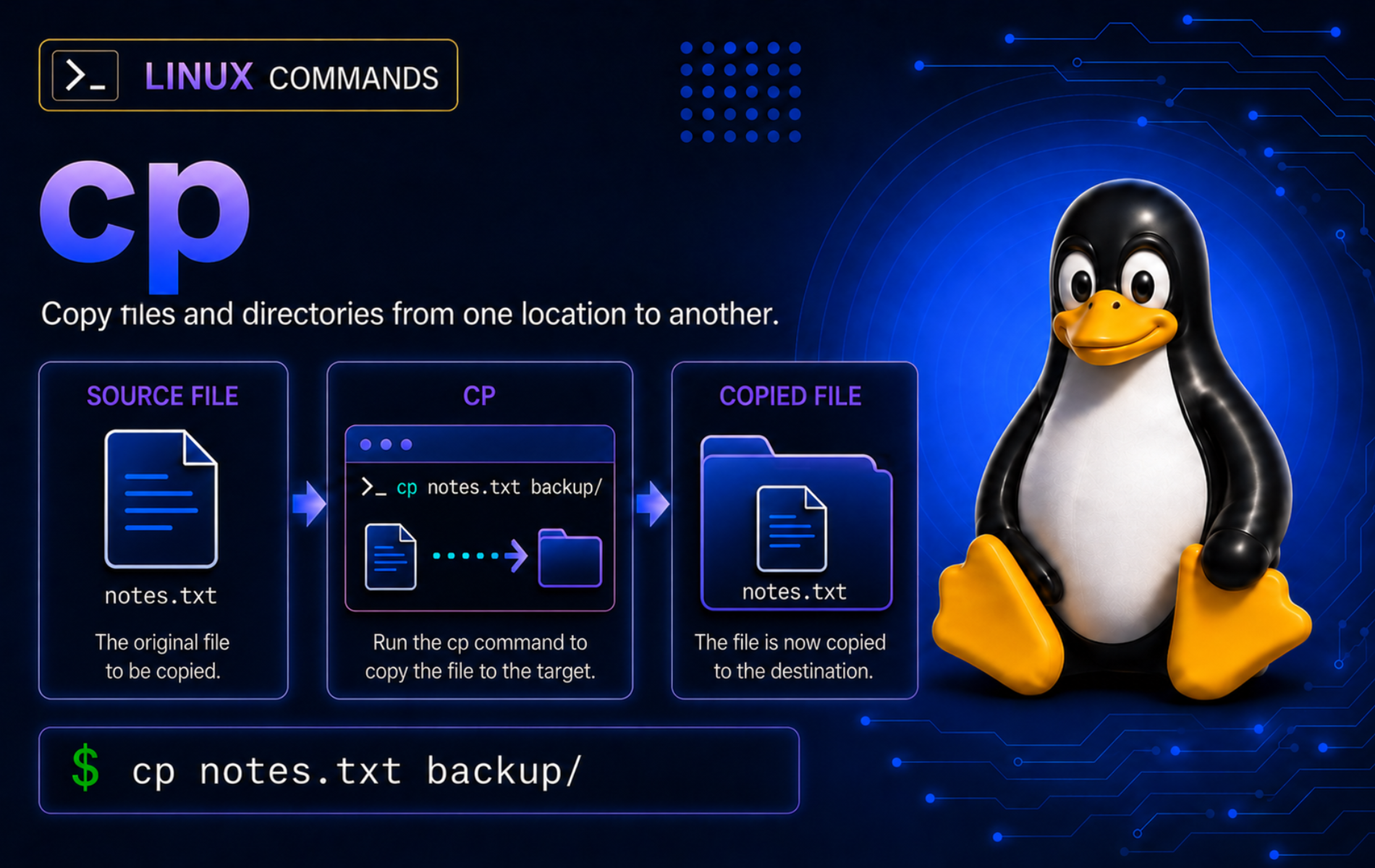
Copying files is easy until the destination already exists, a directory contains hidden files, or a symlink points somewhere you did not expect. The cp command in Linux handles everyday file copies, directory backups, metadata preservation, and link-aware workflows, but its safest patterns depend on how you control overwrites and destination paths.
The examples here use GNU Coreutils behavior found on common Linux distributions. They cover normal file copies, recursive directories, overwrite safeguards, archive-style copies, symlinks, sparse files, and troubleshooting cases that usually separate a quick copy from a reliable one.
Understand the Linux cp Command
The cp command creates a separate copy of a file or, when recursive options are used, a directory tree. It does not remove the original path. If you need the original to disappear from the source location, use the Linux mv command instead.
The common GNU cp syntax has three useful forms:
cp [OPTION]... SOURCE DEST
cp [OPTION]... SOURCE... DIRECTORY
cp [OPTION]... -t DIRECTORY SOURCE...SOURCEis the file, directory, symlink, or pattern-expanded path you want to copy.DESTis either the new file path or the destination directory, depending on whether it already exists and whether you use options such as-T.DIRECTORYmust exist when you copy multiple sources unless another command creates it first.
By default, cp overwrites an existing destination file without prompting. Add an overwrite-control option, a backup option, or a verification step before copying into shared directories, deployment paths, or backup folders.
cpdoes not have a built-in dry-run mode. Preview shell globs withprintfor use rsync dry-run checks before large merges, remote transfers, or copies where overwrite behavior matters.
cp Quick Reference
| Task | Command Pattern | What It Does |
|---|---|---|
| Copy one file | cp source.txt copy.txt | Creates or replaces copy.txt with the contents of source.txt. |
| Copy into a directory | cp source.txt backup/ | Keeps the original filename inside an existing directory. |
| Copy several files | cp one.txt two.txt backup/ | Copies each source into the final directory argument. |
| Copy a directory tree | cp -R project project-copy | Copies the directory and its contents recursively. |
| Archive a directory | cp -a project project-backup | Copies recursively while preserving symlinks, hard links, permissions, timestamps, ownership where allowed, and extended attributes where supported. |
| Prompt before overwrite | cp -i source.txt dest.txt | Asks before replacing an existing destination file. |
| Skip existing files | cp -n source.txt dest.txt | Skips a destination that already exists. Newer GNU systems prefer --update=none, but older distributions may not support that argument. |
| Copy only newer files | cp -u source.txt dest.txt | Replaces the destination only when the source is newer. |
| Create overwrite backups | cp -b -S .bak source.txt dest.txt | Saves the old destination as dest.txt.bak before replacing it. |
| Preserve mode and timestamps | cp -p source.txt dest.txt | Preserves mode, ownership where allowed, and timestamps. |
| Copy source contents into target | cp -a source/. target/ | Copies visible and hidden entries from source into an existing target directory. |
| Treat destination exactly | cp -RT source target | Copies a directory tree into target without nesting it under target/source. |
| Specify the target first | cp -t backup one.txt two.txt | Uses backup as the destination directory for all remaining sources. |
| Stop option parsing | cp -- -draft.txt backup/ | Copies a filename that starts with a hyphen. |
Verify cp Availability and Implementation
Full Linux desktop and server installations normally provide cp through GNU Coreutils. Confirm the resolved command path first:
command -v cpTypical output is:
/usr/bin/cp
Check the implementation before relying on GNU-specific options such as --reflink, --sparse, -T, or the newer --update=none form:
cp --version | head -n 1GNU systems print a first line similar to:
cp (GNU coreutils) 9.11
If cp --version fails, you may be using BusyBox or another compact implementation. Check cp --help on that system before using GNU-only options from this article.
The GNU Coreutils cp manual is the upstream reference for the GNU option set, including archive copies, symlink handling, sparse files, reflinks, backups, and update modes.
Prepare Safe cp Practice Files
The examples use a temporary directory and a current-shell variable named CP_DEMO. Keep the same terminal session open while you work through the commands so the cleanup block can remove the generated files later.
CP_DEMO=$(mktemp -d "${TMPDIR:-/tmp}/cp-demo.XXXXXX")
cd "$CP_DEMO"
mkdir -p source/project/logs backup archive
printf 'quarterly report\n' > source/report.txt
printf 'configuration=demo\n' > source/config.ini
printf 'hidden setting\n' > source/.env
printf 'application log\n' > source/project/logs/app.log
printf 'first log\n' > source/app.log
printf 'second log\n' > source/db.log
pwd
The final pwd output confirms the practice directory. Every copy example in the next sections assumes your shell is still inside that directory.
Copy Files with cp Command Examples
Start with file-level copies before adding recursion or metadata preservation. A successful plain cp command is usually silent, so use a short verification command when the result matters.
Copy One File to a New Filename
Provide a source file and a destination filename when you want a second copy in the same working area:
cp source/report.txt backup/report-copy.txt
cat backup/report-copy.txt
Expected output:
quarterly report
The original source/report.txt remains in place. Only the destination file is new or replaced.
Copy a File into an Existing Directory
Use a destination directory ending in / when the copied file should keep its name:
cp source/config.ini backup/
ls backup
Relevant output includes:
config.ini
report-copy.txt
The directory must exist before cp runs. Create nested destinations with the mkdir command before copying into them.
Show Copied Paths with Verbose Output
Add -v when you want cp to print each copy it performs. This is useful for one-off maintenance work where silent success would make it harder to confirm the exact source and destination:
cp -v source/report.txt backup/report-verbose.txtExpected output:
'source/report.txt' -> 'backup/report-verbose.txt'
Copy Multiple Files into One Directory
When you pass several sources, the final argument must be a directory:
cp source/report.txt source/config.ini archive/
ls archive
Expected output:
config.ini
report.txt
If the final argument is not a directory, cp stops instead of guessing how to name each destination.
Copy Files That Match a Shell Pattern
Shell globs such as *.log expand before cp starts. Preview the match first so you know which paths the shell will pass to the command:
printf '%s\n' source/*.log
cp source/*.log archive/
ls archive
Relevant output includes:
app.log
config.ini
db.log
report.txt
Bash does not include hidden files in * matches by default. Use the source/. directory-copy pattern shown later when hidden entries must be included.
Copy Filenames with Spaces or Leading Hyphens
Quote names that contain spaces, and use -- before a filename that starts with a hyphen:
printf 'space example\n' > 'source/monthly report.txt'
cp 'source/monthly report.txt' backup/
printf 'dash example\n' > ./-draft.txt
cp -- -draft.txt backup/
The quotes keep monthly report.txt as one argument. The -- marker tells cp that -draft.txt is a path, not an option.
Prompt Before Overwriting Files
Add -i when you want an interactive confirmation before a destination file is replaced:
cp -i source/report.txt backup/report-copy.txtWhen the destination exists, GNU cp prompts with a line similar to:
cp: overwrite 'backup/report-copy.txt'?
Type y to overwrite or n to keep the existing file. Use this option in an interactive terminal, not in unattended scripts that cannot answer prompts.
Skip Files That Already Exist
The older broad GNU pattern for skipping an existing destination is -n. It remains useful on distributions with GNU coreutils 8.x, where --update=none is not accepted:
printf 'keep this copy\n' > backup/report-copy.txt
cp -n source/report.txt backup/report-copy.txt
cat backup/report-copy.txt
Expected output:
keep this copy
Newer GNU Coreutils documents -n as deprecated because skipped-file exit status differs across platforms. When cp --help shows --update[=UPDATE], use --update=none for the same skip behavior or --update=none-fail when skipped files should make the command fail.
cp --update=none source/report.txt backup/report-copy.txtCopy Only When the Source Is Newer
Use -u or --update when a destination should change only if the source has a newer modification time:
printf 'old cache\n' > backup/cache.txt
printf 'new cache\n' > source/cache.txt
touch -d '2020-01-01 00:00:00 UTC' backup/cache.txt
touch -d '2025-01-01 00:00:00 UTC' source/cache.txt
cp -u source/cache.txt backup/cache.txt
cat backup/cache.txt
Expected output:
new cache
Timestamp-based updates are convenient for simple local refreshes. For directory synchronization, deleted-file handling, remote copies, or dry runs, switch to rsync instead of building a large copy workflow around cp -u.
Create a Backup Before Overwriting
The -b option saves the previous destination before replacing it. Add -S to choose a clearer suffix than the default ~:
printf 'old destination\n' > backup/settings.conf
printf 'new destination\n' > source/settings.conf
cp -b -S .bak source/settings.conf backup/settings.conf
cat backup/settings.conf
cat backup/settings.conf.bak
Expected output:
new destination
old destination
This pattern is useful before editing generated configuration, replacing a local report, or staging a one-file rollback point. For full backups, prefer an archive copy or rsync workflow that tracks the whole tree.
Copy Directories with cp
Plain cp refuses directory sources. Add -R for a recursive copy, or use -a when the copy should preserve directory metadata and links as closely as GNU cp can.
Copy a Directory Tree Recursively
Use -R when you want a normal recursive copy of a directory:
cp -R source/project backup/project-copy
find backup/project-copy -maxdepth 2 -type f | sort
Expected output:
backup/project-copy/logs/app.log
The destination backup/project-copy becomes a new directory tree. If you copy into an existing directory instead, cp may create an extra nested directory depending on the destination form.
Copy Directory Contents, Including Hidden Files
Use the source/. pattern when you want the contents of a directory copied into an existing destination, including hidden names such as .env:
mkdir -p archive/source-contents
cp -a source/. archive/source-contents/
find archive/source-contents -maxdepth 1 -type f -printf '%f\n' | sort
Expected output:
.env
app.log
cache.txt
config.ini
db.log
monthly report.txt
report.txt
settings.conf
The trailing . means “copy the entries inside this directory.” It avoids the common source/* problem where hidden files are skipped by the shell before cp even starts.
Control Destination Nesting with -T
When the destination already exists, cp -R source/project backup/existing-dir copies project inside backup/existing-dir/. Use -T when the destination path itself should receive the source directory contents:
mkdir -p backup/project-flat
cp -RT source/project backup/project-flat
find backup/project-flat -maxdepth 2 -type f | sort
Expected output:
backup/project-flat/logs/app.log
The -T option is GNU-specific. It is useful in scripts because it prevents an existing destination directory from changing the command into “copy inside this directory” behavior.
Use -t for Batch Copies into One Directory
The -t option names the target directory before the sources. This works well when another command builds the source list, because every remaining argument is treated as a source:
mkdir -p archive/batch
cp -t archive/batch source/report.txt source/config.ini
ls archive/batch
Expected output:
config.ini
report.txt
Do not combine -t and -T. They solve opposite destination problems.
Preserve Source Path Structure
Use --parents when you copy selected files into a staging directory but still need their source path structure. GNU cp recreates the parent directories below the destination:
mkdir -p archive/parents
cp --parents source/project/logs/app.log archive/parents/
find archive/parents -type f | sort
Expected output:
archive/parents/source/project/logs/app.log
This pattern helps when a deployment, support bundle, or report collection needs the copied file to keep enough path context to be recognizable later.
Preserve Metadata and Links with cp
A plain copy usually gets a new timestamp and the ownership of the user running cp. Choose preservation options when the copied files are backups, deployments, or trees where permissions and links matter.
Preserve Mode, Ownership, and Timestamps with -p
The -p option is shorthand for preserving mode, ownership where permissions allow, and timestamps:
chmod 640 source/config.ini
touch -d '2024-04-01 12:00:00 UTC' source/config.ini
cp -p source/config.ini backup/config-preserved.ini
stat -c '%a %Y' source/config.ini backup/config-preserved.ini
Expected output:
640 1711972800
640 1711972800
Ordinary users cannot always preserve ownership when copying files owned by another user. If ownership matters, inspect the result with ls -l and use chown command examples only when changing ownership is the intended administrative action.
Use Archive Mode for Backups
The -a or --archive option is the usual GNU cp backup mode. It implies recursive copying, preserves symlinks as symlinks, preserves hard-link relationships, and keeps as much metadata as the filesystem and user permissions allow.
ln source/report.txt source/report-hardlink.txt
ln -s report.txt source/report-link.txt
cp -a source archive/source-archive
stat -c '%F' archive/source-archive/report-link.txt
Expected output:
symbolic link
Use cp -a for local backup copies where preserving the shape of the source tree matters. Use rsync -a instead when you need a preview, deletion handling, resumed transfers, or efficient repeated syncs.
Choose How cp Handles Source Symlinks
Symlink behavior changes with the options you choose. Without recursive archive mode, copying a symlink to a regular file normally copies the target file’s contents. Add -P or --no-dereference when the destination should remain a symlink:
cp source/report-link.txt backup/link-followed.txt
cp -P source/report-link.txt backup/link-preserved.txt
stat -c '%F' backup/link-followed.txt backup/link-preserved.txt
Expected output:
regular file
symbolic link
Use -L when you intentionally want to follow symlinks in the source tree and copy the files they point to. Use -H when only command-line symlink arguments should be followed. The last symlink-handling option on the command line wins.
Create Hard Links Instead of Full Copies
The -l option creates hard links for non-directories instead of duplicating data blocks. This is fast and space-efficient, but both names refer to the same inode, so changing file contents through either path changes the same underlying file:
cp -l source/report.txt backup/report-hardlink.txt
test "$(stat -c '%i' source/report.txt)" = "$(stat -c '%i' backup/report-hardlink.txt)" && echo "same inode"
Expected output:
same inode
Hard links normally cannot cross filesystem boundaries and do not work for directories in normal user workflows.
Create Symbolic Links with cp
The -s option creates symbolic links instead of file copies. Use an absolute source path when the destination link will live in another directory:
cp -s "$CP_DEMO/source/report.txt" backup/report-symlink.txt
test -L backup/report-symlink.txt && echo "symlink created"
Expected output:
symlink created
If you only need to create links, the dedicated ln command is usually clearer. Use cp -s when you are already building a copy workflow and intentionally want symlinks as the destination result.
Handle Large, Sparse, and Filesystem-Specific Copies
Large files and special files need a different level of caution. A copy command that is fine for documents can waste space, follow an unexpected link, or block indefinitely when pointed at device files or named pipes.
Copy Sparse Files Without Expanding Holes
GNU cp normally detects sparse files with a heuristic and tries to keep the destination sparse. Use --sparse=always when the destination filesystem supports sparse files and preserving holes is important:
truncate -s 64M source/sparse.img
cp --sparse=always source/sparse.img backup/sparse.img
stat -c 'size=%s blocks=%b' source/sparse.img backup/sparse.img
Example output on a sparse-capable filesystem shows the file size is much larger than the allocated block count:
size=67108864 blocks=0
size=67108864 blocks=0
If the destination must be fully allocated, use --sparse=never. Filesystem support controls the final result, so verify large image files with the du command or stat when disk usage matters.
Use Reflinks When the Filesystem Supports Them
The --reflink option asks the filesystem for a copy-on-write clone. It is fast and space-efficient on filesystems that support it, such as Btrfs or XFS with reflink support:
cp --reflink=auto source/report.txt backup/report-reflink.txtUse --reflink=auto when a normal copy is an acceptable fallback. Use --reflink=always only when the copy must fail unless a clone is created.
Avoid Copying Special File Contents Recursively
The GNU --copy-contents option can read from special files while copying recursively. That is usually the wrong choice for directories such as /dev, because named pipes can block and devices such as /dev/zero can fill the destination filesystem.
For system backups, prefer tools designed for that job, and exclude pseudo-filesystems such as /proc, /sys, /dev, and mounted external filesystems unless you explicitly intend to include them. For ordinary directory copies, cp -a or rsync -a is the safer starting point.
Troubleshoot Common cp Errors
Troubleshooting cp usually means checking the source path, destination type, permissions, implementation version, and symlink behavior before repeating the copy.
Fix cannot stat Source Errors
The error cp: cannot stat 'name': No such file or directory means the source path did not resolve. Check the exact path before changing the command:
ls -l source/report.txtA file listing means the path resolves. If ls reports No such file or directory, fix the directory, filename, or shell pattern before repeating cp.
If the file is in another directory, use the correct path or change into the directory that contains it:
cd "$CP_DEMO"
cp source/report.txt backup/
Quote filenames that contain spaces, and remember that shell globs such as *.log are expanded by the shell before cp runs.
Fix omitting directory Errors
The error cp: -r not specified; omitting directory 'name' appears when the source is a directory and no recursive option was used. Confirm the source type first:
test -d source/project && echo "source/project is a directory"Expected output:
source/project is a directory
Copy the directory with -R for a normal recursive copy or -a for archive-style preservation:
cp -R source/project backup/project-copy-fixedFix Permission Denied Errors
Permission denied can mean you cannot read the source, cannot write to the destination directory, or cannot replace an existing destination file. Inspect both sides before adding sudo:
ls -l source/report.txt
ls -ld backup
The source file needs a readable mode for your user, and the destination directory needs write and execute access. If either listing shows the wrong mode or owner for a user-owned practice path, fix that layer before trying cp again.
If the issue is a normal user-owned demo path, repair the relevant permission instead of escalating:
chmod u+r source/report.txt
chmod u+w backup
Use sudo cp only when copying into a root-owned system location is the intended administrative task. If ownership is the real problem, inspect the target with ls -l and use the chmod command guide or chown workflow that matches the permission issue.
Fix Unexpected cp Prompts
Some interactive shells define cp as an alias such as cp -i, especially for administrative accounts. Check the command type when cp prompts even though your command did not include -i:
type cpExample output from a shell alias looks like:
cp is aliased to `cp -i'
Use command cp for a single command that should bypass shell aliases and functions, or remove the alias from your shell configuration if you no longer want that interactive safeguard:
command cp source/report.txt backup/report-copy.txtFix target Is Not a Directory Errors
When copying multiple sources, the final argument must be a directory. Check it before repeating the copy:
if [ -d archive ]; then
    echo "archive exists"
else
    echo "archive missing"
fi
Expected output in the practice directory is:
archive exists
Create the directory if it is missing, then repeat the multi-source copy:
mkdir -p archive
cp source/report.txt source/config.ini archive/
A trailing slash such as archive/ makes your intent visible, but it does not create the directory for you.
Fix Unsupported --update=none Errors
Older GNU coreutils releases accept -u and --update but reject an argument such as --update=none. Check for the exact newer help form before using update modes in scripts:
cp --help | grep -F -- '--update[=UPDATE]' || echo "no --update mode arguments shown"If the command prints no --update mode arguments shown, use -n for skip-existing behavior on that system:
cp -n source/report.txt backup/report-copy.txtFor scripts that run across mixed distributions, prefer an explicit compatibility check instead of assuming every host has the newest GNU syntax.
Fix Unexpected Symlink Results
If a copied symlink became a regular file, inspect the source and choose the symlink policy you actually need:
ls -l source/report-link.txtPreserve the link itself with -P, or copy the referent intentionally with -L:
cp -P source/report-link.txt backup/link-preserved-fixed.txt
cp -L source/report-link.txt backup/link-followed-fixed.txt
For whole directory backups, cp -a is usually the safer starting point because it preserves symlinks rather than silently turning them into regular files.
Clean Up cp Practice Files
Remove the temporary practice directory only after you finish the examples and troubleshooting checks. This command leaves your shell somewhere stable, deletes the generated path stored in CP_DEMO when the variable is set, and then clears the variable:
cd "${HOME:-/tmp}"
if [ -n "${CP_DEMO:-}" ]; then
    rm -rf -- "$CP_DEMO"
fi
unset CP_DEMO
The rm command guide covers recursive deletion safeguards when you want to inspect a path before removing it.
Conclusion
cp can copy files, directories, metadata, links, and sparse files with the right safeguards in place. Use overwrite controls before replacing files, archive mode for faithful local backups, and rsync or the scp command when the workflow moves beyond a local one-shot copy.


Formatting tips for your comment
You can use basic HTML to format your comment. Useful tags currently allowed in published comments:
<code>command</code>command<strong>bold</strong><em>italic</em><a href="https://example.com">link</a><blockquote>quote</blockquote>