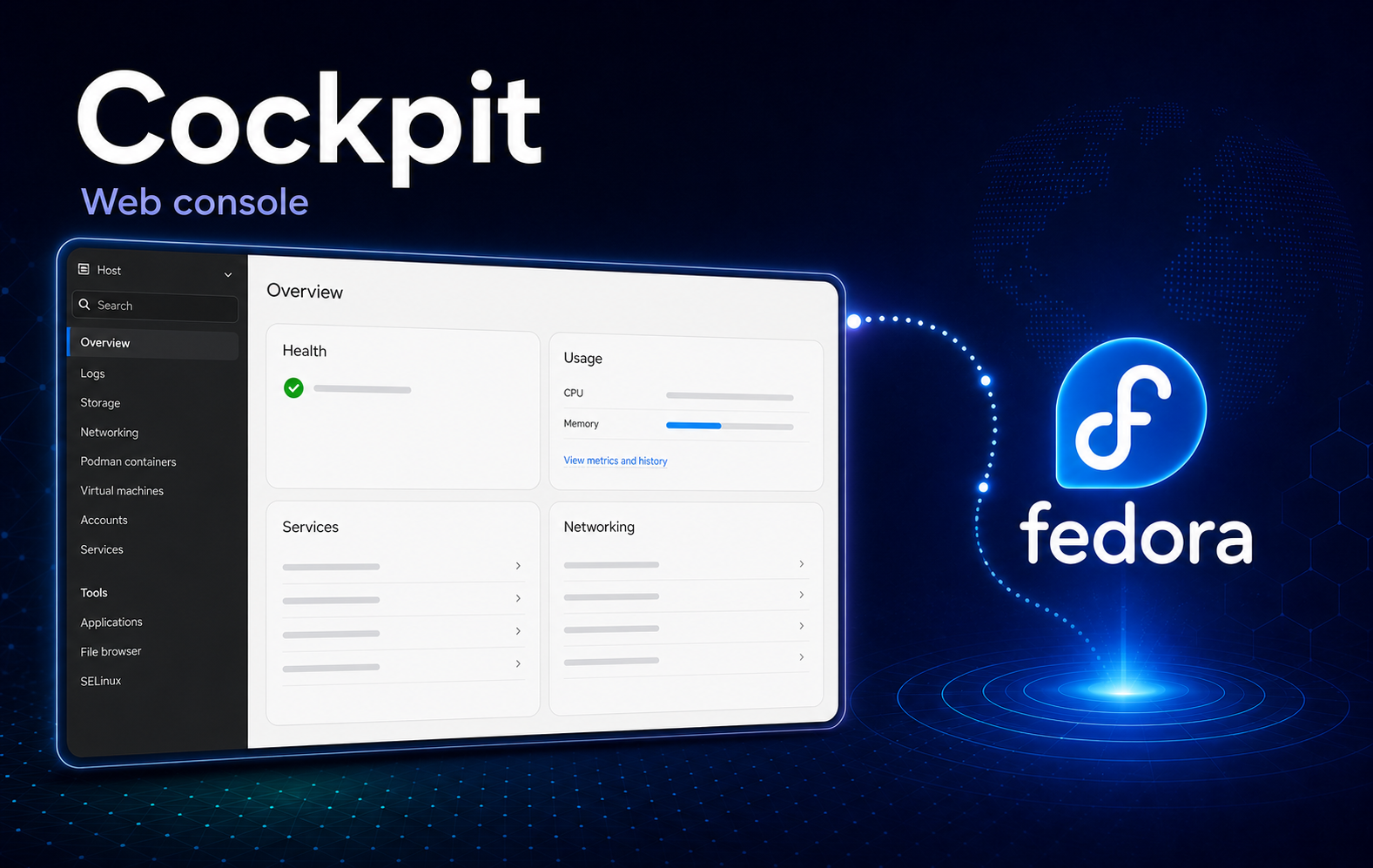
A Fedora host becomes easier to inspect from another computer when package state, logs, services, storage, and a terminal are available through one HTTPS dashboard. Installing Cockpit on Fedora uses the distribution package and a systemd socket, but remote access still depends on the listener, the active Firewalld zone, and the privileges of the account that signs in.
This installation path targets mutable Fedora Workstation, Server, and minimal installations. Fedora Server includes Cockpit by default, while Fedora CoreOS and Atomic desktops use different image-based or container workflows and are outside this DNF installation path.
Install Cockpit on Fedora Linux
Fedora provides Cockpit through its standard repositories. Check the package first because a Server installation may already have it installed.
Check Whether Cockpit Is Already Installed
Query the installed RPM database before starting a package transaction:
rpm -q cockpitAn installed system returns the full Cockpit package name. If RPM reports that the package is not installed, continue with the DNF steps. Fedora Workstation may already contain components such as cockpit-ws, cockpit-system, and cockpit-bridge without the cockpit metapackage; installing the metapackage completes Fedora’s supported package set. A present package does not prove that the web socket is enabled, so keep the service checks in the verification section.
Install Cockpit with DNF
Install the Fedora Cockpit package and its required components:
These package, service, and firewall commands require administrator access. Configure a suitable account with the steps for adding a user to sudoers on Fedora before continuing if the current account cannot use
sudo.
sudo dnf install cockpitDNF may report that the package is already installed. This is expected on Fedora Server and does not require reinstalling it. DNF can also select cockpit-packagekit as a recommended dependency, which supplies the Software Updates page in the dashboard.
Enable the Cockpit Socket
Cockpit uses systemd socket activation. Enable cockpit.socket at boot and start listening immediately:
sudo systemctl enable --now cockpit.socketDo not replace the socket unit with a permanently enabled cockpit.service. The web service starts on demand when a browser connects and can stop again when it is idle.
Verify the Package, Socket, and Listener
Check the installed package and the socket’s boot and runtime states:
rpm -q cockpit
systemctl is-enabled cockpit.socket
systemctl is-active cockpit.socket
The two systemd checks should report enabled and active. Next, confirm that the socket is listening on Cockpit’s default TCP port:
sudo ss -ltnp | grep -F ':9090'A matching listening socket proves that the local service endpoint exists. It does not prove that another computer can reach the host through Firewalld, a cloud firewall, a router, or network address translation.
For more detail on the unit states used here, see the systemctl command examples.
Allow Remote Cockpit Access Through Firewalld
Skip this section when Cockpit is used only through https://localhost:9090 on the Fedora machine. Remote clients need a local policy that permits TCP port 9090. The built-in cockpit service is the clearest explicit rule, although a broader zone rule may already allow the port.
Find the Active Firewalld Zone
Confirm that Firewalld is running, then inspect both the default zone and the zones attached to active interfaces:
sudo firewall-cmd --state
sudo firewall-cmd --get-default-zone
sudo firewall-cmd --get-active-zones
The active interface zone is the important result. It may differ from the default zone, especially after custom NetworkManager or server configuration. If the state check reports not running, do not start Firewalld blindly on a remote host. Confirm which local or upstream firewall currently protects the machine before changing the control plane.
Keep an independent SSH session or local console open while changing firewall access on a remote host. Do not close the recovery path until the Cockpit login and the rollback commands have been checked.
Set a shell variable to the zone that owns the network interface used by Cockpit clients. Replace FedoraServer with the exact active zone shown on the current host:
FW_ZONE=FedoraServerFedora Workstation commonly uses FedoraWorkstation, while Server and customised installations can use a different zone. Keep the same FW_ZONE value for the add, verification, and removal commands.
Check the Cockpit Firewalld Service and Existing Exposure
Inspect the built-in service definition and the current contents of the selected zone before changing anything:
sudo firewall-cmd --info-service=cockpit
sudo firewall-cmd --zone="$FW_ZONE" --list-all
The service definition should identify TCP port 9090. The zone listing also matters because a broad port range, rich rule, or permissive target can already allow that port even when the named cockpit service is absent.
If Firewalld reports that the service is unknown, do not substitute an unverified service name. Update the Fedora packages or use a deliberately scoped port rule after confirming the installed configuration.
Add and Verify the Cockpit Firewall Rule
Query the current runtime and permanent states first:
sudo firewall-cmd --zone="$FW_ZONE" --query-service=cockpit
sudo firewall-cmd --zone="$FW_ZONE" --permanent --query-service=cockpit
Record these two results. When both return yes, no named-service change is required. When either returns no, add only the missing runtime or permanent state with these guarded commands:
sudo firewall-cmd --zone="$FW_ZONE" --query-service=cockpit || sudo firewall-cmd --zone="$FW_ZONE" --add-service=cockpit
sudo firewall-cmd --zone="$FW_ZONE" --permanent --query-service=cockpit || sudo firewall-cmd --zone="$FW_ZONE" --permanent --add-service=cockpit
This pattern applies immediate and persistent access without a firewall reload that could discard unrelated runtime-only rules. Verify both states again:
sudo firewall-cmd --zone="$FW_ZONE" --query-service=cockpit
sudo firewall-cmd --zone="$FW_ZONE" --permanent --query-service=cockpit
Both queries should now return yes. These commands test whether the named service is attached to the zone; they are not complete reachability tests. A named-service rule documents the intent to allow Cockpit, but it does not narrow a zone that already exposes port 9090 through a broader rule. Likewise, a yes result cannot prove that an upstream router, VPN policy, or cloud firewall permits the connection.
Keep the original query results. The removal section should reverse only a runtime or permanent rule that changed from
notoyesduring this setup. Do not remove a Cockpit rule that another administrator or Fedora edition supplied.
The
cockpitservice allows every source accepted by that Firewalld zone to reach the login page. Prefer a trusted management LAN, private server network, VPN, or similarly restricted path instead of exposing port9090broadly to the internet. Firewalld does not configure cloud security groups, routers, or upstream network firewalls.
The Fedora Firewalld guide covers active zones, persistent rules, custom ports, and safe cleanup in more detail.
Access the Cockpit Web Console
Find global IPv4 and IPv6 addresses assigned to the Fedora host:
ip -4 -brief address show scope global
ip -6 -brief address show scope global
Open a browser on an allowed client and enter a resolvable hostname or host address with HTTPS and port 9090:
https://server-address:9090
https://[ipv6-address]:9090
Replace server-address with a hostname or IPv4 address. A raw IPv6 address requires the square brackets shown in the second format.
Handle the Initial Certificate Warning
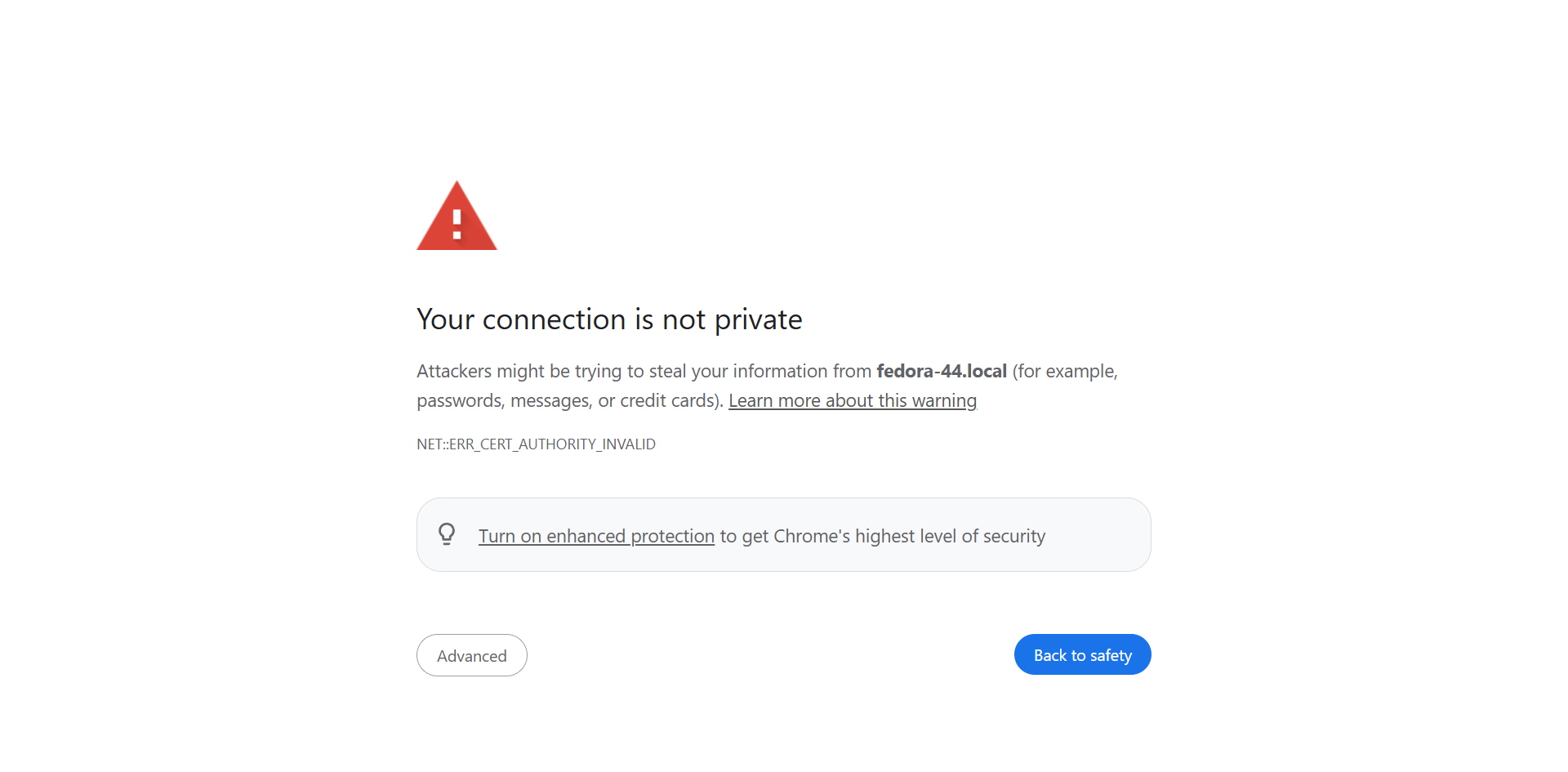
Cockpit uses HTTPS by default. When no administrator-provided certificate exists, Cockpit creates a self-signed certificate, so a new installation normally triggers a browser trust warning. Confirm that the address belongs to the intended Fedora host before accepting the warning on a trusted network.
Chrome labels a newly generated Cockpit certificate with the warning shown here. Other browsers use different wording, but the decision is the same: verify the hostname or IP address and the network path before opening the advanced option and continuing.
Check which certificate the web service will use:
sudo /usr/libexec/cockpit-certificate-ensure --checkFor a long-lived or shared server, replace the generated certificate with a trusted certificate rather than enabling unencrypted access. The official Cockpit HTTPS documentation explains the certificate directory and selection order.
Sign In with a Fedora System Account
Cockpit authenticates through the Fedora host’s PAM configuration by default. Enter an existing local Fedora username and password; the web console does not maintain a separate Cockpit account. The login page identifies the server at the bottom, so confirm that name before submitting credentials. The edition label follows the host; the captured Workstation page uses the same system-account workflow as Fedora Server.
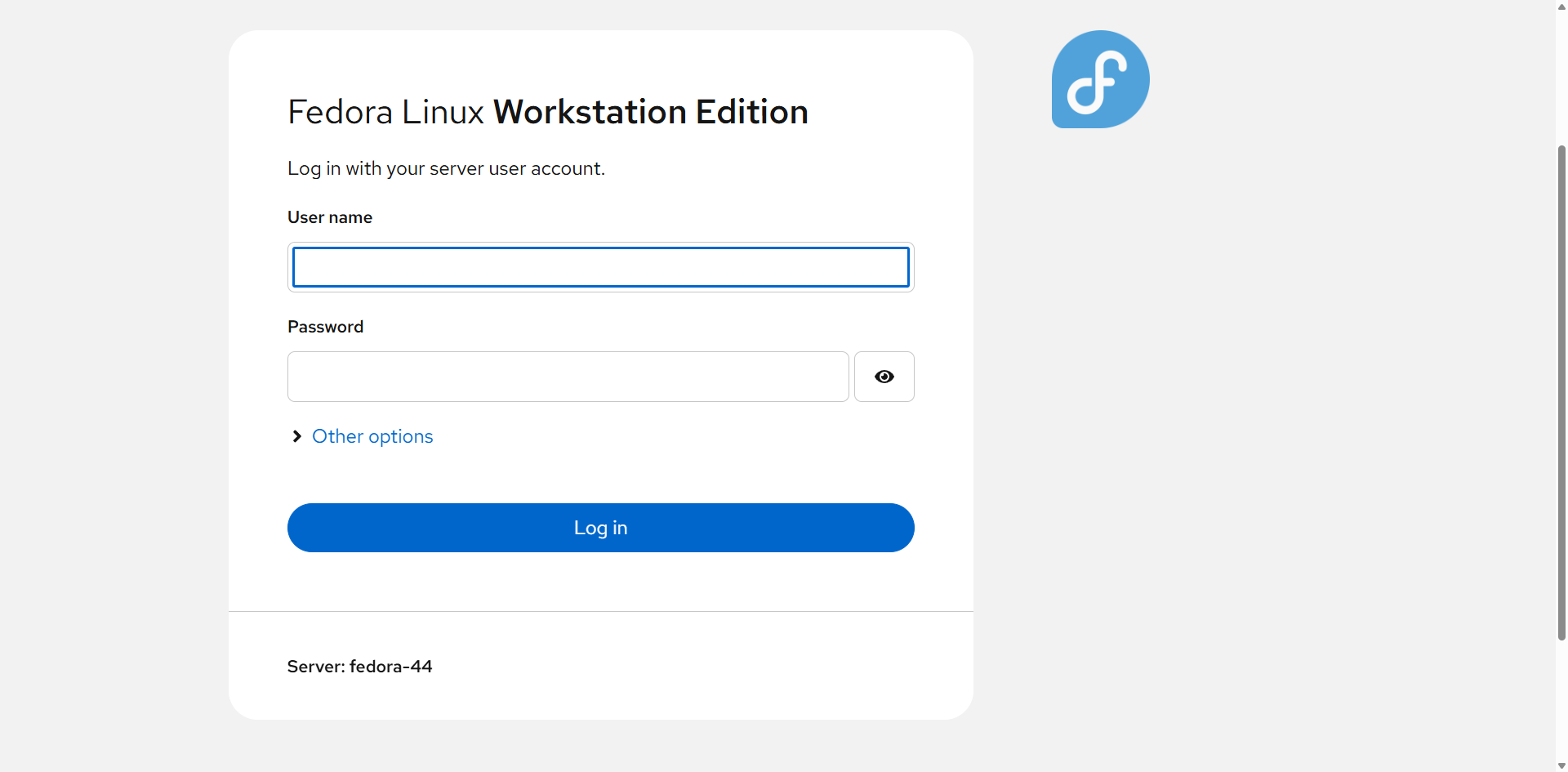
An SSH private key is not entered into this direct login form. If an account is configured for key-only SSH access and has no usable local password, configure a supported Cockpit authentication method instead of weakening the SSH policy.
Use Administrative Access Safely
A Cockpit session starts with the privileges of the account that signed in. Fedora users who can elevate with sudo, usually through the wheel group, can use the Administrative access control in the top bar for tasks that require root privileges.
A normal account can still view or use the pages allowed by its command-line permissions. Fedora’s Cockpit package disallows direct root login through /etc/cockpit/disallowed-users by default. Keep that protection and elevate a suitable wheel account when required.
Run First Checks in the Dashboard
A successful login should open the Overview page rather than returning to the sign-in form. The Fedora 44 dashboard shown below identifies the host and operating system, summarizes health and resource activity, and exposes the installed management pages in the navigation. A Limited access label is normal until a permitted user turns on administrative access for privileged tasks.
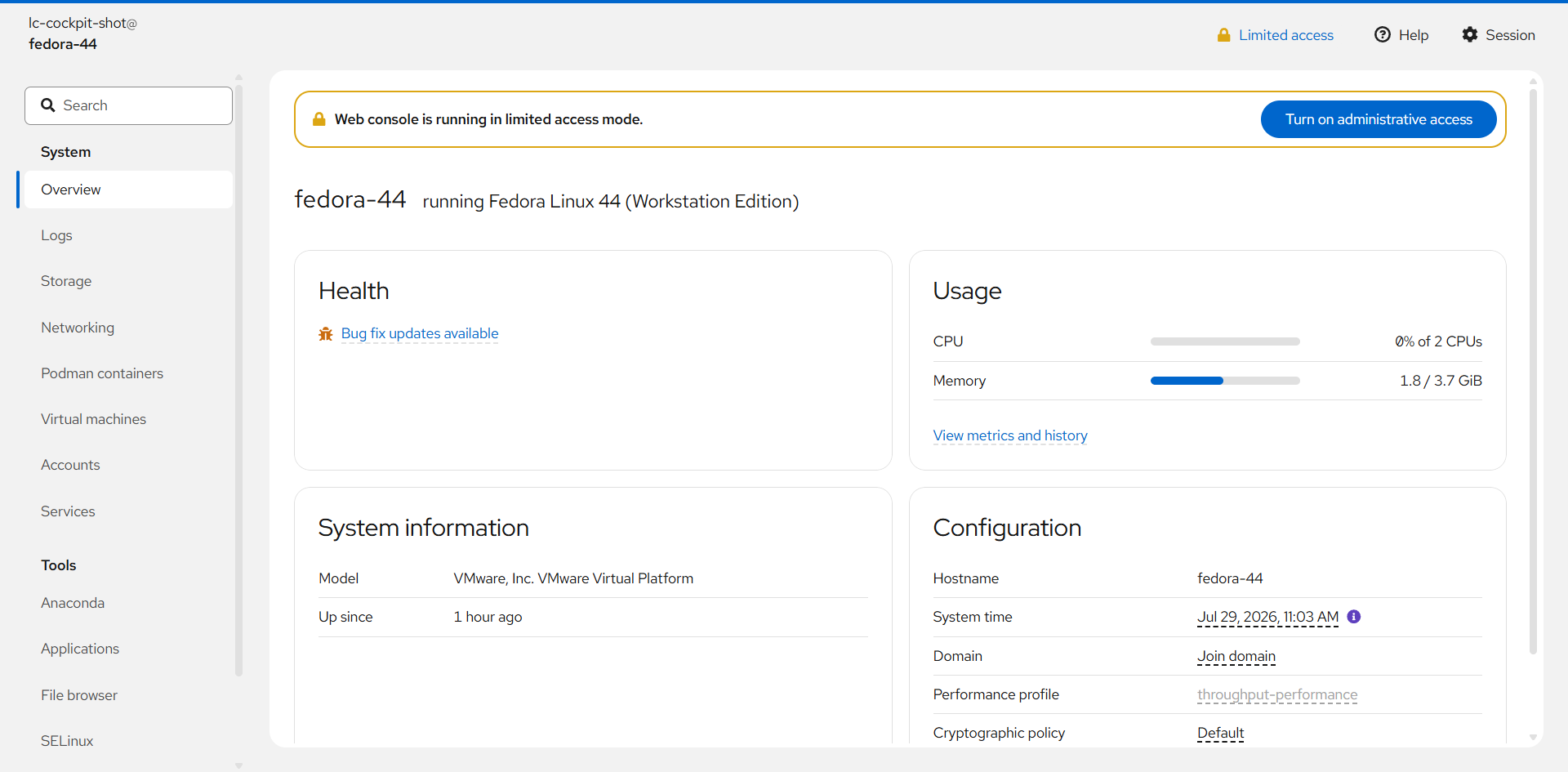
- Open Overview and confirm the expected hostname, operating system, time, and resource state.
- Open Logs and inspect recent warnings or failed services before making changes.
- Open Services and confirm that
cockpit.socketis listening, then inspect another service the host actually runs. - Open Terminal to confirm the signed-in user and compare Cockpit actions with normal Fedora commands.
The pages shown in the navigation depend on which Cockpit applications are installed.
Add Cockpit Applications on Fedora
Cockpit applications add focused pages instead of turning the base installation into an all-purpose management suite. Install only the components that match the host’s role.
| Package | Dashboard Page | Useful For |
|---|---|---|
cockpit-files | Files | Browsing and managing files through the web console. |
cockpit-podman | Podman containers | Inspecting images, containers, pods, and container logs. |
cockpit-machines | Virtual machines | Managing libvirt virtual machines on a prepared KVM host. |
cockpit-storaged | Storage | Managing disks, filesystems, mounts, RAID, and supported storage layers. |
cockpit-selinux | SELinux | Reviewing SELinux alerts and supported troubleshooting suggestions from setroubleshoot. |
Run only the installation lines for the pages needed on this system. DNF may report that a component is already installed because Fedora editions and previous package choices can provide different starting sets:
sudo dnf install cockpit-files
sudo dnf install cockpit-podman
sudo dnf install cockpit-machines
sudo dnf install cockpit-storaged
sudo dnf install cockpit-selinux
Run the matching RPM query for each selected package:
rpm -q cockpit-files
rpm -q cockpit-podman
rpm -q cockpit-machines
rpm -q cockpit-storaged
rpm -q cockpit-selinux
The cockpit-ws-selinux package supplies SELinux policy for the Cockpit web service and is separate from the optional cockpit-selinux dashboard application. Installing the dashboard application adds an interface for alerts; it is not required for Cockpit to use the standard port under Fedora’s default SELinux policy.
Reload the browser after installation. The new pages should appear without restarting cockpit.socket. A visible page proves the Cockpit component loaded, but the underlying workflow may still require host configuration such as libvirt networking, storage permissions, or Podman images.
The official Cockpit applications directory lists additional upstream and third-party components. Confirm Fedora package availability before installing a name from that broader directory.
Update Cockpit on Fedora
Cockpit and its installed applications receive updates through Fedora’s normal DNF transactions. Refresh metadata and apply available system updates:
sudo dnf upgrade --refreshReview the transaction before confirming on production or remotely managed hosts because this command can update packages beyond Cockpit. After the transaction, confirm the package and socket state:
rpm -q cockpit
systemctl is-active cockpit.socket
Reload the Cockpit browser tab after an update so the current web assets replace any cached interface files.
Remove Cockpit from Fedora
Remove network exposure added during setup and disable the socket before uninstalling the packages. Skip each Firewalld removal command when the matching runtime or permanent rule was already present.
Remove the Firewalld Rule
Confirm the active zone again and set FW_ZONE to the same zone used during setup:
sudo firewall-cmd --get-active-zones
FW_ZONE=FedoraServer
Run a removal command only for the corresponding state that changed from no to yes during setup:
sudo firewall-cmd --zone="$FW_ZONE" --remove-service=cockpit
sudo firewall-cmd --zone="$FW_ZONE" --permanent --remove-service=cockpit
Verify the states that were removed:
sudo firewall-cmd --zone="$FW_ZONE" --query-service=cockpit
sudo firewall-cmd --zone="$FW_ZONE" --permanent --query-service=cockpit
sudo firewall-cmd --zone="$FW_ZONE" --list-all
A state removed here should now return no. The broader zone listing is still required because another service, port range, rich rule, or zone target can leave port 9090 reachable after the named service is removed.
Disable and Uninstall Cockpit
Run the remaining removal commands from an independent SSH session or local console rather than Cockpit’s browser terminal. Disabling the socket can end the active web session.
Disable the socket immediately and for future boots:
sudo systemctl disable --now cockpit.socketIf optional applications were installed separately, remove each one that is no longer needed before removing the metapackage. Run only the matching command for an installed application:
sudo dnf remove cockpit-files
sudo dnf remove cockpit-podman
sudo dnf remove cockpit-machines
sudo dnf remove cockpit-storaged
sudo dnf remove cockpit-selinux
Remove the Cockpit metapackage and let DNF calculate which transaction-added dependencies are no longer needed:
sudo dnf remove cockpitReview each DNF removal transaction before confirming. Do not append
cockpit-ws,cockpit-system, orcockpit-bridgemerely because they are installed; a Fedora edition or earlier administration workflow may have supplied them before the metapackage. Do not run a blind autoremove after the transaction, because remaining dependencies may support another workflow on the host.
Confirm that the metapackage is absent and the socket is no longer active:
rpm -q cockpit
systemctl is-active cockpit.socket
RPM should report that cockpit is not installed, and systemd should report inactive. Core component packages can remain when they belonged to the Fedora installation before this procedure; the disabled socket prevents them from listening on port 9090.
Inspect /etc/cockpit/ separately when the host used custom certificates or configuration. Delete retained files only after confirming they are no longer required for a future reinstall or audit record.
Troubleshoot Cockpit on Fedora
Cockpit Is Installed but the Browser Cannot Connect
Separate the local listener from the remote network path. Check the socket, port, and unauthenticated health endpoint on the Fedora host:
systemctl is-active cockpit.socket
sudo ss -ltnp | grep -F ':9090'
curl --silent --show-error http://127.0.0.1:9090/ping
A working health endpoint returns a small JSON response containing "service": "cockpit". If the local checks pass but another computer cannot connect, inspect the active zone and its Cockpit rule:
sudo firewall-cmd --get-active-zones
FW_ZONE=FedoraServer
sudo firewall-cmd --zone="$FW_ZONE" --query-service=cockpit
sudo firewall-cmd --zone="$FW_ZONE" --list-all
Replace FedoraServer with the active zone from the first command. Also check any cloud firewall, router, VPN access control, or upstream network policy. A successful local Firewalld query cannot prove those separate control planes allow the connection.
Cockpit Service Appears Inactive
An inactive cockpit.service is not automatically a fault. The service starts when a client connects and can stop after inactivity. Check cockpit.socket and the port listener instead of forcing the service to run continuously.
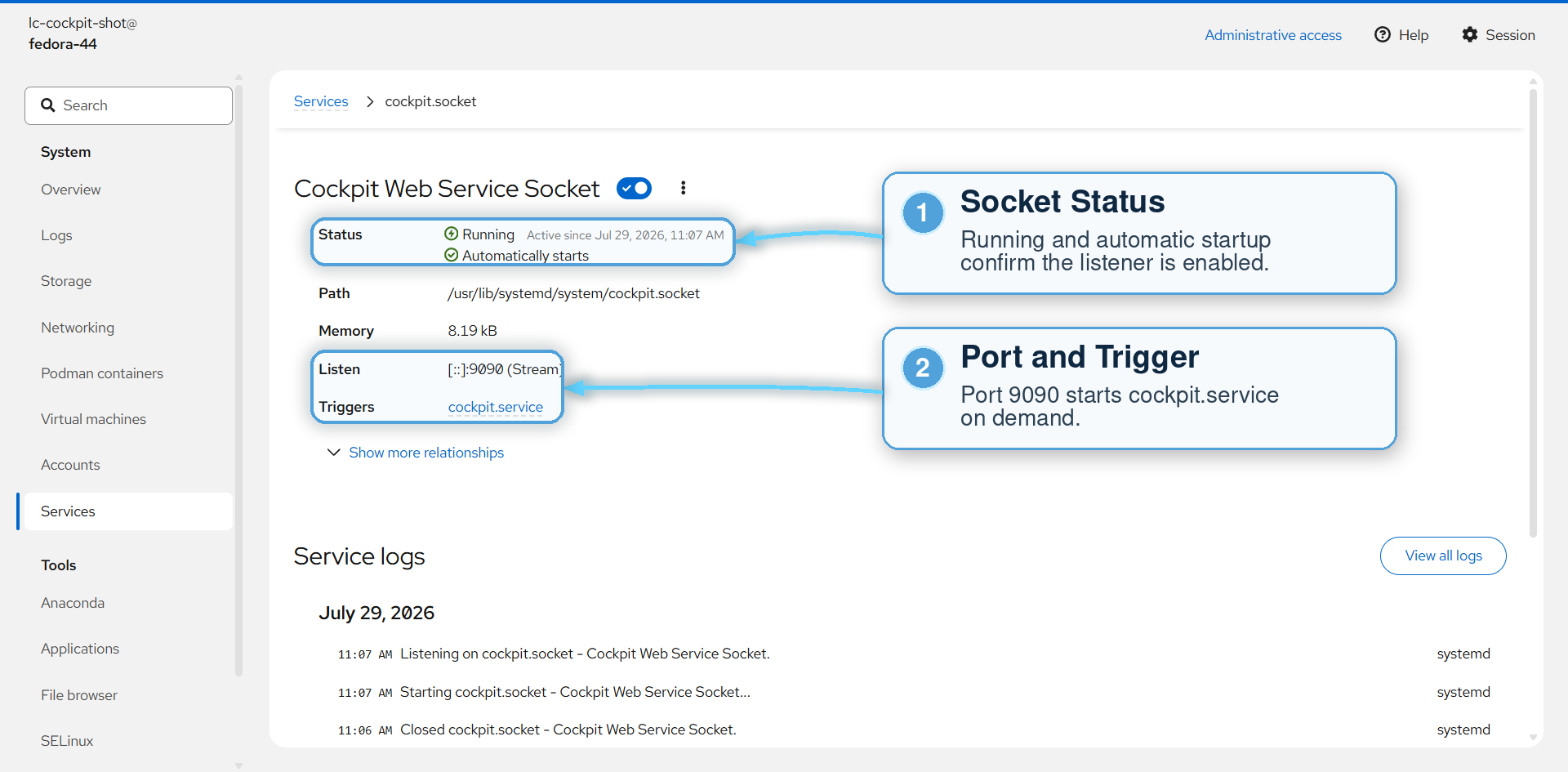
The Services page separates the persistent socket from the on-demand service. Open Services, select Sockets, and open cockpit.socket. A healthy Fedora setup shows the socket as running, enabled for automatic startup, listening on port 9090, and triggering cockpit.service when a client connects.
Login Works but Administrative Controls Are Unavailable
Confirm that the account can elevate from a normal terminal:
sudo -lIf sudo access is valid, sign out of Cockpit, start a fresh session, and use the Administrative access control. A user recently added to wheel may need a fresh login before the new group membership applies.
The Browser Shows a Certificate Error
A trust warning is normal with Cockpit’s generated self-signed certificate, but a hostname mismatch or unexpected certificate can also indicate the wrong host or stale configuration. Check the selected certificate again:
sudo /usr/libexec/cockpit-certificate-ensure --checkDo not disable HTTPS as a troubleshooting shortcut. Correct the hostname, certificate chain, or client trust path instead.
Review Cockpit Logs
Inspect current-boot messages from both the socket and the on-demand service:
sudo journalctl -u cockpit.socket -u cockpit.service -b --no-pagerLook for bind failures, certificate errors, PAM authentication failures, or package-load problems. The journalctl command guide covers filtering by boot, unit, priority, and time when the full log is noisy.
Check SELinux Without Disabling It
Fedora’s packaged Cockpit service includes SELinux policy, and port 9090 is assigned to the websm_port_t type. Enforcing mode is therefore expected and does not need an exception for the default configuration. Verify the policy package, mode, and port assignment:
rpm -q cockpit-ws-selinux
getenforce
sudo semanage port -l | grep '^websm_port_t'
The RPM query should return an installed package, getenforce should return Enforcing, and the port listing should include TCP and UDP port 9090. If semanage is unavailable on a minimal Fedora installation, install its Fedora provider with sudo dnf install policycoreutils-python-utils.
After reproducing a failure, search the recent audit log for Cockpit-specific denials:
sudo ausearch -m AVC,USER_AVC -ts recent -c cockpit-wsNo matching denial supports checking the socket, Firewalld zone, certificate, and client network path instead. If a denial appears, investigate the denied action and installed policy packages; do not disable SELinux or create a broad local allow rule as a shortcut.
Changing port 9090 requires coordinated systemd socket, SELinux port, and Firewalld changes. Use the official Cockpit port and address documentation rather than changing only one layer.
Conclusion
Cockpit is available through Fedora’s socket-activated HTTPS service, with the package, listener, and Firewalld checks matched to the host’s real network zone. Keep port 9090 limited to a trusted management path, leave SELinux enforcing, use a wheel-enabled account for administrative tasks, and install only the Cockpit applications needed for files, containers, virtual machines, storage, or SELinux diagnostics.


Formatting tips for your comment
You can use basic HTML to format your comment. Useful tags currently allowed in published comments:
<code>command</code>command<strong>bold</strong><em>italic</em><a href="https://example.com">link</a><blockquote>quote</blockquote>