Blender’s modelling, animation, rendering, and compositing tools are available directly from Fedora, so the main decision is which package source should own updates. To install Blender on Fedora Linux, use DNF on Workstation or another mutable spin for native RPM integration, or use Flatpak on Silverblue, Kinoite, and other Atomic desktops. The Flathub build uses a separate app and runtime update path, with different trust, architecture, and file-access trade-offs.
Install Blender on Fedora Linux
Choose a Blender Installation Method
Choose one method unless you deliberately need parallel builds. Installing both creates duplicate launchers, separate updates, and separate application profiles without adding Blender features.
| Method | Source | Updates | Best Fit | Trade-offs |
|---|---|---|---|---|
| DNF package | Fedora repositories | Fedora system updates or targeted DNF upgrades | Fedora Workstation and other mutable editions | Native integration and Fedora-managed libraries, but a large dependency footprint; Fedora 44 currently has the RPM color-management caveat described below |
| Flatpak | Flathub | Flatpak app and runtime updates | Fedora Atomic desktops and x86_64 users who want a bundled runtime | Community-provided, unverified, x86_64-only, and allowed broad host filesystem access |
Use Flatpak on Atomic editions, where desktop applications normally belong outside the immutable host image. On a mutable x86_64 desktop, use DNF when Fedora-managed integration matters more than a self-contained runtime. On Fedora 44, use Flatpak when color-sensitive work cannot tolerate the current RPM mismatch. The Flathub listing supports only x86_64; on another architecture, check for a Fedora package candidate with DNF.
Blender also publishes portable Linux archives for users who need parallel upstream versions. Those archives require manual extraction, launcher integration, updates, and cleanup, so they are not a third normal Fedora method here. The official Blender Linux installation documentation explains the portable workflow.
Check Blender Hardware Requirements
Check the current Blender system requirements before committing several gigabytes of disk space. Blender 5.2 requires a 64-bit Linux distribution with glibc 2.28 or newer, a four-core SSE4.2 processor, 8 GB RAM, and a GPU with at least 2 GB VRAM, OpenGL 4.3, and Vulkan 1.3. The OpenGL driver must also expose GL_ARB_shader_draw_parameters and GL_ARB_clip_control; reporting OpenGL 4.3 alone is not enough.
Install Blender with DNF on Fedora
Inspect Fedora’s current package candidate before installation. The result identifies the version and whether it comes from the fedora or updates repository.
dnf info blenderInstall the Fedora blender package and review the complete transaction before confirming:
sudo dnf install blenderThe package installs the blender command and a desktop entry for the application menu. A clean Fedora 44 Workstation transaction can add about 116 packages, download roughly 1.4 GiB, and consume about 4 GiB of disk space. Existing systems can require less, but the transaction is large enough to check before continuing. The dnf install examples for Fedora cover package queries and other useful transaction patterns.
Verify the Fedora Blender Package
Confirm the RPM package, active command path, and installed Blender version. The DNF method should resolve blender to /usr/bin/blender. Exact release numbers change as Fedora publishes updates, so the package, path, and version checks are more useful than fixed sample output.
rpm -q blender
command -v blender
blender --version
Install Blender with Flatpak on Fedora
Fedora Workstation and Atomic desktops normally include Flatpak. Check first so a trimmed mutable installation only adds the package when it is actually missing:
flatpak --versionIf the command is unavailable on Fedora Workstation, a mutable desktop spin, or another desktop-capable mutable installation, install Flatpak with DNF. Do not use host DNF package installation for this step on Silverblue, Kinoite, or another Atomic desktop, where Flatpak should already be present.
sudo dnf install flatpakFlathub currently labels this Blender package as community-provided and unverified, and lists only
x86_64. Its manifest grants access to the host filesystem, GPU devices, audio, and the network, so choose it as a packaging and update path rather than a strict isolation boundary.
Add Flathub at system scope. Fedora’s own Flatpak remote is separate and does not replace the flathub remote used by this method.
sudo flatpak remote-add --system --if-not-exists flathub https://dl.flathub.org/repo/flathub.flatpakrepoCheck the exact Blender app record before installation. The command should return metadata for the org.blender.Blender app ID from Flathub.
flatpak remote-info --system flathub org.blender.BlenderInstall Blender into the same system scope and review the runtime, permission, and download details before confirming the transaction.
sudo flatpak install --system flathub org.blender.BlenderVerify the Blender Flatpak
Confirm the installed app ID, version, origin, and system installation scope. Then inspect the effective permissions rather than assuming that Flatpak makes this Blender build strictly sandboxed.
flatpak info --system org.blender.Blender | grep -E '^[[:space:]]*(ID|Version|Origin|Installation):'
flatpak info --system --show-permissions org.blender.Blender
Launch Blender on Fedora Linux
Blender needs a logged-in graphical desktop session for normal use. Launch it from the application menu for daily work, or use a terminal when you need startup messages for troubleshooting.
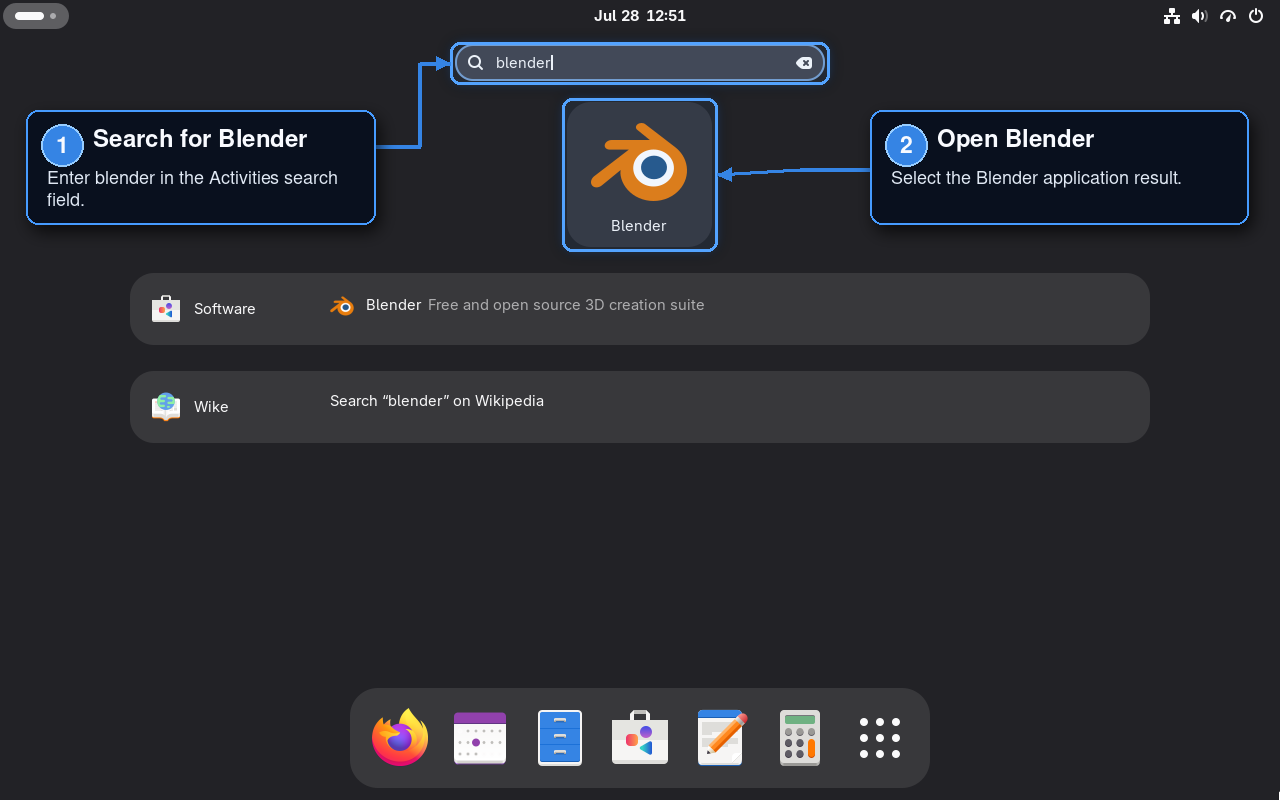
Launch Blender from Activities
Open Activities, search for Blender, and select the Blender launcher. The Fedora RPM and Flatpak methods both export desktop entries, although installing both can leave two visually similar results.
Launch Blender from the Terminal
Start the DNF-installed version with the host command:
blenderStart the Flathub version with its app ID:
flatpak run org.blender.BlenderRun Blender as your normal desktop user. Starting either build with sudo can create root-owned settings and exposes the graphical session to unnecessary privileges.
Confirm Blender Reaches the Default Workspace
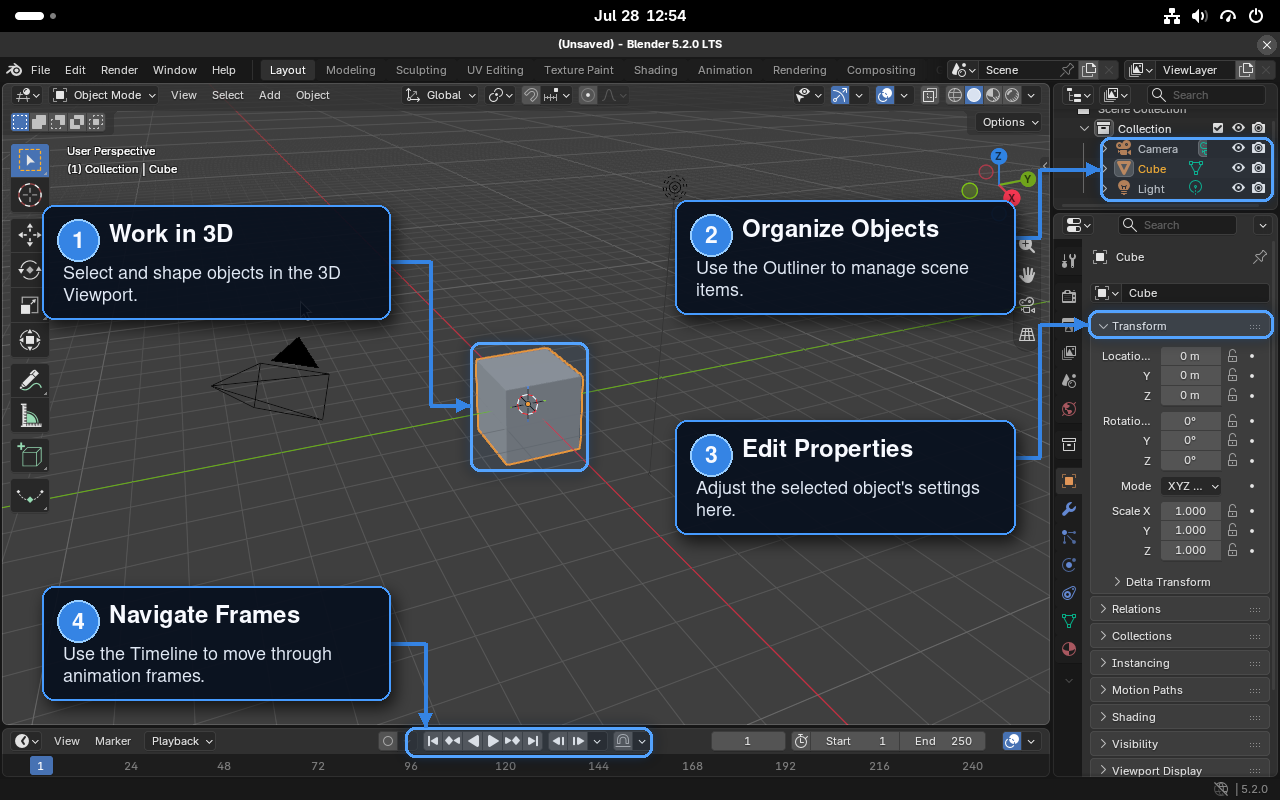
A successful first launch opens the default Layout workspace, with the 3D Viewport in the center, the Outliner and Properties editor on the right, and the Timeline along the bottom. If Blender closes before this workspace appears, continue to the GPU and display troubleshooting section.
Check Blender’s GPU and Render Device
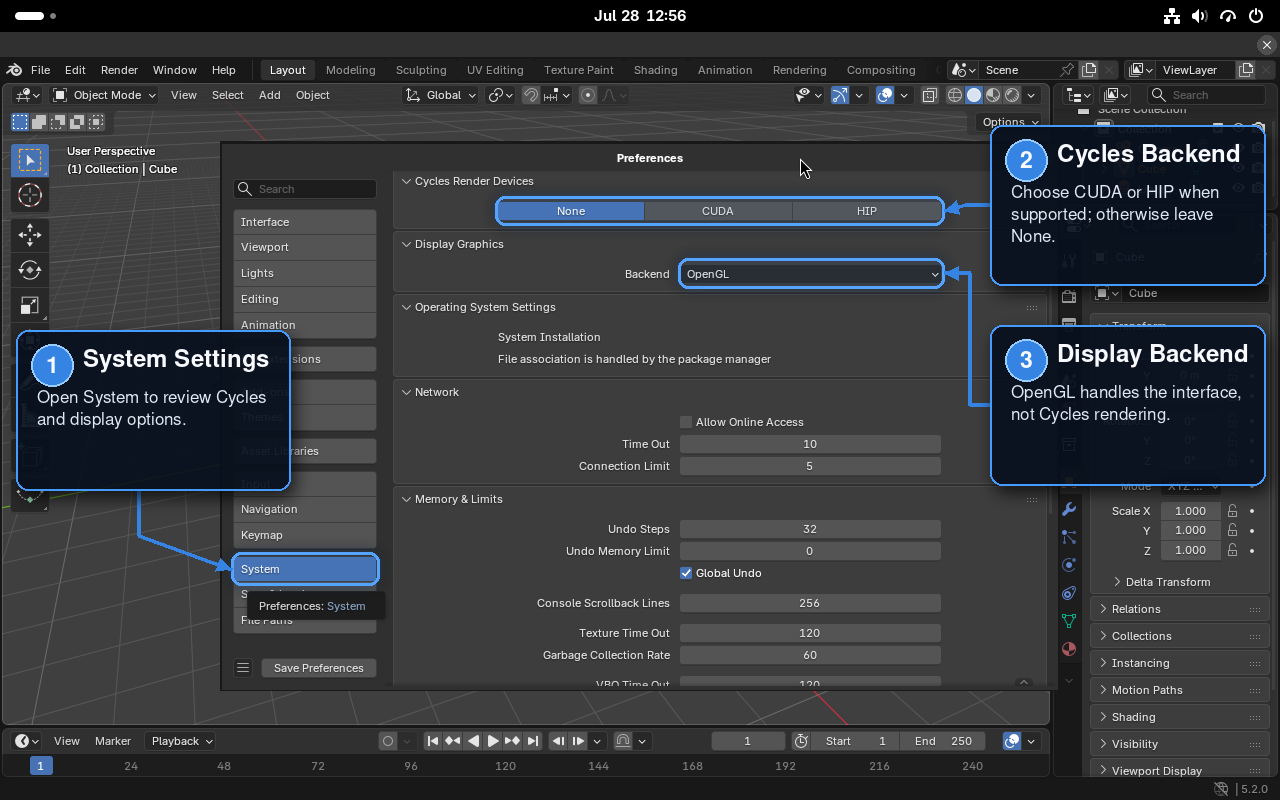
Open Edit > Preferences > System, select an available Cycles render backend, and enable the device you intend to use. For each scene that should use it, set Render Properties > Render Engine to Cycles and Device to GPU Compute. The official Blender GPU rendering documentation lists the current CUDA, OptiX, HIP, and oneAPI support boundaries.
Blender only lists the compute backends and devices exposed by the installed build and active graphics driver. The DNF and Flatpak builds can expose different rendering options because their libraries and packaging differ, but changing package source does not supply a driver capability the host lacks. Leave CPU rendering selected when no supported GPU device appears.
Update or Remove Blender on Fedora Linux
Update Blender Installed with DNF
Update the Fedora package and refresh repository metadata with one targeted transaction:
sudo dnf upgrade --refresh blenderUpdate Blender Installed with Flatpak
Update the Flathub app and any required runtime changes through Flatpak:
sudo flatpak update --system org.blender.BlenderRemove Blender Installed with DNF
Remove the Fedora package with DNF. Review the transaction because DNF can also propose dependencies that are no longer required by another installed package.
sudo dnf remove blenderPackage removal does not delete saved .blend projects or the current user’s Blender settings and cache.
Remove Blender Installed with Flatpak
Uninstall the system-scope Blender Flatpak first:
sudo flatpak uninstall --system org.blender.BlenderOptionally remove runtimes that are no longer required by any system-scope Flatpak application. This command is not limited to Blender, so review the proposed removals and cancel if anything unexpected appears.
sudo flatpak uninstall --system --unusedThe uninstall command leaves the current user’s Blender Flatpak profile in ~/.var/app/org.blender.Blender/ unless you remove it separately.
Optionally Delete Blender Settings and Cache
Inspect the native and Flatpak profile locations before deleting anything. Native Blender uses the XDG configuration and cache roots, while the Flatpak keeps its per-user state under ~/.var/app/.
find "${XDG_CONFIG_HOME:-$HOME/.config}/blender" \
     "${XDG_CACHE_HOME:-$HOME/.cache}/blender" \
     "$HOME/.var/app/org.blender.Blender" \
     -maxdepth 1 -type d 2>/dev/null
Deleting these directories removes preferences, startup files, extensions, presets, and caches for the current account. The native cleanup removes settings for every Blender version stored under that XDG root. Back up custom assets first, and check the Flatpak profile for any files you deliberately saved inside it.
Delete only the native profile and cache after removing the DNF package:
rm -rf "${XDG_CONFIG_HOME:-$HOME/.config}/blender" \
       "${XDG_CACHE_HOME:-$HOME/.cache}/blender"
Delete only the Flatpak profile after uninstalling the Flathub build:
rm -rf "$HOME/.var/app/org.blender.Blender"Troubleshoot Blender on Fedora Linux
DNF Cannot Find the Blender Package
Blender is published in Fedora’s standard repositories. Expire stale metadata, rebuild the cache, and query the package before retrying the installation.
sudo dnf clean expire-cache
sudo dnf makecache
dnf info blender
If dnf info blender still returns no package, check whether the standard fedora or updates repository has been disabled. Do not add RPM Fusion or an unrelated third-party repository just to obtain Blender.
Flatpak Cannot Find org.blender.Blender
List enabled and disabled remotes to distinguish an absent Flathub remote from one that exists but is disabled:
flatpak remotes --show-disabled --columns=name,optionsIf flathub appears as disabled at system scope, re-enable it:
sudo flatpak remote-modify --system --enable flathubIf no flathub entry exists, repeat the system-scope remote-add command from the Flatpak installation section. A user-scope remote is separate from the system-scope method documented here, so keep the remote, installation, update, and removal scope consistent.
Blender Opens with GPU or Display Errors
Current Blender releases require more than an OpenGL 4.3 version string. The driver must also provide Vulkan 1.3 and the mandatory GL_ARB_shader_draw_parameters and GL_ARB_clip_control OpenGL extensions. Run the matching command from a terminal inside your Fedora desktop session, reproduce the failure, and review the GPU messages printed before Blender closes.
For the DNF package:
blender --debug-gpuFor the Flatpak package:
flatpak run org.blender.Blender --debug-gpuA virtual GPU can report OpenGL 4.3 yet still lack a mandatory extension; switching from DNF to Flatpak does not repair a host-driver limitation. Apply Fedora updates, restart Blender after Mesa changes, and reboot after kernel or proprietary driver updates before testing the same package source again. NVIDIA users should confirm the driver path with the NVIDIA driver installation guide for Fedora.
For a Flatpak-only graphics mismatch, update all installed Flatpak applications and runtimes before retesting. Review the listed changes before confirming:
sudo flatpak update --systemFix OpenColorIO Fallback Color Management on Fedora 44
Fedora 44 currently packages Blender 5.2 with OpenColorIO 2.4.2. Blender’s installed color profile declares OCIO 2.5, so the DNF build can print an OpenColorIO Error and use fallback color management. The application can still initialize, but fallback color handling is not a sound basis for color-sensitive rendering.
Update both packages, then run a non-interactive startup check that initializes Blender’s Python API and exposes early color-management messages:
sudo dnf upgrade --refresh blender OpenColorIO
blender --background --factory-startup --python-expr 'import bpy; print(bpy.app.version_string)'
If the same OCIO version error remains, use the Flathub build or Blender’s official portable archive for color-managed work until Fedora publishes a compatible package pair. The Flathub build carries a separate runtime instead of using Fedora’s host OpenColorIO package pair.
Remove Duplicate Blender Launchers
Check whether both package sources are installed when Activities shows two Blender entries or the terminal opens a different build than expected.
rpm -q blender
flatpak info --system org.blender.Blender
Keep the method whose update path you intend to use, then remove the other package with the matching commands above. The host command blender belongs to the DNF package, while flatpak run org.blender.Blender always selects the Flathub build.
Conclusion
Once Blender opens without GPU or color-management fallback errors, select a verified render device under Edit > Preferences > System, save a small test project, and render one frame before moving production files into the new setup. Keep future updates and removal with the package manager that owns the working build so the desktop launcher, runtime, and application profile remain predictable.


Formatting tips for your comment
You can use basic HTML to format your comment. Useful tags currently allowed in published comments:
<code>command</code>command<strong>bold</strong><em>italic</em><a href="https://example.com">link</a><blockquote>quote</blockquote>