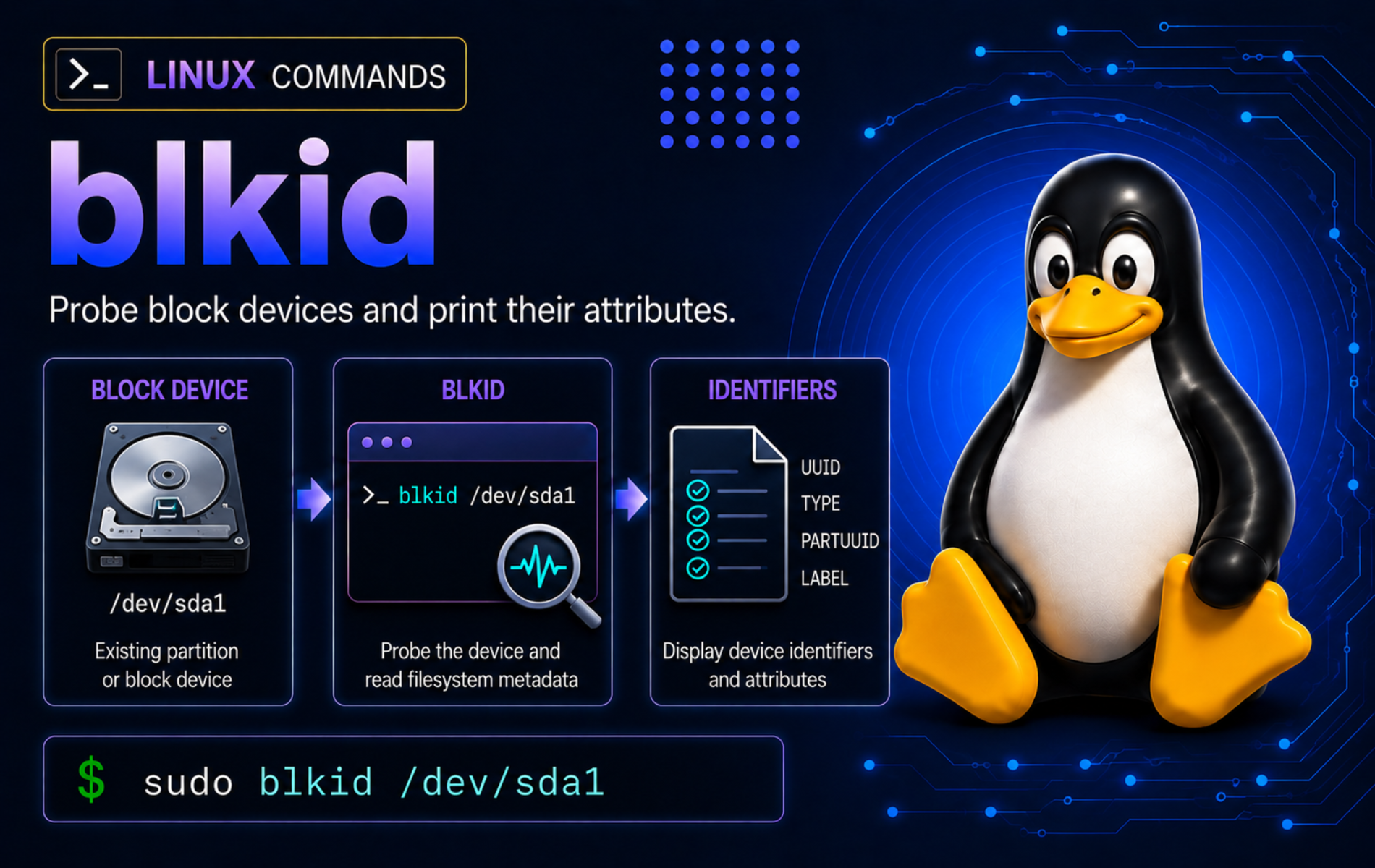
Stable storage identifiers matter the moment a device name can change after reboot, USB reconnect, controller changes, or virtual disk moves. The blkid command in Linux prints filesystem and block-device signatures such as UUID, LABEL, TYPE, PARTUUID, and related tags so you can confirm the right source before editing /etc/fstab, mounting storage, or troubleshooting a missing filesystem.
blkid comes from util-linux on mainstream Linux distributions. Use lsblk for a broad block-device map, findmnt for mounted filesystem relationships, and blkid when the task is signature-level identification or token lookup.
Understand the blkid Command Output
blkid reads recognizable signatures from block devices, partitions, swap areas, disk images, and some storage layers. With a device argument, it prints tags for that target. Without a device argument, it searches recognized devices from the system block-device list.
blkiditself is an identification command, but it often precedes destructive tools. Confirm the device path and mounted state before running commands such asmkfs,mkswap,wipefs, or partition editors.
blkid Command Syntax
blkid [OPTIONS] [DEVICE...]
blkid --uuid UUID
blkid --label LABEL
blkid --probe [OPTIONS] DEVICE...DEVICEis a block device, partition, logical volume, mapper device, swap area, or image file, such as/dev/sdb1,/dev/nvme0n1p2, ordisk.img.--uuidand--labellook up the device that owns one filesystem UUID or label.--probe, or-p, bypasses the normal cache path and performs low-level probing of the specified target.- Token output order is not a script contract. Use selected tags and machine-readable output when another command needs to parse the result.
Verify blkid Is Available
Full Linux installations usually provide blkid, but minimal images and some distributions may place it under /usr/sbin outside a normal user’s PATH. Resolve the executable before assuming the package is missing. On a current util-linux system, the check can produce the path and version shown here:
if blkid_path=$(command -v blkid 2>/dev/null || command -v /usr/sbin/blkid 2>/dev/null || command -v /sbin/blkid 2>/dev/null); then
    printf '%s\n' "$blkid_path"
    "$blkid_path" --version | head -n 1
else
    echo "blkid not found"
fi
/usr/sbin/blkid blkid from util-linux 2.42.1 (libblkid 2.42.1, 18-May-2026)
Prefer sudo blkid for real device probes when you need current on-disk information. Unprivileged blkid can return cached, unverified information on some systems.
Read Common blkid Tags
| Tag | Meaning | Use It For |
|---|---|---|
DEVNAME | Device or file that produced the record. | Confirm which target owns the following tags. |
UUID | Filesystem UUID stored inside the filesystem or swap signature. | Persistent /etc/fstab entries and device lookup. |
LABEL | Filesystem or swap label when one exists. | Human-friendly mounting when labels are unique. |
TYPE | Recognized content type, such as ext4, xfs, btrfs, swap, or crypto_LUKS. | Choose the right mount, repair, or recovery workflow. |
PARTUUID | Partition UUID from the partition table. | Boot and low-level partition references that are not filesystem UUIDs. |
PARTLABEL | Partition label from GPT or another partition table. | Distinguish partition metadata from filesystem labels. |
USAGE | Signature usage class, such as filesystem, raid, crypto, or other. | Filter low-level probes by storage role. |
UUID and PARTUUID are not the same value. Filesystem UUIDs belong to the content inside a partition or volume, while partition UUIDs belong to the partition table entry.
blkid Command Quick Reference
| Task | Command Pattern | What It Does |
|---|---|---|
| List recognized devices | sudo blkid | Prints tags for devices blkid recognizes. |
| Inspect one target | sudo blkid /dev/sdb1 | Shows tags for a specific partition or volume. |
| Show selected tags | sudo blkid -s UUID -s TYPE /dev/sdb1 | Limits output to the fields the task needs. |
| Print one value | sudo blkid -s UUID -o value /dev/sdb1 | Returns only the UUID value. |
| Use environment-style output | sudo blkid -o export /dev/sdb1 | Prints one KEY=value pair per line. |
| Find one label | sudo blkid -l -o device -t LABEL=data | Returns one device matching the filesystem label. |
| Find one UUID | sudo blkid -l -o device -t UUID=UUID_VALUE | Returns one device matching the filesystem UUID. |
| Find by type | sudo blkid -t TYPE=crypto_LUKS | Finds devices with the specified signature type. |
| Low-level probe | sudo blkid -p /dev/sdb1 | Bypasses the cache and reports low-level tags. |
| Filter low-level types | sudo blkid -p -n ext4,xfs,btrfs /dev/sdb1 | Checks only selected superblock formats. |
| Refresh cache entries | sudo blkid -g | Removes stale cache records for devices that no longer exist. |
Inspect Filesystem Identifiers with blkid
Start with a specific device whenever possible. A full sudo blkid scan is useful for orientation, but a targeted command is safer when the next step might use the value in a mount, backup, recovery, or cleanup workflow.
List Recognized Devices
Use sudo blkid to list recognized devices and signatures from the system block-device list:
sudo blkidThe result is host-specific. Device names, UUIDs, labels, partition tags, and filesystem types depend on the disks, partitions, logical volumes, encryption layers, and removable media attached when the command runs.
If the list is too noisy, identify candidates with lsblk first, then pass one exact device path to blkid. Use the fdisk command in Linux only when the problem is partition-table inspection or editing, not normal filesystem tag lookup.
Inspect One Device
Pass one partition, logical volume, mapper device, or disk image when the target is already known:
sudo blkid /dev/sdb1Replace /dev/sdb1 with the real target. A normal data filesystem usually lives on a partition or volume, not on the whole disk path such as /dev/sdb. Check the row type with lsblk before probing unfamiliar storage.
Show Only UUID and Type
Use repeated -s options when only selected tags matter. This keeps output short enough to compare before editing /etc/fstab or another persistent reference:
sudo blkid -s UUID -s TYPE /dev/sdb1Use LABEL, PARTUUID, or PARTLABEL the same way when those fields drive the next decision:
sudo blkid -s LABEL -s UUID -s TYPE /dev/sdb1Tag filtering changes visible output only. It does not make an unsafe device safe to format or mount.
Print One Raw UUID Value
Use -o value when a script or one-off command needs only the value of one tag:
sudo blkid -s UUID -o value /dev/sdb1Use this only after the device path is confirmed. A raw value without the device name is convenient for scripts but poor evidence when several terminals or devices are involved.
Use Export Output for Scripts
The export format is broadly available across older and newer util-linux releases. It prints one KEY=value pair per line and preserves field names, which is safer than parsing the default quoted line. For an ext4 filesystem, selected export output can look like this:
sudo blkid -s LABEL -s UUID -s TYPE -o export /dev/sdb1DEVNAME=/dev/sdb1 LABEL=data UUID=11111111-2222-3333-4444-555555555555 TYPE=ext4
For broad compatibility, prefer -o export over -o json. Current util-linux can support JSON, but older still-used releases may list only value, device, export, and full.
Bypass Cached Results for a Fresh Probe
Use -c /dev/null when you want blkid to avoid reading the normal cache for a specific check:
sudo blkid -c /dev/null -s LABEL -s UUID -s TYPE -o export /dev/sdb1This is useful after hotplug, cloning, formatting, or rescue work when stale cache data would be more confusing than helpful. Use sudo blkid -g separately to garbage-collect cache entries for devices that no longer exist.
Find Devices by UUID, Label, or Type
Token lookup answers the reverse question: which device owns this known tag? That is useful when an /etc/fstab entry, boot message, backup config, or recovery note gives you a UUID or label but not the current device name.
Find a Device by UUID
For an interactive lookup, use --uuid or -U with the exact filesystem UUID:
sudo blkid --uuid UUID_VALUEFor script-style output, use -l -o device -t UUID=... so the command returns a single device path when it finds a match:
sudo blkid -l -o device -t UUID=UUID_VALUEIf no device matches, blkid exits with status 2. It may print no error message, so scripts should check the exit status rather than depending on stderr.
Find a Device by Label
Labels are easier for humans to read, but they are safe only when unique. Use -l when you expect one best match:
sudo blkid -l -o device -t LABEL=dataThe convenient -L form also looks up labels, but portable scripts should prefer -l -o device -t LABEL=... because older e2fsprogs-era blkid used -L differently.
Find Devices by Filesystem or Signature Type
Search by TYPE when you need to find storage with a specific signature. This can identify encrypted containers, swap, or one filesystem family before choosing the next tool:
sudo blkid -t TYPE=crypto_LUKS
sudo blkid -t TYPE=swap
sudo blkid -t TYPE=btrfs
Search output can include more than one device. Use -l -o device only when one device is expected and a priority-based single result is acceptable.
Use Exit Status in Shell Checks
A shell check should branch on blkid success or failure. Replace UUID_VALUE first, then use this pattern to keep absence as an expected result instead of treating empty output as a parsing accident:
if sudo blkid -l -o device -t UUID=UUID_VALUE >/dev/null; then
    echo "UUID found"
else
    echo "UUID not found"
fi
Use the same pattern for labels or types. Avoid a blind pipeline that assumes empty output always means the same problem.
Practice blkid with Disposable Images
A disk image lets you test blkid output without probing a real disk. Run the practice commands in the same terminal session so the temporary directory and resolved helper paths stay available until cleanup.
The practice setup needs truncate, dd, mkfs.ext4, and mkswap. Some distributions keep storage helpers under /usr/sbin outside a normal user’s PATH, so resolve those paths before creating the images.
Check Practice Helper Paths
All checks should print a path. If one does not, skip this optional practice workflow or install the package that provides the missing helper before continuing.
command -v blkid || command -v /usr/sbin/blkid || command -v /sbin/blkid
command -v truncate
command -v dd
command -v mkfs.ext4 || command -v /usr/sbin/mkfs.ext4 || command -v /sbin/mkfs.ext4
command -v mkswap || command -v /usr/sbin/mkswap || command -v /sbin/mkswap
Create Practice Images
blkid_cmd=$(command -v blkid 2>/dev/null || command -v /usr/sbin/blkid 2>/dev/null || command -v /sbin/blkid 2>/dev/null)
mkfs_ext4=$(command -v mkfs.ext4 2>/dev/null || command -v /usr/sbin/mkfs.ext4 2>/dev/null || command -v /sbin/mkfs.ext4 2>/dev/null)
mkswap_cmd=$(command -v mkswap 2>/dev/null || command -v /usr/sbin/mkswap 2>/dev/null || command -v /sbin/mkswap 2>/dev/null)

BLKID_DEMO=$(mktemp -d "${TMPDIR:-/tmp}/blkid-demo.XXXXXX")
cd "$BLKID_DEMO"

truncate -s 64M ext4-demo.img
"$mkfs_ext4" -F -q -L LCEXT4 -U 11111111-2222-3333-4444-555555555555 ext4-demo.img

dd if=/dev/zero of=swap-demo.img bs=1M count=16 status=none
chmod 600 swap-demo.img
"$mkswap_cmd" -L LCSWAP -U 66666666-7777-8888-9999-aaaaaaaaaaaa swap-demo.img >/dev/null
The commands create regular files, not loop devices, mounts, or partition tables. They are still filesystem writers, so keep them inside the temporary directory and do not replace the image filenames with real device paths. The later image-based commands use "$blkid_cmd" so they still work when blkid lives outside the normal user PATH.
Probe the ext4 Image
Use low-level probing on the image file and select only the stable tags needed for the lesson:
"$blkid_cmd" -p -s LABEL -s UUID -s TYPE ext4-demo.imgext4-demo.img: LABEL="LCEXT4" UUID="11111111-2222-3333-4444-555555555555" TYPE="ext4"
The image behaves like a small ext4 filesystem for signature detection. Full output can include additional block-size and filesystem-size tags; -s keeps the example focused.
Use Export Output on the Image
"$blkid_cmd" -p -s LABEL -s UUID -s TYPE -o export ext4-demo.imgDEVNAME=ext4-demo.img LABEL=LCEXT4 UUID=11111111-2222-3333-4444-555555555555 TYPE=ext4
This format is easier for scripts and logs because each field has its own line. If the target is a real device, add sudo and use the verified device path.
Probe the Swap Image
Swap signatures use TYPE="swap" and normally belong to the other usage class, not the filesystem usage class:
"$blkid_cmd" -p -s LABEL -s UUID -s TYPE swap-demo.imgswap-demo.img: LABEL="LCSWAP" UUID="66666666-7777-8888-9999-aaaaaaaaaaaa" TYPE="swap"
Do not confuse the type check with enabling swap. blkid identifies the signature; swapon, swapoff, and /etc/fstab own swap activation.
Use Low-Level blkid Probing
Low-level probing with -p bypasses the normal cache path and reads the target directly. Use it when you are checking one known target, investigating stale output, validating a disk image, or looking for extra details after a normal lookup is blank or suspicious.
Probe One Device Directly
sudo blkid -p /dev/sdb1Low-level output can include different tag names than normal output, especially for partition-table details. Use it for diagnosis, not as a drop-in replacement for every script that expects normal blkid tags.
Filter by Usage Class
The next examples continue with the disposable images created earlier. The -u option limits low-level probing by usage class. For a filesystem target, a filesystem-only probe returns the matching tags:
"$blkid_cmd" -p -u filesystem -s LABEL -s TYPE -o export ext4-demo.imgDEVNAME=ext4-demo.img LABEL=LCEXT4 TYPE=ext4
A swap signature is not matched by -u filesystem. Use -u other or a type filter when swap is the target:
"$blkid_cmd" -p -u other -s LABEL -s TYPE -o export swap-demo.imgDEVNAME=swap-demo.img LABEL=LCSWAP TYPE=swap
Filter by Superblock Type
The -n option limits low-level probing to named superblock types. Use it when you have a narrow hypothesis and want to avoid reporting unrelated signatures:
"$blkid_cmd" -p -n ext4 -s LABEL -s TYPE -o export ext4-demo.img
"$blkid_cmd" -p -n swap -s LABEL -s TYPE -o export swap-demo.img
DEVNAME=ext4-demo.img LABEL=LCEXT4 TYPE=ext4 DEVNAME=swap-demo.img LABEL=LCSWAP TYPE=swap
Use comma-separated lists such as ext4,xfs,btrfs for related filesystem families. If the filter excludes the real signature, blkid can exit with status 2 even though the target contains a different recognizable signature.
List Known Signature Types
Use -k to print the known filesystem and RAID signature names compiled into the installed libblkid data. This example keeps using the resolved "$blkid_cmd" path from the practice setup:
"$blkid_cmd" -kThis is a capability list, not a list of devices on the system. Use a targeted blkid probe, lsblk, or findmnt when you need the devices or mounts actually present.
Clean Up the Practice Images
cd "$HOME" || cd /
rm -rf -- "$BLKID_DEMO"
unset BLKID_DEMO blkid_cmd mkfs_ext4 mkswap_cmd
The cleanup removes only the temporary directory created by the practice setup and clears the helper variables from the current shell.
Choose the Right Storage Identification Tool
blkid is strongest at signature and token lookup. Related tools answer adjacent storage questions, and choosing the right layer prevents risky guesses.
| Tool | Best For | Use Another Tool When |
|---|---|---|
blkid | Filesystem UUIDs, labels, types, partition tags, and low-level signature checks. | You need a readable whole-system device tree or mounted-path relationship. |
lsblk | Block devices, partitions, logical volumes, sizes, transport hints, filesystem columns, and mount columns. | You need direct signature probing or token lookup by UUID or label. |
findmnt | Current mounts, exact path ownership, mount options, and fstab validation. | The target is not mounted and you need on-disk filesystem tags. |
df | Mounted filesystem capacity, available space, use percentage, and inode checks. | You need UUID, label, partition metadata, or a block-device signature. |
fdisk | Partition-table listing and interactive partition edits. | You need filesystem identity without changing partition entries. |
wipefs | Previewing or removing filesystem, RAID, swap, and partition-table signatures. | You only need to identify the signature and should not erase anything. |
Use df command examples when the problem is free space on a mounted filesystem. Use fdisk only when partition tables are the task.
Troubleshoot Common blkid Problems
Most blkid failures come from checking the wrong layer, probing without permissions, expecting JSON on older util-linux, passing a Btrfs subvolume source as a device path, or treating an exit status of 2 as an ordinary shell failure instead of a meaningful no-match result.
blkid Command Not Found
First check whether the binary exists outside the normal user PATH:
command -v blkid || command -v /usr/sbin/blkid || command -v /sbin/blkidIf a privileged path appears, call that path directly or use sudo blkid for real device probes. If all checks fail, install the util-linux package family for the distribution:
| Distribution Family | Typical Package | Provider Note |
|---|---|---|
| Debian and Ubuntu | util-linux | Owns blkid on normal Debian-family systems. |
| Fedora and newer RHEL-family releases | util-linux-core | Fedora 44 and Rocky Linux 10 own blkid through this split package. |
| Older RHEL-family releases | util-linux | Rocky Linux 8 owns blkid through the older package layout. |
| Arch Linux and Manjaro | util-linux | The standard util-linux package owns the command. |
| openSUSE Leap | util-linux | Leap 16 can provide blkid under /usr/sbin. |
Do not remove or reinstall util-linux casually on a working system. It owns many core commands used by boot, storage, login, package, and recovery workflows.
blkid Prints No Output
No output can mean the target has no recognized signature, the device path is wrong, the current user is seeing only cached data, or the selected filter excluded the real signature. Check the device path and exit status first:
lsblk -o NAME,TYPE,FSTYPE,LABEL,UUID,MOUNTPOINT /dev/sdb
sudo blkid /dev/sdb1
printf 'blkid exit status: %s\n' "$?"
An exit status of 2 means blkid found no matching token, no identifiable content, or could not gather identifiers for that target. Confirm the device path before creating a new filesystem, because a missing signature can also be a recovery symptom.
Unprivileged blkid Shows Stale or Different Data
Normal users may receive cached, unverified values. Repeat the check with privileges and bypass the cache when the current on-disk state matters:
sudo blkid -c /dev/null -o export /dev/sdb1If the result changes, base storage edits on the privileged fresh probe, not the earlier cached value. Run sudo blkid -g when stale records for removed devices keep appearing in normal lookup output.
Btrfs Source Contains a Subvolume Suffix
On Btrfs systems, findmnt can show a source like /dev/nvme0n1p3[/root]. That bracketed suffix describes the filesystem root or subvolume path, not a device node that blkid can open.
findmnt -T / -o SOURCE,FSROOT,FSTYPEPass the device portion to blkid, such as /dev/nvme0n1p3, then use findmnt for the subvolume or mount relationship:
sudo blkid -s UUID -s TYPE -o export /dev/nvme0n1p3If you need the mounted path, options, or Btrfs subvolume root, stay with findmnt. If you need the filesystem UUID or type stored on the block device, use blkid against the device path.
blkid Reports JSON as an Invalid Format
Older util-linux builds may not support -o json. Check the installed help output before using JSON in a script:
blkid --help | grep -w jsonIf the command prints no match, use -o export with selected tags instead:
sudo blkid -s LABEL -s UUID -s TYPE -o export /dev/sdb1This fallback works on older releases that do not advertise JSON output and remains readable in logs.
Old Signatures Make Results Ambiguous
Reused disks and partitions can contain old filesystem, swap, RAID, LVM, encryption, or partition-table signatures. Normal blkid may silently ignore ambivalent results for safety, while low-level probing can return more diagnostic detail:
sudo blkid -p /dev/sdb1
sudo wipefs -n /dev/sdb1
The wipefs -n command previews signatures without erasing them. Remove signatures only when the device is intentionally being reused and backups or recovery requirements are already settled.
Conclusion
blkid gives you the signature-level evidence needed before persistent mounts, recovery checks, swap work, and storage cleanup. Use targeted device probes, selected tags, and -o export for scripts; switch to lsblk, findmnt, df, or fdisk when the question moves from identifiers to device layout, mount state, capacity, or partition tables.


Formatting tips for your comment
You can use basic HTML to format your comment. Useful tags currently allowed in published comments:
<code>command</code>command<strong>bold</strong><em>italic</em><a href="https://example.com">link</a><blockquote>quote</blockquote>