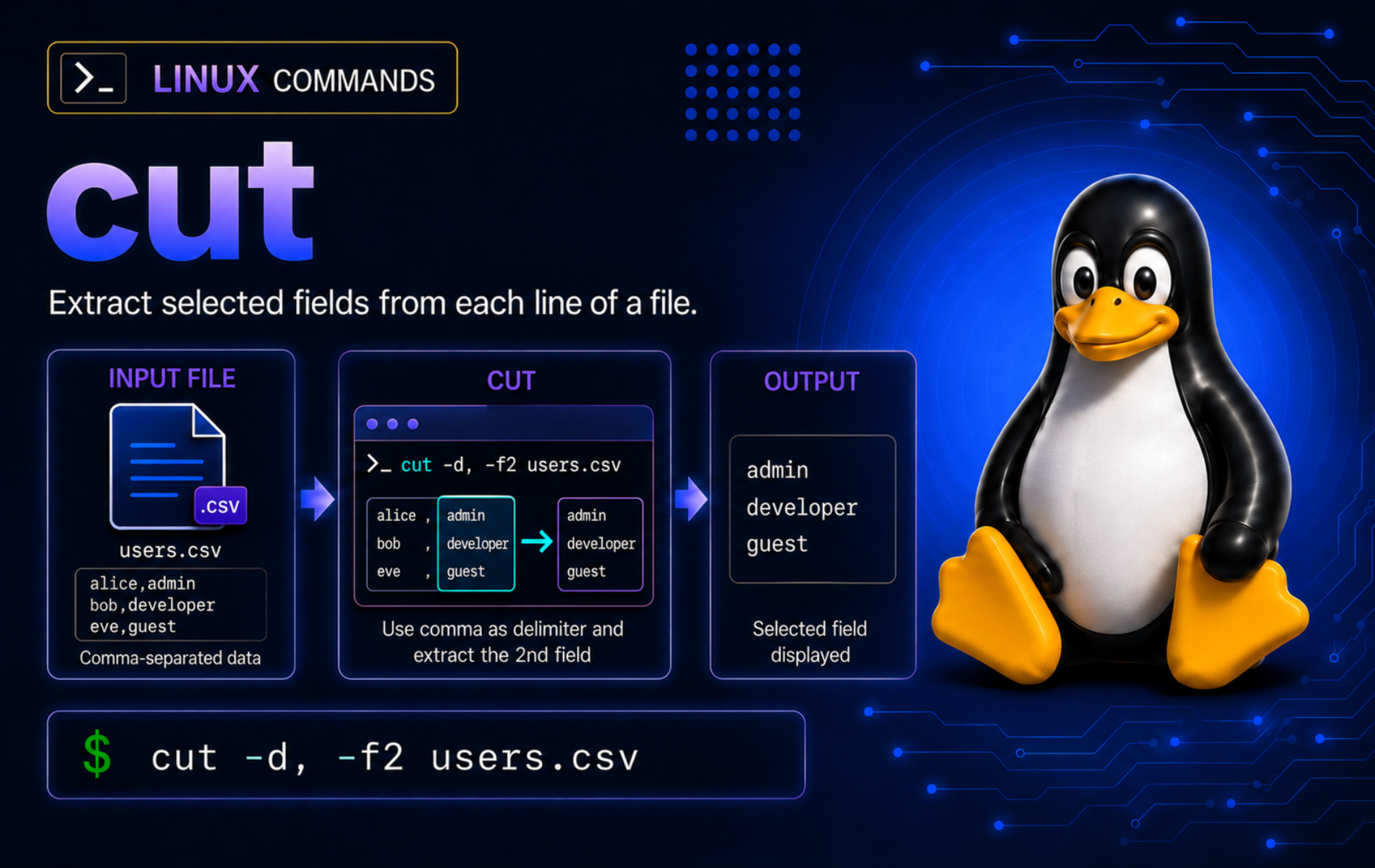
Delimited logs, account files, inventories, and simple reports are easier to inspect when you can extract only the fields you need. The cut command in Linux prints selected parts of each input line, making it useful for tabular text, colon-delimited records, fixed-position IDs, and lightweight pipelines where a full parser would be unnecessary.
Use cut when the input has predictable positions or one clear delimiter. Switch to awk, a CSV-aware parser, or another field-aware tool when the job needs quoted CSV handling, field reordering, calculations, repeated-space parsing, or conditional logic.
Understand the cut Command in Linux
cut reads each input line and writes the selected bytes, characters, or fields to standard output. With no file operand, or with - as a file operand, it reads standard input, so the same command works with files, redirection, and pipelines.
Basic cut Syntax
cut OPTION... [FILE]...OPTIONmust include one selection mode:-ffor fields,-cfor characters, or-bfor bytes. Some implementations also provide whitespace helpers such as-wor-F, but support is uneven across current Linux systems. Keep portable examples on-d,-f,tr, orawkunlesscut --helpon the target system lists the newer option.FILEcan be one file, several files, or-for standard input at that position.- If more than one file is supplied,
cutprocesses the lines in file order and does not print filenames unless another command adds them.
Choose Fields, Characters, or Bytes
The most important decision is the selection mode. Use fields for delimited data, characters for visible positions in simple text, and bytes for byte-oriented data where encoding matters.
| Task | Command Pattern | What It Does |
|---|---|---|
| Select tab-separated fields | cut -f 1 file.tsv | Prints the first field using the default tab delimiter. |
| Select fields with a delimiter | cut -d ':' -f 1,7 file | Splits each line on colons and prints fields 1 and 7. |
| Select a field range | cut -d ',' -f 2- file.csv | Prints field 2 through the end of each line. |
| Select character positions | cut -c 1-8 file | Prints character positions 1 through 8. |
| Select byte positions | cut -b 1-8 file | Prints byte positions 1 through 8. |
| Skip undelimited lines | cut -s -d '=' -f 2 file | Suppresses lines that do not contain the delimiter. |
| Exclude selected fields | cut -d ',' -f 2 --complement file | Prints every field except field 2. |
| Change output delimiter | cut -d ',' -f 1,4 --output-delimiter=' | ' file | Uses a different separator between selected output fields. |
| Read NUL-separated records | cut -z -d '.' -f 1 file | Treats NUL bytes as record separators instead of newlines. |
cut List Syntax and Output Order
The list after -f, -c, or -b uses 1-based positions. Use N for one position, N-M for a closed range, N- from position N to the end, and -M from the start through position M.
cut accepts repeated or out-of-order positions, but it prints selected input in the order it appears and prints each selected part once. This surprises readers who expect -f 4,2 to reorder columns.
printf 'a,b,c,d\n' | cut -d ',' -f 4,2,2b,d
Use awk command examples when the output needs a different field order, calculations, or conditional field logic.
Verify cut Availability and Implementation
Full Linux distributions normally provide cut through a coreutils package. Check the resolved command path when you are working inside a container, rescue shell, or distribution that may use a compatible implementation instead of GNU Coreutils.
readlink -f "$(command -v cut)"Example output:
/usr/bin/cut
Confirm the implementation before depending on exact help text or newer options. This example output is from GNU Coreutils 9.11:
cut --version | head -n 1Example output:
cut (GNU coreutils) 9.11
A compatible implementation may report a different banner instead:
cut (uutils coreutils) 0.8.0
The GNU Coreutils cut manual documents GNU behavior, including newer options that may not exist on older distributions or compatible replacements. For portable scripts, check cut --help on the target system before using options such as -w or -F.
Create Example Files for cut Practice
A disposable workspace keeps each example predictable and avoids touching real account, service, or log files. Create the practice files in your home directory:
mkdir -p ~/cut-demo
cd ~/cut-demo

printf 'name\trole\tshell\nalice\tadmin\t/bin/bash\nbob\tanalyst\t/usr/bin/zsh\ncarol\tops\t/bin/sh\n' > staff.tsv
printf 'service,port,owner,status\nnginx,80,web,active\npostgres,5432,data,active\nredis,6379,cache,standby\n' > services.csv
printf '2026-06-18T10:15:03Z web01 nginx restart\n2026-06-18T10:16:44Z db01 postgres backup\n' > activity.log
printf 'root:x:0:0:root:/root:/bin/bash\ndeploy:x:1001:1001:Deploy User:/home/deploy:/usr/sbin/nologin\n' > passwd-demo.txt
printf 'key=value\nplainline\npath=/usr/bin\n' > settings.txt
printf 'alpha   beta gamma\ndelta  epsilon zeta\n' > mixed-spacing.txt
printf 'report-alpha.txt\0report beta.txt\0' > names0.txt

ls -1
Example output:
activity.log
mixed-spacing.txt
names0.txt
passwd-demo.txt
services.csv
settings.txt
staff.tsv
Preview the tab-separated file before the first examples. The spaces you see between columns are tab characters created by \t in the setup command.
cat staff.tsvname role shell alice admin /bin/bash bob analyst /usr/bin/zsh carol ops /bin/sh
Use cat command examples when you need to inspect a small input file before deciding which field positions to select.
Extract Fields with the cut Command
Select One Tab-Separated Field
Use -f without -d when the file is tab-separated. The first field in staff.tsv is the name column:
cut -f 1 staff.tsvname alice bob carol
The default delimiter is a tab, not a space. If the input uses spaces, commas, colons, or another separator, set the delimiter explicitly with -d.
Select Multiple Tab-Separated Fields
Separate field numbers with commas to print more than one field. This command keeps the name and shell columns:
cut -f 1,3 staff.tsvname shell alice /bin/bash bob /usr/bin/zsh carol /bin/sh
For tab-separated input, cut keeps tabs between selected fields unless you set a different output delimiter.
Use a Comma Delimiter
Use -d ',' for simple comma-separated rows where commas do not appear inside quoted values. This command selects the service name and status columns:
cut -d ',' -f 1,4 services.csvservice,status nginx,active postgres,active redis,standby
cut treats every comma as a delimiter. Real CSV with quoted commas needs a CSV-aware parser instead of cut.
Extract Colon-Delimited Fields
Colon-delimited text is common in account-style files. This example uses a safe demo file and prints the username plus login shell fields:
cut -d ':' -f 1,7 passwd-demo.txtroot:/bin/bash deploy:/usr/sbin/nologin
The same pattern applies to real colon-delimited files, but use a copied sample when you are learning. Do not edit system account files to create command examples.
Select a Range of Fields
Use a trailing range when you want a column and everything after it. This command removes the first field from each comma-separated row:
cut -d ',' -f 2- services.csvport,owner,status 80,web,active 5432,data,active 6379,cache,standby
Use -3 for the first three fields, 2-4 for a closed range, and 2- from field 2 through the end.
Extract Fields from Simple Log Lines
cut works well on log-like text when each row uses a consistent single-character delimiter. The activity.log practice file uses one space between the timestamp, host, service, and action fields, so selecting fields 2 and 3 prints the host and service:
cut -d ' ' -f 2,3 activity.logweb01 nginx db01 postgres
If the log uses variable-width spacing, normalize the spacing first or use awk. Literal single-space delimiters treat repeated spaces as empty fields.
Control cut Output
Change the Output Delimiter
Use --output-delimiter when selected fields should appear with a clearer separator than the input delimiter. This example prints two comma-separated fields with a pipe separator in the output:
cut -d ',' -f 1,4 --output-delimiter=' | ' services.csvservice | status nginx | active postgres | active redis | standby
The output delimiter appears between selected fields or ranges. It does not convert the entire file to a new format when only one field is selected.
Exclude Fields with Complement
Use --complement when it is shorter to name the field you want to remove. This command prints every field except the port column:
cut -d ',' -f 2 --complement services.csvservice,owner,status nginx,web,active postgres,data,active redis,cache,standby
--complement is useful on wide records where you only need to drop one or two fields. It is a GNU extension, so check cut --help before using it in very small rescue environments.
Skip Lines Without the Delimiter
By default, field mode prints lines that do not contain the delimiter unchanged. Inspect the settings practice file first:
cat settings.txtkey=value plainline path=/usr/bin
Select field 2 with an equals-sign delimiter:
cut -d '=' -f 2 settings.txtvalue plainline /usr/bin
The undelimited line appears because cut did not find = and printed the whole line. Add -s when only delimiter-matching lines should survive:
cut -s -d '=' -f 2 settings.txtvalue /usr/bin
This is one of the safest habits when extracting values from mixed configuration-style text.
Cut Characters and Bytes
Select Character Positions
Use -c when the visible character positions matter and the input is simple enough for positional extraction. This example keeps the server prefix from a short identifier:
printf 'server01\n' | cut -c 1-6server
Character-position examples are safest with ASCII-like identifiers, fixed prefixes, and simple log fields. For human-language UTF-8 text, verify your locale and implementation before relying on character slicing.
Extract Fixed-Width Timestamps
Character ranges are useful when a log starts with a fixed-width timestamp. The first 20 characters in activity.log contain the ISO-like timestamp before the first space:
cut -c 1-20 activity.log2026-06-18T10:15:03Z 2026-06-18T10:16:44Z
This works because every timestamp in the practice file has the same width. If the timestamp format changes, inspect the file again before reusing the range.
Select Byte Positions
Use -b when byte offsets are the real contract. This command prints the final two bytes from the same ASCII identifier:
printf 'server01\n' | cut -b 7-01
Byte and character positions are not interchangeable for all text. UTF-8 characters can occupy multiple bytes, and common Linux implementations or locales can handle character slicing differently. Use a Unicode-aware tool when slicing human-language text by character is the actual requirement.
Read NUL-Separated Records
Use -z when input records are separated by NUL bytes instead of newlines. This is useful when a previous command uses NUL-safe output for filenames. The demo file contains two NUL-separated names:
cut -z -d '.' -f 1 names0.txt | tr '\0' '\n'report-alpha report beta
The tr command only converts NUL bytes to newlines for display. Keep the NUL-separated form when the next command expects NUL-safe input; use tr command examples when the job is character cleanup or delimiter conversion.
Know When cut Is the Wrong Tool
Normalize Repeated Spaces Before cut
cut -d ' ' treats each single space as a delimiter. Repeated spaces create empty fields, so the second field in mixed-spacing.txt is empty on both lines. Normalize runs of spaces before cutting when the data is simple enough for that transformation:
tr -s ' ' < mixed-spacing.txt | cut -d ' ' -f 2beta epsilon
Use awk instead when whitespace is the natural field separator and you do not need to preserve exact spacing.
Do Not Use cut as a Real CSV Parser
cut does not understand CSV quoting rules. It splits on every delimiter character, even when that character appears inside quotes:
printf 'web,80,active\n"web,public",80,active\n' | cut -d ',' -f 1web "web
That output is correct for cut but wrong for CSV. Use a CSV-aware parser when quoted fields, escaped quotes, embedded newlines, or commas inside values are possible.
Use awk When You Need Reordered Fields
cut cannot reorder selected fields. Requesting fields 4 and 1 still prints field 1 before field 4 because the selected data is written in input order:
cut -d ',' -f 4,1 services.csvservice,status nginx,active postgres,active redis,standby
Use awk when the output order is part of the task:
awk -F ',' '{ print $4 "," $1 }' services.csvstatus,service active,nginx active,postgres standby,redis
Troubleshoot Common cut Errors
Fix cut: you must specify a list of bytes, characters, or fields
This error appears when cut receives a file but no selection mode. Reproduce it with the demo TSV file:
cut staff.tsvcut: you must specify a list of bytes, characters, or fields Try 'cut --help' for more information.
Choose the mode that matches the input. For tab-separated fields, use -f:
cut -f 1 staff.tsvname alice bob carol
Fix cut: fields are numbered from 1
cut field, character, and byte lists start at 1. A zero position is invalid and exits with a diagnostic:
cut -d ',' -f 0 services.csvcut: fields are numbered from 1 Try 'cut --help' for more information.
Use -f 1 for the first field, -f 2 for the second field, and range forms such as -f 2- when the selection continues through the end of the line. Retest with a valid field number:
cut -d ',' -f 1 services.csvservice nginx postgres redis
Fix cut: the delimiter must be a single character
cut -d accepts one delimiter character. A multi-character delimiter triggers an error:
cut -d '::' -f 1 passwd-demo.txtcut: the delimiter must be a single character Try 'cut --help' for more information.
Use a single-character delimiter when the data supports it:
cut -d ':' -f 1 passwd-demo.txtroot deploy
For true multi-character delimiters, switch to a tool that supports regular expression separators, such as awk -F '::'.
Fix Whole Lines Appearing in Field Output
If cut prints lines that do not contain your delimiter, the command is using the default field-mode behavior. Confirm the symptom with settings.txt:
cut -d '=' -f 2 settings.txtvalue plainline /usr/bin
Retest with -s to suppress undelimited lines:
cut -s -d '=' -f 2 settings.txtvalue /usr/bin
Fix Empty Output from Space-Delimited Fields
Repeated spaces create empty fields when the delimiter is one literal space. Make the blank output visible with cat -vet:
cut -d ' ' -f 2 mixed-spacing.txt | cat -vet$ $
Normalize repeated spaces before using cut, or use awk for whitespace-delimited fields:
tr -s ' ' < mixed-spacing.txt | cut -d ' ' -f 2beta epsilon
Clean Up cut Practice Files
Remove the disposable workspace when you are finished practicing:
Removing
~/cut-demopermanently deletes the practice files created by the setup section. Check the path before running the cleanup command if you reused the directory for anything else.
cd ~
rm -rf -- ~/cut-demo
Conclusion
The cut command is ready for stable, line-oriented text where fields or positions are predictable. Keep it for simple extraction, normalize messy delimiters before cutting, and switch to awk or a CSV-aware parser when ordering, quoting, calculations, or conditional logic matter.


Formatting tips for your comment
You can use basic HTML to format your comment. Useful tags currently allowed in published comments:
<code>command</code>command<strong>bold</strong><em>italic</em><a href="https://example.com">link</a><blockquote>quote</blockquote>