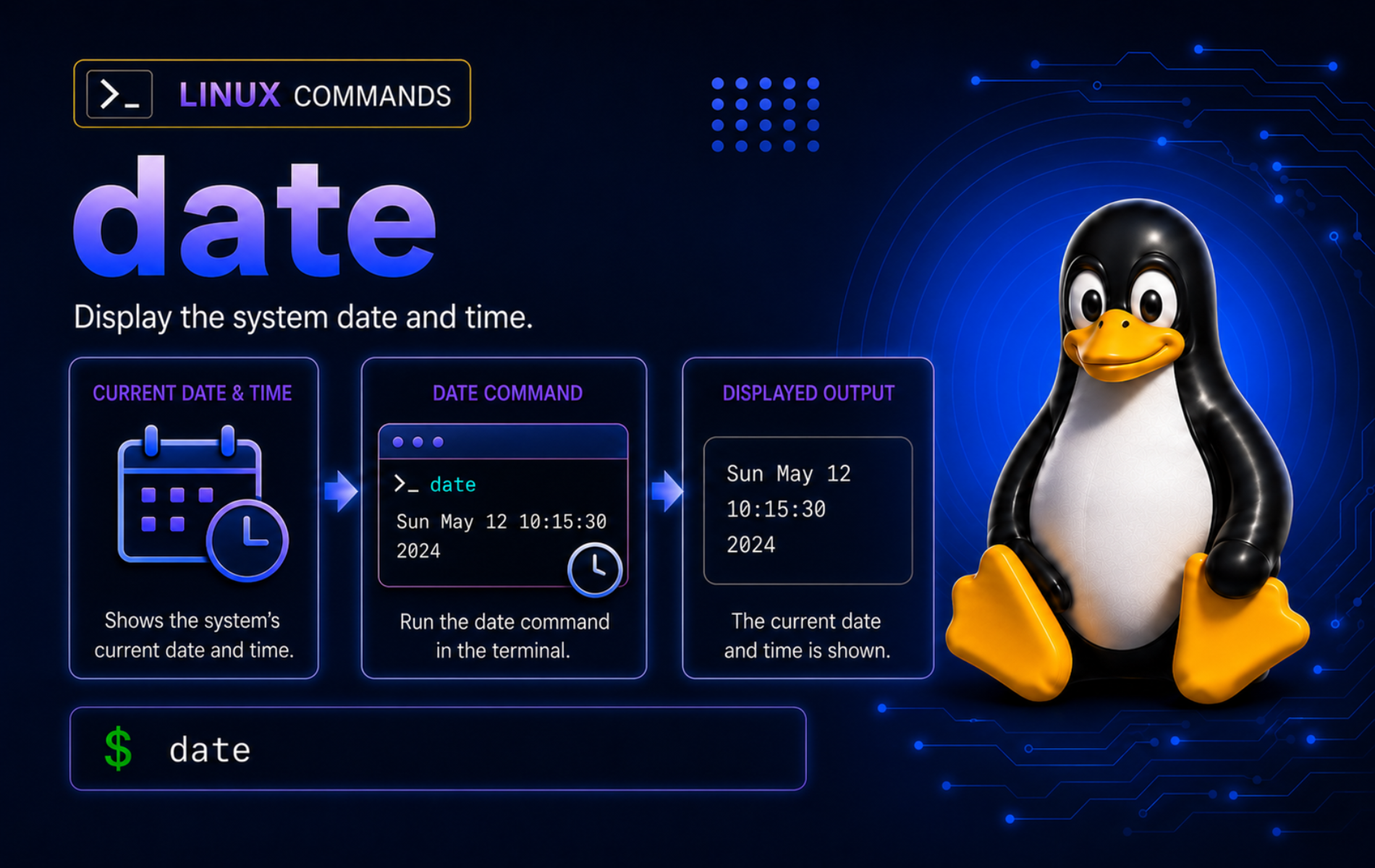
Timestamps become useful only when they are predictable: log names sort correctly, scripts compare the right instant, and timezone output is clear enough to trust later. The date command in Linux prints current time, formats timestamps, parses date strings, converts epoch values, and reads file modification times for shell workflows that need repeatable time handling.
Most Linux systems provide date through GNU Coreutils, but some current systems use compatible uutils builds and minimal images may expose a smaller BusyBox applet. Check the local implementation before relying on GNU-style parsed dates, --debug, --rfc-3339, nanosecond output, or timezone conversion details.
Understand the date Command in Linux
date has two jobs: it displays a time value, or it sets the system clock when used with privileged set-time options. Normal command-line work should treat date as a display and conversion tool. Setting the system clock is a separate administration task that can conflict with NTP, systemd-timesyncd, chrony, or another time synchronization service.
date Command Syntax
date [OPTION]... [+FORMAT]
date [OPTION]... [MMDDhhmm[[CC]YY][.ss]]OPTIONchanges the time source, timezone handling, parser behavior, or output standard.+FORMATcontrols printed output. The plus sign is part of the command syntax, not decoration.- The numeric set-time form changes the system clock before printing it. Avoid that form unless you intentionally manage the machine clock.
The GNU Coreutils date documentation covers GNU behavior, including default output, TZ handling, and set-time forms. The uutils date documentation is the matching reference when date --version reports a uutils build.
Verify date Availability and Implementation
Confirm the command path and provider before writing scripts that depend on implementation-specific options:
command -v date
date --version 2>&1 | head -n 1
Example output from a GNU Coreutils system looks like this:
/usr/bin/date
date (GNU coreutils) 9.11
A uutils system reports a line such as date (uutils coreutils) 0.8.0. The everyday examples in this article use Coreutils-style behavior, but exact version banners, parser diagnostics, and edge-case timezone conversions can differ between implementations.
date Command Quick Reference
| Task | Command Pattern | What It Does |
|---|---|---|
| Show default date and time | date | Prints the current time using the active locale and system timezone. |
| Print ISO-style date | date +%F | Outputs YYYY-MM-DD. |
| Print time of day | date +%T | Outputs HH:MM:SS. |
| Print Unix epoch seconds | date +%s | Shows seconds since 1970-01-01 00:00:00 UTC. |
| Format UTC time | date -u '+%F %T %Z' | Prints Coordinated Universal Time instead of local time. |
| Parse a date string | date -d '2026-01-15 08:30 UTC' '+%F %T %Z' | Displays a supplied date instead of the current instant. |
| Convert epoch to date | TZ=UTC0 date -d '@1700000000' '+%F %T %Z' | Converts an epoch timestamp to a readable UTC date. |
| Read dates from a file | date -f dates.txt '+%F' | Parses one date string per line. |
| Show file modification time | date -r report.txt '+%F %T' | Formats a file’s last modification timestamp. |
| Use RFC 3339 seconds | date --rfc-3339=seconds | Prints a standards-friendly timestamp with timezone offset. |
| Debug parsing | LC_ALL=C TZ=UTC0 date --debug -d '2026-03-31 -1 month' +%F | Prints parser notes to standard error on implementations that support it. |
Common date Format Specifiers
Use format specifiers after a leading +. Keep scripts to explicit numeric fields when another program will parse the output later.
| Specifier | Meaning | Example Use |
|---|---|---|
%F | Full date as YYYY-MM-DD. | date +%F |
%T | Time as HH:MM:SS. | date +%T |
%Y | Four-digit year. | date +%Y |
%m | Two-digit month. | date +%m |
%d | Two-digit day of month. | date +%d |
%H | Hour in 24-hour format. | date +%H |
%M | Minute. | date +%M |
%S | Second. Values can include 60 where leap-second handling applies. | date +%S |
%N | Nanoseconds. | date +%s.%N |
%s | Unix epoch seconds. | date +%s |
%z | Numeric timezone offset such as -0500. | date +%z |
%:z | Numeric timezone offset with a colon, such as -05:00. | date +%:z |
%Z | Timezone abbreviation. | date +%Z |
%% | Literal percent sign. | date '+%%Y means %Y' |
Set Up date Practice Files
A disposable directory keeps file timestamp and script examples away from real logs or backups:
mkdir -p ~/date-demo/logs
cd ~/date-demo

printf 'report generated\n' > report.txt
TZ=UTC0 touch -d '2026-01-15 08:30:00 UTC' report.txt

cat > dates.txt <<'EOF'
2026-01-15 08:30:00 UTC
2026-06-18 12:00:00 UTC
@1700000000
EOF
The setup uses the printf command in Linux for predictable fixture content and touch to assign a known file modification time.
Format Current Date and Time with date
Display the Current Date and Time
A plain date command prints the current system time using the current locale and timezone:
dateThe exact output changes with the clock, locale, and timezone. Use explicit formats for scripts, logs, filenames, and documentation so downstream commands do not have to parse locale-specific text.
Print a Sortable Calendar Date
Use %F when you need a compact ISO-style date that sorts correctly as text:
TZ=UTC0 date -d '2026-01-15 08:30:00 UTC' +%F2026-01-15
This format is better for filenames and CSV fields than locale formats such as 01/15/26, which can be ambiguous across regions.
Print a Full Timestamp for Logs
Combine date, time, and timezone fields when a log line must be readable after it moves between systems:
TZ=UTC0 date -d '2026-01-15 08:30:00 UTC' '+%F %T %Z %z'2026-01-15 08:30:00 UTC +0000
For machine-readable logs, prefer numeric offsets such as %z or fixed UTC. Timezone abbreviations like CST can mean different zones in different regions.
Print Unix Epoch Seconds
Epoch seconds are useful for arithmetic because they turn an instant into a single integer:
TZ=UTC0 date -d '2026-01-15 08:30:00 UTC' +%s1768465800
Epoch values are always anchored to UTC. Format them for display only at the edge of a script, after the calculation or comparison is complete.
Print RFC 3339 and ISO 8601 Timestamps
Use --rfc-3339=seconds when a log, API payload, or report wants a readable timestamp with an offset:
TZ=UTC0 date --rfc-3339=seconds -d '2026-01-15 08:30:00 UTC'2026-01-15 08:30:00+00:00
Use -Iseconds or --iso-8601=seconds when the timestamp should use a T separator:
TZ=UTC0 date -Iseconds -d '2026-01-15 08:30:00 UTC'2026-01-15T08:30:00+00:00
Both forms are clearer than assembling your own separator rules unless the receiving tool requires a custom timestamp shape.
Build Timestamped Filenames
Use numeric fields without spaces or colons for filenames that need to sort in chronological order:
stamp=$(TZ=UTC0 date -d '2026-01-15 08:30:00 UTC' '+%Y%m%d-%H%M%S')
printf 'backup file: app-%s.tar.gz\n' "$stamp"
backup file: app-20260115-083000.tar.gz
Avoid slashes and spaces inside generated filenames unless the surrounding script quotes every expansion and the destination format expects them.
Parse and Convert Dates with date
Parse a Specific Date String
Use -d or --date to display a supplied date instead of the current instant. Include a timezone in examples and scripts so the result does not depend on the machine’s local zone:
TZ=UTC0 date -d '2026-01-15 08:30:00 UTC' '+%A, %F %T %Z'Thursday, 2026-01-15 08:30:00 UTC
The GNU date input format documentation shows how GNU Coreutils parses calendar dates, times, timezones, relative items, and epoch values. Treat that parser as convenient, not as a replacement for strict input validation in scripts.
Convert an Offset Timestamp to UTC
Log files and API payloads often carry numeric offsets instead of timezone names. Parse the offset-bearing timestamp, then format the result in UTC for comparison or storage:
TZ=UTC0 date -d '2026-01-15 08:30:00 -0500' '+%F %T %Z'2026-01-15 13:30:00 UTC
Numeric offsets are less ambiguous than abbreviations such as EST or CST. Keep the original offset in raw logs when auditability matters, but normalize to UTC before sorting or comparing events from multiple systems.
Use Relative Date Strings
Relative items make quick terminal checks readable. Use them for interactive work, and pin important scripts to explicit dates when the exact result matters:
TZ=UTC0 date -d '2026-01-15 08:30:00 UTC + 2 days' +%F
TZ=UTC0 date -d '2026-01-15 08:30:00 UTC - 1 week' +%F
2026-01-17 2026-01-08
The GNU relative date documentation notes that relative items accumulate and that months and years are fuzzy units. Prefer days, hours, minutes, seconds, or epoch arithmetic when a boundary must be exact.
Convert Epoch Seconds to a Date
Prefix an epoch value with @ to convert it back to a formatted date. Set TZ=UTC0 when the output should be stable across machines:
TZ=UTC0 date -d '@1700000000' '+%F %T %Z'2023-11-14 22:13:20 UTC
Use the same input with another timezone when the question is local wall-clock time for that instant:
TZ=America/New_York date -d '@1700000000' '+%F %T %Z %z'2023-11-14 17:13:20 EST -0500
Convert a Date to Epoch Seconds
Print %s after parsing a date string when a script needs integer comparison or subtraction:
start_epoch=$(TZ=UTC0 date -d '2026-01-15 08:30:00 UTC' +%s)
end_epoch=$(TZ=UTC0 date -d '2026-01-15 10:00:00 UTC' +%s)

printf 'duration_seconds=%s\n' "$((end_epoch - start_epoch))"
duration_seconds=5400
Epoch arithmetic is safer than subtracting formatted fields by hand. Convert to seconds first, calculate, then format the final value if humans need to read it.
Read Multiple Date Strings from a File
Use -f or --file when a file contains one date string per line. The output format applies to every parsed line:
TZ=UTC0 date -f dates.txt '+%F %T %Z'2026-01-15 08:30:00 UTC 2026-06-18 12:00:00 UTC 2023-11-14 22:13:20 UTC
This is cleaner than looping over a small date list in the shell. Validate the input file first when blank lines, comments, or user-supplied values can appear.
Work with Time Zones and UTC
Display Current Time in UTC
Add -u, --utc, or --universal when you want UTC output from the current clock:
date -u '+%F %T %Z %z'For scripts, an explicit TZ=UTC0 prefix makes UTC handling visible and keeps calendar arithmetic away from local daylight saving transitions.
Display Time in Another Timezone
Set TZ for one command when you need a different timezone without changing the system configuration:
TZ=America/New_York date -d '@1700000000' '+%F %T %Z %z'2023-11-14 17:13:20 EST -0500
Use IANA timezone names from /usr/share/zoneinfo, such as America/New_York, Europe/London, or Australia/Perth. Avoid abbreviations in input because values such as IST, CST, and BST are ambiguous.
When a parsed date string already contains a timezone, avoid using
TZ=Zone date -d '... UTC'as a portable conversion shortcut. GNU Coreutils converts that instant through the requestedTZvalue, while uutils 0.8.0 can keep the embedded UTC value in the output. Epoch input such as@1700000000, or a numeric offset parsed directly to UTC, is the more predictable conversion boundary.
Avoid Daylight Saving Surprises
Calendar arithmetic can cross daylight saving changes or invalid local times. Use UTC for duration calculations and convert back to local time only for display:
start=$(TZ=UTC0 date -d '2026-03-08 06:30:00 UTC' +%s)
end=$(TZ=UTC0 date -d '2026-03-08 08:30:00 UTC' +%s)
printf 'elapsed_hours=%s\n' "$(((end - start) / 3600))"
elapsed_hours=2
This avoids asking the local timezone parser to decide what a skipped or repeated wall-clock hour means during a clock change.
Use date with Files and Shell Scripts
Show a File’s Modification Time
Use -r or --reference to display a file’s modification time through the same format rules as any other date output:
TZ=UTC0 date -r report.txt '+%F %T %Z'2026-01-15 08:30:00 UTC
Use touch command examples when you need to change the timestamp. Use date -r when you only need to read and format it.
Add a Timestamp to a Log Line
Command substitution is useful when a script needs to include the current timestamp beside a message:
printf '[%s] %s\n' "$(TZ=UTC0 date -d '2026-01-15 08:30:00 UTC' '+%F %T %Z')" 'backup finished'[2026-01-15 08:30:00 UTC] backup finished
For real scripts, remove the fixed -d input so date uses the current clock. Keep the surrounding TZ=UTC0 and format string if the log should stay in UTC.
Create Daily Log Files
Use a date stamp in a filename when logs, reports, or backups should group by day:
log_file="logs/app-$(TZ=UTC0 date -d '2026-01-15 08:30:00 UTC' +%F).log"
printf 'log_file=%s\n' "$log_file"
log_file=logs/app-2026-01-15.log
Use %F for daily files and %Y%m%d-%H%M%S for files that can be created more than once per day. Quote the variable later because filenames still live in shell syntax.
Compare Dates in a Shell Script
Compare epoch seconds, not formatted strings, when a script needs to choose a branch:
deadline=$(TZ=UTC0 date -d '2026-01-15 09:00:00 UTC' +%s)
current=$(TZ=UTC0 date -d '2026-01-15 08:30:00 UTC' +%s)

if (( current < deadline )); then
    printf 'before deadline\n'
else
    printf 'deadline reached\n'
fi
before deadline
The comparison stays numeric and timezone-neutral. Format dates for people after the branch decision, not before it.
Debug and Validate date Parsing
Debug Questionable Date Strings
--debug helps reveal how the parser understood a date string. This is useful when relative month arithmetic gives a surprising result:
LC_ALL=C TZ=UTC0 date --debug -d '2026-03-31 -1 month' +%FRelevant output on GNU Coreutils includes a normalized date and the final formatted result:
date:    normalized Y M D: 2026 03 03
2026-03-03
That result is not a typo. Subtracting one month from March 31 can normalize through an invalid February 31. Some implementations print fewer debug notes than GNU Coreutils, so treat the final formatted result as the portable part. Anchor month calculations near the middle of the month when the goal is a month label rather than an exact elapsed duration.
TZ=UTC0 date -d '2026-03-15 -1 month' +%F2026-02-15
Keep Locale Output Stable
Locale affects names such as weekdays and months. Set LC_ALL=C when a script or example needs stable English diagnostics, then use numeric fields for data that another command will parse:
LC_ALL=C TZ=UTC0 date -d '2026-01-15 08:30:00 UTC' '+%a %b %d %F'Thu Jan 15 2026-01-15
Human-facing labels can stay localized. Script-facing values should usually use numeric, fixed-width formats such as %F, %T, and %s.
Use date Safely
Do Not Use date as a Clock Fix by Default
date -s and numeric set-time operands can change the system clock when run with enough privilege. On modern Linux systems, clock policy usually belongs to timedatectl, NTP, chrony, systemd-timesyncd, or the virtualization host. For ordinary troubleshooting, inspect synchronization state first instead of forcing a new wall-clock value with date.
timedatectl statusIf the system clock is wrong, fix the synchronization source, timezone, guest clock, or host time policy that owns it. When a systemd time service is involved, use systemctl command examples to inspect the owning unit instead of changing the clock with date. Manual clock setting can break logs, TLS validation, Kerberos, package repositories, build systems, and scheduled jobs.
Keep Timezone Changes Per Command
Use a one-command TZ=... prefix for examples and scripts that need a specific timezone. Avoid exporting TZ broadly in a shell session unless every later command should inherit it.
TZ=UTC0 date +%F
date +%F
The first command uses UTC only for that invocation. The second command returns to the shell’s normal timezone environment.
Troubleshoot Common date Errors
Fix Unparseable Date Strings
invalid date means the parser could not understand the supplied string. This command is intentionally invalid so you can recognize the failure:
LC_ALL=C date -d 'not-a-date' +%Fdate: invalid date 'not-a-date'
Use an unambiguous date string with a timezone, then verify the parsed value:
TZ=UTC0 date -d '2026-01-15 08:30:00 UTC' '+%F %T %Z'2026-01-15 08:30:00 UTC
For user input, validate with a stricter parser in the language that owns the application. GNU-style free-form parsing is convenient for terminal work but too forgiving for many data pipelines.
Fix Missing Plus Signs in Format Strings
A format string must start with +. Without it, date treats the argument as a date string or set-time operand, so this intentionally incorrect command fails:
LC_ALL=C date '%F'date: invalid date '%F'
Add the plus sign before the format:
TZ=UTC0 date -d '2026-01-15 08:30:00 UTC' +%F2026-01-15
Check Unexpected Timezone Output
First prove the command is seeing the timezone you intended:
TZ=America/New_York date '+%Z %z'
date --version 2>&1 | head -n 1
If the timezone name is invalid, misspelled, or missing from the local timezone database, choose a valid IANA name from /usr/share/zoneinfo. If the implementation line reports uutils or BusyBox, check local help before assuming every GNU parser edge case is available.
Handle Permission Errors When Setting Time
Setting the system clock requires elevated privileges and can be blocked by synchronization policy. If a set-time command fails, do not work around it by adding broad privilege or disabling time sync blindly. Inspect the system time state first:
timedatectl statusOn desktops, servers, and virtual machines, the correct fix is often timezone configuration, NTP reachability, guest clock synchronization, or host time correction rather than manual date -s.
Recover from Month Arithmetic Surprises
Month and year arithmetic is not the same as fixed-duration arithmetic because months have different lengths. Diagnose the exact expression under UTC when the result matters:
LC_ALL=C TZ=UTC0 date --debug -d '2026-03-31 -1 month' +%FIf the goal is “same day last month,” decide what should happen when the previous month has fewer days. If the goal is “previous month label,” anchor near the middle of the month instead:
TZ=UTC0 date -d '2026-03-15 -1 month' '+%B %Y'February 2026
Clean Up the date Practice Directory
Remove the disposable files after finishing the examples:
cd ~
rm -rf -- ~/date-demo
The cleanup command targets only the practice directory created for this article.
Conclusion
date is ready for formatted timestamps, UTC output, epoch conversion, file modification checks, and script comparisons. Keep machine-facing output numeric and timezone-explicit, use epoch seconds for arithmetic, and check the local implementation before trusting parser diagnostics or timezone edge cases.


Formatting tips for your comment
You can use basic HTML to format your comment. Useful tags currently allowed in published comments:
<code>command</code>command<strong>bold</strong><em>italic</em><a href="https://example.com">link</a><blockquote>quote</blockquote>