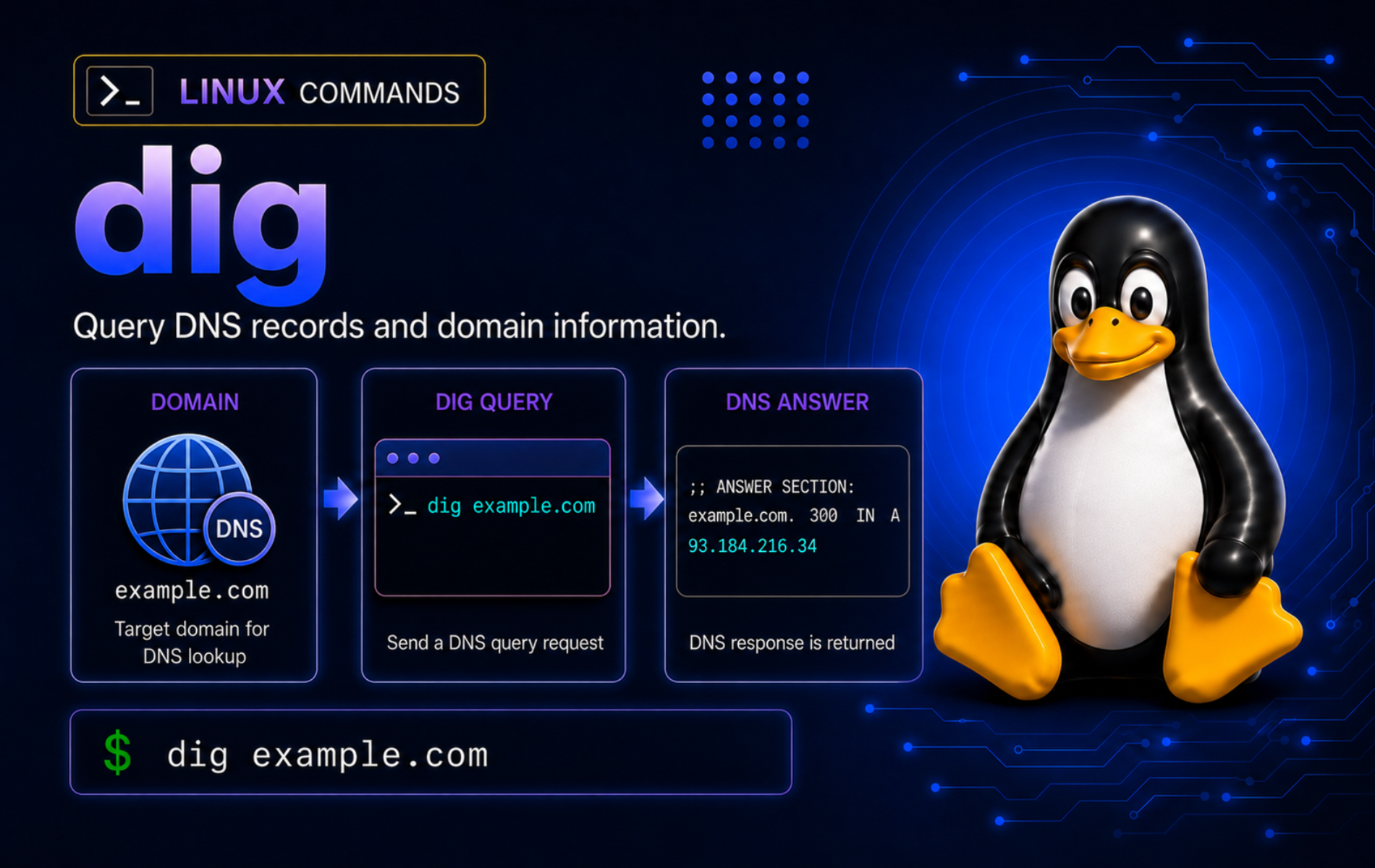
DNS problems are easier to isolate when you can ask a resolver exactly what it returned. The dig command in Linux queries DNS records from the command line, shows response status and TTL values, and lets you compare default, public, and authoritative name servers without opening a browser.
Use dig when you need precise DNS evidence: address records, mail routing, delegation, reverse DNS, DNSSEC clues, TCP fallback, resolver timeouts, and script-friendly output. For quick interactive checks, nslookup command examples may be enough, but dig gives better control over what is queried and printed.
Run DNS tests at a normal troubleshooting pace. Repeated
+trace, high-rate public resolver queries, and zone-transfer attempts can be blocked or treated as abusive, especially against infrastructure you do not administer.
Understand the dig Command in Linux
dig is a DNS lookup client from the BIND toolset. It asks a name server for one or more DNS records and prints the response in a format that can be read by humans or filtered by scripts. Use the BIND diagnostic tools documentation when you need the full option reference; the examples here focus on the DNS checks administrators run most often.
The basic syntax places the optional resolver first, then the name, record type, and query options:
dig [@server] name [type] [query-options]- @server: Optional DNS server to query, such as
@1.1.1.1,@8.8.8.8, or an authoritative name server. - name: Domain name, host name, or reverse-lookup target, such as
example.comor8.8.8.8. - type: DNS record type, such as
A,AAAA,MX,NS,TXT,SOA,CAA, orHTTPS. - query-options:
digcontrols such as+short,+noall +answer,+trace,+tcp,+dnssec,+time=, or+tries=.
By default, dig queries the resolver configured for the Linux system, usually through /etc/resolv.conf or a local resolver stub. It does not automatically prove what a browser using DNS over HTTPS, a container with separate resolver settings, or an application with custom DNS logic will see. When an application still fails after dig works, compare the system resolver path with the application path.
dig Command Quick Reference
These patterns cover the common DNS questions you will check most often.
| Task | Command Pattern | What It Shows |
|---|---|---|
| Default A lookup | dig example.com A | Queries the default resolver for IPv4 address records. |
| Short address output | dig example.com A +short | Prints only returned data values, useful for quick checks. |
| Answer section only | dig example.com A +noall +answer | Shows records with TTL, class, type, and value. |
| Specific resolver | dig @1.1.1.1 example.com A | Asks a chosen recursive resolver instead of the system default. |
| Mail routing | dig iana.org MX +noall +answer | Returns mail exchanger records and preference values. |
| Name servers | dig example.com NS +short | Lists authoritative name servers published for the domain. |
| Reverse DNS | dig -x 8.8.8.8 +short | Looks up a PTR name for an IP address. |
| DNSSEC data | dig cloudflare.com A +dnssec | Requests DNSSEC-related records and flags when available. |
| Trace delegation | dig example.com +trace | Walks from root servers toward the authoritative answer. |
| TCP query | dig example.com A +tcp | Forces DNS over TCP, useful when UDP replies are truncated or blocked. |
| Batch queries | dig -f dig-queries.txt | Runs multiple queries listed in a file. |
Install or Verify dig on Linux
Full desktop systems often already include dig, but minimal server images, containers, and cloud images may omit it. The binary is not usually packaged as a standalone package named dig; it comes from the distribution’s BIND utility package.
Verify dig Availability
Check whether dig exists in your shell path before installing anything:
command -v dig || echo "dig not found"A working installation prints a path such as:
/usr/bin/dig
Print the installed dig version when you need to confirm the BIND branch or compare behavior across systems:
dig -vExample output from an Ubuntu 26.04 system starts like this:
DiG 9.20.18-1ubuntu2.1-Ubuntu
Install dig by Distribution Family
Use the package name for your distribution. On current Debian-family systems, install bind9-dnsutils; dnsutils may still resolve on some older Debian-family releases, but it is a compatibility name rather than the clearest install target.
| Distribution Family | Package | Install Command |
|---|---|---|
| Debian, Ubuntu, Linux Mint | bind9-dnsutils | sudo apt updatesudo apt install bind9-dnsutils |
| Fedora, RHEL, Rocky Linux, AlmaLinux | bind-utils | sudo dnf install bind-utils |
| Arch Linux, Manjaro | bind | sudo pacman -S bind |
| openSUSE | bind-utils | sudo zypper install bind-utils |
| Alpine Linux | bind-tools | sudo apk add bind-tools |
These packages usually provide companion tools such as host and nslookup as well. On Arch and Manjaro, the bind package contains the BIND toolset; installing it does not enable a DNS server unless you separately configure and start one.
Update or Remove dig Packages
dig updates through the same package manager that installed it. Most systems should leave the package installed because DNS tools are useful for troubleshooting name resolution, mail records, and service outages.
If you installed dig only in a disposable image, remove the package with the matching package manager. Review the transaction first because removal can also remove companion DNS clients such as host and nslookup.
| Distribution Family | Removal Command |
|---|---|
| Debian, Ubuntu, Linux Mint | sudo apt remove bind9-dnsutils |
| Fedora, RHEL, Rocky Linux, AlmaLinux | sudo dnf remove bind-utils |
| Arch Linux, Manjaro | sudo pacman -R bind |
| openSUSE | sudo zypper remove bind-utils |
| Alpine Linux | sudo apk del bind-tools |
Read dig Output Before Filtering It
Run an unfiltered query first when you are learning dig or troubleshooting an unfamiliar failure:
dig example.com AThe full output includes several sections. The header gives response status and flags, the question section repeats the query, the answer section shows returned records, and the final lines show the server, query time, message size, and timestamp.
| Output Field | Why It Matters |
|---|---|
status | Reports DNS response status, such as NOERROR, NXDOMAIN, SERVFAIL, or REFUSED. |
flags | Shows response properties such as query response (qr), recursion desired (rd), recursion available (ra), authoritative answer (aa), authenticated data (ad), or checking disabled (cd). |
QUESTION SECTION | Confirms the exact name, class, and record type that dig queried. |
ANSWER SECTION | Lists returned records with name, TTL, class, type, and value. |
AUTHORITY SECTION | Often shows delegation or SOA information when the answer is negative or referred elsewhere. |
SERVER | Shows the resolver that answered, which is critical when comparing system and public DNS behavior. |
Query time | Shows resolver response time for that query, not full application connection time. |
For most troubleshooting output, keep only the answer section. This still preserves TTL values, classes, and record types:
dig example.com A +noall +answerExample output can vary by resolver and cache state, but the fields have the same meaning:
example.com.		300	IN	A	104.20.23.154
example.com.		300	IN	A	172.66.147.243
- example.com.: The owner name. The trailing dot means the name is fully qualified.
- 300: TTL in seconds. Resolvers may cache the record for this long, and the remaining TTL can count down in cached answers.
- IN: DNS class, almost always Internet for normal DNS queries.
- A: Record type, here an IPv4 address record.
- 104.20.23.154: Record data. For other record types, this field may be a host name, text string, certificate policy, or service hint.
Query Common DNS Records with dig
Most dig work is a record-type question: which IPv4 addresses, IPv6 addresses, mail exchangers, name servers, text records, or policy records does the domain publish?
Query A and AAAA Address Records
Use A for IPv4 addresses and AAAA for IPv6 addresses. The +short option is useful when you only need the returned values:
dig example.com A +short
dig example.com AAAA +short
Example output from one resolver:
104.20.23.154
172.66.147.243
2606:4700:10::6814:179a
2606:4700:10::ac42:93f3
If a hostname works over IPv4 but fails over IPv6, compare A and AAAA separately before changing firewall, routing, or application settings.
Query MX Records for Mail Routing
MX records tell mail senders where to deliver messages for a domain. The preference number controls priority; lower values are preferred.
dig iana.org MX +noall +answerExample output:
iana.org.		3600	IN	MX	10 pechora1.icann.org.
iana.org.		3600	IN	MX	10 pechora6.icann.org.
iana.org.		3600	IN	MX	10 pechora7.icann.org.
iana.org.		3600	IN	MX	10 pechora8.icann.org.
A domain can also publish a null MX record, such as 0 ., to say it does not accept email. Do not treat every unusual MX answer as a lookup failure until you read the record value.
Query NS and SOA Delegation Records
NS records show the published authoritative name servers for a domain. SOA records show the start-of-authority data, including the primary server, responsible party field, serial, and timing values.
dig example.com NS +short
dig example.com SOA +noall +answer
Example output:
hera.ns.cloudflare.com.
elliott.ns.cloudflare.com.
example.com.		1800	IN	SOA	elliott.ns.cloudflare.com. dns.cloudflare.com. 2405749864 10000 2400 604800 1800
When troubleshooting stale DNS, compare the SOA serial and TTL values seen by different resolvers. A recursive resolver may still be serving cached data while an authoritative server already has the newer zone.
Query TXT, CAA, and HTTPS Records
TXT records commonly store SPF, DKIM, DMARC, ownership verification, and vendor tokens. CAA records restrict which certificate authorities may issue certificates for a domain. HTTPS and SVCB records can publish service and connection hints for modern clients, but older BIND builds may print those newer records with less detail.
dig example.com TXT +short
dig example.com HTTPS +short
Example TXT and HTTPS output:
"v=spf1 -all"
"_k2n1y4vw3qtb4skdx9e7dxt97qrmmq9"
1 . alpn="h2" ipv4hint=104.20.23.154,172.66.147.243 ipv6hint=2606:4700:10::6814:179a,2606:4700:10::ac42:93f3
Query CAA records separately when you need certificate-authority policy. A cloudflare.com response can include several issue, issuewild, and iodef tags:
dig cloudflare.com CAA +short0 iodef "mailto:tls-abuse@cloudflare.com" 0 issue "comodoca.com" 0 issue "digicert.com; cansignhttpexchanges=yes" 0 issue "letsencrypt.org" 0 issue "pki.goog; cansignhttpexchanges=yes" 0 issue "ssl.com" 0 issuewild "comodoca.com" 0 issuewild "digicert.com; cansignhttpexchanges=yes" 0 issuewild "letsencrypt.org" 0 issuewild "pki.goog; cansignhttpexchanges=yes" 0 issuewild "ssl.com"
Quote handling matters for TXT records. dig +short can print several TXT records for one name, and long TXT records may be split into multiple quoted chunks while still representing one DNS record.
Current BIND builds print HTTPS records in readable SVCB-style form. Older builds can return simplified output for HTTPS or raw wire-format data for TYPE65, so use the numeric type mainly to confirm that a record exists when the mnemonic output looks incomplete.
dig example.com TYPE65 +shortRun a Reverse DNS Lookup
Use -x for reverse DNS. It converts an IP address into the correct reverse lookup name and queries the PTR record:
dig -x 8.8.8.8 +shortExample output:
dns.google.
Reverse DNS is controlled by whoever owns the IP address range, not necessarily the owner of a domain that points to that address. For mail-server diagnostics, compare PTR, forward A or AAAA records, SMTP banner, and SPF or DKIM policy together.
Compare Recursive and Authoritative Answers
The default dig query asks your configured recursive resolver. That resolver may answer from cache, follow delegation for you, or apply local policy. A query sent to an authoritative name server asks the source that currently serves the zone.
Ask a Specific Recursive Resolver
Prefix the query with @server to bypass your system’s default resolver and ask a specific DNS server:
dig example.com A +short
dig @1.1.1.1 example.com A +short
dig @8.8.8.8 example.com A +short
If the public resolver works but the default query fails, the domain may be fine while the local resolver, VPN DNS, captive portal, firewall, or system resolver configuration is broken. The curl could not resolve host troubleshooting guide walks through that resolver path from an application perspective.
Ask the Current Authoritative Name Server
Find the domain’s current name servers first, then query one of them directly. This avoids hard-coding an old authoritative server after delegation changes.
dig iana.org NS +shorta.iana-servers.net. b.iana-servers.net. c.iana-servers.net. ns.icann.org.
Then ask one listed name server for the record. +norecurse makes the boundary clear: you are not asking this server to perform recursive resolution for you.
dig @a.iana-servers.net iana.org A +noall +answer +norecurseiana.org. 3600 IN A 192.0.43.8
Recursive and authoritative answers can legitimately differ during cache expiry, CDN steering, DNS provider migrations, and split-horizon DNS setups. Record the server shown in the output before deciding which result is wrong.
Trace DNS Delegation
+trace asks dig to walk the delegation path from root servers toward the final answer:
dig example.com +trace +time=2 +tries=1This is useful when parent-zone delegation, DNSSEC, or name-server glue may be wrong. However, some networks block or intercept the iterative queries used by traces. If +trace times out while normal recursive queries work, treat that as a network-path clue, not automatic proof that the domain is broken.
Control dig Output for Scripts and Logs
Choose output options based on what you need to preserve. Short output is convenient, but it hides status, TTL, record type, and resolver details that are often needed in troubleshooting notes.
Use +short for Simple Values
+short prints only returned values. It is good for quick display, but scripts should still handle empty output and non-success statuses separately.
dig example.com A +short104.20.23.154 172.66.147.243
Use +noall +answer for Stable Evidence
+noall +answer suppresses the normal sections, then enables the answer section. This is usually better than +short for incident notes because it keeps TTL and record type information.
dig iana.org MX +noall +answeriana.org. 3600 IN MX 10 pechora1.icann.org. iana.org. 3600 IN MX 10 pechora6.icann.org. iana.org. 3600 IN MX 10 pechora7.icann.org. iana.org. 3600 IN MX 10 pechora8.icann.org.
Ignore .digrc Defaults in Scripts
dig can read per-user defaults from ~/.digrc. That is convenient for interactive use, but it can make scripts behave differently between accounts. Use -r in scripts when you need to ignore user defaults and rely only on options written in the command.
dig -r example.com A +noall +answerIf your interactive output suddenly looks different from another user’s output, check whether a local ~/.digrc file is adding defaults such as +short or +noall +answer.
Run Batch Queries from a File
Use -f to run several queries listed in a file. This is useful for checking a small migration list, but keep the file bounded and avoid hammering public resolvers.
printf '%s\n' \
  'example.com A +short' \
  'iana.org MX +noall +answer' \
  '-x 8.8.8.8 +short' > dig-queries.txt

dig -f dig-queries.txt

rm -f dig-queries.txt
For repeatable reports, prefer explicit options on each line. Do not rely on an interactive ~/.digrc profile when another account, CI job, or server may run the same batch.
Check DNSSEC, TCP, and Truncation Behavior
Some DNS failures only appear with larger responses, DNSSEC validation, or UDP filtering. dig can expose those differences without changing system DNS settings.
Request DNSSEC Records
Use +dnssec when you want DNSSEC-related records and flags in the response:
dig cloudflare.com A +dnssec +noall +answerWhen the resolver and zone return DNSSEC data, the answer section includes the normal address records plus at least one RRSIG row. The signature payload changes frequently, so use the record type and status as the stable evidence instead of copying the signature into monitoring checks.
Do not assume every resolver validates DNSSEC. If you are investigating suspected validation failure, compare a validating resolver result with checking disabled. The public dnssec-failed.org test domain is intentionally broken for this kind of check:
dig @1.1.1.1 dnssec-failed.org A +comments +noquestion +noanswer +noauthority +noadditional | grep -Eo 'status: [A-Z]+|ANSWER: [0-9]+|EDE: [0-9]+ \([^)]+\)'
dig @1.1.1.1 dnssec-failed.org A +cdflag +comments +noquestion +noanswer +noauthority +noadditional | grep -Eo 'status: [A-Z]+|flags: [^;]+|ANSWER: [0-9]+'
Relevant output from the first command shows validation failure:
status: SERVFAIL
ANSWER: 0
EDE: 9 (DNSKEY Missing)
The second command sets the cd flag, asking the resolver to disable DNSSEC checking for diagnostic comparison:
status: NOERROR
flags: qr rd ra cd
ANSWER: 1
If disabling checking changes a SERVFAIL into an answer, suspect DNSSEC validation, upstream signing, or delegation data before blaming the application. The grep filter in this example keeps only stable fields; run the same dig commands without the pipe when you need the full resolver response.
Check UDP Truncation
The tc flag means the UDP response was truncated. dig normally retries truncated UDP replies over TCP, so use +ignore only when you need to prove that truncation happened. This example asks for a DNSSEC-heavy record set with a small UDP buffer:
dig @1.1.1.1 org DNSKEY +dnssec +bufsize=512 +ignore +comments +noquestion +noanswer +noauthority +noadditional | grep -Eo 'flags: [^;]+|MSG SIZE +rcvd: [0-9]+'Relevant output shows the truncated flag:
flags: qr tc rd ra
flags: do
MSG SIZE  rcvd: 32
Force TCP when you need the full answer over a path that allows TCP DNS:
dig @1.1.1.1 org DNSKEY +dnssec +tcp +comments +noquestion +noanswer +noauthority +noadditional | grep -Eo 'status: [A-Z]+|flags: [^;]+|ANSWER: [0-9]+|MSG SIZE +rcvd: [0-9]+'The TCP query returns the answer count instead of the truncated UDP marker:
status: NOERROR
flags: qr rd ra ad
ANSWER: 4
flags: do
MSG SIZE  rcvd: 895
Force DNS over TCP
Normal DNS queries usually use UDP first. Use +tcp to test TCP DNS behavior directly, especially when large DNSSEC answers, truncation, VPN filtering, or firewall policy may be involved.
dig example.com A +tcp +noall +answerIf UDP fails but TCP works, inspect firewall, resolver, VPN, and network middlebox behavior. If neither path works, test a specific resolver with @server and check whether any DNS traffic leaves the host. The tcpdump command guide can help capture DNS packets when you need packet-level proof.
Troubleshoot Common dig Results
DNS failures are not all the same. Read the status, answer count, server, and record type before changing resolvers or editing application configuration.
dig Command Not Found
If the shell cannot find dig, confirm the missing binary and install the distribution package listed earlier:
command -v dig || echo "dig not found"dig not found
On current Ubuntu, the direct package is bind9-dnsutils. On Fedora, Rocky Linux, and other RHEL-family systems, use bind-utils. On Arch and Manjaro, use bind. On openSUSE, use bind-utils.
NXDOMAIN Means the Name Does Not Exist
NXDOMAIN means DNS says the queried name does not exist. Do not rely on the shell exit code alone for scripts because a DNS-level negative answer can still be a successful command execution. Parse the DNS status when the distinction matters.
dig @1.1.1.1 does-not-exist.invalid A +comments +noquestion +noanswer +noauthority +noadditional | grep -Eo 'status: [A-Z]+|ANSWER: [0-9]+'Relevant output shows the DNS status and answer count without the random message ID:
status: NXDOMAIN
ANSWER: 0
Common causes include a misspelled hostname, a missing subdomain, a domain that has not been delegated yet, or an application using a different suffix search path than you expect.
NOERROR with No Answer Means the Name Exists
NOERROR with zero answers often means the name exists, but not for the record type you requested. For example, a domain may have A and AAAA records but no SSHFP records.
dig @1.1.1.1 example.com SSHFP +comments +noquestion +noanswer +noauthority +noadditional | grep -Eo 'status: [A-Z]+|ANSWER: [0-9]+'Relevant output:
status: NOERROR
ANSWER: 0
Change the record type before assuming the domain itself is broken:
dig example.com A +noall +answer
dig example.com AAAA +noall +answer
dig example.com MX +noall +answer
SERVFAIL Points to Resolver or Zone Trouble
SERVFAIL means the resolver could not complete the query successfully. Causes include upstream authoritative failures, DNSSEC validation problems, broken delegation, resolver policy, or temporary name-server trouble.
dig example.com A +comments
dig @1.1.1.1 example.com A +comments
dig @8.8.8.8 example.com A +comments
If only one resolver returns SERVFAIL, focus on that resolver or its validation path. If multiple unrelated resolvers return SERVFAIL, inspect authoritative DNS, DS records, DNSKEY records, and recent zone changes.
Timeouts and No Servers Could Be Reached
A timeout means dig did not receive a usable response in time. Start with a short bounded query against the resolver path you are actually troubleshooting so the command returns quickly:
dig example.com A +time=2 +tries=1If you need to recognize the timeout shape without depending on your real resolver being broken, query a documentation address that should not answer DNS:
dig @192.0.2.1 example.com A +time=1 +tries=1Relevant timeout lines look like this:
;; communications error to 192.0.2.1#53: timed out
;; no servers could be reached
Compare the default resolver with a known public resolver:
dig @1.1.1.1 example.com A +time=2 +tries=1 +shortIf the public resolver works, inspect the local resolver configuration, VPN DNS, network manager, firewall, or captive portal. If both fail, test basic network reachability or map the network path with traceroute command examples before spending time on DNS records.
Use dig Safely for ANY and Zone Transfers
Two dig features are easy to misuse: ANY queries and zone transfers.
- ANY is not all records: Modern authoritative servers often refuse, minimize, or synthesize
ANYresponses. Query the specific types you need instead, such asA,AAAA,MX,TXT,CAA, andSOA. - AXFR is administrative: A zone transfer asks a name server for an entire zone. Only test
AXFRagainst zones and servers you administer or have permission to audit.
If you maintain the zone and want to test whether transfer policy is correctly locked down, use an explicit authoritative server and expect refusal unless the client is authorized:
dig @ns1.example.com example.com AXFRFor ordinary troubleshooting, specific record queries are clearer, less noisy, and more likely to match how real clients resolve the domain.
Conclusion
dig is most useful when you keep the DNS question precise: choose the resolver, choose the record type, preserve the status when troubleshooting, and use filtered output only after you know what the full response means. That workflow separates missing records, stale caches, local resolver failures, authoritative DNS problems, and application-specific name-resolution issues.


Formatting tips for your comment
You can use basic HTML to format your comment. Useful tags currently allowed in published comments:
<code>command</code>command<strong>bold</strong><em>italic</em><a href="https://example.com">link</a><blockquote>quote</blockquote>