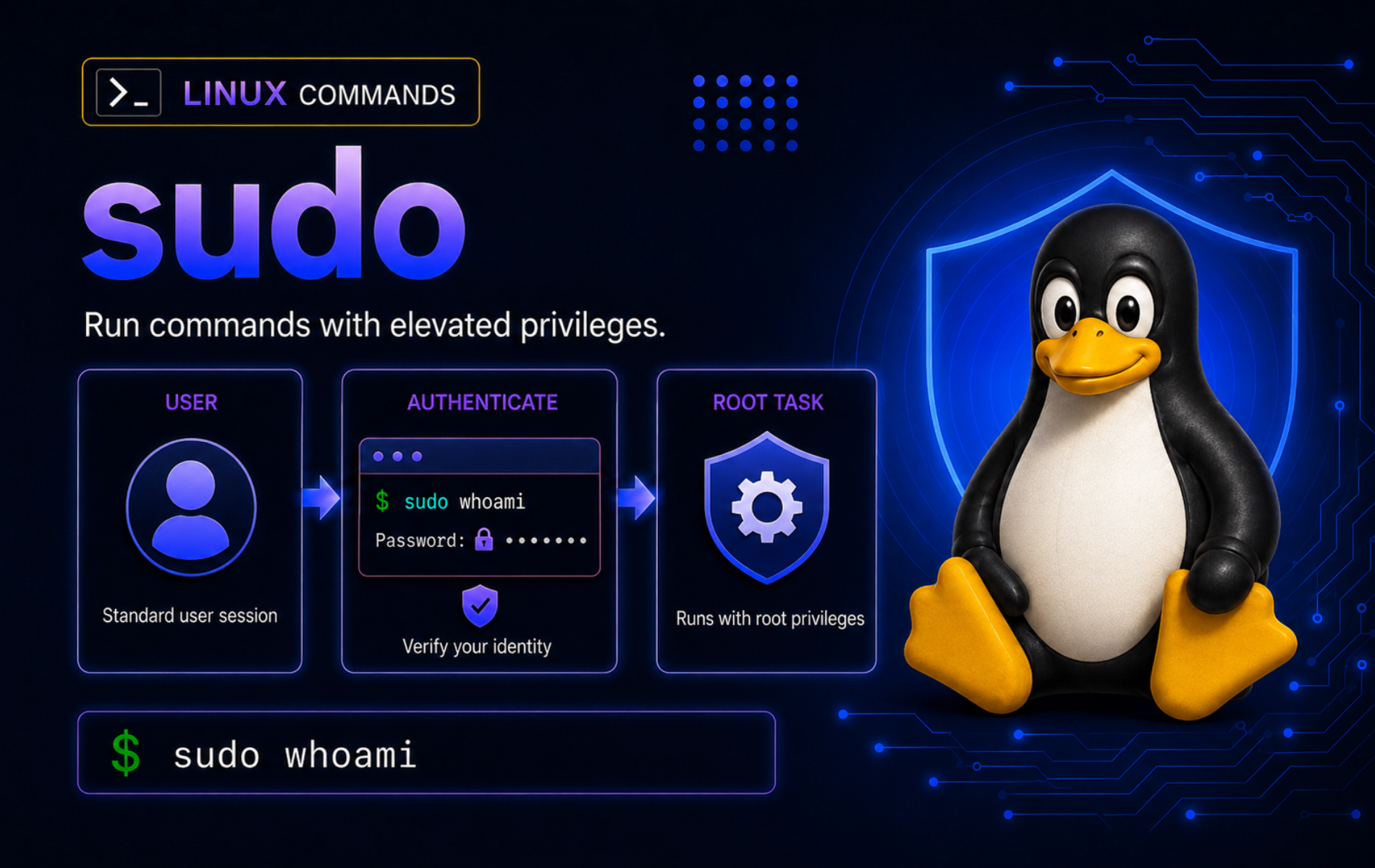
Privilege problems rarely fail in the same place twice: a package command needs root, a service restart is denied, a script hangs at a password prompt, or a config write creates a root-owned mess in the wrong directory. The sudo command in Linux runs a permitted command as root or another target user through the system’s sudoers policy, so good sudo usage is about scope, not just prefixing every failing command.
Daily sudo work usually branches into checking access, running commands as another user, editing protected files with sudoedit, writing through sudo tee, handling scripts without password leaks, and troubleshooting errors that point to policy, timestamp, terminal, or file-target problems.
Understand the sudo Command
sudo asks the configured security policy whether your real login account may run a command as another user. The default target user is root, but the target can be changed with options such as -u for another user or -g for another group. The default policy on most Linux systems is sudoers, which is managed through visudo and sudoers include files.
The basic syntax places sudo options before the command you want to run:
sudo [options] command [arguments]Use the local manual page or the official sudo manual when you need the full option set. Distribution builds can differ, and some current systems may print an implementation-specific version string such as sudo-rs even though common sudo workflows remain compatible.
sudo Command Quick Reference
| Task | Command Pattern | What It Does |
|---|---|---|
| Run a command as root | sudo command | Runs one permitted command with root privileges. |
| Check allowed commands | sudo -l | Lists what the sudoers policy allows for your account. |
| Refresh credentials | sudo -v | Authenticates and updates the sudo timestamp without running another command. |
| Expire cached credentials | sudo -k | Forces sudo to authenticate again on the next privileged command. |
| Run as another user | sudo -u username command | Runs the command with the target user’s privileges. |
| Use the target home | sudo -H command | Sets $HOME to the target user’s home when policy permits it. |
| Open a login root shell | sudo -i | Starts a root login-style shell for related administrative work. |
| Edit protected files | sudoedit file | Edits through a temporary copy instead of running your editor as root. |
| Write through a pipe | printf 'text\n' | sudo tee file | Lets tee, not the shell, perform the privileged file write. |
| Check sudo in scripts | sudo -n -l /path command-args | Checks an exact sudoers rule without prompting or running the command. |
Verify sudo Access and Availability
Check the executable path first. This tells you whether the command exists in your current $PATH before you troubleshoot policy or password prompts:
command -v sudo/usr/bin/sudo
Print the installed sudo implementation and version with the first line of sudo -V:
sudo -V | sed -n '1p'Sudo version 1.9.17p2
If sudo is missing, install it from a root shell or from another working administrator account. Do not prefix these commands with sudo when the command itself is missing; switch to a root shell with su -, use the system recovery console, or ask an existing administrator to install the package.
| Distribution Family | Root-Shell Install Command | Notes |
|---|---|---|
| Debian, Ubuntu, Linux Mint | apt update && apt install sudo | Use from a root shell when no working sudo account exists. |
| Fedora, Rocky Linux, RHEL-family systems | dnf install sudo | Fedora uses DNF5 behavior; RHEL-compatible systems usually use DNF4, but the package name is still sudo. |
| openSUSE | zypper install sudo | Use the distribution package source; do not rely on community one-click packages for normal recovery. |
| Arch Linux and Manjaro | pacman -Syu sudo | Refresh package databases and complete the normal full upgrade before installing the package. |
Do not remove
sudofrom a system that relies on it until root or console recovery access is already confirmed. Locking out the only administrative path turns a simple package change into a recovery task.
Run Administrative Commands with sudo
The simplest sudo workflow is one command with one clear privileged action. A harmless check is sudo whoami, which prints the effective user for the command:
sudo whoamiroot
Use the same pattern for real administrative tasks, then return to an unprivileged shell for normal work:
sudo systemctl restart nginx.service
sudo journalctl -u nginx.service -n 50 --no-pager
The first command changes service state, while the second reads root-owned logs that may be inaccessible to normal users. For deeper service workflows, use the systemctl command examples and journalctl command examples as separate references.
Use sudo Only for the Privileged Part
Do not add sudo to every command in a sequence. Keep inspection, path building, and user-owned file work unprivileged unless that step truly needs root. This makes mistakes easier to spot and avoids creating root-owned files in your home directory.
systemctl is-active nginx.service
sudo systemctl restart nginx.service
Here, the status check runs without elevation when the service manager allows it. The restart uses sudo because changing service state is the privileged action.
Run Shell Built-ins Through a Root Shell Command
Commands such as cd are shell built-ins, so sudo cd /etc is not a useful fix. When a short privileged shell operation is the real requirement, run that operation inside a root-owned shell and keep the quoted command small:
sudo sh -c 'cd /etc && pwd'/etc
Use this form for tightly scoped built-in or redirection cases, not as a habit for long command chains. If the task can be done by elevating one normal executable, prefer the simpler sudo command form.
Check Your sudo Privileges
Use sudo -l before assuming your account can run every administrative command. The output comes from the active sudoers policy and is more authoritative than group membership alone. A broad Debian-family administrator rule may appear like this:
sudo -lUser admin may run the following commands on workstation:
(ALL : ALL) ALL
Relevant output often includes the host, default options, and the command list. A full administrator account commonly includes a broad rule such as (ALL : ALL) ALL or (ALL) ALL, while a narrower account may list only specific command paths.
If the output includes NOPASSWD, the policy allows that command without a password. Keep passwordless rules narrow for automation; do not treat them as a normal requirement for interactive administration.
If sudo -l asks for your password, that is normal when your timestamp is not cached. Use sudo -n -l only when a script must avoid prompts; it exits instead of waiting for a password.
sudo -n -lIn a script, check the exit status and print a clear message instead of letting the process hang at an unseen password prompt.
Refresh or Expire the sudo Timestamp
Most sudoers policies cache successful authentication for a short time per terminal. Refresh the timestamp before a short maintenance sequence:
sudo -vExpire the timestamp when you finish work on a shared terminal, a screen-share session, or any shell you are about to leave unattended:
sudo -kUse sudo -K when you need to remove timestamp records completely. That is stronger than -k, so use it deliberately and expect the next sudo command to authenticate again.
Run Commands as Another User
sudo -u changes the target user. This is useful for testing permissions, checking service-account paths, and running one command in the same context as a daemon without opening a long-lived shell.
sudo -u nobody whoaminobody
For service accounts, run the narrow command you need instead of switching to a shell first:
getent passwd www-data apache nginxChoose the service account that exists on your system, then run the specific check with that account. Debian-family web examples commonly use www-data; Fedora and RHEL-family Apache examples often use apache.
sudo -u www-data test -r /var/www/html/index.htmlThe test -r command exits with status 0 when the target account can read the file and status 1 when it cannot. Use echo $? immediately after the check if you need to inspect that result in an interactive shell.
Set a Target Group with sudo
Use -g with -u when the group context matters separately from the user. Without an explicit non-root user, sudo normally runs the command as root, which can hide group-permission problems:
current_user=$(id -un)
getent group adm
sudo -u "$current_user" -g adm test -r /var/log/syslogGroup names, sudoers runas-group policy, and log paths vary by distribution. If the command fails before the file test, verify the local group, the allowed runas target, and the log path before changing permissions.
Edit Protected Files with sudoedit
sudoedit, also available as sudo -e, is the safer default for editing root-owned configuration files. It copies the target to a temporary file, opens your editor as your normal user, then writes the edited result back with elevated privileges.
sudoedit /etc/hostsChoose an editor for one command by setting SUDO_EDITOR, VISUAL, or EDITOR before sudoedit:
SUDO_EDITOR=nano sudoedit /etc/hostsUse sudoedit for ordinary config files when your policy allows it. Use sudo visudo for sudoers policy files because visudo adds syntax checks and lock handling that a normal editor does not provide. The official visudo manual documents the check-only and edit behavior.
Write to Protected Files with sudo tee
Shell redirection happens in your current shell before sudo starts the command. That is why a command such as sudo printf 'text' > /etc/example.conf still fails on protected paths: the unprivileged shell tries to open the destination.
Pipe the content into sudo tee so the privileged command owns the write:
printf 'example=1\n' | sudo tee /tmp/sudo-demo.conf > /dev/null
sudo cat /tmp/sudo-demo.conf
example=1
The > /dev/null redirection hides tee‘s normal copy of the content on standard output. Remove the demo file when you finish:
sudo rm -f /tmp/sudo-demo.confUse tee -a only when you intentionally append. For a fuller explanation of the command, see the tee command guide.
For a multi-line protected file, use a quoted heredoc delimiter so the shell does not expand variables while you paste the text:
sudo tee /tmp/sudo-demo.conf > /dev/null <<'EOF'
example=1
mode=demo
EOF
sudo cat /tmp/sudo-demo.conf
example=1 mode=demo
The same cleanup command removes the demo file when you finish testing the pattern:
sudo rm -f /tmp/sudo-demo.confReview the exact content before aiming
sudo teeat a real configuration file. A successful privileged write can still break a service if the text is syntactically wrong or belongs in a different drop-in file.
Control Root Shells and Environment
A root shell is convenient, but it also makes every later command privileged and can weaken command-by-command audit trails. Prefer single-command sudo for normal administration, then use a root shell only when a sequence genuinely needs shared root state, shell built-ins, or several related privileged redirects.
| Command | Use It When | Main Risk |
|---|---|---|
sudo command | One clear privileged action is enough. | Low, because only one command is elevated. |
sudo -s | You need a root shell that keeps much of the current shell context. | Later commands are easy to run as root by accident. |
sudo -i | You need a root login-style shell with root’s normal startup environment. | Environment and working directory change, which can surprise scripts. |
sudo sh -c 'commands' | One short shell operation needs root-owned redirection or cd. | Quoting mistakes run the wrong text as root. |
Use sudo -H when a command should use the target user’s home directory. This matters for commands that write caches or config files under $HOME:
sudo -H sh -c 'printf "%s\n" "$HOME"'/root
Environment variables are controlled by policy. Some systems reset most variables and enforce a secure PATH; others allow selected variables. If a command behaves differently under sudo, compare the relevant variable instead of assuming your interactive shell environment survived unchanged:
printf '%s\n' "$PATH"
sudo sh -c 'printf "%s\n" "$PATH"'
When one variable must reach the privileged command, pass that variable deliberately instead of relying on your whole interactive environment. This example sets LC_ALL only for the command that needs it:
sudo LC_ALL=C sh -c 'printf "%s\n" "$LC_ALL"'C
Avoid broad sudo -E use unless your sudoers policy and task explicitly require preserved environment variables. Passing only the variable you need is easier to audit.
Use sudo in Scripts Safely
Scripts should not hang waiting for a password prompt that nobody can answer. For automation around a specific privileged action, resolve the command path, ask sudoers whether that exact command is allowed in non-interactive mode, and run the command with -n as well:
systemctl_path=$(command -v systemctl)

if sudo -n -l "$systemctl_path" restart nginx.service >/dev/null 2>&1; then
    sudo -n "$systemctl_path" restart nginx.service
else
    printf 'sudo policy or cached credentials are missing for nginx.service restart\n' >&2
fi
For interactive maintenance scripts, authenticate near the start with sudo -v, then run only the privileged commands with sudo. For unattended automation, configure a narrow sudoers rule for the exact command path instead of embedding a password in the script.
Use sudo -n true only as a broad prompt check. It can fail on accounts that are allowed to run only a narrow command, and it can pass even when the later command is not permitted.
To inspect the policy result without running the service action, run the same listing command by itself. The example output uses a system where systemctl resolves under /usr/bin:
systemctl_path=$(command -v systemctl)
sudo -n -l "$systemctl_path" restart nginx.service
/usr/bin/systemctl restart nginx.service
When a sudoers rule allows only one command, use the real absolute path in both the rule and the script. Check the path in the same context that will run it:
command -v systemctl
sudo sh -c 'command -v systemctl'
If the normal user sees a command but the root-context check does not, use the absolute path or install the tool into a root-visible location before writing an automation rule around it.
Do not pass passwords through command arguments, shell history, or pipelines such as
echo password | sudo -S command. Use a terminal prompt, a policy-approved askpass setup, or a narrow non-interactive sudoers rule for automation.
Manage sudoers Safely
Sudo access is a policy decision, not just a group name. Debian-family systems commonly grant administrative access through the sudo group, while Fedora, Rocky Linux, openSUSE, Arch, and Manjaro commonly use wheel. The active sudoers rule is what matters, so check both group membership and policy before changing accounts.
id -nG
sudo -l
Check the active sudoers syntax with visudo. This is safer than hardcoding a single path because some distributions can use more than one sudoers file location:
sudo visudo -c/etc/sudoers: parsed OK
Healthy output may list more than one sudoers file. Treat parse errors, permission warnings, and missing include files as blockers before you sign out of the working administrator session.
When you need to edit policy, use visudo. For a drop-in file, use -f and keep one policy change per file:
sudo visudo -f /etc/sudoers.d/example-adminAccount setup differs by distribution. Use the dedicated guides when the task is adding or repairing administrator access: add a user to sudoers on Ubuntu, add a user to sudoers on Debian, add a user to sudoers on Fedora, manage sudo users on Arch Linux, or create sudo users on Linux Mint.
Practice Safer sudo Habits
- Run the narrowest command that needs privileges instead of opening a root shell for unrelated work.
- Read scripts before running them with
sudo; do not pipe network downloads directly into a root shell. - Use
sudoeditfor normal protected-file edits andvisudofor sudoers policy. - Use
sudo teefor privileged writes through a pipeline instead of relying on shell redirection. - Expire the timestamp with
sudo -kbefore leaving a shared or unattended terminal. - Fix ownership with chown command examples and permissions with chmod command examples instead of making files writable just to avoid sudo.
Troubleshoot Common sudo Errors
Fix sudo: command not found
This error means the shell cannot find a sudo executable in $PATH. Confirm the command is missing before reinstalling anything:
command -v sudoIf there is no output, install the sudo package from a root shell using the root-shell package-manager commands in the availability section. If command -v sudo prints a path but the command still fails, inspect the file ownership and mode instead of reinstalling blindly.
Fix a Command That Works Until You Add sudo
If the error names another command, compare the normal user path with sudo’s root-context path before reinstalling the tool. This example creates a temporary user-visible command and proves the normal shell can find it:
rm -rf -- /tmp/lc-sudo-path-demo
mkdir -p /tmp/lc-sudo-path-demo
printf '#!/bin/sh\nprintf "demo tool\\n"\n' > /tmp/lc-sudo-path-demo/sudo-path-demo
chmod +x /tmp/lc-sudo-path-demo/sudo-path-demo
PATH="/tmp/lc-sudo-path-demo:$PATH" command -v sudo-path-demo
/tmp/lc-sudo-path-demo/sudo-path-demo
Running the same command name through sudo can still fail when sudoers enforces a secure path:
PATH="/tmp/lc-sudo-path-demo:$PATH" sudo sudo-path-demosudo: sudo-path-demo: command not found
Some sudo builds quote the missing command name, but the cause is the same: sudo did not resolve the user-only command path. Clean up the temporary files before continuing:
rm -rf -- /tmp/lc-sudo-path-demoFor a real user-installed tool, use its absolute path, install it into a root-visible location, or adjust the sudoers policy deliberately with visudo.
Fix user is not in the sudoers file
The message user is not in the sudoers file means your account is not permitted by the active policy. Check your groups from the normal user account:
id -nG "$USER"The fix must come from root, a console recovery session, or another administrator. Add the account to the distribution’s correct administrator group or create a checked sudoers drop-in, then test from a fresh login session with sudo -l. Do not edit sudoers on the only admin session without a recovery path.
From a root shell, the common group fixes are:
usermod -aG sudo usernameUse that form on Debian-family systems that grant administrator access through the sudo group. Use the wheel group on Fedora, Rocky Linux, openSUSE, Arch Linux, and Manjaro when the wheel rule is enabled:
usermod -aG wheel usernameReplace username with the real account name, then start a fresh login session and retest:
sudo -lFix a terminal is required to read the password
This error appears when sudo needs a password but no terminal, askpass helper, or standard-input password flow is available. In scripts, test non-interactive sudo before the real command:
sudo -n trueIf the check fails, run the task from an interactive terminal, authenticate with sudo -v before the script, or configure a narrow sudoers rule for the exact automation command. Avoid password pipes because they expose secrets to shell history, logs, or process inspection.
Fix sudo must be owned by uid 0 and have the setuid bit set
This error means the sudo binary cannot gain root privileges. Check the file owner, permissions, and filesystem mount options:
sudo_path=$(command -v sudo)
sudo_real=$(readlink -f "$sudo_path")
ls -l "$sudo_path" "$sudo_real"
findmnt -no OPTIONS --target "$sudo_real"
A normal packaged sudo target is owned by root and has the set-user-ID bit. Some systems expose /usr/bin/sudo as a symlink, so check the resolved target before deciding the mode is wrong. If the owner, mode, or filesystem mount policy is wrong, reinstall or repair sudo from a root shell or recovery environment. Do not copy a sudo binary from another distribution.
Fix sudo unable to resolve host
This warning usually means the system hostname does not resolve locally. Compare the hostname with local name resolution:
hostname
getent hosts "$(hostname)"
If getent returns no matching row, fix the hostname or add the correct local entry through your distribution’s hostname workflow. For a simple local host entry, edit /etc/hosts with sudoedit and retest sudo -l.
Fix permission denied even with sudo
If a command still fails with Permission denied, confirm which layer is denying access before changing permissions broadly. Start with the target path, mount options, and command path. Replace /etc/hosts with the path that failed on your system:
target=/etc/hosts
namei -l "$target"
findmnt -no TARGET,OPTIONS --target "$target"
lsattr "$target" 2>/dev/null
command -v install
Common causes include shell redirection outside sudo, immutable file attributes, read-only mounts, network filesystems with root-squash, wrong ownership, or a security policy such as SELinux or AppArmor. Use the narrow fix for the layer you prove. When ownership is the problem, repair it with chown instead of making the file world-writable.
Conclusion
sudo is ready for controlled administration when you can verify the command path, list your allowed policy, run narrow privileged commands, edit protected files through the right tool, and troubleshoot failures without weakening permissions. Keep using single-command elevation for routine work, and reserve sudoers edits, root shells, and automation rules for cases where the scope is explicit and tested.


Formatting tips for your comment
You can use basic HTML to format your comment. Useful tags currently allowed in published comments:
<code>command</code>command<strong>bold</strong><em>italic</em><a href="https://example.com">link</a><blockquote>quote</blockquote>