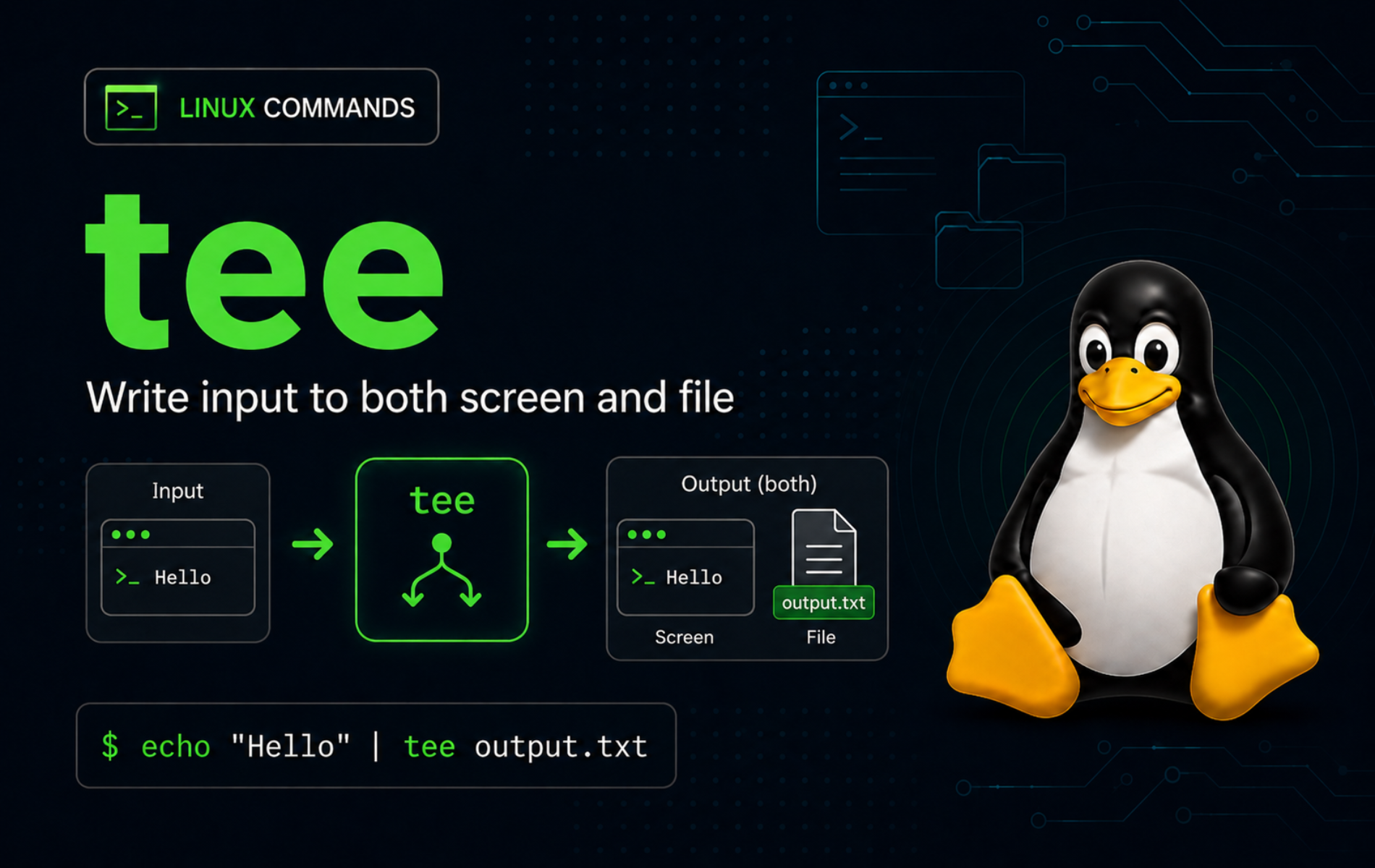
Pipeline output is easy to lose when you redirect it too early. The tee command in Linux keeps a copy visible on the terminal while saving the same stream to a file, another file, or the next command in the pipeline.
Use tee for repeatable command logs, quick transcripts, protected file writes, and debugging pipelines where rerunning the upstream command would be slow or risky. Practice with disposable files in the current directory or /tmp, and check GNU, uutils, BusyBox, and Bash-specific behavior before moving the pattern into a script.
Understand the tee Command in Linux
tee reads standard input, copies that input to standard output, and writes the same bytes to each file you name. The GNU Coreutils tee manual and the tee(1) manual page document the same core model: one input stream can be split into visible terminal output plus one or more saved destinations.
That makes tee different from a normal shell redirection. A redirect such as > file.log sends standard output only to the file. A pipeline such as command | tee file.log saves the output and still passes it onward to the terminal or the next command.
tee Command Syntax
tee [OPTION]... [FILE]...OPTIONchanges howteewrites, appends, handles interrupts, or reacts to output errors.FILE...names one or more destinations. Each destination receives the same input stream.
If a destination file does not exist, tee creates it. If the file already exists, tee overwrites it unless you use -a or --append.
Verify tee Availability and Implementation
Most Linux systems include tee as part of a core utilities package. Confirm the command path before troubleshooting a script or package name:
command -v tee/usr/bin/tee
Check the implementation when a script relies on newer options such as -p or --output-error:
tee --version | head -n 1Some current full distributions report GNU coreutils, while others report uutils coreutils. The command patterns that use -a, -i, -p, and --output-error match those full implementations. Minimal BusyBox systems can expose a smaller option set, so use tee --help on those targets before copying GNU-specific flags into scripts.
Essential tee Options by Task
| Task | Option or Pattern | What It Does |
|---|---|---|
| Write and display output | command | tee file.log | Copies standard output to the terminal and file.log. |
| Append instead of overwrite | -a, --append | Adds new input to the end of each destination file. |
| Write to several files | tee one.log two.log | Saves the same input stream to multiple destinations. |
| Hide duplicate terminal output | tee file.log >/dev/null | Keeps the saved file while suppressing tee‘s standard output. |
| Capture standard error too | 2>&1 | tee combined.log | Merges standard error into standard output before tee receives the stream. |
| Write to protected files | command | sudo tee file | Runs tee with elevated write permission while the upstream command stays unprivileged. |
| Handle early pipe exits | -p, --output-error[=MODE] | Keeps useful outputs alive when one pipe consumer exits early. |
| Ignore interrupts | -i, --ignore-interrupts | Makes tee ignore interrupt signals such as Ctrl+C. |
Practical tee Command Examples
Save Command Output to a File and Terminal
Start with a simple stream from the printf command. tee prints the lines and writes the same content to session.log:
printf 'alpha\nbeta\n' | tee session.logalpha beta
Verify the saved copy when another command or script will read the file later:
cat session.logalpha beta
Append Output with tee -a
Use -a when the file should keep its existing content. Redirect tee‘s standard output to /dev/null when you only want to update the file without duplicating the line on screen:
printf 'gamma\n' | tee -a session.log >/dev/null
cat session.log
alpha beta gamma
Without -a, tee truncates the destination before writing new input. Use that behavior only when replacing the file is intentional:
printf 'replacement\n' | tee session.log >/dev/null
cat session.log
replacement
Write the Same Output to Multiple Files
List more than one destination when the same output should become two separate files, such as a local log plus a handoff file for another tool:
printf 'same line\n' | tee one.log two.log >/dev/null
cmp -s one.log two.log && echo "files match"
files match
tee opens every destination independently. If one destination fails, check the exit status and error output instead of assuming every file was written.
Hide Terminal Output While Saving a File
Sometimes tee is useful only as a file-writing stage inside a larger command. Redirect its standard output to /dev/null when the saved file is the only result you need:
printf '%s\n' app.log db.log web.log | tee file-list.txt >/dev/null
wc -l file-list.txt
3 file-list.txt
The pipeline still writes file-list.txt. Only the extra copy that tee would normally send to the terminal is discarded.
Capture Standard Error with tee
tee receives standard input from the pipe. Standard error does not enter the pipe unless you redirect it first. This command keeps standard error separate so you can see the difference:
sh -c 'printf "stdout line\n"; printf "stderr line\n" >&2' 2>stderr.unlogged | tee stdout-only.log >/dev/null
cat stdout-only.log
cat stderr.unlogged
stdout line stderr line
Send standard error into standard output before the pipe when the log should contain both streams:
sh -c 'printf "stdout line\n"; printf "stderr line\n" >&2' 2>&1 | tee combined.log >/dev/null
cat combined.log
stdout line stderr line
The order matters. Put 2>&1 before the pipe so the shell merges standard error into the stream that tee reads.
Write Protected Files with sudo tee
sudo command > protected-file usually fails because the shell opens the redirected file before sudo starts. Put sudo on tee instead, so the process that opens the destination has the required permission.
Create a root-owned demo file under /tmp to test the pattern safely:
sudo install -m 644 -o root -g root /dev/null /tmp/tee-root-demo.conf
printf 'log_level=info\n' | sudo tee -a /tmp/tee-root-demo.conf >/dev/null
sudo cat /tmp/tee-root-demo.conf
log_level=info
The upstream printf command runs as your normal user. Only tee runs with elevated write access. For real configuration files, verify the target path and content before writing, and prefer -a only when appending is correct for that file format.
Remove the demo file after testing:
sudo rm -f /tmp/tee-root-demo.confKeep tee in the Middle of a Pipeline
tee does not need to be the last command. Put it before a filter when you want a complete saved copy and a narrowed terminal view:
printf '%s\n' 'INFO start' 'ERROR failed' 'INFO end' | tee all.log | grep 'ERROR'ERROR failed
The terminal shows only the line selected by the grep command, while all.log still contains the full stream:
cat all.logINFO start ERROR failed INFO end
Advanced tee Command Techniques
Use Bash Process Substitution with tee
Bash process substitution lets tee write to a command as if it were a file. This is useful when one branch should save the complete stream and another branch should extract a subset:
printf '%s\n' 'INFO start' 'ERROR failed' 'INFO end' | tee >(grep 'ERROR' > errors.log) > all.log
cat errors.log
wc -l < all.log
ERROR failed 3
The >(command) syntax is a Bash, Zsh, and Ksh feature, not portable /bin/sh. Start scripts that use this pattern with a shell that supports process substitution, such as #!/usr/bin/env bash.
Use tee -p When One Output Exits Early
Some consumers intentionally stop early. For example, head -n 1 reads one line and exits. With process substitution, that can close one output pipe while tee still needs to keep writing to another destination.
Add -p when a pipe output may exit early and the remaining outputs still matter:
seq 1 200000 | tee -p >(head -n 1 > first-line.txt) > full-stream.txt
wc -l < full-stream.txt
cat first-line.txt
200000 1
Without -p, modern full implementations can stop with a broken-pipe status after the early consumer exits. That may leave the remaining file incomplete. Use tee --help before relying on -p in minimal environments.
Preserve tee Failures in Longer Pipelines
In Bash, a pipeline normally reports the status of the last command. If tee fails in the middle but a later command succeeds, the whole line can still look successful unless pipefail is enabled.
bash -c 'printf data | tee missing/out.txt 2>/dev/null | wc -c >/dev/null; printf "status=%s\n" "$?"'status=0
Use set -o pipefail in Bash scripts when a failed tee write should fail the whole pipeline:
bash -o pipefail -c 'printf data | tee missing/out.txt 2>/dev/null | wc -c >/dev/null; printf "status=%s\n" "$?"'status=1
These status checks suppress the error text only to make the contrast obvious. During real troubleshooting, leave standard error visible or save it to a separate log.
Treat a Dash as a File Name
Current POSIX-aligned tee behavior treats - as a file name, not as a magic request for another standard-output copy. Use -- when a destination begins with a dash so option parsing stops first:
printf 'dash\n' | tee -- - >/dev/null
cat -- -
dash
Remove the demo file after confirming the behavior:
rm -f -- -Troubleshoot Common tee Errors
Fix tee Permission Denied Errors
A permission error means the tee process cannot open or update the destination. Check the parent path before changing permissions; replace /etc/hosts with the file you were trying to write:
namei -l /etc/hostsIf the file is intentionally system-owned, write with sudo tee instead of trying to place sudo before a shell redirection. If the file belongs to a project directory, fix the project ownership or mode with a targeted permission change. Use the chmod command only after confirming the path is correct and the wider access is appropriate.
Fix No Such File or Directory from tee
tee creates the final file, but it does not create missing parent directories. A path such as missing/out.txt fails when missing does not exist.
test -d missing || echo "parent directory is missing"parent directory is missing
Create the parent first with the mkdir command, then retry the write and verify the file is non-empty:
mkdir -p missing
printf data | tee missing/out.txt >/dev/null
test -s missing/out.txt && echo "write succeeded"
write succeeded
Fix Logs That Miss Error Messages
If your saved log contains normal output but misses error messages, standard error probably stayed outside the pipe. Reproduce the problem with a command that prints to both streams, then merge the streams before tee:
sh -c 'printf "stdout line\n"; printf "stderr line\n" >&2' 2>&1 | tee combined.logFor scripts, decide whether combined output is actually useful. Separate stdout and stderr logs are often easier to parse when later steps need to distinguish data from diagnostics.
Fix Incomplete Output When a Pipe Consumer Exits
If a process substitution, head, or another downstream command exits early, tee may stop with a broken-pipe status and leave another output incomplete. Check the line count or checksum of the destination that should have received the full stream.
wc -l full-stream.txtWhen the count is short, rerun the pipeline with tee -p or redesign the pipeline so the early-exiting command reads from a saved file after the full stream has been written.
Fix Accidental Overwrites from tee
If a log or config file suddenly contains only the latest command output, tee probably ran without -a. Review the shell history or script that wrote the file, then decide whether the destination should be restored from backup or recreated from the original command source.
Use tee -a for append-only logs. Use plain tee only for replaceable generated files where truncation is the desired result.
Conclusion
tee is ready for safer pipeline logging once you know what stream it receives, when it overwrites, and how it behaves in longer Bash pipelines. Use plain tee for replaceable output, tee -a for append-only logs, sudo tee for protected destinations, and tee -p when one branch of the pipeline may close early.


Formatting tips for your comment
You can use basic HTML to format your comment. Useful tags currently allowed in published comments:
<code>command</code>command<strong>bold</strong><em>italic</em><a href="https://example.com">link</a><blockquote>quote</blockquote>