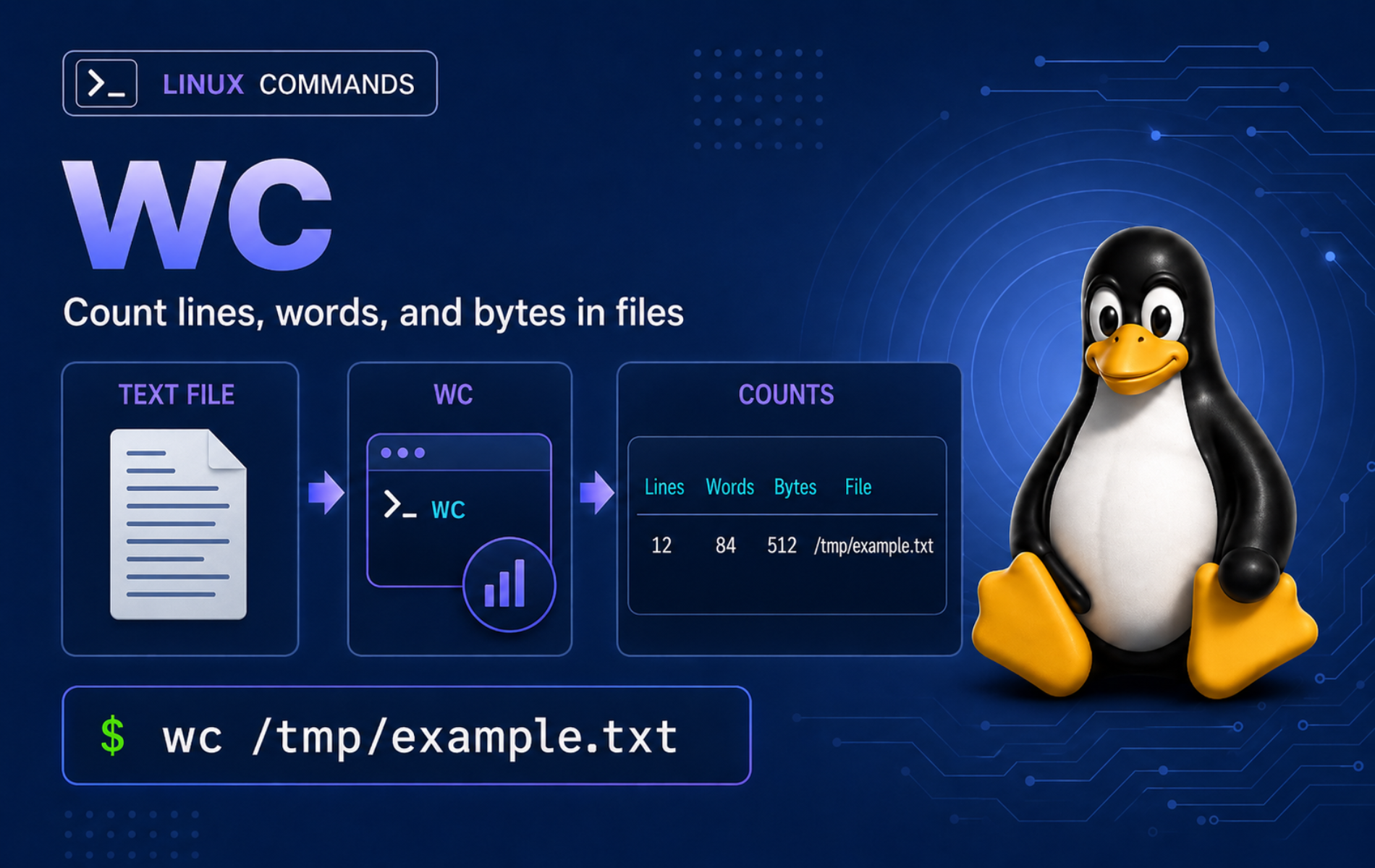
Text counts become useful when you need to verify a generated file, check whether a log filter matched anything, or feed a number into a shell script. The wc command in Linux turns files and pipelines into counts for lines, words, bytes, characters, and maximum line width without opening an editor.
Most full Linux systems provide a Coreutils-style wc; GNU Coreutils is common, while some newer systems may report uutils coreutils and minimal BusyBox environments may expose fewer options. The examples focus on behavior shared by GNU and compatible Coreutils implementations, and they call out portability points where scripts can break.
Understand the wc Command in Linux
wc reads each file operand and prints selected counts. With no file operand, or with - as a file operand, it reads standard input. That makes the same command useful for named files, redirected input, and pipelines.
Basic wc Syntax
wc [OPTION]... [FILE]...OPTIONselects which counts to print, such as-lfor lines,-wfor words,-cfor bytes,-mfor characters, or-Lfor maximum display width.FILEcan be one path, several paths, or-for standard input at that position.- With more than one file, Coreutils-style
wcprints a finaltotalline unless you change that behavior with--total.
wc Output Order
By default, wc prints three counts in this order: newline count, word count, and byte count. When you request more than one count explicitly, Coreutils-style wc keeps a fixed order: newlines, words, characters, bytes, then maximum line length. The order does not follow the order you typed the flags.
Do not parse default wc output by fixed character position. Count fields are right-aligned for readability, and their width changes as the numbers grow. Use whitespace-aware tools such as awk command examples, read command examples, or a single-count option when a script needs one number.
wc Command Quick Reference
| Task | Command Pattern | What It Does |
|---|---|---|
| Show default counts | wc file.txt | Prints newline, word, and byte counts. |
| Count lines | wc -l file.txt | Counts newline characters, not necessarily visual lines. |
| Count words | wc -w file.txt | Counts nonempty word sequences separated by whitespace. |
| Count bytes | wc -c file.txt | Counts bytes, which is useful for file-size and protocol checks. |
| Count characters | wc -m file.txt | Counts characters according to the current locale. |
| Find longest line width | wc -L file.txt | Prints the maximum display width, with tab stops treated as every eighth column on GNU-style implementations. |
| Count pipeline output | command | wc -l | Counts lines emitted by another command. |
| Suppress file names | wc -w < file.txt | Reads through input redirection and prints only the count. |
| Control totals | wc --total=only file1 file2 | Coreutils-style long option that prints only cumulative counts for multiple files. |
| Read NUL-separated file lists | wc --files0-from=- | Coreutils-style long option for filenames with spaces, newlines, or very long argument lists. |
Verify wc Availability and Documentation
Check the command path when a script, container, or rescue environment might not expose the normal full-featured binary:
command -v wcA typical Linux system returns:
/usr/bin/wc
Confirm the implementation when long options such as --total or --files0-from matter:
wc --version | head -n 1Example output from a GNU system starts with:
wc (GNU coreutils) 9.10
Some systems may print wc (uutils coreutils) instead. Treat that as a reason to check wc --help before using long options in portable scripts, not as an immediate problem.
The GNU Coreutils wc manual documents the option behavior used here. The local manual page is also useful when installed:
man wcIf a minimal system rejects --version, try wc --help or busybox wc --help and avoid implementation-specific long options unless that help output lists them.
Create Example Files for wc Practice
A disposable directory keeps the outputs predictable. Create the demo files in your home directory before running the examples:
mkdir -p ~/wc-demo/logs
cd ~/wc-demo
printf 'alpha beta\nserver ready\nthird line\n' > notes.txt
printf 'error one\nwarning two\nerror three\n' > events.log
printf 'heading\nvalue with spaces\n' > 'report final.txt'
printf 'first line without newline' > no-newline.txt
printf 'short\nlonger line\n' > widths.txt
printf 'caf\303\251\n' > unicode.txt
printf 'api started\napi stopped\n' > logs/app.log
The files cover normal line counts, words, filenames with spaces, a missing final newline, maximum line width, multibyte text, and a small log-like file. You can inspect the text with cat command examples if you want to see each input before counting it.
Count Lines, Words, and Bytes with wc
Show the Default wc Counts
Run wc with a filename to print the default newline, word, and byte counts:
wc notes.txt3 6 35 notes.txt
The result means notes.txt has 3 newline characters, 6 words, and 35 bytes. The filename appears because the input came from a named file.
Count Lines with wc
Use -l when you only need the newline count:
wc -l notes.txt3 notes.txt
This is the safest count for line-oriented logs and command output. Remember that wc -l counts newline characters, so a final partial line without a newline can surprise you.
Count Words with wc
Use -w to count whitespace-separated words:
wc -w notes.txt6 notes.txt
Word counts depend on whitespace, not grammar. For structured data, parse the field or record format directly with a tool such as awk instead of treating every whitespace-separated token as a word.
Count Bytes with wc
Use -c when the byte size matters, such as checking payload size, serialized text, or fixed-size records:
wc -c notes.txt35 notes.txt
Byte counts are not always character counts. Multibyte encodings such as UTF-8 can make -c larger than -m.
Count Standard Input
When wc reads from a pipeline, it prints only the count because there is no filename operand:
printf 'one two\nthree\n' | wc -w3
Input redirection gives the same single-number behavior for a file:
wc -w < notes.txt6
This is cleaner than cutting the first column from wc -w notes.txt when a script only needs the number.
Use wc Counts in Shell Scripts
Use input redirection with command substitution when a shell script needs a clean integer. The variable receives the count without the filename column:
line_count=$(wc -l < events.log)
printf 'event lines: %s\n' "$line_count"
event lines: 3
Compare the captured number after quoting the variable, especially when the count controls a cleanup, alert, or deployment check:
line_count=$(wc -l < events.log)
if [ "$line_count" -gt 0 ]; then
    printf 'events.log has records\n'
fi
events.log has records
Count Multiple Files and Totals
Pass several files to compare counts and get a combined total:
wc notes.txt events.log3 6 35 notes.txt 3 6 34 events.log 6 12 69 total
The final line sums newline, word, and byte counts across the two input files. For -L, the total line is different: it prints the maximum line width, not a sum of line widths.
Use wc in Linux Pipelines
Count Matching Log Lines
Filter first, then count the lines that survived the filter:
grep -i 'error' events.log | wc -l2
This pattern is useful for quick triage: filter output with grep, then let wc -l answer how many records matched. For a live log, inspect the newest lines with tail command examples before turning the count into a monitoring assumption.
Count Files from a Directory Search
Count pathnames when another command prints one result per line. This example uses find command examples to locate log files first:
find logs -type f -name '*.log' -print | wc -l1
This line-oriented count is fine for normal controlled paths. If filenames can contain newline characters, count NUL separators instead of trusting one line per pathname:
find logs -type f -name '*.log' -print0 | tr -cd '\0' | wc -c1
Use --files0-from when you want wc to count the contents of files whose names arrive as a NUL-delimited list. Use the NUL-counting pattern when the filenames themselves are the thing you want to count.
Save Count Output While Keeping It Visible
Use tee when a count should appear on screen and also land in a report file:
wc -l events.log | tee event-line-count.txt3 events.log
The file event-line-count.txt now contains the same line. For more detail on preserving pipeline output, see the tee command examples.
Count Characters and Longest Lines with wc
Compare Character and Byte Counts
Use -m for characters and -c for bytes. Coreutils-style wc prints character counts before byte counts when both are selected:
wc -m -c unicode.txtIn a UTF-8 locale, the sample file returns:
5 6 unicode.txt
The file contains four visible letters plus a newline, but one letter is encoded as two bytes. If your shell session uses the POSIX or C locale, character and byte counts can match because multibyte decoding is not active.
Find the Longest Line Width
Use -L to print the maximum display width of any line:
wc -L widths.txt11 widths.txt
The longest sample line is longer line, which occupies 11 display columns. The wc -L option measures display width, not byte length; tabs and wide characters can change the result.
Detect a Missing Final Newline
A file can contain text while wc -l reports zero if the file has no newline character:
wc -l no-newline.txt0 no-newline.txt
Check the final byte when the count looks too low:
tail -c 1 no-newline.txt | od -An -t x165
A final newline would appear as 0a. The sample ends with byte 65, so wc -l does not count a completed line.
Handle Safer File Lists and Totals with wc
Read a NUL-Delimited File List
Filenames can contain spaces, tabs, and even newline characters. The --files0-from=- option reads NUL-terminated names from standard input, which avoids the normal whitespace-splitting problem on implementations that support it:
printf '%s\0' notes.txt 'report final.txt' | wc -l --files0-from=-3 notes.txt 2 report final.txt 5 total
This long option also helps when a file list is too long for the shell command line. For broad directory walks, pair find -print0 with --files0-from=- so filenames stay intact. If a minimal environment lacks the option, count filenames with the NUL-counting pattern instead.
Control Total Lines in Scripts
The --total option controls when the cumulative line appears on implementations that support it. Use --total=only when a script needs only the combined count:
wc --total=only notes.txt events.log6 12 69
Use --total=never when a script expects one output row per file:
wc --total=never notes.txt events.log3 6 35 notes.txt 3 6 34 events.log
Other modes are auto, which is the default, and always, which prints a total line even for one file.
Troubleshoot Common wc Command Problems
Fix wc: No such file or directory
This error means the shell passed a pathname to wc, but that pathname does not exist from the current directory:
wc missing.txt 2>&1wc: missing.txt: No such file or directory
Check where you are and whether the file exists there:
pwd
ls -l missing.txt
The pwd output should be the directory where you expected the file. If ls prints ls: cannot access 'missing.txt': No such file or directory, the path is still wrong.
Move to the directory that owns the file, correct the path, or quote the filename if spaces caused the shell to split it. For the demo files, return to the expected directory with:
cd ~/wc-demo
wc notes.txt
3 6 35 notes.txt
Stop wc When It Waits for Input
A bare wc command waits because no file or pipeline was supplied:
wc -lType text and press Ctrl+D to send end-of-file, or stop the waiting command with Ctrl+C. In normal scripts, provide input explicitly:
wc -l notes.txt
grep -i 'error' events.log | wc -l
3 notes.txt 2
Both commands finish because each has an explicit input source. If a pipeline still hangs, check the command before wc; that command may be waiting for input instead.
Fix a Line Count That Looks Too Low
If text exists but wc -l reports fewer lines than expected, check for a missing final newline:
tail -c 1 no-newline.txt | od -An -t x165
The sample prints 65, so the last byte is the letter e, not a newline.
If the output is not 0a, append a newline when the file format expects line-terminated records:
printf '\n' >> no-newline.txt
wc -l no-newline.txt
1 no-newline.txt
Do not blindly append a newline to binary files, checksums, tokens, or fixed-format data. Use this fix only when the file is meant to be line-oriented text.
Explain Matching Character and Byte Counts
If wc -m and wc -c match for multibyte text, check the current character map:
locale charmapA UTF-8 session usually returns:
UTF-8
If the command returns ANSI_X3.4-1968, POSIX, or another non-UTF-8 result, character-sensitive counts may behave like byte counts. Start a shell with the correct locale for your system before relying on -m for multibyte text.
After switching to a UTF-8 locale, retest the same file:
wc -m -c unicode.txt5 6 unicode.txt
Remove the Total Row from Multi-File Output
Scripts that expect one row per file can fail when wc adds the default total row. Re-run the count with --total=never when you need only file rows:
wc --total=never notes.txt events.log3 6 35 notes.txt 3 6 34 events.log
Use --total=only for the opposite case, where the cumulative count is the only value your script should process.
Clean Up the wc Demo Files
The demo files live under ~/wc-demo. If you pasted the script examples into your current shell, clear the temporary variable, then remove the exact demo directory:
unset line_count
cd ~
rm -rf ~/wc-demo
This cleanup removes only the practice directory created earlier, including the count report generated by the tee example.
Conclusion
wc can now count files, streams, filtered logs, multibyte text, and multi-file totals with predictable output. Keep line counts tied to newline characters, byte counts separate from character counts, and check implementation-specific long options before using them in scripts. For storage-oriented size checks, move from text counts to du command usage.


Formatting tips for your comment
You can use basic HTML to format your comment. Useful tags currently allowed in published comments:
<code>command</code>command<strong>bold</strong><em>italic</em><a href="https://example.com">link</a><blockquote>quote</blockquote>