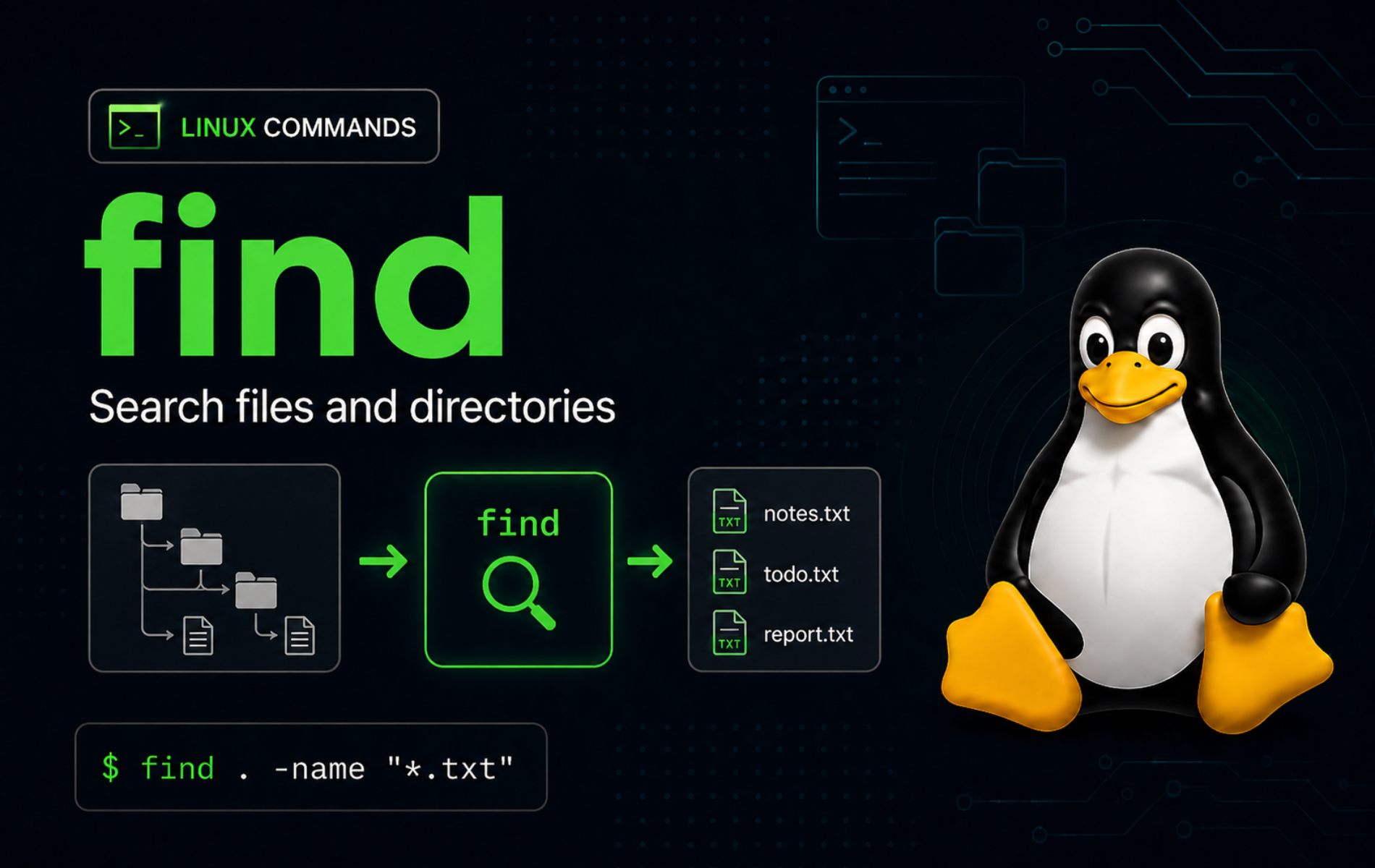
Large Linux filesystems rarely fail because files are impossible to locate; they fail because the search is too broad, too noisy, or too risky to act on. The find command in Linux gives you a controlled way to match paths by name, type, size, timestamps, permissions, and directory depth before you list, inspect, or clean anything.
Use find when shell globs are not enough, when filenames contain spaces, or when you need recursive checks under a specific path. The examples use GNU find from findutils, which is the normal implementation on Ubuntu, Fedora, Debian, RHEL-family, and many other full Linux installations.
Use the find Command Syntax
GNU find walks one or more starting directories and evaluates an expression against every path it visits. If you omit the starting path, it searches the current directory. If you omit the expression, it prints every matched path.
find [starting-point...] [expression]The expression controls what find matches and what it does with each match. It can contain tests, actions, options, and operators:
- Tests: Conditions such as
-name,-type,-size,-mtime, and-permdecide whether a path matches. - Actions: Actions such as
-print,-printf,-delete, and-execdecide what happens to matches. - Options: Options such as
-maxdepth,-mindepth,-depth,-L, and-Pchange traversal behavior. - Operators: Operators such as
-a,-o,!, and grouped parentheses combine tests. When no operator appears between tests,findtreats it as AND.
The Linux find manual page documents the GNU syntax, while the GNU findutils expression reference is useful when you need deeper details about tests, actions, and operator precedence.
find Command Quick Reference
| Task | Command Pattern | What It Does |
|---|---|---|
| Search current directory only | find . -maxdepth 1 -type f -print | Lists regular files directly under the starting directory without walking subdirectories. |
| Find files by name | find . -type f -name '*.log' -print | Searches below the current directory for regular files ending in .log. |
| Ignore filename case | find . -type f -iname '*report*' -print | Matches names such as Report, report, and REPORT. |
| Match several extensions | find . -type f \( -name '*.txt' -o -name '*.md' \) -print | Uses grouped OR logic so one search can match multiple filename patterns. |
| Find hidden paths | find . -mindepth 1 -name '.*' -print | Matches dotfiles and dot directories while avoiding the starting directory itself. |
| Limit recursion depth | find . -maxdepth 2 -type d -print | Lists directories no deeper than two levels below the starting point. |
| Find large files | find . -type f -size +1G -print | Matches regular files larger than 1 GiB. |
| Find recent files | find . -type f -mmin -60 -print | Matches files modified within the last 60 minutes. |
| Find older files | find logs -type f -mtime +30 -print | Matches files whose contents were modified more than 30 days ago. |
| Find executable files | find . -type f -perm /u=x -print | Matches files with the user execute bit set. |
| Find world-writable files | find . -type f -perm -0002 -print | Matches files that any user can write to. |
| Find broken symlinks | find -L . -type l -print | Follows links, then prints symlinks whose targets cannot be resolved. |
| Skip subtrees | find . \( -path './cache' -o -path './logs' \) -prune -o -type f -print | Prunes selected directories before continuing through the rest of the tree. |
| Handle unusual names | find . -type f -print0 | Prints NUL-delimited names for safe use with xargs -0. |
| Preview cleanup | find tmp -type f -name '*.tmp' -print | Shows the exact matches before any deletion action runs. |
Verify the find Command on Linux
Most full Linux installations already include find. Confirm the command path and implementation before relying on GNU-specific actions such as -printf:
command -v find
find --version | head -n 1
Example output from a GNU findutils system:
/usr/bin/find
find (GNU findutils) 4.10.0
If a minimal image does not include find, install the findutils package from the normal distro repositories. Avoid removing baseline utilities just to reproduce a missing-command error.
sudo apt install findutils        # Debian, Ubuntu, Linux Mint
sudo dnf install findutils        # Fedora, RHEL-family, CentOS Stream
sudo pacman -S findutils          # Arch Linux, Manjaro
sudo zypper install findutils     # openSUSE
Create a Safe Practice Tree for find Examples
The examples use a temporary directory under your home folder so searches, previews, and deletion tests stay away from real data. Keep the same terminal session open because the $demo variable stores the cleanup path.
demo=$(mktemp -d "$HOME/find-demo.XXXXXX")
mkdir -p "$demo"/{logs,docs,cache,tmp,scripts,src,empty-dir}

printf 'Root note\n' > "$demo/root-note.txt"
printf 'INFO start\nERROR timeout\n' > "$demo/logs/app.log"
for i in {1..200}; do printf 'large log line %03d\n' "$i"; done > "$demo/logs/big.log"
printf 'old log\n' > "$demo/logs/old.log"
printf 'cached=true\n' > "$demo/cache/generated.conf"
printf 'port=8080\n' > "$demo/src/app.conf"
chmod 0644 "$demo/src/app.conf"
printf 'Project notes\n' > "$demo/docs/readme.txt"
printf 'Quarterly results\n' > "$demo/docs/Quarterly Report.txt"
printf 'Markdown notes\n' > "$demo/docs/notes.md"
printf 'TOKEN=\n' > "$demo/docs/.env.sample"
: > "$demo/docs/empty.txt"
printf 'release marker\n' > "$demo/docs/release.marker"
printf 'New release notes\n' > "$demo/docs/newer-notes.txt"
printf '#!/bin/sh\nprintf "deploy\\n"\n' > "$demo/scripts/deploy.sh"
chmod +x "$demo/scripts/deploy.sh"
printf 'temporary\n' > "$demo/tmp/delete-me.tmp"
printf 'fresh\n' > "$demo/tmp/recent.dat"
printf 'public scratch\n' > "$demo/tmp/world-writable.txt"
chmod 666 "$demo/tmp/world-writable.txt"

touch -d '45 days ago' "$demo/logs/old.log"
touch -d '60 days ago' "$demo/docs/readme.txt" "$demo/docs/Quarterly Report.txt" "$demo/docs/notes.md" "$demo/docs/.env.sample" "$demo/docs/empty.txt"
touch -d '2 days ago' "$demo/docs/release.marker"
touch -d '1 day ago' "$demo/docs/newer-notes.txt"
ln -s docs/readme.txt "$demo/readme-link"
ln -s missing-target "$demo/broken-link"

cd "$demo"
printf 'Demo directory: %s\n' "$demo"
Every command that starts with find . assumes your shell is inside that demo directory.
Find Files by Name, Type, and Path
Find Files in the Current Directory Only
Use -maxdepth 1 when you want files in the starting directory but not in subdirectories. This avoids a common mistake where a quick check turns into a full recursive scan.
find . -maxdepth 1 -type f -print | sort./root-note.txt
Find Files by Exact Name Pattern
Search for regular files whose names end in .log. Quote the pattern so your shell does not expand it before find sees it.
find . -type f -name '*.log' -print | sort./logs/app.log ./logs/big.log ./logs/old.log
Find Files with Case-Insensitive Names
Use -iname when capitalization is inconsistent across files created by different users or applications.
find . -type f -iname '*report*' -print | sort./docs/Quarterly Report.txt
Find Multiple File Extensions
Group -name tests with escaped parentheses when one search needs OR logic. The shell must pass the parentheses to find, so keep the backslashes.
find docs -type f \( -name '*.txt' -o -name '*.md' \) -print | sortdocs/empty.txt docs/newer-notes.txt docs/notes.md docs/Quarterly Report.txt docs/readme.txt
Find Hidden Files and Dotfiles
find does not skip hidden files by default, but a pattern such as .* can also match the starting directory. Add -mindepth 1 when the goal is hidden paths below the start point.
find . -mindepth 1 -name '.*' -print | sort./docs/.env.sample
Find Directories at a Limited Depth
-maxdepth prevents a broad search from walking deeper than needed. This is useful before cleaning caches, scanning project roots, or checking only top-level service directories.
find . -maxdepth 2 -type d -print | sort. ./cache ./docs ./empty-dir ./logs ./scripts ./src ./tmp
Skip One or More Directories with prune
Use -prune when a directory should not be searched at all. This first command skips ./cache, then prints matching config files elsewhere.
find . -path './cache' -prune -o -type f -name '*.conf' -print | sort./src/app.conf
The cache directory contains generated.conf, but -prune removes that subtree from the search before the -name '*.conf' test runs on the remaining paths.
For multiple exclusions, group the path tests before -prune. Keep the final -print on the right side of -o so pruned directories do not appear as normal results.
find . \( -path './cache' -o -path './logs' \) -prune -o -type f -name '*.conf' -print | sort./src/app.conf
Find Symbolic Links or Follow Them
By default, GNU find does not follow symbolic links. Use -type l to locate links themselves.
find . -type l -print | sort./broken-link ./readme-link
Add -L before the starting point when the search should evaluate the linked target instead of the symlink object.
find -L . -type f -name 'readme-link' -print | sort./readme-link
Find Broken Symbolic Links
A broken symlink points to a target that no longer exists. Add -L, then test for remaining link objects with -type l.
find -L . -type l -print | sort./broken-link
Find Files by Size, Time, and Permissions
Find Files Larger Than a Size
Size tests use suffixes such as k, M, and G. A plus sign means larger than the size, while a minus sign means smaller than the size.
find . -type f -size +1k -print | sort./logs/big.log
For disk-usage triage after you identify large paths, use the du disk usage analysis guide to compare directory totals and filesystem usage.
Find Files Between Two Sizes
Combine two -size tests when the useful range has both a lower and upper bound. The following search matches log files larger than 1 KiB but smaller than 10 KiB.
find logs -type f -size +1k -size -10k -print | sortlogs/big.log
Find Files Modified Recently
-mmin uses minutes instead of whole 24-hour periods. Refresh the demo timestamps first so the output does not depend on when you created the practice tree.
touch tmp/delete-me.tmp tmp/recent.dat tmp/world-writable.txt
find tmp -type f -mmin -60 -print | sort
tmp/delete-me.tmp tmp/recent.dat tmp/world-writable.txt
Find Files Older Than a Number of Days
-mtime +30 matches files whose content was modified more than 30 days ago. Search a narrow path first when old-file cleanup could remove data.
find logs -type f -mtime +30 -print | sortlogs/old.log
Find Files Newer Than a Marker File
-newer is useful after deployments, migrations, or backup runs because it compares paths to a known marker file.
find docs -type f -newer docs/release.marker -print | sortdocs/newer-notes.txt
Find Executable Files
The -perm /u=x test matches files where the owner execute bit is set. This is a quick way to audit scripts before changing modes recursively.
find . -type f -perm /u=x -print | sort./scripts/deploy.sh
Use the chmod command guide before applying bulk permission changes, especially when executable bits, recursive modes, or symbolic permissions are involved.
Find Files with an Exact Permission Mode
An exact -perm mode matches files whose permission bits equal that mode. Use this for audits, not as proof that the owner or group is correct.
find src -type f -perm 0644 -print | sortsrc/app.conf
Find World-Writable Files
-perm -0002 matches files where the other-write bit is set. That is often a security smell outside temporary scratch directories.
find . -type f -perm -0002 -print | sort./tmp/world-writable.txt
Find Files Without a Valid Owner or Group
After deleting users, restoring backups, or moving data between systems, -nouser and -nogroup can reveal files whose numeric IDs no longer map to local accounts. Treat this as a diagnostic list before changing ownership.
sudo find / -xdev \( -nouser -o -nogroup \) -print 2>/dev/null-xdev keeps the search on the starting filesystem, which avoids crossing into mounted drives, network shares, containers, or special filesystems during a broad system audit.
Find Empty Files
The -empty test matches empty regular files when paired with -type f. It also matches empty directories when paired with -type d.
find . -type f -empty -print | sort./docs/empty.txt
Format and Pipe find Output Safely
Print Custom Fields with printf
GNU -printf lets you format output without sending each match to another command. The %p directive prints the path, while %s prints the file size in bytes.
find . -maxdepth 2 -type f -name '*.log' -printf '%p %s bytes\n' | sort./logs/app.log 25 bytes ./logs/big.log 3800 bytes ./logs/old.log 8 bytes
The GNU findutils print-field reference lists the available directives when you need owners, modes, timestamps, or relative paths in reports.
Count Matches Without Printing Every Path
Counting lines from -print is fine for ordinary names, but -printf '.' avoids path text entirely and counts one marker per match.
find logs -type f -name '*.log' -printf '.' | wc -c3
Search Matched Files for Text
find selects paths; grep searches file contents. Pair them when you need to search only a specific file set, such as configuration files under one directory.
find src -type f -name '*.conf' -exec grep -H 'port' {} +src/app.conf:port=8080
Use the grep command guide for regular expressions, inverted matches, context lines, and recursive content searches that do not need find to preselect files. For matched-path workflows that need more than this simple handoff, use the find exec command guide for detailed -exec, -execdir, and confirmation examples.
Preserve Filenames with print0 and xargs
Whitespace breaks careless pipelines. Use -print0 with xargs -0 when matched names may contain spaces, tabs, quotes, or newlines.
find docs -type f -name '*Report*' -print0 | xargs -0 -n1 basenameQuarterly Report.txt
The GNU manual’s file deletion examples explain why NUL-delimited output matters for unusual filenames and why direct shell command substitution is a poor fit for arbitrary path lists.
Delete Matches Safely with find
Deletion is where find needs the most restraint. Preview the exact matches, narrow the starting path, and only then replace the preview action with -delete.
find tmp -type f -name '*.tmp' -print | sorttmp/delete-me.tmp
-deletepermanently removes matched paths. Run the preview from the same starting path and expression first, and do not use it under broad paths such as/or your full home directory unless you have reviewed the match set carefully.
find tmp -type f -name '*.tmp' -deletefind tmp -type f -name '*.tmp' -print | wc -l0
The zero count confirms the temporary file no longer matches.
Delete Empty Directories Only
Empty-directory cleanup should target directories, not files. Preview with -type d and -empty, then run the same expression with -delete.
find . -depth -type d -empty -print | sort./empty-dir
find . -depth -type d -empty -delete
find . -depth -type d -empty -print | wc -l
0
Use the rmdir command guide when directory-removal behavior, parent cleanup, or failed non-empty removals need more explanation.
Troubleshoot Common find Command Errors
find command not found
A stripped-down image may not include find, or $PATH may not include the directory that contains it. Check the shell lookup first:
command -v findNo output means the shell cannot find the command. Install findutils through the distro package manager, then verify the path and version again. For broader command-location checks, compare executable lookup behavior with the which command guide or inspect standard binary and manual paths with the whereis command guide.
find: paths must precede expression
This error often appears when the shell expands an unquoted wildcard before find receives it. For example, if the current directory contains both a.log and b.log, an unquoted *.log becomes two separate arguments.
touch a.log b.log
find . -name *.log -print
find: paths must precede expression: `b.log' find: possible unquoted pattern after predicate `-name'?
Quote the pattern so find receives it as a pattern instead of a shell-expanded file list.
find . -name '*.log' -printRemove the two throwaway files after testing the quoting error.
rm -f a.log b.logfind reports permission denied
Permission errors mean the starting path includes directories your current user cannot read. A root-owned path may print the directory name and then the failed child traversal.
LC_ALL=C find /root -maxdepth 1 -print/root find: '/root': Permission denied
Prefer a narrower path you own. Use sudo only when the task genuinely requires protected directories. If you only want to continue through readable paths while hiding permission noise, redirect standard error:
find /etc -name '*.conf' -print 2>/dev/nullfind returns no matches
No output is not always an error. It usually means the starting path, filename case, file type, or time/size test does not match the files you expected.
pwd
find . -maxdepth 1 -print
find . -type f -iname '*log*' -print
Check your current directory first, then relax one condition at a time. Switch from -name to -iname when case might be different, and remove -type f temporarily when the match could be a directory or symbolic link.
find returns too many results
Overly broad output usually comes from starting too high in the filesystem or missing a type, depth, or path exclusion. Inspect a small preview before changing the expression.
find . -maxdepth 2 -type f -print | head -n 20If the preview shows cache, dependency, or generated directories that should not be searched, add -prune exclusions and run another preview before using the result for cleanup or bulk processing.
find . \( -path './cache' -o -path './logs' \) -prune -o -type f -print | head -n 20Argument list too long after command substitution
Shell command substitution such as rm $(find ...) breaks on large match sets and corrupts filenames with spaces or newlines. A common symptom is bash: /usr/bin/rm: Argument list too long.
Preview matches first, then use a find action that processes paths without expanding them through the shell.
find tmp -type f -name '*.tmp' -printfind tmp -type f -name '*.tmp' -deletefind tmp -type f -name '*.tmp' -print | wc -l0
A zero count means the cleanup expression no longer matches anything under tmp.
For commands that need another tool, prefer -exec ... {} + or -print0 with xargs -0 instead of command substitution.
printf is not recognized
-printf is a GNU find feature. Minimal BusyBox-style environments may support common tests such as -name, -type, and -mtime but reject GNU-only formatting actions.
find --version | head -n 1If the command does not identify GNU findutils, install the distro’s findutils package or replace -printf with a simpler portable action such as -print.
Clean Up the Practice Tree
Remove the temporary practice tree after you finish testing. The printf line prints the exact directory stored in $demo so you can confirm the target before deletion.
The cleanup command deletes the demo directory and everything inside it. Confirm that
$demopoints to the temporaryfind-demo.path created earlier before runningrm -rf.
printf '%s\n' "$demo"
cd
rm -rf -- "$demo"
Conclusion
find is ready to turn recursive filesystem searches into reviewed match sets: names, extensions, hidden paths, sizes, timestamps, permissions, links, counts, and safe cleanup targets. Quote patterns, start from the narrowest useful path, preview destructive matches, and use -print0, -printf, or -exec when plain path output is not enough.


Formatting tips for your comment
You can use basic HTML to format your comment. Useful tags currently allowed in published comments:
<code>command</code>command<strong>bold</strong><em>italic</em><a href="https://example.com">link</a><blockquote>quote</blockquote>