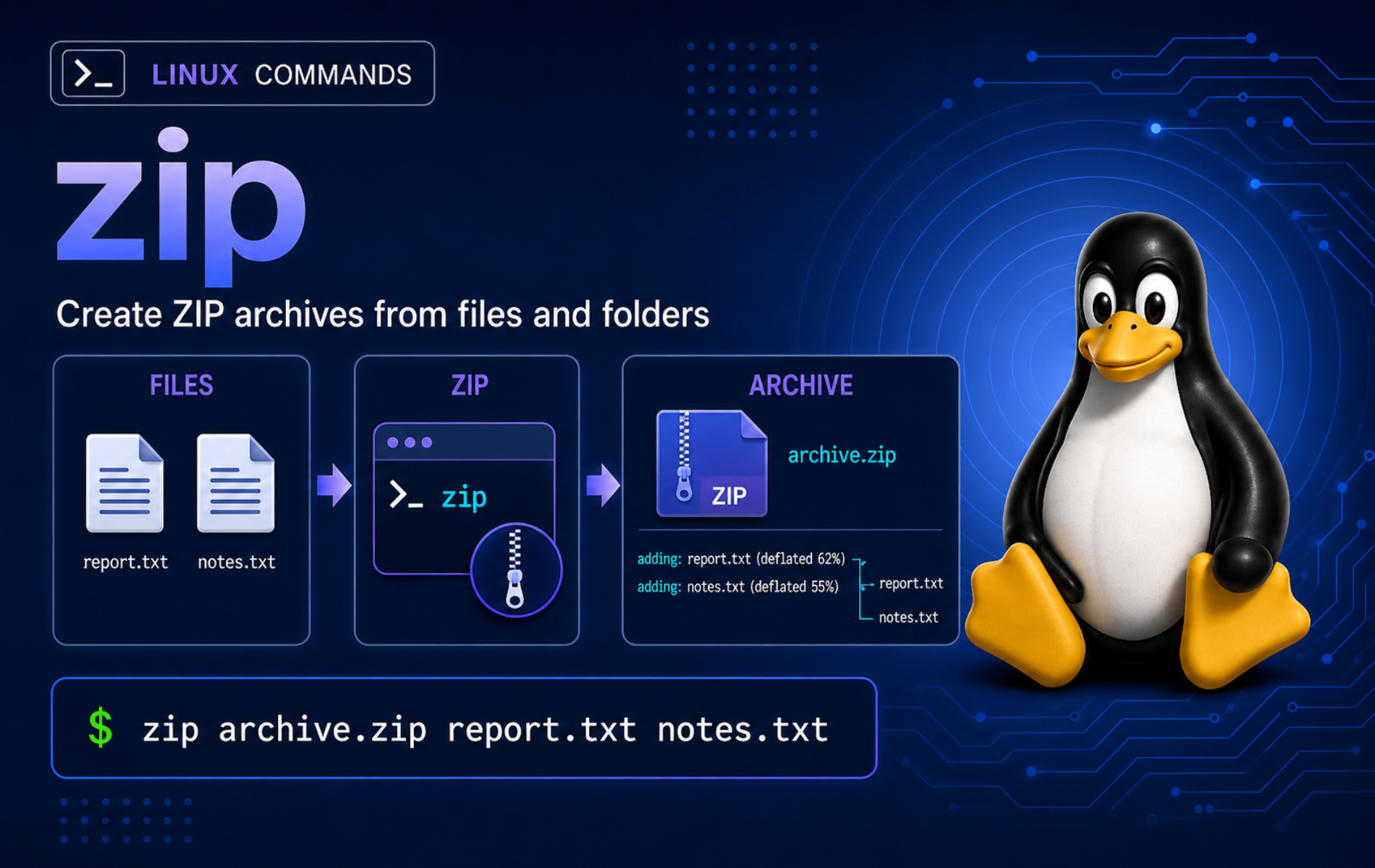
ZIP files are still the easiest archive format to hand to Windows users, upload portals, and support teams that do not want a .tar.gz workflow. The zip command in Linux creates and updates those archives from the terminal, but it is safest when you know which paths are stored, which patterns the shell expands, and when an existing archive keeps old entries.
Mainstream Linux distributions usually package Info-ZIP zip 3.0. That tool creates ZIP archives; extraction is normally handled by unzip, and Info-ZIP zip -T also calls unzip to test archives on typical builds. The Linux zip(1) manual page documents the full option set, including update modes, file-list input, archive testing, and archive-entry deletion.
Understand the zip Command in Linux
zip stores one or more files inside a single .zip archive. It can add new files, replace matching existing entries, delete entries from an archive, and test the archive after creation. It does not extract archives; use unzip command examples when the task is inspection or extraction.
The basic command syntax follows this pattern:
zip [OPTION]... ARCHIVE.zip FILE_OR_DIRECTORY...OPTIONcontrols recursion, compression level, exclusions, update mode, testing, quiet output, or archive-entry changes.ARCHIVE.zipis the archive to create or update. If the name has no extension,zipnormally appends.zip.FILE_OR_DIRECTORYnames the paths to store. A directory needs-rwhen you want its contents, not just the directory entry.
Start with the pattern that matches the archive job:
| Task | Command Pattern | What It Does |
|---|---|---|
| Create a file archive | zip notes.zip notes.txt | Stores one file in a ZIP archive. |
| Create a directory archive | zip -r project.zip project | Stores the directory tree recursively. |
| Archive directory contents | (cd project && zip -r ../project-contents.zip .) | Stores the contents without the parent project/ path. |
| Exclude cache files | zip -r project.zip project -x 'project/cache/*' | Skips archive paths that match the quoted pattern. |
| Show archive entries | zip -sf project.zip | Lists stored paths without extracting files. |
| Test archive integrity | zip -T project.zip | Checks whether the archive can be read; typical Info-ZIP builds call unzip. |
| Update changed files | zip -u project.zip project/docs/readme.txt | Updates matching entries only when the filesystem copy is newer. |
| Delete an archive entry | zip -d project.zip 'project/cache/*' | Removes matching entries from the ZIP file. |
| Read a file list | find project -type f | zip files.zip -@ | Stores file names read from standard input. |
| Suppress normal output | zip -rq project.zip project | Creates a recursive archive quietly. |
For Linux-native backups that must preserve ownership, symbolic links, device files, ACLs, or extended attributes, tar command examples are usually a better fit. Use ZIP when cross-platform compatibility is the main requirement.
Install or Verify zip on Linux
Check the active command before installing anything on a minimal server, container, or stripped-down desktop image:
command -v zipA normal package-managed install returns a path like this:
/usr/bin/zip
Check unzip separately when you plan to use zip -T or inspect archives with unzip -l:
command -v unzip/usr/bin/unzip
Confirm the implementation when option behavior matters:
zip -v | head -n 2Info-ZIP 3.0 prints a banner like this:
Copyright (c) 1990-2008 Info-ZIP - Type 'zip "-L"' for software license.
This is Zip 3.0 (July 5th 2008), by Info-ZIP.
If the command is missing, install the zip package from your distribution repositories. Install unzip too when you plan to test or inspect archives, because Info-ZIP uses it for zip -T and it provides the common unzip -l and zipinfo inspection commands.
APT-Based Distributions
sudo apt update
sudo apt install zip unzip
Fedora and RHEL-Family Distributions
sudo dnf install zip unzipArch Linux and Manjaro
sudo pacman -S zip unzipopenSUSE
sudo zypper install zip unzipPackage-manager installs update through the same system update workflow as the rest of the distribution packages. Avoid removing zip or unzip from shared workstations or build hosts without checking scripts, desktop archive tools, or package recommendations that may expect them.
Create a Disposable zip Practice Directory
A small practice tree keeps archive examples away from real project files, backups, and downloads. Choose another path if ~/zip-demo already contains anything you want to keep, because the cleanup section removes that directory.
mkdir -p ~/zip-demo/project/{docs,cache,assets} ~/zip-demo/dot-demo
printf 'app_port=8080\n' > ~/zip-demo/project/config.ini
printf 'Zip demo notes\n' > ~/zip-demo/project/docs/readme.txt
printf 'temporary cache\n' > ~/zip-demo/project/cache/session.tmp
printf 'logo placeholder\n' > ~/zip-demo/project/assets/logo.txt
printf 'TOKEN=demo\n' > ~/zip-demo/dot-demo/.env
cd ~/zip-demo
find project dot-demo -maxdepth 3 -type f | sort
The practice directory contains ordinary files, a cache file to exclude, and a hidden file example:
dot-demo/.env
project/assets/logo.txt
project/cache/session.tmp
project/config.ini
project/docs/readme.txt
The mkdir command guide covers nested directory creation and -p behavior in more detail.
Create ZIP Archives with zip
ZIP creation is append-friendly: if the archive does not exist, zip creates it; if the archive exists, zip adds new entries and replaces matching entries by stored path. Work from ~/zip-demo for the examples so the stored paths stay relative and easy to inspect.
Create a Single-File ZIP Archive
Name the output archive first, then the file to store:
zip notes.zip project/docs/readme.txt
zip -sf notes.zip
The listing shows one stored entry:
  adding: project/docs/readme.txt (stored 0%)
Archive contains:
  project/docs/readme.txt
Total 1 entries (15 bytes)
The stored path is project/docs/readme.txt because that is the path passed to zip. Change into a different directory or pass a different relative path when you want a different layout inside the archive.
Archive a Directory Recursively
Add -r when the source is a directory. Without recursion, zip stores the directory entry but not the files inside it.
zip -r project.zip projectInspect the stored paths before sharing or deleting the source directory:
zip -sf project.zipArchive contains: project/ project/docs/ project/docs/readme.txt project/config.ini project/assets/ project/assets/logo.txt project/cache/ project/cache/session.tmp Total 8 entries (62 bytes)
Archive the top-level directory itself when the recipient should extract into one folder. Archive the files inside a directory only when you deliberately want them to land directly in the extraction destination.
Archive Directory Contents Without the Parent Folder
Change into the source directory in a subshell when the ZIP archive should contain the directory contents, not the parent folder name. This pattern is useful for upload portals that expect files at the archive root.
(cd project && zip -r ../project-contents.zip . -x 'cache/*')
zip -sf project-contents.zip
adding: docs/ (stored 0%) adding: docs/readme.txt (stored 0%) adding: config.ini (stored 0%) adding: assets/ (stored 0%) adding: assets/logo.txt (stored 0%) Archive contains: docs/ docs/readme.txt config.ini assets/ assets/logo.txt Total 5 entries (46 bytes)
The parentheses keep the directory change local to that command, so your interactive shell stays in ~/zip-demo. The exclusion pattern changes from project/cache/* to cache/* because the stored paths no longer start with project/.
Exclude Files or Directories from a ZIP Archive
Use -x to skip cache, build, log, or temporary paths. Quote archive-entry patterns so the shell leaves the wildcard for zip to match against stored paths.
zip -r project-clean.zip project -x 'project/cache/*'Inspect the cleaned archive before using it:
zip -sf project-clean.zipThe cache directory contents are absent from the archive:
Archive contains:
  project/
  project/docs/
  project/docs/readme.txt
  project/config.ini
  project/assets/
  project/assets/logo.txt
Total 6 entries (46 bytes)
Place exclusion patterns after the source paths when using the traditional Info-ZIP option style. Keep the pattern tied to the path stored in the archive, not only to the path as you think of it on disk.
Create a ZIP Archive Quietly
Add -q when normal adding: lines would clutter a script or terminal log. Pair quiet archive creation with a separate verification command so failure is still visible.
zip -rq quiet-project.zip project
ls -1 quiet-project.zip
quiet-project.zip
Inspect and Test ZIP Archives
Inspect archives before extracting them, mailing them, or deleting the source files. A quick listing catches stored path mistakes, accidental cache entries, and archives that would unpack into the wrong place.
Show Stored Paths with zip
The -sf option shows archive entries without extracting anything:
zip -sf project-clean.zipArchive contains: project/ project/docs/ project/docs/readme.txt project/config.ini project/assets/ project/assets/logo.txt Total 6 entries (46 bytes)
Use unzip -l archive.zip when you prefer extraction-tool output with lengths and timestamps. The zip -sf form is useful when you only want to stay inside the zip package.
Test ZIP Archive Integrity
Use -T after creating an archive that will be uploaded, stored, or handed to another system:
zip -T project-clean.ziptest of project-clean.zip OK
A successful integrity test does not prove the recipient has the right extraction tool, enough disk space, or permission to overwrite files. It proves the ZIP structure can be read.
Update and Edit ZIP Archives
Existing ZIP archives are not automatically synchronized with the source directory. A normal zip archive.zip path operation adds or replaces matching entries, but it does not remove old archive entries for files that disappeared from disk.
Update a Changed File
Use -u when you want to update entries only if the filesystem copy is newer. If you created the archive moments ago, wait one second before editing the demo file so timestamp comparison is visible on filesystems with one-second resolution.
sleep 1
printf 'extra line\n' >> project/docs/readme.txt
zip -u project.zip project/docs/readme.txt
updating: project/docs/readme.txt (stored 0%)
Use normal add mode when you want zip to add new paths as well. Use -f only when the archive should freshen existing entries and ignore new files.
Delete Entries from a ZIP Archive
The -d option removes stored archive entries. It does not delete the original files on disk, but it does modify the ZIP file, so copy the archive first when you are experimenting.
cp project.zip project-pruned.zip
zip -d project-pruned.zip project/cache/session.tmp
zip -sf project-pruned.zip
deleting: project/cache/session.tmp Archive contains: project/ project/docs/ project/docs/readme.txt project/config.ini project/assets/ project/assets/logo.txt project/cache/ Total 7 entries (57 bytes)
Quote wildcard deletes such as 'project/cache/*' so your shell does not expand the pattern against the current directory before zip can match entries inside the archive.
Synchronize an Archive with the Filesystem
The -FS option synchronizes an archive with the files currently on disk. It can delete entries from the archive when the matching file no longer exists, so keep a copy of the archive before using it on anything important.
cp project.zip project-before-sync.zip
rm -f project/cache/session.tmp
zip -r -FS project.zip project
zip -sf project.zipThe missing cache file is removed from the updated archive:
deleting: project/cache/session.tmp
Archive contains:
  project/
  project/docs/
  project/docs/readme.txt
  project/config.ini
  project/assets/
  project/assets/logo.txt
  project/cache/
Total 7 entries (57 bytes)
Use -FS only when the source tree is the intended truth. If an old archive entry is the only remaining copy of a file, extract or copy it before synchronization.
Handle Patterns, Hidden Files, and File Lists
Most surprising ZIP results come from the shell, not from zip. Globs such as *.txt expand before zip starts, while quoted archive patterns after -x or -d are matched by zip itself.
Archive Hidden Files by Naming the Directory
Shell globs such as * usually skip dotfiles. Archive the directory itself when hidden files inside that directory should be included.
zip -r dot-demo.zip dot-demo
zip -sf dot-demo.zip
adding: dot-demo/ (stored 0%) adding: dot-demo/.env (stored 0%) Archive contains: dot-demo/ dot-demo/.env Total 2 entries (11 bytes)
This pattern stores the hidden .env file because the directory walker sees it. Be careful with real dotfiles because they can contain tokens, local configuration, or credentials.
Archive Files Selected by find
Use -@ when another command should choose the input file list. The find command in Linux is a good fit for extension, depth, size, or modified-time selection.
find project -type f -name '*.txt' | sort | zip text-files.zip -@
zip -sf text-files.zip
adding: project/assets/logo.txt (stored 0%) adding: project/docs/readme.txt (stored 0%) Archive contains: project/assets/logo.txt project/docs/readme.txt Total 2 entries (43 bytes)
Preview the file list before piping it into zip when the selection could be broad:
find project -type f -name '*.txt' | sortproject/assets/logo.txt project/docs/readme.txt
For filenames with embedded newlines, a line-based -@ list is not enough. Use safer file naming rules or a different archive workflow when you must handle arbitrary pathnames.
Keep Shell Globs and Archive Patterns Separate
Use unquoted globs only when you want the shell to expand matching files before zip starts. Use quoted patterns when zip should match entries inside the archive.
| Pattern | Who Matches It | Use It For |
|---|---|---|
zip text.zip *.txt | The shell | Files in the current directory that match before zip runs. |
zip -r app.zip project -x 'project/cache/*' | zip | Archive entries under the stored cache path. |
zip -d app.zip 'project/cache/*' | zip | Existing archive entries, not filesystem files. |
find project -name '*.txt' | zip text.zip -@ | find, then zip | Selected file paths passed through standard input. |
When a glob might match too much, preview the real pattern first with a command such as printf '%s\n' *.txt, or use find with a tighter directory and predicate.
Control How zip Stores Symbolic Links
Info-ZIP follows symbolic links by default, so the archive stores the target file contents under the link name. Add -y when you need the ZIP entry to remain a symbolic link on Linux or another Unix-like system.
ln -s docs/readme.txt project/readme-link
zip -qr symlink-followed.zip project/readme-link
zipinfo -l symlink-followed.zip | awk '$NF=="project/readme-link" {print substr($1,1,1), $4, $NF}'
zip -qyr symlink-entry.zip project/readme-link
zipinfo -l symlink-entry.zip | awk '$NF=="project/readme-link" {print substr($1,1,1), $4, $NF}'
- 26 project/readme-link l 15 project/readme-link
The dash marks a regular file entry because zip followed the link. The l marks a symbolic-link entry because -y preserved the link itself; the number 15 is the length of docs/readme.txt, the link target text.
Control Compression and Output
The default compression is a sensible starting point for text, source trees, and small bundles. Use compression-level options only when speed, size, or already-compressed files make the default a poor fit.
Choose Compression Level
Use -0 to store files without compression, -1 for faster compression, or -9 for the strongest normal compression. Already-compressed files such as JPEG, PNG, MP4, and many package archives often gain little from extra compression.
zip -0 stored.zip project/assets/logo.txt
zip -9 compressed.zip project/docs/readme.txt
ls -1 stored.zip compressed.zip
adding: project/assets/logo.txt (stored 0%) adding: project/docs/readme.txt (stored 0%) compressed.zip stored.zip
For repeatable scripts, choose the level for the workload instead of always forcing -9. Stronger compression can spend more CPU for a size difference that does not matter on small files.
Store Files Without Compression
Use -0 when you want a ZIP container without deflate compression. This is useful for already-compressed media, prebuilt archives, or any workflow where storage speed matters more than a smaller ZIP file.
zip -0 media-bundle.zip project/assets/logo.txtadding: project/assets/logo.txt (stored 0%)
The stored method means the file was packed into the archive without deflate compression. That is expected when you choose -0.
Use zip Safely for Backups and Shared Files
ZIP is a practical exchange format, not a perfect Linux system-backup format. It handles normal files and directories well, but restore expectations change when ownership, symbolic links, permissions, device nodes, ACLs, or extended attributes matter.
- Inspect unfamiliar archives before extraction with
zip -sforunzip -l. - Create archives from relative paths unless you deliberately need absolute-path restore behavior.
- Keep a copy before using
-dor-FS, because both change the archive. - Use
tarfor Linux-native backups where metadata preservation matters more than Windows compatibility. - Choose an encryption workflow designed for sensitive data instead of treating a compatibility ZIP password prompt as a complete secrets policy.
Avoid zip -P password for real secrets because the password travels through the command line. If you only need legacy ZIP password compatibility, use zip -e so the tool prompts without placing the password in shell history; use a stronger encryption workflow when the data is sensitive.
For single-file compression where you do not need a multi-file archive, gzip command examples may be simpler. For restoring .gz files, use the matching gunzip command examples instead of ZIP tooling.
Troubleshoot Common zip Errors
Start with the layer that can be checked without changing files: command availability, current directory, path expansion, and archive contents. Most zip failures come from a missing binary, a wrong path, or a pattern that matched the wrong layer.
zip Command Not Found
If the shell reports zip: command not found, confirm whether the binary exists on your PATH:
command -v zip || printf 'zip is not installed\n'zip is not installed
Install the zip package with the package-manager command for your distribution, then rerun command -v zip. If the command still does not resolve, open a new terminal or inspect $PATH for a restricted shell environment.
zip Error: Nothing to Do
This error means zip did not receive any readable input files after path and pattern handling. A misspelled path is the simplest cause.
zip missing.zip no-such-file.txtzip warning: name not matched: no-such-file.txt zip error: Nothing to do! (missing.zip)
Check the path from your current directory before repeating the archive command:
ls -ld no-such-file.txtls: cannot access 'no-such-file.txt': No such file or directory
For shell globs, preview the expansion that your shell will pass to zip:
printf '%s\n' *.txt*.txt
If the preview prints the literal pattern, the shell did not find a match in the current directory. Change directories, fix the path, or use find for a more controlled selection.
Archive Still Contains Deleted Files
Normal add and update modes do not remove old archive entries. Check the archive before assuming it matches the current source directory:
zip -sf project.zipIf an old path is still listed, remove that entry explicitly or synchronize from the current source tree after making a backup copy. In the practice directory, project-before-sync.zip is an archive copy that still contains the old cache file:
cp project-before-sync.zip stale-project.zip
zip -d stale-project.zip project/cache/session.tmp
zip -sf stale-project.zip
deleting: project/cache/session.tmp Archive contains: project/ project/docs/ project/docs/readme.txt project/config.ini project/assets/ project/assets/logo.txt project/cache/ Total 7 entries (57 bytes)
Use zip -r -FS project.zip project only when the filesystem tree is the correct source of truth, because -FS can delete archive entries that are no longer present on disk.
zip Test Fails Because unzip Is Missing
Info-ZIP uses unzip for archive testing on typical Linux builds. If zip -T cannot start unzip, the test can fail even when the archive itself is not the real problem:
zip -T project.zipRelevant error line:
zip error: Zip file invalid, could not spawn unzip, or wrong unzip (original files unmodified)
Confirm whether unzip is available on your PATH:
command -v unzip || printf 'unzip is not installed\n'unzip is not installed
If the command is missing, install the unzip package with your distribution’s package manager, then retest the archive:
zip -T project.ziptest of project.zip OK
zip Skips Files Because of Permissions
When zip warns that a file cannot be read, check unreadable paths before running the archive again:
find project ! -readable -printNo output means your current account can read the files under that path. If unreadable files appear, fix permissions with the chmod command guide or change file ownership with chown command examples when you own the files. Use root only for a deliberate system backup workflow, and write the archive to a safe destination where you will not overwrite important data.
Recipient Cannot Extract the Archive
Test the archive locally first:
zip -T project.ziptest of project.zip OK
If the local test passes, the recipient may be missing extraction support, hitting a filename encoding issue, or using an older tool that cannot handle the archive features used. For maximum compatibility, avoid streamed ZIP archives, split archives, and nonessential advanced features unless the receiving side is known to support them.
Clean Up the zip Practice Directory
Removing
~/zip-demodeletes every sample file and ZIP archive created by the examples. Move anything you want to keep before cleanup.
cd ~
rm -rf -- ~/zip-demo
This cleanup targets only the practice directory created earlier. Do not reuse it for real archive folders or download directories.
Conclusion
The zip command is ready for cross-platform file bundles once you can create archives recursively, inspect stored paths, exclude unwanted files, update or delete entries, and test the result. Use ZIP for portable exchange, then switch to tar, gzip, or unzip when the task is Linux-native backup, single-file compression, or extraction.


Formatting tips for your comment
You can use basic HTML to format your comment. Useful tags currently allowed in published comments:
<code>command</code>command<strong>bold</strong><em>italic</em><a href="https://example.com">link</a><blockquote>quote</blockquote>