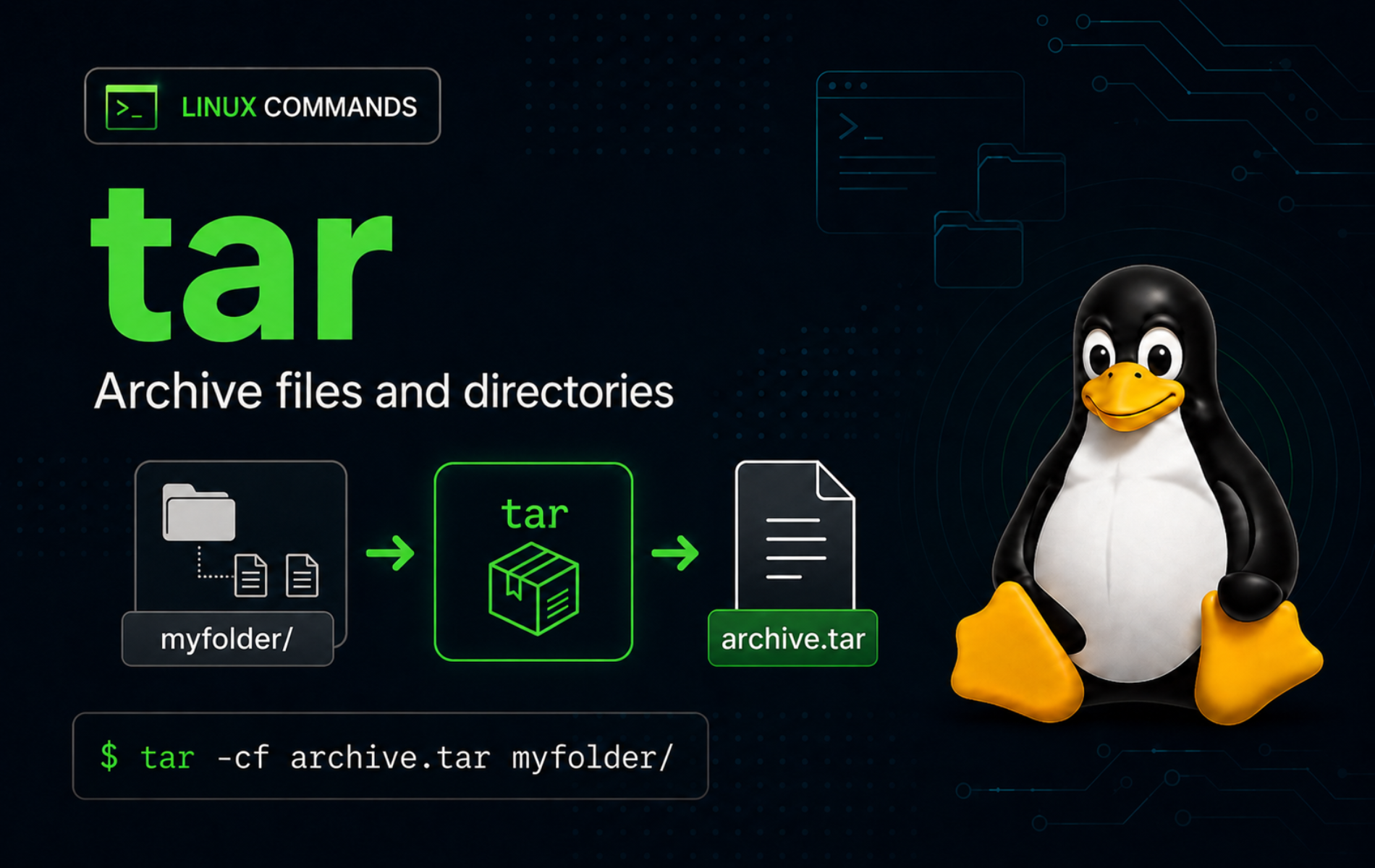
Archive mistakes are noisy at best and destructive at worst: one tar command can list a bundle, create a backup, or overwrite files into the current directory. The tar command in Linux becomes much safer when you separate the operation mode from the archive file, inspect unfamiliar archives first, and extract into a directory you control.
The examples use GNU tar, the implementation shipped by Ubuntu, Fedora, Debian, RHEL-family distributions, Arch Linux, and most full Linux installations. Minimal images can provide a smaller BusyBox tar; it handles basic create, list, and extract tasks, but it may miss GNU options such as --sort=name, --wildcards, or --one-top-level.
Understand the tar Command in Linux
tar stores files and directories inside one archive file. Compression is optional: an uncompressed .tar file stores the archive only, while .tar.gz and .tar.xz combine tar with a compressor such as gzip or xz.
The basic GNU tar syntax follows this pattern:
tar [OPERATION] [OPTIONS] -f ARCHIVE [FILE_OR_MEMBER...][OPERATION]: The main action, such as-cto create,-tto list, or-xto extract. GNU tar expects one operation mode for normal archive work.[OPTIONS]: Modifiers such as-zfor gzip compression,-Cfor a destination or source directory, or--excludefor paths to skip.-f ARCHIVE: The archive file to read or write. Keep-fnext to its archive name so the command is easy to audit.[FILE_OR_MEMBER...]: Files to add when creating an archive, or archive member names to list, extract, append, update, or delete.
Use these common patterns as a quick reference before working through the full examples:
| Task | Command Pattern | What It Does |
|---|---|---|
| Create an archive | tar -cf project.tar project/ | Stores the directory tree in an uncompressed tar archive. |
| List archive contents | tar -tf project.tar | Shows member paths without extracting files. |
| Extract to a directory | tar -xf project.tar -C restore-dir | Restores files into a destination you created first. |
| Create a gzip archive | tar -czf project.tar.gz project/ | Creates a gzip-compressed tar archive. |
| Create an xz archive | tar -cJf project.tar.xz project/ | Creates an xz-compressed tar archive. |
| Skip cache files | tar --exclude='project/cache' -cf project.tar project/ | Omits a matching path while archiving. |
The official GNU tar manual is the reference for complete option behavior. Use the examples here as tested Linux command patterns, then check the manual when you need less common modes such as incremental archives, volume labels, or tape-device workflows.
Verify tar Availability
Normal Linux desktop and server installations usually include tar. Check the active command before troubleshooting package availability on minimal images or containers:
command -v tarExpected output shows the command path:
/usr/bin/tar
Confirm the implementation when GNU-specific options matter:
tar --version | head -n 1GNU tar prints a version banner like this:
tar (GNU tar) 1.35
If tar is missing, install the distro package named tar. On Ubuntu and Debian-based systems, use sudo apt install tar. On Fedora and RHEL-family systems, use sudo dnf install tar. Verify the command again afterward with command -v tar.
Create a Disposable Tar Practice Directory
A small practice tree keeps the examples repeatable without touching real backups or project files. Create it in your home directory, then work from that directory for the remaining examples:
mkdir -p ~/tar-demo/project/{docs,cache}
printf 'app_port=8080\n' > ~/tar-demo/project/config.ini
printf 'Tar demo notes\n' > ~/tar-demo/project/docs/readme.txt
printf 'temporary cache\n' > ~/tar-demo/project/cache/session.tmp
cd ~/tar-demo
find project -maxdepth 3 -type f | sort
The fixture contains three files:
project/cache/session.tmp
project/config.ini
project/docs/readme.txt
The mkdir command guide covers nested directory creation and -p behavior in more detail.
Create Tar Archives in Linux
Archive creation uses -c. Add -f with the output filename, then name the files or directories to store. The examples use --sort=name only to keep the displayed output stable; you can omit it for ordinary one-off archives.
Create an Uncompressed Tar Archive
Create an uncompressed archive when you want to preserve file metadata without spending CPU time on compression:
tar --sort=name -cf project.tar project
tar -tf project.tar
The list command shows the stored member paths:
project/
project/cache/
project/cache/session.tmp
project/config.ini
project/docs/
project/docs/readme.txt
The archive stores relative paths because the source path was project. Avoid creating archives from absolute paths unless you have a restore plan for those exact locations.
Exclude Cache Directories from a Tar Archive
Use --exclude for cache, build, log, or temporary paths that should not travel with a release bundle. Quote exclude patterns so the shell does not expand them before tar reads them:
tar --sort=name --exclude='project/cache' -cf project-release.tar project
tar -tf project-release.tar
The cache directory and its temporary file are absent from the release archive:
project/
project/config.ini
project/docs/
project/docs/readme.txt
Place exclusions before the source path when archiving a large tree. That makes the intended filters easy to review before tar starts walking the directory.
Create gzip and xz Compressed Tar Archives
Add -z for gzip compression or -J for xz compression. Gzip is common for portable source releases and backups; xz often compresses smaller but takes more CPU time.
tar -czf project.tar.gz project
tar -cJf project.tar.xz project
file project.tar.gz project.tar.xz
Example output identifies both compressed archive types:
project.tar.gz: gzip compressed data, from Unix, original size modulo 2^32 10240
project.tar.xz: XZ compressed data, checksum CRC64
GNU tar also supports -j for .tar.bz2 archives, but that requires the bzip2 helper. Check command -v bzip2 before using tar -cjf on minimal systems.
List, Test, and Verify Tar Archives
Listing and verification commands are read-only, so they should come before extraction, repair, or deletion when you are not sure what an archive contains.
List Tar Archive Contents
Use -t to list member paths without extracting anything:
tar -tf project.tarFor a compressed archive, GNU tar can auto-detect the compression when the archive is a named file:
tar -tf project.tar.gz
tar -tf project.tar.xz
Use explicit flags such as -tzf or -tJf in scripts when you want the compression method to be obvious to the next reader.
Test Archive Readability and Compare Files
A quiet list test proves that tar can read the archive. The compare mode, -d, checks archive contents against the current filesystem path and prints differences when files no longer match:
tar -tf project.tar >/dev/null && echo "project.tar: readable"
tar -df project.tar project && echo "project.tar matches project"
A clean match produces only the success messages:
project.tar: readable
project.tar matches project
If tar -d reports differences, decide whether the archive or the live files are the source of truth before overwriting anything.
Verify a Compressed Tar Archive with SHA256
Checksums catch transfer damage and wrong files before extraction. For archives you create, save a checksum beside the archive:
sha256sum project.tar.gz > project.tar.gz.sha256
sha256sum --check project.tar.gz.sha256
A matching checksum prints OK:
project.tar.gz: OK
For downloaded archives, use the checksum published by the project instead of generating your own after the download. When large archives need smaller transfer chunks, use the split command guide for safer part names and reassembly checks.
Extract Tar Archives Safely
List an unfamiliar archive before extraction. Unexpected top-level paths, absolute paths, or many loose files are easier to handle before they land in your working directory.
Extract a Tar Archive to a Clean Directory
Create the destination first, then use -C so restored files land under that directory instead of the current shell location:
mkdir -p restore-full
tar -xf project.tar -C restore-full
find restore-full -maxdepth 4 -type f | sort
The restored tree keeps the original project/ directory:
restore-full/project/cache/session.tmp
restore-full/project/config.ini
restore-full/project/docs/readme.txt
Use sudo only when restoring into a system-owned path or when preserving root-owned metadata is intentional. For untrusted archives extracted as root, add --no-same-owner so archive ownership does not override local ownership expectations.
Extract One File from a Tar Archive
Name the exact archive member after the archive file when you need only one path. Member names are relative and case-sensitive, so copy them from tar -tf output when possible:
mkdir -p restore-config
tar -xf project.tar -C restore-config project/config.ini
find restore-config -type f | sort
restore-config/project/config.ini
Strip Leading Directory Components
--strip-components=1 removes the first path component during extraction. In this example, project/docs/readme.txt becomes docs/readme.txt under the destination:
mkdir -p restore-strip
tar -xf project.tar -C restore-strip --strip-components=1 project/docs/readme.txt
find restore-strip -type f | sort
restore-strip/docs/readme.txt
Use path stripping only after listing the archive. If two stripped paths collide, the later extracted file can overwrite the earlier one.
Extract Matching Files with Wildcards
GNU tar can match archive member names with --wildcards. Quote the pattern so your shell does not expand it against files in the current directory:
mkdir -p restore-wild
tar -xf project.tar -C restore-wild --wildcards 'project/docs/*.txt'
find restore-wild -type f | sort
restore-wild/project/docs/readme.txt
BusyBox tar may not support --wildcards. On minimal systems, list the archive and pass exact member names, or install GNU tar if GNU-only matching is required.
Force One Top-Level Extraction Directory
--one-top-level asks GNU tar to create a containing directory during extraction. This is useful when an archive might contain several top-level files instead of one clean project folder:
tar -xf project.tar --one-top-level=restore-oneThe option does not replace inspection. List the archive first so you still know whether the paths inside look safe and intentional.
Update, Append, and Delete Tar Members
Member updates work only on uncompressed tar archives. Compressed archives such as .tar.gz and .tar.xz should normally be recreated from source after changes.
Append a New File to a Tar Archive
Use -r to append a new member to an existing uncompressed archive. Work on a copy when you are practicing:
cp project.tar project-edit.tar
printf 'release=2026\n' > project/release.txt
tar -rvf project-edit.tar project/release.txt
The append operation prints the added member:
project/release.txt
Check the end of the archive list to confirm the new member is present:
tar -tf project-edit.tar | tail -n 3project/docs/ project/docs/readme.txt project/release.txt
Update a Newer File in a Tar Archive
-u appends a file only when the filesystem copy is newer than the matching archive member. The short sleep makes the timestamp change visible on filesystems with coarse timestamp resolution:
sleep 1
printf 'app_port=9090\n' > project/config.ini
tar -uvf project-edit.tar project/config.ini
The update operation prints the member it appended:
project/config.ini
Inspect the final archive entries to see the newer member near the end:
tar -tf project-edit.tar | tail -n 3project/docs/readme.txt project/release.txt project/config.ini
GNU tar keeps the older member too; it does not rewrite the archive in place. Recreate the archive from source when you need a clean release artifact without duplicate member names.
Delete a Member from an Uncompressed Tar Archive
--delete removes a member from an uncompressed archive. Copy the archive first, then remove the exact member path:
cp project.tar project-pruned.tar
tar --delete -f project-pruned.tar project/cache/session.tmp
tar -tf project-pruned.tar
The cache directory remains, but the temporary file is gone:
project/
project/cache/
project/config.ini
project/docs/
project/docs/readme.txt
Do not use --delete, -r, or -u against compressed tar archives. Recreate the compressed file after changing the source directory.
Choose Common Tar Options
Most tar workflows use a small set of options. Keep the operation mode obvious and add compression, extraction, or filtering options only when they change the task.
| Option or Pattern | Use | Important Detail |
|---|---|---|
-c | Create an archive | Pair with -f and one or more source paths. |
-t | List archive contents | Read-only; use before extracting unfamiliar archives. |
-x | Extract archive members | Use -C to control the destination. |
-f ARCHIVE | Name the archive file | The argument after -f is the archive, not another source path. |
-v | Print verbose member names | Useful during manual checks; noisy in scripts and logs. |
-C DIR | Change directory before acting | The directory must already exist for extraction. |
-z | Use gzip compression | Common for .tar.gz and .tgz archives. |
-J | Use xz compression | Common for .tar.xz archives. |
--exclude='PATTERN' | Skip matching paths | Quote patterns so the shell does not expand them first. |
--strip-components=N | Remove leading path components while extracting | List first to avoid accidental path collisions. |
--wildcards | Match archive members by pattern | GNU-specific; pass exact names on BusyBox systems. |
--one-top-level=DIR | Create a containing extraction directory | GNU-specific safety helper for archives with loose top-level files. |
Work with Downloaded Tar Archives
Downloaded tar archives deserve a stricter workflow than local practice files. Save the file, verify the source or checksum when the publisher provides one, list member paths, then extract into a clean directory.
curl -fL -o app.tar.gz "$ARCHIVE_URL"
tar -tzf app.tar.gz | head
mkdir -p app-extract
tar -xzf app.tar.gz -C app-extract
Set ARCHIVE_URL to the official project URL before using that pattern. Piping a download straight into tar can save disk space, but it also skips the easiest chance to inspect, checksum, or retry the downloaded file. Use the curl command guide or wget command examples when downloads need redirects, retries, timeouts, or saved filenames.
For format-specific extraction details, especially .gz, .tgz, and .tar.gz files, use the GZ and TGZ extraction guide. Use unzip examples for ZIP archives; unzip is not the right tool for tar archives.
Troubleshoot Common Tar Errors
Tar errors usually point to one layer: missing paths, wrong archive member names, compressed archive mutation, or the wrong decompression flag. Match the exact message before changing commands.
Fix Cannot Open with -C
-C does not create the destination directory. A missing destination produces this error:
tar -xf project.tar -C missing-dirtar: missing-dir: Cannot open: No such file or directory tar: Error is not recoverable: exiting now
Create the destination, then repeat the extraction:
mkdir -p missing-dir
tar -xf project.tar -C missing-dir
Fix Not Found in Archive
Tar member names must match the paths stored in the archive. A missing or misspelled member produces this error:
tar -xf project.tar project/missing.txttar: project/missing.txt: Not found in archive tar: Exiting with failure status due to previous errors
List the archive and copy the exact member path:
tar -tf project.tar | grep 'config.ini'project/config.ini
For long listings, narrow the search with a quoted pattern and copy the exact member path that appears in the output.
Fix Cannot Update Compressed Archives
GNU tar cannot delete, append, or update members inside compressed archives directly:
tar --delete -f project.tar.gz project/config.initar: Cannot update compressed archives tar: Error is not recoverable: exiting now
Change the source directory, then create a fresh compressed archive:
tar -czf project-new.tar.gz projectFix not in gzip format Errors
Using the gzip flag on a non-gzip archive produces a gzip error followed by tar’s child-process failure:
tar -xzf project.tar.xz -C restore-fullgzip: stdin: not in gzip format tar: Child returned status 1 tar: Error is not recoverable: exiting now
Check the file type and use the matching decompression flag:
file project.tar.xz
tar -xJf project.tar.xz -C restore-full
Fix Permission Denied During Extraction
Permission errors usually mean the destination is not writable by your current user, or the filesystem does not have enough room for the restored files. Use a directory under your home folder first:
mkdir -p "$HOME/restore-project"
tar -xf project.tar -C "$HOME/restore-project"
df -h "$HOME"
Use du disk usage analysis examples when the target filesystem is full and you need to find large directories before retrying extraction.
Clean Up the Tar Demo Directory
Remove only the practice directory created for these examples when you no longer need the demo archives:
cd ~
rm -rf ~/tar-demo
Conclusion
tar is ready for safer archive work when you can create, list, test, extract, and troubleshoot archives without guessing what will land on disk. Keep listing before extraction, use clean destinations, recreate compressed archives after changes, and hand off to the gzip, unzip, or split workflows when the file format or transfer size calls for a narrower tool.


Formatting tips for your comment
You can use basic HTML to format your comment. Useful tags currently allowed in published comments:
<code>command</code>command<strong>bold</strong><em>italic</em><a href="https://example.com">link</a><blockquote>quote</blockquote>