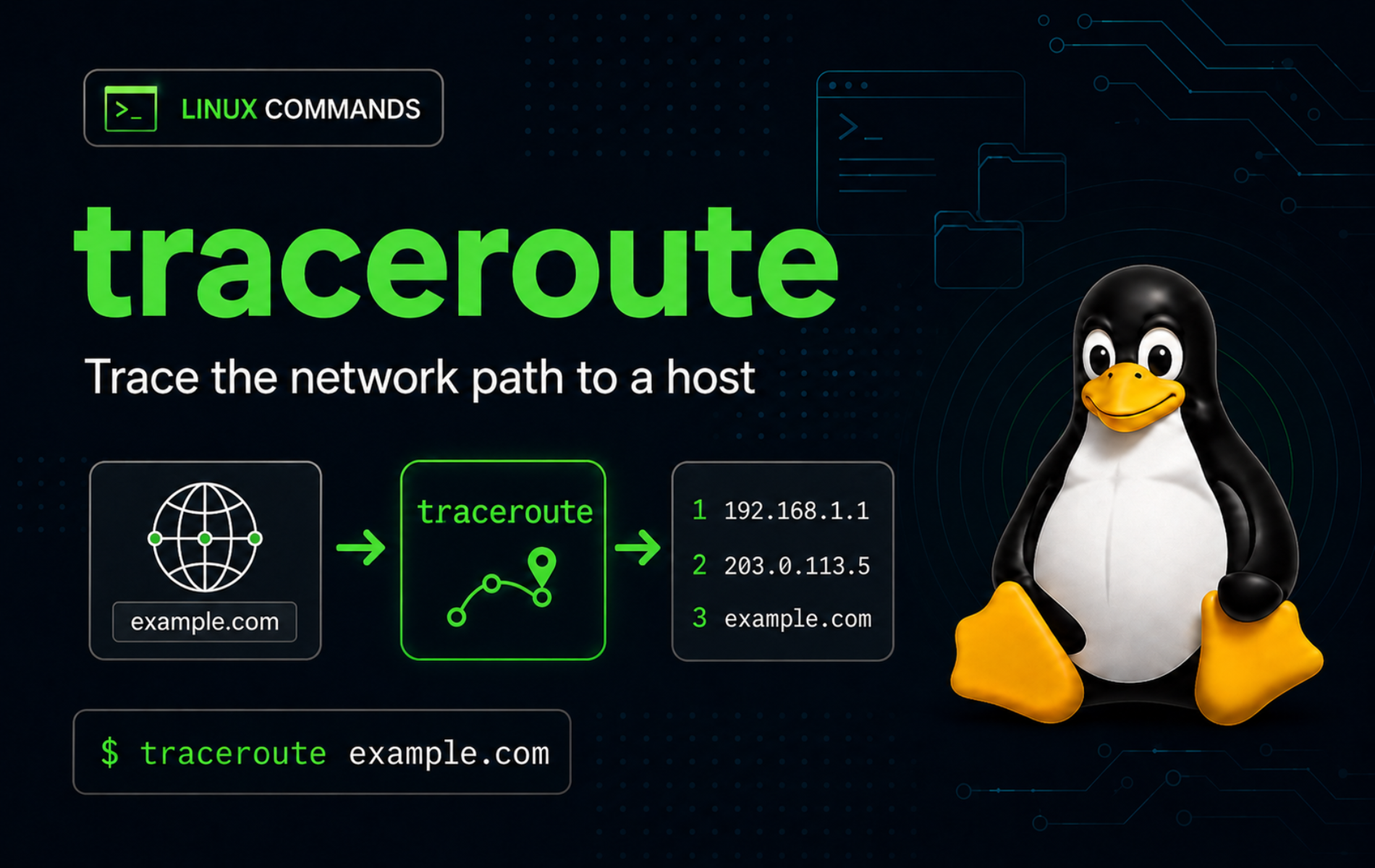
Network latency is easier to troubleshoot when you can see where packets stop answering instead of only knowing that a site feels slow. The traceroute command in Linux maps the hop-by-hop path toward a host, which helps separate local gateway problems, ISP routing, DNS mistakes, firewall filtering, IPv6 gaps, and remote-side issues.
Linux traceroute usually sends UDP probes by default, but it can also use ICMP, TCP, IPv6, numeric-only output, path MTU checks, and tighter timeout controls. Those choices matter because many routers and firewalls answer one probe type while dropping another.
Use traceroute for reasonable diagnostics, not repeated high-volume probing. Routers can rate-limit ICMP replies, some networks treat probe traffic as suspicious, and results are most useful when you test systems you administer or public destinations where routine path diagnostics are appropriate.
Understand the traceroute Command in Linux
traceroute sends probes with gradually increasing TTL values. Each router that decrements the TTL to zero can return an ICMP time-exceeded reply, so the command learns one hop at a time until it reaches the destination or hits the configured hop limit.
The Linux implementation documented by the traceroute manual page uses UDP probes by default, starting with high destination ports, and provides shortcuts such as -I for ICMP and -T for TCP SYN probes. Windows uses tracert, so option names and default probe behavior differ across platforms.
Basic traceroute Syntax
The basic syntax places options before the destination host. A packet length can appear at the end for specialized tests, but most diagnostics do not need it.
traceroute [options] host [packet_length]- options: Flags that change DNS lookups, probe type, timeout, hop limit, query count, port, interface, address family, or MTU behavior.
- host: Destination hostname or IP address, such as
example.com,203.0.113.10, or2001:db8::10. - packet_length: Optional packet size in bytes. Leave it out unless you are testing fragmentation or path MTU behavior.
Essential traceroute Options
| Task | Command Pattern | What It Does |
|---|---|---|
| Trace a route | traceroute example.com | Shows each responding hop toward the destination. |
| Skip DNS lookups | traceroute -n example.com | Prints IP addresses only, which avoids slow or misleading reverse DNS. |
| Limit hop count | traceroute -m 8 example.com | Stops after eight hops instead of the default maximum. |
| Send one probe per hop | traceroute -q 1 example.com | Makes quick checks less noisy than the default three probes per hop. |
| Lower response wait | traceroute -w 2 example.com | Waits two seconds for each probe before printing a timeout marker. |
| Use ICMP probes | traceroute -I example.com | Uses ICMP echo probes, similar to the layer tested by ping. |
| Use TCP probes | sudo traceroute -T -p 443 example.com | Traces with TCP SYN probes toward port 443, useful when UDP is filtered. |
| Trace IPv6 | traceroute -6 example.com | Forces an IPv6 route when the destination has an AAAA record. |
| Discover path MTU | traceroute --mtu example.com | Reports MTU changes along the path when routers return fragmentation data. |
traceroute is not a port scanner and does not prove which services are open. Use Nmap commands for port and service checks when the task is host discovery, open-port auditing, or service fingerprinting.
Install or Verify traceroute on Linux
Minimal servers often include tracepath from iputils but omit traceroute. Verify the command first, then install the package only when your shell cannot find it.
Verify traceroute Availability
Check whether traceroute is already available in your shell path:
command -v traceroute || echo "traceroute not found"Example output can use either /usr/sbin or /usr/bin, depending on the distribution and alternatives setup:
/usr/sbin/traceroute
Print the first version line after installation:
traceroute --version 2>&1 | sed -n '1p'Example output from a current Linux package starts with the implementation and version:
Modern traceroute for Linux, version 2.1.6
Install traceroute on Debian, Ubuntu, and Linux Mint
APT-based distributions package the command as traceroute. Ubuntu places the package in the Universe component, so minimal or customized systems may need that component enabled before APT can find it.
sudo apt update
sudo apt install traceroute
If Ubuntu reports Unable to locate package traceroute, confirm the package candidate before changing sources:
apt-cache policy tracerouteA working Ubuntu package source shows a candidate instead of (none):
traceroute:
  Installed: (none)
  Candidate: 1:2.1.6-1build1
When the candidate is (none) on Ubuntu, enable the Ubuntu Universe repository, refresh APT metadata, and retry the install.
Install traceroute on Fedora, RHEL, Rocky Linux, and AlmaLinux
DNF-based systems also package the command as traceroute. Fedora’s packaged build uses the modern Linux traceroute implementation through the distro repository.
sudo dnf install tracerouteInstall traceroute on Arch, openSUSE, and Alpine
Use the package manager that matches your distribution. These commands install the packaged Linux traceroute utility, not a separate Windows-style tracert command.
Arch Linux and Manjaro:
sudo pacman -S tracerouteopenSUSE:
sudo zypper install tracerouteAlpine Linux:
sudo apk add tracerouteUpdate or Remove traceroute
The distro package manager owns traceroute updates. Normal system updates keep it current with the rest of your packages; remove it with the matching package manager when you no longer need the command.
APT-based distributions:
sudo apt remove tracerouteDNF-based distributions:
sudo dnf remove tracerouteArch Linux and Manjaro:
sudo pacman -R tracerouteopenSUSE:
sudo zypper remove tracerouteAlpine Linux:
sudo apk del tracerouteRun Practical traceroute Command Examples
The fastest useful traces are usually numeric, limited, and quiet. Start with one probe per hop and a short timeout, then add more probes only when you need confirmation.
Trace a Basic Route
Run a short numeric trace when you want to identify the first few responding routers without waiting on reverse DNS:
traceroute -n -m 4 -q 1 -w 2 example.comExample output shows the destination, hop limit, packet size, hop number, responding router, and round-trip time:
traceroute to example.com (172.66.147.243), 4 hops max, 60 byte packets
 1  192.168.50.1  1.479 ms
 2  144.6.148.1  2.939 ms
 3  10.241.16.175  3.472 ms
 4  172.68.0.2  4.355 ms
The exact route changes by ISP, VPN, DNS answer, source address, and time of day. Use the hop pattern to find where replies change, stop, or become consistently slow.
Run the Default Three-Probe Trace
Omit -q 1 when you want the default three probes per hop. Three timings make packet loss and jitter easier to spot, but the trace takes longer and sends more probes.
traceroute -n example.comA hop with one timeout and two successful timings is different from a hop that never answers. Treat occasional missing probes as rate limiting or packet loss until repeated tests prove a pattern.
Limit the Maximum Hop Count
Use -m when you only care about the local network, the ISP edge, or an early failure point. This example stops after three hops:
traceroute -n -m 3 -q 1 -w 1 example.comExample output stops at the configured maximum even though the destination is farther away:
traceroute to example.com (104.20.23.154), 3 hops max, 60 byte packets
 1  192.168.50.1  15.231 ms
 2  144.6.148.1  10.435 ms
 3  10.241.16.175  9.242 ms
Use ICMP Probes
Switch to ICMP when the default UDP trace stops early or when you want behavior closer to a ping-style reachability check. Current Linux systems may allow ICMP traceroute without root, but policy can vary.
traceroute -I -n -m 4 -q 1 -w 2 example.comCompare ICMP output with the default UDP output. If ICMP reaches farther, an intermediate firewall may be filtering high UDP destination ports.
Use TCP Probes on Port 443
TCP traceroute is useful when a network allows HTTPS traffic but drops UDP and ICMP probes. Use -T for TCP SYN probes and -p for the destination port. Root privileges are normally required.
sudo traceroute -T -p 443 -n -m 8 -q 1 -w 2 example.comUse a port that matches the service path you are testing. For HTTPS, port 443 is usually more meaningful than the TCP default of port 80.
Trace an IPv6 Route
Use -6 when the destination has IPv6 records and you need to test the IPv6 path instead of the IPv4 path:
traceroute -6 -n -m 8 -q 1 -w 2 example.comIf the command prints connect: Network is unreachable, the host does not currently have a usable IPv6 route. That is a local network or host configuration issue, not proof that the destination lacks IPv6.
Discover Path MTU
The --mtu option asks traceroute to discover MTU changes along the path. It implies fragmentation control and can expose the first hop that reports a lower MTU.
traceroute --mtu -n -m 4 -q 1 -w 2 example.comExample output can include an F= value where a hop reports the reachable MTU:
traceroute to example.com (172.66.147.243), 4 hops max, 65000 byte packets
 1  192.168.50.1  0.878 ms F=1500
 2  144.6.148.1  7.281 ms
 3  10.241.16.161  2.928 ms
 4  172.68.0.2  3.093 ms
Some routers cache or suppress fragmentation-needed replies, so treat MTU output as a diagnostic clue. Confirm persistent MTU problems with application symptoms, packet captures, or controlled endpoint tests.
Compare tracepath with traceroute
tracepath is a lighter path tool that is often available from iputils even when traceroute is missing. It needs fewer options and reports path MTU, but it does not provide the same probe-method control as traceroute.
tracepath -n -m 4 example.comExample output emphasizes path MTU and hop timing:
 1?: [LOCALHOST]                      pmtu 1500
 1:  192.168.50.1                                          4.578ms
 2:  144.6.148.1                                           6.901ms
 3:  10.241.16.175                                         3.933ms
 4:  172.68.0.2                                            2.967ms asymm  5
     Too many hops: pmtu 1500
     Resume: pmtu 1500
Use tracepath for quick path and MTU checks. Use traceroute when you need UDP, ICMP, TCP, port, hop, query, or timeout control.
Read traceroute Output Correctly
Each hop line starts with the hop number, followed by the responding router address or hostname, then one or more round-trip times. With the default query count, you normally see three timings per hop.
Asterisks Do Not Always Mean a Broken Router
An asterisk means no reply arrived before the timeout for that probe. Routers can forward traffic while refusing to answer traceroute probes, so * * * at one intermediate hop is not automatically the failure point.
If later hops answer after an asterisk-only hop, the silent router is forwarding traffic. If every later hop also times out, change probe method with -I or -T -p 443 before blaming the last visible hop.
High Latency at One Hop Can Be Misleading
Routers often prioritize forwarding traffic over answering diagnostic probes. A single high-latency intermediate hop matters less than the pattern after it. If later hops and the final destination return to normal timings, the spike may be ICMP rate limiting rather than real forwarding delay.
Consistent latency that begins at one hop and remains high through later hops is stronger evidence. Repeat the trace, compare UDP, ICMP, and TCP, and test from another network when the result affects an escalation.
DNS Names Can Slow or Confuse Output
Reverse DNS names are optional and can be stale, generic, or missing. Use -n when you need speed or when names distract from the route. If hostname resolution fails before traceroute starts, check DNS directly with nslookup command examples.
Troubleshoot Common traceroute Errors
traceroute: command not found
The command is not installed or not visible in the current shell path. Confirm the package first instead of assuming the binary name is wrong:
command -v traceroute || echo "traceroute not found"Install the traceroute package for your distribution, then open a new terminal or refresh the shell command cache:
hash -r
command -v traceroute
Name or service not known
This error appears before traceroute sends probes. The hostname did not resolve to an address.
traceroute no-such-host.invalidThe stable error lines look like this:
no-such-host.invalid: Name or service not known
Cannot handle "host" cmdline arg `no-such-host.invalid' on position 1 (argc 1)
Retest with a numeric IP address to separate DNS from routing:
traceroute -n 1.1.1.1If the numeric trace works, fix the hostname, resolver, search domain, or DNS server rather than changing traceroute options.
Operation not permitted with TCP Traceroute
TCP SYN probes usually need raw socket privileges. Running -T as a normal user can fail with permission errors.
traceroute -T -p 443 -n -m 2 -q 1 -w 1 example.comExample output shows the privilege boundary:
You do not have enough privileges to use this traceroute method.
socket: Operation not permitted
Retest the same probe with sudo:
sudo traceroute -T -p 443 -n -m 2 -q 1 -w 1 example.comAll Hops Show Asterisks
All-timeout output usually means the probes or replies are filtered, the destination is unreachable, or the timeout is too short. Start by switching methods before increasing the scan volume.
traceroute -I -n -m 8 -q 1 -w 2 example.com
sudo traceroute -T -p 443 -n -m 8 -q 1 -w 2 example.com
If TCP on port 443 answers but UDP does not, the path probably filters the default UDP traceroute probes. If every method times out beyond the first hop, test another destination and compare from a different network before escalating.
connect: Network is unreachable with IPv6
This message means the local system has no usable IPv6 route for the destination address family.
traceroute -6 -n -m 4 -q 1 -w 2 example.comtraceroute to example.com (2606:4700:10::ac42:93f3), 4 hops max, 80 byte packets connect: Network is unreachable
Check whether the host has an IPv6 default route before changing traceroute options:
ip -6 route show defaultNo output means the system has no IPv6 default route. Use IPv4 with -4, fix the IPv6 network, or test from a host that has working IPv6 connectivity.
Traceroute Reaches a Hop Then Stops
A trace that reaches one or two hops and then prints only asterisks often points to filtering past the local gateway. Confirm the destination still resolves, then compare probe methods and ports:
traceroute -n -m 8 -q 1 -w 2 example.com
traceroute -I -n -m 8 -q 1 -w 2 example.com
sudo traceroute -T -p 443 -n -m 8 -q 1 -w 2 example.com
When only TCP reaches farther, document the UDP or ICMP filtering pattern in your support ticket. When no method reaches beyond the local gateway, check the local router, VPN, firewall policy, or ISP path.
Conclusion
traceroute is installed or verified, and you can test routes with numeric output, controlled hop counts, ICMP, TCP 443, IPv6, MTU checks, and tracepath comparisons. Use DNS tools when names fail, Nmap when ports are the question, and multiple probe methods before deciding where a path really breaks.


Formatting tips for your comment
You can use basic HTML to format your comment. Useful tags currently allowed in published comments:
<code>command</code>command<strong>bold</strong><em>italic</em><a href="https://example.com">link</a><blockquote>quote</blockquote>