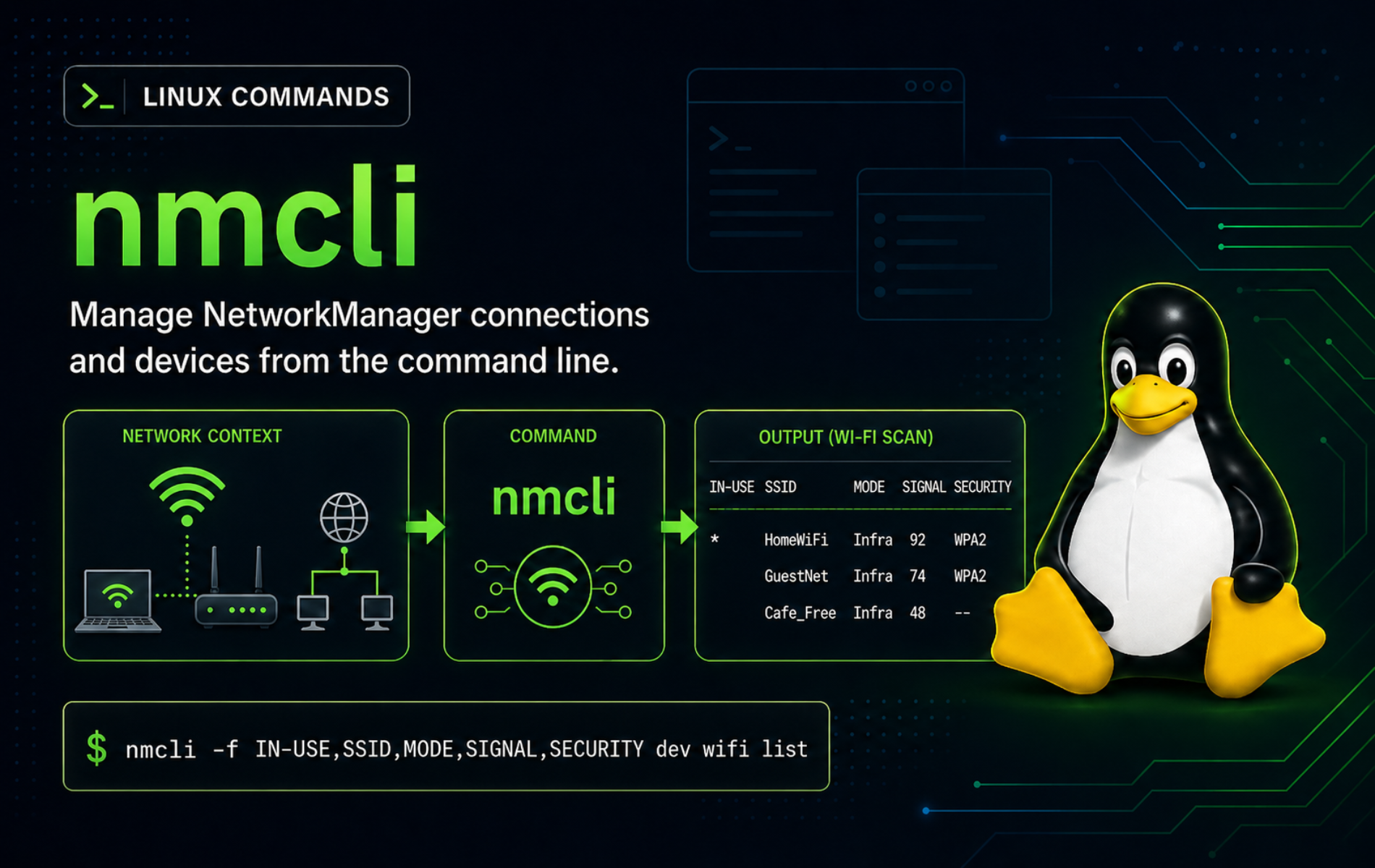
Network fixes get risky when interface state, saved profiles, DNS, routes, and Wi-Fi settings are treated as one layer. The nmcli command in Linux gives NetworkManager a terminal interface, so you can inspect active devices, edit persistent connection profiles, bring profiles up or down, and troubleshoot connectivity without a desktop applet.
nmcli is useful on desktops, servers, and virtual machines where NetworkManager controls networking. Before changing addresses or reconnecting an interface over SSH, confirm the interface is NetworkManager-managed and keep a console, hypervisor, or out-of-band recovery path available.
Understand the nmcli Command
The official nmcli manual organizes the command around NetworkManager objects:
nmcli [OPTIONS] OBJECT COMMAND [ARGUMENTS]The object tells nmcli which NetworkManager layer to inspect or change:
| Object | Typical Command | What It Controls or Shows |
|---|---|---|
general | nmcli general status | Overall NetworkManager state, connectivity, radio state, and metered status. |
networking | nmcli networking connectivity | Whether NetworkManager thinks the host has no, limited, captive-portal, or full connectivity. |
device | nmcli device status | Live interfaces such as Ethernet, Wi-Fi, loopback, bridges, VLANs, and dummy links. |
connection | nmcli connection show | Saved NetworkManager profiles, including profiles that are not active right now. |
radio | nmcli radio all | Wi-Fi and WWAN radio switches as NetworkManager sees them. |
monitor | nmcli monitor | Live NetworkManager events until you stop the command. |
The main distinction is between devices and connections. A device is the live interface, such as ens33 or wlp2s0. A connection is the saved profile that tells NetworkManager how to configure a device. One Ethernet device can have more than one saved profile, but only one profile is active on that device at a time.
Changing the profile behind your only remote interface can disconnect SSH immediately. Read current state first, make one scoped change, and use a console or rollback path for address, gateway, DNS, MTU, Wi-Fi, or autoconnect changes on remote systems.
nmcli Quick Reference
| Task | Command Pattern | What It Does |
|---|---|---|
| Show NetworkManager status | nmcli general status | Shows overall state, connectivity, radio state, and metered status. |
| Show interfaces | nmcli device status | Lists live devices, device types, states, and active connection names. |
| Show active profiles | nmcli connection show --active | Lists only profiles currently active on a device. |
| Show all saved profiles | nmcli connection show | Lists persistent profiles, active or inactive. |
| Inspect one device | nmcli device show IFACE | Shows live IP, DNS, route, driver, and state details for one interface. |
| Modify a profile | sudo nmcli connection modify NAME setting.property value | Changes the saved NetworkManager profile. |
| Activate a profile | sudo nmcli connection up NAME | Applies a saved profile to a compatible device. |
| Reapply supported changes | sudo nmcli device reapply IFACE | Pushes supported saved-profile changes to the currently active device. |
| List Wi-Fi networks | nmcli device wifi list | Shows nearby access points when a Wi-Fi device is present. |
| Use script output | nmcli -t -f DEVICE,STATE device status | Prints terse field output for shell parsing. |
Install or Verify nmcli on Linux
Start by checking whether nmcli and the NetworkManager service already exist. Desktop distributions commonly include them, while minimal servers can use another network stack such as systemd-networkd, ifupdown, or distro-specific tooling.
command -v nmcli
nmcli --version
systemctl is-active NetworkManager
Example output from a NetworkManager-managed system:
/usr/bin/nmcli
nmcli tool, version 1.54.3
active
If nmcli is missing and you intentionally want NetworkManager on the system, install the package that provides it:
Debian and Ubuntu:
sudo apt install network-managerFedora, RHEL, AlmaLinux, and Rocky Linux:
sudo dnf install NetworkManagerArch Linux:
sudo pacman -S networkmanagerPackage updates come from the same package manager that installed NetworkManager. Do not remove the package on systems that rely on NetworkManager unless another network manager is configured and tested first.
Inspect Network State with nmcli
Begin troubleshooting with read-only status commands. They show whether NetworkManager is connected, which devices it manages, and which profile is active before you change anything.
Check Overall NetworkManager Status
nmcli general statusExample output:
STATE      CONNECTIVITY  WIFI-HW  WIFI     WWAN-HW  WWAN     METERED
connected  full          missing  enabled  missing  enabled  no (guessed)
STATE describes NetworkManager’s overall state. CONNECTIVITY is NetworkManager’s connectivity check and can return values such as none, limited, portal, full, or unknown. A host can still have local LAN access when internet connectivity is limited or portal-bound.
For a compact connectivity-only check:
nmcli networking connectivityfull
List Devices and Active Profiles
nmcli device statusExample output from a wired host:
DEVICE  TYPE      STATE                   CONNECTION
ens33   ethernet  connected               netplan-ens33
lo      loopback  connected (externally)  lo
The DEVICE column is the interface name to pass to device commands. The CONNECTION column is the saved profile currently applied to that device.
Show only active connection profiles:
nmcli -f NAME,UUID,TYPE,DEVICE connection show --activeNAME UUID TYPE DEVICE netplan-ens33 14f59568-5076-387a-aef6-10adfcca2e26 ethernet ens33 lo 905ce7f1-5e19-4ce9-81e5-7d09d64de966 loopback lo
Inspect IP, Gateway, and DNS Details
Replace ens33 with the interface from your own nmcli device status output:
IFACE="ens33"
nmcli -f GENERAL.DEVICE,GENERAL.TYPE,GENERAL.STATE,GENERAL.CONNECTION,IP4.ADDRESS,IP4.GATEWAY,IP4.DNS device show "$IFACE"
GENERAL.DEVICE: ens33 GENERAL.TYPE: ethernet GENERAL.STATE: 100 (connected) GENERAL.CONNECTION: netplan-ens33 IP4.ADDRESS[1]: 192.168.50.212/24 IP4.GATEWAY: 192.168.50.1 IP4.DNS[1]: 192.168.50.1
This device view shows the active runtime state. It can differ from the saved profile when DHCP supplied the address, a profile change has not been applied yet, or another tool generated the profile.
Manage nmcli Connection Profiles
Profile commands work with saved NetworkManager connections. Use them when you need to read or change persistent configuration, not just the current runtime address.
Find the Active Profile for an Interface
IFACE="ens33"
CON_NAME=$(nmcli -g GENERAL.CONNECTION device show "$IFACE")
printf '%s\n' "$CON_NAME"
netplan-ens33
Inspect the profile’s core IPv4 settings:
nmcli -f connection.id,connection.type,connection.interface-name,ipv4.method,ipv4.addresses,ipv4.gateway,ipv4.dns connection show "$CON_NAME"connection.id: netplan-ens33 connection.type: 802-3-ethernet connection.interface-name: ens33 ipv4.method: auto ipv4.addresses: -- ipv4.gateway: -- ipv4.dns: --
ipv4.method: auto means the profile asks for IPv4 settings through DHCP. Static profiles usually show ipv4.method: manual plus saved addresses, a gateway, and DNS servers.
Show All Saved Profiles
nmcli connection showA saved profile can exist without being active. That is normal for Wi-Fi networks you joined before, VPN profiles, lab static-IP profiles, bridge members, and other profiles that apply only in certain network states.
Practice nmcli Changes on a Dummy Profile
A dummy profile lets you practice connection add, connection modify, connection up, device reapply, and cleanup without changing your real Ethernet or Wi-Fi profile. The example uses documentation-only IP ranges that should not be used for real connectivity.
Create a Dummy NetworkManager Profile
sudo nmcli connection add type dummy ifname lc-dummy0 con-name lc-nmcli-demo ipv4.method manual ipv4.addresses 192.0.2.10/24 ipv6.method disabledCheck the saved profile fields:
nmcli -f connection.id,connection.type,connection.interface-name,ipv4.method,ipv4.addresses,ipv4.dns connection show lc-nmcli-democonnection.id: lc-nmcli-demo connection.type: dummy connection.interface-name: lc-dummy0 ipv4.method: manual ipv4.addresses: 192.0.2.10/24 ipv4.dns: --
Modify DNS Settings in the Profile
sudo nmcli connection modify lc-nmcli-demo ipv4.dns "192.0.2.53 198.51.100.53"Confirm the saved values:
nmcli -f ipv4.method,ipv4.addresses,ipv4.dns connection show lc-nmcli-demoipv4.method: manual ipv4.addresses: 192.0.2.10/24 ipv4.dns: 192.0.2.53,198.51.100.53
Activate the Dummy Profile and Verify Runtime State
sudo nmcli connection up lc-nmcli-demo
nmcli -f GENERAL.DEVICE,GENERAL.STATE,IP4.ADDRESS,IP4.DNS device show lc-dummy0
GENERAL.DEVICE: lc-dummy0 GENERAL.STATE: 100 (connected) IP4.ADDRESS[1]: 192.0.2.10/24 IP4.DNS[1]: 192.0.2.53 IP4.DNS[2]: 198.51.100.53
When a profile is already active, device reapply can push supported profile changes to the live device without a full disconnect. The + prefix appends a DNS value instead of replacing the whole list:
sudo nmcli connection modify lc-nmcli-demo +ipv4.dns 203.0.113.53
sudo nmcli device reapply lc-dummy0
nmcli -g IP4.DNS device show lc-dummy0
192.0.2.53 | 198.51.100.53 | 203.0.113.53
Use the - prefix to remove a value from a multi-value property, such as -ipv4.dns 203.0.113.53. For address, gateway, and route changes on real interfaces, plan for a reconnect and verify the new path from the console before relying on it remotely.
Remove the Dummy Profile
sudo nmcli connection down lc-nmcli-demo
sudo nmcli connection delete lc-nmcli-demo
ip link show lc-dummy0
If ip link show lc-dummy0 reports that the device does not exist, the dummy interface is gone. If the dummy link remains for any reason, remove only that software device:
sudo nmcli device delete lc-dummy0Configure Ethernet Profiles with nmcli
Use profile modification for persistent Ethernet settings. Replace the interface name, IP address, gateway, and DNS servers with values from your actual network plan before activating the profile.
Do not apply static address examples to your only SSH interface without console access. A wrong gateway, subnet, or DNS setting can cut off the current session and leave the host unreachable until local recovery.
Set a Static IPv4 Address
IFACE="enp1s0"
CON_NAME=$(nmcli -g GENERAL.CONNECTION device show "$IFACE")

sudo nmcli connection modify "$CON_NAME" \
  ipv4.method manual \
  ipv4.addresses "192.168.1.50/24" \
  ipv4.gateway "192.168.1.1" \
  ipv4.dns "192.168.1.1 192.168.1.53"
Activate the modified profile when you are ready for the interface to reconnect with the saved settings:
sudo nmcli connection up "$CON_NAME"Check the active device state after reconnecting:
nmcli -f GENERAL.STATE,IP4.ADDRESS,IP4.GATEWAY,IP4.DNS device show "$IFACE"For full distribution-specific static address workflows, use the Ubuntu static IP address guide or the Fedora static IP address guide when those match the system you are configuring.
Return an Ethernet Profile to DHCP
Use this only when the network should receive its IPv4 settings from DHCP again. Empty values reset saved static fields:
sudo nmcli connection modify "$CON_NAME" \
  ipv4.method auto \
  ipv4.addresses "" \
  ipv4.gateway "" \
  ipv4.dns ""

sudo nmcli connection up "$CON_NAME"
Change DNS Without Replacing the Address
DNS-only changes are usually less disruptive than address and gateway changes, but they still affect lookups for new connections. Set the resolver list, then reapply the active profile when the device supports it:
sudo nmcli connection modify "$CON_NAME" ipv4.dns "192.168.1.1 192.168.1.53"
sudo nmcli device reapply "$IFACE"
nmcli -f IP4.DNS device show "$IFACE"
Manage Wi-Fi with nmcli
Wi-Fi commands work only when NetworkManager sees a Wi-Fi device and the radio is not blocked. Start with device and radio status before scanning.
nmcli radio wifi
nmcli device status
List visible access points:
nmcli device wifi listUse an interactive prompt for secured Wi-Fi instead of putting the password in shell history:
nmcli --ask device wifi connect "SSID_NAME"For a hidden SSID, add hidden yes:
nmcli --ask device wifi connect "SSID_NAME" hidden yesIf a Wi-Fi profile already exists, bring up the saved profile by name instead of creating a new one:
nmcli connection show
sudo nmcli connection up "SSID_NAME"
nmcli device wifi connect can accept a password argument, but interactive prompting is safer for normal terminals because it keeps the secret out of shell history and process listings.
Use nmcli Output in Scripts
Human-readable nmcli output is convenient at a terminal. For scripts, use fields and terse output so the command returns only the values you need.
Use Terse Device Output
nmcli -t -f DEVICE,TYPE,STATE,CONNECTION device statusens33:ethernet:connected:netplan-ens33 lo:loopback:connected (externally):lo
The colon-delimited format is easier to parse than the aligned table. If values can contain colons or backslashes, review --escape behavior in the manual before building a parser.
Get Only Field Values
IFACE="ens33"
nmcli -g GENERAL.CONNECTION device show "$IFACE"
nmcli -g IP4.ADDRESS,IP4.GATEWAY device show "$IFACE"
-g is a shortcut for field-only terse output. It is useful for scripts that need the active profile name, interface address, gateway, or DNS values without table headers.
Bound Long-Running nmcli Operations
Connection activation can wait while DHCP, Wi-Fi authentication, or carrier detection completes. Set an explicit wait time in scripts so a failed activation does not hang longer than intended:
sudo nmcli --wait 15 connection up "$CON_NAME"Avoid --ask in unattended scripts because it prompts for missing secrets or authorization. Use a proper secret store, deployment system, or NetworkManager profile created outside the script when automation needs credentials.
Load NetworkManager Keyfiles Correctly
NetworkManager profiles can be stored as keyfiles under /etc/NetworkManager/system-connections/, but not every active profile is a hand-edited keyfile. Some distributions generate NetworkManager profiles from another layer, such as Netplan.
After manually editing one keyfile, load that specific file so NetworkManager rereads it:
sudo nmcli connection load /etc/NetworkManager/system-connections/office-lan.nmconnection
sudo nmcli connection up "office-lan"
Reserve a full reload for workflows that intentionally reread every connection file from disk:
sudo nmcli connection reloadLoading or reloading a profile only tells NetworkManager about saved configuration. It does not prove the active device has adopted the settings, so follow with nmcli connection up, nmcli device reapply, or a device status check that matches the change.
Troubleshoot Common nmcli Errors
Troubleshoot nmcli in layers: command availability, NetworkManager service state, device management state, saved profile names, then active device settings. That order prevents unnecessary profile changes when the real issue is a stopped service or a mistyped connection name.
nmcli: command not found
If the shell cannot find nmcli, check the package first:
command -v nmcliNo output means the command is not on PATH. Install network-manager on Debian or Ubuntu, NetworkManager on Fedora and RHEL-family distributions, or networkmanager on Arch Linux when NetworkManager is the intended network stack.
NetworkManager Is Not Running
A stopped service makes nmcli unable to report or change live network state. Check the service before editing profiles:
systemctl is-active NetworkManager
systemctl status NetworkManager --no-pager
If another stack owns networking, such as systemd-networkd, ifupdown, a cloud image renderer, or a distribution-specific tool, do not enable NetworkManager blindly. Migrate the network configuration deliberately and keep remote recovery available.
When NetworkManager is the intended network stack for the host, start and enable it:
sudo systemctl enable --now NetworkManagerRetest with systemctl is-active NetworkManager before rerunning profile commands.
No Such Connection Profile
A mistyped connection name returns an error like this:
Error: lc-nmcli-missing - no such connection profile.
List saved profiles and use the exact profile name or UUID:
nmcli connection show
nmcli connection show --active
Connection names can contain spaces. Quote them exactly, such as "Wired connection 1", or use the UUID from the profile list.
Device Shows as Unmanaged
An unmanaged device is visible to NetworkManager but not controlled by it. Diagnose the device state first:
nmcli device status
nmcli device show "$IFACE"
If the device should be managed by NetworkManager and no distro renderer is deliberately excluding it, set the device as managed and recheck:
sudo nmcli device set "$IFACE" managed yes
nmcli device status
If the device immediately returns to unmanaged, inspect the distribution’s network renderer configuration instead of repeating the command. Netplan, ifupdown, NetworkManager configuration files, or cloud-init can mark interfaces as managed elsewhere.
Profile Changes Did Not Apply
Changing a saved profile does not always update the active device immediately. Compare the saved profile and live device views:
nmcli -f ipv4.method,ipv4.addresses,ipv4.gateway,ipv4.dns connection show "$CON_NAME"
nmcli -f IP4.ADDRESS,IP4.GATEWAY,IP4.DNS device show "$IFACE"
For supported live changes, reapply the active profile:
sudo nmcli device reapply "$IFACE"For address, gateway, Wi-Fi, or profile-switching changes, activate the profile and retest the device state:
sudo nmcli connection up "$CON_NAME"
nmcli device show "$IFACE"
Wi-Fi Networks Do Not Appear
If nmcli device wifi list shows no networks, prove the Wi-Fi layer before changing profiles:
nmcli radio all
nmcli device status
If a Wi-Fi device exists and the radio is enabled, request a fresh scan and list access points again:
nmcli device wifi rescan
nmcli device wifi list
WIFI-HW must be enabled and a Wi-Fi device must exist. If hardware is blocked, use the laptop switch, firmware setting, hypervisor setting, or rfkill workflow that applies to the system before retrying the scan.
DNS Still Fails After a Profile Change
Check the active device DNS values, not only the saved profile:
nmcli -f IP4.DNS,IP6.DNS device show "$IFACE"If the device shows the intended resolver but lookups still fail, test DNS directly with the nslookup command before changing the NetworkManager profile again:
nslookup example.comA DNS failure at this point can come from the resolver, search domain, VPN split-DNS policy, captive portal, firewall, or upstream router rather than the profile syntax.
Compare nmcli with Legacy Network Commands
nmcli is not a simple replacement for every network command. It controls NetworkManager’s view of profiles and devices. Use ip addr and ip route for kernel-level interface and route state, and use the ifconfig command only when maintaining older notes or legacy systems that still depend on net-tools.
When outputs disagree, treat nmcli as the NetworkManager layer and ip as the kernel layer. That distinction helps identify whether the problem is a saved profile, an active NetworkManager device, or a lower-level interface state.
Conclusion
nmcli gives NetworkManager a reliable terminal workflow for reading device state, editing profiles, applying DNS or address changes, managing Wi-Fi, and producing script-friendly output. Start with read-only status checks, practice risky syntax on a dummy profile, and treat remote interface changes as recovery-planned network maintenance.


Formatting tips for your comment
You can use basic HTML to format your comment. Useful tags currently allowed in published comments:
<code>command</code>command<strong>bold</strong><em>italic</em><a href="https://example.com">link</a><blockquote>quote</blockquote>