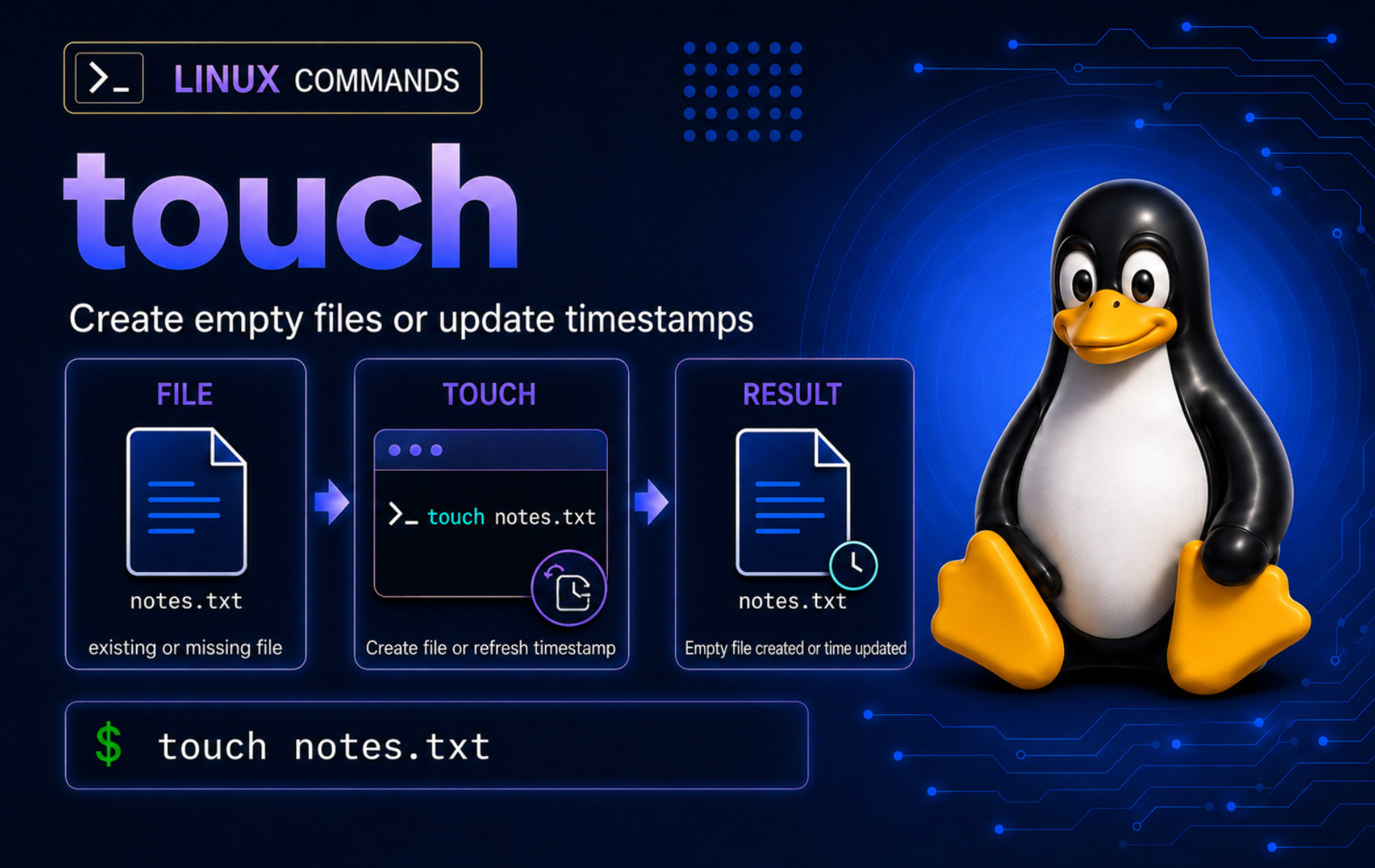
Timestamp problems are easy to miss until a build tool, cleanup script, or log search starts making decisions from stale file times. The touch command in Linux creates empty files when needed, refreshes existing file timestamps without changing content, and sets specific access or modification times for workflows that depend on file age.
Many Linux systems provide touch through GNU Coreutils, while some current systems use compatible uutils builds and minimal images may expose a BusyBox applet. Check local help before relying on parsed dates, symbolic-link timestamp changes, nanosecond precision, or exact error wording across implementations.
Understand the touch Command in Linux
touch works on one or more file operands from left to right. When a named file does not exist, touch creates an empty regular file unless you use -c or --no-create. When the file already exists, touch updates timestamps and leaves the file contents alone.
touch Command Syntax
touch [OPTION]... FILE...OPTIONselects which timestamp changes, whether missing files are created, or which time value to apply.FILEis one or more pathnames. Each path must have an existing parent directory beforetouchcan create the final file.- By default, both access time and modification time change to the current time.
Know Which File Times touch Can Change
Linux file metadata includes several time fields, but touch controls only access time and modification time. The status-change time updates as a side effect of metadata changes, and file birth time is not a normal touch target.
| Time Field | What It Means | How touch Handles It |
|---|---|---|
atime | Last access time. | Changed by default, or by itself with -a. |
mtime | Last content modification time. | Changed by default, or by itself with -m. |
ctime | Last metadata/status change time. | Changes as a side effect; touch cannot set it to a chosen historical value. |
| Birth time | File creation time when the filesystem exposes it. | Not changed directly by touch. |
touch Command Quick Reference
| Task | Command Pattern | What It Does |
|---|---|---|
| Create one empty file | touch file.txt | Creates file.txt if it is missing, or refreshes timestamps if it already exists. |
| Create several files | touch app.log error.log access.log | Processes each pathname in the order supplied. |
| Avoid creating missing files | touch -c maybe-there.log | Updates the file only when it already exists. |
| Change only access time | touch -a file.txt | Updates atime without changing mtime. |
| Change only modification time | touch -m file.txt | Updates mtime without changing atime. |
| Set a parsed date | touch -d '2026-01-15 08:30:00 UTC' file.txt | Applies a parsed date string instead of the current time. |
| Set a numeric timestamp | TZ=UTC touch -t 202601150830.00 file.txt | Applies [[CC]YY]MMDDhhmm[.ss] format under UTC. |
| Copy another file’s times | touch -r reference.txt target.txt | Copies access and modification times from the reference file. |
| Change a symlink itself | touch -h link-name | Attempts to update the symbolic link timestamp instead of the target. |
| Create a filename starting with dash | touch -- -draft.txt | Uses -- so the path is treated as a filename, not an option. |
Verify touch Availability and Implementation
Check the resolved path when a script or troubleshooting step needs to prove which command the shell will run:
command -v touchA normal full Linux install returns a system path. This example shows a common merged-/usr location:
/usr/bin/touch
Use the version output when option behavior matters:
touch --version | head -n 1GNU Coreutils returns a line that starts with touch (GNU coreutils), while uutils builds return a line such as touch (uutils coreutils). The version number varies by distribution, but the implementation name tells you which manual and option set apply. Use the GNU Coreutils touch documentation or uutils touch documentation as implementation references; man touch shows the packaged manual for the installed command.
Set Up Example Files
A disposable practice directory keeps timestamp and cleanup examples away from real project files. Create the directory and move into it:
mkdir -p ~/touch-demo/logs
cd ~/touch-demo
printf 'keep this line\n' > keep.txt
printf 'old log\n' > logs/old.log
printf 'new log\n' > logs/new.log
The setup uses the mkdir command in Linux because touch creates the final file only; it does not create missing parent directories.
Create Empty Files with touch
Create One Empty File
Use a plain filename when you need an empty placeholder, marker, or log file:
touch notes.txt
test -f notes.txt && printf 'created\n'
created
The file size is zero until another command writes data. That makes touch useful for placeholders, but not for writing text content.
Create Multiple Files
Give touch several pathnames when a script needs a predictable set of empty files:
touch index.html app.log README.md
for file in index.html app.log README.md; do
    test -f "$file" && printf '%s\n' "$file"
done
index.html app.log README.md
Quote filenames that contain spaces or shell characters, and keep generated names inside a known working directory so a loop does not create files in the wrong location.
When several files must have exactly matching stored times, use one explicit timestamp or copy a reference file’s timestamps. Do not rely on current-time updates, even in one file list, when exact equality matters.
Create Placeholder Files for Empty Directories
Some project workflows need an otherwise empty directory to exist in a repository, archive, or deployment bundle. A common convention is a small placeholder file such as .gitkeep:
mkdir -p cache uploads
touch cache/.gitkeep uploads/.gitkeep
find cache uploads -name .gitkeep -print | sort
cache/.gitkeep uploads/.gitkeep
The placeholder filename is only a convention; touch creates the files, while your version-control, archive, or deployment tool decides how to treat empty directories.
Create Files Inside Existing Directories
touch can create a file inside a directory that already exists:
mkdir -p reports
touch reports/today.txt
test -f reports/today.txt && printf 'report file ready\n'
report file ready
If the parent directory is missing, create it first. touch reports/today.txt succeeds only after reports exists.
Create Filenames That Start with Dash
A filename that begins with - can look like an option. Use -- to mark the end of options before the pathname:
touch -- -draft.txt
test -f ./-draft.txt && printf 'leading dash file created\n'
leading dash file created
The same option terminator is useful with many file commands when a path might begin with a dash.
Without --, the failure can vary because touch tries to parse the leading characters as options. A path such as -xfile may look like an invalid option, while -draft.txt can be interpreted as a malformed -d date argument.
Update File Timestamps with touch
Refresh an Existing File Without Changing Content
Refreshing timestamps does not rewrite file data. This example updates keep.txt, then proves the original text is still present:
touch keep.txt
cat keep.txt
keep this line
This is the main difference between touch file.txt and shell redirection such as > file.txt. The first updates timestamps or creates an empty missing file; the second truncates an existing file before writing.
Change Only the Modification Time
Use -m when the modification time is the timestamp that matters to a build tool, backup job, or file-age check:
TZ=UTC touch -m -d '2026-01-15 08:30:00 UTC' keep.txt
TZ=UTC stat -c 'modified=%y file=%n' keep.txt
modified=2026-01-15 08:30:00.000000000 +0000 file=keep.txt
Access time can be less reliable as a workflow signal because many systems use mount options such as relatime or noatime. Prefer modification time unless a specific application truly depends on last-access tracking.
Change Only the Access Time
Use -a when the access time is the field you need to adjust. This example sets modification time first, then changes only access time so the difference is visible:
TZ=UTC touch -m -d '2026-01-15 08:30:00 UTC' keep.txt
TZ=UTC touch -a -d '2026-01-14 07:00:00 UTC' keep.txt
TZ=UTC stat -c 'access=%x modified=%y file=%n' keep.txt
access=2026-01-14 07:00:00.000000000 +0000 modified=2026-01-15 08:30:00.000000000 +0000 file=keep.txt
The modification time stayed at 2026-01-15 08:30:00 UTC, while access time moved to the earlier value. Use access-time changes only when the consuming tool actually reads atime.
Avoid Creating a Missing File
Use -c or --no-create when a script should refresh a file only if it already exists:
touch -c maybe-missing.txt
test -e maybe-missing.txt || printf 'file still missing\n'
file still missing
This pattern is useful for optional logs, cache files, and marker files where creating a new file would hide the fact that the expected producer has not run yet.
Set Specific Timestamps with touch
Set a Human-Readable Date
GNU Coreutils and uutils touch accept parsed date strings with -d or --date. Include a timezone for repeatable examples and scripts:
touch -d '2026-01-15 08:30:00 UTC' scheduled.txt
TZ=UTC stat -c 'modified=%y file=%n' scheduled.txt
modified=2026-01-15 08:30:00.000000000 +0000 file=scheduled.txt
Readable dates are easier to audit than compact numeric timestamps. Use UTC when daylight saving transitions or mixed server time zones could make a local timestamp ambiguous.
Set a Numeric Timestamp
Use -t when a script already has a compact timestamp in [[CC]YY]MMDDhhmm[.ss] format. Prefix the command with TZ=UTC when the timestamp should be interpreted as UTC:
TZ=UTC touch -t 202601150830.00 numeric.txt
TZ=UTC stat -c 'modified=%y file=%n' numeric.txt
modified=2026-01-15 08:30:00.000000000 +0000 file=numeric.txt
The numeric form is strict. If the timestamp is coming from another program, validate the format before applying it to many files.
Copy Timestamps from a Reference File
Use -r or --reference when a generated file should inherit another file’s access and modification times:
touch -r scheduled.txt copied-time.txt
stat -c '%Y %n' scheduled.txt copied-time.txt
1768465800 scheduled.txt 1768465800 copied-time.txt
Matching epoch seconds prove the modification times match. This is cleaner than parsing a formatted date string when the source of truth is already another file, and it avoids tiny differences from current-time updates.
Change a Symbolic Link Timestamp
By default, timestamp operations on a symlink affect the target file. GNU Coreutils and uutils support touch -h to update the symlink itself instead:
ln -s scheduled.txt scheduled-link
touch -h -d '2026-01-16 10:00:00 UTC' scheduled-link
TZ=UTC stat -c '%y %N' scheduled-link
2026-01-16 10:00:00.000000000 +0000 'scheduled-link' -> 'scheduled.txt'
Use this only when the link timestamp matters. Some filesystems and smaller implementations do not support changing symlink timestamps, and many workflows care about the target file instead.
Use touch in Shell Workflows
Create Marker Files for Scripts
Marker files give shell scripts a simple filesystem state to test. Create a marker after a step succeeds, then let later commands check for it:
touch .deploy-ready
test -e .deploy-ready && printf 'deployment marker exists\n'
deployment marker exists
Marker files work best when the script owns the directory and cleanup path. Avoid writing marker files into shared system directories unless the service or automation policy expects them there.
Find Files Newer Than a Marker
A timestamp marker can act as a cutoff for file searches. Set the marker time, set example log times, then search for files newer than the marker:
touch -d '2026-01-01 00:00:00 UTC' cutoff.marker
touch -d '2025-12-31 23:00:00 UTC' logs/old.log
touch -d '2026-01-02 00:00:00 UTC' logs/new.log
find logs -type f -newer cutoff.marker -print
logs/new.log
The marker keeps the date logic in the filesystem, while the find command in Linux owns the search. This pattern is useful for backup checks, post-deploy file scans, and log triage.
Refresh Files Before Appending Logs
Scripts sometimes need a log file to exist before appending output. Create or refresh the file first, then append with normal shell redirection:
touch app-run.log
printf 'started\n' >> app-run.log
cat app-run.log
started
Use >> for append. A single > truncates the file before writing and is not equivalent to touch.
Use touch Safely
Preview Bulk Targets Before Changing Times
Bulk timestamp updates can affect build systems, cleanup jobs, and backup selectors. Preview the target list before applying touch through find, globs, or loops:
find logs -type f -name '*.log' -print | sortlogs/new.log logs/old.log
After the list matches the intended files, apply the timestamp update. If you need to adapt this pattern, review find exec examples in Linux before combining find with a mutating command.
find logs -type f -name '*.log' -exec touch -m {} +Preview first whenever a command can touch many files. For destructive follow-up cleanup, use a narrower removal workflow and verify the target list before deleting anything with the rm command in Linux.
Avoid sudo Unless the Path Requires It
Do not add sudo to normal home-directory examples. If touch fails under a system path such as /etc, first confirm that the file should exist and that changing its timestamp is part of the real maintenance task. For files you own, fix directory permissions deliberately; for system-owned files, use the package, service, or configuration workflow that owns that path.
If a directory you own has the wrong mode, review Linux file permissions with chmod before changing it. Permission fixes should target the narrow directory or file involved, not an entire home or project tree.
Troubleshoot Common touch Errors
Fix No Such File or Directory
This error usually means the parent directory is missing, not that touch cannot create the final file:
touch missing-dir/file.txttouch: cannot touch 'missing-dir/file.txt': No such file or directory
Create the parent directory, then repeat the file creation:
mkdir -p missing-dir
touch missing-dir/file.txt
test -f missing-dir/file.txt && printf 'created\n'
created
Fix Permission Denied
Permission denied means the current user cannot create or update the file in that directory. This safe demo makes a directory non-writable, then shows the same failure pattern:
mkdir -p protected
chmod u-w protected
touch protected/file.txt
touch: cannot touch 'protected/file.txt': Permission denied
Inspect the directory owner and mode before changing anything:
ls -ld protectedLook for a missing w in the owner permissions or an owner/group that does not match the user who should write there. If the directory is yours and should be writable, add owner write permission and retest:
chmod u+w protected
touch protected/file.txt
test -f protected/file.txt && printf 'permission fixed\n'
permission fixed
For root-owned system paths, do not make broad permission changes to force touch through. Confirm the owning service or package workflow first, then use a privileged command only when the maintenance task truly belongs in that path.
Fix Invalid Date Format
touch -d rejects date strings it cannot parse. Set LC_ALL=C when you need stable English output for logs or examples. GNU Coreutils commonly prints:
LC_ALL=C touch -d 'not-a-date' bad.txttouch: invalid date format 'not-a-date'
uutils builds can phrase the same failure differently:
touch: Unable to parse date: not-a-date
Use an unambiguous date with a timezone, then verify the stored value:
touch -d '2026-01-15 08:30:00 UTC' bad.txt
TZ=UTC stat -c 'modified=%y file=%n' bad.txt
modified=2026-01-15 08:30:00.000000000 +0000 file=bad.txt
Check Why -c Did Nothing
The -c option intentionally suppresses file creation. If a script expected the file to appear, test for existence after the command:
touch -c optional.log
test -e optional.log || printf 'optional.log is absent\n'
optional.log is absent
Remove -c when the script should create the file, or keep -c when absence is a meaningful signal.
Clean Up the touch Practice Directory
Remove the disposable files after finishing the examples:
cd ~
rm -rf -- touch-demo
The cleanup path targets only the practice directory created for these examples.
Conclusion
touch fits best as a timestamp and placeholder tool: create marker files, refresh existing files without truncating them, and set repeatable dates when another command reads file age. For bulk updates, preview targets first, then keep permission fixes and cleanup paths narrow.


Formatting tips for your comment
You can use basic HTML to format your comment. Useful tags currently allowed in published comments:
<code>command</code>command<strong>bold</strong><em>italic</em><a href="https://example.com">link</a><blockquote>quote</blockquote>