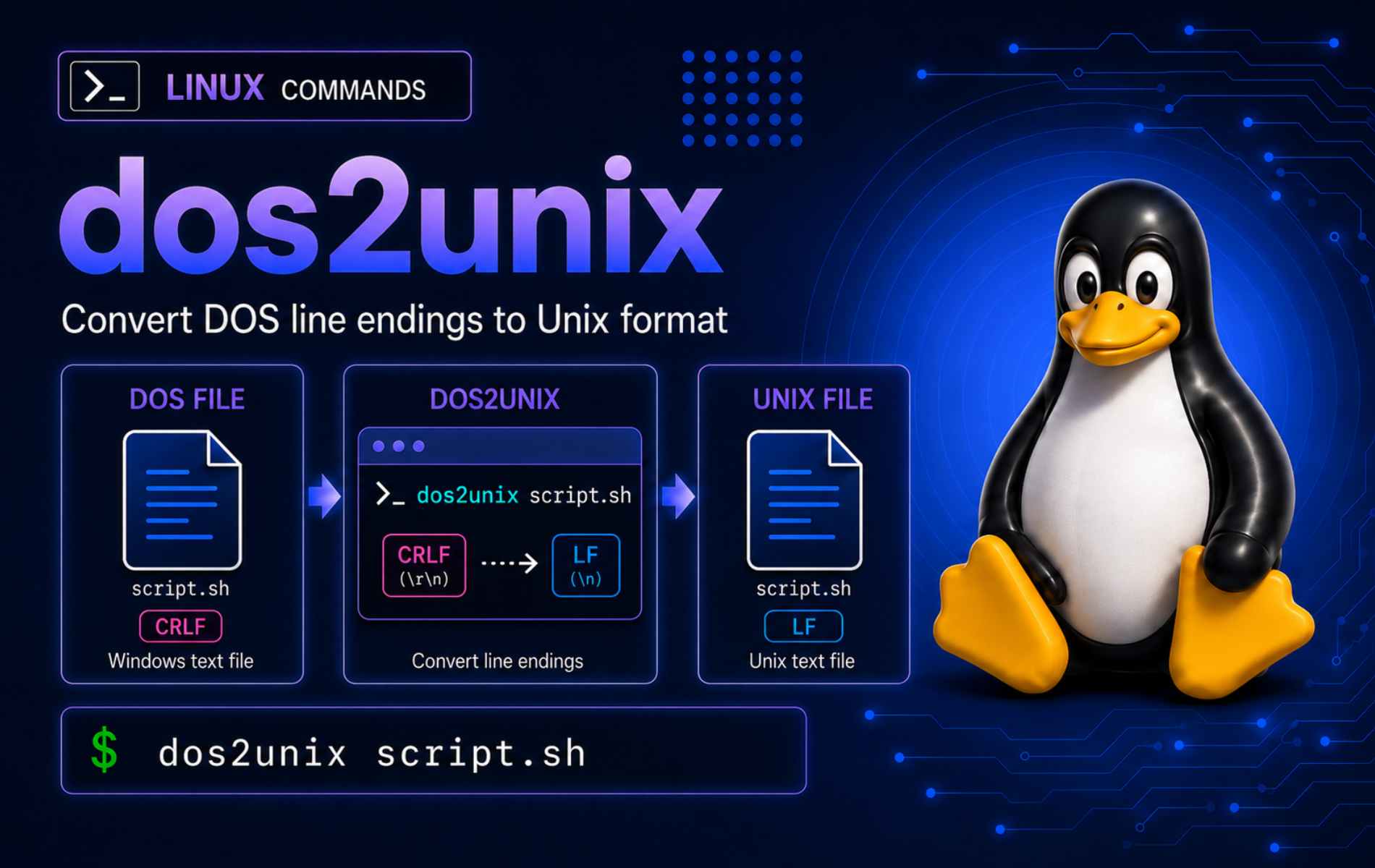
Files copied from Windows can look normal until a shell script fails, a Git diff marks every line as changed, or cat -v shows ^M at the end of each line. The dos2unix command in Linux fixes that line-ending mismatch by converting Windows CRLF text files to Unix LF format, with safer modes for previews, separate output files, newer stdout pipelines, timestamp preservation, and bulk conversion.
Use dos2unix for plain text files, scripts, config snippets, CSV exports, and project files that should keep normal Unix line endings. Do not use it as a blind binary cleanup tool; current builds skip binary files by default, and the safer examples show how to inspect files before converting them in place.
Install or Verify dos2unix on Linux
Check whether the command already exists before installing anything. Many developer and server images do not include dos2unix by default, even though the package is available in mainstream distribution repositories.
command -v dos2unixAn installed command returns a path such as:
/usr/bin/dos2unix
Check the packaged version when you are comparing options across systems:
dos2unix --version | head -1Example output from a current package shows the implementation and release date. Your distribution may ship an older release while keeping the same core syntax.
dos2unix 7.5.6 (2026-05-28)
Install the package with the package manager that matches your system. On Ubuntu, the package comes from Universe, so enable Universe on Ubuntu first if a minimal system cannot find dos2unix.
Debian, Ubuntu, and Linux Mint:
sudo apt update && sudo apt install dos2unixFedora and RHEL-family systems with DNF:
sudo dnf install dos2unixopenSUSE:
sudo zypper install dos2unixArch-based systems such as Arch Linux and Manjaro:
sudo pacman -S dos2unixThe same package normally includes unix2dos for the reverse direction. The package manager owns updates and removal; converted files stay on disk after the package is removed.
| System Family | Update Path | Remove Command |
|---|---|---|
| Debian, Ubuntu, Linux Mint | Normal APT upgrades | sudo apt remove dos2unix |
| Fedora and RHEL-family systems | Normal DNF upgrades | sudo dnf remove dos2unix |
| openSUSE | Normal Zypper updates | sudo zypper remove dos2unix |
| Arch Linux and Manjaro | Normal Pacman upgrades | sudo pacman -R dos2unix |
Removing the package also removes the companion unix2dos command, so keep it installed if you still need reverse conversion for Windows-bound files.
Understand What dos2unix Changes
DOS and Windows text files end each line with carriage return plus line feed, written as CRLF or \r\n. Unix and Linux text files normally end each line with only line feed, written as LF or \n. The official dos2unix project page describes the package as a pair of text file format converters for DOS, Mac, and Unix line breaks.
The default command changes a file in place, replacing the original path after a successful conversion. Other modes let you write a separate output file, write converted content to standard output, inspect line-ending counts, or convert LF files back to CRLF with unix2dos.
| Task | Command Pattern | Use It When |
|---|---|---|
| Convert in place | dos2unix file.txt | You want the same path rewritten with LF line endings. |
| Write a new file | dos2unix -n input.txt output.txt | You need to keep the original file untouched for comparison or rollback. |
| Preview on stdout | dos2unix -q -O file.txt | Your packaged build lists -O and you want converted output in a pipeline. |
| Inspect line endings | dos2unix -i file.txt | You need DOS, Unix, Mac, BOM, and text/binary information before converting. |
| Reverse the direction | unix2dos file.txt | A file must be sent to a Windows workflow that expects CRLF line endings. |
Do not treat
dos2unixas a recursive directory command. Current Linux builds use-rfor BOM removal, not recursive conversion. Usefindwith null-delimited file names for directory trees.
Create Safe dos2unix Example Files
Build the examples in a disposable directory under your home folder. The first file uses Windows CRLF endings; the second already uses Unix LF endings.
mkdir -p ~/dos2unix-demo
cd ~/dos2unix-demo

printf '%s\r\n' 'alpha=1' 'beta=2' > windows.txt
printf '%s\n' 'gamma=3' 'delta=4' > unix.txt
Keep this workspace until you finish the examples. The cleanup command removes only this disposable directory.
Detect Windows Line Endings Before Conversion
Use cat -v when you need a quick visual check. Windows carriage returns appear as ^M before each line feed, which makes cat command examples useful for quick control-character checks.
cat -v windows.txtalpha=1^M beta=2^M
Use dos2unix -i when you need structured proof. The first three columns count DOS, Unix, and old Mac line breaks, followed by BOM status, text or binary classification, and the file name.
dos2unix -i windows.txt unix.txt 2 0 0 no_bom text windows.txt
0 2 0 no_bom text unix.txt
The -c info flag prints only files that would be converted. That makes it useful before bulk commands because files already using LF stay out of the output.
dos2unix -ic *.txtwindows.txt
Convert a File In Place with dos2unix
Run dos2unix with a file name to convert that file in place. The command rewrites the file path with Unix LF line endings after a successful conversion.
dos2unix windows.txtdos2unix: converting file windows.txt to Unix format...
Recheck the line-ending counts after conversion:
dos2unix -i windows.txt0 2 0 no_bom text windows.txt
In-place conversion is convenient, but it still replaces the file path. Use version control, a copy,
-n, or an rsync backup workflow before changing valuable project files, configuration files, or shared directories.
Write Converted Output to a New File
Use new-file mode when you want to compare the result or preserve the original CRLF file. File names must be provided as input-output pairs.
printf '%s\r\n' 'alpha=1' 'beta=2' > original-windows.txt
dos2unix -n original-windows.txt converted.txt
dos2unix: converting file original-windows.txt to file converted.txt in Unix format...
The input file still has CRLF endings, while the output file uses LF:
dos2unix -i original-windows.txt converted.txt 2 0 0 no_bom text original-windows.txt
0 2 0 no_bom text converted.txt
Preview dos2unix Output Without Changing the File
The -O option writes converted content to standard output on newer dos2unix builds. Add -q when the output is part of a pipeline so conversion notices do not mix with the data stream on your terminal.
Check the packaged help first on older stable distributions. For example, Ubuntu 22.04 ships dos2unix 7.4.2, which does not include -O.
dos2unix --help | grep -- ' -O,'-O, --to-stdout write to standard output
If the command returns no output, use -n with a temporary output file instead of adding an unsupported option to a script.
dos2unix -q -O original-windows.txt | cat -valpha=1 beta=2
Because -O is stdout mode, the original file remains unchanged:
dos2unix -i original-windows.txt2 0 0 no_bom text original-windows.txt
On older builds without -O, write the preview to a separate file and inspect that file instead:
dos2unix -q -n original-windows.txt preview-unix.txt
cat -v preview-unix.txt
alpha=1 beta=2
Convert Several Files with dos2unix
Preview matching files before a bulk conversion. A shell glob such as *.txt is fine for a small current directory when you have already checked which files will change.
dos2unix -ic *.txtIf the list contains only the files you intended to change, convert them in place:
dos2unix *.txtFor directory trees, use the find command in Linux to select the file types and preserve names with spaces. The example creates a small project tree with two CRLF files and one Markdown file that stays outside the conversion pattern.
mkdir -p project/sub
printf '%s\r\n' 'root crlf' > 'project/root file.txt'
printf '%s\n' 'root unix' > project/unix.txt
printf '%s\r\n' 'sub crlf' > project/sub/script.sh
printf '%s\r\n' 'markdown crlf' > project/sub/readme.md
Preview only text and shell script files that still need conversion:
find project -type f \( -name '*.txt' -o -name '*.sh' \) -print0 | xargs -0 -r dos2unix -ic | sortproject/root file.txt project/sub/script.sh
Convert only the files reported by dos2unix -ic0. The extra 0 info flag makes the file-name list null-delimited, which keeps names with spaces safe, and -r on xargs prevents an empty input list from running dos2unix with no file arguments.
find project -type f \( -name '*.txt' -o -name '*.sh' \) -print0 | xargs -0 -r dos2unix -ic0 | xargs -0 -r dos2unix -qRun the preview again. No output means the selected files no longer contain DOS line endings.
find project -type f \( -name '*.txt' -o -name '*.sh' \) -print0 | xargs -0 -r dos2unix -icPreserve Timestamps with dos2unix
Normal conversion changes file metadata because the file is rewritten. Use -k when the modification time matters for build tools, sync jobs, or audit comparisons.
printf '%s\r\n' 'dated' > keepdate.txt
touch -d '2026-01-01 12:34:56' keepdate.txt
stat -c '%y' keepdate.txt | cut -d. -f1
2026-01-01 12:34:56
Convert the file while keeping the original timestamp:
dos2unix -k keepdate.txt
stat -c '%y' keepdate.txt | cut -d. -f1
dos2unix: converting file keepdate.txt to Unix format... 2026-01-01 12:34:56
Handle UTF-8 BOMs with dos2unix
When converting to Unix line endings, dos2unix removes a UTF-8 byte order mark by default. Use -b only when a downstream tool specifically requires the BOM to remain.
printf '\357\273\277bom line\r\n' > bom-default.txt
cp bom-default.txt bom-keep.txt

dos2unix bom-default.txt
dos2unix -b bom-keep.txt
dos2unix -i bom-default.txt bom-keep.txt
dos2unix: converting file bom-default.txt to Unix format...
dos2unix: converting file bom-keep.txt to Unix format...
0 1 0 no_bom text bom-default.txt
0 1 0 UTF-8 text bom-keep.txt
UTF-16 files need more care because line-ending conversion and character encoding conversion are separate decisions. Check dos2unix -i file first, then use the packaged manual for -u, -ul, and -ub only when you know the file’s encoding requirement.
Convert Unix Files Back to Windows Format
The same package normally installs unix2dos for the reverse direction. Use it when a text file must go back to a Windows-only tool, legacy parser, or exchange format that expects CRLF endings.
printf '%s\n' 'one' 'two' > linux-lines.txt
unix2dos -q linux-lines.txt
dos2unix -i linux-lines.txt
cat -v linux-lines.txt
2 0 0 no_bom text linux-lines.txt one^M two^M
Keep this as an intentional export step. If the file lives in a Linux project, convert only the copy that needs to leave the project instead of flipping the working copy back and forth.
Fix Script Errors Caused by CRLF
CRLF line endings in a shell script can break the shebang line. A script that starts with #!/usr/bin/env bash\r may fail because the system tries to find a command named bash\r instead of bash.
printf '#!/usr/bin/env bash\r\nprintf "script ok\n"\r\n' > bad-script.sh
chmod +x bad-script.sh
LC_ALL=C ./bad-script.sh
env: 'bash\r': No such file or directory env: use -[v]S to pass options in shebang lines
Confirm the carriage return in the first line, convert the script, then rerun it:
cat -v bad-script.sh | head -1
dos2unix bad-script.sh
./bad-script.sh
#!/usr/bin/env bash^M dos2unix: converting file bad-script.sh to Unix format... script ok
Troubleshoot dos2unix Problems
dos2unix Command Not Found
A missing command usually means the package is not installed, not that the binary has a different name. Recheck the shell path, then install the dos2unix package for your distribution.
command -v dos2unix || printf '%s\n' 'dos2unix is not installed'dos2unix is not installed
Binary File Skipped
Current dos2unix builds skip files that look binary and return success by default. That protects archives, images, databases, executables, and other non-text data from accidental corruption.
printf 'abc\0def\r\n' > payload.bin
dos2unix payload.bin
dos2unix: Binary symbol 0x00 found at line 1 dos2unix: Skipping binary file payload.bin
Use dos2unix -i to confirm how the tool classifies the file before forcing conversion. If the file is an archive, image, executable, database, or generic binary blob, stop. Use -f only when you have confirmed the file is text-like data that was misdetected.
dos2unix -i payload.bin1 0 0 no_bom binary payload.bin
Newer builds may also provide --error-binary for scripts that should fail when a binary file is skipped. Check the packaged help before relying on that option, because older stable packages may not include it.
dos2unix --help | grep -- --error-binary--error-binary return an error when a binary file is skipped
No output means your packaged build does not support the option; use the dos2unix -i classification check instead of adding unsupported flags to scripts.
Script Still Says Permission Denied
Line-ending conversion does not make a script executable. If the CRLF problem is fixed but the shell reports Permission denied, check the mode and add the user execute bit.
printf '#!/usr/bin/env bash\nprintf "script ok\n"\n' > no-exec.sh
chmod 644 no-exec.sh
stat -c '%A %n' no-exec.sh
-rw-r--r-- no-exec.sh
The missing x bit means the file is not executable for your user. Fix the permission, then rerun the script:
chmod u+x no-exec.sh
stat -c '%A %n' no-exec.sh
./no-exec.sh
-rwxr--r-- no-exec.sh script ok
Use chmod command examples when the file needs broader permission changes than a single user execute bit.
Recursive Conversion Changed Nothing
If a recursive conversion did nothing, check the file-selection command first. dos2unix does not walk directories by itself, and current -r behavior is not recursive conversion.
find project -type f -printAfter confirming the file list, use the null-delimited find and xargs pattern from the bulk section. For search-heavy file selection, combine that pattern with grep command examples before converting files.
Line Endings Are Not the Actual Problem
If dos2unix -i reports zero DOS line endings, the file may already be LF-only. The next likely problem is usually content, quoting, permissions, encoding, or syntax rather than CRLF.
dos2unix -i script.sh
bash -n script.sh
Use sed command examples when the job is pattern-based substitution, and use a shell syntax check when the file is a script.
Clean Up dos2unix Demo Files
Remove only the disposable workspace created for the examples:
cd "$HOME"
rm -rf -- "$HOME/dos2unix-demo"
Conclusion
Linux text files are ready for scripts, diffs, and automation once CRLF endings are found, converted, and rechecked. Use dos2unix -i before bulk edits, keep -n, available -O, and -k for safer cases, and hand recursive selection to find instead of treating dos2unix as a directory walker.


Formatting tips for your comment
You can use basic HTML to format your comment. Useful tags currently allowed in published comments:
<code>command</code>command<strong>bold</strong><em>italic</em><a href="https://example.com">link</a><blockquote>quote</blockquote>