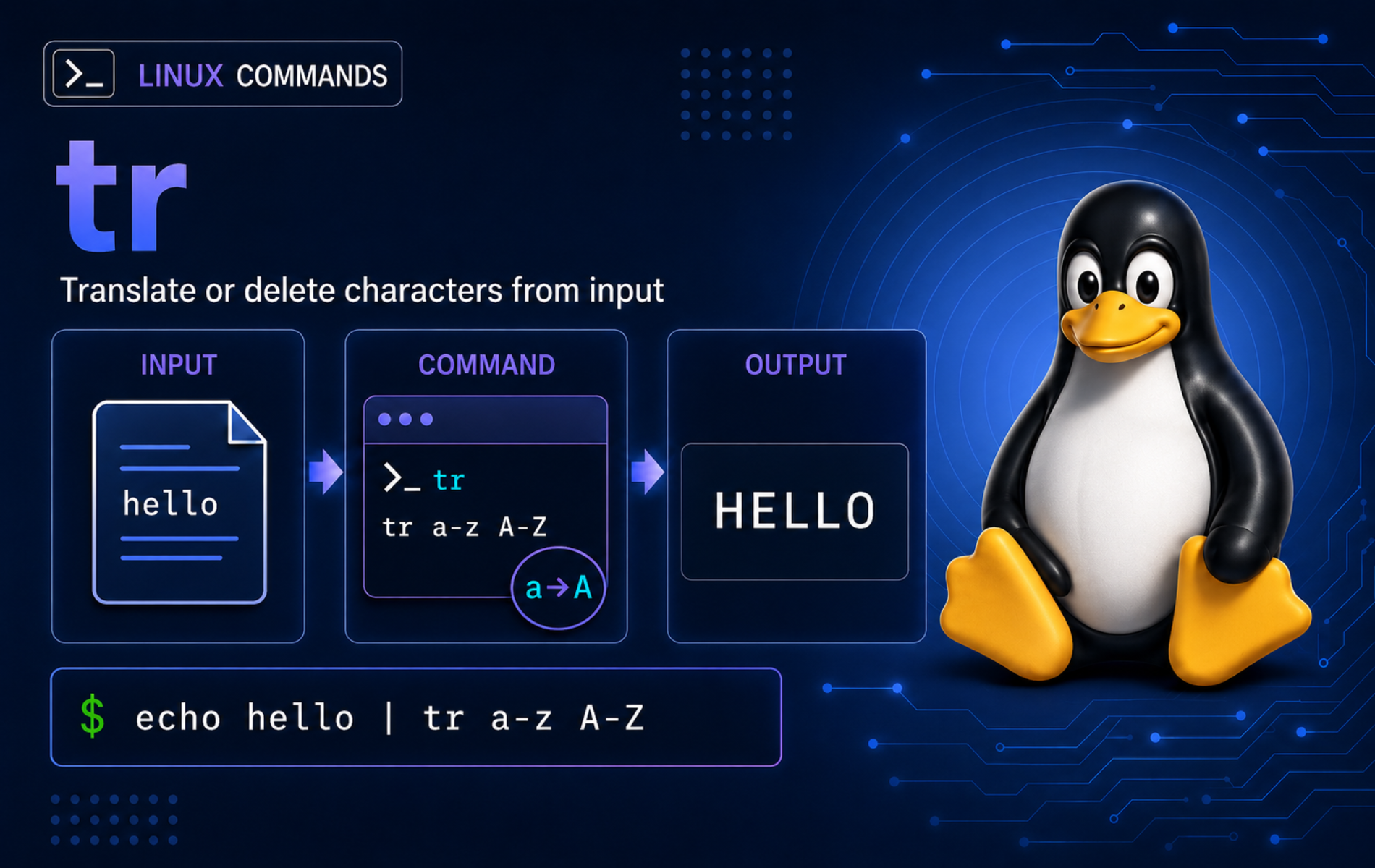
Text streams often need one-character cleanup before heavier tools make sense. The tr command in Linux translates, deletes, and squeezes characters from standard input, which makes it useful for case conversion, delimiter cleanup, CRLF repair, log normalization, and simple pipeline preparation.
Use tr when the job is character-based. Line matching, word replacement, and field-aware reports belong to other text tools, so keep tr focused on the cleanup layer it actually owns.
Understand the tr Command in Linux
The tr command reads from standard input and writes to standard output. It does not open files by filename the way sed, awk, or grep can. Pipe text into it, redirect a file into it, or type input interactively and end the stream with Ctrl+D.
tr [OPTION]... SET1 [SET2]A minimal pipeline is enough for a first check: pipe text into tr, choose one character to replace, and read the transformed output from stdout.
printf 'alpha,beta,gamma\n' | tr ',' '\n'alpha beta gamma
The GNU tr manual is the best reference when your system uses GNU coreutils. Its four core operations match the practical model for most Linux systems: translate characters, squeeze repeated characters, delete characters, and delete characters before squeezing repeats. The GNU character-array documentation explains ranges, character classes, escapes, and locale-sensitive input.
How tr Reads SET1 and SET2
SET1 names the input characters that tr should act on. SET2 names the replacement characters when translation is active. These sets are character arrays, not regular expressions, so patterns such as ., *, and ^ do not mean the same thing they mean in regex tools.
- Translate:
tr 'abc' 'xyz'mapsatox,btoy, andctoz. - Delete:
tr -d '[:digit:]'removes digits and prints the remaining characters. - Squeeze:
tr -s '[:blank:]'replaces repeated horizontal whitespace with one copy of the same character. - Complement:
tr -cd '[:alnum:]\n'keeps letters, digits, and newlines while deleting everything else.
Common tr Command Patterns
Use these patterns when the input is character-based and already comes from standard input, a pipe, or file redirection.
| Task | Command Pattern | When to Use It |
|---|---|---|
| Uppercase text | tr '[:lower:]' '[:upper:]' | Convert ASCII letters while leaving digits and punctuation alone. |
| Delete digits | tr -d '[:digit:]' | Remove numeric characters from a stream. |
| Keep safe characters | tr -cd '[:alnum:]\n' | Keep letters, digits, and line breaks while dropping punctuation and spaces. |
| Normalize horizontal spacing | tr -s '[:blank:]' ' ' | Collapse spaces and tabs without joining separate lines. |
| Split simple lists | tr ',' '\n' | Turn comma-separated values into one value per line when quoting is not involved. |
| Repair CRLF endings | tr -d '\r' | Remove carriage returns from Windows-style text files. |
Common tr Character Sets
Character classes are usually clearer than hand-written ranges, especially when scripts may run under different locales. Quote them so the shell does not treat brackets as filename patterns.
| Set | Meaning | Common Use |
|---|---|---|
[:lower:] | Lowercase letters. | Translate to [:upper:] for uppercase output. |
[:upper:] | Uppercase letters. | Translate to [:lower:] for lowercase output. |
[:digit:] | Decimal digits. | Delete numbers or keep only numeric characters. |
[:alnum:] | Letters and digits. | Build word lists or keep identifier-like text. |
[:blank:] | Spaces and tabs. | Normalize horizontal spacing without deleting newlines. |
[:space:] | Whitespace, including newlines. | Collapse all whitespace when line boundaries do not matter. |
[:punct:] | Punctuation characters. | Remove punctuation from simple text streams. |
\n, \r, \t | Newline, carriage return, and tab escapes. | Repair line endings or convert delimited text. |
Use
trfor ASCII-safe cleanup, delimiters, whitespace, and byte-oriented transformations. GNU documentation warns that multibyte locales are not portable for arbitrary character translation, so use a Unicode-aware language when you need multilingual case folding or normalization.
Verify tr Availability and Build Example Files
Linux systems normally provide tr through a coreutils package. Many systems use GNU coreutils, some newer systems may use compatible implementations such as uutils coreutils, and minimal containers or rescue shells may expose a smaller BusyBox applet. Check the command path and implementation before relying on exact error text or implementation-specific behavior.
command -v trThe command returns the executable path your shell will use. The directory can differ by distribution or system layout; this is common example output:
/usr/bin/tr
Most full coreutils implementations provide a version banner. BusyBox and other compact implementations may use different help or version output.
tr --version | head -1GNU output begins with the implementation and coreutils release:
tr (GNU coreutils) 9.11
Systems that ship uutils coreutils can show a banner like this instead:
tr (uutils coreutils) 0.8.0
If tr --version is unsupported, use tr --help to confirm the available options before copying GNU-specific examples into a minimal container, rescue shell, or alternate coreutils implementation.
Create a disposable workspace for the file-based examples. The sample files cover CSV-like rows, uneven log spacing, CRLF line endings, punctuation, and simple identifiers.
mkdir -p ~/tr-demo
cd ~/tr-demo

printf '%s\n' \
  'Web-01,Frontend,ACTIVE' \
  'API-02,Backend,Maintenance' \
  'DB-03,Database,ACTIVE' > services.csv

printf '%s\n' \
  '2026-06-15 10:00:01 INFO request completed' \
  '2026-06-15 10:00:02 WARN  retry pending' \
  '2026-06-15 10:00:03 ERROR  upstream timeout' > events.log

printf 'name\trole\tstatus\r\nweb-01\tfrontend\tactive\r\napi-02\tbackend\tmaintenance\r\n' > windows.tsv

printf '%s\n' \
  'Alpha!!!   Beta?? Gamma---Delta' \
  'ticket=LC-1042; owner=ops_team; status=OPEN' > messy.txt

ls -1
The workspace should contain four files:
events.log
messy.txt
services.csv
windows.tsv
The examples use printf command examples to generate predictable input. That keeps the output stable and avoids depending on files already present on your system.
Translate Characters with tr
Translation uses both SET1 and SET2. Each character from SET1 maps to the character in the same position in SET2. Characters outside SET1 pass through unchanged.
Convert Lowercase Text to Uppercase
Use the paired [:lower:] and [:upper:] classes for case conversion instead of ASCII ranges when the input is ordinary English text.
printf '%s\n' 'Linux 2026' | tr '[:lower:]' '[:upper:]'LINUX 2026
Lowercase a File Without Editing It
Redirect a file into tr when you want to transform file content. The command reads from services.csv and prints the lowercase result to the terminal.
tr '[:upper:]' '[:lower:]' < services.csvweb-01,frontend,active api-02,backend,maintenance db-03,database,active
Replace Spaces and Hyphens with Underscores
When several input characters should become the same output character, give SET2 the same length as SET1. Here, both space and hyphen map to underscores.
printf '%s\n' 'web-01 frontend active' | tr ' -' '__'web_01_frontend_active
Some implementations pad a short SET2 by repeating its final character, but scripts are easier to read and more portable when the mapping is explicit.
Split a Delimited List into Lines
Translate commas into newlines when a short list needs one value per line. This is character translation, not CSV parsing, so keep it for simple unquoted lists.
printf 'alpha,beta,gamma\n' | tr ',' '\n'alpha beta gamma
Split a PATH-Style List into Lines
Colon-separated lists such as PATH-style values are easier to inspect when each path appears on its own line. Use a fixed sample string when you are teaching or testing the pattern so the output does not depend on your current shell environment.
printf '/usr/local/bin:/usr/bin:/bin\n' | tr ':' '\n'/usr/local/bin /usr/bin /bin
Convert Tabs to Commas After Removing CRLF Characters
The sample windows.tsv file contains tab separators and Windows-style carriage returns. Delete \r first, then translate each tab into a comma.
tr -d '\r' < windows.tsv | tr '\t' ','name,role,status web-01,frontend,active api-02,backend,maintenance
Delete Characters with tr
The -d option removes characters in SET1. Do not provide SET2 for a plain delete operation.
Remove Punctuation and Horizontal Space
Combine character classes when the same delete rule should cover several groups. [:blank:] removes spaces and tabs without deleting the final newline.
printf 'Phone: +1 (555) 0199\n' | tr -d '[:punct:][:blank:]'Phone15550199
Keep Only Letters, Digits, and Newlines
Use -c with -d to delete the complement of SET1. Include \n when the output should preserve line breaks.
printf 'Order #LC-1042: ready.\n' | tr -cd '[:alnum:]\n'OrderLC1042ready
Extract Digits from Mixed Text
Complement delete mode is useful when you only need the numeric characters from an identifier, invoice, or pasted value. Keep the newline so the shell prompt does not run into the result.
printf 'Invoice LC-2026-0042\n' | tr -cd '[:digit:]\n'20260042
This pattern concatenates digit groups. Use a field-aware tool when separators or number boundaries matter.
Remove Carriage Returns from Windows Text
Windows text files often end lines with carriage return plus newline. Deleting \r leaves normal Unix-style newline characters in place.
printf 'first\r\nsecond\r\n' | tr -d '\r' | cat -vfirst second
The cat -v check makes control characters visible when they remain. If you use cat for other file-inspection workflows, the cat command in Linux guide covers safe viewing and concatenation patterns.
Remove NUL Bytes from a Stream
NUL bytes can appear in copied logs, exported text, or streams that accidentally include binary data. Delete them only when the input is supposed to be plain text; do not use this pattern on files that need their binary structure preserved.
printf 'alpha\0beta\n' | tr -d '\000' | cat -valphabeta
Squeeze Repeated Characters with tr
The -s option collapses adjacent repeated characters from the active set. Squeezing is useful after translation because several different input characters can become the same output character.
Normalize Spaces and Tabs
Translate spaces and tabs to one regular space, then squeeze repeated spaces. This keeps the line structure intact while making columns easier to scan or pipe into another tool.
printf 'alpha beta\t\tgamma\n' | tr -s '[:blank:]' ' 'alpha beta gamma
The same pattern cleans the uneven spacing in the sample log:
tr -s '[:blank:]' ' ' < events.log2026-06-15 10:00:01 INFO request completed 2026-06-15 10:00:02 WARN retry pending 2026-06-15 10:00:03 ERROR upstream timeout
Convert Repeated Delimiters to One Item per Line
Translate-and-squeeze mode can clean simple delimiter runs in one step. This maps one or more commas to a single newline, which is useful for quick lists but not for CSV data where empty fields have meaning.
printf 'alpha,,beta,,,gamma\n' | tr -s ',' '\n'alpha beta gamma
Remove Repeated Blank Lines
Squeeze repeated newline characters when a stream has accidental blank-line runs.
printf 'one\n\n\nthree\n' | tr -s '\n'one three
Combine tr in Text Pipelines
The strongest tr workflows usually prepare text for another command. Keep tr responsible for character cleanup, then hand line matching, substitutions, field logic, sorting, or aggregation to the tool that owns that layer.
Normalize Log Case Before Matching Lines
Case and spacing can vary in pasted logs and small exports. Normalize the stream with tr, then use the grep command in Linux for the line match.
tr '[:upper:]' '[:lower:]' < events.log | tr -s '[:blank:]' ' ' | grep 'error'2026-06-15 10:00:03 error upstream timeout
Build One Word per Line
The -c and -s options can turn non-alphanumeric runs into a single newline. The [\n*] form tells tr to repeat newline as many times as needed for the translated set, which avoids relying on GNU’s short-SET2 padding behavior.
printf 'Alpha!!! Beta?? Gamma---Delta\n' | tr -cs '[:alnum:]' '[\n*]'Alpha Beta Gamma Delta
Apply the same cleanup to the sample file:
tr -cs '[:alnum:]' '[\n*]' < messy.txtAlpha Beta Gamma Delta ticket LC 1042 owner ops team status OPEN
Build an ASCII Slug from a Title
For simple ASCII titles, combine translation, complement delete mode, and squeezing to create a lowercase token. Set LC_ALL=C for byte-ordered ranges, and use a Unicode-aware tool when titles contain non-ASCII letters that must be preserved or normalized.
printf '%s\n' 'Quarterly Report: June 2026!' | LC_ALL=C tr '[:upper:] ' '[:lower:]-' | tr -cd '[:alnum:]-\n' | tr -s '-'quarterly-report-june-2026
Show Where tr Stops Being the Right Tool
tr transforms individual characters, not words. A command that looks like it should change cat to dog actually maps c to d, a to o, and t to g wherever those characters appear.
printf 'cat catalog\n' | tr 'cat' 'dog'dog dogolog
Use sed for find-and-replace text workflows, then use tr before or after it when the input still needs character-level cleanup. Use awk command examples when the next step depends on fields, columns, or calculations rather than individual characters.
Use tr Safely in Files and Scripts
tr writes to standard output by design. That is safer for previews, but it means file edits need a temporary output file and a deliberate replacement step.
Preview File Changes Before Replacing a File
Write transformed output to a new file, inspect it, then replace the original only when the result is correct. This pattern prevents accidental truncation from redirecting back to the same input file.
tr '[:upper:]' '[:lower:]' < services.csv > services.lower.csv
head -3 services.lower.csv
web-01,frontend,active api-02,backend,maintenance db-03,database,active
If the preview is correct, replace the original file with the transformed copy. The mv command guide covers broader move, rename, and overwrite patterns when the replacement step becomes more complex.
mv services.lower.csv services.csv
head -3 services.csv
web-01,frontend,active api-02,backend,maintenance db-03,database,active
Do not use
tr ... < file > file. The shell opens the output file for writing beforetrreads the input, which can empty the file before the command processes it.
Use the C Locale for Byte-Oriented Ranges
Character classes are usually preferable, but some scripts intentionally operate on byte ranges. Set LC_ALL=C for that command so ranges such as A-Z and 0-9 use the byte order the script expects.
printf 'ABC-123\n' | LC_ALL=C tr 'A-Z' 'a-z'abc-123
For ordinary case conversion, tr '[:upper:]' '[:lower:]' is clearer than ranges and avoids most locale surprises.
Troubleshoot Common tr Errors
Most tr failures come from treating filenames as operands, omitting the second set during translation, deleting the newline by accident, or putting a hyphen where option parsing can consume it.
tr Reports Extra Operand for a Filename
The error appears when a filename is placed after the two character sets. tr expects input through standard input, so it treats the filename as a third operand.
LC_ALL=C tr '[:lower:]' '[:upper:]' services.csvtr: extra operand 'services.csv' Try 'tr --help' for more information.
Redirect the file into tr instead:
tr '[:lower:]' '[:upper:]' < services.csv | head -2WEB-01,FRONTEND,ACTIVE API-02,BACKEND,MAINTENANCE
tr Reports Missing Operand During Translation
Translation needs both SET1 and SET2. If only one set is provided without a mode such as -d or -s, tr fails before reading useful input.
printf 'abc\n' | LC_ALL=C tr '[:lower:]'tr: missing operand after '[:lower:]' Two strings must be given when translating. Try 'tr --help' for more information.
Choose a real translation target, or switch to delete mode when the task is removal:
printf 'abc123\n' | tr -d '[:digit:]'abc
tr Treats a Hyphen as an Option or Range
A leading hyphen can be parsed as an option, and a hyphen between characters can define a range. This can affect delete, squeeze, and translate sets when the set starts with -. Implementations differ in exact wording, but the failure usually appears as an invalid option or unexpected argument.
printf 'a-b\n' | LC_ALL=C tr -d -abtr: invalid option -- 'a' Try 'tr --help' for more information.
GNU tr prints wording like the output above. Compatible implementations may describe the same mistake differently; for example, uutils tr reports an unexpected -a argument and suggests -- -a.
Terminate option parsing before the set when a character set begins with a hyphen:
printf 'a-b-c\n' | tr -d -- '-ab'c
tr Removes the Final Newline
Complement deletes remove every character outside the keep set. If the keep set omits \n, the output may print without a final line break and look merged with the next command output. The NEXT marker makes that missing line break visible.
printf 'abc123\n' | tr -cd '[:alpha:]'; printf 'NEXT\n'abcNEXT
The visible letters are correct, but the newline was deleted with the digits. Keep newline when line structure matters:
printf 'abc123\n' | tr -cd '[:alpha:]\n'; printf 'NEXT\n'abc NEXT
tr Waits for Input and Looks Stuck
A bare tr command waits because it is reading standard input from the terminal. Type text and press Ctrl+D to end interactive input, or provide input with a pipe or redirection.
printf 'ready\n' | tr '[:lower:]' '[:upper:]'READY
Clean Up the tr Demo Files
Remove the disposable workspace after finishing the examples. This command targets only the demo directory created earlier; review rm command examples before adapting recursive deletion to other paths.
cd ~
rm -rf -- ~/tr-demo
Conclusion
tr is ready for character-level cleanup in Linux pipelines: translate case, delete unwanted bytes, squeeze repeated whitespace, repair CRLF endings, and prepare simple word streams before handing richer parsing to grep, sed, or awk. Keep previews on stdout, redirect files deliberately, and use character classes when scripts need to survive across shells and locales.


Formatting tips for your comment
You can use basic HTML to format your comment. Useful tags currently allowed in published comments:
<code>command</code>command<strong>bold</strong><em>italic</em><a href="https://example.com">link</a><blockquote>quote</blockquote>