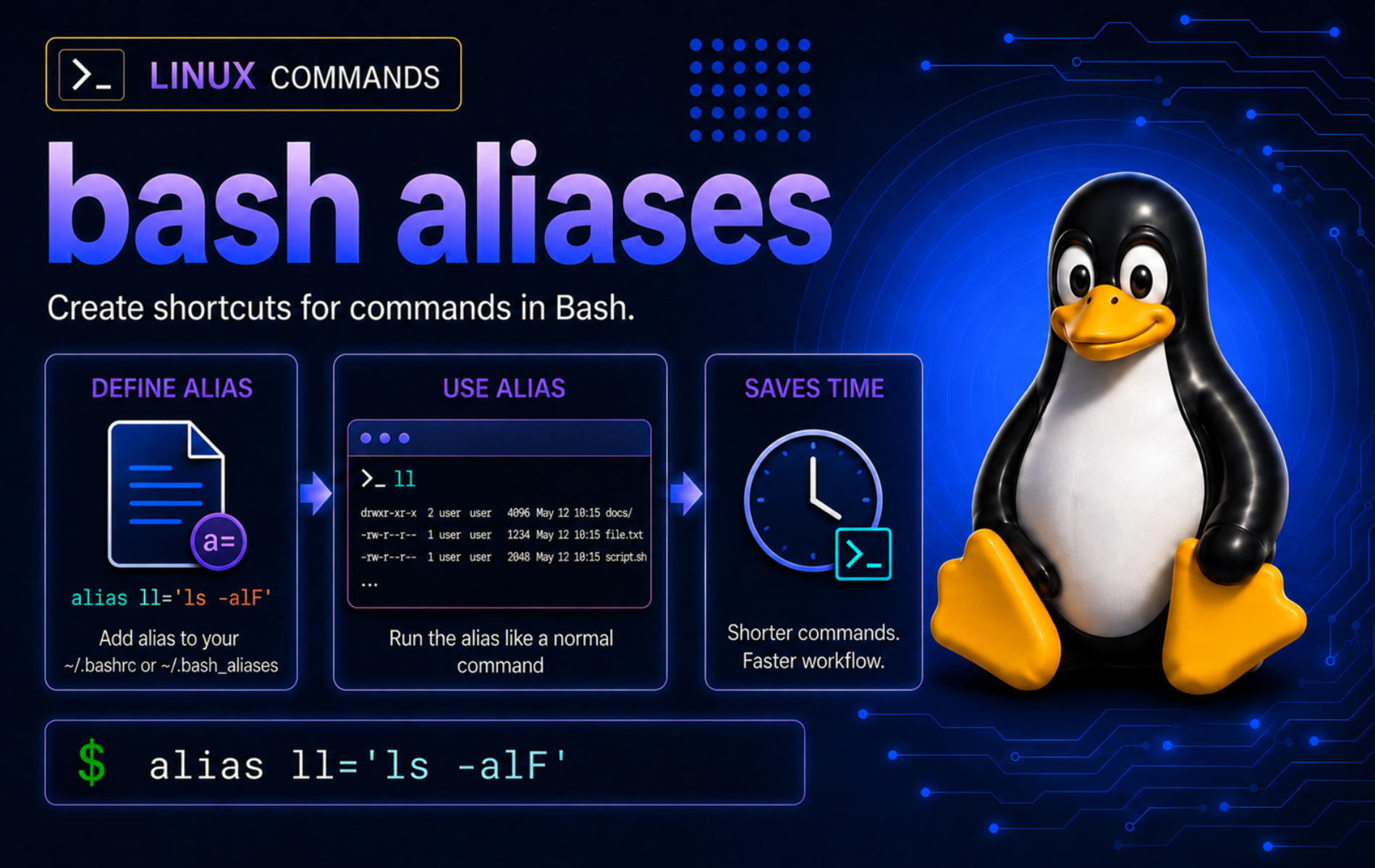
Bash aliases in Linux reduce repeated terminal work when every run needs the same options, paths, or safety flags. The alias command lets your shell replace a short name with a longer command before it runs, which is useful for interactive shortcuts such as long listings, safer file operations, project navigation, and status checks.
Aliases are shell behavior, not separate Linux packages. That boundary matters: an alias works in the shell session that defines it, persistent aliases must be loaded by a startup file, and scripts usually need functions instead of aliases when arguments or control flow are involved.
Understand Bash Aliases and the alias Command
The GNU Bash manual documents aliases as text substitution for an unquoted word in command position. Portable shells share the basic create, list, and remove behavior, while Bash adds the startup-file and interactive-shell details that matter for these examples.
The most important rule is position. Bash expands an alias when the alias name appears where a command name can appear, usually as the first word of a simple command. It does not replace every matching word on the line, and it does not give aliases their own argument variables.
Alias Command Syntax
Use alias name='command' to create or replace an alias, alias or alias -p to list aliases, alias name to inspect one alias, and unalias name to remove one alias from the current shell.
| Task | Command Pattern | What It Does |
|---|---|---|
| Create or replace an alias | alias ll='ls -lah' | Makes ll expand to ls -lah in the current shell. |
| List every alias | alias | Prints aliases currently defined in this shell session. |
| Print reusable alias definitions | alias -p | Shows Bash alias definitions in a form that can be read by the shell again. |
| Inspect one alias | alias ll | Prints the definition for one alias name. |
| Remove one alias | unalias ll | Removes the alias from the current shell session. |
| Remove all current aliases | unalias -a | Clears aliases from the current shell session only. |
Verify alias Is a Shell Builtin
Use Bash’s type builtin when you need to prove whether alias comes from the shell or from a file on disk:
type aliasalias is a shell builtin
Bash also exposes built-in help for the exact option syntax available in your shell:
help alias | sed -n '1p'alias: alias [-p] [name[=value] ... ]
The alias command exists in common Unix-like shells, but the examples are Bash-focused because Bash is the default interactive shell on many Linux systems. Zsh supports similar alias basics, while Fish uses different startup files and often favors abbreviations or functions for this workflow.
Create Temporary Bash Aliases
A temporary alias lasts until you remove it or close the shell session. This is the right way to test an alias before adding it to a startup file.
Create a Basic Alias Shortcut
Define a short alias for a longer command with options:
alias ll='ls -lah'
alias ll
alias ll='ls -lah'
Now ll expands to ls -lah when it appears as the command name. The alias does not edit the ls program, and it does not affect other shells that have not defined the same alias.
Use Quotes Around Alias Values
Quote the alias value when it contains spaces, options, pipes, variables, or other shell syntax. Single quotes usually make aliases easier to review because Bash stores the value without expanding variables while the alias is being defined:
alias grep='grep --color=auto'
alias now='date "+%F %T %Z"'
alias path='printf "%s\n" "$PATH"'
The path alias keeps $PATH inside single quotes at definition time, so the variable is expanded later when you run path. If you used double quotes around that alias value, Bash would expand $PATH immediately and freeze the current value into the alias.
Pass Extra Words After an Alias
Words typed after the alias name are appended after the replacement text. That makes aliases useful for fixed command prefixes:
alias show='printf "%s\n"'
show first second
unalias show
first second
This does not mean aliases have parameters. The extra words are simply added after the expanded command. When you need $1, validation, loops, or arguments inserted in the middle of a command, use a shell function instead.
These examples use printf because its output format is predictable across shell sessions. Use the printf command in Linux when script output needs exact newlines, fields, or status text.
Put Alias Definitions on Separate Lines
Bash expands aliases when it reads a command line, not after it finishes executing the previous command on that same line. Define the alias on its own line before you use it:
alias later='printf "%s\n" later-ok'
later
unalias later
later-ok
A same-line form such as alias later='printf "%s\n" later-ok'; later can still fail because Bash already read the whole line before the alias became available.
Build Practical Bash Alias Examples
Good aliases stay short and predictable. Save shortcuts for commands you type repeatedly, and avoid hiding risky package, network, or deletion behavior behind a name that looks harmless.
Create Everyday Terminal Shortcuts
These examples cover common interactive tasks without changing system state by themselves. Define only the shortcuts that match your workflow:
alias ll='ls -lah'
alias la='ls -A'
alias dfh='df -h'
alias gst='git status --short'
alias ..='cd ..'
alias cproj='cd "$HOME/projects/example-app"'
The ll, la, and dfh aliases shorten read-only file and disk checks. The gst alias is useful only on systems where you use Git, and cproj should point to a real project directory on your account.
Review Aliases Before Saving Them
List alias definitions in a reusable form before copying them into a startup file:
alias -p | grep -E "alias (ll|la|dfh|gst|\\.\\.|cproj)="If the filter prints the definitions you expect, move those lines into ~/.bash_aliases or ~/.bashrc. If it prints nothing, the aliases are not defined in the current shell.
Keep Package Manager Aliases Specific
Avoid one generic update alias across mixed Linux systems. Debian and Ubuntu use APT, Fedora and Rocky use DNF, openSUSE uses Zypper, and Arch-family systems use Pacman. If you keep package-manager shortcuts, give them names that identify the tool or keep them in host-specific shell files.
Make Bash Aliases Persistent
Persistent aliases belong in a file Bash reads when a new interactive shell starts. Many distributions configure ~/.bashrc for interactive Bash sessions. Ubuntu’s default account template commonly includes a ~/.bash_aliases loader, but existing accounts can differ; Fedora, Rocky, openSUSE, and Arch-family accounts often need that loader added manually.
Check Whether Bash Loads bash_aliases
Check your ~/.bashrc before adding a second loader block:
grep -nE '(^|[[:space:]])(\.|source)[[:space:]].*bash_aliases' ~/.bashrc 2>/dev/null || printf '%s\n' 'no ~/.bash_aliases loader found'If that command prints a loader for ~/.bash_aliases, keep your aliases in ~/.bash_aliases. If it prints no ~/.bash_aliases loader found, add the guarded loader once:
cat <<'EOF' >> ~/.bashrc

if [ -f ~/.bash_aliases ]; then
    . ~/.bash_aliases
fi
EOF
The dot command (.) reads the file in the current shell context. That is why aliases loaded from ~/.bash_aliases remain available after ~/.bashrc finishes. The source command in Linux explains this current-shell behavior in more detail.
Add Aliases to bash_aliases
Append tested aliases to ~/.bash_aliases. Keep one alias per line so Bash reads each definition before the next command uses it:
cat <<'EOF' >> ~/.bash_aliases
alias ll='ls -lah'
alias la='ls -A'
alias path='printf "%s\n" "$PATH"'
EOF
Load the aliases into the current Bash session without opening a new terminal:
source ~/.bashrc
alias ll
alias ll='ls -lah'
Opening a new interactive Bash terminal should load the same alias through ~/.bashrc. If your login shell reads ~/.bash_profile, ~/.bash_login, or ~/.profile first, make sure that file sources ~/.bashrc when you want interactive aliases in login terminals. The Bash startup files manual documents the exact order.
Only source shell files you trust. A startup file can run any command your account can run, so review copied alias collections before loading them into your interactive shell.
Use Aliases Safely with Existing Commands
Aliases can hide the real command name from your eyes even though Bash still expands them predictably. Before overriding common names such as ls, grep, cp, mv, or rm, decide whether the shortcut makes mistakes less likely or merely makes the command harder to reason about.
Inspect What the Shell Will Run
Use type -a when a command name may be an alias, function, builtin, or file on $PATH:
alias ls='ls --color=auto'
type -a ls
unalias ls
The first line should report the alias, followed by the real ls path. Use type for shell resolution and which command examples only when you specifically need path lookup for external commands.
Bypass an Alias for One Command
Prefix the command name with a backslash, or use the command builtin, when you need the real external command instead of the alias:
alias ls='printf "%s\n" alias-ls'
ls
\ls -d /tmp >/dev/null && printf "%s\n" backslash-bypass-ok
command ls -d /tmp >/dev/null && printf "%s\n" command-bypass-ok
unalias ls
alias-ls backslash-bypass-ok command-bypass-ok
This is useful during troubleshooting when a shortcut masks the behavior documented by a manual page or another guide.
Expand an Alias After sudo
Bash does not normally expand the command word after another command name. That is why sudo ll can fail even when ll works by itself. Bash checks the next word for alias expansion only when the previous alias value ends with a space.
alias first='printf "%s\n"'
alias second='expanded-by-trailing-space'
alias call='first '
call second
unalias first second call
expanded-by-trailing-space
The same Bash rule is why some users define alias sudo='sudo '. Add that alias only if you want Bash to expand the following word before sudo runs; it changes interactive parsing, not privileges.
Treat Safety Aliases as Reminders
A common example is alias rm='rm -i', which asks for confirmation before removals in an interactive shell. That can help during manual work, but it is not a backup strategy and it does not protect scripts that run without your interactive alias set. Learn the real rm command behavior before relying on an alias to make deletion safe.
Choose Between Aliases, Functions, and Scripts
Aliases are best for short, fixed command replacements. Functions and scripts are better when the command needs arguments, validation, loops, local variables, or readable multi-line logic.
| Use Case | Best Tool | Why |
|---|---|---|
| Shorten a fixed interactive command | alias | Fast to define and easy to list or remove. |
| Wrap a command with simple default options | alias | Extra words after the alias are appended naturally. |
Use $1, validate arguments, or change directories | Shell function | Functions can inspect arguments and still affect the current shell. |
| Share reusable automation across shells or users | Script | Scripts are files on disk and do not depend on an interactive alias table. |
| Pass values to child processes | export | The export command in Linux controls environment inheritance, not alias expansion. |
Use a Function When Arguments Matter
An alias cannot define a real $1 placeholder. A Bash function can:
show_first_arg() {
    printf 'first argument: %s\n' "$1"
}

show_first_arg alpha
unset -f show_first_arg
first argument: alpha
Use that pattern for helpers such as “make a directory and enter it,” project cleanup wrappers, or commands that need to validate a path before acting. Keep aliases for the cases where plain text replacement is enough.
Use Aliases in Scripts Only When You Mean It
Bash does not expand aliases in non-interactive shells by default. That is one reason aliases usually belong in interactive startup files, while scripts should use functions, variables, or full command names.
Demonstrate the Non-Interactive Alias Limit
Feed Bash the same lines a script file would contain. Because this Bash process is non-interactive, the alias definition is read but the later command name is not expanded:
bash <<'EOF'
alias hi='printf "%s\n" hi'
hi
EOF
bash: line 2: hi: command not found
The alias exists as text in the script, but Bash did not expand it because the shell is non-interactive and expand_aliases is off.
Use a Function in Scripts
A function is clearer and works without changing Bash’s alias-expansion option:
bash <<'EOF'
hi() {
    printf "%s\n" hi
}
hi
EOF
hi
If you deliberately need aliases inside a Bash script, enable expand_aliases with shopt -s expand_aliases before the alias definitions and keep each definition on a separate line. Treat that as a compatibility decision, not the default scripting style.
Remove and Clean Up Bash Aliases
Use unalias when the current shell should stop expanding a name. This does not edit ~/.bash_aliases or ~/.bashrc, so persistent aliases return the next time the startup file loads unless you remove the saved line too.
Remove One Alias from the Current Shell
alias temp='printf "%s\n" temporary'
temp
unalias temp
alias temp 2>&1
temporary bash: alias: temp: not found
Remove Saved Alias Lines
Inspect saved alias files before editing them. This command shows matching lines with line numbers and ignores missing files:
grep -n '^alias ll=' ~/.bash_aliases ~/.bashrc 2>/dev/nullDelete the matching alias line with your editor, remove the active copy from the current shell, then reload the startup file or open a new terminal:
unalias ll 2>/dev/null
source ~/.bashrc
alias ll 2>&1
bash: alias: ll: not found
If the alias has been removed from both the current shell and the startup files, alias ll reports that the name is not found.
Clear All Current Aliases
unalias -a clears the alias table for the current shell session. It is useful for troubleshooting a polluted shell, but it can remove helpful defaults until you reload your startup files or open a new terminal:
unalias -aBash supports unalias -a as the all-alias removal option for the current shell environment. Saved aliases return later if ~/.bashrc or another startup file still defines them.
Troubleshoot Common Bash Alias Problems
alias Works Now but Disappears in a New Terminal
The alias was defined only in the current shell session. Check whether the alias exists in your saved Bash alias files:
grep -n '^alias ll=' ~/.bash_aliases ~/.bashrc 2>/dev/nullIf the check prints nothing, add the alias to ~/.bash_aliases or ~/.bashrc. If the alias is saved but still missing in new terminals, check whether ~/.bashrc loads the file and whether your terminal starts Bash or another shell.
Running bashrc Says Permission Denied
This usually happens when the startup file is executed as a program instead of sourced. Check the file exists, then read it in the current shell:
test -r ~/.bashrc && source ~/.bashrcDo not run ~/.bashrc by itself. Startup files normally do not need executable permissions, and executing one would run it in a child process that cannot update aliases in your current shell.
Alias Does Not Work in a Script
Confirm whether alias expansion is off in the script’s Bash process:
bash -c 'shopt -q expand_aliases || printf "%s\n" "expand_aliases off"'expand_aliases off
Use a function for normal scripts. If the script intentionally depends on aliases, add shopt -s expand_aliases before the alias definitions and keep each alias on its own line.
Alias Does Not Accept Arguments as Expected
Aliases do not provide $1, $2, or $@ placeholders. Extra words are appended after the alias value, which is not enough for commands that need argument validation or path placement.
bad_helper() {
    printf 'replace this alias with a function for %s\n' "$1"
}

bad_helper alpha
unset -f bad_helper
replace this alias with a function for alpha
A Real Command Behaves Differently Than Expected
An alias or function may be shadowing the external command. Inspect the shell resolution order:
type -a command_nameReplace command_name with the command you are troubleshooting. If the first result is an alias, use unalias command_name to remove it from the current shell, or bypass it once with \command_name or command command_name.
sudo Does Not Find an Alias
If ll works but sudo ll reports that ll is not found, Bash expanded sudo as the command name and did not expand the next word as an alias. Check whether your shell already defines a trailing-space sudo alias:
alias sudoIf the alias is missing and you want this interactive behavior, define sudo with a trailing space:
alias sudo='sudo '
alias sudo
alias sudo='sudo '
Save that line only if you want the behavior in future shells. It does not make unsafe aliases safer, and it does not change which commands require administrator privileges.
Same-Line Alias Definition Fails
If alias later='printf "%s\n" later-ok'; later reports later: command not found, Bash read the alias use before the new alias became active. Put the definition and use on separate lines:
alias later='printf "%s\n" later-ok'
later
unalias later
later-ok
Conclusion
The alias command is most useful when it stays small: shorten repeated interactive commands, set safe default options, list what your shell will expand, and remove shortcuts that get in the way. Keep persistent Bash aliases in a reviewed startup file, use functions when arguments matter, and verify command resolution with type before blaming the external program.


Formatting tips for your comment
You can use basic HTML to format your comment. Useful tags currently allowed in published comments:
<code>command</code>command<strong>bold</strong><em>italic</em><a href="https://example.com">link</a><blockquote>quote</blockquote>