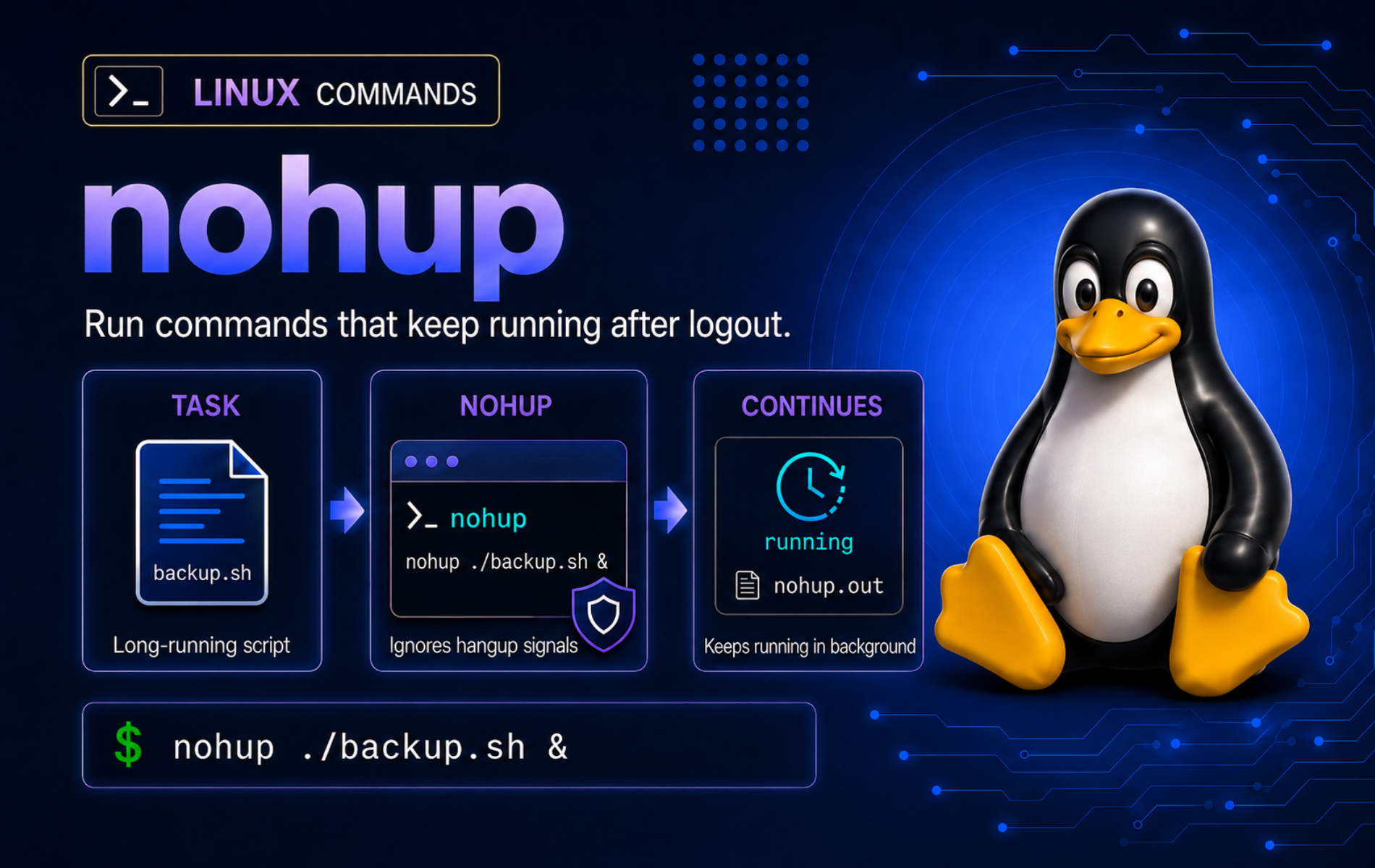
A disconnect from a remote SSH session should not decide whether a backup, import, build, or report job survives. The nohup command in Linux starts another command with hangup signals ignored, so non-interactive work can keep running after the controlling terminal closes when you also place the job in the background.
Use nohup for commands that can run without keyboard input and write useful logs. It is not a scheduler, service supervisor, or terminal multiplexer, so long-running services, reboot startup, and interactive shells need a different tool.
Understand the nohup Command
The nohup command wraps another command so it ignores hangup signals. It also changes default handling for standard input, standard output, standard error, and exit status in specific cases. The important point is scope: nohup changes signal handling and default terminal redirection for the command it launches, but it does not automatically move that command into the background.
nohup command [arguments...]Add & when you want your prompt back immediately. The ampersand belongs to the shell’s job-control layer, while nohup handles the hangup behavior. For deeper job-control mechanics, see the bg command examples.
| Task | Command Pattern | What It Does |
|---|---|---|
| Run a command after logout | nohup command > job.log 2>&1 & | Ignores hangups, writes output to a named log, and backgrounds the job. |
| Capture the new process ID | echo $! > job.pid | Saves the PID of the most recent background job from the current shell. |
| Wrap a pipeline | nohup sh -c 'cmd1 | cmd2' > job.log 2>&1 & | Runs shell syntax through sh -c because nohup wraps one command. |
| Check the process | ps -p "$(cat job.pid)" -o pid,stat,cmd | Shows whether the saved PID is still running. |
| Stop the process | kill "$(cat job.pid)" | Sends the default termination signal to the saved PID. |
nohupis safest for commands that do not need a terminal after launch. Programs that prompt for passwords, confirmations, editors, or menu choices can stop, fail, or continue without the input they expected.
Run a Command After Logout with nohup
Create a small working directory so the practice logs and PID files stay easy to remove:
mkdir -p "$HOME/nohup-demo"
cd "$HOME/nohup-demo"
Start a harmless background job, redirect both output streams to a named log, and save the PID for later checks:
nohup sh -c 'printf "started\n"; sleep 30; printf "finished\n"' > long-task.log 2>&1 &
echo $! > long-task.pid
The shell backgrounds the job because the command ends with &. The $! variable expands to the PID of the most recent background job in the current shell, so save it before starting another background command.
Inspect the saved PID with ps command output:
ps -p "$(cat long-task.pid)" -o comm=Example output while the shell wrapper is still running:
sh
While the current shell still owns the child process, wait can block until the job finishes and return its exit status. Use the bash wait command when scripts need to collect success or failure from background work.
wait "$(cat long-task.pid)"
cat long-task.log
Example output after the command completes:
started
finished
After you log out, a later shell no longer has the original child in its job table, so wait cannot recover that exit status. Use logs, output files, application status files, or service-specific checks for post-logout verification.
Verify nohup Availability on Linux
Most full Linux distributions provide nohup through a coreutils-compatible package. Check the executable path first:
command -v nohupOne common output path is:
/usr/bin/nohup
The exact path can vary by distribution and PATH order. Treat any real executable path as success, then use the provider checks later in this section when package ownership matters.
On GNU/coreutils-style systems, confirm the implementation when you are writing portable scripts or debugging a minimal image:
nohup --version | head -n 1GNU systems print a first line that starts with nohup (GNU coreutils). Some newer distro builds may show another compatible implementation, such as nohup (uutils coreutils). If --version is not supported, use the local manual page or nohup --help 2>&1 | head -n 1 instead; POSIX does not require a version option.
If nohup is missing, repair or install the distro’s coreutils provider rather than looking for a separate package named nohup. Package-owner checks differ by package manager:
| Distro Family | Package Owner Check | Typical Provider |
|---|---|---|
| Debian, Ubuntu, Linux Mint | dpkg-query -S "$(command -v nohup)" | Usually coreutils; some newer Ubuntu builds may report a coreutils-from-* provider. |
| Fedora, Rocky Linux, RHEL, openSUSE | rpm -qf "$(command -v nohup)" | coreutils |
| Arch Linux, Manjaro | pacman -Qo "$(command -v nohup)" | coreutils |
Redirect nohup Output to a Named Log
When standard output is still attached to a terminal, nohup normally appends output to nohup.out in the current directory, or to $HOME/nohup.out if the current directory cannot be used. A terminal launch can print this diagnostic:
nohup sh -c 'printf "stdout\n"; printf "stderr\n" >&2'nohup: ignoring input and appending output to 'nohup.out'
That message is not a failure. It tells you that nohup redirected terminal input and chose the default output file. For real jobs, name the log yourself so you know exactly where stdout and stderr go:
nohup sh -c 'printf "started\n"; sleep 5; printf "finished\n"' > named-job.log 2>&1 &Check the log without attaching to the process. Use tail command examples when you need to follow a changing log and stop watching with Ctrl+C:
tail -f named-job.logIf portability matters, redirect standard input explicitly as well. POSIX allows implementations to handle terminal input differently, so < /dev/null makes the no-input expectation visible:
nohup sh -c 'printf "started\n"; sleep 30; printf "finished\n"' > long-task.log 2>&1 < /dev/null &Use nohup for Real Workloads
Wrap a real workload only after the same command succeeds in the foreground. nohup should be the last layer you add, after paths, permissions, authentication, and prompts are already handled.
For a long backup, write both the archive and log to predictable locations. This example archives a project directory under $HOME; adjust the directory check, -C directory, and final archive path together for another source:
if [ -d "$HOME/project" ]; then
  mkdir -p "$HOME/backups"
  nohup tar -czf "$HOME/backups/project-$(date +%F).tar.gz" -C "$HOME" project > "$HOME/backups/project-backup.log" 2>&1 &
  echo $! > "$HOME/backups/project-backup.pid"
else
  echo "$HOME/project does not exist"
fi
For archive option details, use the tar command examples; this nohup pattern focuses on keeping the backup job detached and logged.
For build jobs, start nohup from the project directory so relative paths, build artifacts, and logs stay together. This example runs only when make is already installed:
if command -v make >/dev/null; then
  nohup make -j"$(nproc)" > build.log 2>&1 &
  echo $! > build.pid
else
  echo "make is not installed"
fi
Check build.log before treating a build as successful. nohup keeps the build detached; it does not turn compiler or test failures into success.
For report or import scripts, use the program’s own non-interactive authentication and logging options. Do not put database passwords, API tokens, SSH passphrases, or other secrets in the command line where process listings and shell history can expose them.
nohup python3 -u generate-report.py > report.log 2>&1 &
echo $! > report.pid
Run Pipelines and Multiple Commands with nohup
nohup wraps one utility and its arguments. Pipes, redirects, loops, conditionals, and command lists belong to the shell, so pass them through sh -c when the whole sequence should survive a hangup.
Create a small log file, run a pipeline through nohup sh -c, and wait for the wrapper to finish in the same shell:
printf '%s\n' 'INFO start' 'ERROR database' 'ERROR retry' > app.log
nohup sh -c 'grep ERROR app.log | wc -l > error-count.txt' > pipeline-wrapper.log 2>&1 &
wait "$!"
cat error-count.txt
The pipeline writes the count to error-count.txt:
2
Keep the quoted shell string simple. If the command becomes hard to quote or needs several variables, put the logic in a script, make that script executable, and start the script with nohup ./script-name.sh > script-name.log 2>&1 &.
Choose nohup, Ampersand, disown, tmux, or systemd
nohup solves one part of background execution: surviving a hangup. The right tool changes when you need only the prompt back, need to recover an interactive session, or need service-style restart behavior.
| Need | Use | Why |
|---|---|---|
| Free the prompt for a short job | command & | The shell backgrounds the job, but the process can still receive a hangup when the session ends. |
| Keep a non-interactive job running after logout | nohup command > job.log 2>&1 & | nohup ignores hangups and the shell backgrounds the command. |
| Protect an already-started Bash job | disown -h %1 | Bash marks the job so the shell does not send SIGHUP when it exits. |
| Resume an interactive terminal later | tmux or screen | A terminal multiplexer keeps the interactive session available for reattachment. |
| Run a long-lived service or recurring daemon | systemd | A service manager can start at boot, restart after failure, and expose logs through systemctl command workflows. |
Prefer systemd for production daemons, application workers, and anything that must restart after a crash or reboot. nohup is a launch wrapper, not an availability policy.
Monitor, Stop, and Clean Up nohup Jobs
Use the saved PID when the current shell no longer has a useful job table. A PID-specific check is less noisy than searching every process, but still confirm the command column before sending signals because old PID files can point at a different process later.
ps -p "$(cat long-task.pid)" -o pid,ppid,stat,etime,cmdInspect recent output before stopping a job:
tail -n 20 long-task.logSend the default termination signal with the kill command only after the saved PID still matches the job you meant to stop:
kill "$(cat long-task.pid)"Retest with kill -0, which checks whether the process exists without sending a real signal:
if kill -0 "$(cat long-task.pid)" 2>/dev/null; then
  echo "process is still running"
else
  echo "process is not running"
fi
Remove the practice directory created earlier when you are finished. This cleanup targets only $HOME/nohup-demo and only signals the demo command if the saved PID still looks like the practice job:
cd "$HOME"
if [ -r "$HOME/nohup-demo/long-task.pid" ]; then
  demo_pid=$(cat "$HOME/nohup-demo/long-task.pid")
  if ps -p "$demo_pid" -o args= | grep -F 'sleep 30; printf "finished' >/dev/null; then
    kill "$demo_pid" 2>/dev/null || true
  fi
  unset demo_pid
fi
rm -rf -- "$HOME/nohup-demo"
Troubleshoot Common nohup Problems
nohup Writes to nohup.out Instead of Your Log
This happens when standard output is still a terminal. The default nohup.out behavior is expected, but it makes logs harder to find when you start jobs from different directories.
Check the current directory and whether it is writable:
pwd
test -w . && echo "current directory is writable" || echo "current directory is not writable"
test -w "$HOME" && echo "home directory is writable" || echo "home directory is not writable"
Start the job again with an explicit log path:
mkdir -p "$HOME/nohup-logs"
nohup sh -c 'printf "log test\n"' > "$HOME/nohup-logs/log-test.log" 2>&1 &
Remove the small troubleshooting log if you used the test command exactly:
rm -f "$HOME/nohup-logs/log-test.log"
rmdir "$HOME/nohup-logs" 2>/dev/null || true
nohup Reports That the Command Cannot Be Found
A missing command after nohup usually means the executable is not on PATH, the relative path is wrong, or the script is not executable. nohup returns status 127 when it cannot find the command and status 126 when it finds the file but cannot run it.
nohup ./long-task.sh > long-task.log 2>&1
echo "exit status: $?"
cat long-task.log
Example GNU coreutils output for a missing relative script:
exit status: 127
nohup: failed to run command './long-task.sh': No such file or directory
GNU coreutils prints that diagnostic line. Other compatible implementations may return the same status without writing that exact message to the redirected log, so treat the exit status as the portable signal.
A script that exists but lacks execute permission produces status 126 on GNU systems:
exit status: 126
nohup: failed to run command './long-task.sh': Permission denied
Use command -v for commands resolved through PATH, and use ls -l for relative scripts. The permission column should include x for the user, group, or other class that will run the script:
command -v python3
ls -l ./long-task.sh
If the script exists but is not executable, fix the mode with the chmod command and retry with a named log:
chmod +x ./long-task.sh
nohup ./long-task.sh > long-task.log 2>&1 &
The Log File Exists but Stays Empty
An empty log does not always mean the job failed. Some programs buffer output when stdout is a file, so they may write in larger chunks or only when the process exits.
Confirm the process is still running and inspect the current log size:
ps -p "$(cat report.pid)" -o stat=,comm=
ls -lh report.log
Use the application’s own unbuffered or flush option when it has one. Python scripts commonly use -u for unbuffered stdout and stderr:
nohup python3 -u generate-report.py > report.log 2>&1 &For many C stdio-based programs, stdbuf can request line-buffered output. Not every program honors it, so retest the log after relaunching:
nohup stdbuf -oL -eL ./long-task.sh > job.log 2>&1 &
tail -n 20 job.log
The Job Stops or Exits After You Disconnect
nohup only changes hangup handling. The command can still exit because it finished, failed, lost network access, needed terminal input, or was killed by another process.
Check the saved PID and recent log lines first:
ps -p "$(cat long-task.pid)" -o pid,stat,cmd
tail -n 50 long-task.log
If the process tried to read from the terminal, relaunch it with standard input detached and a named log:
nohup sh -c 'printf "started\n"; sleep 30; printf "finished\n"' > long-task.log 2>&1 < /dev/null &
echo $! > long-task.pid
The Job Needs Restart or Boot-Time Startup
nohup does not restart failed processes and does not start jobs after reboot. If the command is really a service, create a user or system service instead, then inspect logs with the appropriate service tooling. The journalctl command examples are a better fit once systemd owns the process.
Conclusion
nohup is ready for non-interactive jobs that need to outlive a terminal session: launch with explicit log redirection, save the PID, check the process, and clean up the demo files when finished. For services, restarts, boot startup, or interactive terminal recovery, move the workload to systemd, tmux, or screen instead of stretching nohup beyond its job.


Formatting tips for your comment
You can use basic HTML to format your comment. Useful tags currently allowed in published comments:
<code>command</code>command<strong>bold</strong><em>italic</em><a href="https://example.com">link</a><blockquote>quote</blockquote>