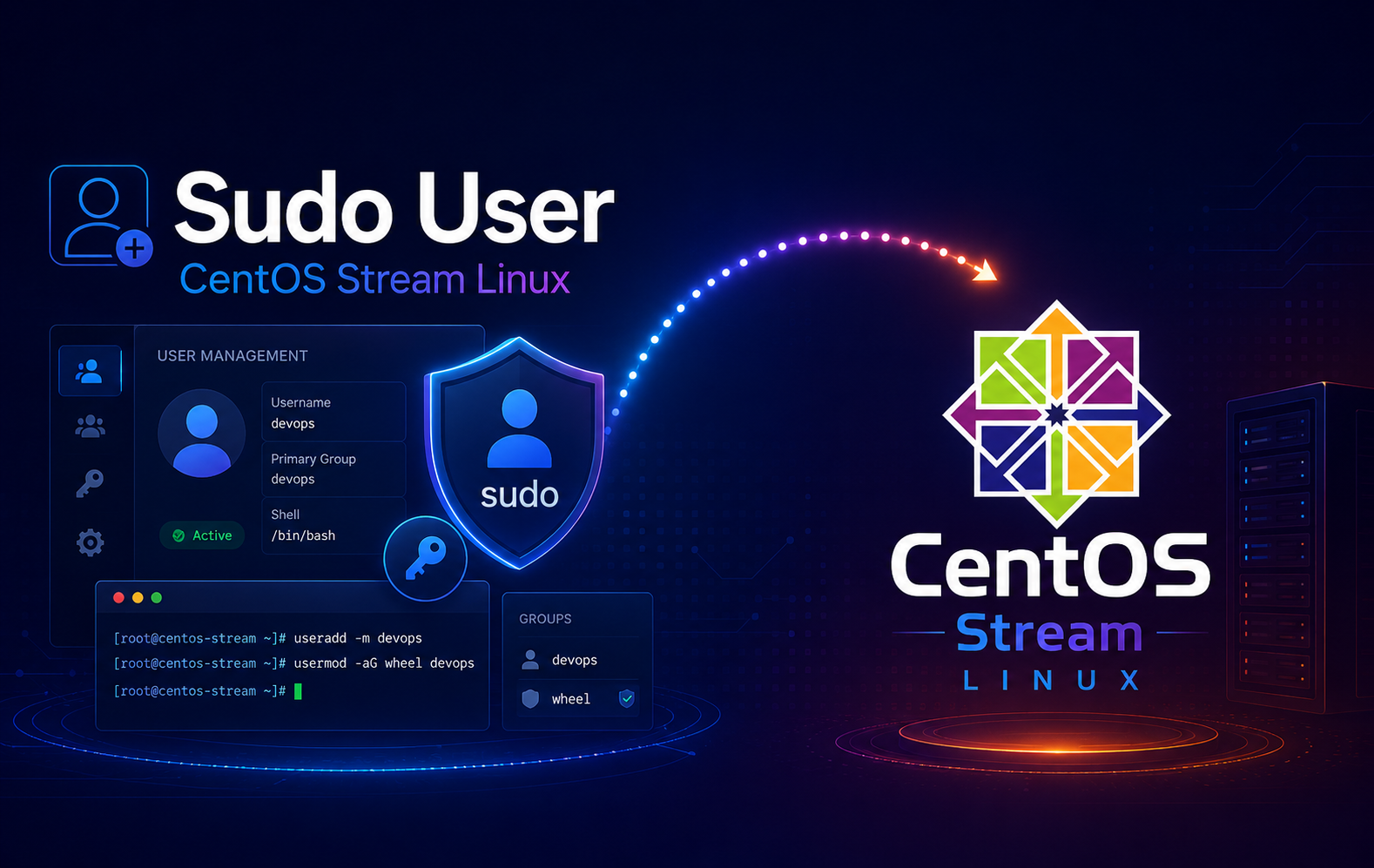
CentOS Stream grants normal administrator access through the wheel group, so creating a sudo user is mainly an account, password, and group-membership workflow. The same commands apply to CentOS Stream 10 and 9, and the important proof is a fresh login session where sudo can run a root command.
Keep your current root or administrator session open until the new account passes the sudo test. If your current account already has sudo, use the commands as written; if you are working from the root account, omit sudo from the commands that follow.
Create a Sudo User on CentOS Stream
Use a real username instead of josh. CentOS Stream local user names should stay lowercase and simple unless your site already has a naming policy.
Older CentOS examples may use adduser. CentOS Stream 10 and 9 provide adduser as a compatibility name for useradd, so this workflow uses useradd to keep the command and options explicit.
Create the New Account
Create the account with a home directory and a Bash login shell:
sudo useradd -m -s /bin/bash joshThe -m option creates /home/josh, and -s /bin/bash sets the user’s login shell. Skip this command if the account already exists.
Set the User Password
Set an interactive password for the new account. Enter the password twice when prompted:
sudo passwd joshUse a password that fits your local policy. If the account will be managed only with SSH keys, decide whether sudo should still require a local password. A locked-password account needs a deliberate sudoers rule, such as a tightly scoped NOPASSWD policy, or sudo prompts will have no usable password to accept.
Add the User to the Wheel Group
Add the account to wheel, which is the default CentOS Stream administrator group for sudo access:
sudo usermod -aG wheel joshThe -aG flags matter: -a appends the new group, while -G wheel selects the supplementary group to add. Do not drop -a, or usermod can replace the user’s other supplementary groups.
Confirm that wheel appears in the account’s group list:
id joshExample output includes the wheel group. The UID and primary GID can differ on your system:
uid=1001(josh) gid=1001(josh) groups=1001(josh),10(wheel)
Test Sudo Access on CentOS Stream
Start a fresh login shell as the new user before testing sudo. Existing sessions keep the old group list until the next login:
su - joshRun a harmless sudo command from that new session:
sudo whoamiThe success signal is root:
root
The first sudo run for a new account can print the standard sudo lecture before the output. That message is normal; root confirms the policy allowed the command. Return to the original shell when you finish testing:
exitAdd Sudo to an Existing CentOS Stream User
If the account already exists, do not recreate it. Add the existing user to wheel, then test from a fresh login session:
sudo usermod -aG wheel username
id username
Replace username with the real account name. If you are granting access to your own account, sign out and back in, or open a second login session, before deciding the change failed.
Check the Sudoers Policy on CentOS Stream
Group membership is the quick check, but the active sudoers policy is the authoritative check. Use wheel for normal administrator access; reserve direct sudoers edits or drop-ins for deliberate custom rules, such as command-limited access. List the sudo rules for the user:
sudo -l -U joshRelevant output on a default wheel-based setup includes a broad administrator rule:
(ALL) ALL
Default CentOS Stream 10 and 9 sudoers files enable the %wheel ALL=(ALL) ALL rule. If the policy output is narrower or empty, check local sudoers customizations before closing your working administrator session. Validate sudoers syntax with visudo:
sudo visudo -cRelevant output should show parsed sudoers files:
/etc/sudoers: parsed OK
Healthy systems may list additional files under /etc/sudoers.d/. For broader command behavior after the account is ready, use the sudo command examples.
Revoke Sudo or Delete the User
Remove only the privilege you intend to remove. Dropping wheel keeps the account, home directory, and files; deleting the user removes the account itself.
Remove Sudo Access but Keep the Account
Remove the user from wheel when you want to revoke sudo access but keep the login account:
sudo gpasswd -d josh wheel
id josh
Example output shows the removal message and a group list without wheel:
Removing user josh from group wheel
uid=1001(josh) gid=1001(josh) groups=1001(josh)
Delete the User Account
Delete the account only after you save any files you still need. The -r option removes the home directory and mail spool, but it does not search the whole filesystem for files owned by that user.
This command is destructive. Keep a backup if you need anything from the user’s home directory later.
sudo userdel -r joshConfirm that the account no longer resolves locally:
getent passwd joshThe command returns no output when CentOS Stream no longer has a passwd entry for that account.
Troubleshoot Sudo User Problems on CentOS Stream
User Is Not in the Sudoers File
This message means the account does not match an active sudoers rule:
josh is not in the sudoers file.
Check the account’s groups first:
id joshIf wheel is missing, add it and start a fresh login session:
sudo usermod -aG wheel joshIf wheel is already present, inspect sudoers syntax and any custom drop-ins with sudo visudo -c. A local policy file can override the default expectation.
Wheel Group Changes Are Not Taking Effect
Group changes apply to new sessions. A terminal, SSH session, or desktop login that was already open before usermod will keep the old group list. Start a new login shell before retesting:
su - joshFor remote administration, open and test a second login before closing the original administrator session. That protects you from losing your only working path if the policy or password is wrong.
No Account Can Run Sudo
If no current account can run sudo, use an enabled root account, a console session, or your provider’s recovery mode. Do not edit sudoers from a broken or half-tested session. Once you have root access, run the same account and wheel commands without the sudo prefix, validate with visudo -c, then test the new user before leaving recovery access.
Conclusion
CentOS Stream is ready for named administrator access when the user exists, has a password or approved login method, belongs to wheel, and prints root from a fresh sudo whoami test. Keep sudo grants tied to real users, revoke wheel when access is no longer needed, and keep a working recovery path before changing sudoers policy.


Formatting tips for your comment
You can use basic HTML to format your comment. Useful tags currently allowed in published comments:
<code>command</code>command<strong>bold</strong><em>italic</em><a href="https://example.com">link</a><blockquote>quote</blockquote>