Rocky 10 is the awkward case for GIMP: the default repositories no longer provide the main gimp package, while Rocky 9 and 8 still carry older repository builds. Installing GIMP on Rocky Linux 10, 9, and 8 is therefore less about running one package command and more about choosing the source that matches your release and how current you need the editor to be.
Install GIMP on Rocky Linux
Compare GIMP Install Methods on Rocky Linux
The best GIMP method depends on your priority: Rocky-managed packages, the newest upstream desktop build, or a portable file that stays outside DNF and Flatpak. Use one method at a time unless you intentionally compare package sources, because each method has a separate update and removal path.
| Method | Rocky releases | Source | Version checked | Best use |
|---|---|---|---|---|
| Flatpak and Flathub | Rocky 10, 9, and 8 | Verified Flathub app, org.gimp.GIMP | GIMP 3.2.4 | Current GIMP branch with Flatpak-managed runtime updates. |
| Official AppImage | Rocky 10, 9, and 8 | GIMP official downloads with SHA256SUMS check | GIMP 3.2.4 | Portable install when you do not want a Flatpak remote or DNF package. |
| DNF AppStream | Rocky 9 and 8 only | Rocky AppStream | Rocky 9: GIMP 3.0.4 Rocky 8: GIMP 2.8.22 | DNF-managed system package when the repository branch is acceptable. |
Keep EPEL and RPM Fusion out of this install unless another package on your system already needs them. They do not provide the main gimp application for Rocky 10, 9, or 8; the related RPM Fusion result is only a Rocky 8 gimp-heif-plugin companion package, not GIMP itself.
The official GIMP Linux download page labels the AppImage support target as Debian 13 or a newer distribution. Rocky 10.2, 9.8, and 8.10 can run the current x86_64 AppImage, but Flathub remains the simpler current-build path for most Rocky desktops.
Prepare Rocky Linux Before Installing GIMP
Refresh installed packages before adding GIMP. This reduces dependency conflicts and gives DNF current repository metadata before the AppStream checks later in the guide.
sudo dnf upgrade --refreshThe commands that change packages or system Flatpak remotes use sudo. For a refresher on privilege escalation, see the sudo command examples guide.
Install GIMP with Flatpak and Flathub
Use Flathub when you want GIMP 3.2.4 on Rocky 10, 9, or 8 without managing a local AppImage. The Flathub listing is verified, names The GIMP team as the publisher, and installs the GNOME Platform 50 runtime when needed.
Install Flatpak if Needed
Rocky Workstation images often include Flatpak already. Run the command anyway if you are unsure; DNF will report that the package is installed when no action is required.
sudo dnf install flatpakAdd the Flathub Remote
Add Flathub as a system remote so the app and runtime updates are available to all users on the desktop.
sudo flatpak remote-add --if-not-exists flathub https://dl.flathub.org/repo/flathub.flatpakrepoConfirm that the remote is present before installing GIMP.
flatpak remotes --system --columns=nameflathub
Install and Verify the Flathub GIMP App
Install GIMP from Flathub. Flatpak will also install the required runtime if it is not already present.
sudo flatpak install flathub org.gimp.GIMPVerify the app ID, version, origin, and installation scope.
flatpak info --system org.gimp.GIMP | grep -E '^[[:space:]]*(ID|Ref|Arch|Branch|Version|Origin|Installation):' ID: org.gimp.GIMP
Ref: app/org.gimp.GIMP/x86_64/stable
Arch: x86_64
Branch: stable
Version: 3.2.4
Origin: flathub
Installation: system
Run a non-interactive version check before launching the desktop window.
flatpak run org.gimp.GIMP --versionGNU Image Manipulation Program version 3.2.4
This method is especially useful on Rocky 8, where AppStream stays on the older 2.8 branch. These terminal checks confirm the Flatpak app ID and version before you open the desktop interface.
Install the Official GIMP AppImage
Use the AppImage when you prefer a portable upstream file under your home directory. The helper below downloads the current x86_64 or aarch64 AppImage, verifies it against the official SHA256SUMS file, installs a local launcher, and copies the GIMP icon from the AppImage into your user icon theme.
Install Curl for the AppImage Helper
Most Rocky desktops already include curl. Install it only when the command is missing.
command -v curl >/dev/null || sudo dnf install curlCreate the GIMP AppImage Update Helper
Create a reusable helper in ~/.local/bin. It installs the latest AppImage into ~/Applications and rewrites the desktop entry whenever the version changes.
mkdir -p "$HOME/.local/bin" "$HOME/Applications" "$HOME/.local/share/applications"

cat > "$HOME/.local/bin/update-gimp-appimage" <<'APPHELPER'
#!/usr/bin/env bash
set -euo pipefail

BASE_URL="https://download.gimp.org/gimp/v3.2/linux"
APP_DIR="$HOME/Applications"
DESKTOP_DIR="$HOME/.local/share/applications"
ICON_ROOT="$HOME/.local/share/icons/hicolor"

mkdir -p "$APP_DIR" "$DESKTOP_DIR" "$ICON_ROOT/256x256/apps" "$ICON_ROOT/scalable/apps"

case "$(uname -m)" in
  x86_64|amd64) app_arch="x86_64" ;;
  aarch64|arm64) app_arch="aarch64" ;;
  *) echo "Unsupported architecture: $(uname -m)" >&2; exit 1 ;;
esac

latest="$(curl -fsSL "$BASE_URL/" | sed -nE 's/.*LATEST-IS-([0-9][0-9.]*).*/\1/p' | sort -V | tail -n 1)"
if [ -z "$latest" ]; then
  echo "Could not detect the latest GIMP AppImage version." >&2
  exit 1
fi

file_name="GIMP-${latest}-${app_arch}.AppImage"
target="$APP_DIR/$file_name"
tmp_file="$target.part"
checksums="$(mktemp)"
extract_dir="$(mktemp -d)"

trap 'rm -f "$checksums" "$tmp_file"; rm -rf "$extract_dir"' EXIT

curl -fsSL "$BASE_URL/SHA256SUMS" -o "$checksums"
expected="$(awk -v file="$file_name" '$2 == file { print $1; exit }' "$checksums")"
if [ -z "$expected" ]; then
  echo "Could not find SHA256 checksum for $file_name." >&2
  exit 1
fi

if [ ! -f "$target" ]; then
  curl -fL "$BASE_URL/$file_name" -o "$tmp_file"
  printf '%s  %s\n' "$expected" "$tmp_file" | sha256sum -c -
  mv "$tmp_file" "$target"
  chmod +x "$target"
fi

find "$APP_DIR" -maxdepth 1 -type f -name "GIMP-*-${app_arch}.AppImage" ! -name "$file_name" -delete

if [ ! -f "$ICON_ROOT/index.theme" ]; then
  cat > "$ICON_ROOT/index.theme" <<'EOF'
[Icon Theme]
Name=Local hicolor
Comment=Local application icons
Directories=256x256/apps,scalable/apps

[256x256/apps]
Size=256
Context=Applications
Type=Fixed

[scalable/apps]
Size=48
Context=Applications
Type=Scalable
MinSize=16
MaxSize=512
EOF
fi

(
  cd "$extract_dir"
  "$target" --appimage-extract usr/share/icons/hicolor/256x256/apps/gimp.png >/dev/null 2>&1 || true
  "$target" --appimage-extract usr/share/icons/hicolor/scalable/apps/gimp.svg >/dev/null 2>&1 || true
)

if [ -f "$extract_dir/squashfs-root/usr/share/icons/hicolor/256x256/apps/gimp.png" ]; then
  cp "$extract_dir/squashfs-root/usr/share/icons/hicolor/256x256/apps/gimp.png" "$ICON_ROOT/256x256/apps/gimp-appimage.png"
fi

if [ -f "$extract_dir/squashfs-root/usr/share/icons/hicolor/scalable/apps/gimp.svg" ]; then
  cp "$extract_dir/squashfs-root/usr/share/icons/hicolor/scalable/apps/gimp.svg" "$ICON_ROOT/scalable/apps/gimp-appimage.svg"
fi

gtk-update-icon-cache -q "$ICON_ROOT" >/dev/null 2>&1 || true

cat > "$DESKTOP_DIR/gimp-appimage.desktop" <<EOF
[Desktop Entry]
Type=Application
Name=GIMP (AppImage)
Comment=Edit images with GIMP AppImage
Exec=$target %U
Icon=gimp-appimage
Terminal=false
Categories=Graphics;2DGraphics;RasterGraphics;GTK;
StartupNotify=true
StartupWMClass=gimp
EOF

update-desktop-database "$DESKTOP_DIR" >/dev/null 2>&1 || true
echo "Installed $target"
APPHELPER

chmod +x "$HOME/.local/bin/update-gimp-appimage"
Add ~/.local/bin to your current shell when it is not already in PATH, then run the helper.
export PATH="$HOME/.local/bin:$PATH"
update-gimp-appimage
Run the helper again any time you want to check for a newer AppImage. If the installed file is current, it refreshes the desktop entry and exits without downloading another copy.
Verify the AppImage Version and Launcher
Find the installed AppImage and confirm that it starts from the terminal.
appimage="$(find "$HOME/Applications" -maxdepth 1 -type f -name 'GIMP-*.AppImage' | sort -V | tail -n 1)"
"$appimage" --version
GNU Image Manipulation Program version 3.2.4
The local desktop entry uses the name GIMP (AppImage). It appears in GNOME’s application search after the desktop environment refreshes its application list; logging out and back in is the most reliable refresh if it does not appear immediately.
grep -E '^(Name|Exec|Icon|StartupWMClass|Categories)=' "$HOME/.local/share/applications/gimp-appimage.desktop"
test -f "$HOME/.local/share/icons/hicolor/256x256/apps/gimp-appimage.png"
test -f "$HOME/.local/share/icons/hicolor/icon-theme.cache"
Name=GIMP (AppImage) Exec=/home/USER/Applications/GIMP-3.2.4-x86_64.AppImage %U Icon=gimp-appimage StartupWMClass=gimp Categories=Graphics;2DGraphics;RasterGraphics;GTK;
Install GIMP from Rocky AppStream on Rocky 9 or 8
Use AppStream when you prefer a DNF-managed package and accept the version in Rocky’s repositories. This method is release-limited: Rocky 10’s default BaseOS, AppStream, and Extras repositories do not provide gimp.
Check the AppStream Candidate
Query the available package before installing. Rocky 9 returned GIMP 3.0.4, while Rocky 8 returned GIMP 2.8.22 from its AppStream module stream.
dnf repoquery --available gimp --qf '%{name} %{evr} %{arch} %{repoid}'If the command prints no package on Rocky 10, use Flatpak or AppImage instead of enabling unrelated third-party repositories.
Install and Verify the DNF Package
Install GIMP from AppStream on Rocky 9 or Rocky 8.
sudo dnf install gimpConfirm the installed package and version.
rpm -q gimp
gimp --version
gimp-3.0.4-5.el9.x86_64 GNU Image Manipulation Program version 3.0.4
The AppStream package is useful for DNF-managed installs, not for showing the newest GIMP interface. If you want the current GIMP 3.2 first-run flow and workspace, use the Flatpak or AppImage method instead.
Launch GIMP on Rocky Linux
Launch GIMP from the terminal with the command that matches your install method.
gimpflatpak run org.gimp.GIMPappimage="$(find "$HOME/Applications" -maxdepth 1 -type f -name 'GIMP-*.AppImage' | sort -V | tail -n 1)"
"$appimage"For graphical launch, open the Activities overview and search for GNU Image Manipulation Program for DNF or Flatpak installs, or GIMP (AppImage) for the local AppImage launcher. If a new Flatpak or AppImage launcher is missing from the active session, log out and back in so GNOME refreshes its application database.
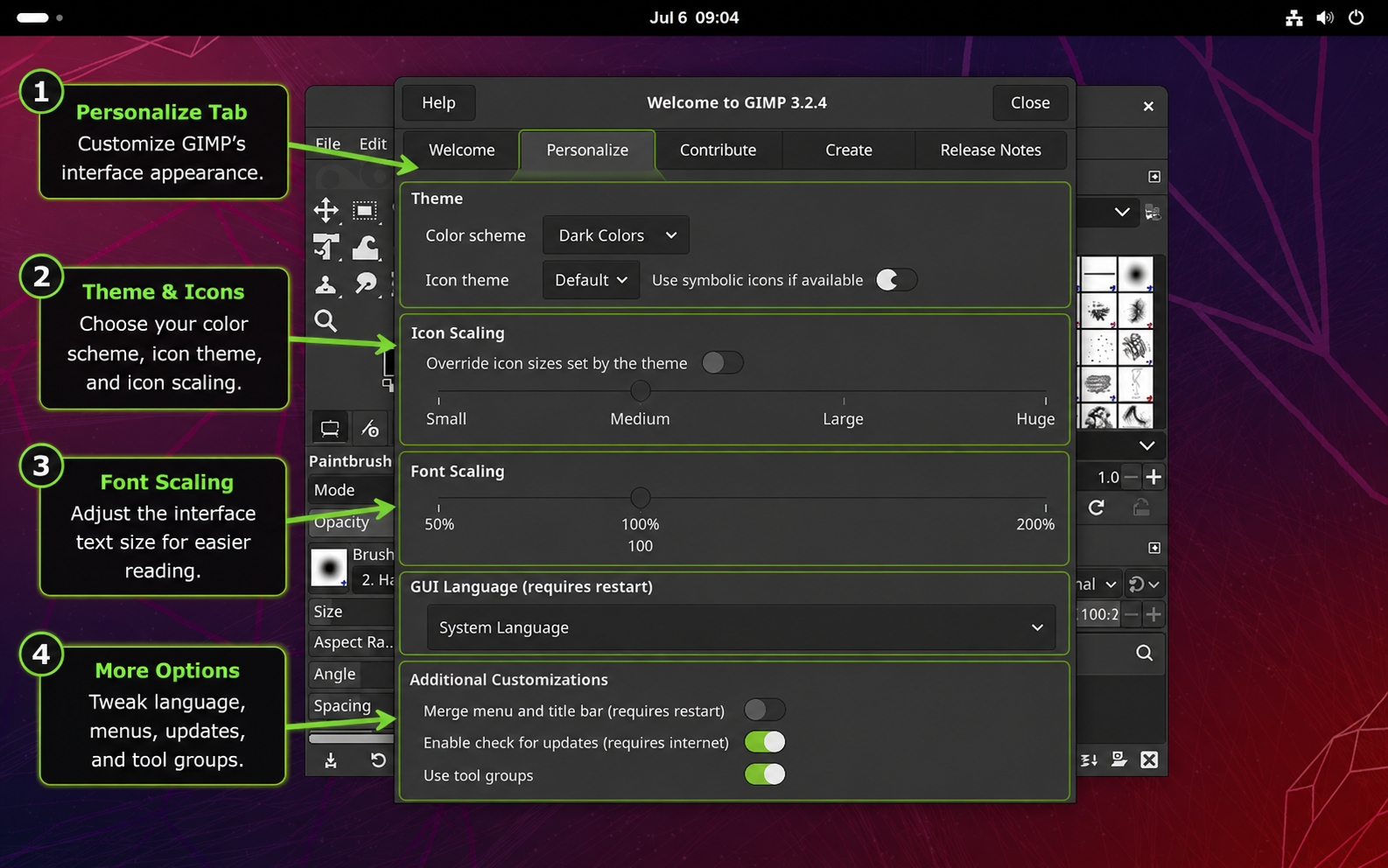
On first launch, GIMP may show a welcome dialog with tabs for Welcome, Personalize, Contribute, Create, and Release Notes. The Personalize tab is worth checking before you start editing because it controls the color scheme, icon theme, icon scaling, font scaling, GUI language, update checks, and grouped tools.
Get Started with GIMP on Rocky Linux
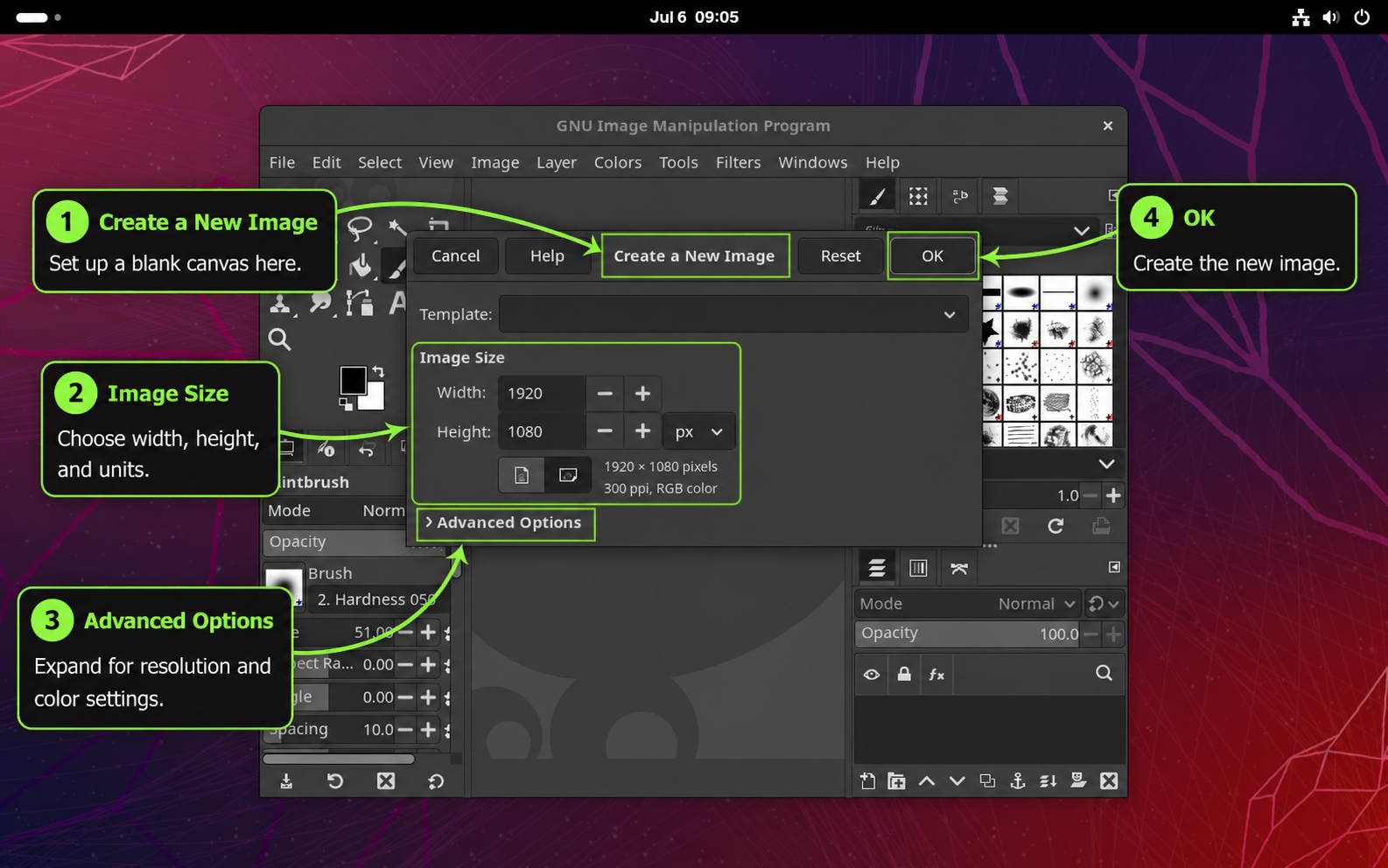
Use the Create tab in the welcome dialog, or choose File > New, when you want to start with a blank image. The new-image dialog lets you choose a template, width, height, units, and advanced options before GIMP opens the canvas.
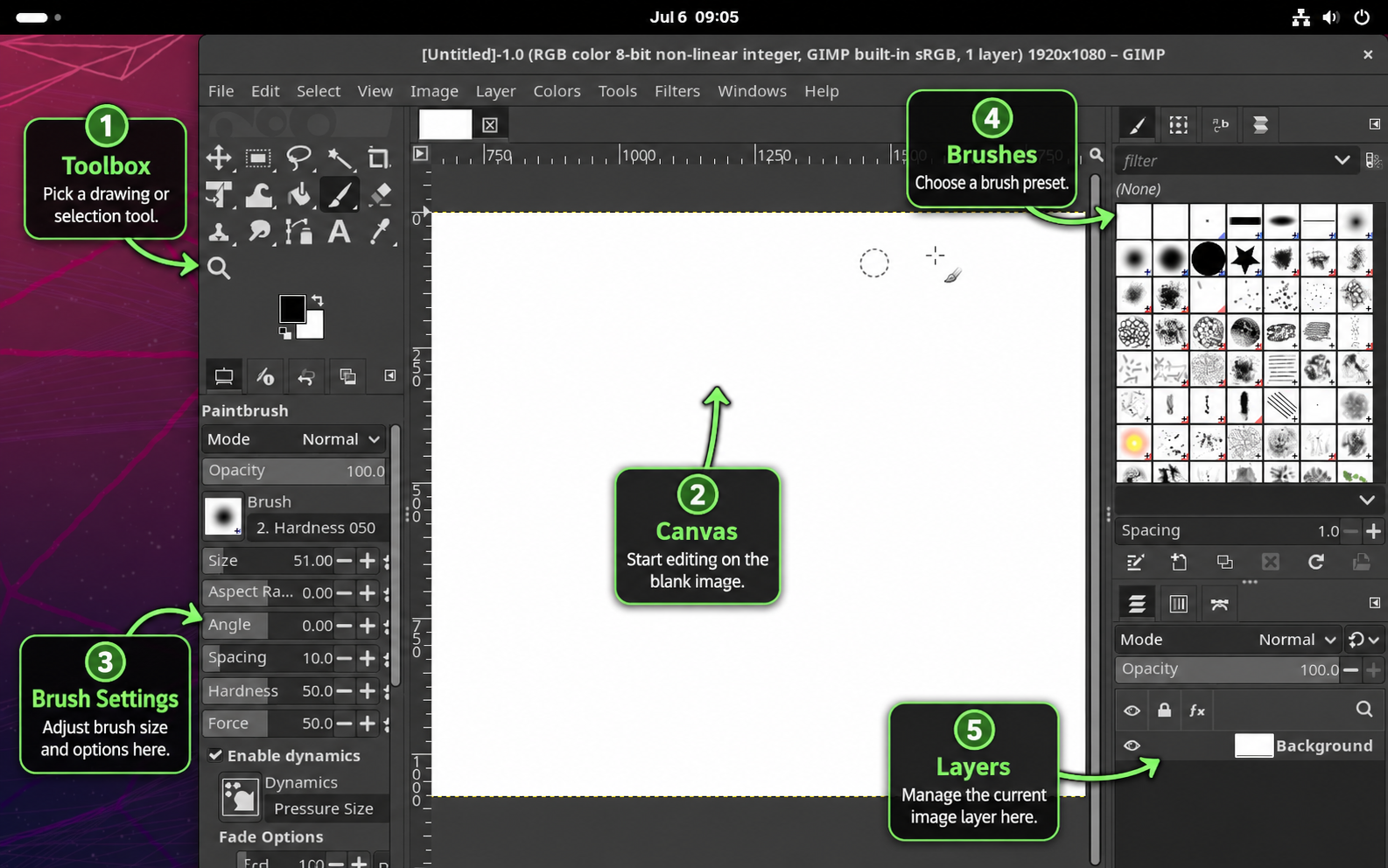
After the image opens, confirm the normal workspace: the toolbox and tool options on the left, the canvas in the center, and brushes, layers, and related docks on the right. This is the useful ready-to-edit state after installation, because it shows where a new user will work instead of repeating the welcome screen.
Update GIMP on Rocky Linux
Use the update command for the method you installed. Do not mix update commands between DNF, Flatpak, and AppImage installations.
Update the Flatpak Build
sudo flatpak update org.gimp.GIMPUse a broader Flatpak update when you want to update all Flatpak apps and runtimes at once.
sudo flatpak updateUpdate the AppImage Build
Run the helper again. It checks the official download directory, verifies the checksum, replaces older AppImage files with the current file, and rewrites the desktop entry.
update-gimp-appimageUpdate the DNF AppStream Package
Use DNF for AppStream installs on Rocky 9 or 8.
sudo dnf upgrade --refresh gimpIf you run many DNF updates on workstation systems, the DNF speed guide for Rocky Linux covers cache and mirror tuning.
Remove GIMP from Rocky Linux
Remove the package source you installed. Keep personal profile cleanup separate, because it deletes user settings, brushes, plug-ins, and recent-file history.
Remove the Flatpak App
sudo flatpak uninstall org.gimp.GIMPRemove unused Flatpak runtimes only after checking that no other app still needs them.
sudo flatpak uninstall --unusedIf GIMP was the only reason you added Flathub, remove the system remote after uninstalling the app.
sudo flatpak remote-delete --system flathubRemove the AppImage Files
Remove the AppImage, update helper, desktop entry, and copied launcher icons.
rm -f "$HOME"/Applications/GIMP-*-x86_64.AppImage "$HOME"/Applications/GIMP-*-aarch64.AppImage
rm -f "$HOME/.local/bin/update-gimp-appimage" "$HOME/.local/share/applications/gimp-appimage.desktop"
icon_cache_dir="$HOME/.local/share/icons/hicolor"
rm -f "$HOME/.local/share/icons/hicolor/256x256/apps/gimp-appimage.png" "$HOME/.local/share/icons/hicolor/scalable/apps/gimp-appimage.svg"
gtk-update-icon-cache -q "$HOME/.local/share/icons/hicolor" >/dev/null 2>&1 || true
if [ -d "$icon_cache_dir" ] && grep -q '^Name=Local hicolor$' "$icon_cache_dir/index.theme" 2>/dev/null && ! find "$icon_cache_dir" -type f ! -name 'index.theme' ! -name 'icon-theme.cache' | grep -q .; then
rm -f "$icon_cache_dir/index.theme" "$icon_cache_dir/icon-theme.cache"
fiRemove the DNF Package
sudo dnf remove gimpConfirm that the RPM package is no longer installed.
rpm -q gimp || echo "GIMP RPM is not installed"Remove Personal GIMP Settings
Check the profile paths before deleting them. No output means neither matching GIMP profile directory exists for your account.
for path in "$HOME/.config/GIMP" "$HOME/.var/app/org.gimp.GIMP/config/GIMP"; do
[ -e "$path" ] && printf '%s\n' "$path"
doneThese commands permanently delete GIMP profile directories for your account, including settings, brushes, plug-ins, scripts, and recent-file history. Back up anything you want to keep before continuing.
rm -rf "$HOME/.config/GIMP"
rm -rf "$HOME/.var/app/org.gimp.GIMP/config/GIMP"Troubleshoot GIMP on Rocky Linux
Rocky 10 Reports No Match for GIMP
If Rocky 10 returns no AppStream gimp candidate from the default repositories, confirm your local result with repoquery, then use Flatpak or AppImage instead.
dnf repoquery --available gimp --qf '%{name} %{evr} %{arch} %{repoid}'Flatpak Cannot Find Flathub
If flatpak install flathub org.gimp.GIMP cannot find the remote, list system remotes and add Flathub again when it is missing.
flatpak remotes --system --show-disabled --columns=name,options
sudo flatpak remote-add --if-not-exists flathub https://dl.flathub.org/repo/flathub.flatpakrepoFlatpak or AppImage Launcher Does Not Appear
Confirm the desktop entry exists first. If it does, log out and back in so GNOME reloads the exported Flatpak or local AppImage launcher.
ls /var/lib/flatpak/exports/share/applications/org.gimp.GIMP.desktop
ls "$HOME/.local/share/applications/gimp-appimage.desktop"AppImage Checksum or Download Fails
Remove any partial download and rerun the helper. If the checksum still fails, do not run the file; wait for the mirror or checksum listing to settle, then try again.
rm -f "$HOME"/Applications/GIMP-*.AppImage.part
update-gimp-appimageAppImage Starts from Extraction but Not Directly
A FUSE-related failure affects the AppImage runtime layer, not necessarily GIMP. Test extraction mode to separate those two layers before replacing the download.
appimage="$(find "$HOME/Applications" -maxdepth 1 -type f -name 'GIMP-*.AppImage' | sort -V | tail -n 1)"
"$appimage" --appimage-extract-and-run --versionGIMP Command Opens the Wrong Install
If you installed more than one method while testing, check which command is on your shell path and use method-specific launch commands. The DNF package provides gimp, Flatpak uses flatpak run org.gimp.GIMP, and the AppImage runs from ~/Applications.
command -v gimp || true
flatpak info org.gimp.GIMP 2>/dev/null || true
find "$HOME/Applications" -maxdepth 1 -type f -name 'GIMP-*.AppImage'
Conclusion
GIMP is installed on Rocky Linux with the source matched to your release. From here, use the launch and first-use checks to confirm the editor opens normally, then keep updates and cleanup aligned with the source you chose. For command-line image conversion alongside the editor, compare ImageMagick on Rocky Linux.


Formatting tips for your comment
You can use basic HTML to format your comment. Useful tags currently allowed in published comments:
<code>command</code>command<strong>bold</strong><em>italic</em><a href="https://example.com">link</a><blockquote>quote</blockquote>