Fedora 44 packages BleachBit 4.6.0, while upstream and Flathub provide BleachBit 6.0.2. To install BleachBit on Fedora Linux, first decide whether predictable DNF updates matter more than the newer cleaners and Linux fixes in the 6.0 series. The BleachBit 6.0.2 release notes include cleaners for VS Code-family editors, multiple Chrome and Edge profiles, Flatpak localizations, and several Linux and Wayland fixes.
On a mutable Fedora 44 desktop, keep installation, updates, and removal under one package source. Preview every selection before deleting files.
Install BleachBit on Fedora Linux
Choose a BleachBit Installation Method
The three package sources provide BleachBit through different versions, trust paths, permissions, desktop integration, and update owners. Pick one method and keep its install, update, launch, and removal commands together.
| Method | Current source | Best fit | Updates | Important trade-off |
|---|---|---|---|---|
| Fedora repositories | Fedora package, version 4.6.0 on Fedora 44 | Most mutable Fedora Workstation users | Normal DNF package upgrades | Lowest-maintenance option, but it trails newer upstream cleaners and fixes |
| Official RPM | BleachBit release-specific Fedora RPM, version 6.0.2 for Fedora 44 | Mutable Fedora users who need the newest upstream release | Rerun the verified update-bleachbit helper | Upstream package that requires verification against BleachBit’s signed checksum manifest; no automatic DNF repository is added |
| Flatpak | Flathub app org.bleachbit.BleachBit, version 6.0.2 | Mutable Fedora desktops that already use system-wide Flatpak apps | Flatpak updates from Flathub | Flathub labels the listing unverified and medium risk, so do not treat it as vendor-verified packaging |
Use Fedora’s package for the simplest managed installation. Choose the official RPM when the upstream release adds cleaners or Linux fixes you need. Choose Flatpak when your mutable Fedora desktop already manages graphical applications at system scope through Flatpak.
The commands and runtime guidance target x86_64 Fedora 44. An RPM filename labeled noarch does not by itself prove every dependency and desktop workflow on another architecture.
Do not run these host DNF commands on an rpm-ostree or image-based Fedora desktop. Fedora documents Flatpak as the primary GUI-app path for Fedora Atomic Desktops; use that edition-specific workflow instead.
Update Fedora Before Installing a Native RPM
Refresh package metadata and apply pending updates before installing either native RPM method. This keeps the dependency transaction aligned with the current Fedora repositories.
sudo dnf upgrade --refreshThe commands in the native package sections use
sudo. If your account cannot perform administrative package changes, follow the guide to add a user to sudoers on Fedora before continuing.
Install BleachBit from Fedora Repositories
Install Fedora’s native package with DNF. This method adds no third-party repository and remains tied to Fedora’s package maintenance.
sudo dnf install bleachbitVerify the installed RPM and confirm that the native launcher command is available.
rpm -q bleachbit
command -v bleachbit
The package query should begin with bleachbit-, and the command check should resolve to /usr/bin/bleachbit. Stop if either check fails. The package version follows the enabled Fedora repositories, so an older result than the version shown on BleachBit.org is not an installation failure. For more package-query and transaction examples, see the DNF5 install examples for Fedora.
Install the Latest BleachBit RPM from Upstream
BleachBit publishes a separate noarch RPM for each supported Fedora release. The updater matches the newest stable numeric release to the current Fedora version and downloads it into a temporary directory. Before DNF runs, it verifies the full signing-key fingerprint, signed checksum manifest, RPM hash, package name, architecture, and metadata version against the Fedora-specific asset name.
BleachBit’s Linux installation documentation defines the signing key and signed-checksum workflow the updater follows. The updater checks the full 40-character fingerprint rather than trusting only the shorter key ID.
The signing key, checksum manifest, downloaded RPM, and isolated GnuPG home remain in a temporary directory that is removed when the updater exits. The key is not imported into your normal user or system keyring; only the managed helper and an installed BleachBit RPM persist.
Install Signature Verification Tools
Install the two extra tools used by that verification workflow. Fedora supplies curl for HTTPS downloads and gnupg2 for OpenPGP signature checks. The Linux curl command guide explains the download flags in more detail.
sudo dnf install curl gnupg2Create the BleachBit Update Helper
The updater is LinuxCapable-authored maintenance tooling, not a script distributed by BleachBit. Its source remains visible so you can inspect source resolution, verification, installation, and cleanup before using it.
Create the reusable updater in /usr/local/bin. The setup block refuses to replace a symlink, directory, or unmarked file at that path; it only creates a new helper or replaces an earlier LinuxCapable-managed copy.
(
set -euo pipefail

readonly helper_path='/usr/local/bin/update-bleachbit'
readonly helper_marker='# LinuxCapable BleachBit updater'
helper_source=$(mktemp)
trap 'rm -f -- "$helper_source"' EXIT

cat > "$helper_source" <<'SCRIPT_EOF'
#!/usr/bin/env bash
# LinuxCapable BleachBit updater
set -euo pipefail

readonly DOWNLOAD_PAGE_URL='https://www.bleachbit.org/download/linux'
readonly KEY_URL='https://sourceforge.net/projects/bleachbit/files/public_key/andrew2019.key/download'
readonly EXPECTED_FINGERPRINT='A9E582E4054A159315EDC943D6D447B02B4D4C9D'

if [ "$EUID" -eq 0 ]; then
  printf 'Run this helper as a regular user. It uses sudo only for the DNF transaction.\n' >&2
  exit 1
fi

if [ -e /run/ostree-booted ]; then
  printf 'This is an rpm-ostree or image-based Fedora system. Use the Flatpak method instead.\n' >&2
  exit 1
fi

for command_name in awk cat curl dnf gpg grep mkdir mktemp rm rpm sed sha256sum sort sudo tail; do
  if ! command -v "$command_name" >/dev/null 2>&1; then
    printf 'Missing required command: %s\n' "$command_name" >&2
    exit 1
  fi
done

if [ ! -r /etc/os-release ]; then
  printf 'Cannot read /etc/os-release.\n' >&2
  exit 1
fi

# shellcheck disable=SC1091
. /etc/os-release

if [ "${ID:-}" != 'fedora' ] || ! [[ "${VERSION_ID:-}" =~ ^[0-9]+$ ]]; then
  printf 'This helper requires a numbered Fedora release.\n' >&2
  exit 1
fi

host_arch=$(rpm -E '%{_arch}')
if [ "$host_arch" != 'x86_64' ]; then
  printf 'This upstream RPM workflow is limited to x86_64 Fedora. Detected architecture: %s\n' "$host_arch" >&2
  exit 1
fi

work_dir=$(mktemp -d "${TMPDIR:-/tmp}/bleachbit-update.XXXXXX")
trap 'rm -rf -- "$work_dir"' EXIT

download_page=$(curl -fsSL "$DOWNLOAD_PAGE_URL")
rpm_url=$(
  printf '%s\n' "$download_page" |
    grep -Eo "https://download\.bleachbit\.org/get/bleachbit-[0-9]+(\.[0-9]+)+-[0-9][0-9A-Za-z._+~]*\.fc${VERSION_ID}\.noarch\.rpm" |
    sort -V |
    tail -n 1 || true
)

if [ -z "$rpm_url" ]; then
  printf 'No current BleachBit RPM was found for Fedora %s on the official download page.\n' "$VERSION_ID" >&2
  exit 1
fi

rpm_file=${rpm_url##*/}
release_version=$(
  printf '%s\n' "$rpm_file" |
    sed -E 's/^bleachbit-([0-9]+(\.[0-9]+)+)-.*/\1/'
)

if [ -z "$release_version" ] || [ "$release_version" = "$rpm_file" ]; then
  printf 'Could not determine the BleachBit release version from %s.\n' "$rpm_file" >&2
  exit 1
fi

checksum_asc="bleachbit-${release_version}-sha256sum.txt.asc"
checksum_url="https://sourceforge.net/projects/bleachbit/files/bleachbit/${release_version}/${checksum_asc}/download"
key_file="$work_dir/andrew2019.key"
checksum_file="$work_dir/bleachbit-${release_version}-sha256sum.txt"
gnupg_home="$work_dir/gnupg"

mkdir -m 700 "$gnupg_home"
cd "$work_dir"

printf 'Downloading %s\n' "$rpm_file"
curl -fL --progress-bar -o "$rpm_file" "$rpm_url"
curl -fL --progress-bar -o "$checksum_asc" "$checksum_url"
curl -fL --progress-bar -o "$key_file" "$KEY_URL"

gpg_import_log="$work_dir/gpg-import.log"
if ! gpg --batch --homedir "$gnupg_home" --import-options import-minimal --import "$key_file" >/dev/null 2>"$gpg_import_log"; then
  cat "$gpg_import_log" >&2
  printf 'The BleachBit signing key could not be imported into the temporary GnuPG home.\n' >&2
  exit 1
fi

actual_fingerprint=$(
  gpg --batch --homedir "$gnupg_home" --with-colons --fingerprint |
    awk -F: '$1 == "fpr" && !seen {print toupper($10); seen=1}'
)

if [ "$actual_fingerprint" != "$EXPECTED_FINGERPRINT" ]; then
  printf 'Unexpected BleachBit signing-key fingerprint: %s\n' "${actual_fingerprint:-missing}" >&2
  exit 1
fi

gpg_log="$work_dir/gpg-verification.log"
if ! gpg_status=$(
  gpg --batch --homedir "$gnupg_home" --status-fd 1 \
    --output "$checksum_file" --decrypt "$checksum_asc" 2>"$gpg_log"
); then
  cat "$gpg_log" >&2
  printf 'The signed BleachBit checksum manifest could not be verified.\n' >&2
  exit 1
fi

signature_fingerprint=$(
  printf '%s\n' "$gpg_status" |
    awk '$1 == "[GNUPG:]" && $2 == "VALIDSIG" && !seen {print toupper($3); seen=1}'
)

if [ "$signature_fingerprint" != "$EXPECTED_FINGERPRINT" ]; then
  cat "$gpg_log" >&2
  printf 'The checksum manifest was not signed by the expected BleachBit key.\n' >&2
  exit 1
fi

expected_hash=$(
  awk -v filename="$rpm_file" '
    ($2 == filename || $2 == "*" filename) && !seen {
      print tolower($1)
      seen=1
    }
  ' "$checksum_file"
)

if [[ ! "$expected_hash" =~ ^[[:xdigit:]]{64}$ ]]; then
  printf 'No valid SHA256 entry was found for %s.\n' "$rpm_file" >&2
  exit 1
fi

printf '%s  %s\n' "$expected_hash" "$rpm_file" | sha256sum -c -

package_name=$(rpm -qp --nosignature --queryformat '%{NAME}\n' "$rpm_file")
package_arch=$(rpm -qp --nosignature --queryformat '%{ARCH}\n' "$rpm_file")
package_version=$(rpm -qp --nosignature --queryformat '%{VERSION}\n' "$rpm_file")
package_evr=$(rpm -qp --nosignature --queryformat '%{VERSION}-%{RELEASE}\n' "$rpm_file")

if [ "$package_name" != 'bleachbit' ] || [ "$package_arch" != 'noarch' ]; then
  printf 'Unexpected RPM identity: name=%s architecture=%s\n' "$package_name" "$package_arch" >&2
  exit 1
fi

if [ "$package_version" != "$release_version" ]; then
  printf 'The RPM metadata version does not match the resolved release: expected=%s actual=%s\n' "$release_version" "$package_version" >&2
  exit 1
fi

if rpm -q bleachbit >/dev/null 2>&1; then
  installed_evr=$(rpm -q --queryformat '%{VERSION}-%{RELEASE}\n' bleachbit)
else
  installed_evr=''
fi

printf 'Current installed package: %s\n' "${installed_evr:-not installed}"
printf 'Verified upstream package: %s\n' "$package_evr"

if [ "$installed_evr" = "$package_evr" ]; then
  printf 'BleachBit is already up to date.\n'
  exit 0
fi

if ! sudo dnf install "$work_dir/$rpm_file"; then
  printf 'DNF did not install the verified RPM. If a newer package is already installed, keep it or remove it intentionally before retrying.\n' >&2
  exit 1
fi

new_evr=$(rpm -q --queryformat '%{VERSION}-%{RELEASE}\n' bleachbit)
if [ "$new_evr" != "$package_evr" ]; then
  printf 'DNF did not leave the verified package installed. Current package: %s\n' "$new_evr" >&2
  exit 1
fi

printf 'Installed BleachBit package: %s\n' "$new_evr"
SCRIPT_EOF

chmod 0755 "$helper_source"

if sudo test -L "$helper_path"; then
  printf 'Refusing to overwrite symlink: %s\n' "$helper_path" >&2
  exit 1
elif sudo test -e "$helper_path"; then
  if sudo test -f "$helper_path" && sudo grep -Fqx "$helper_marker" "$helper_path"; then
    sudo install -m 0755 "$helper_source" "$helper_path"
  else
    printf 'Refusing to overwrite unmanaged path: %s\n' "$helper_path" >&2
    exit 1
  fi
else
  sudo install -m 0755 "$helper_source" "$helper_path"
fi

sudo test -x "$helper_path"
printf '%s\n' "$helper_path"
)
Continue only when the final command prints /usr/local/bin/update-bleachbit. If the block reports an unmanaged path, stop and inspect that existing file. Do not overwrite it or rename only this helper command, because every later upstream-RPM step relies on the exact managed path. Keep the conflicting file and choose another installation method unless you deliberately resolve its ownership first.
Verify and Run the Updater Helper
Verify that your shell finds the friendly helper command before its first use.
hash -r
command -v update-bleachbit
Proceed only when the command resolves to /usr/local/bin/update-bleachbit. No output means the setup did not leave the helper on PATH.
Run the helper as your normal user. It stops on an unsupported Fedora release or architecture, an Atomic host, a missing download, an unexpected signing key, an invalid signature, a checksum mismatch, or package metadata that does not match the resolved Fedora asset.
update-bleachbitA successful first run reports the downloaded RPM, an OK checksum result, the current and verified package versions, and the final installed package. DNF shows the local RPM transaction before asking for approval. Stop if any fingerprint, signature, checksum, package identity, or asset-version check fails.
Downloading bleachbit-6.0.2-1.1.fc44.noarch.rpm
bleachbit-6.0.2-1.1.fc44.noarch.rpm: OK
Current installed package: not installed
Verified upstream package: 6.0.2-1.1
Installed BleachBit package: 6.0.2-1.1
DNF may report that OpenPGP checks were skipped for the local @commandline package. In this workflow, the helper has already required BleachBit’s full signing-key fingerprint, a valid signature on the SHA256 manifest, and a matching RPM hash before DNF receives the file. Do not ignore an earlier fingerprint, manifest-signature, or checksum failure.
Verify the Installed Upstream RPM
Confirm the installed package identity and native command.
rpm -q --queryformat 'Name: %{NAME}\nVersion: %{VERSION}-%{RELEASE}\nArchitecture: %{ARCH}\n' bleachbit
command -v bleachbit
The result should identify the package name as bleachbit, the architecture as noarch, and the command as /usr/bin/bleachbit. The upstream RPM does not add a DNF repository. Future BleachBit releases are installed by running update-bleachbit again, which repeats the source, signature, checksum, package-identity, and Fedora-asset checks.
Install BleachBit with Flatpak
Flatpak is available on mutable Fedora desktops that prefer system-wide store applications. BleachBit needs a graphical desktop session for its normal interface; use its command-line preview when you deliberately need terminal-only operation.
Check whether Flatpak is already available.
command -v flatpakOn a mutable Fedora desktop, install Flatpak when that command returns no path.
sudo dnf install flatpakThe Flathub listing labels this app Unverified and Medium Risk. That status does not confirm the publisher as BleachBit’s verified owner, and the app requests broad file access to perform cleaning. Add Flathub at system scope only when you accept that store trust boundary, then inspect the exact BleachBit app record before installation.
sudo flatpak remote-add --if-not-exists flathub https://dl.flathub.org/repo/flathub.flatpakrepoInspect the exact app record after the remote is available.
flatpak remote-info --system flathub org.bleachbit.BleachBitContinue only when the record resolves the exact org.bleachbit.BleachBit application for x86_64. A missing record or different application ID means this system-scope Flathub path is not ready for installation.
Install the BleachBit app and its required runtime from Flathub.
sudo flatpak install flathub org.bleachbit.BleachBitVerify the installed app, origin, version, and permission summary.
flatpak info --system org.bleachbit.BleachBit
flatpak info --system --show-permissions org.bleachbit.BleachBit
The application ID should be org.bleachbit.BleachBit, the origin should be flathub, and the installation should be system. Review the permission output before first use; broad access is part of this package’s cleaning surface, not proof that it is vendor-verified.
Launch and Use BleachBit on Fedora Linux
Launch BleachBit from the Desktop Menu
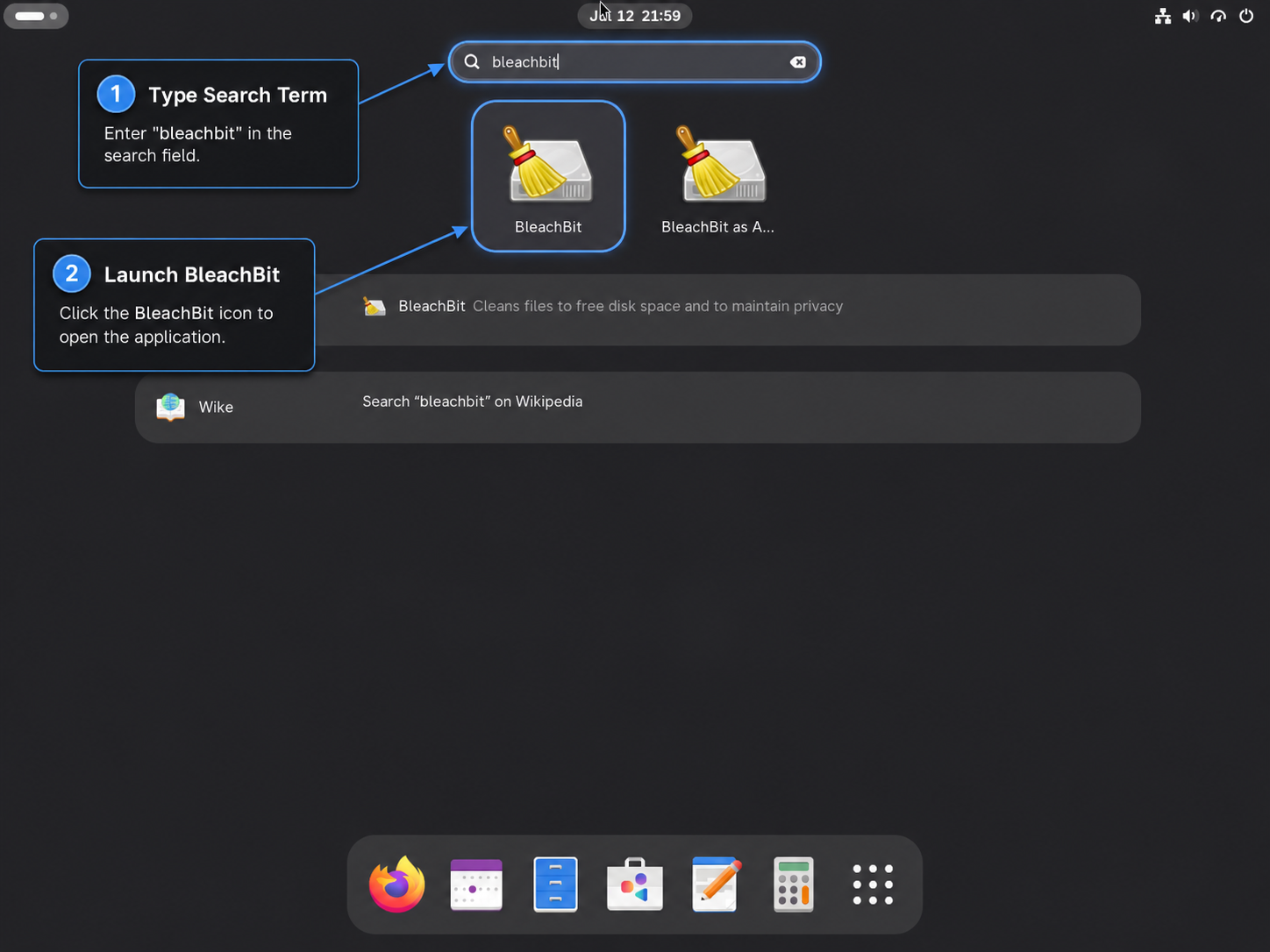
On Fedora Workstation, open Activities and search for BleachBit. Choose the normal launcher for browser, application, and home-directory cleaning. If the launcher is missing, use the corresponding terminal command and continue to the launcher troubleshooting section.
Launch BleachBit from the Terminal
The Fedora repository and official RPM methods both provide the native command. Run it inside your graphical desktop session without sudo.
bleachbitThe Flatpak package launches through its application ID.
flatpak run org.bleachbit.BleachBitDo not start the entire graphical application as root for routine browser and home-directory cleaning. A normal-user launch keeps the scan focused on your own profile and reduces the impact of a mistaken selection.
Choose Normal-User or Administrator Cleaning
Use the normal launcher for your browser profiles and files under your home directory. Some native system cleaners, including package-manager or system-log targets, can require elevated permissions. If your native package exposes BleachBit as Administrator, reserve it for those system-owned targets rather than routine user cleaning.
BleachBit’s Linux permissions guidance explains why an administrator session may use root’s home directory instead of yours. An administrator pass therefore does not replace a normal-user pass, and the Flatpak method should remain focused on the locations its displayed permissions allow. Preview the selected cleaner in either mode before deleting anything.
Preview Before Cleaning Files
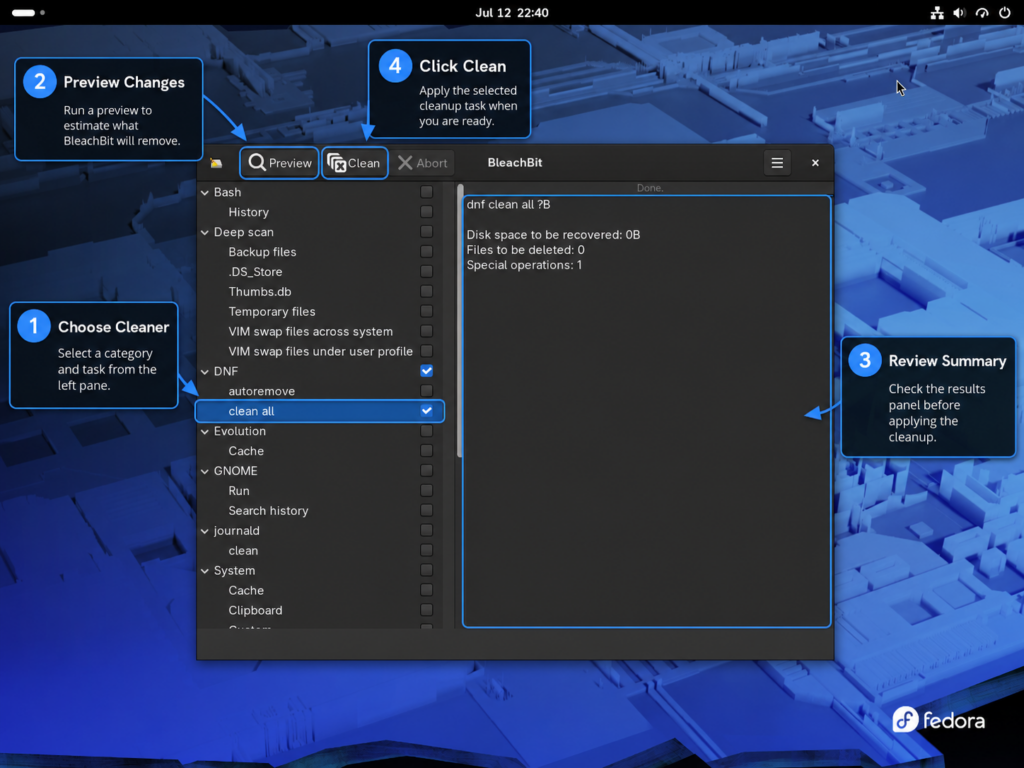
BleachBit can remove browser state, caches, logs, temporary files, and other data that applications may still be using. The safe first run is a preview, not an immediate clean.
- Close the browser or application whose files you plan to clean. An open application can keep files locked or recreate them while BleachBit is working.
- Select one cleaner category at a time and read its description. Leave passwords, cookies, saved sessions, and any option you do not understand unchecked.
- Select Preview and review both the file list and estimated space before making changes.
- Adjust the selection and preview again until the result contains only data you intend to remove.
- Use the delete or clean action only after the preview is correct, and do not bypass the confirmation prompt.
Secure overwrite and empty-space wiping are not required for ordinary cache cleanup. Empty-space wiping is unnecessary on storage protected by full-disk LUKS encryption, works best on traditional hard drives, is less reliable on solid-state drives, and adds wear when used frequently. Leave both options disabled unless you have a specific data-removal goal and have checked how they behave on your storage and filesystem.
Preview a Cleaner from the Command Line
BleachBit’s command-line interface supports headless listing and previewing. Native RPM users can list available cleaners and preview a narrow target without deleting anything:
bleachbit --list-cleaners
bleachbit --preview system.cache
Flatpak users pass the same arguments after the application ID:
flatpak run org.bleachbit.BleachBit --list-cleaners
flatpak run org.bleachbit.BleachBit --preview system.cache
Run only the pair for your installation method. The --preview command does not delete matched files; it may report no candidates when the selected cache is already empty. Replace it with --clean only after checking the exact cleaner name and every listed path; wildcard selections can cover much more data than a single cleaner.
Check Disk Space Before and After Cleaning
BleachBit reports an estimated reclaimable size during preview. To compare filesystem free space separately, run the same df query before and after cleaning. The Linux df command guide explains the columns and filesystem units.
df -h "$HOME"Update or Remove BleachBit on Fedora Linux
Update the Fedora Repository Installation
The Fedora package updates through DNF with the rest of the system. Refresh metadata and update only the installed BleachBit package:
sudo dnf upgrade --refresh bleachbitIf DNF reports no available upgrade, the installed package is current for the enabled Fedora repositories even when upstream has a newer release.
Update the Upstream BleachBit RPM
The upstream RPM has no repository entry, so normal Fedora upgrades cannot discover a newer upstream package. Rerun the verified helper whenever you want to check for a release that matches the current Fedora version.
update-bleachbitAn exact installed-version match ends with the helper’s BleachBit is already up to date. branch and does not call DNF. A newer verified package opens a normal DNF transaction and confirms the final installed version after the transaction.
Downloading bleachbit-6.0.2-1.1.fc44.noarch.rpm
bleachbit-6.0.2-1.1.fc44.noarch.rpm: OK
Current installed package: 6.0.2-1.1
Verified upstream package: 6.0.2-1.1
BleachBit is already up to date.
Update the Flatpak Installation
Update only BleachBit from Flathub:
sudo flatpak update org.bleachbit.BleachBitTo update every system-scope Flatpak app and runtime instead, omit the app ID.
sudo flatpak updateRemove the Native RPM Installation
Both the Fedora repository method and the official upstream RPM use the package name bleachbit. Remove either native installation with DNF.
sudo dnf remove bleachbitConfirm that no native BleachBit RPM remains.
rpm -q bleachbit || echo "bleachbit is not installed"Refresh the shell command cache and confirm that the native command no longer resolves.
hash -r
command -v bleachbit || echo "bleachbit command is not installed"
The updater helper is separate from the RPM. Remove it only when the expected LinuxCapable marker is present; the guard leaves an unmanaged file untouched.
helper_path=/usr/local/bin/update-bleachbit
if ! sudo test -L "$helper_path" && sudo test -f "$helper_path" && sudo grep -Fqx '# LinuxCapable BleachBit updater' "$helper_path"; then
  sudo rm -f "$helper_path"
  printf 'Removed %s\n' "$helper_path"
else
  printf 'Not removing unmanaged or missing path: %s\n' "$helper_path"
fi
Refresh the shell’s command cache and confirm whether the helper still resolves. An unmanaged file deliberately left at the same path will continue to appear and needs separate review.
hash -r
command -v update-bleachbit || echo "update-bleachbit helper is not installed"
The shared curl and gnupg2 verification tools remain installed. Other downloads and signature workflows may use them, so BleachBit removal does not remove those packages.
Remove the Flatpak Installation
Remove the Flathub app from the system Flatpak installation.
sudo flatpak uninstall org.bleachbit.BleachBitThe shared system Flathub remote remains configured because other Flatpak applications may depend on it. BleachBit removal should not remove that remote.
Optionally ask Flatpak to list runtimes that no system app still requires. Review the proposed refs at the confirmation prompt and cancel if anything is unexpected.
sudo flatpak uninstall --unusedConfirm that the BleachBit app ID is absent.
flatpak list --system --app --columns=application | grep -Fx org.bleachbit.BleachBit || echo "org.bleachbit.BleachBit is not installed"Delete BleachBit User Configuration
Removing the package does not automatically delete your cleaner selections, whitelist, custom paths, or other per-user settings. Native packages use ~/.config/bleachbit/; the Flatpak build keeps its app data under ~/.var/app/org.bleachbit.BleachBit/.
Paths under $HOME affect only the current account. If you used a native BleachBit as Administrator launcher, separate settings may remain under /root/.config/bleachbit/. Inspect and back up that root-owned directory separately; do not include it in routine current-user cleanup.
Review the directories that exist before deleting anything.
for path in "$HOME/.config/bleachbit" "$HOME/.var/app/org.bleachbit.BleachBit"; do
  if [ -d "$path" ]; then
    du -sh "$path"
  fi
done
No output means neither settings directory exists for the current account, so there is no matching user configuration to delete.
The next commands permanently delete BleachBit settings for the matching package method. Back up any whitelist or custom cleaner configuration you want to keep, and run only the command for the method you removed.
After removing a native RPM, delete only the native settings directory:
rm -rf -- "$HOME/.config/bleachbit"After removing the Flatpak, delete only its application-data directory:
rm -rf -- "$HOME/.var/app/org.bleachbit.BleachBit"Troubleshoot BleachBit on Fedora Linux
Fedora Installs an Older BleachBit Version
Fedora 44 packages BleachBit 4.6.0, while the upstream RPM and Flathub provide 6.0.2. This is a package-source difference, not a failed DNF transaction.
dnf info bleachbit
rpm -q bleachbit
Stay with the Fedora package when predictable DNF maintenance matters more than new cleaners. The verified upstream helper can replace Fedora’s older RPM because both methods use the package name bleachbit. To return to Fedora’s repository build later, remove the upstream RPM and reinstall bleachbit with DNF; expect the version to decrease until Fedora catches up.
The Updater Setup Refuses an Existing Path
The setup block replaces only a regular file containing the exact LinuxCapable marker. It refuses a symlink, directory, or unmarked file at /usr/local/bin/update-bleachbit. Inspect the conflicting path instead of overwriting it.
sudo ls -ld -- /usr/local/bin/update-bleachbit
sudo grep -Fx '# LinuxCapable BleachBit updater' /usr/local/bin/update-bleachbit || true
An exact marker line identifies an earlier managed helper that the setup block can replace. A missing marker, symlink, or directory is unmanaged state: keep it and choose another installation method unless you deliberately resolve its ownership. After resolving a genuine collision, rerun the setup block and require command -v update-bleachbit to return the managed path.
The update-bleachbit Helper Cannot Find or Verify a Package
The runtime helper deliberately stops instead of guessing when the official page has no matching RPM, the host is outside the documented Fedora 44 x86_64 scope, a required command is missing, the downloaded key cannot be imported, the fingerprint or signed manifest fails verification, the checksum is missing, or the RPM metadata does not match the resolved asset.
. /etc/os-release
printf 'Fedora release: %s\n' "${VERSION_ID:-unknown}"
rpm -E 'RPM architecture: %{_arch}'
command -v update-bleachbit curl gpg rpm dnf
The release line should report Fedora 44, the RPM architecture should be x86_64, and every command check should print a path. If curl or gpg is missing, reinstall curl and gnupg2 from the upstream-RPM prerequisite step. A missing helper command belongs to the separate setup-path check.
Confirm that the official BleachBit download page lists Fedora 44 before retesting. Do not bypass a fingerprint, signature, checksum, or asset-version mismatch; wait for a matching package or use Fedora’s repository package instead.
update-bleachbitThe retest succeeds only when the helper reaches an installed-package confirmation or the explicit BleachBit is already up to date. result.
BleachBit Command Not Found
Check which installation method is actually present before repeating install commands.
hash -r
rpm -q bleachbit || true
command -v bleachbit || true
flatpak info --system org.bleachbit.BleachBit 2>/dev/null || true
If the Flatpak information appears but the RPM checks fail, nothing is wrong with the missing host command; launch with flatpak run org.bleachbit.BleachBit. If neither package check succeeds, return to one installation method. If rpm -q succeeds but command -v prints nothing, verify the installed RPM files.
rpm -V bleachbitNo output means the installed RPM files match package metadata. If command -v still prints nothing in that case, check the expected file and your current PATH.
test -x /usr/bin/bleachbit && echo "/usr/bin/bleachbit exists"
printf 'PATH=%s\n' "$PATH"
If the file exists, open a new terminal and confirm that /usr/bin appears in PATH before considering a reinstall. Output from rpm -V that names /usr/bin/bleachbit instead indicates a missing or changed package file. Fedora-repository users can then reinstall that package and retest the command:
sudo dnf reinstall bleachbit
hash -r
command -v bleachbit
Upstream-RPM users should remove the damaged native package, rerun update-bleachbit, and repeat command -v bleachbit so the repair stays tied to the same verified source.
BleachBit Does Not Open on Fedora
Start the app from a terminal opened inside the active Fedora desktop so GTK or Flatpak errors remain visible. Native RPM users should run:
bleachbitFlatpak users should run:
flatpak run org.bleachbit.BleachBitAn error about opening a display usually means the command was launched outside the logged-in graphical session; open Fedora’s Terminal application from the desktop and retry there. A missing Flatpak application ID means the app is not installed at the documented system scope. On a headless or remote shell without a graphical session, use the command-line preview instead of expecting the desktop window to open.
BleachBit Is Missing from Fedora Activities
Inspect the launcher exported by your installation method and check that a BleachBit icon exists in the corresponding system icon paths.
for launcher in \
  /usr/share/applications/org.bleachbit.BleachBit.desktop \
  /var/lib/flatpak/exports/share/applications/org.bleachbit.BleachBit.desktop; do
  if [ -r "$launcher" ]; then
    printf '%s\n' "$launcher"
    grep -E '^(Name|Exec|Icon|StartupWMClass)=' "$launcher"
  fi
done

if [ -d /usr/share/icons/hicolor ]; then
  find /usr/share/icons/hicolor \( -type f -o -type l \) -iname '*bleachbit*' -print
fi
if [ -d /usr/share/pixmaps ]; then
  find /usr/share/pixmaps \( -type f -o -type l \) -iname '*bleachbit*' -print
fi
if [ -d /var/lib/flatpak/exports/share/icons/hicolor ]; then
  find /var/lib/flatpak/exports/share/icons/hicolor \( -type f -o -type l \) -iname '*bleachbit*' -print
fi
The matching launcher should print Name, Exec, and Icon fields, followed by at least one BleachBit icon path. No matching launcher means the selected package did not export its expected desktop entry, so return to that method’s install and verification steps. If the launcher and icon exist and the terminal command opens BleachBit, sign out and back in once, then search Activities again so the desktop session reloads application exports.
Browser or Application Data Remains After Cleaning
Close the affected application completely, then preview the same cleaner again. Browsers can keep profile databases open, maintain background processes, or recreate cache files during shutdown. Do not solve a user-profile cleaning problem by launching the full application with sudo.
Flathub Is Missing or Disabled
Check the system remotes when Flatpak cannot find the BleachBit app ID.
flatpak remotes --system --show-disabled --columns=name,optionsIf no flathub row appears, add the system remote:
sudo flatpak remote-add --if-not-exists flathub https://dl.flathub.org/repo/flathub.flatpakrepoIf the flathub row exists but its options show that it is disabled, re-enable that remote instead:
sudo flatpak remote-modify --enable flathubRetest the exact app record after either repair. A successful result prints the exact application ID and an x86_64 stable ref from Flathub, along with the current commit and subject.
flatpak remote-info --system flathub org.bleachbit.BleachBitThe Flatpak Cannot Reach Expected Files
Inspect the installed permission set before changing overrides.
flatpak info --system --show-permissions org.bleachbit.BleachBitIn the [Context] section, the filesystems= value lists the paths and path groups the app can inspect. When the location you need is covered, repeat a narrow preview and review the listed files.
flatpak run org.bleachbit.BleachBit --preview system.cacheIf the required location is outside the displayed access, do not add a blanket filesystem override merely to expose every cleaner. Use the Fedora or verified upstream RPM for system-owned locations, then repeat the matching narrow native preview before cleaning.
Conclusion
BleachBit is installed through one maintainable package source, with a preview-first workflow that shows what will be removed before you commit. Keep updates and removal tied to that same source. For routine cleaning, close the target applications, preview one cleaner at a time, and leave broad wipe operations disabled unless they fit your storage device, filesystem, and data-removal goal.


Formatting tips for your comment
You can use basic HTML to format your comment. Useful tags currently allowed in published comments:
<code>command</code>command<strong>bold</strong><em>italic</em><a href="https://example.com">link</a><blockquote>quote</blockquote>