
Edge earns its place on Rocky desktops when Microsoft 365, SharePoint, Entra ID sign-ins, or Edge Sync need to behave like they do on managed systems elsewhere. To install Microsoft Edge on Rocky Linux, use Microsoft’s RPM repository for Microsoft-maintained browser packages or Flathub if you specifically want the Flatpak build.
Use the RPM repository as the default when you want Microsoft’s package source and normal DNF updates. Keep Flathub for systems already managed with Flatpak; its Edge listing is an unverified wrapper, so treat it as a separate packaging choice rather than the Microsoft-hosted path.
Install Microsoft Edge on Rocky Linux
Pick the source that matches how you want Edge updates delivered. The main choice is Microsoft’s RPM feed versus Flathub’s wrapper, and deciding before installation keeps later update and removal commands clear.
| Method | Source | Release Channels | Updates | Best Fit |
|---|---|---|---|---|
| Microsoft RPM Repository | Microsoft Edge RPM repository | Stable, Beta, Dev | Through dnf upgrade | DNF-managed install with all Microsoft Edge channels |
| Flatpak from Flathub | Flathub stable app | Stable only | Through flatpak update | Users who already manage desktop apps with Flatpak and accept Flathub’s wrapper packaging |
Rocky Linux 10, 9, and 8 use the same Microsoft Edge RPM feed on x86_64 systems. The Flathub Edge listing also publishes x86_64 builds for this workflow; ARM and aarch64 systems need a different browser source.
Install Microsoft Edge from Microsoft’s RPM Repository
Microsoft’s Linux package repository is the cleanest Rocky Linux path because DNF can verify, install, update, and remove Edge like any other repository-backed RPM. If you searched for a direct Linux RPM download, this repository still downloads Microsoft’s package, but it also keeps the browser connected to future updates.
Update Rocky Linux Before Installing Edge
Refresh package metadata and apply available updates before adding the Microsoft repository:
sudo dnf upgrade --refreshThe commands that change packages or write files under
/etcusesudo. If your account cannot run sudo commands, switch to an administrator account before continuing.
Import Microsoft’s Edge Signing Key
Import the Microsoft signing key used by the Edge RPM packages:
sudo rpm --import https://packages.microsoft.com/keys/microsoft.ascA successful import returns no output. If you want to confirm the key is present, check for Microsoft’s BE1229CF key ID:
rpm -q gpg-pubkey --qf '%{NAME}-%{VERSION}-%{RELEASE}\n' | grep -i be1229cfMicrosoft also publishes a newer 2025 repository key for some newer package feeds, but the current Edge RPM feed installs cleanly with microsoft.asc on Rocky Linux 10, 9, and 8.
Create the Microsoft Edge Repository File
Create a dedicated DNF repository file for Edge:
printf '%s\n' \
'[microsoft-edge]' \
'name=Microsoft Edge' \
'baseurl=https://packages.microsoft.com/yumrepos/edge/' \
'enabled=1' \
'gpgcheck=1' \
'repo_gpgcheck=0' \
'gpgkey=https://packages.microsoft.com/keys/microsoft.asc' | sudo tee /etc/yum.repos.d/microsoft-edge.repo > /dev/null
This manual file keeps package signature checking enabled with gpgcheck=1. Microsoft’s published config.repo file currently sets gpgcheck=0, so writing the repository file directly is the safer Rocky Linux workflow.
Confirm Edge Packages in the RPM Repository
Refresh only the Edge repository and confirm that DNF can see the three Microsoft Edge channel packages:
sudo dnf makecache --refresh --disablerepo='*' --enablerepo=microsoft-edge

for package in microsoft-edge-stable microsoft-edge-beta microsoft-edge-dev; do
  dnf repoquery --disablerepo='*' --enablerepo=microsoft-edge --latest-limit=1 --qf '%{name} %{evr} %{arch} %{repoid}' "$package"
done
Relevant output should list the stable, beta, and dev packages from the microsoft-edge repository. Version numbers change as Microsoft publishes browser updates:
microsoft-edge-stable 148.0.3967.54-1 x86_64 microsoft-edge
microsoft-edge-beta 149.0.4022.8-1 x86_64 microsoft-edge
microsoft-edge-dev 149.0.4022.8-1 x86_64 microsoft-edge
Install Microsoft Edge Stable
Install the stable channel for daily browsing:
sudo dnf install microsoft-edge-stableDNF shows the package list and asks for confirmation before installing. Review the transaction, then type y when the package set looks correct.
Verify the RPM Installation
Check the installed browser version:
microsoft-edge --versionThe command prints Microsoft Edge followed by the installed version. Confirm the RPM package is installed with a stable message:
rpm -q microsoft-edge-stable > /dev/null && echo "microsoft-edge-stable is installed"A successful check returns:
microsoft-edge-stable is installed
The stable package also creates the generic terminal launcher at /usr/bin/microsoft-edge. Check where both launchers point:
readlink -f /usr/bin/microsoft-edge
readlink -f /usr/bin/microsoft-edge-stable
Both stable launchers should resolve to the browser binary under /opt/microsoft/msedge/:
/opt/microsoft/msedge/microsoft-edge
/opt/microsoft/msedge/microsoft-edge
Optional Beta and Dev RPM Channels
Install the beta or dev channel only when you need to test upcoming Edge behavior. These packages come from the same Microsoft repository and can coexist with the stable build.
Install Microsoft Edge Beta:
sudo dnf install microsoft-edge-betaInstall Microsoft Edge Dev:
sudo dnf install microsoft-edge-devThe channel-specific terminal commands are microsoft-edge-beta and microsoft-edge-dev. Use the stable package unless you have a clear reason to run pre-release builds.
Install Microsoft Edge from Flathub
Use the Flatpak method when you already manage desktop apps through Flathub or want the app and runtime update model. It is not the Microsoft-hosted RPM path, and the current Flathub manifest grants broad browser permissions, including network, display, audio, device, and selected home-directory access.
Rocky desktop installations often include Flatpak already. If your system does not recognize the
flatpakcommand, install it first withsudo dnf install flatpak, then return to the Flathub setup steps.
Enable Flathub on Rocky Linux
Add the Flathub remote if it is not already configured:
sudo flatpak remote-add --if-not-exists flathub https://dl.flathub.org/repo/flathub.flatpakrepoVerify the remote is available at system scope:
flatpak remotes --columns=name,options | grep -E '^flathub[[:space:]]'flathub system
Verify the Flathub Edge App ID
Confirm the stable Edge Flatpak record before installing:
flatpak remote-info flathub com.microsoft.Edge | grep -E '^[[:space:]]*(ID|Ref|Arch|Branch|Runtime):'Relevant fields include the stable app ID and x86_64 architecture:
        ID: com.microsoft.Edge
       Ref: app/com.microsoft.Edge/x86_64/stable
      Arch: x86_64
    Branch: stable
   Runtime: org.freedesktop.Platform/x86_64/25.08
Use com.microsoft.Edge for the Flathub stable build. The old com.microsoft.EdgeDev Flatpak record may still appear in metadata, but Flathub’s public app page marks the developer-channel listing as unavailable and no longer maintained; use the RPM repository if you need the dev channel.
Install the Microsoft Edge Flatpak
Install the stable Edge Flatpak from Flathub:
sudo flatpak install flathub com.microsoft.EdgeFlatpak lists the app permissions and required runtimes before confirmation. Review that prompt, then approve the install if the permissions fit your setup.
Verify the installed Flatpak record:
flatpak info com.microsoft.Edge | grep -E '^[[:space:]]*(ID|Ref|Arch|Branch|Version|Origin|Installation|Runtime):'Relevant fields should show the Flathub origin and system installation:
          ID: com.microsoft.Edge
         Ref: app/com.microsoft.Edge/x86_64/stable
        Arch: x86_64
      Branch: stable
     Version: 148.0.3967.54-1
      Origin: flathub
Installation: system
     Runtime: org.freedesktop.Platform/x86_64/25.08
Launch Microsoft Edge on Rocky Linux
Launch Edge from the terminal when you want quick proof that the installed package opens, or use the applications menu for normal desktop use.
Launch Edge from the Terminal
For a stable RPM installation, launch Edge with the generic command:
microsoft-edgeThe stable package also provides microsoft-edge-stable. If you installed pre-release RPM channels, use microsoft-edge-beta or microsoft-edge-dev instead.
For the Flathub stable build, use the Flatpak app ID:
flatpak run com.microsoft.EdgeLaunch Edge from the Applications Menu
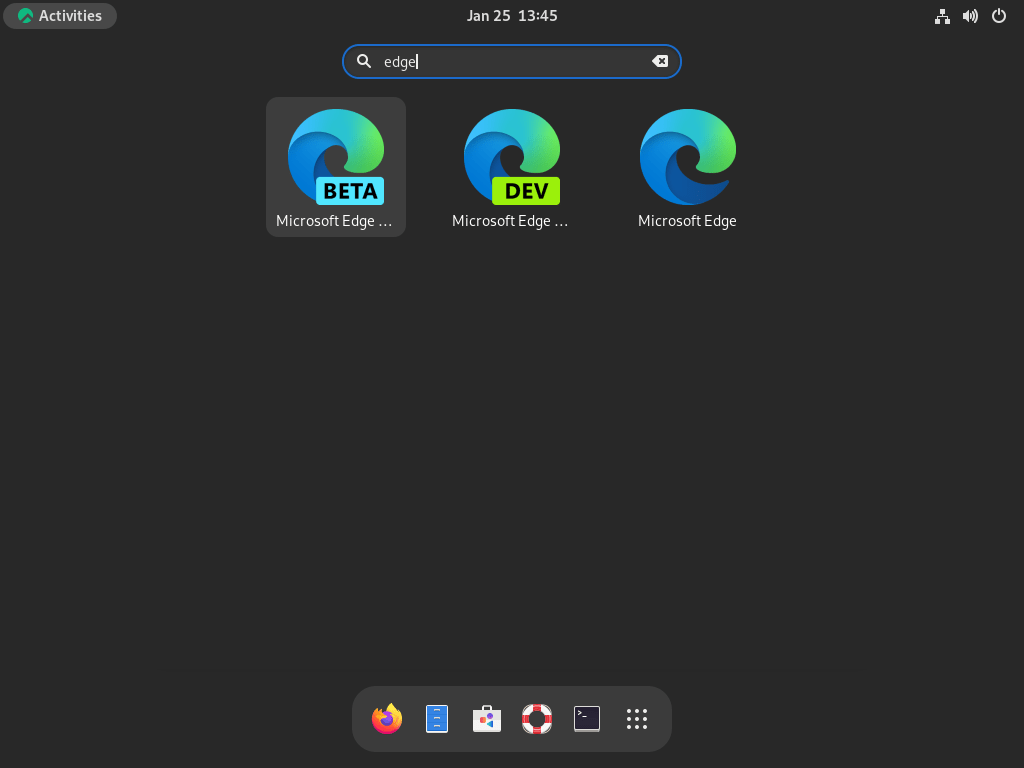
In GNOME, open Activities, search for edge, and select the Microsoft Edge launcher. Stable, beta, and dev RPM channels appear as separate launchers when you install more than one channel.
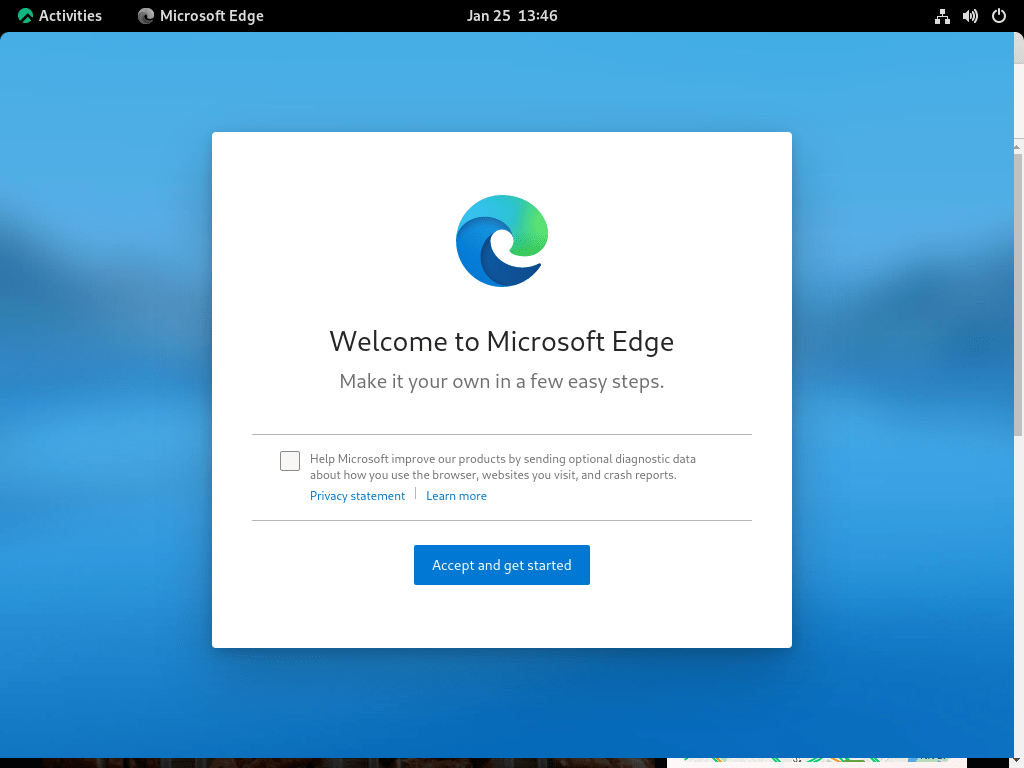
Complete the First-Run Setup
On first launch, Edge may ask about optional diagnostic data, page layout choices, and Microsoft account sign-in. You can sign in to sync favorites, passwords, and settings, or continue without signing in if you only need a local browser profile.
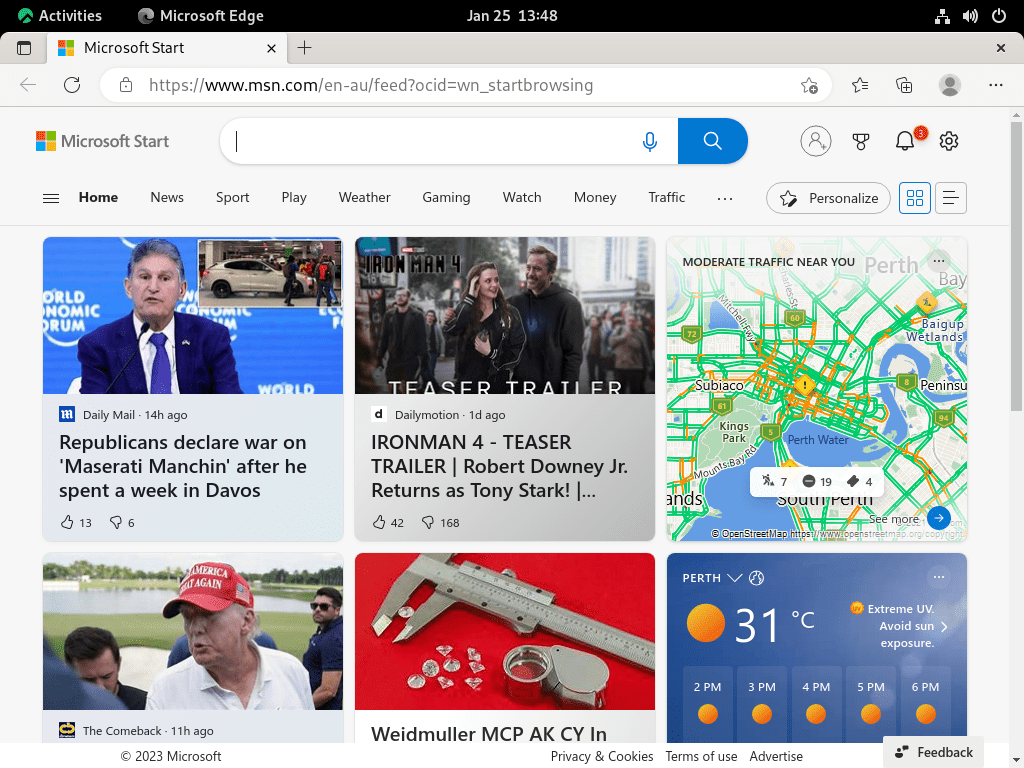
After setup, Edge opens to a normal browser window and stores profile data under the install method’s user-data path.
Update Microsoft Edge on Rocky Linux
Update the RPM Version with DNF
DNF updates Edge together with the rest of your enabled repositories:
sudo dnf upgrade --refreshIf you want to check only the Edge repository first, refresh that source directly:
sudo dnf makecache --refresh --disablerepo='*' --enablerepo=microsoft-edgeUpdate the Flatpak Version
Update the Edge Flatpak from Flathub:
sudo flatpak update com.microsoft.EdgeTo update all system-scope Flatpak apps and runtimes instead, run:
sudo flatpak updateRemove Microsoft Edge from Rocky Linux
Remove Microsoft Edge RPM Packages
Use a guarded removal command so DNF removes only the Edge RPM channels that are actually installed:
packages=(microsoft-edge-stable microsoft-edge-beta microsoft-edge-dev)
installed=()

for package in "${packages[@]}"; do
  if rpm -q "$package" > /dev/null 2>&1; then
    installed+=("$package")
  fi
done

if ((${#installed[@]})); then
  sudo dnf remove "${installed[@]}"
else
  echo "No Microsoft Edge RPM packages are installed."
fi
Verify the packages are no longer installed:
for package in microsoft-edge-stable microsoft-edge-beta microsoft-edge-dev; do
  rpm -q "$package" > /dev/null 2>&1 || echo "$package is not installed"
done
microsoft-edge-stable is not installed microsoft-edge-beta is not installed microsoft-edge-dev is not installed
If you do not plan to install Edge again, remove the repository file and confirm DNF no longer enables the source:
sudo rm -f /etc/yum.repos.d/microsoft-edge.repo
dnf repolist --enabled | grep -E '^microsoft-edge[[:space:]]' || echo "Microsoft Edge repository is not enabled"
A full trust cleanup can also remove the imported Microsoft key, but only do this after removing every Microsoft repository or package that uses the same key:
mapfile -t key_packages < <(rpm -q gpg-pubkey --qf '%{NAME}-%{VERSION}-%{RELEASE}\n' | grep -i '^gpg-pubkey-be1229cf-' || true)

if ((${#key_packages[@]})); then
  sudo rpm -e "${key_packages[@]}"
else
  echo "Microsoft Edge signing key is not installed."
fi
Remove the Microsoft Edge Flatpak
Remove the stable Edge Flatpak:
sudo flatpak uninstall com.microsoft.EdgeVerify the app ID is gone:
flatpak list --app --columns=application | grep -Fx com.microsoft.Edge || echo "com.microsoft.Edge is not installed"com.microsoft.Edge is not installed
Flatpak may also list unused runtimes after removing Edge. Review the list before confirming runtime cleanup:
sudo flatpak uninstall --unusedDelete Microsoft Edge User Data
Package removal leaves browser profiles in your home directory. Remove these paths only when you want to delete local bookmarks, passwords, cookies, extensions, history, and cached files for that Linux account.
The following commands permanently delete local Microsoft Edge profile data for your user account. Export bookmarks, passwords, or any other data you want to keep before running them.
For RPM installations, check the browser profile and cache directories first:
find "$HOME/.config" "$HOME/.cache" -maxdepth 1 -type d \( -name 'microsoft-edge' -o -name 'microsoft-edge-beta' -o -name 'microsoft-edge-dev' \) -print 2>/dev/nullIf the output lists only Edge directories you want to erase, remove them:
rm -rf ~/.config/microsoft-edge ~/.cache/microsoft-edge
rm -rf ~/.config/microsoft-edge-beta ~/.cache/microsoft-edge-beta
rm -rf ~/.config/microsoft-edge-dev ~/.cache/microsoft-edge-dev
For Flatpak installations, check the app sandbox data first. The Edge Dev path appears only on systems that previously used the old developer-channel Flatpak:
find "$HOME/.var/app" -maxdepth 1 -type d \( -name 'com.microsoft.Edge' -o -name 'com.microsoft.EdgeDev' \) -print 2>/dev/nullIf the output lists only Edge Flatpak directories you want to erase, remove them:
rm -rf ~/.var/app/com.microsoft.Edge
rm -rf ~/.var/app/com.microsoft.EdgeDev
Troubleshoot Microsoft Edge on Rocky Linux
Microsoft Edge Command Not Found
If the terminal returns this error, first confirm whether you installed the RPM or Flatpak version:
bash: microsoft-edge: command not found
For the stable RPM package, check the package and launcher symlink:
rpm -q microsoft-edge-stable > /dev/null && echo "microsoft-edge-stable is installed"
readlink -f /usr/bin/microsoft-edge
A healthy stable RPM install returns the package message and the Edge binary path:
microsoft-edge-stable is installed
/opt/microsoft/msedge/microsoft-edge
Reinstall the package if the RPM is missing or the launcher path is absent:
sudo dnf reinstall microsoft-edge-stableIf you installed the Flatpak version, launch it with the Flatpak app ID instead of the RPM command:
flatpak run com.microsoft.EdgeDNF Cannot Find Microsoft Edge Packages
If DNF cannot find microsoft-edge-stable, the Edge repository is usually missing, disabled, or unreachable:
No match for argument: microsoft-edge-stable
Error: Unable to find a match: microsoft-edge-stable
Confirm the repository file exists and is enabled:
if test -f /etc/yum.repos.d/microsoft-edge.repo; then
  echo "Repository file exists"
else
  echo "Repository file is missing"
fi

dnf repolist --enabled | grep -E '^microsoft-edge[[:space:]]' || echo "Microsoft Edge repository is not enabled"
Refresh only the Edge repository to isolate repository access from other enabled sources:
sudo dnf makecache --refresh --disablerepo='*' --enablerepo=microsoft-edgeIf the repository is missing or disabled, recreate the repo file from the RPM installation section, then run the install command again.
Rocky Linux 10 Shows a Generic Edge Icon
Rocky Linux 10 may show a generic launcher icon for the RPM build. During installation or removal, you may also see repeated scriptlet warnings like this while DNF still completes successfully:
/bin/xdg-icon-resource: line 1076: unexpected EOF while looking for matching ``'
First confirm the package installed:
rpm -q microsoft-edge-stable > /dev/null && echo "microsoft-edge-stable is installed"If the package is installed but the icon is missing, copy the bundled Edge icon into the hicolor icon theme and refresh the cache:
sudo cp /opt/microsoft/msedge/product_logo_128.png /usr/share/icons/hicolor/128x128/apps/microsoft-edge.png
sudo gtk-update-icon-cache /usr/share/icons/hicolor
Log out of GNOME and log back in so the application grid reloads the icon. Rocky Linux 9 and 8 install the hicolor icon during the normal RPM transaction.
Flatpak Permission Prompts Look Broad
Edge is a full browser, so the Flathub prompt includes network, display, audio, printing, device, and selected home-directory access. Review the current permissions before deciding whether the Flatpak method fits your desktop:
flatpak info --show-permissions com.microsoft.EdgeIf those permissions are not acceptable, remove the Flatpak build and use the Microsoft RPM repository instead.
Conclusion
Microsoft Edge is ready on Rocky Linux with DNF-managed RPM updates or the stable Flathub build, depending on the source you chose. The RPM repository remains the stronger default for stable, beta, and dev channels, while Flatpak is a separate packaging choice. For another Chromium-based option on the same distro, see how to install Google Chrome on Rocky Linux.


Formatting tips for your comment
You can use basic HTML to format your comment. Useful tags currently allowed in published comments:
<code>command</code>command<strong>bold</strong><em>italic</em><a href="https://example.com">link</a><blockquote>quote</blockquote>